Skip to Content

How to Connect Claude AI to Odoo

3 July 2026 by
How to Connect Claude AI to Odoo
Vivek Gajera

Connecting Claude AI to your Odoo ERP lets your team query, analyze, and take action on business data through natural conversation — instead of navigating menus or writing custom reports.

This guide walks you through the entire connection process using the Advanced MCP Server for Odoo by TeqStars, a native Odoo module that connects Claude DesktopClaude Code CLI, and claude.ai to your Odoo instance through the open Model Context Protocol (MCP). By the end, you'll have Claude reading and acting on your live Odoo data — securely, permission-aware, and fully audit-logged.

Why Connect Claude to Odoo? 

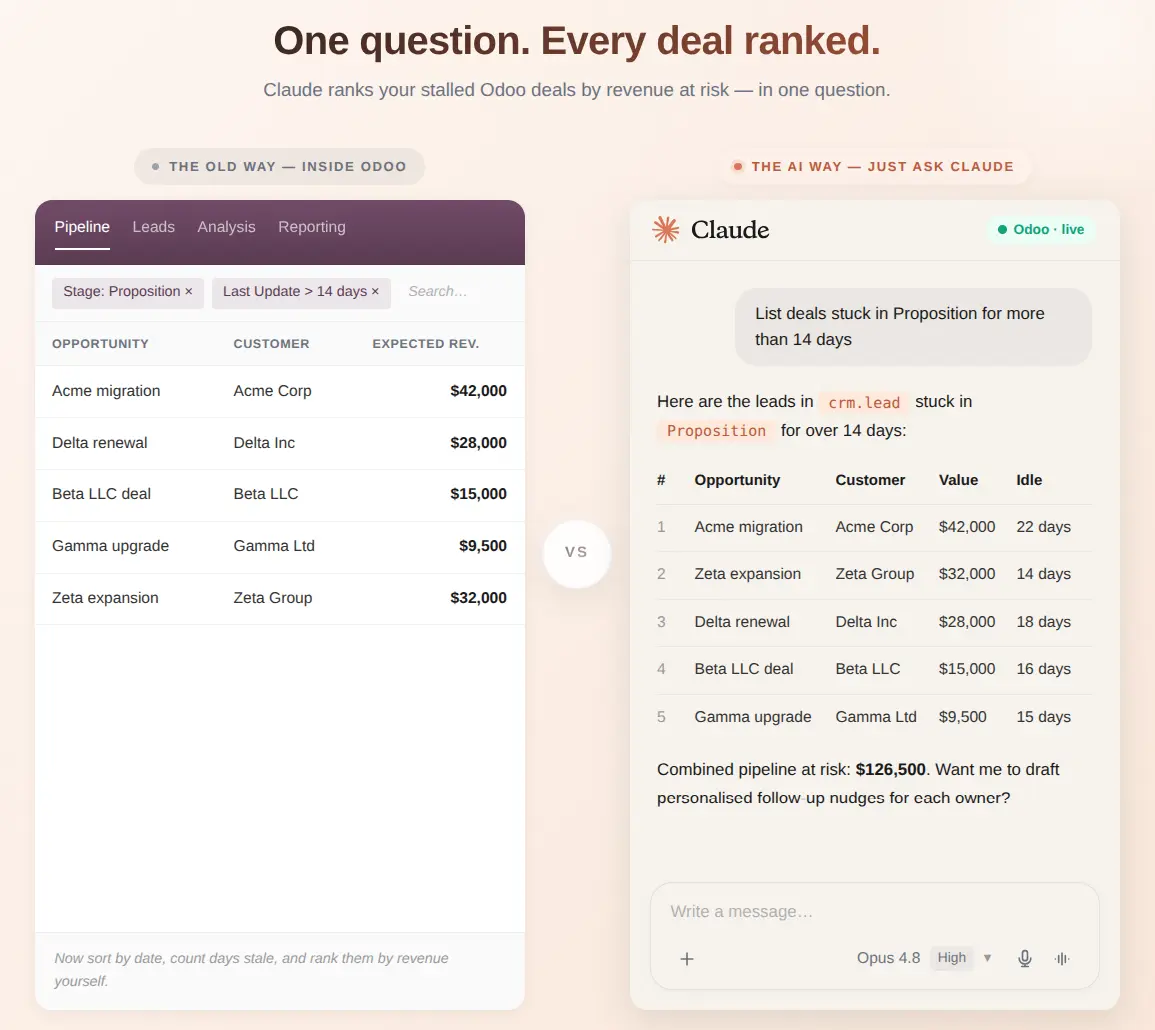
Odoo holds every piece of business data your team touches — customers, sales orders, invoices, inventory, projects, HR files, and more. Extracting insight from it usually means navigating menus, applying filters, or exporting spreadsheets. When Claude AI is connected to Odoo, that whole loop collapses into a conversation. 

 The main reasons teams connect Claude to Odoo:
  •    Ask questions in plain English and get instant answers backed by real Odoo data
  •    Generate summaries, charts, and reports without opening a report builder
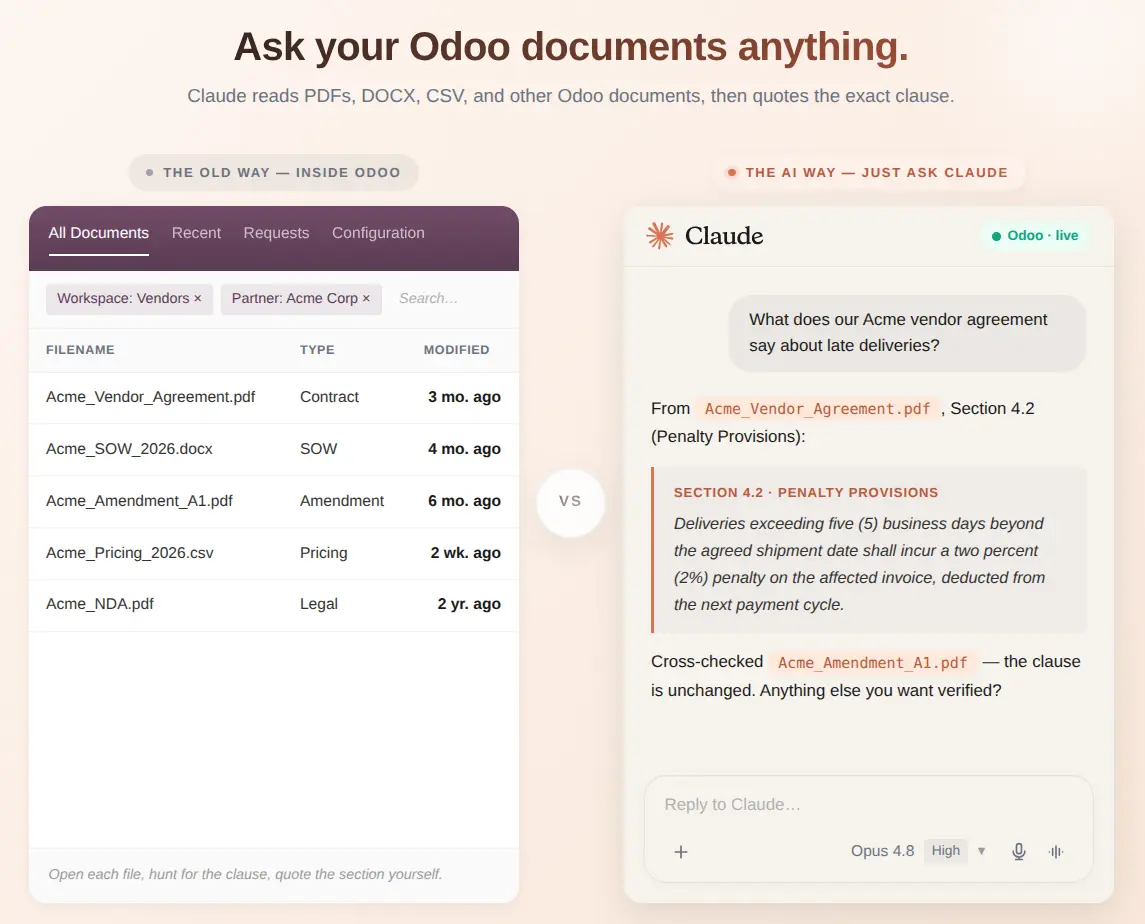
  •    Read and cite documents attached to Odoo records — Claude excels at long-form document Q&A
  •    Take safe actions (confirm orders, post invoices, schedule activities) directly from chat
  •     Set up ongoing Slack / Microsoft Teams alerts from a single sentence
  •     Keep every AI request permission-aware and fully audit-logged
Slide 1
Slide 2

How to Connect Claude to Odoo — Step-by-Step

Five steps from a fresh Odoo instance to a fully working Claude + Odoo integration. Total time: about 15 minutes.

1
Install the App & Grant MCP Administrator Access
Apps · Users & Companies
1a — Install the app
  • Odoo → Apps → search "Advanced MCP Server"Install
  • If not visible, click Update Apps List and refresh
1b — Grant MCP Administrator access

The MCP Server menu won't appear until you assign the group. Go to Settings → Users & Companies → Users, open your user, and under the Other tab set the MCP Server access level to MCP Administrator. Save, then refresh the browser.

If the menu is still missing after refresh, hard-refresh with Ctrl+Shift+R (or Cmd+Shift+R on macOS) to reload the menu cache.
2
Enable the MCP Server
MCP Server → Configuration → Server Settings

The server ships in a Disabled state and blocks every AI request until you flip it on.

  • In the top-right of the Server Settings form, click the big red Disabled stat button — it turns green Enabled
  • Once enabled, the Connect a New Tool button appears in the form header — you'll use it in Step 3
Optional — tune before you continue
  • Rate Limits — 60 req/min · 10,000 req/day (defaults)
  • Token Settings — Access 1h · Refresh 30d (OAuth 2.1 defaults)
  • Features — Dynamic Client Registration (required for claude.ai), Event Streaming, Report Generation
  • Audit — Log retention 90d; Log Payloads OFF unless debugging
3
Create a Secure Connection for Claude
Server Settings → Connect a New Tool

Click Connect a New Tool (the button that appeared in the header when you enabled the server). This launches the built-in Connect-a-Tool wizard:

  • Wizard Step 1 — Pick auth type: API key (Bearer) for Claude Desktop / Code CLI, or Browser login (OAuth) for claude.ai
  • Wizard Step 2 — Configure: name the Connection, pick the Odoo user Claude will act as, set the scope (Full · Read Only · Custom)
  • Wizard Step 3 — Done: the wizard displays the MCP Endpoint URL, the plaintext API key (shown once — copy it now), and a ready-to-paste configuration snippet for your Claude client
You can also reach the wizard from Configuration → Connections → New. After saving, open the Connection to refine Allowed Tools, Allowed Models, IP Whitelist, custom Rate Limits, and Tools Requiring Approval.
4
Connect Your Claude Client to the MCP Endpoint
Claude Desktop · Claude Code CLI · claude.ai

Pick the Claude client you're using and follow just that tab.

Open Claude Desktop → SettingsDeveloperEdit Config. Paste the JSON snippet from the wizard:

{
  "mcpServers": {
    "odoo": {
      "url": "https://your-odoo-url/odoo/mcp",
      "headers": { "Authorization": "Bearer YOUR_API_KEY" }
    }
  }
}

Save and restart Claude Desktop. Your Odoo tools appear in Claude's tool menu.

Run this one command in your terminal:

claude mcp add --transport http odoo https://your-odoo-url/odoo/mcp \
  --header "Authorization: Bearer YOUR_API_KEY"

Claude Code CLI auto-discovers all available Odoo tools on connect.

  • Sign in to claude.aiSettingsConnectors
  • Click Add Custom Connector and paste your MCP endpoint URL
  • Complete the OAuth 2.1 sign-in as the Odoo user tied to your Connection — claude.ai self-registers on first sign-in if dynamic registration is enabled (default)
5
Test Your First Query & Verify the Audit Log
MCP Server → Audit Logs

Open your Claude client and try any of these:

  • "What tools do you have available for Odoo?"
  • "How many customers do we have in Odoo?"
  • "List the 5 most recent sales orders."

Then confirm in Odoo → MCP Server → Audit Logs that the request landed. Each row shows the Connection name, tool called, timestamp, latency, and outcome.

If Claude returned real data and the request appears in the audit log — the integration is live. 🎉

Why Choose TeqStars for Your Claude + Odoo Integration?

Most AI integrations need extra servers, third-party services, or custom code — creating cost, complexity, and security risk. The TeqStars MCP module takes a different approach: one native Odoo module, one secure setup, and one place to manage every AI tool your team uses. Built by Odoo specialists at TeqStars, it's designed to bring Claude safely inside Odoo — with no external services, no dev work, and no vendor lock-in.

Supports every Claude client — Desktop, Code CLI, and claude.ai — from a single Connection model​

Both Bearer API key and OAuth 2.1 with Dynamic Client Registration

Per-connection allow-lists, IP restrictions, rate limits, and approval gates

Complete audit log of every AI action inside Odoo

Works on Odoo Community, Enterprise, and Odoo.sh

Runs entirely inside Odoo — no Node.js, no Redis, no external services

Dedicated TeqStars support and personalized onboarding


Ready to connect Claude AI to your Odoo? Get started with the Advanced MCP Server today.

   Connect with an Expert         Explore Now         Watch on YouTube         Buy Now

Start writing here...

Share this post
Archive