Click any field in Odoo and decide which roles may see it
Build Odoo access rights as roles by pointing at the screen instead of writing code. Hide a cost field, lock a posted invoice, or limit a dropdown to one team's records. Rules are checked when the record is saved, so imports and connected apps follow them too.
- Odoo 17.0 – 20.0
- Community & Enterprise
- Odoo.sh · On-premise
-
Not for
Odoo Online
Top seller on the Odoo Apps Store
- sales on the Odoo Apps Store
- 3,000+
- apps published
- 100+
- countries running them
- 100+
Odoo access rights before and after Smart Access Manager
Without the connector by hand
-
Ask a developer to write XML to hide a cost field.
-
Write record rules by hand for each team's records.
-
Open each user's form one by one to change their groups.
-
Build a spreadsheet of who has access when an auditor asks.
-
Trust that nobody edits a posted invoice.
-
Remember to check that nobody holds two conflicting jobs.
-
Archive or delete the account when someone leaves suddenly.
With the connector automatic
-
Turn on the Inspector, click the field, pick hide or read-only.
-
Draw the filter in Odoo's filter editor and pick the operations.
-
Tick several people on the Access Board and assign in one go.
-
Click Generate Now for a PDF, and a monthly pack is built for you.
-
A saved condition locks the invoice while its status is Posted.
-
Conflicting roles are refused at assignment, and a weekly check reviews users.
-
Revoke Access removes every role and ends all open sessions.
Smart Access Manager features
Click the element you want restricted
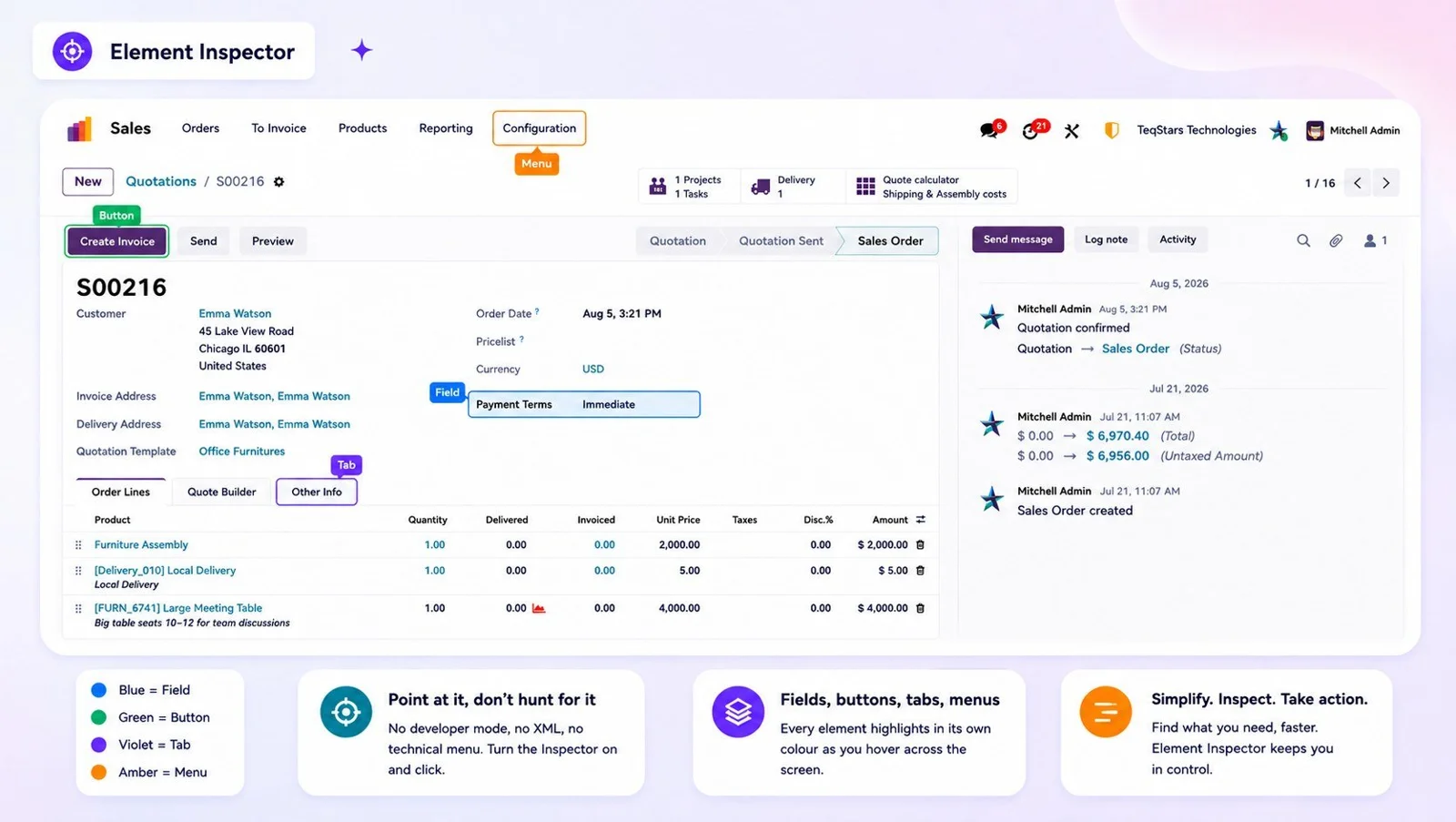
You set a restriction by clicking the thing you want to restrict. Switch the Inspector on from the top bar, then move your cursor over the screen: fields light up blue, buttons green, tabs violet and menus orange. Click one, choose the role, then choose what should happen to it. There is no developer mode and no XML to edit, and the rule applies on the next page load.
Hand out roles from one screen
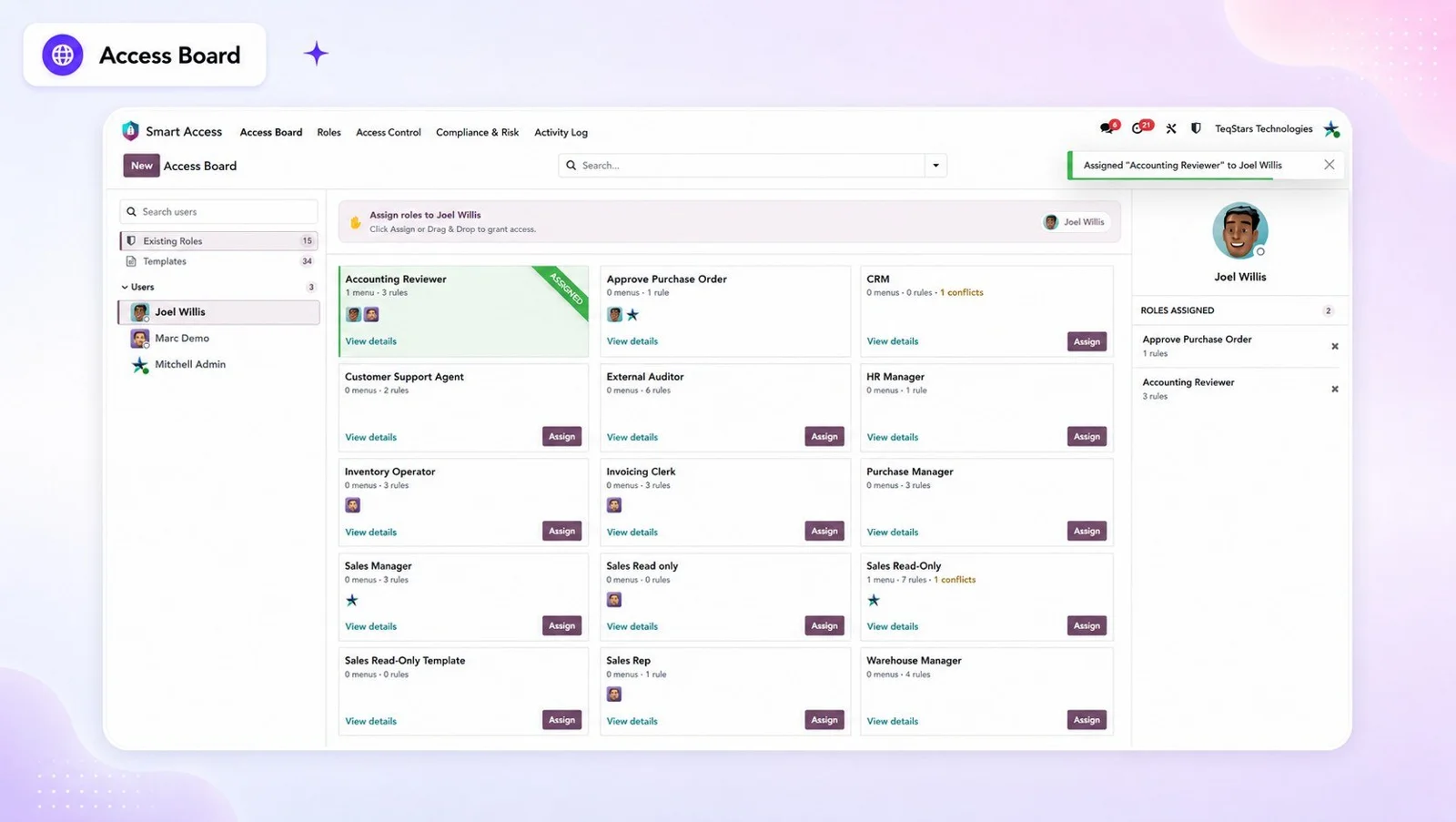
Assigning access happens on a single board instead of user by user. Every user is listed down one side and every role in the middle, so you tick several people and give them a role together. A ready-made template can be applied to a role, which then shows as APPLIED. Conflicts are flagged while you work, and roles a person holds indirectly are shown too.
Hide sensitive fields from a role
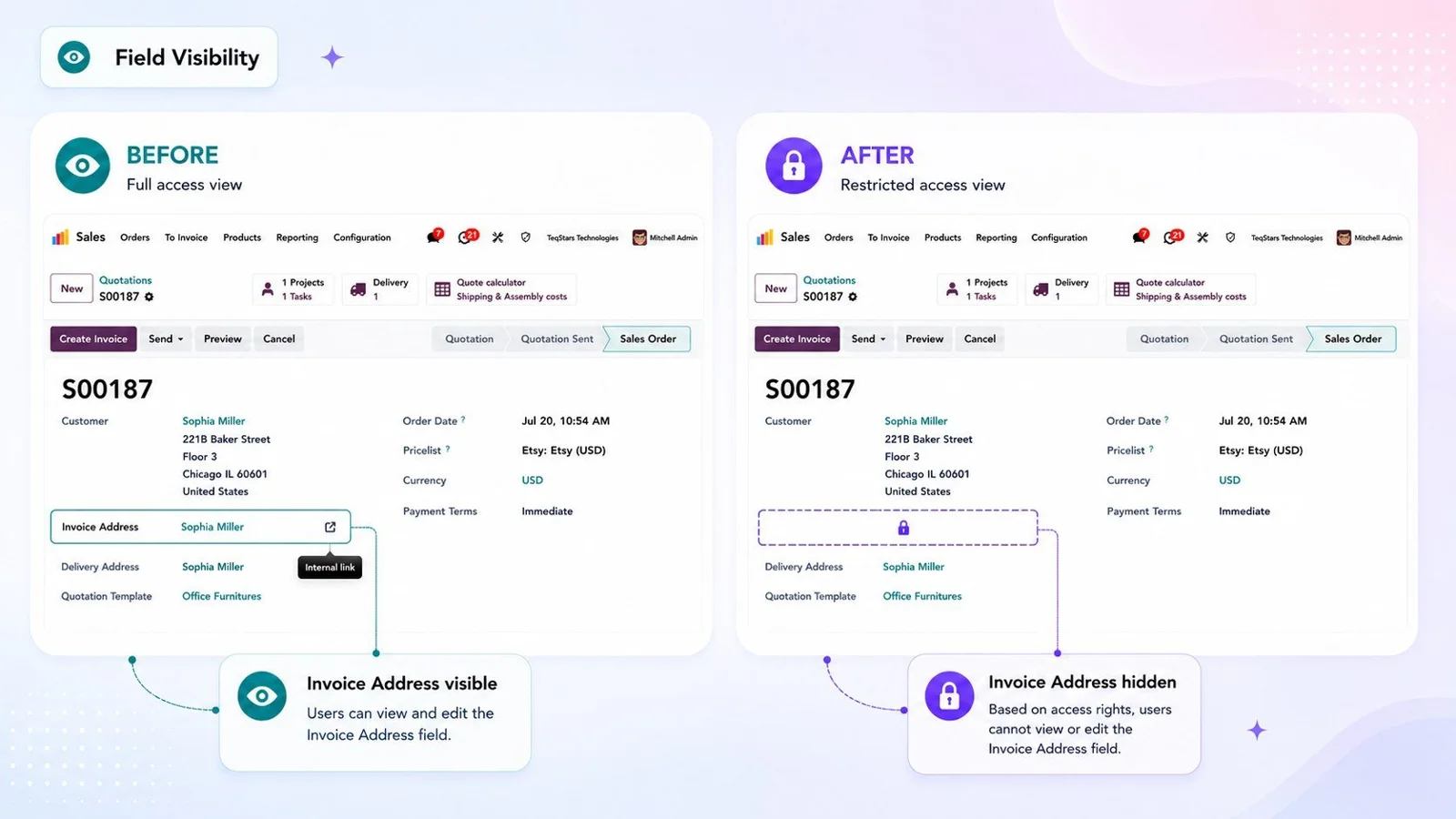
A junior salesperson can work on a quotation without ever seeing its margin. Pick the record type, select the fields and set the effect to hide. The value is removed from the data and not only from the form, so it cannot be exported, grouped or totaled, and it reads as empty through an outside connection. Filters and Group By entries that used the field go with it.
Limit what a dropdown offers
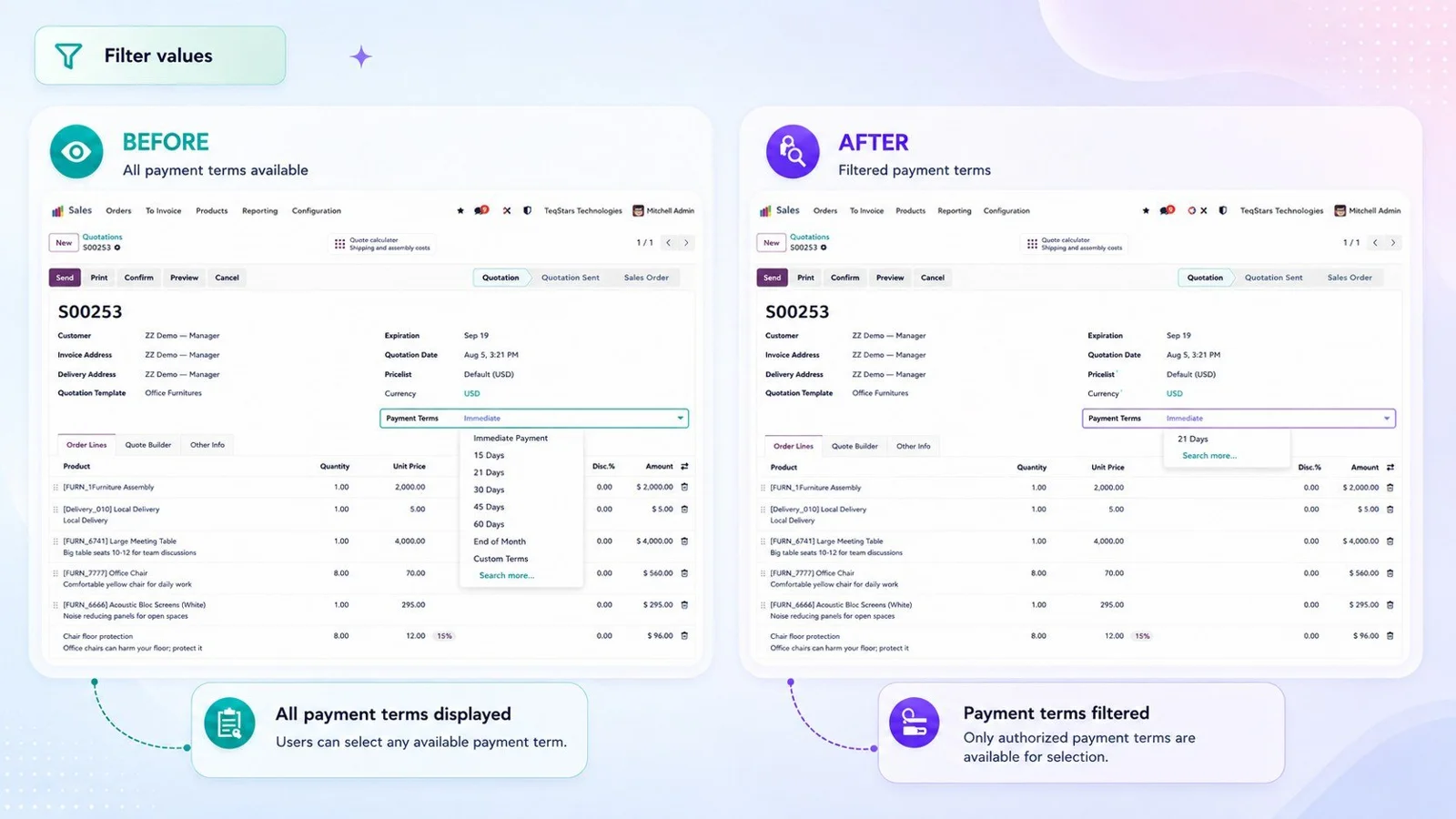
Sometimes the field is fine and only its choices are wrong. Filter Field Values narrows the records a dropdown may point at, so a salesperson picks from their own customers and an operator picks from the warehouse they were given. The condition is applied to the field's search, so people can still type in the dropdown, but records outside the allowed set never appear. Relational fields only.
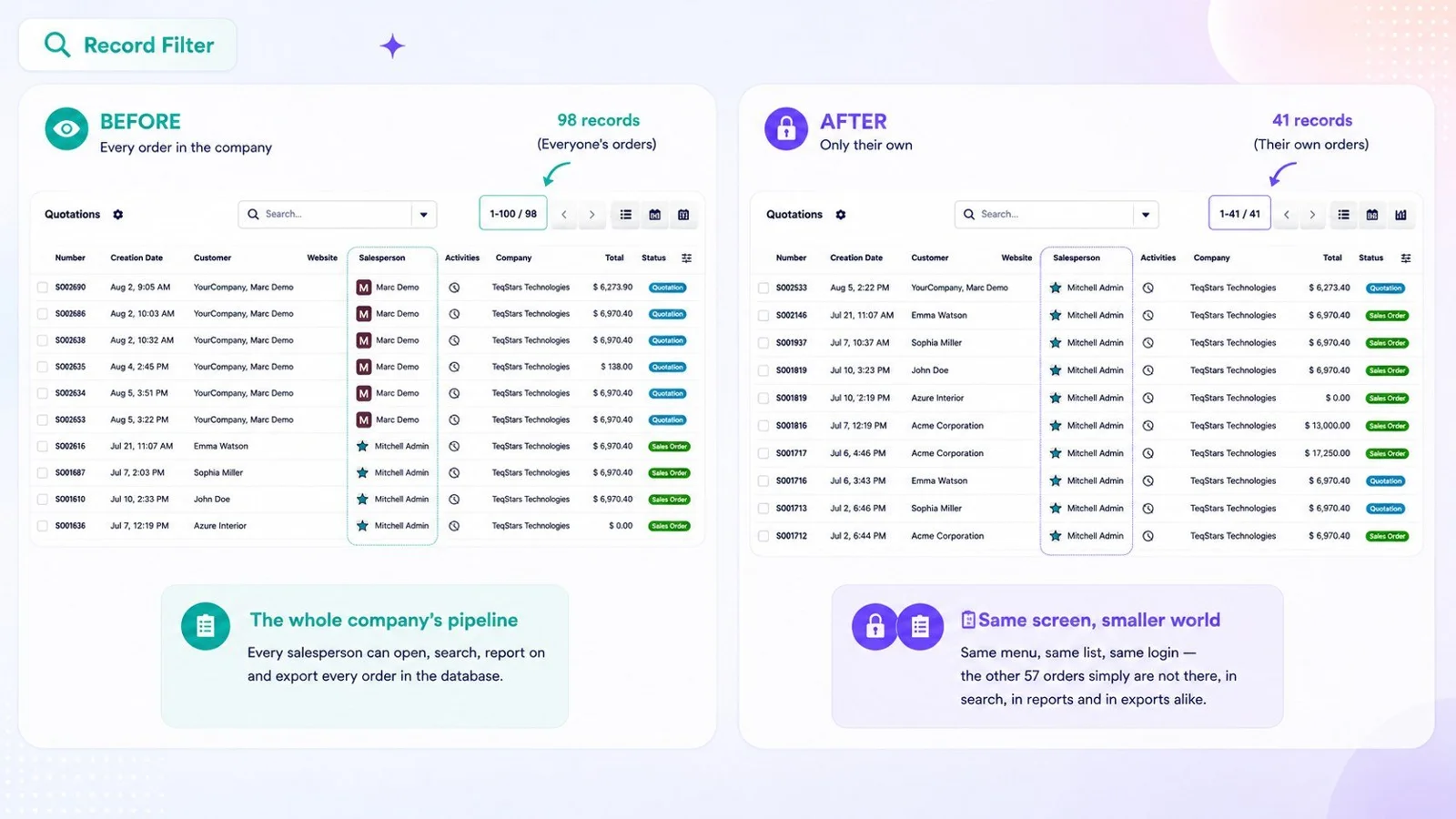
Show each role only its own records
Point a role at its own slice of the data. Draw the condition in Odoo's own filter editor, then choose whether matching records are the only ones the role sees or the ones it never sees. You also choose which operations the filter covers, so a role can read every sales order while editing only its own. Filters from several roles combine, and this only narrows access.
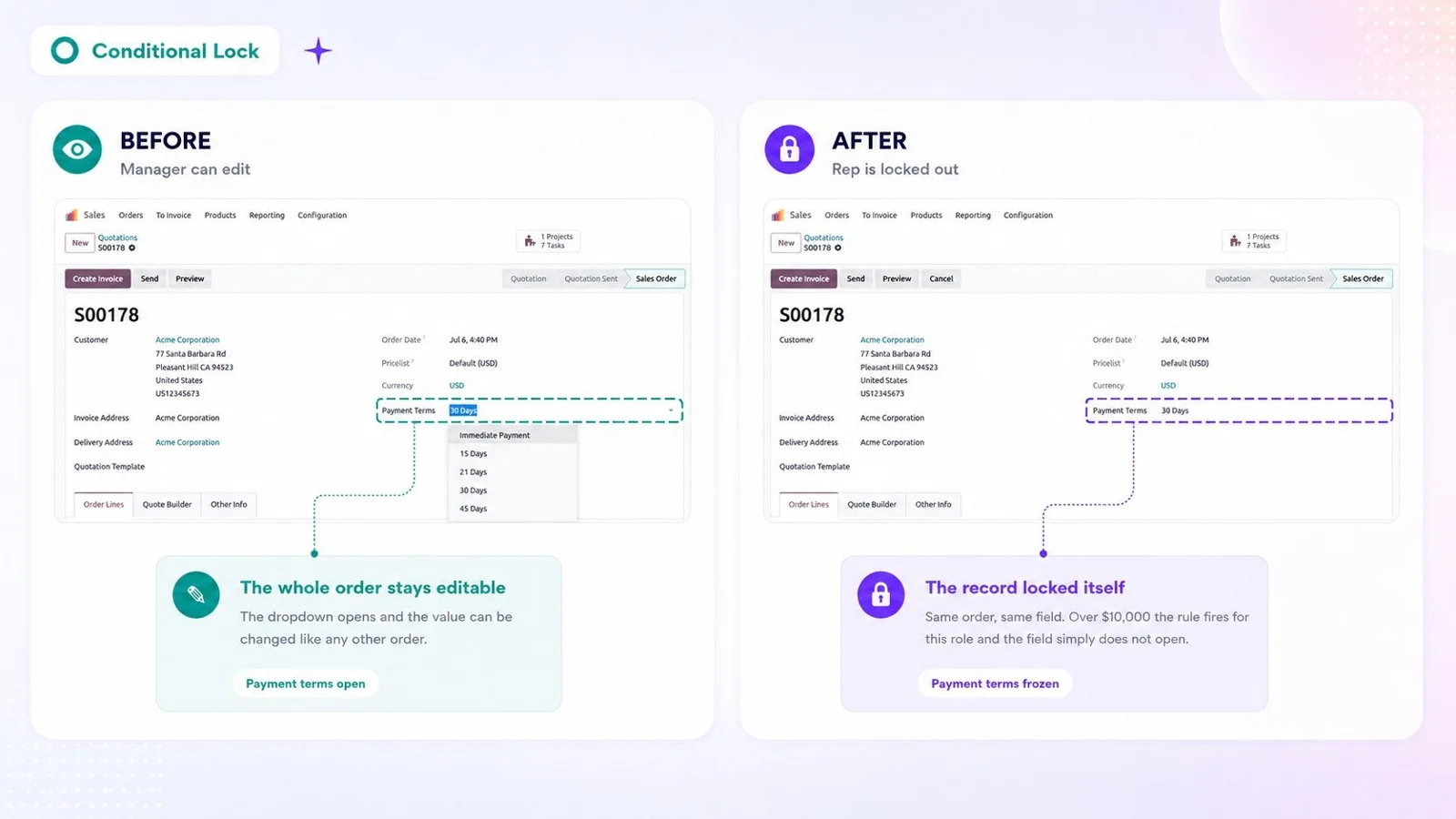
Lock records once they reach a state
Some rules belong to the record, not to the person. Write a condition such as status is Posted or total above 10,000, then say what happens while it holds: the whole record locks, only the fields you name freeze, deletion is refused, or chosen fields, buttons and tabs disappear. Each record is checked on its own, so one line in a list can be locked while the next stays editable.
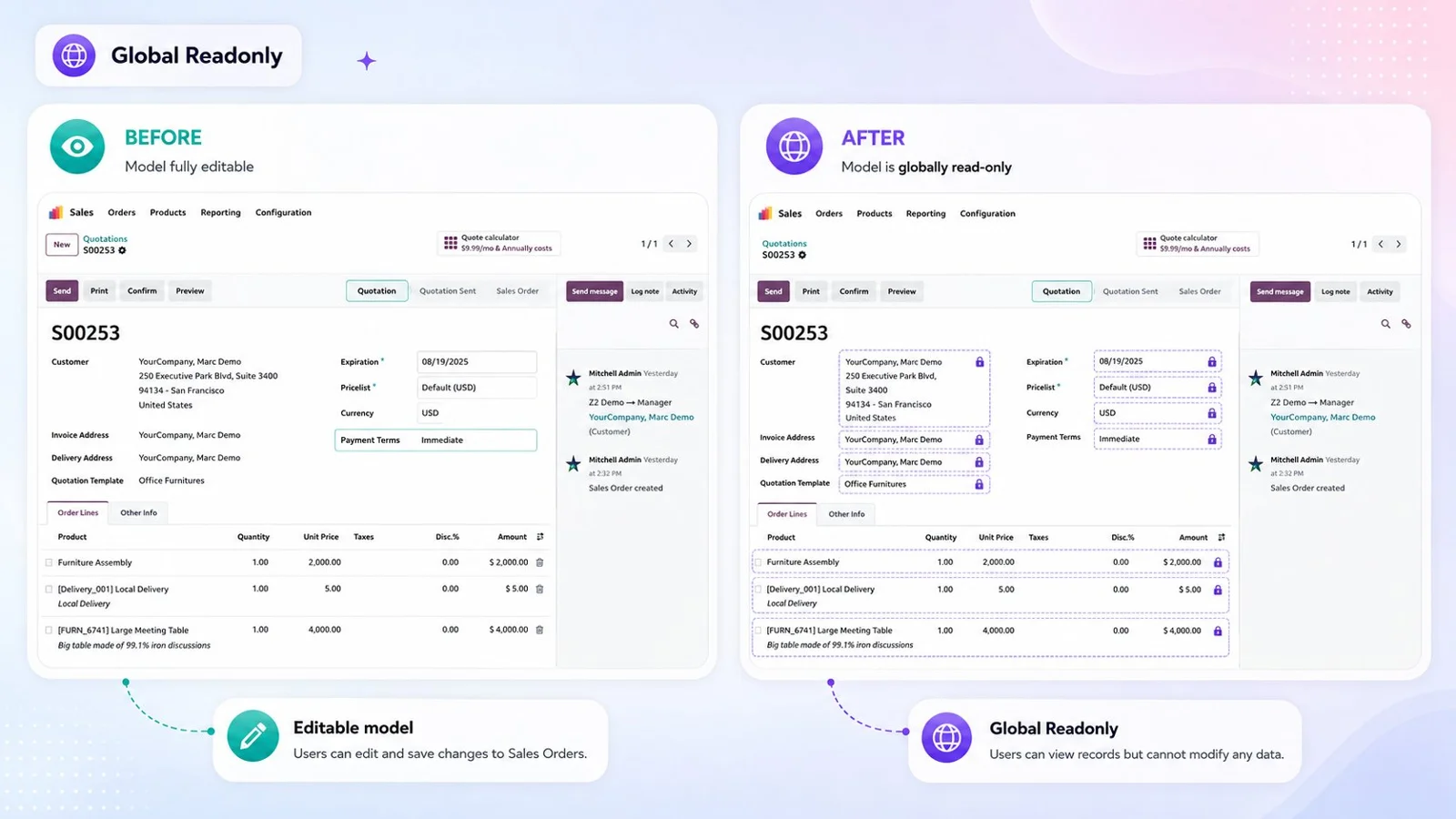
Make the whole database read-only
One switch turns Odoo view-only for a role. Users still open everything their normal rights allow, but nothing is created, changed or deleted anywhere, while their own Preferences and notifications keep working. The same screen carries database-wide blocks for export, import and archiving, plus the print menu and the spreadsheet route. A global block wins over any permission you granted on a single record type.
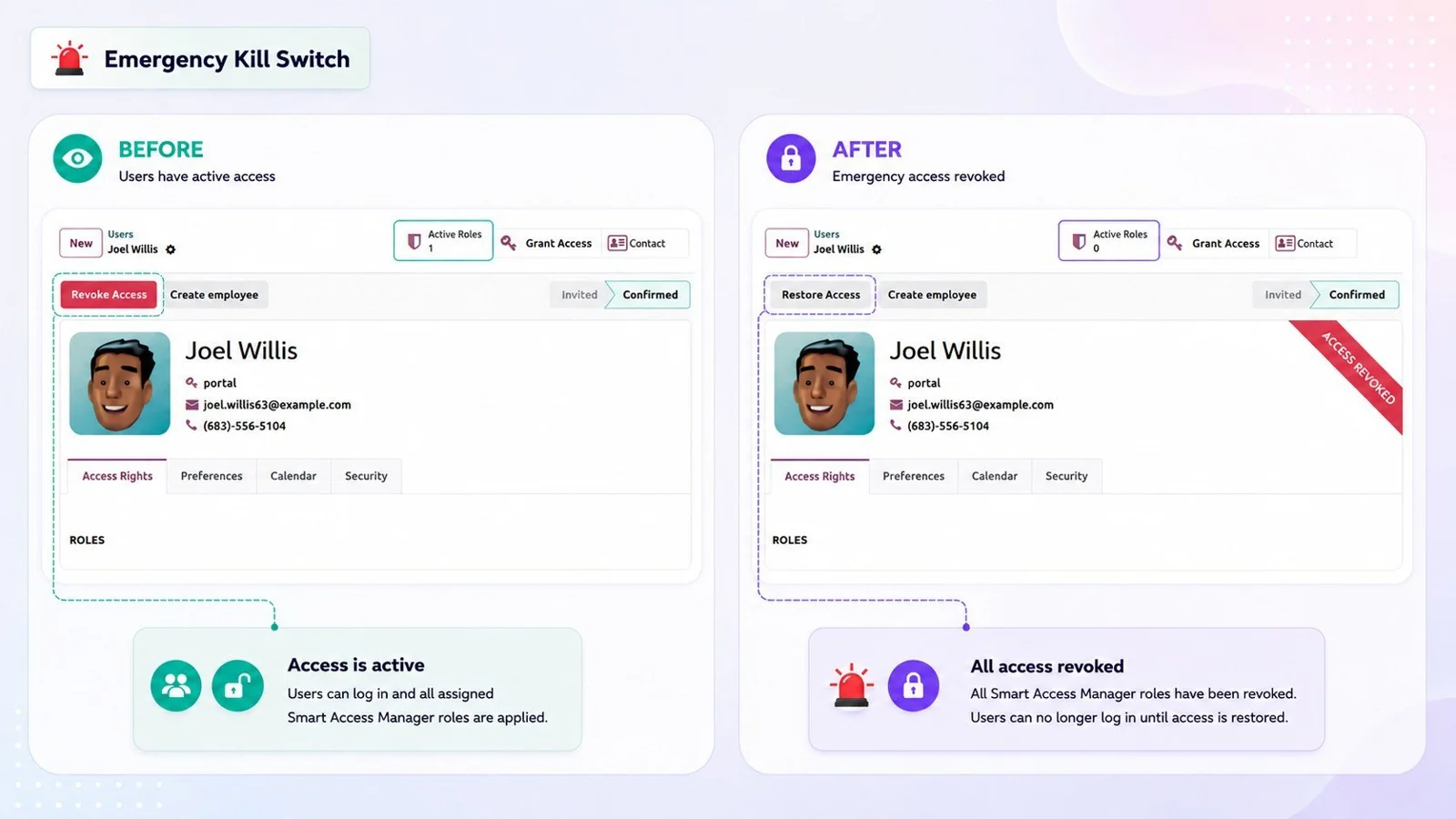
Close an account in one action
When a laptop goes missing you can shut a person out immediately. Revoke Access on the user form takes away every Smart Access role, stops them signing back in, and ends all of their open sessions. Odoo asks you to confirm first, then shows an Access Revoked ribbon on the user. Restore Access reverses it, and you assign the roles again yourself.
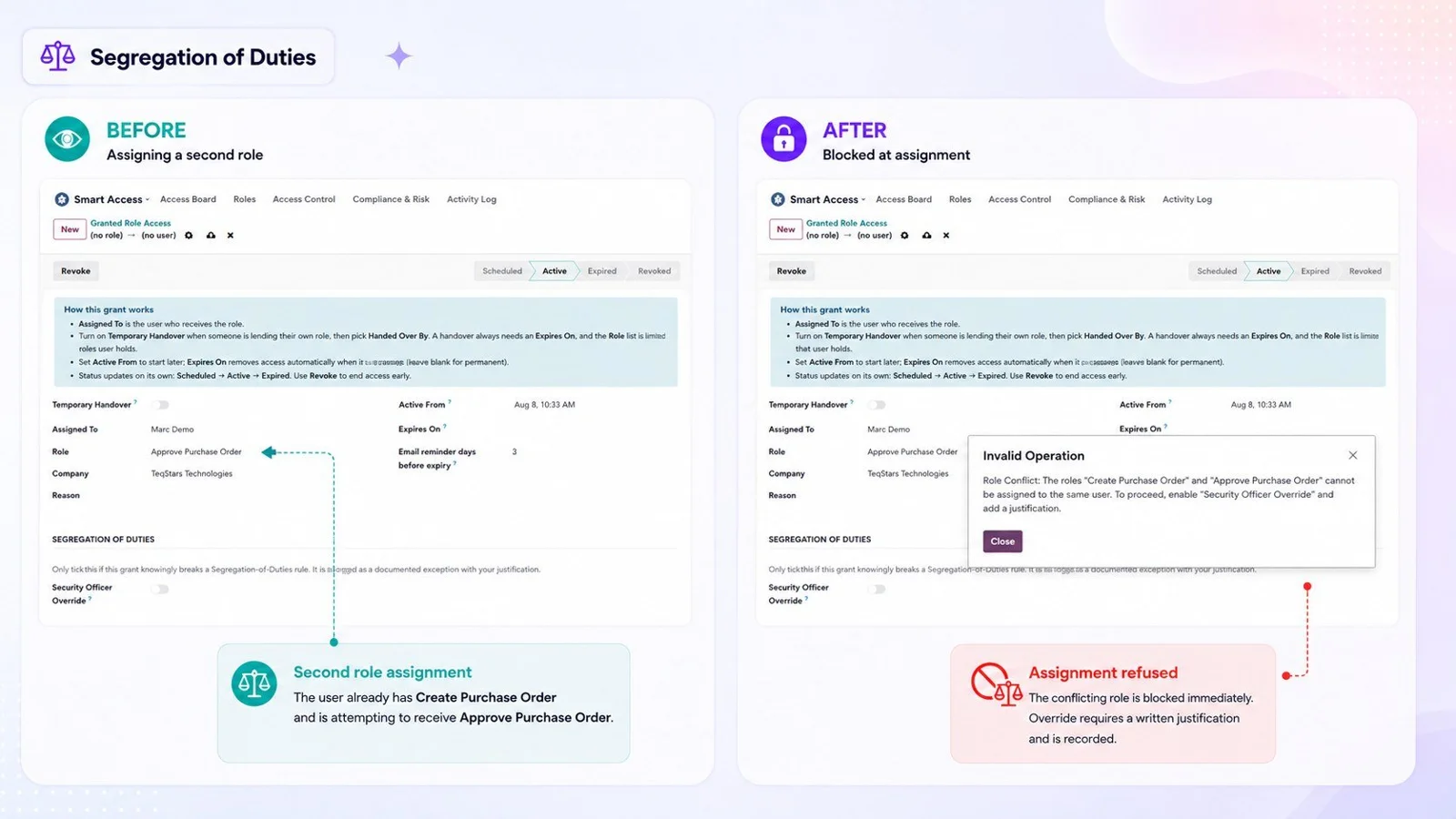
Keep conflicting duties apart
The pairs of jobs nobody should hold together are refused the moment someone tries. Name the role combinations once, for example creating a vendor and approving its payments. Assignments made from the role form, the board, a temporary grant or an approved request are then blocked, with a message naming both roles. A Security Officer can allow an exception, but only with a written justification kept beside the approval.
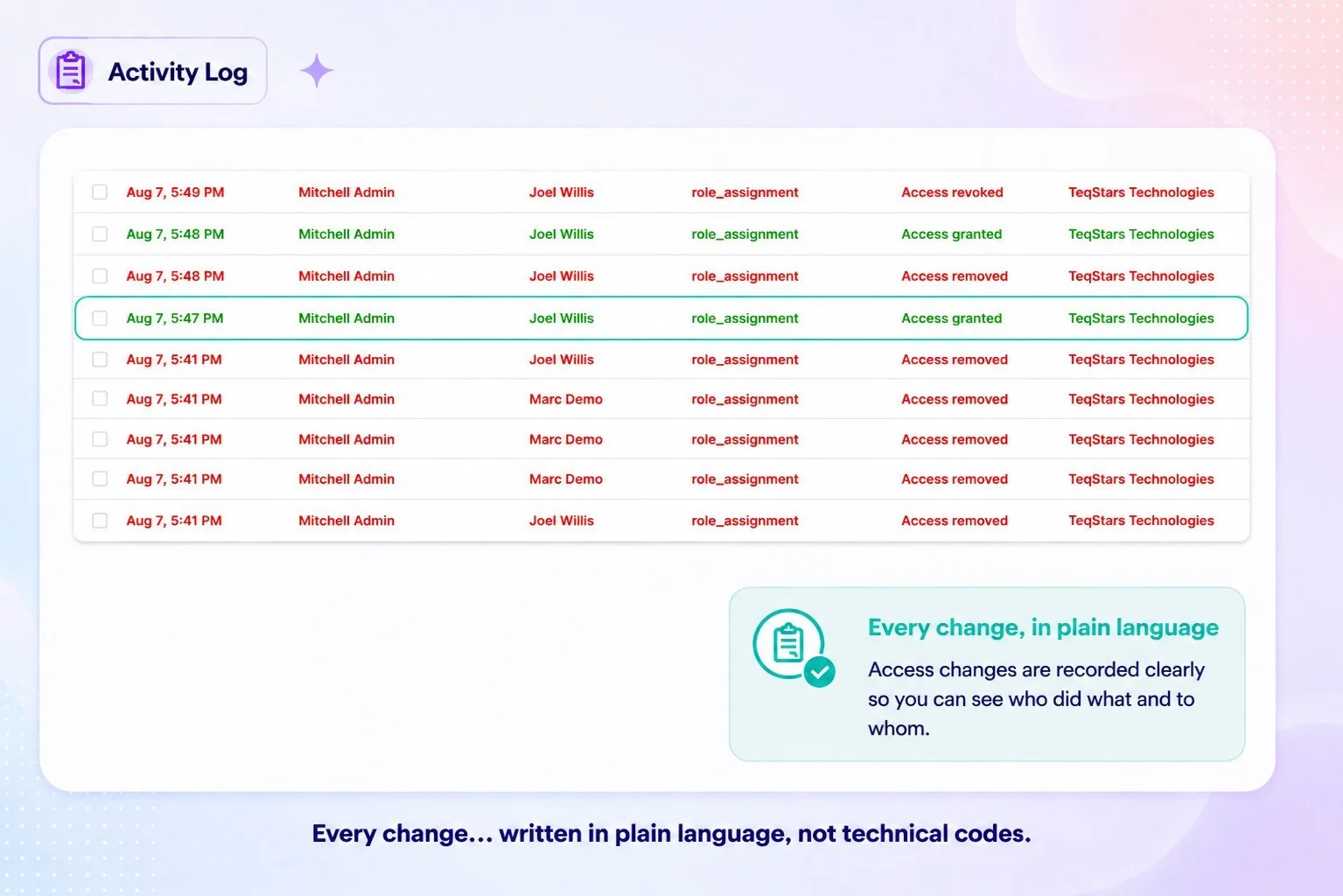
Answer auditors with plain-language records
Every access change is written down in words anyone can read: when it happened, who made it, which users and roles were touched, and what changed. From the same data a Security Officer produces PDFs such as the Access Matrix, Privileged Users or the permission change history for a chosen period. A monthly audit pack is created for the previous month without anyone asking for it.
Supported Odoo versions
| Odoo version | Editions | Hosting | Price | Latest release | |
|---|---|---|---|---|---|
| 20.0 | Community & Enterprise | Odoo.sh · On-premise | €129 | 20.0.1.0.0 | Buy Docs |
| 19.0 | Community & Enterprise | Odoo.sh · On-premise | €129 | 19.0.1.0.0 | Buy Docs |
| 18.0 | Community & Enterprise | Odoo.sh · On-premise | €129 | No release notes | Buy |
| 17.0 | Community & Enterprise | Odoo.sh · On-premise | €129 | No release notes | Buy |
Support for Smart Access Manager
The developers who build the app answer your tickets.
- Free app support from purchase
- 60 days
- First response in working hours, typical
- 4–6 hours
- Support hours, 10:00–18:00 IST
- Mon–Fri
How to set up roles and restrictions in Odoo
-
Step 1
Create a role
Add a role and give it a name your business uses, or start from one of the ready-made templates. Everything you restrict later sits in this one bundle, which you then hand to people.
-
Step 2
Set record permissions
Under Permissions, add a line per record type and tick view, edit, create or delete. Read-only covers look-only access in one click. Add a Domain Access line when the role should reach part of the records.
-
Step 3
Click what to hide
Turn on the Inspector from the top bar and click the field, button, tab or menu that should go. Choose the role and the effect, and the rule is written for you.
-
Step 4
Assign the role to people
Open the Access Board, tick the users who need the role and assign them in one go. One person's access can also be managed from their user form, including a grant that expires.
-
Step 5
Add the compliance checks
A Security Officer sets which role pairs must stay apart, reviews risk scores and alerts, and generates audit PDFs for a period. A weekly check also reviews users against those rules.
Questions before you buy
Not answered here? Talk to the team.