Sell on BigCommerce, fulfill and invoice every order in Odoo
This BigCommerce Odoo integration imports your store's orders and products, then sends stock, prices and tracking back to BigCommerce. A single order shipping to several addresses becomes one delivery per address. Connect more than one store to the same Odoo database.
- Odoo 17.0 – 20.0
- Community & Enterprise
- Odoo.sh · On-premise
-
Not for
Odoo Online
Top seller on the Odoo Apps Store
- sales on the Odoo Apps Store
- 3,000+
- apps published
- 100+
- countries running them
- 100+
Order, stock and refund work before and after the BigCommerce Connector
Without the connector by hand
-
Retype BigCommerce orders into Odoo as quotations every morning.
-
Copy billing and shipping addresses into new Odoo contacts by hand.
-
Edit stock numbers in the BigCommerce control panel after each sale.
-
Paste tracking numbers into BigCommerce one order at a time.
-
Refund twice: once in Odoo, once in the BigCommerce admin.
-
Decide order by order which invoice to raise and which payment to record.
-
Check a spreadsheet to see which store orders are still missing.
With the connector automatic
-
An order import job you switch on creates the sale orders.
-
Customers and their addresses are matched or created during order import.
-
A stock export you schedule sends quantities per mapped location.
-
Validate the delivery, then click "Update in Marketplace" to send tracking.
-
Post a credit note, click "Refund In BigCommerce", and the refund goes over.
-
The workflow for that gateway and payment status confirms, invoices and registers payment.
-
The log list shows failed lines with a retry on each one.
Orders, listings, stock and refunds between BigCommerce and Odoo
Every object the connector handles, which way it travels and what triggers it.
| Data | Direction | What happens & when |
|---|---|---|
| Orders |

 BigCommerce to Odoo
|
An import you run by date range or order ID, or the order import job |
| Customers and addresses |
BigCommerce to Odoo
|
Created or matched while each order is imported |
| Products and variants |
Both ways
|
The Import Listings or Export Listings operation you run |
| Categories and brands |
BigCommerce to Odoo
|
First confirmation of the store record, or the import operation |
| Sales channel publications |
Odoo to BigCommerce
|
Export Listings, or Publish and Unpublish on a listing |
| Stock quantities |
Both ways
|
The stock import or export job you activate, or a manual run |
| Prices |
Odoo to BigCommerce
|
The Export Prices operation, or the price export job you activate |
| Tracking and fulfillment |
Odoo to BigCommerce
|
Update in Marketplace on a validated delivery, or the tracking export job |
| Shipments |
BigCommerce to Odoo
|
Pulled in during order import to validate matching deliveries |
| Refunds |
Odoo to BigCommerce
|
Clicking Refund In BigCommerce on a posted credit note |
| Order cancellation |
Odoo to BigCommerce
|
Cancel In BigCommerce on an order already cancelled in Odoo |
| Paid status |
Odoo to BigCommerce
|
All invoices paid, then the button or a registered payment |
| Order statuses, locations, tax classes |
BigCommerce to Odoo
|
Confirming the store record in Odoo |
BigCommerce Integration features
Import BigCommerce orders into Odoo
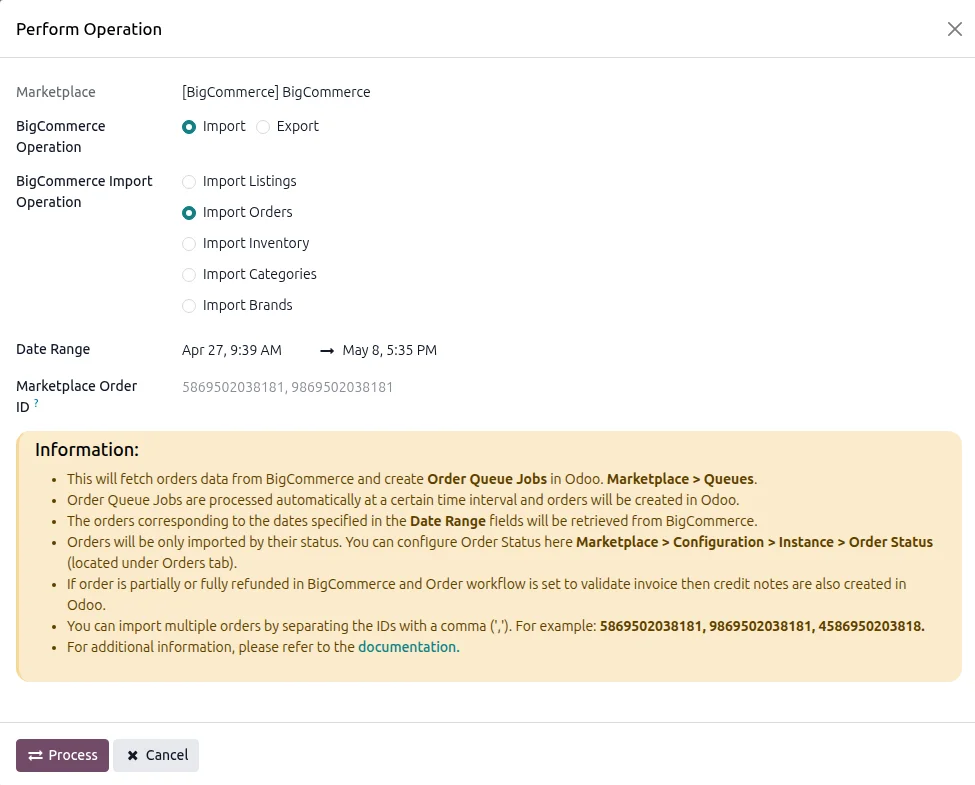
Your store's orders become Odoo sale orders with the customer, addresses, taxes and discounts already filled in. In the operations wizard choose Import, then Import Orders. A date range collects the orders into a job list that is processed for you, while a comma-separated list of order IDs brings those orders in at once and opens them on screen. The status filter on the store record decides which statuses are eligible.
Export products and pick the channels
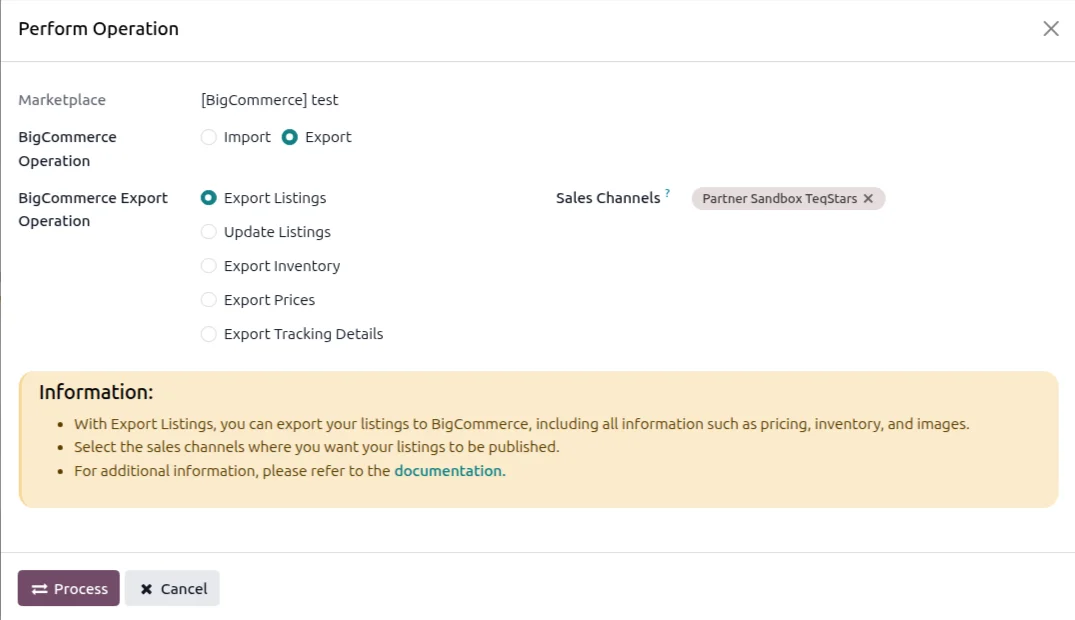
Send products from Odoo to BigCommerce and choose where shoppers see them. In the operations wizard select Export, tick Export Listings, then pick one or more sales channels. Every listing of that store not yet exported is created in BigCommerce with its images, prices and stock, then published to the channels you selected. Categories and brand go across too, and Odoo variants become BigCommerce options and variants.
Publish or unpublish a listing per channel
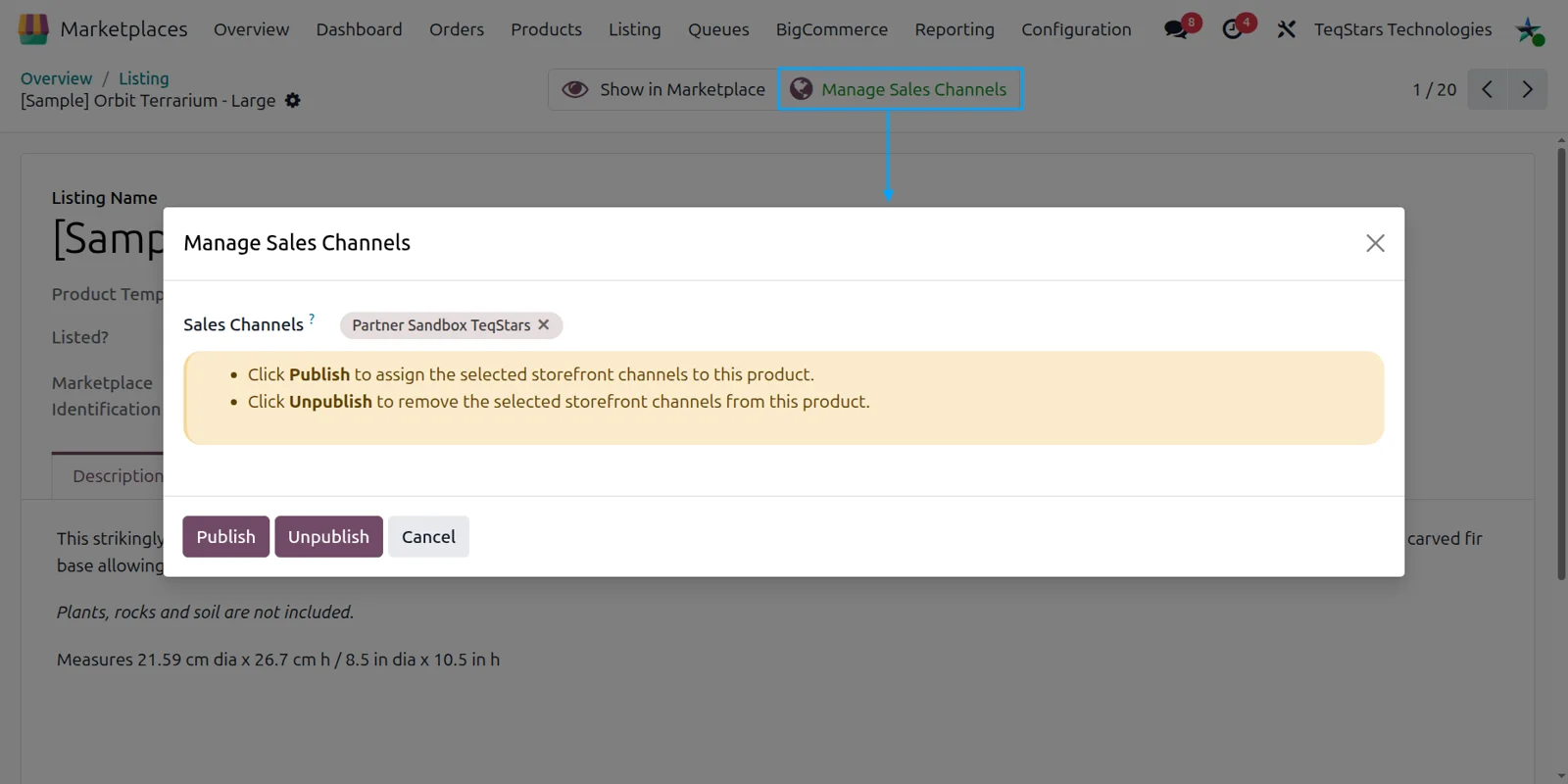
Change where an existing product is sold without disturbing the rest. Open the listing from the All Listing menu and click Manage Sales Channels. Select the channels you want, then choose Publish or Unpublish. Publish adds those channels and leaves every other assignment in place, and Unpublish removes only the ones you ticked. The channels themselves come into Odoo the first time you confirm the store record.
Map each store location to a warehouse
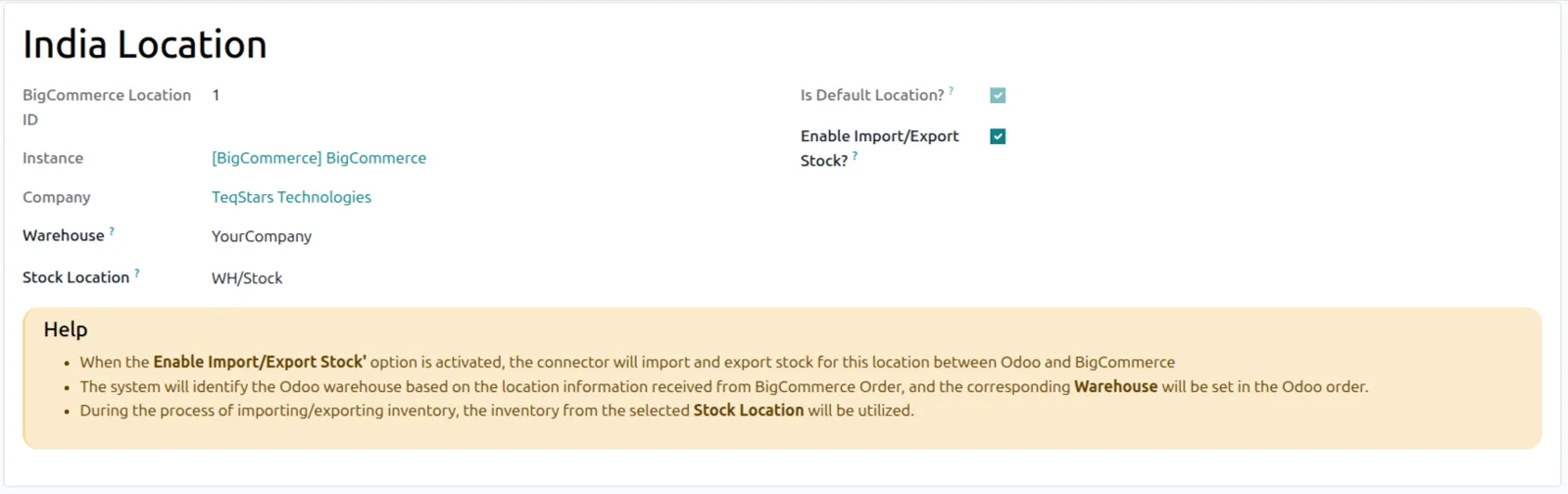
Each BigCommerce location gets its own quantity from the Odoo warehouse you map to it, rather than one global number for the whole store. In the connector's Locations list, link a BigCommerce location to an Odoo warehouse and stock location. The Import and Export Stock toggles on each row let you keep a third-party fulfillment site or a test location out of the sync.
Invoice and pay by payment status
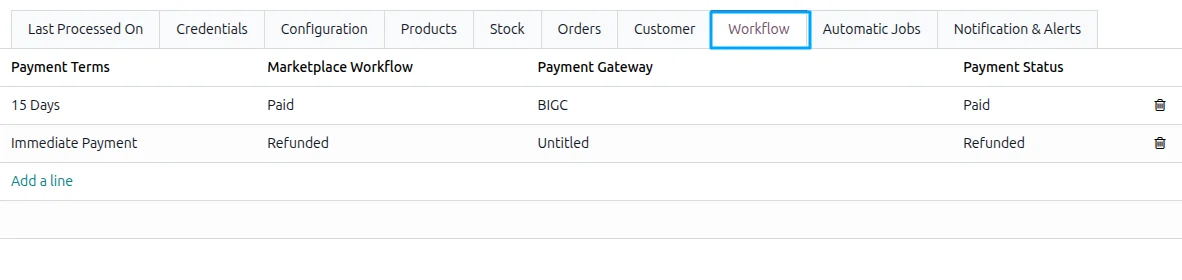
Imported orders follow rules you set for how the customer paid. On the Workflow tab, every pairing of a BigCommerce payment gateway and payment status gets its own line: confirm the sale order, create the invoice, validate it, register the payment. So Paid, Pending and Held for Review can each behave differently. A gateway with no line stops that order, and the log entry offers Configure Workflow.
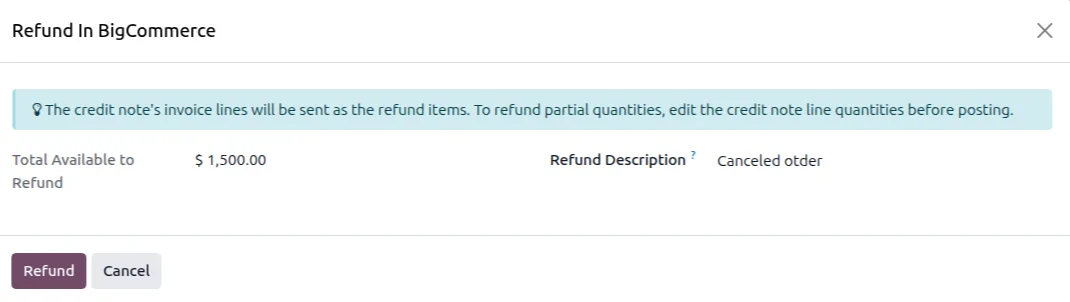
Push full or partial refunds to BigCommerce
Refund a shopper from the credit note your accounting team already posts in Odoo. Reverse the original invoice, trim the line quantities for a partial refund, post it, then click Refund In BigCommerce and type a description. The connector asks BigCommerce to work out the total from those lines, taxes included, and records the refund on the credit note and in the order chatter. Shipping lines are left out.
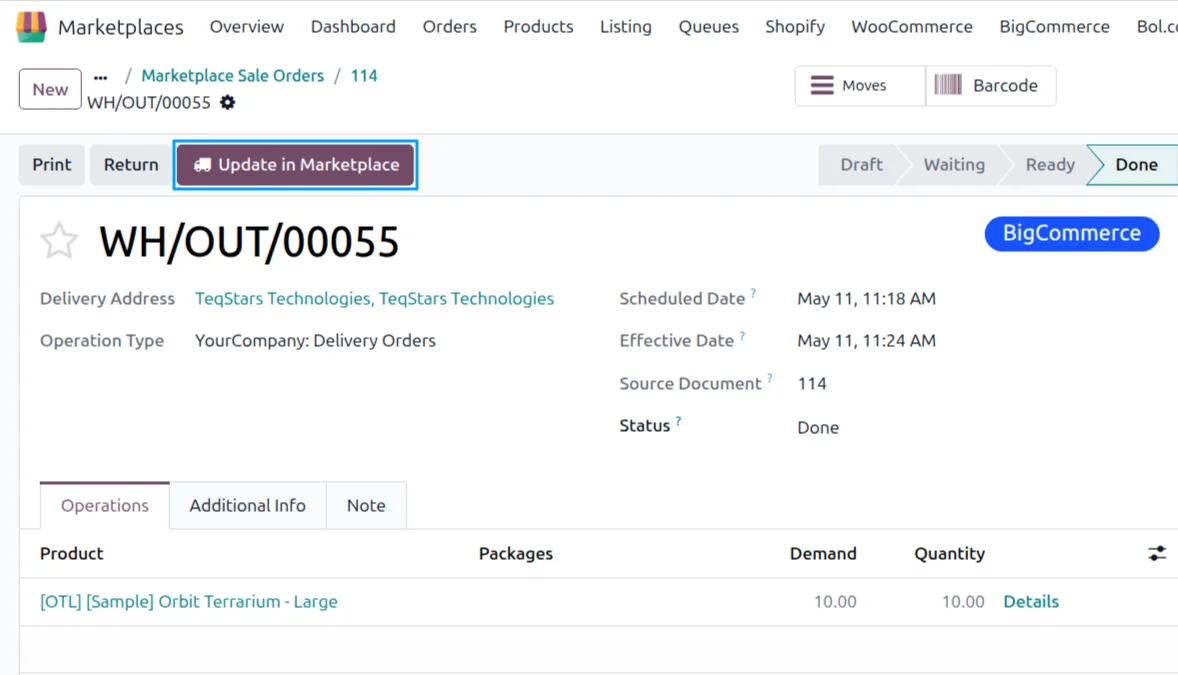
Send tracking from the delivery order
Shoppers see the shipment in BigCommerce once your warehouse ships it. Set the Tracking Reference on the delivery order and validate it, then click Update in Marketplace to create the shipment in BigCommerce with the carrier code and tracking number. A tracking export job you switch on does the same for every validated delivery not yet sent. Once all deliveries of an order are sent, it shows Shipped.
Supported Odoo versions
| Odoo version | Editions | Hosting | Price | Latest release | |
|---|---|---|---|---|---|
| 20.0 | Community & Enterprise | Odoo.sh · On-premise | €169 | 20.0.1.0.0 | Buy Docs |
| 19.0 | Community & Enterprise | Odoo.sh · On-premise | €169 | 19.0.1.0.1 | Buy Docs |
| 18.0 | Community & Enterprise | Odoo.sh · On-premise | €169 | No release notes | Buy |
| 17.0 | Community & Enterprise | Odoo.sh · On-premise | €169 | No release notes | Buy |
Support for BigCommerce Connector
The developers who build the app answer your tickets.
- Free app support from purchase
- 60 days
- First response in working hours, typical
- 4–6 hours
- Support hours, 10:00–18:00 IST
- Mon–Fri
How to connect BigCommerce to Odoo
-
Step 1
Get your store credentials
In the BigCommerce control panel, create a Store API Account and set each scope to modify. Copy the Access Token it issues, and read the Store Hash out of your admin address. Odoo needs both values.
-
Step 2
Install and confirm the store
Install BigCommerce Connector from the Apps menu, then add a store record under Marketplaces, Configuration, Instance. Paste the Store Hash and Access Token, run "Test Connection", and click "Confirm" to pull in order statuses, categories, brands and more.
-
Step 3
Set locations and payment rules
Decide where stock comes from and what each payment means. Link every BigCommerce location to an Odoo warehouse and stock location, with the stock toggles per row. Then add a workflow line for each payment gateway and status pair.
-
Step 4
Run the first sync
Bring your catalog in from the operations wizard with Import Listings, by date range or by product ID, then import orders the same way. On the Automatic Jobs tab, switch on the imports and exports you want and set their intervals.
Questions before you buy
Not answered here? Talk to the team.