Blue Dart labels and tracking numbers on your Odoo delivery orders
This Blue Dart Odoo integration sends the shipment to Blue Dart when you validate a delivery order, then shows the tracking number and label in Odoo. Your team picks a domestic or international Blue Dart method on the sale order, the website or the delivery itself.
- Odoo 17.0 – 20.0
- Community & Enterprise
- Odoo.sh · On-premise
-
Not for
Odoo Online
Top seller on the Odoo Apps Store
- sales on the Odoo Apps Store
- 3,000+
- apps published
- 100+
- countries running them
- 100+
Blue Dart shipping work before and after this connector
Without the connector by hand
-
Retype the order address into a Blue Dart screen for every parcel.
-
Download the label from the carrier and attach it to the order by hand.
-
Copy tracking numbers back into Odoo one delivery at a time.
-
Open the carrier's tracking page to answer a customer's question.
-
Ask the carrier separately to stop a shipment you booked by mistake.
With the connector automatic
-
Validating the delivery order sends the shipment details to Blue Dart.
-
The shipping label comes back on the delivery order, ready for your packer to print.
-
The tracking number is written on the same delivery order as the label.
-
You track the shipment from the delivery order and Odoo shows Blue Dart's status.
-
One click on the delivery order cancels the Blue Dart shipment.
Shipments, labels and tracking between Odoo and Blue Dart
Every object the connector handles, which way it travels and what triggers it.
| Data | Direction | What happens & when |
|---|---|---|
| Shipment booking |

 Odoo to Blue Dart
|
When you validate the delivery order in Odoo. |
| Package details |
Odoo to Blue Dart
|
Sent with the booking when you used Put in Pack first. |
| Shipping label |
Blue Dart to Odoo
|
Returned on the delivery order once the shipment is booked. |
| Tracking number |
Blue Dart to Odoo
|
Written on the delivery order together with the label. |
| Shipment status and location |
Blue Dart to Odoo
|
When you track the shipment from the delivery order. |
| Cancellation request |
Odoo to Blue Dart
|
When you cancel the Blue Dart shipment in one click. |
Blue Dart Odoo Shipping Connector features
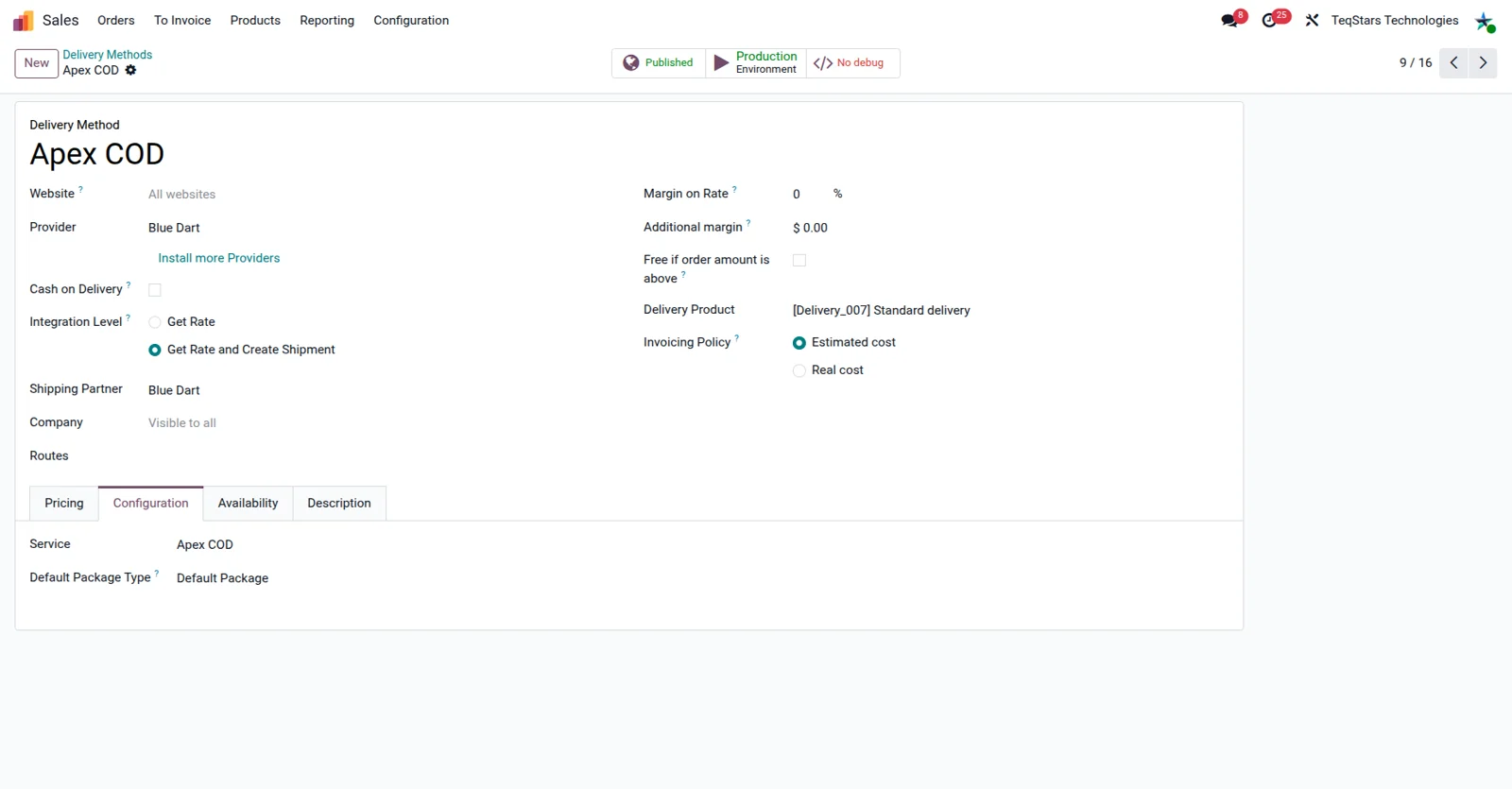
Set up domestic and international Blue Dart methods
Your team only sees the Blue Dart services you want them to use. On the delivery method form you add Blue Dart as the shipping provider, and you can keep one method for domestic parcels and a separate one for international shipments. If your business books under more than one Blue Dart account, each account can be configured in the same Odoo database.
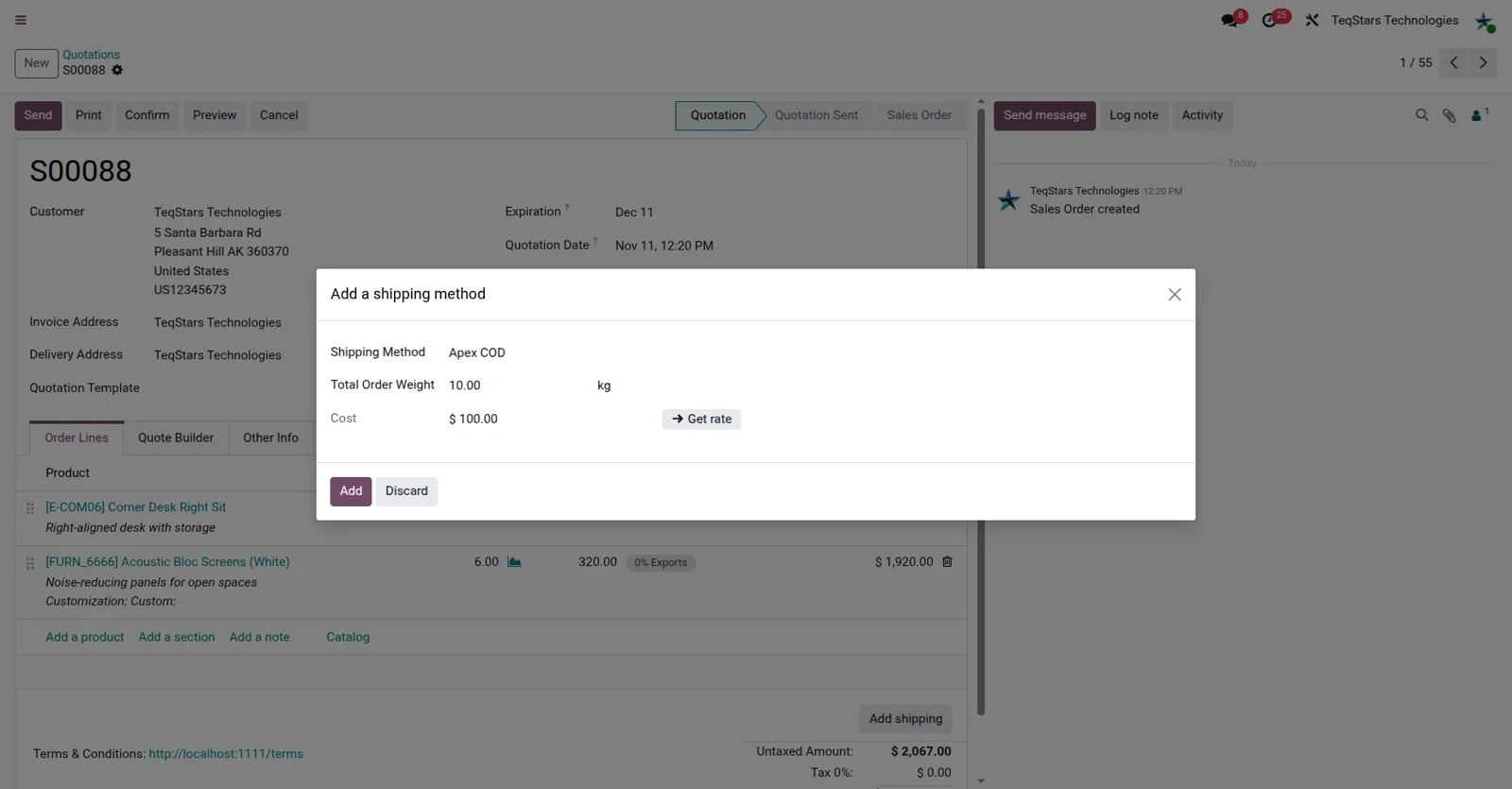
Choose Blue Dart on the sale order
Shipping is settled while the order is still with sales. Someone picks the Blue Dart delivery method on the sale order, and that choice follows the order through to the delivery your warehouse works from. You can also set or change the Blue Dart method on the delivery order, which helps when the warehouse decides how a box actually goes out.
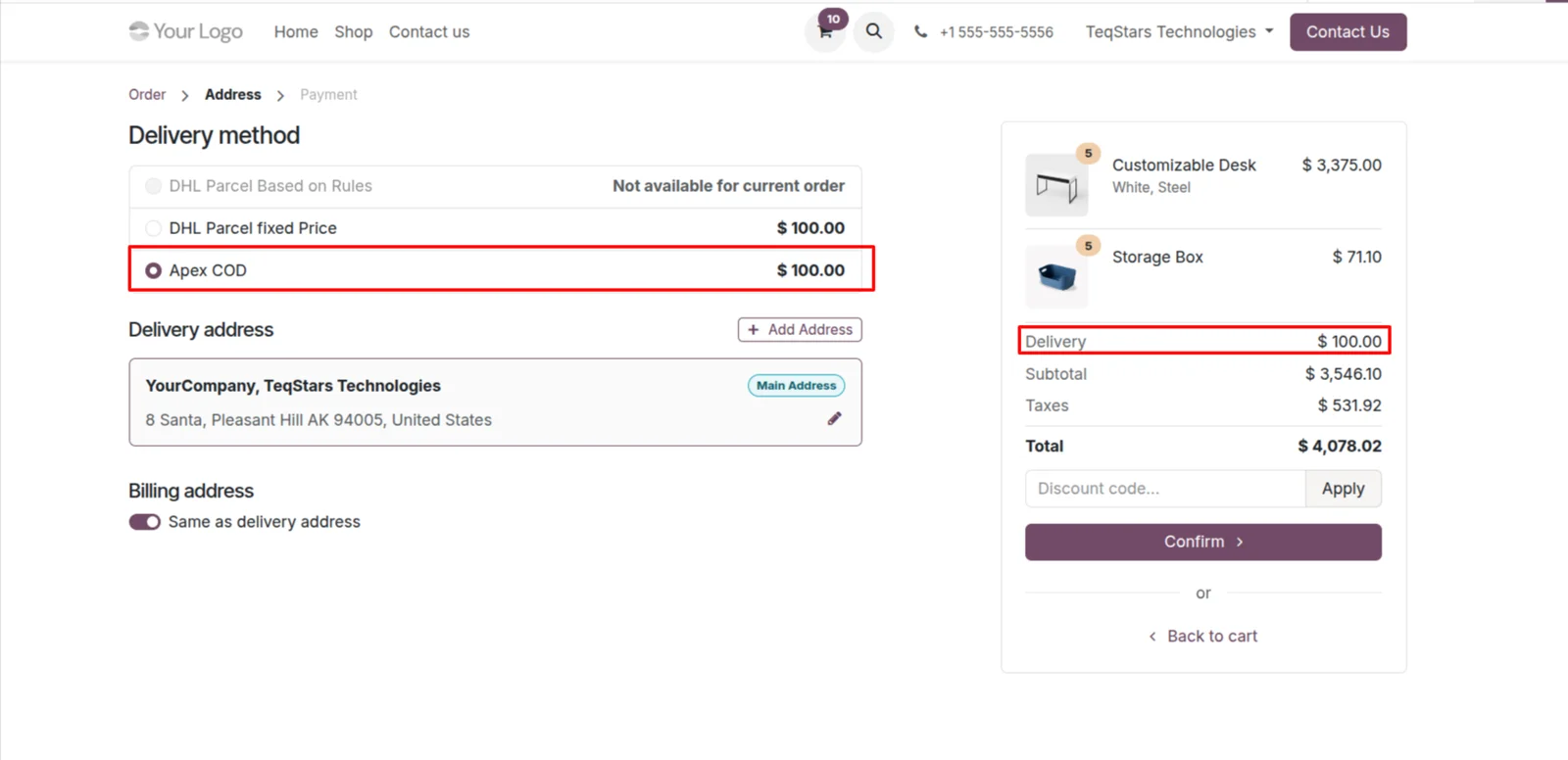
Offer Blue Dart shipping on your website
Online buyers choose Blue Dart themselves. Once a Blue Dart delivery method is available on your website, it shows up among the shipping options on the order a customer places, so the choice is plain before they pay. The method the shopper picked is the one your warehouse then sees on the delivery order for that sale.
Book several packages with Put in Pack
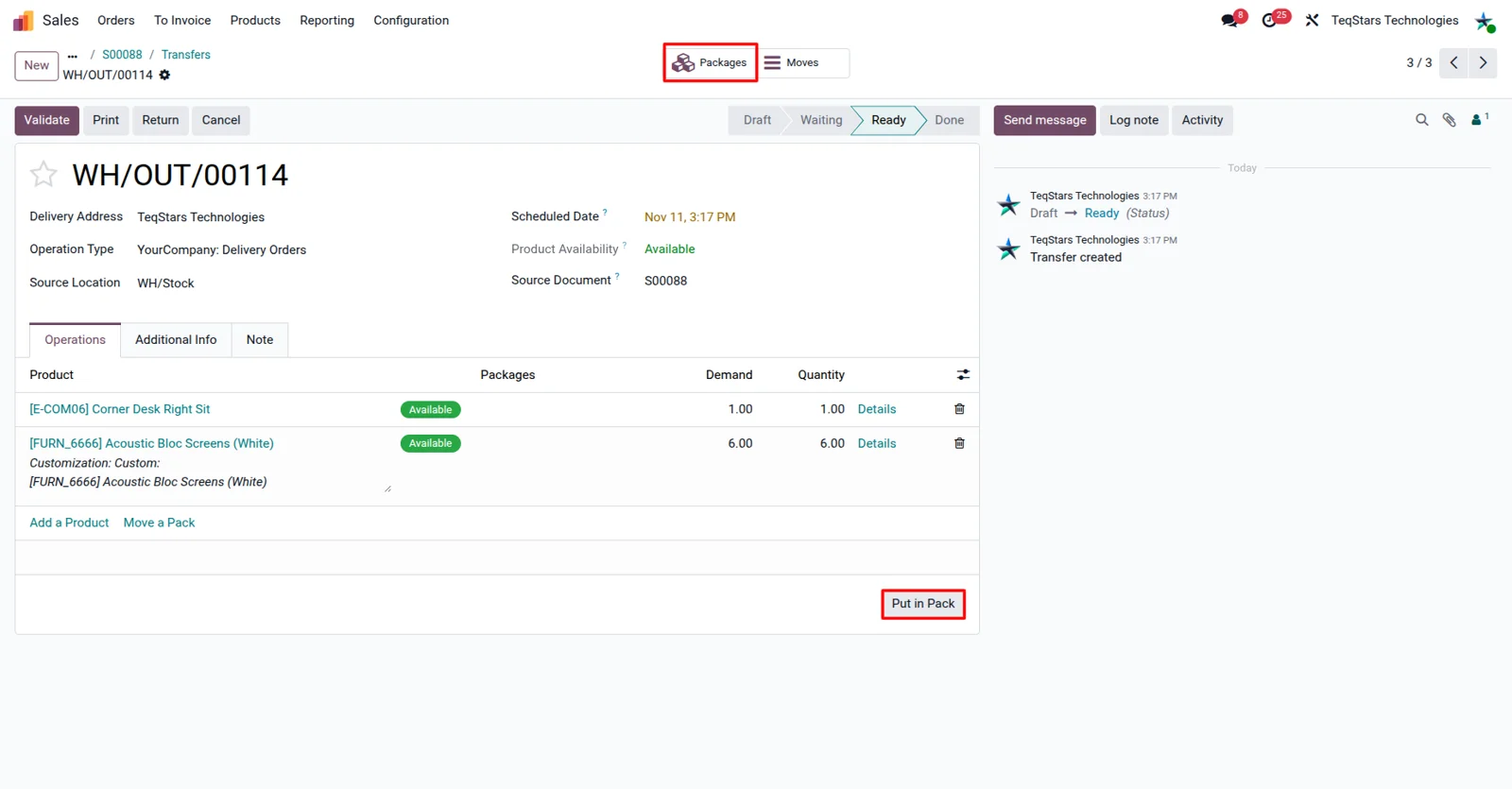
A delivery that leaves in more than one box is booked correctly. Before validating, your packer uses Odoo's Put in Pack operation to split the delivery into packages and fills in the details for each one. Blue Dart then receives the shipment with those packages, so every box in the consignment is accounted for.
Get the label and tracking number on validation
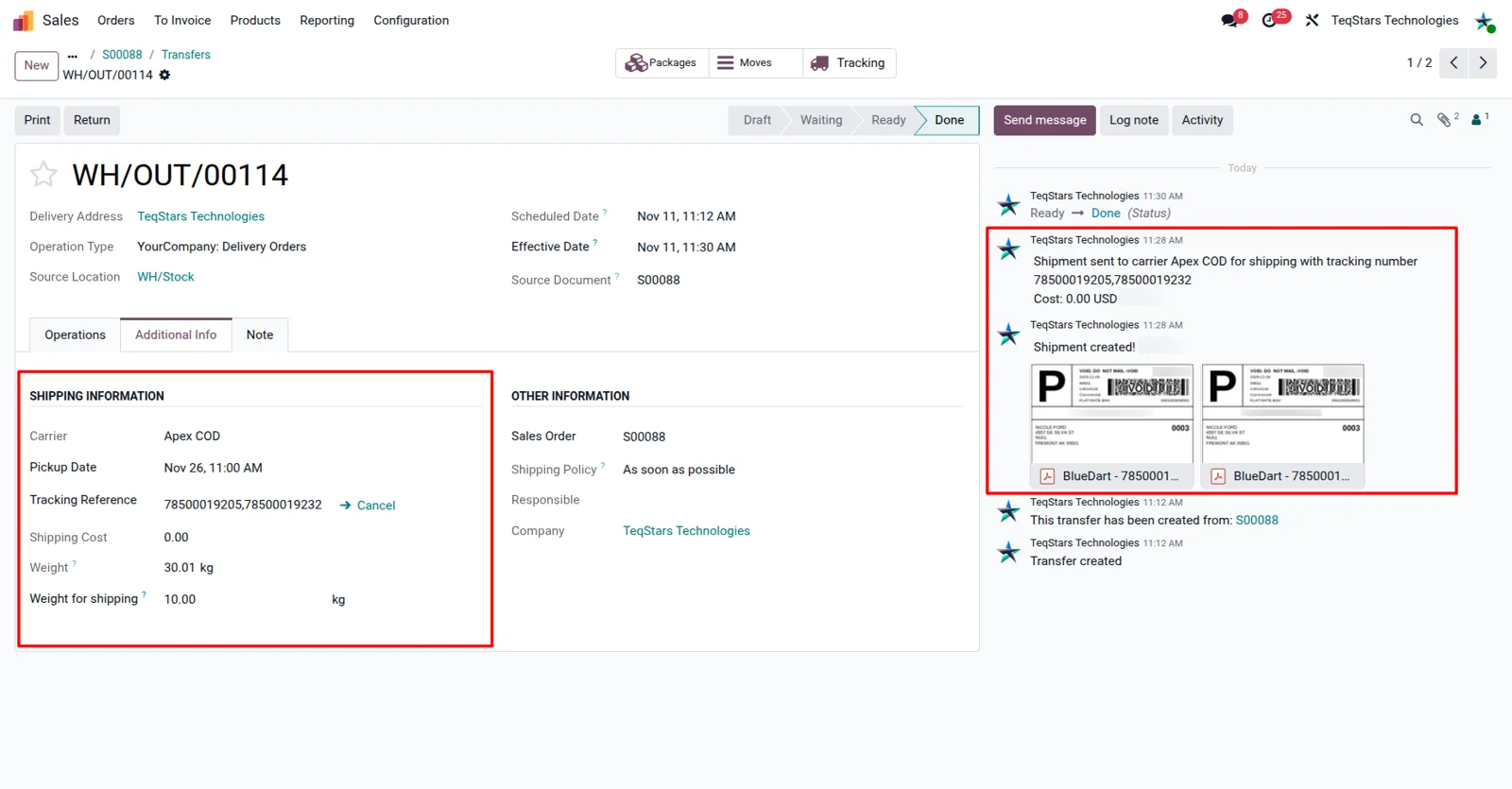
The shipping label and the tracking number appear on the delivery order when you validate it. Validating sends the shipment to Blue Dart, and the connector writes the tracking number back on that same delivery order along with the generated label. Your packer prints it and the parcel is ready for pickup, with nothing retyped into a carrier screen.
Track a booked shipment from the delivery
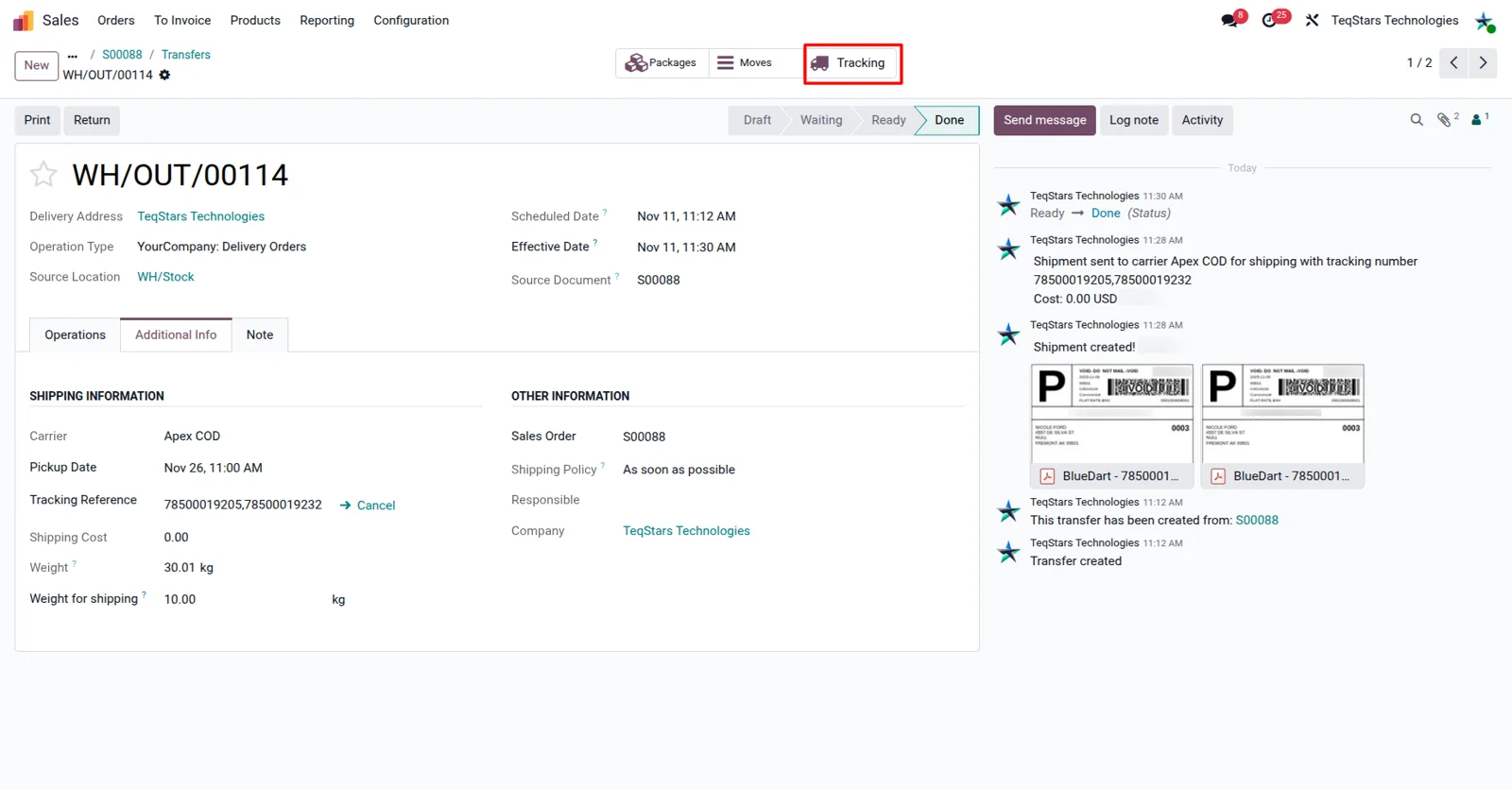
You can answer where is my order without opening the carrier's site. The connector asks Blue Dart for the current status and location of a booked shipment and shows that tracking detail in Odoo. Your support team reads it next to the delivery and the customer it belongs to, so there is no guessing about which parcel is which.
Cancel a Blue Dart shipment in one click
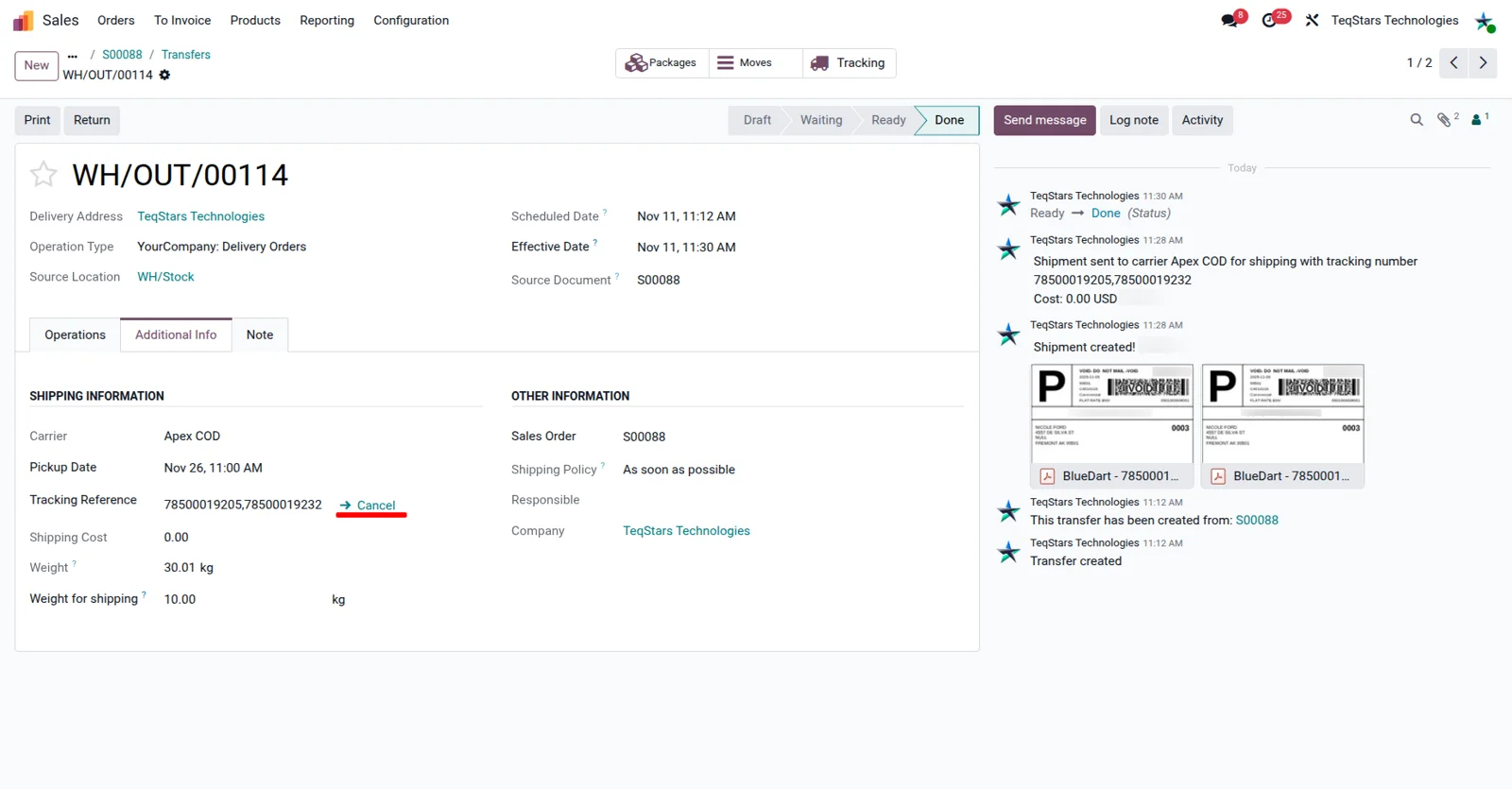
A shipment booked by mistake is called off quickly. From the delivery order your team cancels the Blue Dart shipment with a single click, so the booking is not left standing with the carrier while the order is reworked or the customer changes the address. The cancellation goes out from the screen your team already has open.
Supported Odoo versions
| Odoo version | Editions | Hosting | Price | Latest release | |
|---|---|---|---|---|---|
| 20.0 | Community & Enterprise | Odoo.sh · On-premise | €158.99 | No release notes | Buy |
| 19.0 | Community & Enterprise | Odoo.sh · On-premise | €158.99 | No release notes | Buy |
| 18.0 | Community & Enterprise | Odoo.sh · On-premise | €158.99 | No release notes | Buy |
| 17.0 | Community & Enterprise | Odoo.sh · On-premise | €158.99 | No release notes | Buy |
Support for Blue Dart Connector
The developers who build the app answer your tickets.
- Free app support from purchase
- 60 days
- First response in working hours, typical
- 4–6 hours
- Support hours, 10:00–18:00 IST
- Mon–Fri
How to connect Blue Dart to Odoo
-
Step 1
Install the connector
Add the app to a database running Odoo 17.0, 18.0, 19.0 or 20.0. Enterprise works on your own server or on Odoo.sh, and Community works on your own server.
-
Step 2
Add your Blue Dart account
Enter the account details Blue Dart issued to your business so Odoo can book with the carrier. Repeat this for each account if your company ships under several Blue Dart accounts.
-
Step 3
Create the delivery methods
Add a Blue Dart delivery method for the shipping you do. Keep domestic and international as separate methods so your team is never guessing which one an order needs.
-
Step 4
Put the methods in front of buyers
Let sales pick a Blue Dart method on quotations and orders, and make the methods available on your website so shoppers see the option while they check out.
-
Step 5
Pack, validate and print
In the warehouse, use Put in Pack when a delivery needs more than one box, then validate it. The tracking number and label come back on the delivery order for printing.
Questions before you buy
Not answered here? Talk to the team.