Your Cdiscount orders, offers and stock handled in Odoo 19
A Cdiscount Odoo integration built on Octopia, the platform behind the marketplace. Orders come in with their shipping charge, VAT and commission line, and your offers, prices and stock are sent from Odoo. Tracking goes back when you validate the delivery.
- Odoo 19.0
- Community & Enterprise
- Odoo.sh · On-premise
-
Not for
Odoo Online
Top seller on the Odoo Apps Store
- sales on the Odoo Apps Store
- 3,000+
- apps published
- 100+
- countries running them
- 100+
Cdiscount selling work before and after the connector
Without the connector by hand
-
Retype each Cdiscount order into Odoo as a sale order
-
Create the buyer and both addresses by hand for every order
-
Paste carrier and tracking numbers into the Octopia seller portal
-
Correct Cdiscount quantities yourself after sales in other channels
-
Work out the marketplace commission and its VAT on each order
-
Fill in Cdiscount's product form again for every new barcode
With the connector automatic
-
Orders import on a schedule you set, with lines and shipping charge
-
Billing, delivery and optional company contacts are created from the order addresses
-
Validate the delivery, then one click or the export job declares the parcel
-
Changed quantities are sent on your schedule for offers you flag
-
The commission is imported as a negative line carrying its VAT rate
-
Checks run first, then you send the product details to Cdiscount
Orders, offers, stock and tracking between Odoo and Octopia
Every object the connector handles, which way it travels and what triggers it.
| Data | Direction | What happens & when |
|---|---|---|
| Marketplace orders |

 Octopia to Odoo
|
Order import job you switch on, or type order numbers to fetch |
| Customers and addresses |
Octopia to Odoo
|
Created from the order's billing and delivery addresses while orders import |
| Offers and catalogue products |
Octopia to Odoo
|
Import Offers run from the operations screen |
| Categories, attributes and brands |
Octopia to Odoo
|
Run on demand, or when an imported product names an unknown category |
| Stock quantities |
Both ways
|
Import makes an inventory adjustment, export sends changed quantities on your schedule |
| Offer prices and VAT |
Odoo to Octopia
|
Price export on your schedule, or Update Existing Offers with Set Price |
| New product details |
Odoo to Octopia
|
You send listings whose barcode has no Cdiscount page yet |
| New and updated offers |
Odoo to Octopia
|
You export new offers, or update price, stock, delivery and preparation time |
| Carrier and tracking number |
Odoo to Octopia
|
Delivery validated in Odoo, then Update in Marketplace or the export job you set |
| Offer and product results |
Octopia to Odoo
|
Read when sent, then by the result check job you enable |
Odoo Cdiscount & Octopia Connector features
Import Cdiscount orders with VAT and commission
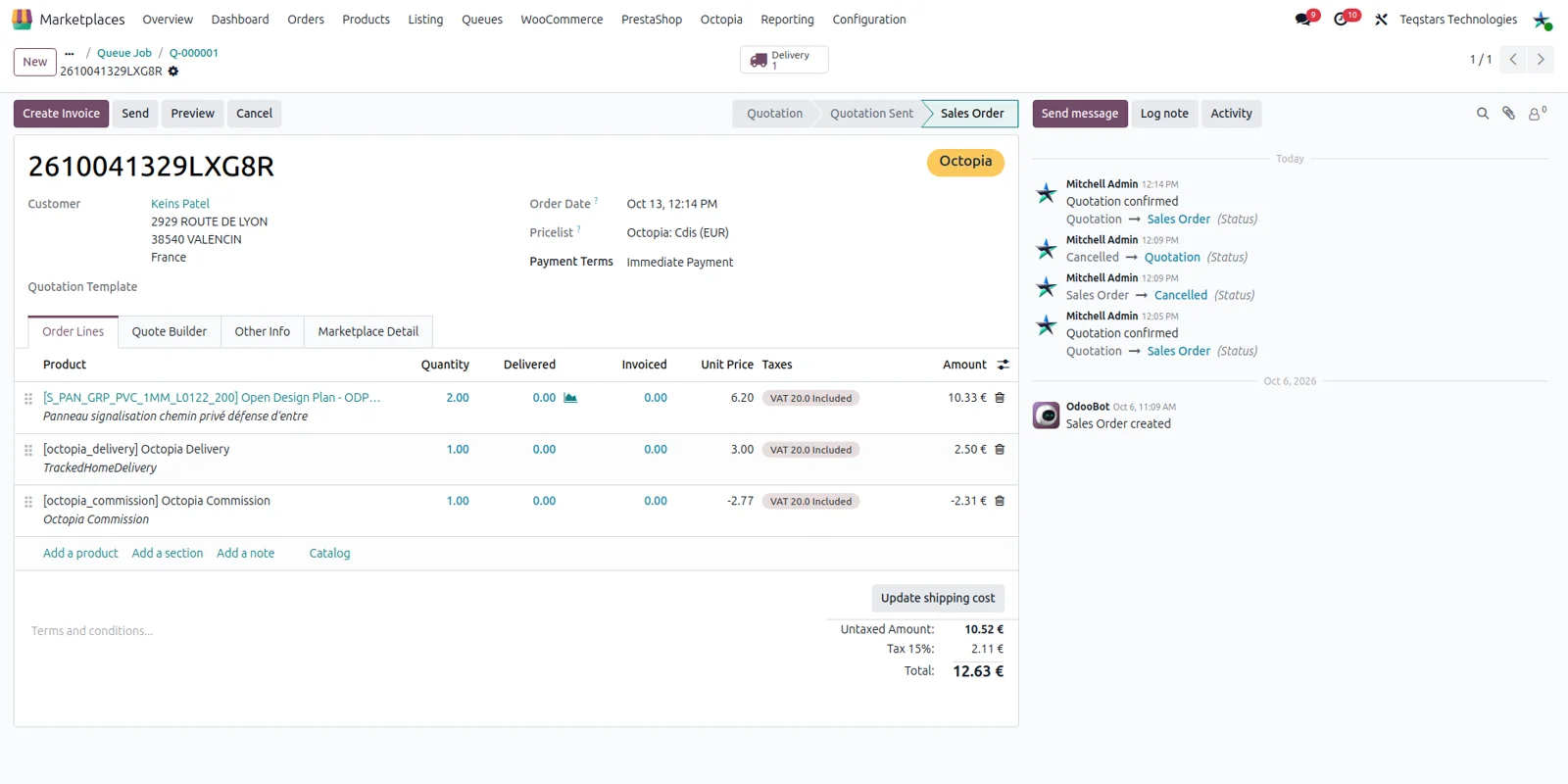
A Cdiscount order opens in Odoo as an ordinary sale order. Each ordered offer gets a line at the price the customer paid, the shipping Octopia reports per line is summed into one delivery line, and the commission Octopia keeps becomes a negative line with its VAT. Marketplace prices already include VAT, so taxes are applied as included taxes. The marketplace order number also serves as the customer reference.
Send carrier and tracking to Cdiscount
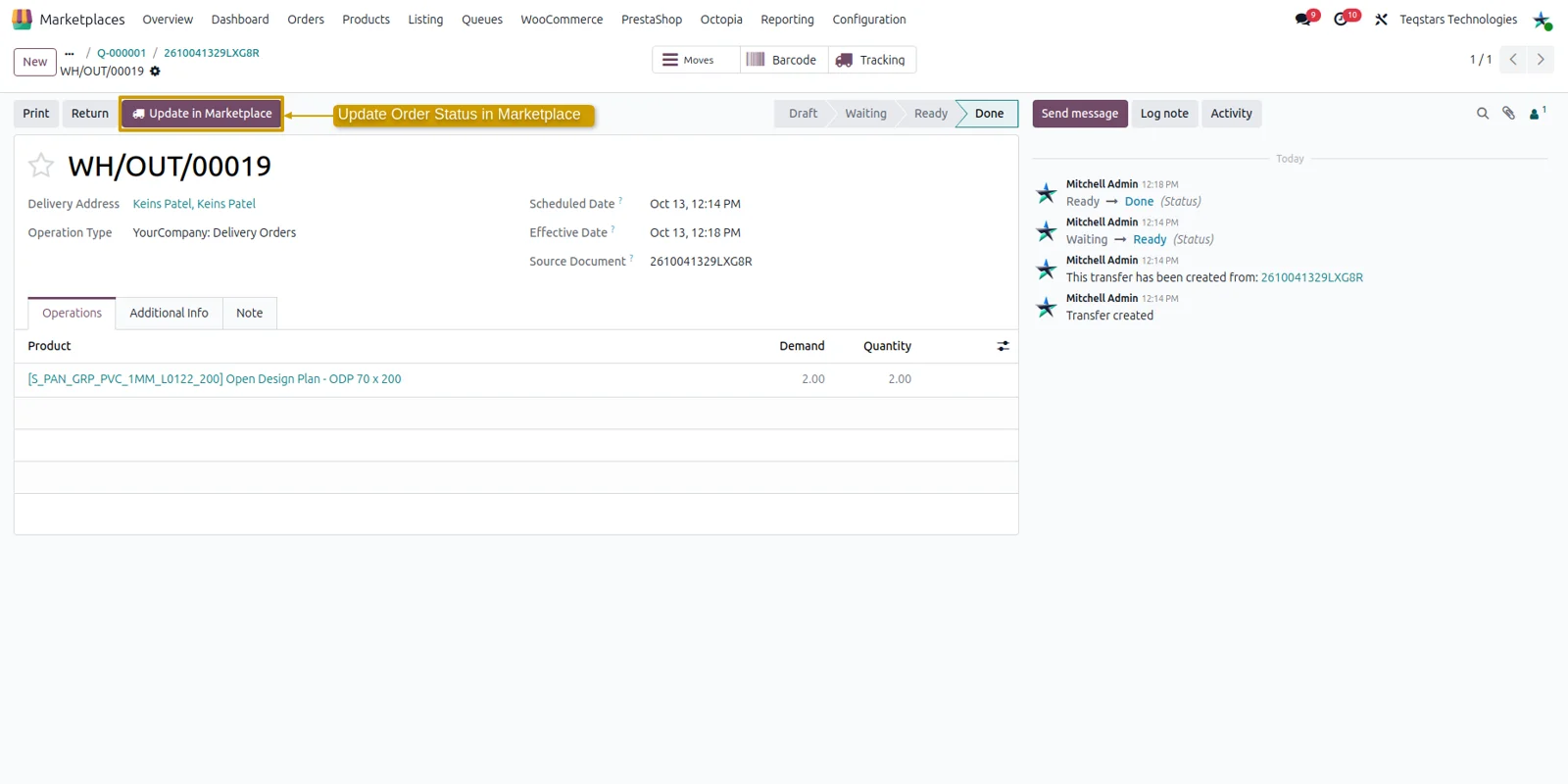
Cdiscount learns an order shipped from the delivery you validate in Odoo. The connector declares the carrier name and the tracking reference, adds the tracking link when the delivery has one, and the marketplace status becomes Shipped. Press Update in Marketplace on a single delivery, or let the export job you schedule handle every eligible order. Octopia takes one parcel per order, so the delivery has to be complete.
Create product pages in the Cdiscount catalogue
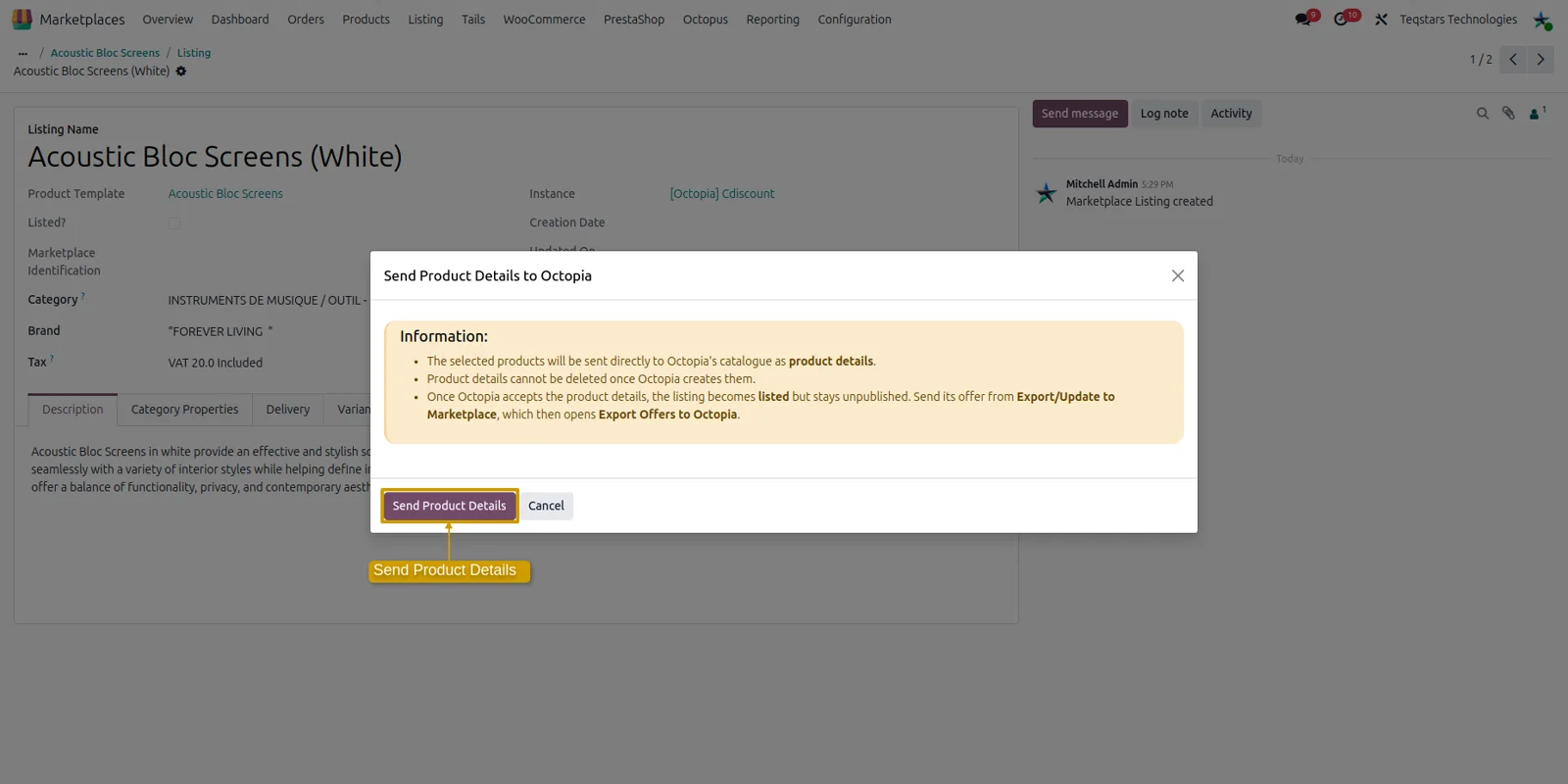
New barcodes get their own page in the catalogue every Cdiscount seller shares. Before anything is sent, the connector inspects the barcode, title, description, category, brand, pictures and the attributes the category demands, then lists what is missing on each listing. Pictures go as public links, between one and six per product, at least 500 by 500 pixels. Cdiscount lists French product pages, so details are submitted in French.
Check which offers Cdiscount refused
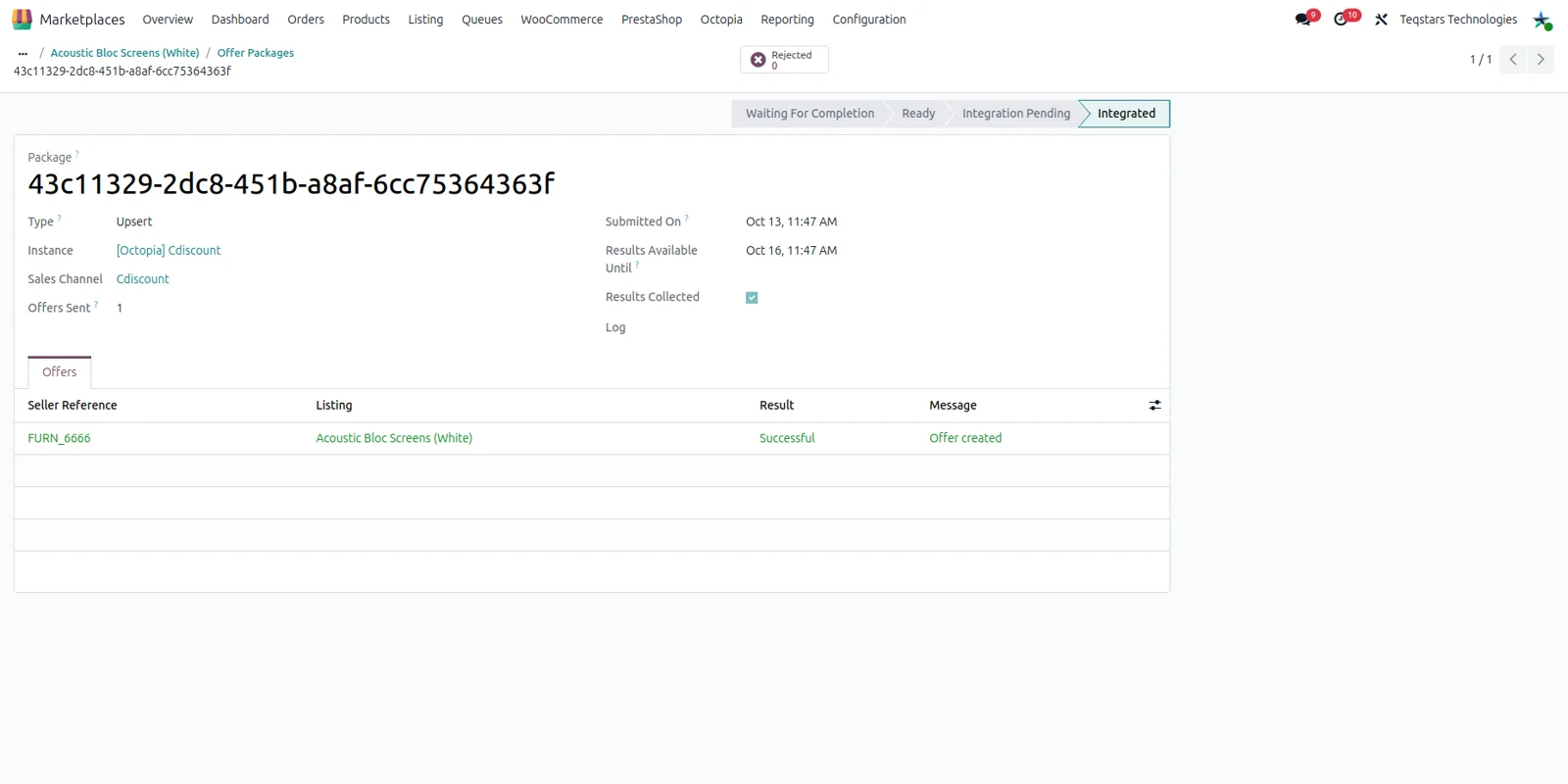
Every offer you export comes back answered one by one. The connector groups offers into an Octopia package, follows that package to the end, and records what Cdiscount accepted and what it turned down, with the reason in plain words. Accepted offers are marked listed. A refused one is stamped with its reason on the listing, and the Refused By Marketplace filter gathers them for you to fix.
Decide what each imported order does
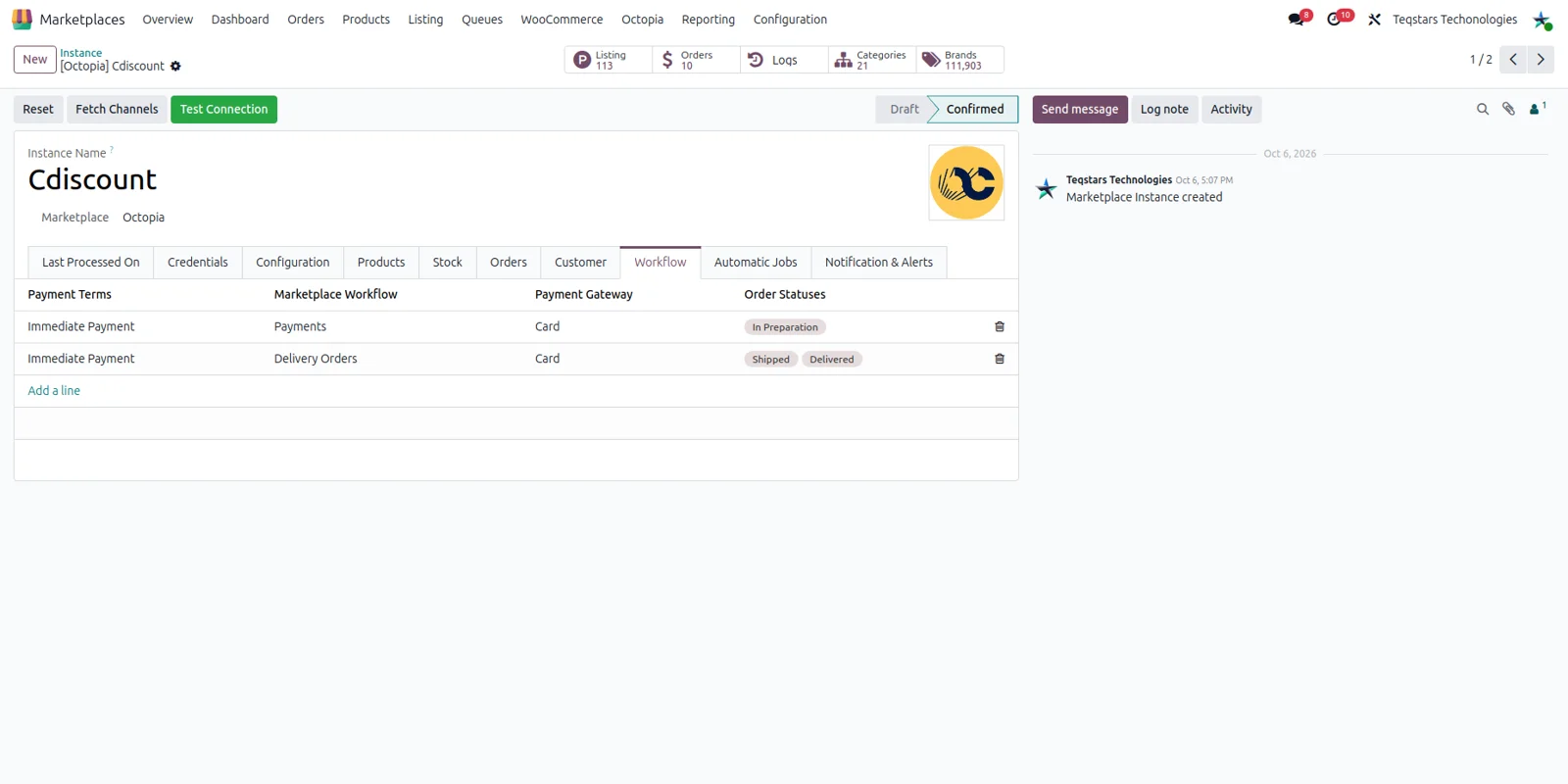
You choose how an incoming Cdiscount order behaves in Odoo. A workflow is matched on the order's payment method and its marketplace status, and it can leave the order as a quotation, or confirm it, invoice it and register payment. When no rule fits an order, the log line offers a Configure Workflow button, so you add the missing rule and retry that single order.
Choose which offers send stock
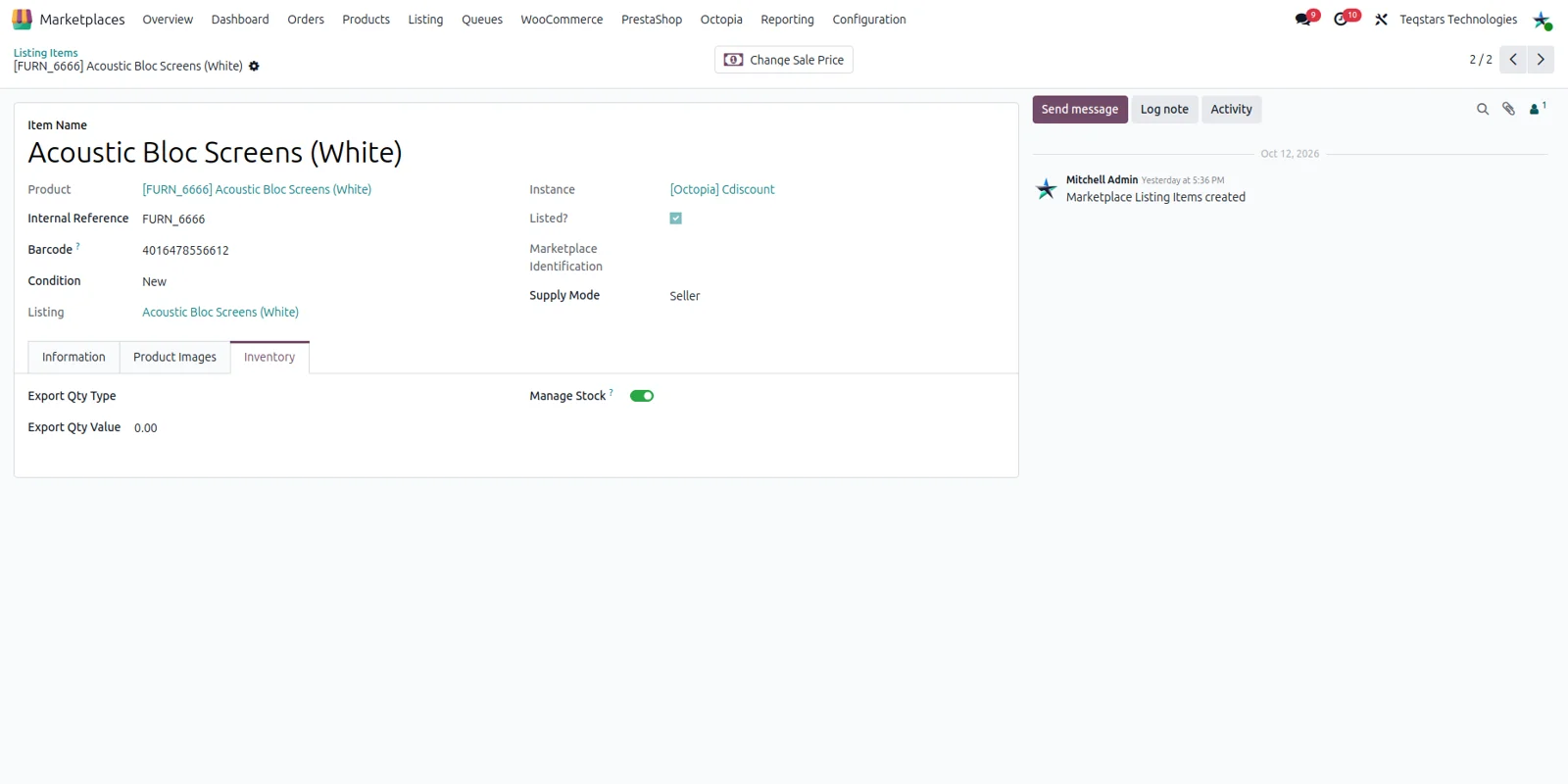
Stock is decided offer by offer. The Manage Stock switch on a listing item says whether Odoo may send that offer's quantity, and the Stock Based On setting picks the figure it reads: on hand, forecasted or free to use. Exports cover the quantities that moved since the last run, a negative figure is sent as zero, and offers Octopia fulfils are left alone.
Supported Odoo versions
| Odoo version | Editions | Hosting | Price | Latest release | |
|---|---|---|---|---|---|
| 19.0 | Community & Enterprise | Odoo.sh · On-premise | €499.99 | 19.0.1.0.0 | Buy Docs |
Support for Odoo Cdiscount & Octopia Connector
The developers who build the app answer your tickets.
- Free app support from purchase
- 60 days
- First response in working hours, typical
- 4–6 hours
- Support hours, 10:00–18:00 IST
- Mon–Fri
How to connect Cdiscount to Odoo
-
Step 1
Enter your credentials
Paste the Client ID and Client Secret you created in the Octopia Developer Portal, together with your Seller ID. Test Connection confirms Odoo can reach Octopia before you go further.
-
Step 2
Pick the sales channel
The channels your subscription covers are listed for you, and you select the one this store sells on, Cdiscount for example. Its currency is then used for the price list behind your offers.
-
Step 3
Bring in your catalogue
Import the category tree once, then your offers. Listings appear in Odoo with pictures and attributes. Products are matched on barcode, SKU or either one, so what you already sell is reused.
-
Step 4
Set your order rules
Per payment method and marketplace status, say whether an order waits as a quotation or is confirmed, invoiced and paid. Name a commission product if you want that line on the order.
-
Step 5
Switch on the jobs
Enable the automatic runs you want and set their timing: orders in, stock and prices out, tracking back and result checks. Anything can also be run by hand from one operations screen.
-
Step 6
Ship from Odoo
Deliver the order in Odoo with a carrier and a tracking reference on the delivery. The connector then tells Cdiscount the parcel is on its way, so the order shows as shipped.
Questions before you buy
Not answered here? Talk to the team.