Compare every eligible Chronopost product, then label and track the parcels.
This Chronopost Odoo integration prices each delivery against every eligible Chronopost product, on the sales order, the delivery order or at website checkout. Validating the delivery registers the parcels with Chronopost, stores the skybill numbers and attaches the labels.
- Odoo 17.0 – 20.0
- Community & Enterprise
- Odoo.sh · On-premise
-
Not for
Odoo Online
Top seller on the Odoo Apps Store
- sales on the Odoo Apps Store
- 3,000+
- apps published
- 100+
- countries running them
- 100+
Chronopost shipping work before and after the connector
Without the connector by hand
-
Look up Chronopost prices on the carrier's site and retype them
-
Re-enter addresses and parcel weights in Chronopost's own shipping tool
-
Print labels one at a time and match them to each box
-
Copy skybill numbers back into Odoo so your team can answer customers
-
Contact Chronopost by phone or mail to stop a shipment
-
Sign in to a separate Chronopost account for each contract
With the connector automatic
-
Get Rate lists each eligible Chronopost product with its charge for the shipment
-
Validating the delivery order sends addresses, weights and parcels to Chronopost
-
PDF labels of a multi-parcel shipment come back merged in one file
-
Parcel numbers are recorded on the delivery order with a tracking link
-
Click Cancel next to the Tracking Reference and every parcel is cancelled
-
Several Chronopost accounts sit in one database, each with its own credentials
Rates, parcels, labels and cancellations between Odoo and Chronopost
Every object the connector handles, which way it travels and what triggers it.
| Data | Direction | What happens & when |
|---|---|---|
| Shipping rates per product |

 Chronopost to Odoo
|
You click Get Rate on a sales order or a delivery order |
| Shipment and parcel details |
Odoo to Chronopost
|
You validate the delivery order in Odoo |
| Parcel and reservation numbers |
Chronopost to Odoo
|
Returned when the shipment is registered at validation |
| Shipping label file |
Chronopost to Odoo
|
Created with the shipment and attached to the delivery order chatter |
| Shipment cancellation |
Odoo to Chronopost
|
You click Cancel next to the Tracking Reference |
Chronopost Connector features
Set your label and service defaults
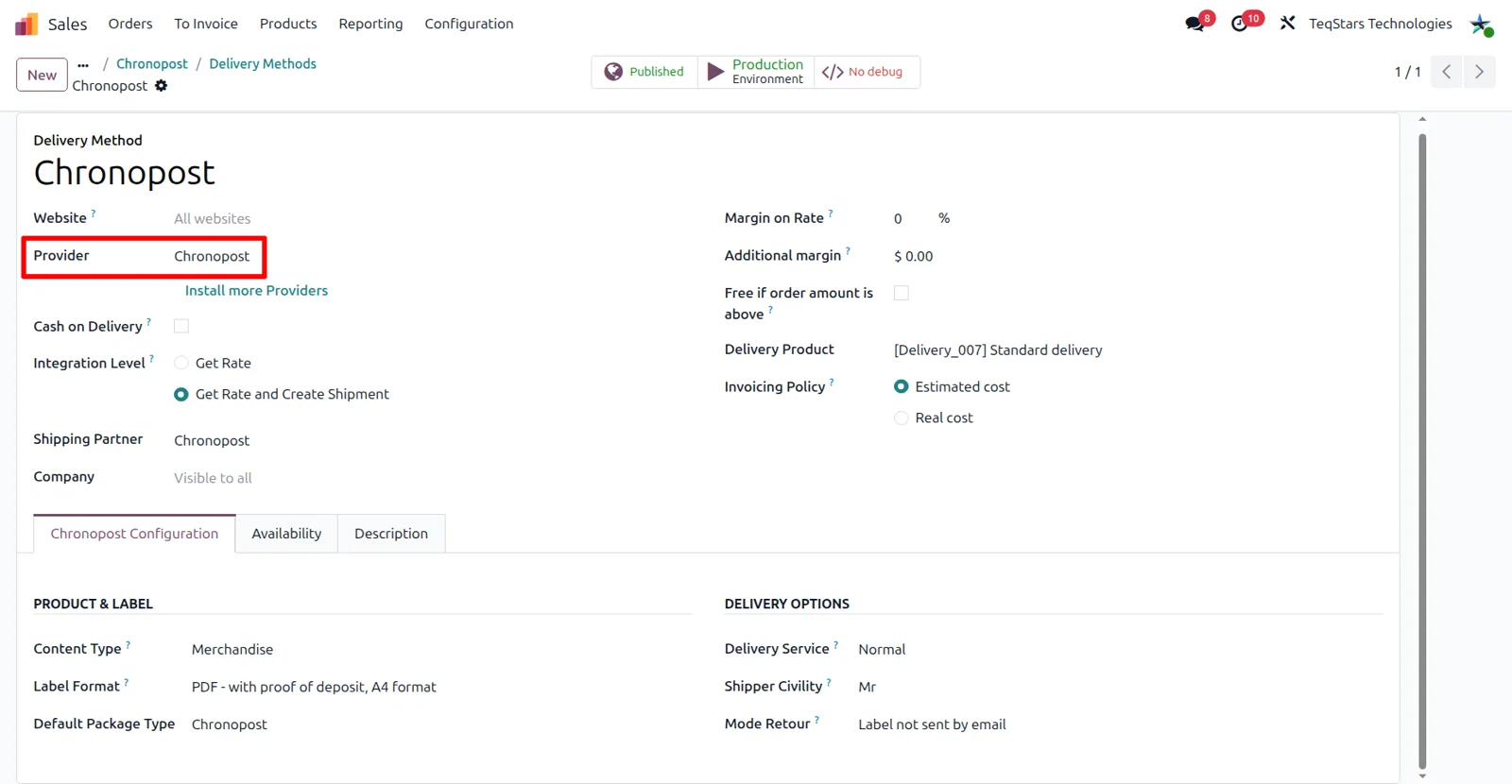
Every Chronopost shipment picks up the settings held on the delivery method, so your team never retypes them per order. Choose Chronopost as the provider, point the method at your Chronopost shipping partner, and name the product that carries the shipping charge. The Chronopost Configuration tab holds the label format, content type and default package type, plus the delivery service, shipper civility and Mode Retour choice.
Compare Chronopost prices before you ship
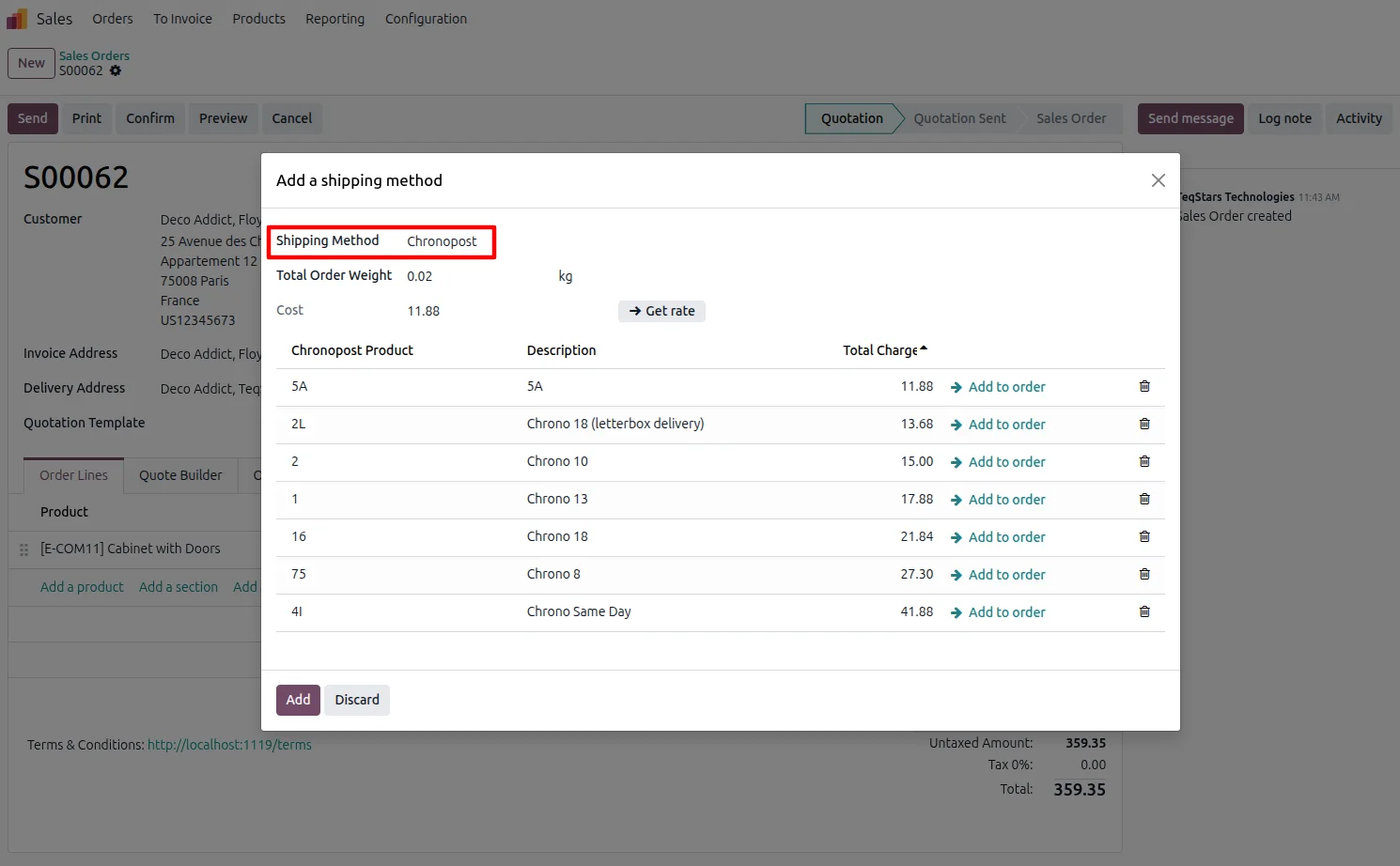
Use Add shipping on the sales order and select your Chronopost method. Odoo works out the order weight from the products, or your team enters it, and Get Rate asks Chronopost which of its products can carry this delivery. Each one appears with its code, description and total charge. Add to order on the row you prefer stores that price and product code on the sales order.
Live Chronopost prices at checkout
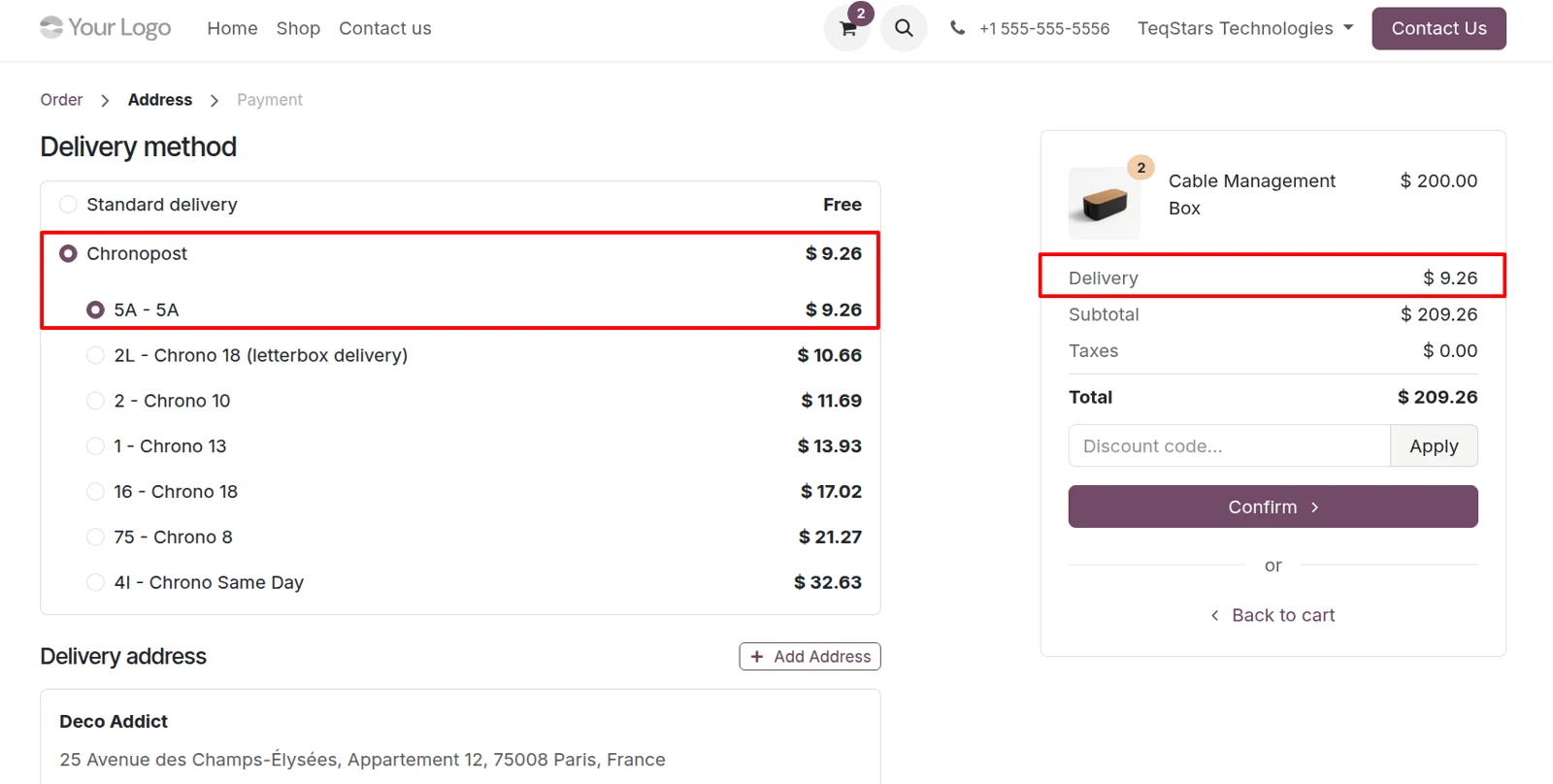
Shoppers in your Odoo eCommerce store choose their own Chronopost service. During checkout they see each Chronopost product eligible for their delivery, priced live, and select the one they want. The chosen product and its charge are stored on the order, so your warehouse ships the service the customer actually paid for and nobody has to confirm the price by mail.
Ship one order in several parcels
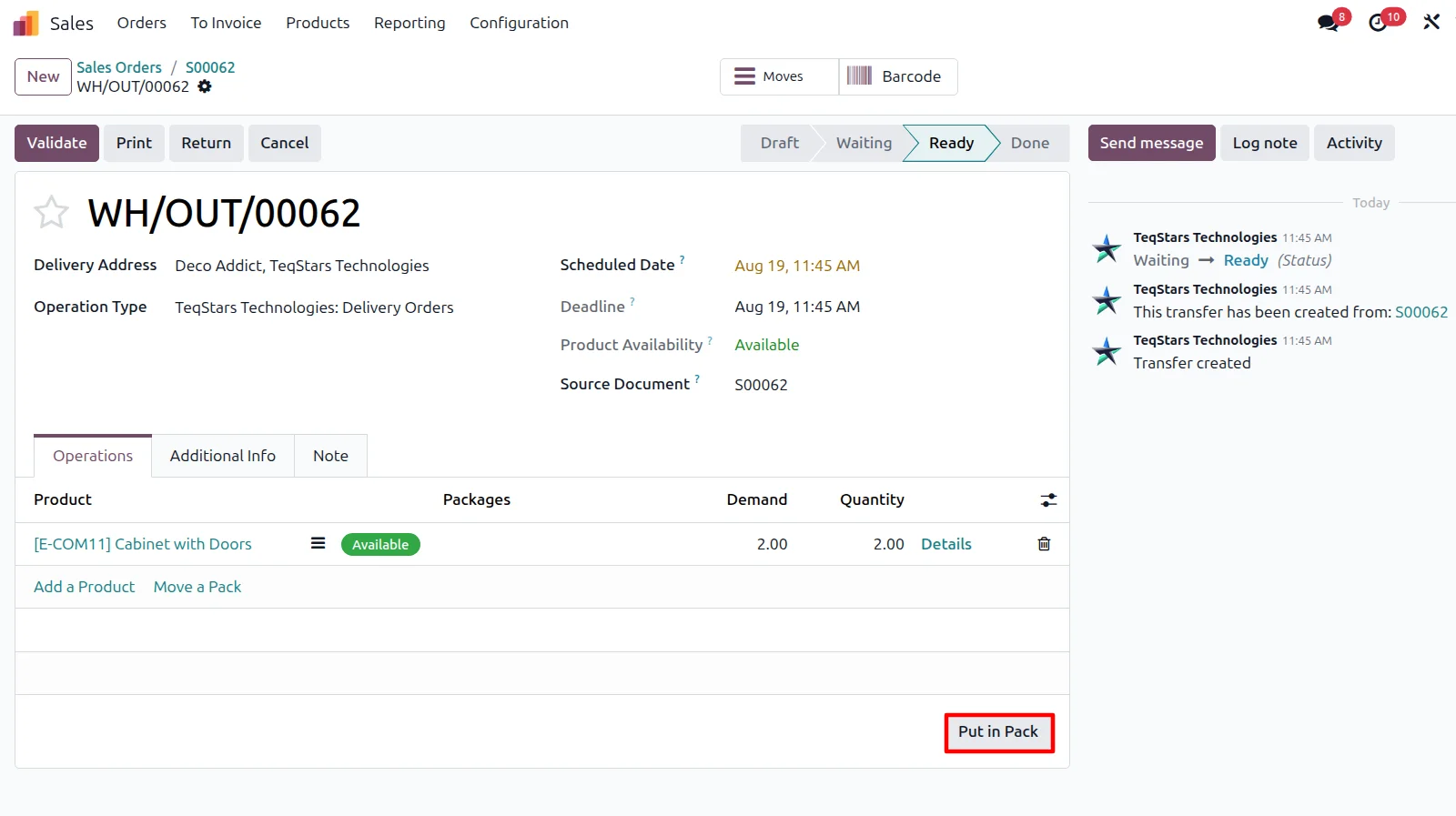
A large order leaves as one Chronopost shipment made of several boxes. Run the Put in Pack operation on the delivery order for each package, and every package is registered with Chronopost as its own parcel with its weight and dimensions. Keep the Chronopost carrier on the delivery order, then validate it, and all the labels are requested together in one call.
Parcel numbers and labels after validation
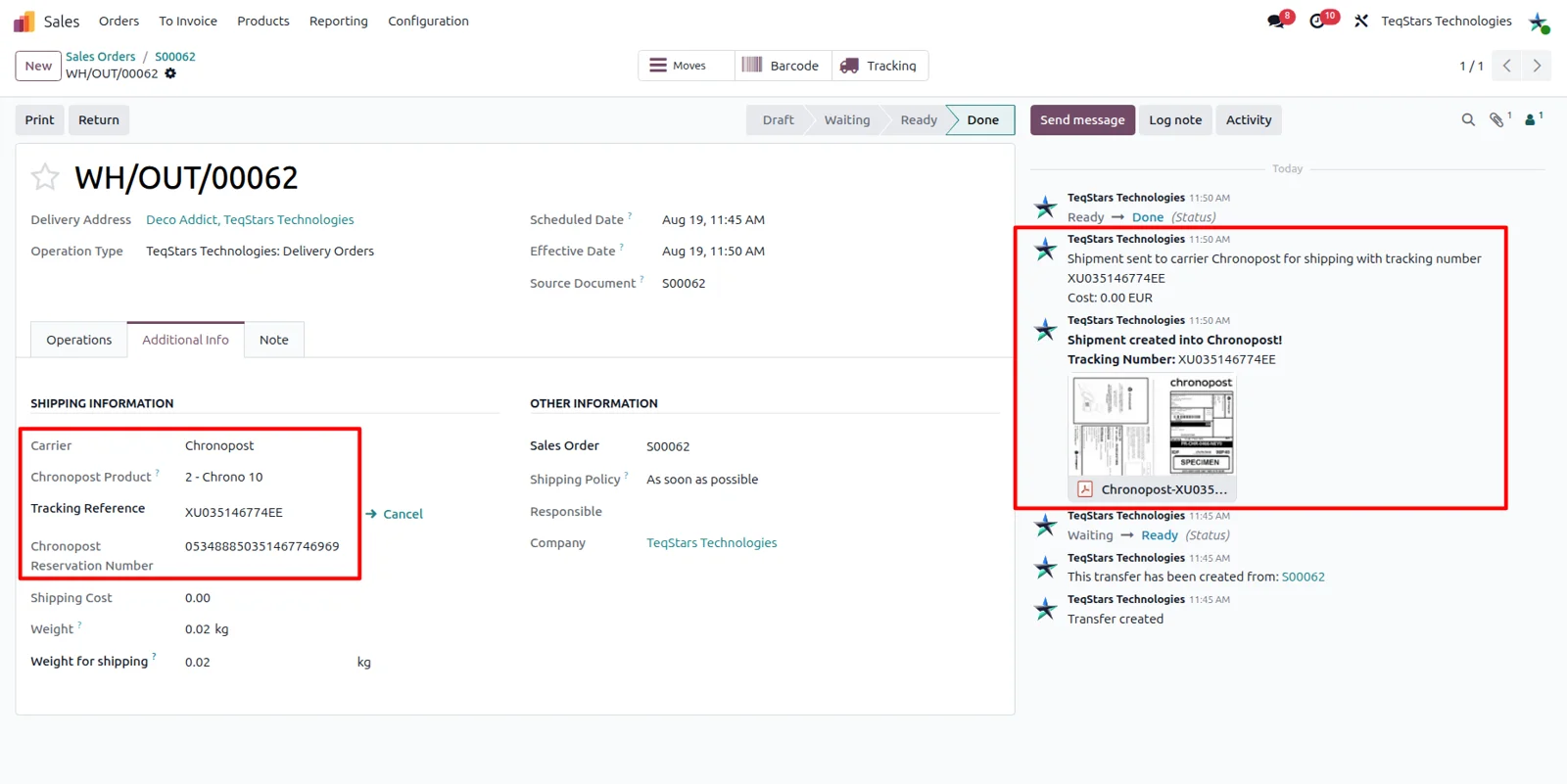
Validating the delivery order registers the shipment and records what your team needs later. The skybill number of each parcel becomes the tracking reference, comma-separated for multi-parcel shipments, and a chatter message lists them. Odoo also keeps the Chronopost reservation number and the rated product code used to build the shipment. PDF labels for several parcels come back merged in a single document.
Follow a parcel on Chronopost's page
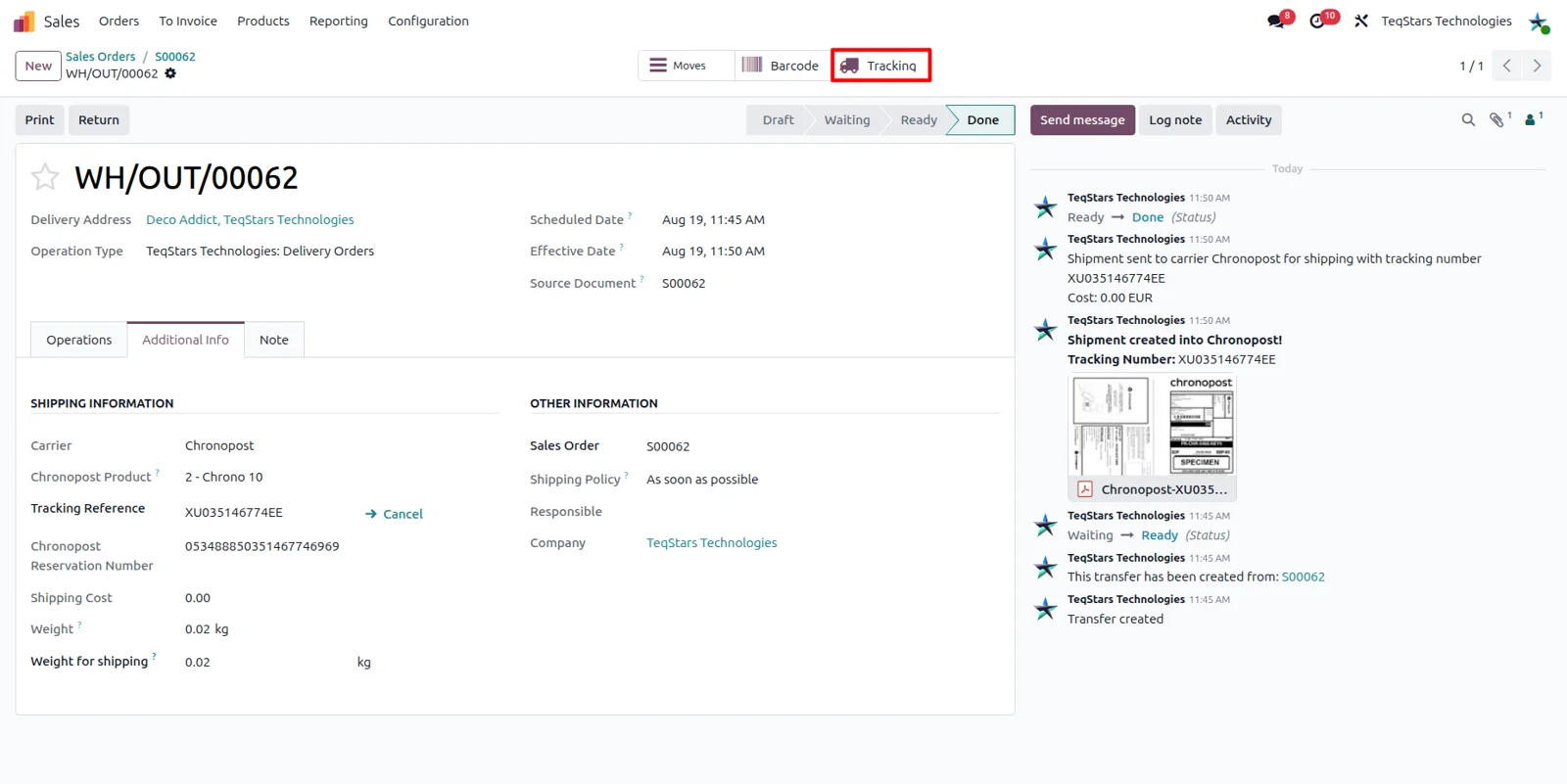
Answering "where is my parcel" takes one click instead of a search through emails. The Tracking button at the top of the delivery order opens Chronopost's public tracking page for that shipment in a new browser tab. The parcel numbers stay on the order, so you can pass them to the customer. Delivery progress itself is read on Chronopost's page and is not written back into Odoo.
Cancel a registered shipment in one click
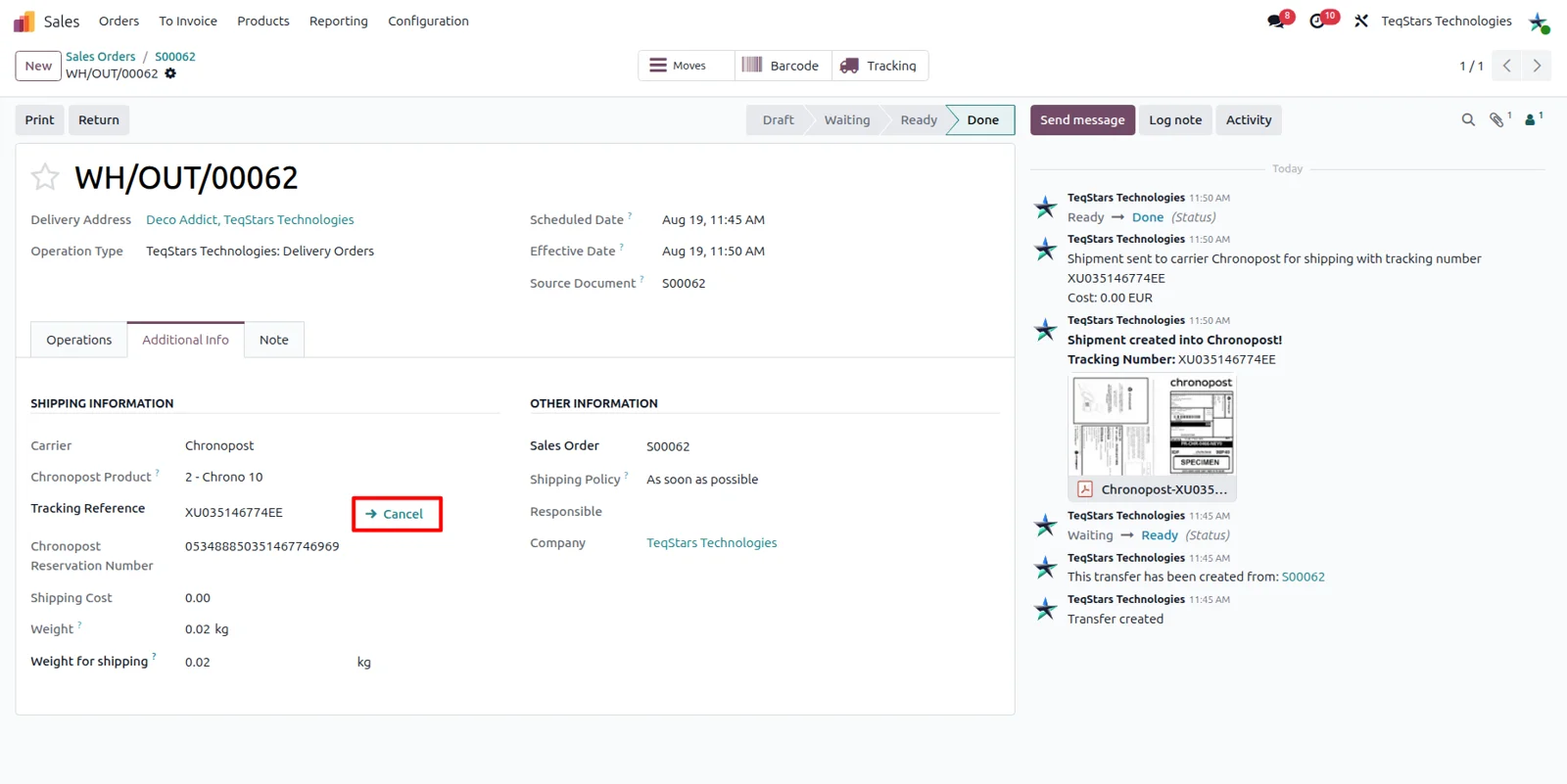
Plans change, and a shipment already registered with Chronopost can be withdrawn from the delivery order. Click Cancel beside the Tracking Reference and Odoo sends the request, covering every parcel of a multi-parcel shipment rather than the first one only. A confirmation is posted in the chatter when Chronopost accepts it. If the carrier refuses, Odoo displays the message it returned.
Supported Odoo versions
| Odoo version | Editions | Hosting | Price | Latest release | |
|---|---|---|---|---|---|
| 20.0 | Community & Enterprise | Odoo.sh · On-premise | €108.99 | 20.0.1.0.0 | Buy Docs |
| 19.0 | Community & Enterprise | Odoo.sh · On-premise | €108.99 | 19.0.1.0.0 | Buy Docs |
| 18.0 | Community & Enterprise | Odoo.sh · On-premise | €108.99 | No release notes | Buy |
| 17.0 | Community & Enterprise | Odoo.sh · On-premise | €108.99 | No release notes | Buy |
Support for Chronopost Connector
The developers who build the app answer your tickets.
- Free app support from purchase
- 60 days
- First response in working hours, typical
- 4–6 hours
- Support hours, 10:00–18:00 IST
- Mon–Fri
How to connect Chronopost to Odoo
-
Step 1
Create the Chronopost shipping partner
Your credentials sit on one record, added under Sale, Configuration, Shipping Partner. Give it a name, set Partner to Chronopost, then enter the account number, password and sub-account number Chronopost provided.
-
Step 2
Test first, then go live
Leave the shipping partner in its test environment while you rate and ship trial orders. The smart button at the top of the form switches it to Production once Chronopost certifies your credentials. Every delivery method linked to it follows.
-
Step 3
Add a Chronopost delivery method
Create the delivery method, link the Chronopost shipping partner, and pick the product for the shipping charge. On the Chronopost Configuration tab, set the label format, content type and default package type, plus the delivery service and shipper fields.
-
Step 4
Turn on delivery methods and packages
Two Odoo features make this work. In Inventory settings, tick Delivery Methods under Shipping so the menu appears, and enable Packages under Operations so Put in Pack is available for multi-parcel orders. Create a Chronopost package type too.
-
Step 5
Rate an order and ship it
Add shipping to a sales order, run Get Rate, and use Add to order on the Chronopost product you want. Validate the delivery order to register the shipment, then collect the parcel numbers and labels on that same order.
Questions before you buy
Not answered here? Talk to the team.