Validate a delivery order and get your Colissimo label and tracking number
This Colissimo Odoo integration turns a validated delivery order into a shipping label and a tracking number on the same record. You decide the shipping charge with a fixed price or your own pricing rules. One Odoo database can hold several Colissimo accounts.
- Odoo 17.0 – 20.0
- Community & Enterprise
- Odoo.sh · On-premise
-
Not for
Odoo Online
Top seller on the Odoo Apps Store
- sales on the Odoo Apps Store
- 3,000+
- apps published
- 100+
- countries running them
- 100+
Colissimo shipping work before and after the connector
Without the connector by hand
-
Retype the customer address into the carrier's own shipping screen.
-
Download labels from the carrier site and match them to the right order.
-
Copy tracking numbers back into Odoo one order at a time.
-
Look up a rate sheet before you quote a delivery charge.
-
Count and describe each parcel again when an order ships in several boxes.
-
Open the carrier's tracking page to answer "where is my parcel?"
With the connector automatic
-
Validating the delivery order sends the shipment details to Colissimo.
-
The label comes back attached to that delivery order, ready to print.
-
The tracking number is saved on the delivery order with the label.
-
Picking the Colissimo method on the order applies your fixed or rule-based price.
-
Packs you create with "Put in Pack" go to Colissimo as separate parcels.
-
You request tracking from the delivery order and see the shipment status.
Shipment details, labels and tracking between Odoo and Colissimo
Every object the connector handles, which way it travels and what triggers it.
| Data | Direction | What happens & when |
|---|---|---|
| Shipment and address details |

 Odoo to Colissimo
|
You validate the delivery order in Odoo. |
| Parcel details |
Odoo to Colissimo
|
Validating a delivery that has packs made with "Put in Pack". |
| Shipping label |
Colissimo to Odoo
|
Returned on validation and attached to the delivery order. |
| Tracking number |
Colissimo to Odoo
|
Saved on the delivery order when Colissimo books the shipment. |
| Shipment status |
Colissimo to Odoo
|
You ask to track the shipment from the delivery order. |
Colissimo Connector features
Set up the Colissimo delivery method
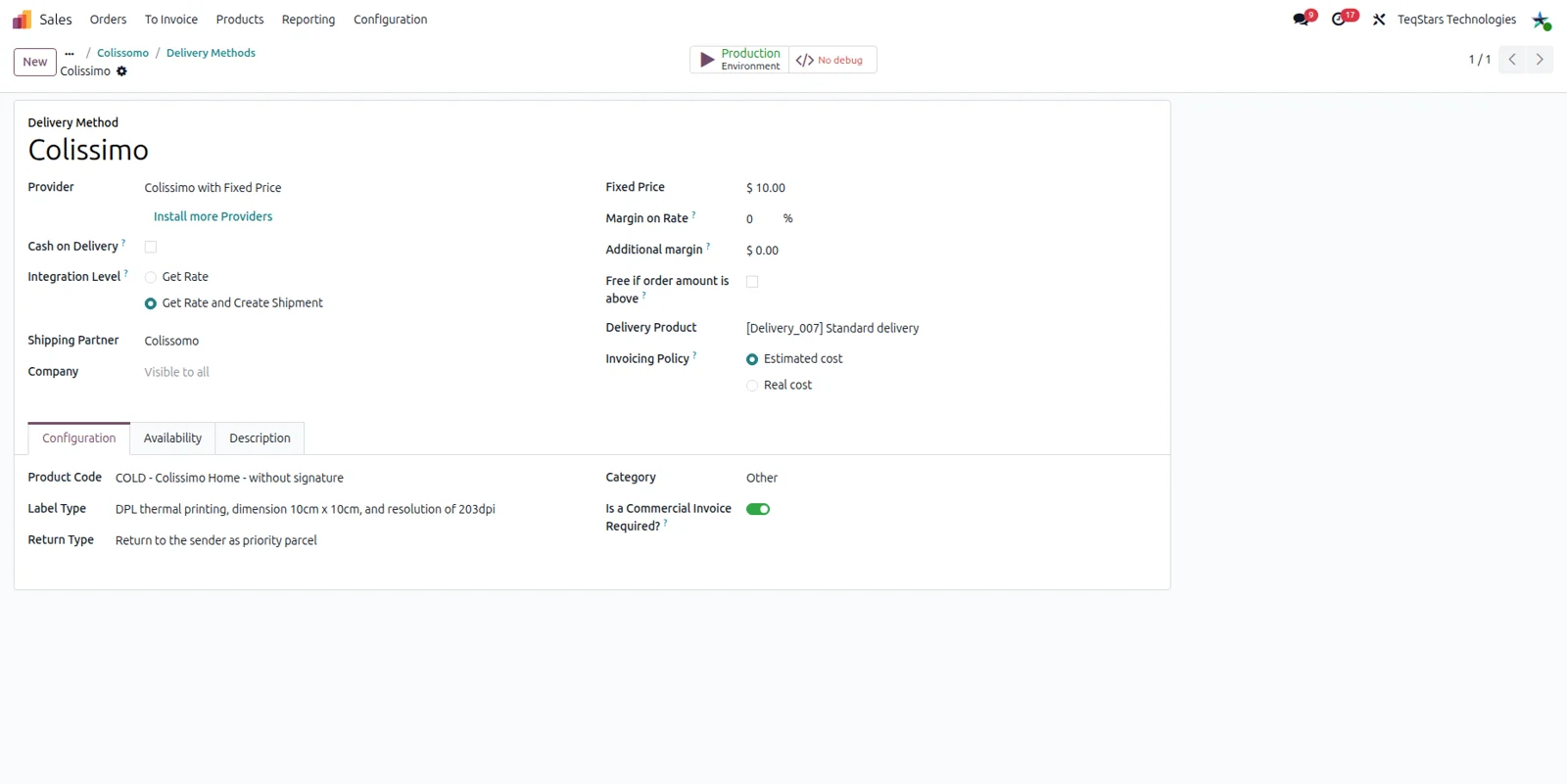
Your team picks Colissimo on an order the same way they pick any other carrier in Odoo. You add a delivery method, choose the Colissimo provider and decide how the charge is calculated. Local and international shipments are handled by the same method, so one setup covers parcels going across town and across borders.
Price shipping with your own rules
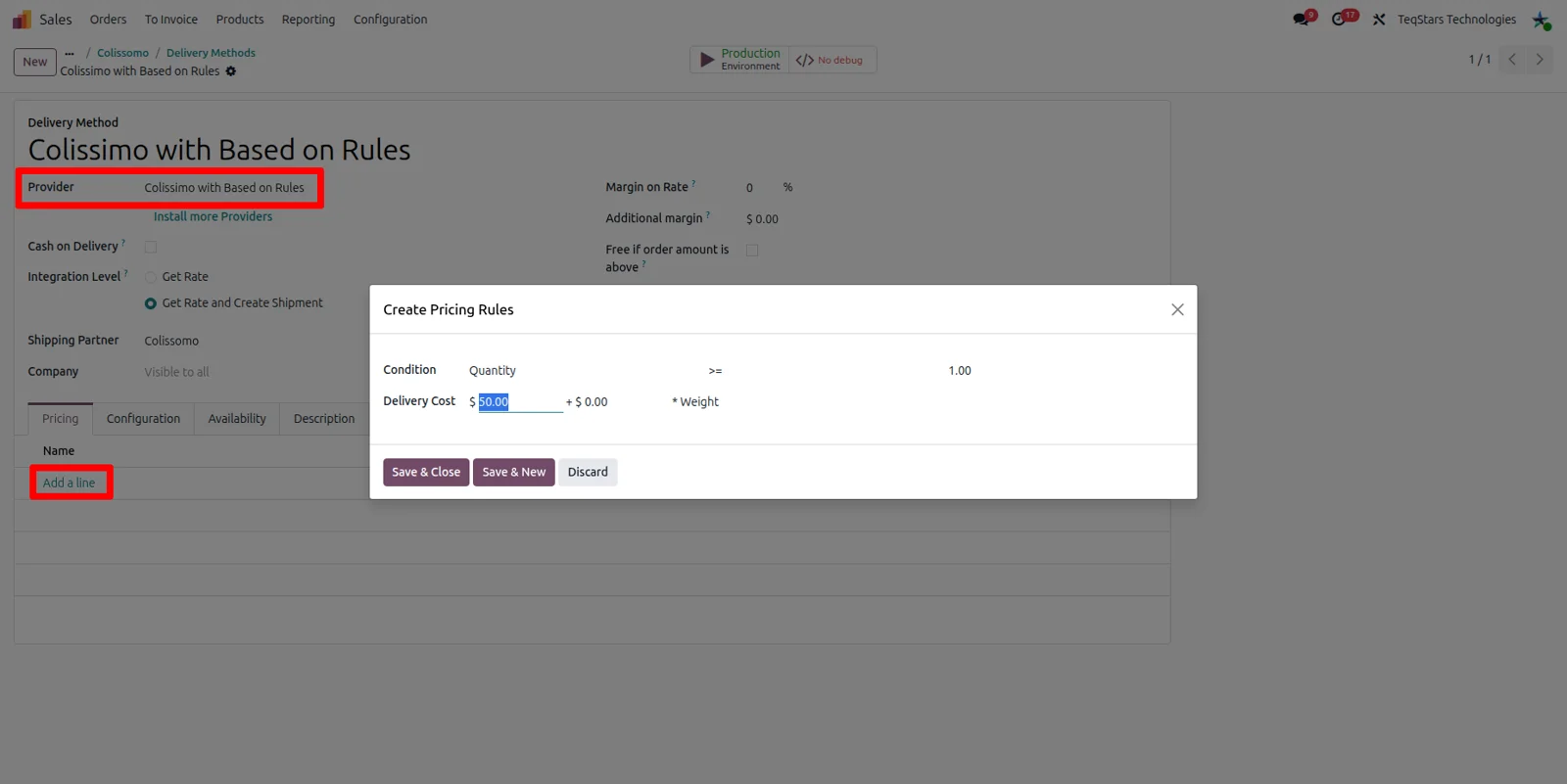
Charges can follow your margins instead of a flat figure. Choose "Based on Rule" and enter a line for each condition you want to price, so a heavier or higher value order gets its own amount. Because live Colissimo rates are not retrieved, these rules and fixed prices are what decide the shipping cost on the order.
Show the delivery charge on a quotation
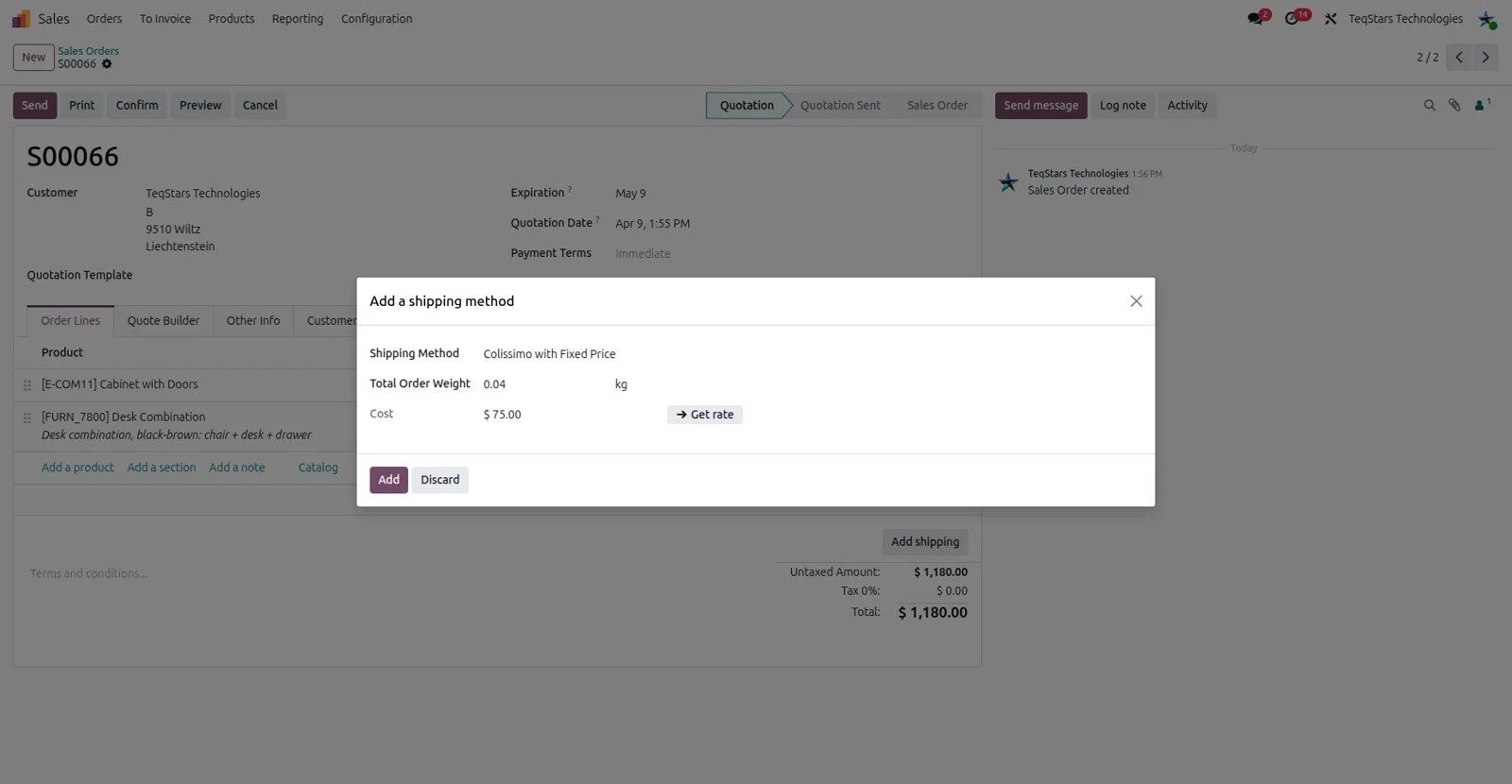
Your salespeople see the shipping amount before they send the quotation. On the sale order they select the Colissimo method, and Odoo adds the charge from the fixed price you configured. A method set to "Based on Rule" works the same way, with the matching rule deciding the figure that appears on the order.
Ship one order in several parcels
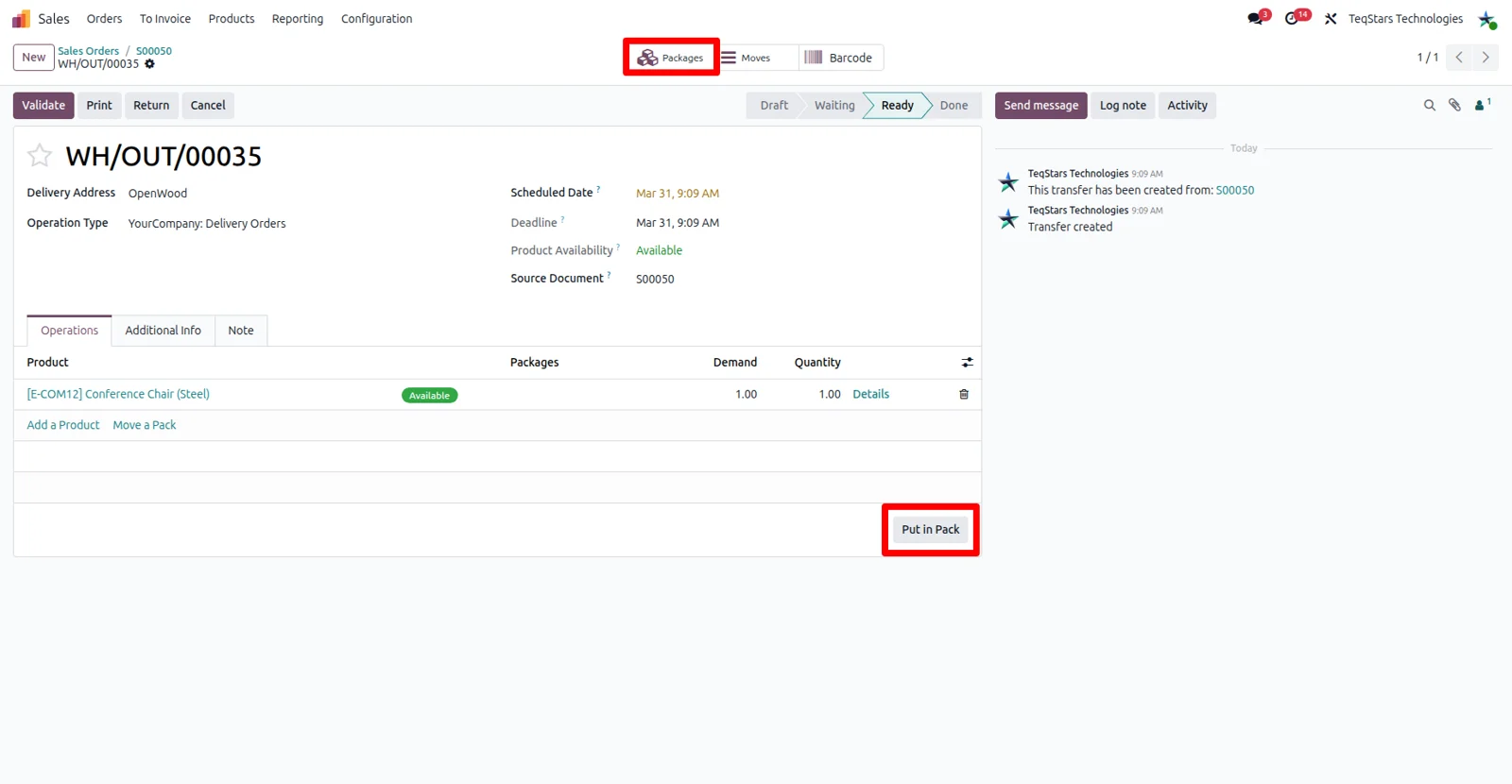
An order that fills more than one box still goes out as a single Colissimo shipment. In the delivery order, run "Put in Pack" for each box your warehouse team closes. When you validate, every pack is sent as its own parcel, so each one gets the paperwork it needs instead of a single label for the whole order.
Labels created when you validate
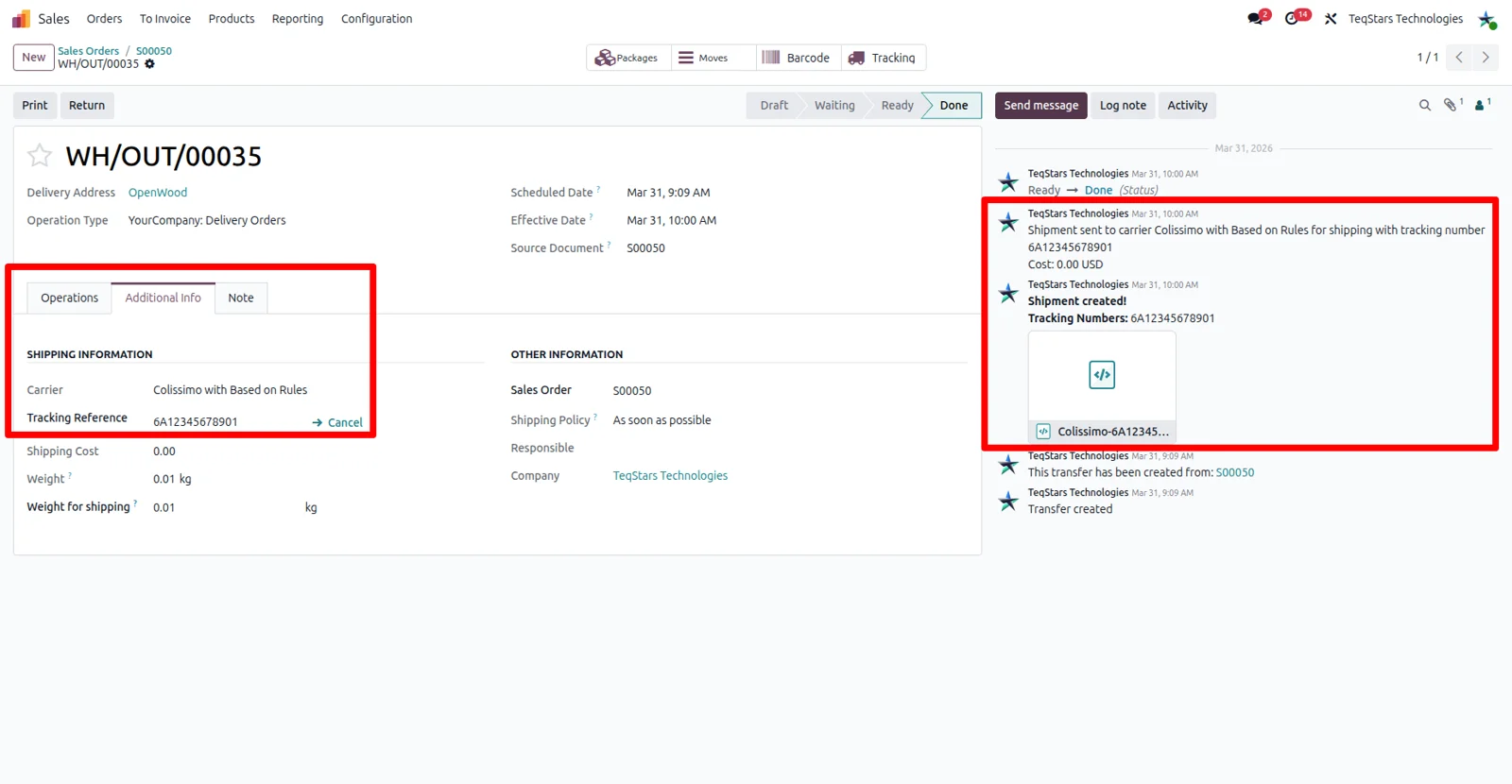
The label and the tracking number appear on the delivery order as soon as you validate it, so packers can print and stick without opening another tool. The tracking reference stays on the record for your customer service team, and the label file is attached to the same delivery order for reprinting later.
Check where a shipment is
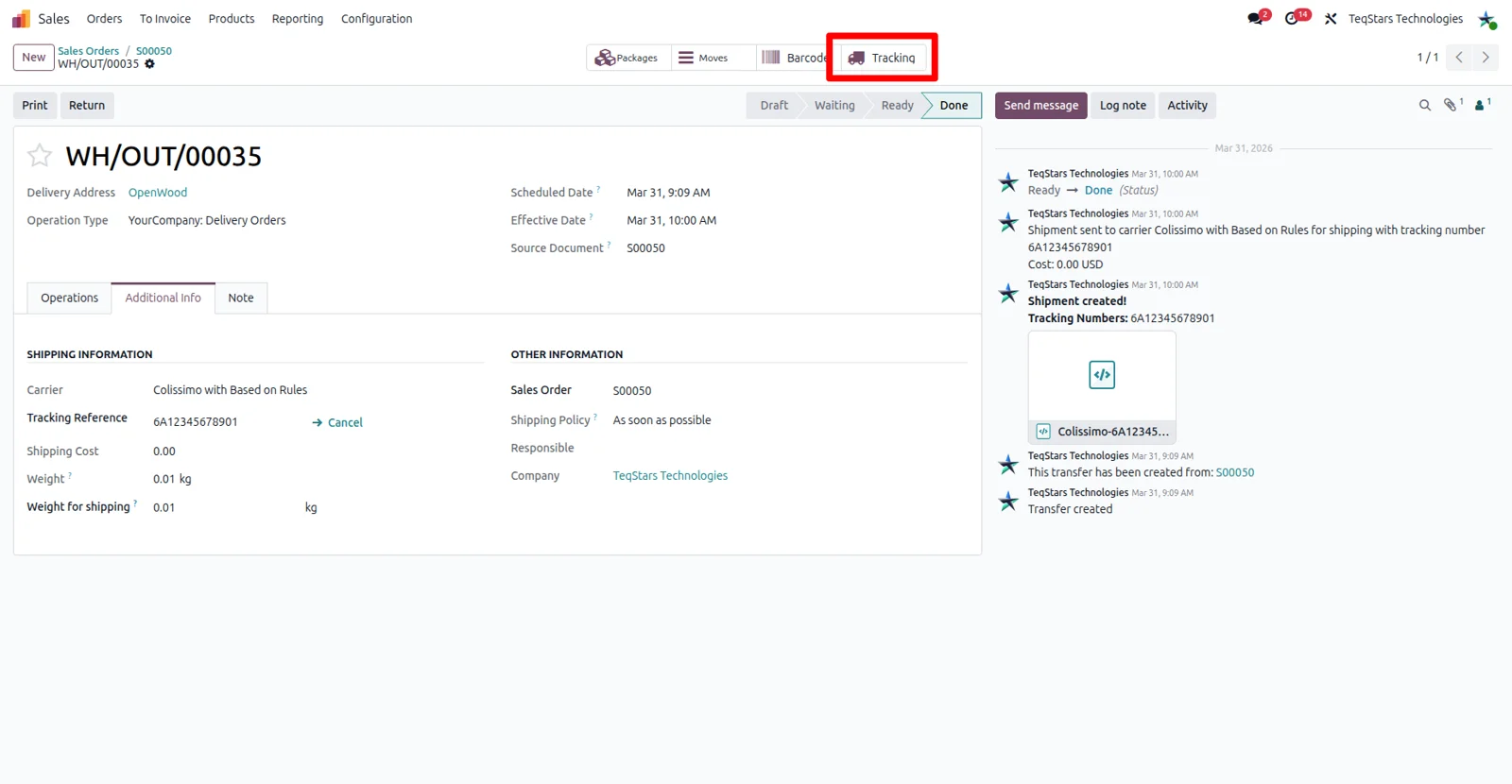
When a customer asks about a parcel, your team answers from the delivery order. Tracking is built into the connector, so you can request the current status and location of a booked Colissimo shipment against the Odoo record that created it. No one has to search the carrier site with a reference copied out of an email.
Supported Odoo versions
| Odoo version | Editions | Hosting | Price | Latest release | |
|---|---|---|---|---|---|
| 20.0 | Community & Enterprise | Odoo.sh · On-premise | €109.98 | No release notes | Buy |
| 19.0 | Community & Enterprise | Odoo.sh · On-premise | €109.98 | No release notes | Buy |
| 18.0 | Community & Enterprise | Odoo.sh · On-premise | €109.98 | No release notes | Buy |
| 17.0 | Community & Enterprise | Odoo.sh · On-premise | €109.98 | No release notes | Buy |
Support for Colissimo Connector
The developers who build the app answer your tickets.
- Free app support from purchase
- 60 days
- First response in working hours, typical
- 4–6 hours
- Support hours, 10:00–18:00 IST
- Mon–Fri
How to connect Colissimo to Odoo
-
Step 1
Add your Colissimo account
Install the app, then record your Colissimo account details in Odoo so shipments can be booked under your contract. Shipping under more than one contract? Add each account to the same database.
-
Step 2
Create the delivery method
Add a delivery method and set Colissimo as its provider. For a flat charge, choose the fixed price option. When the amount should depend on conditions you define, choose "Based on Rule" instead.
-
Step 3
Enter your pricing rules
Give each rule line the condition and the amount you want to bill, so the method returns a charge that fits your margins. Add as many lines as your shipping policy needs.
-
Step 4
Point the delivery order at the carrier
Check that the delivery order carries the Colissimo method you configured. This is the field the connector reads when it books the shipment, so warehouse staff do not pick a carrier at validation time.
-
Step 5
Pack, validate and print
Close each box with "Put in Pack" when an order ships in several parcels. Validate the delivery order, then print the returned label and pass the tracking number to your customer.
Questions before you buy
Not answered here? Talk to the team.