Quote DHL Freight rates, generate labels and track shipments in Odoo
Your team picks DHL Freight on the sale order and sees the rate, then validates the delivery order to get the label and tracking number. This DHL Freight Odoo integration handles local and global shipments, and you can connect more than one DHL Freight account.
- Odoo 17.0 – 20.0
- Community & Enterprise
- Odoo.sh · On-premise
-
Not for
Odoo Online
Top seller on the Odoo Apps Store
- sales on the Odoo Apps Store
- 3,000+
- apps published
- 100+
- countries running them
- 100+
Shipping work before and after the DHL Freight Odoo integration
Without the connector by hand
-
Retype customer addresses into a separate carrier shipping screen.
-
Guess the freight cost before you send a quotation.
-
List every carton by hand for the carrier.
-
Copy tracking numbers back into Odoo one order at a time.
-
Look up each shipment's status on a carrier page yourself.
With the connector automatic
-
Odoo sends the delivery details to DHL Freight with the shipment.
-
Pick the DHL Freight delivery method and Odoo shows the rate.
-
Put in Pack records each package, and Odoo sends the package details.
-
Validating the delivery order stores the tracking number DHL Freight returns.
-
Open tracking from the delivery order to see where the shipment is.
Rates, shipments, labels and tracking between Odoo and DHL Freight
Every object the connector handles, which way it travels and what triggers it.
| Data | Direction | What happens & when |
|---|---|---|
| Shipping rate request |

 Odoo to DHL Freight
|
You select the DHL Freight delivery method on a sale order. |
| Shipment and package details |
Odoo to DHL Freight
|
You validate the delivery order in Odoo. |
| Shipping label |
DHL Freight to Odoo
|
Created and attached to the delivery order once it is validated. |
| Tracking number |
DHL Freight to Odoo
|
Returned with the label and stored on the delivery order. |
| Shipment status and location |
DHL Freight to Odoo
|
You open tracking from the validated delivery order. |
DHL Freight EU Connector features
Set up the DHL Freight delivery method
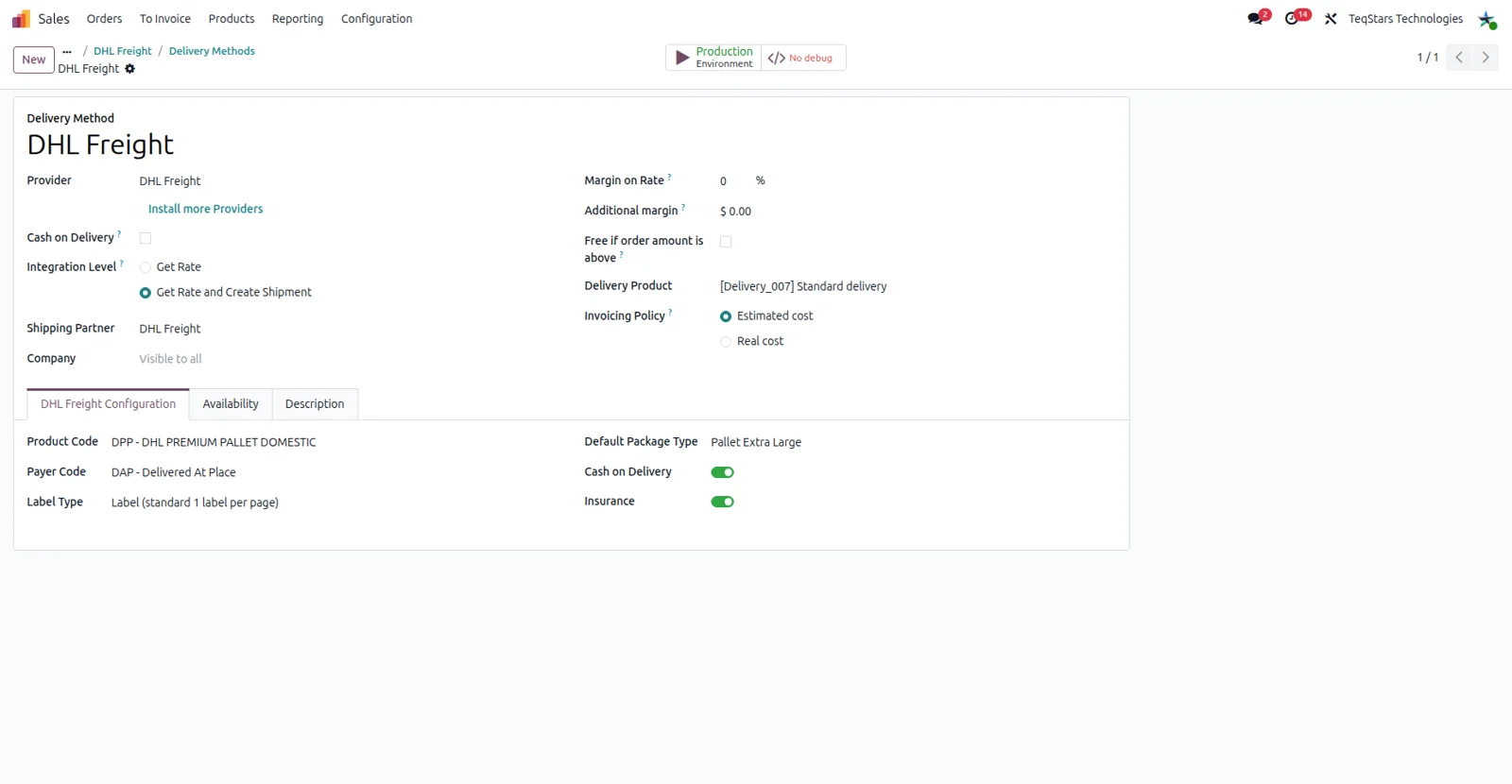
One delivery method record is all your sales and warehouse teams need to start shipping with DHL Freight. You configure it once so rates come back for the shipments you handle, whether the parcel stays in the same country or crosses a border. The same method then carries those settings into every quotation and delivery order that uses it.
Get a shipping quote on the sale order
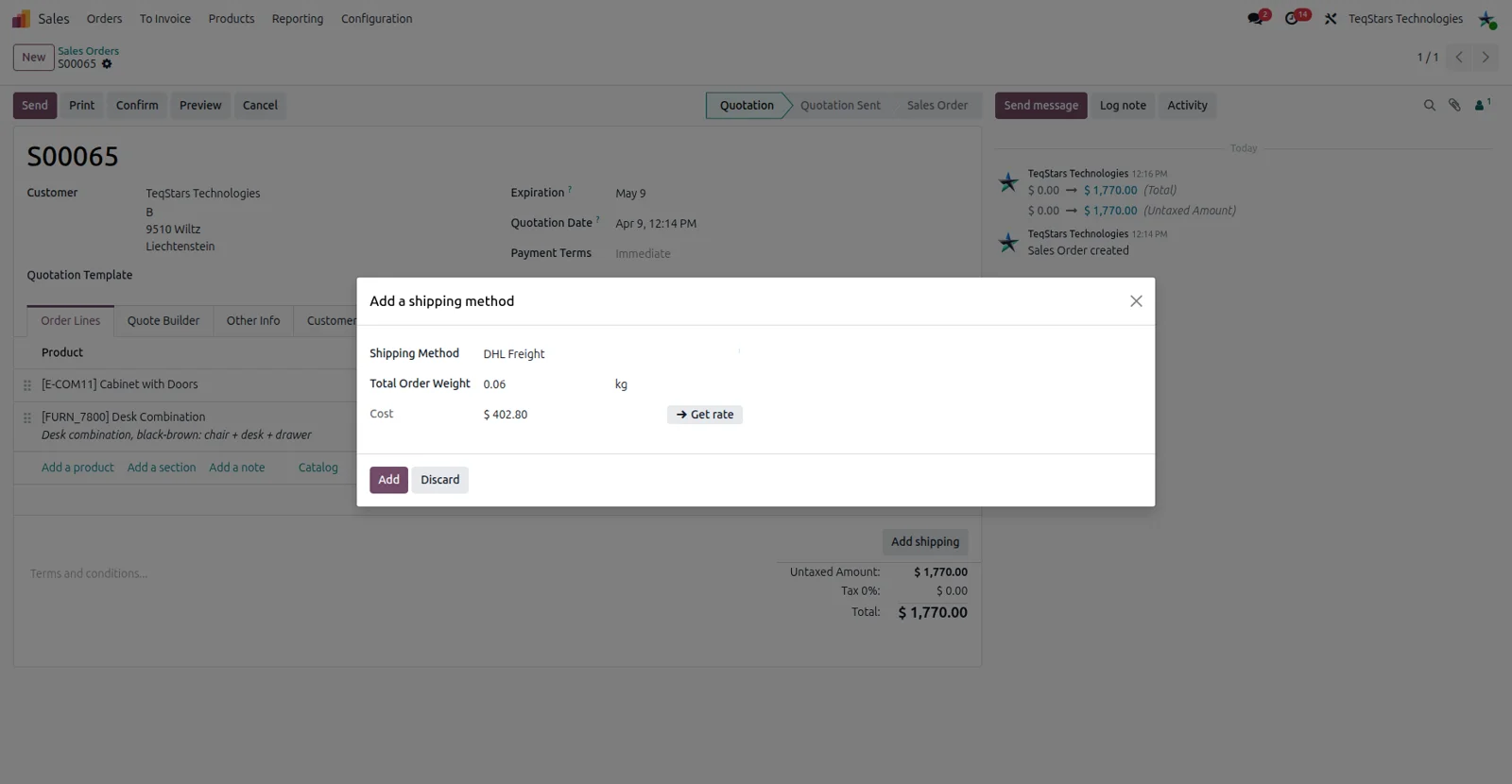
Your salespeople see what the shipment costs before the customer commits. On the sale order they choose the DHL Freight delivery method and ask for the rate, and the price comes back from DHL Freight for that order's address and contents. Quotations go out with a real freight figure on them instead of an estimate someone typed from memory.
Ship an order in several packages
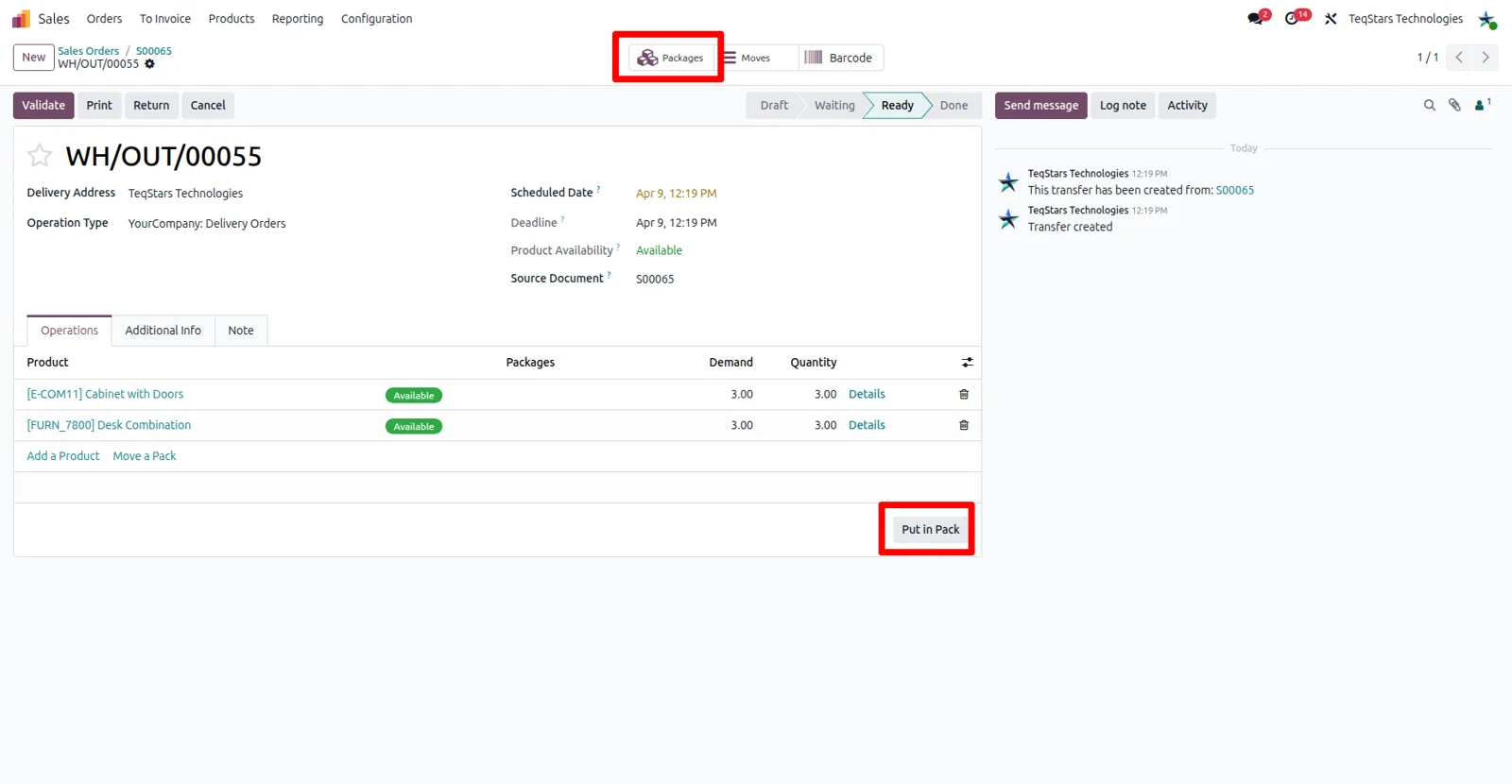
Orders that fill more than one carton stay accurate. In the delivery order your warehouse team uses the "Put in Pack" operation to record each package separately, so the shipment Odoo sends to DHL Freight matches what actually leaves the dock. Use it whenever one delivery is going out as multiple packages.
Labels and tracking numbers on validation
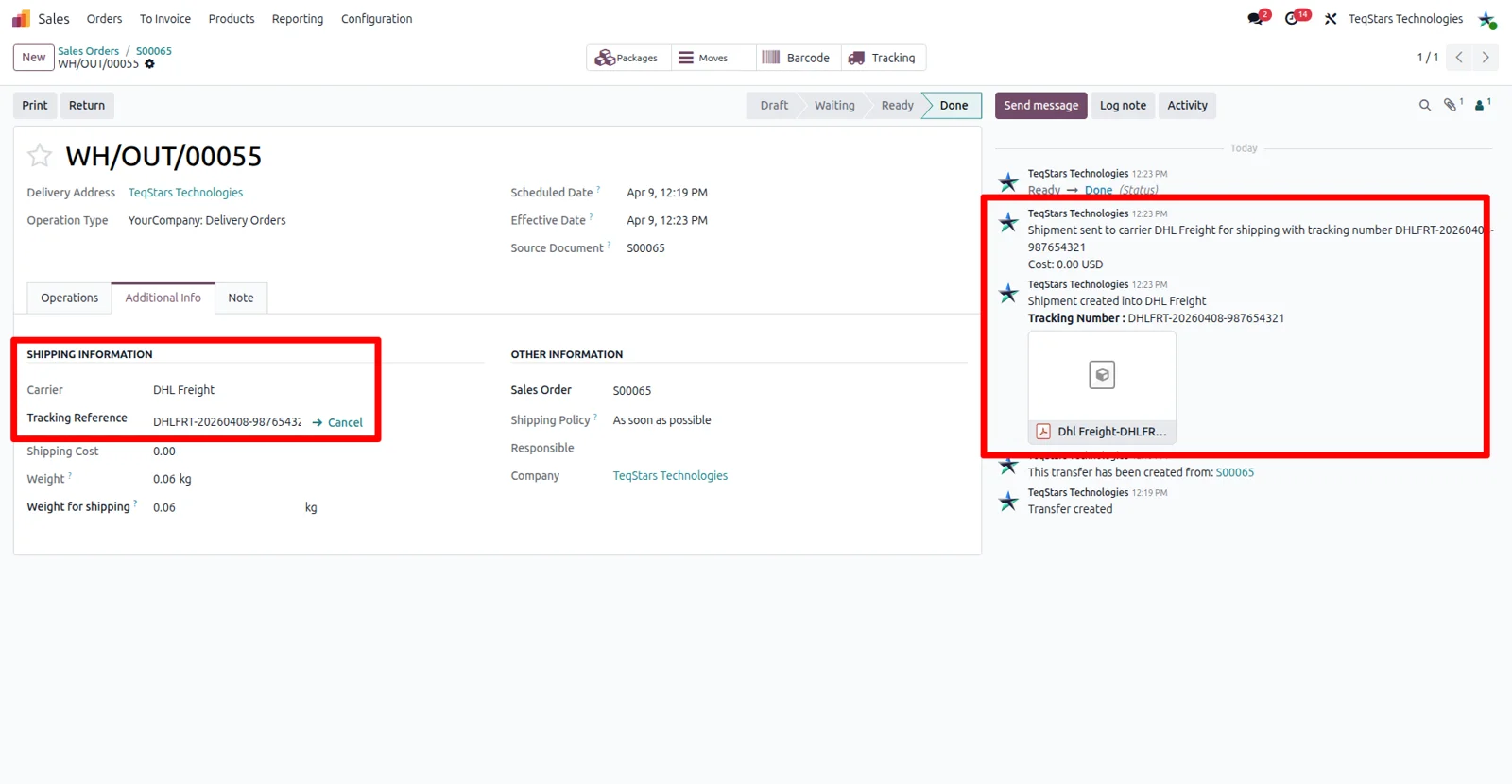
Validating the delivery order is the only click needed to get paperwork. The connector requests the shipment and the shipping label is generated right then, with the DHL Freight tracking number saved on the same delivery order. Your team prints and sticks the label, and nobody retypes an address or a reference into a carrier screen.
Track shipments from the delivery order
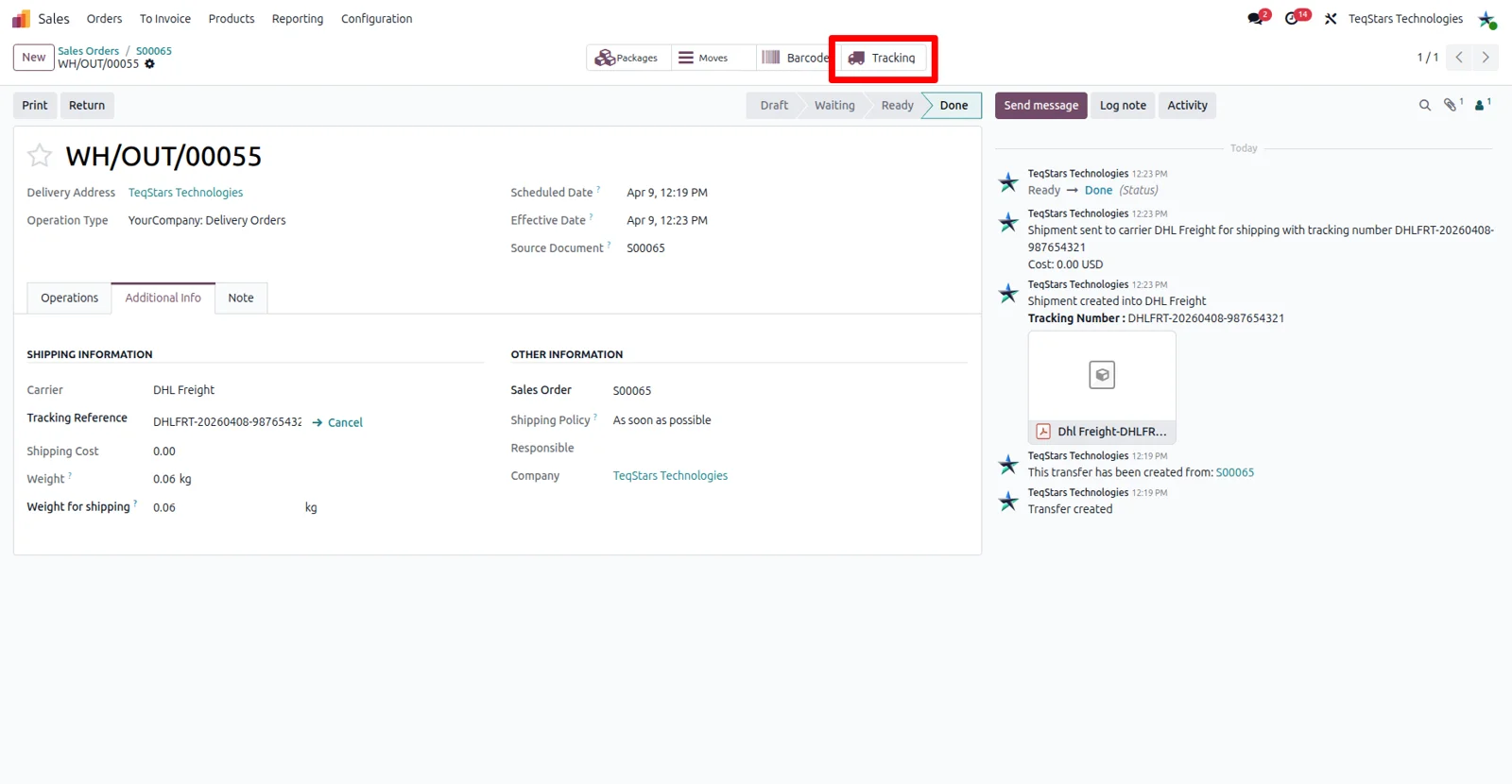
When a customer asks where the goods are, the answer is on the record your team already has open. Tracking is built into the delivery order, so you can follow the status and location of a DHL Freight shipment after it has been handed over. Support and warehouse staff check the same information without digging through emails.
Supported Odoo versions
| Odoo version | Editions | Hosting | Price | Latest release | |
|---|---|---|---|---|---|
| 20.0 | Community & Enterprise | Odoo.sh · On-premise | €149.98 | No release notes | Buy |
| 19.0 | Community & Enterprise | Odoo.sh · On-premise | €149.98 | No release notes | Buy |
| 18.0 | Community & Enterprise | Odoo.sh · On-premise | €149.98 | No release notes | Buy |
| 17.0 | Community & Enterprise | Odoo.sh · On-premise | €149.98 | No release notes | Buy |
Support for DHL Freight Connector
The developers who build the app answer your tickets.
- Free app support from purchase
- 60 days
- First response in working hours, typical
- 4–6 hours
- Support hours, 10:00–18:00 IST
- Mon–Fri
How to connect DHL Freight to Odoo
-
Step 1
Install the connector
Add the app to your Odoo 17.0, 18.0, 19.0 or 20.0 database. It installs on Odoo Community and on Odoo Enterprise, running on-premise or on Odoo.sh.
-
Step 2
Add your DHL Freight account
Enter the account details DHL Freight gave you so Odoo can ask for rates and shipments under your own contract. Teams shipping under several accounts can set up more than one.
-
Step 3
Configure the delivery method
Create a delivery method and pick the DHL Freight carrier on it. Match the settings to the shipments you send, local or international, so the rates you get back fit your orders.
-
Step 4
Run one order through
Quote a test sale order with the new delivery method, then pack and validate the delivery. Check that the label, the tracking number and tracking all appear before your team goes live.
Questions before you buy
Not answered here? Talk to the team.