Send DHL Parcel shipments from Odoo and get labels back on validation
A DHL Parcel Odoo integration for Belgium, Luxembourg and the Netherlands. Validate the delivery order and the shipment goes to DHL Parcel, with the label and tracking number back on that order. ServicePoint selection is available on delivery and website orders when enabled.
- Odoo 17.0 – 20.0
- Community & Enterprise
- Odoo.sh · On-premise
-
Not for
Odoo Online
Top seller on the Odoo Apps Store
- sales on the Odoo Apps Store
- 3,000+
- apps published
- 100+
- countries running them
- 100+
Parcel shipping work before and after the DHL Parcel connector
Without the connector by hand
-
Retype order addresses into a separate DHL Parcel shipping tool.
-
Save label files and attach them to the right delivery order.
-
Copy tracking numbers into Odoo one order at a time.
-
Email customers to ask which pick-up point they want.
-
Open DHL's site to check where a parcel is.
-
Quote shipping charges from your own spreadsheet of prices.
With the connector automatic
-
Validating the delivery order sends the shipment to DHL Parcel.
-
The label comes back on that delivery order, ready to print.
-
The tracking number is recorded on the delivery order.
-
Buyers choose a ServicePoint on website orders, when the option is on.
-
Open tracking from the delivery order to see current status.
-
The delivery method prices the order from your fixed price or rules.
Shipments, labels and tracking between Odoo and DHL Parcel
Every object the connector handles, which way it travels and what triggers it.
| Data | Direction | What happens & when |
|---|---|---|
| Shipment details |

 Odoo to DHL Parcel
|
When your team validates the delivery order |
| Shipping label |
DHL Parcel to Odoo
|
Returned with the created shipment and attached to the delivery order |
| Tracking number |
DHL Parcel to Odoo
|
Returned once the shipment is created for that delivery order |
| ServicePoint locations |
DHL Parcel to Odoo
|
When someone clicks "Select a Location" on a delivery or website order |
| Shipment status |
DHL Parcel to Odoo
|
When you open tracking from the delivery order |
DHL Parcel EU (BE & LU & NL) Shipping Integration features
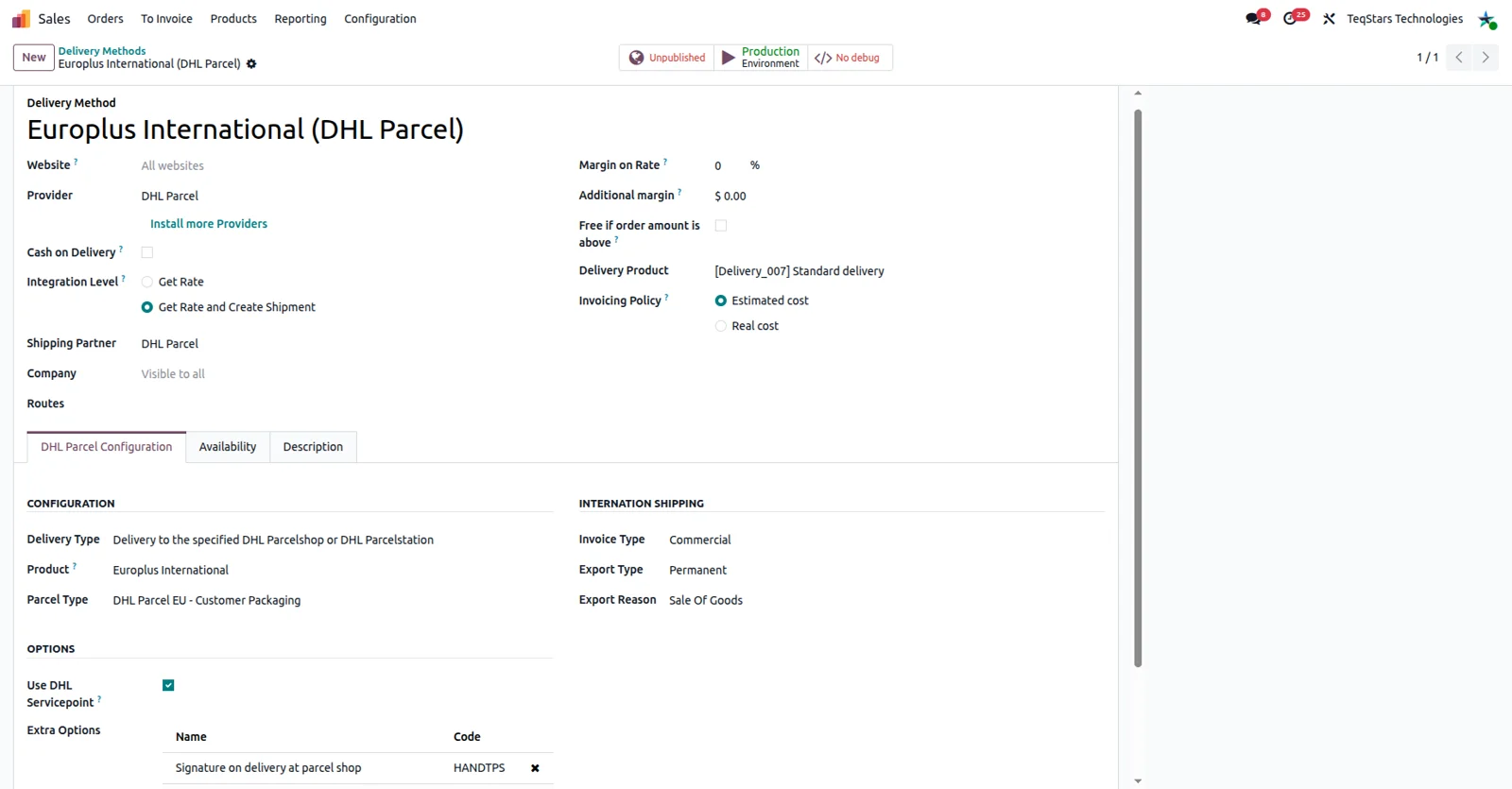
Set up DHL Parcel as a delivery method
Your team picks DHL Parcel on an order the way it picks any other carrier. You create the delivery method once, name it and decide how it charges, and the same record serves local and cross-border parcels. If you ship under more than one DHL Parcel contract, you can set up several DHL Parcel accounts in your Odoo database.
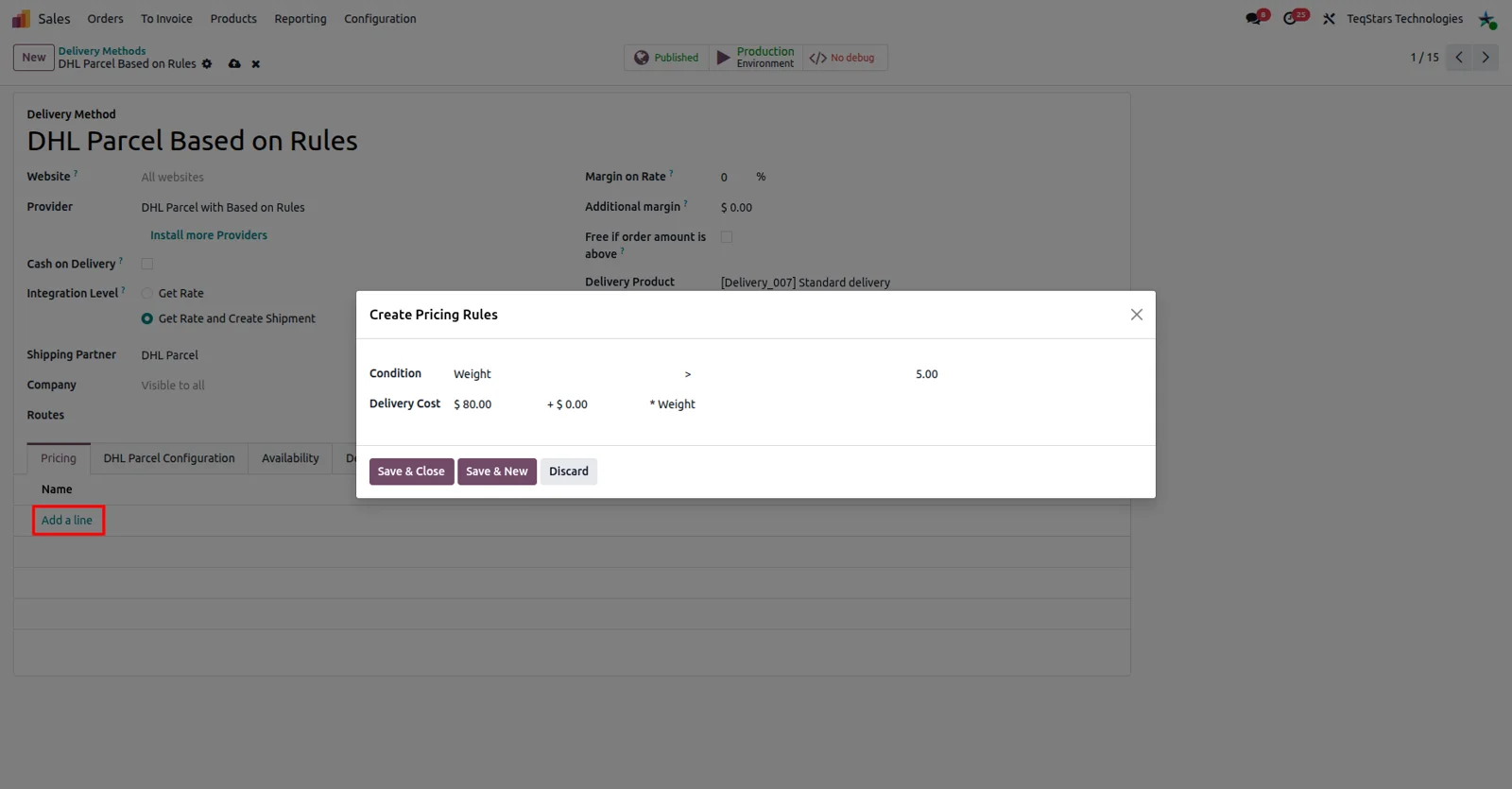
Charge shipping by your own pricing rules
You decide what a shipment costs your customer. DHL Parcel does not return live rates to Odoo, so the delivery method works from prices you enter yourself. Choose a fixed amount, or set the method to Based on Rule and add the conditions you want. Your team then sees that amount on the sales order after selecting the DHL Parcel method.
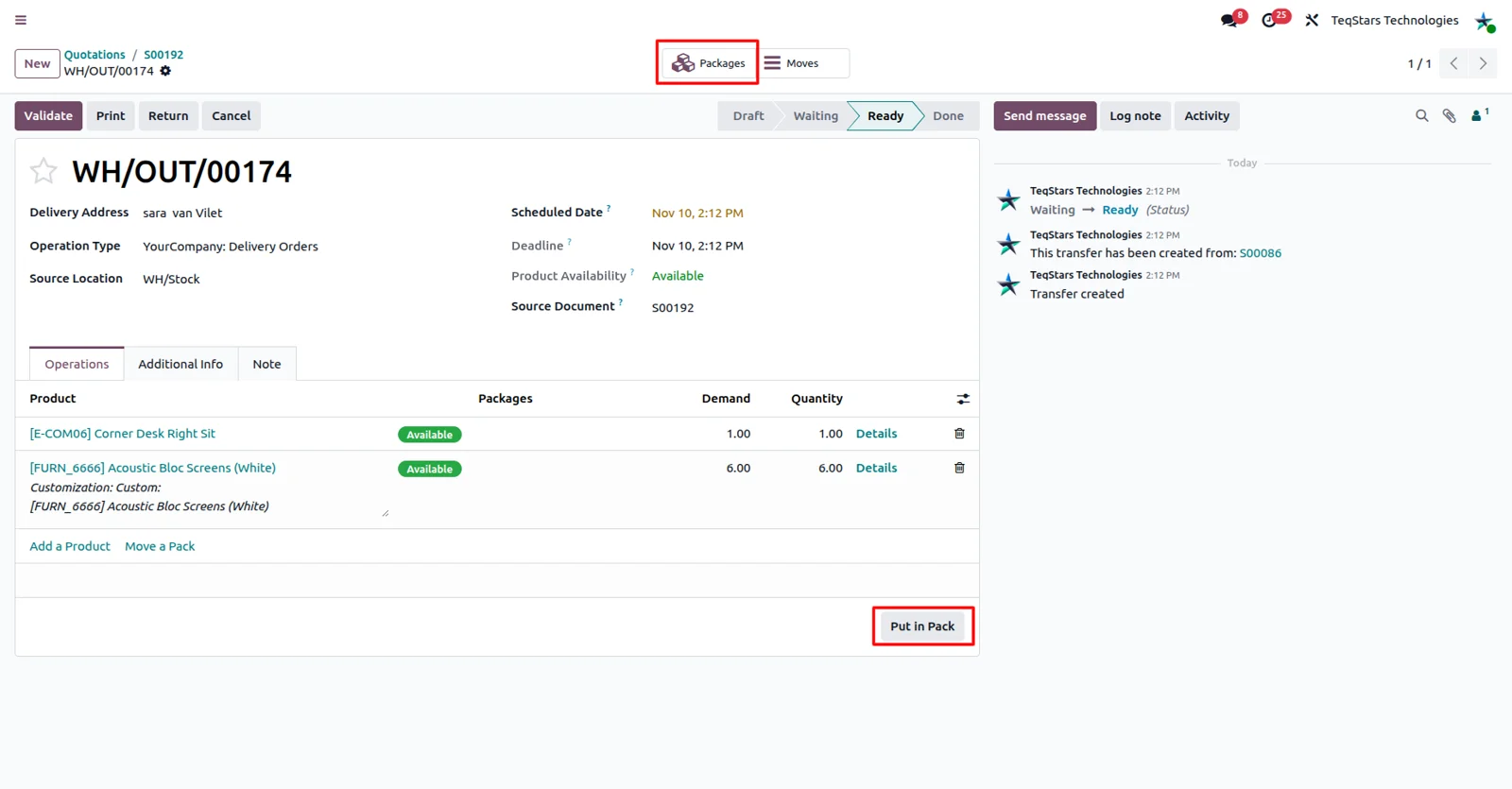
Ship one order in several packages
When an order leaves the warehouse in more than one box, you record that before it goes out. Use Odoo's Put in Pack operation on the delivery order to split the goods into packages. The connector uses those packages for the shipment sent to DHL Parcel when the delivery order is validated, so what you declared matches what your team packed.
Pick a DHL ServicePoint on the delivery order
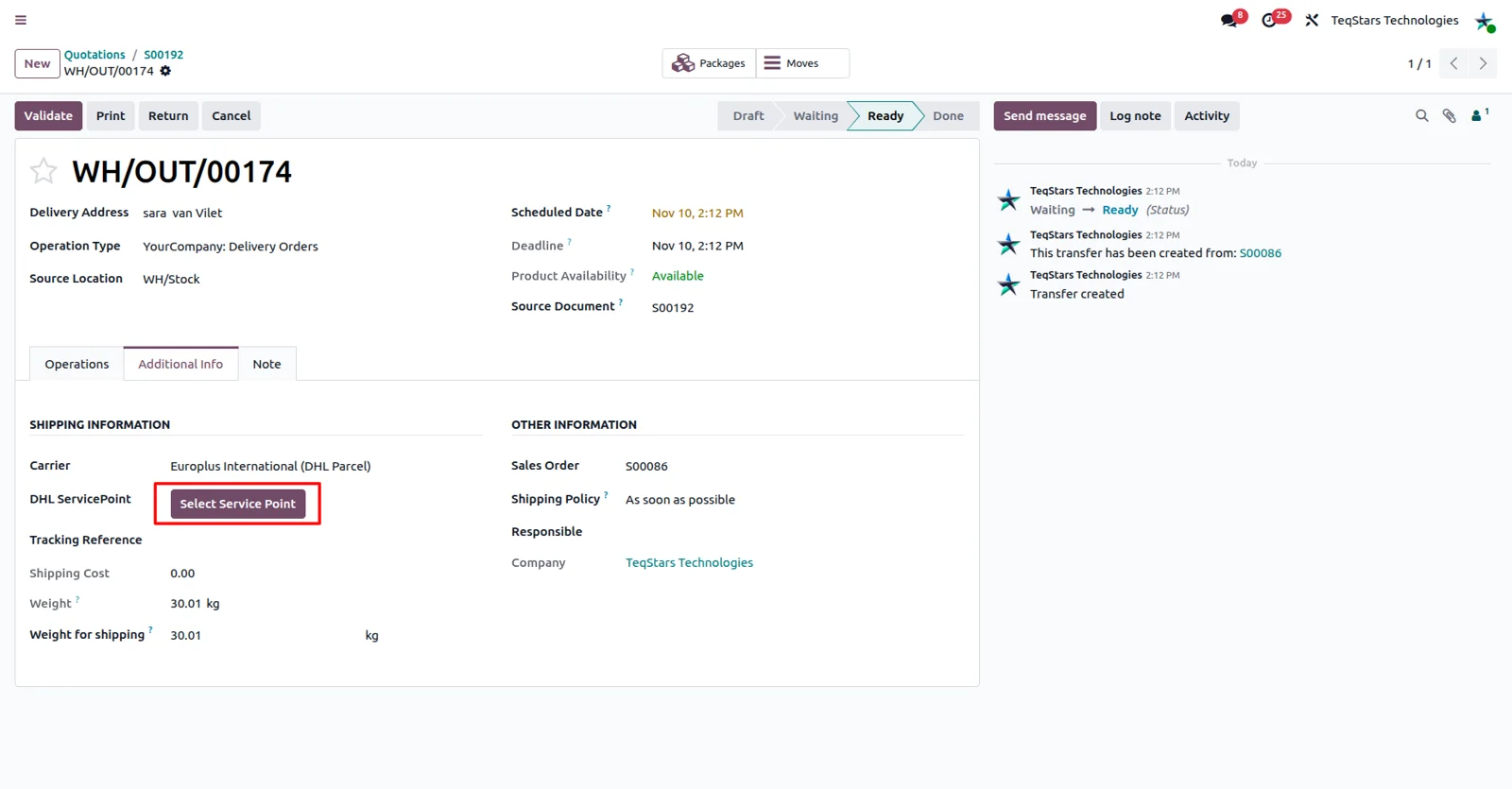
Some parcels are better collected than delivered to a door. Switch on "Use DHL ServicePoint" in the delivery method and the delivery order offers a button for choosing a point. Your team opens it, picks the location the customer asked for, and that point is used for the shipment sent to DHL Parcel.
Let web shoppers choose a pick-up point
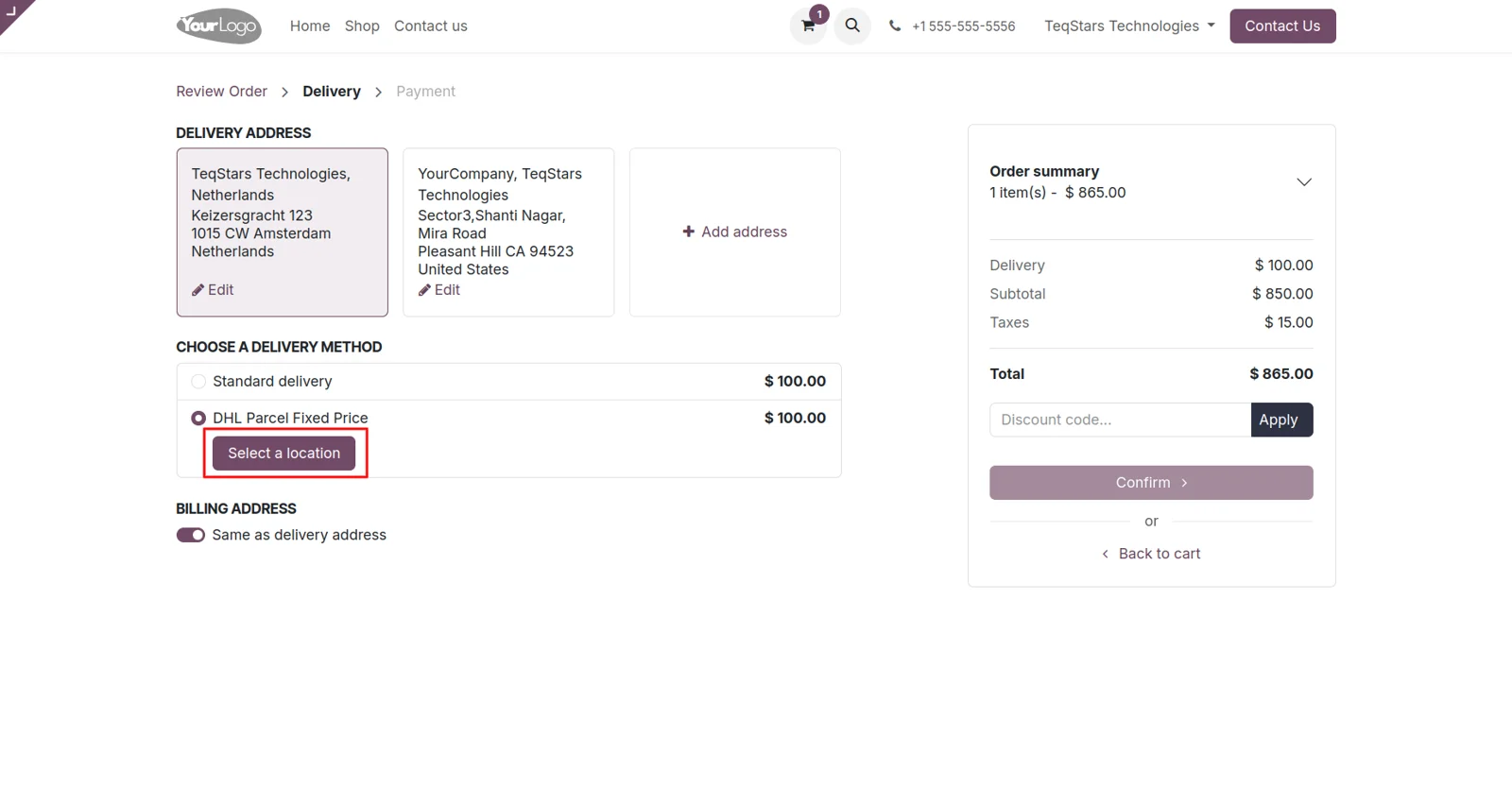
Online buyers choose their own collection point while they order. With "Use DHL ServicePoint" enabled, your website shows a "Select a Location" button much like the one on an internal delivery order. The choice comes through with the order, so nobody on your team has to write to the customer and ask where the parcel should wait.
Get labels and tracking numbers on validation
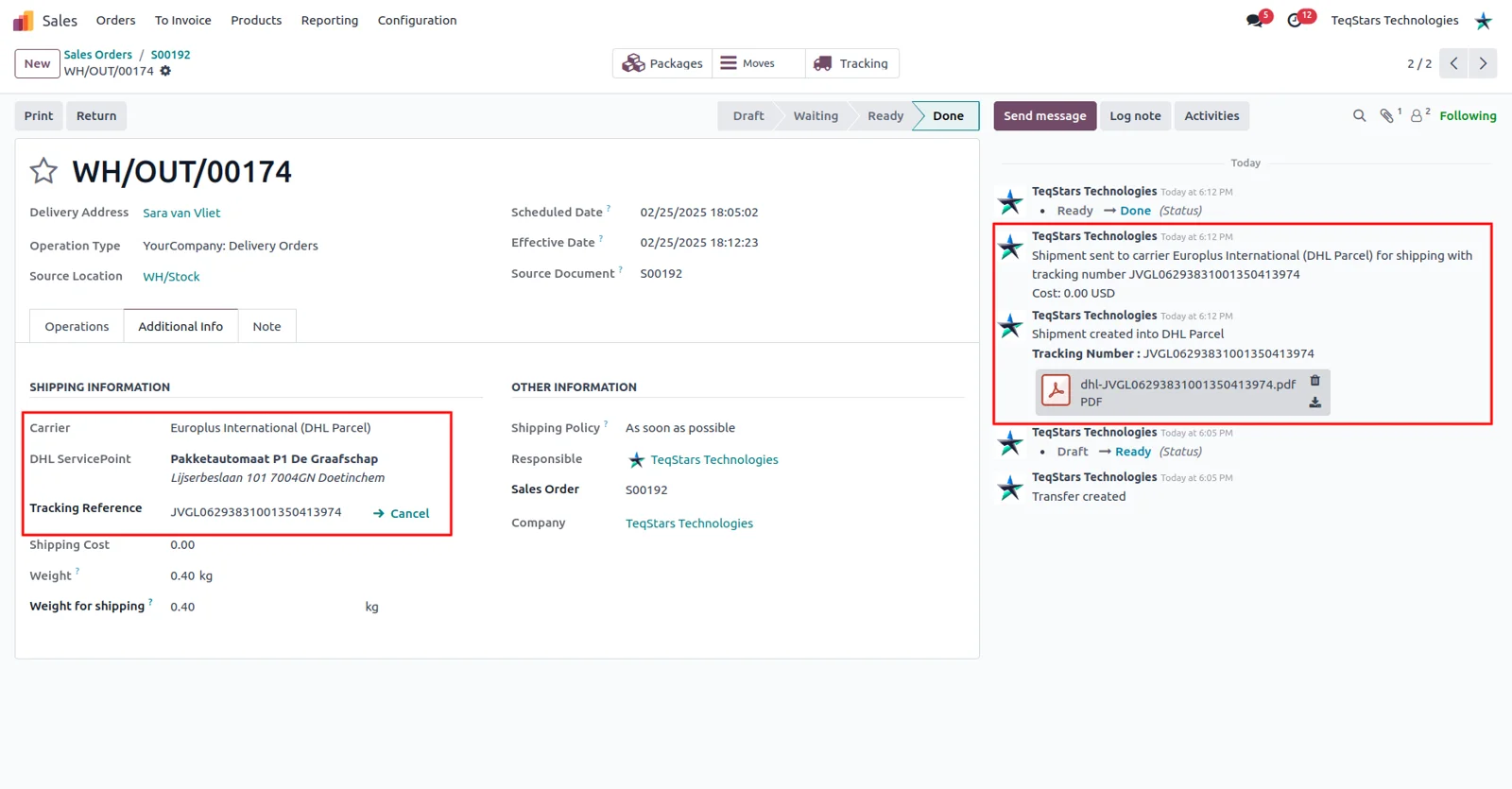
Validating the delivery order creates the shipment at DHL Parcel and brings the label back into Odoo. The shipping label is attached to that delivery order for printing, and the tracking number is recorded on the same screen. Your warehouse prints from the order it is already handling, and nobody retypes an address into a second shipping tool.
Follow each shipment's status in Odoo
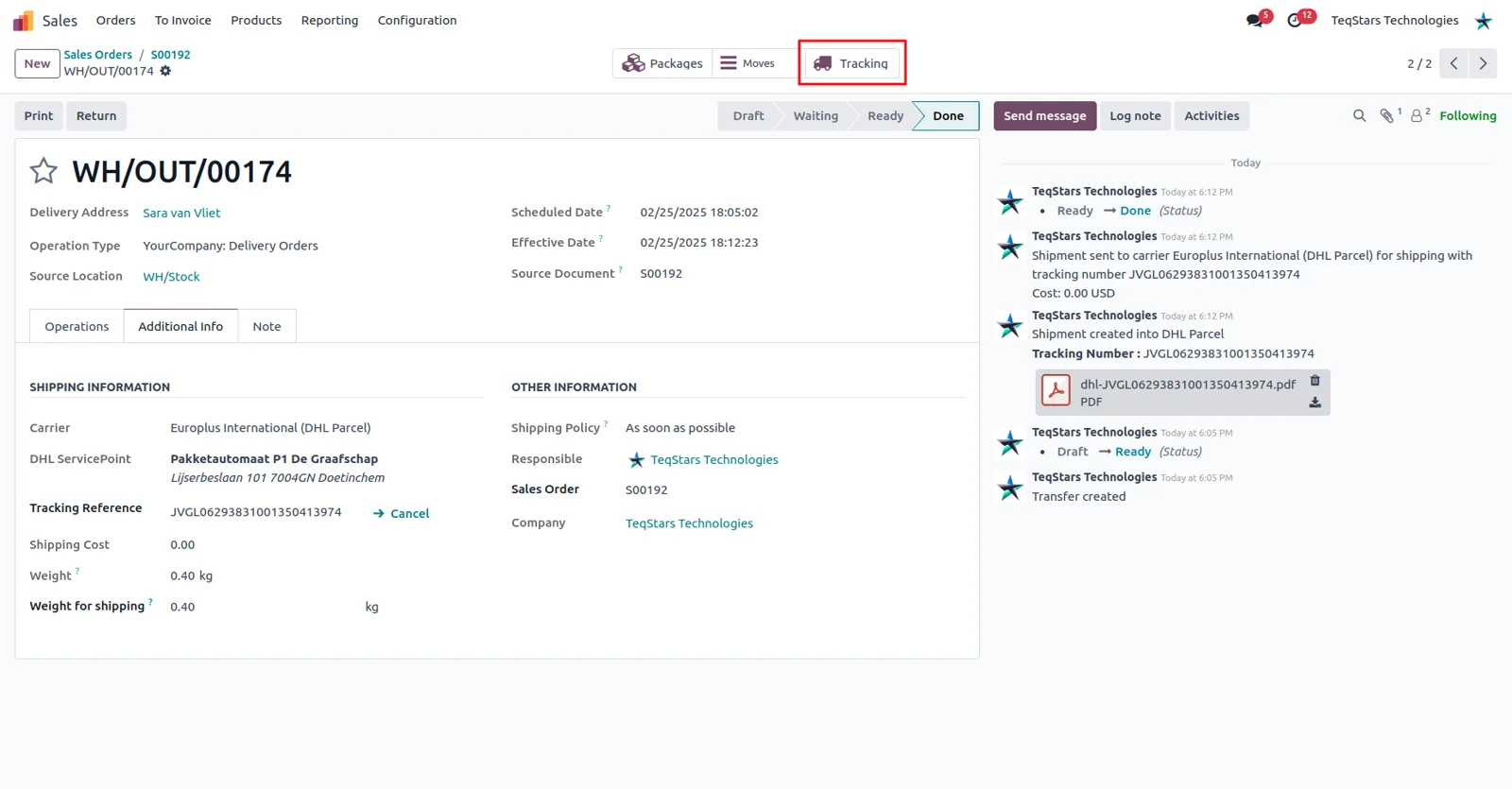
You can answer "where is my order" from the delivery record itself. Tracking details come back from DHL Parcel with the shipment, and the delivery order gives your team a way to open tracking and read the parcel's current status and location. Customer service and the warehouse look at the same information.
Supported Odoo versions
| Odoo version | Editions | Hosting | Price | Latest release | |
|---|---|---|---|---|---|
| 20.0 | Community & Enterprise | Odoo.sh · On-premise | €208.99 | No release notes | Buy |
| 19.0 | Community & Enterprise | Odoo.sh · On-premise | €208.99 | No release notes | Buy |
| 18.0 | Community & Enterprise | Odoo.sh · On-premise | €208.99 | No release notes | Buy |
| 17.0 | Community & Enterprise | Odoo.sh · On-premise | €99 | No release notes | Buy |
Support for DHL Parcel EU (BE & LU & NL) Connector
The developers who build the app answer your tickets.
- Free app support from purchase
- 60 days
- First response in working hours, typical
- 4–6 hours
- Support hours, 10:00–18:00 IST
- Mon–Fri
How to connect DHL Parcel to Odoo
-
Step 1
Install the connector
Add the DHL Parcel EU app to your database on Odoo 17.0, 18.0, 19.0 or 20.0. It works on Community and on Enterprise, hosted on Odoo.sh or on your own server.
-
Step 2
Add your DHL Parcel account
Enter the account details DHL Parcel gave you so Odoo can create shipments for your contract. More than one account can be set up if you ship under several of them.
-
Step 3
Create the delivery method
Add a DHL Parcel delivery method and decide how it prices shipments, either a fixed amount or rules of your own. Turn on "Use DHL ServicePoint" if buyers collect their parcels.
-
Step 4
Use it on orders
Select the method on a sales order to charge the shipping amount. Pack the goods, then validate the delivery order to send the shipment and receive the label and tracking number.
Questions before you buy
Not answered here? Talk to the team.