DHL labels, tracking and cancellations on your Odoo delivery orders
Validate a delivery order in Odoo and the DHL Parcel DE label and tracking number come back with it. This DHL Parcel DE Odoo integration handles domestic and international parcels, DHL services such as Ident-Check and cash on delivery, and one-click cancellation.
- Odoo 17.0 – 20.0
- Community & Enterprise
- Odoo.sh · On-premise
-
Not for
Odoo Online
Top seller on the Odoo Apps Store
- sales on the Odoo Apps Store
- 3,000+
- apps published
- 100+
- countries running them
- 100+
DHL shipping work before and after the connector
Without the connector by hand
-
Retype customer addresses into a DHL portal for every parcel
-
Download each label from DHL and attach it to the Odoo order
-
Copy tracking numbers back into Odoo so your team can answer calls
-
Sign in to DHL systems to cancel a parcel you no longer ship
-
Keep a spreadsheet of shipping prices by weight and country
With the connector automatic
-
Odoo sends the delivery order's addresses, weights and booked services to DHL
-
Validating the delivery order creates the label and files it on that order
-
DHL returns the tracking number onto the same delivery order
-
One Cancel click on the delivery order withdraws the shipment at DHL
-
Fixed prices or Odoo shipping rules compute the cost on the order
Labels, tracking and cancellations between Odoo and DHL Parcel DE
Every object the connector handles, which way it travels and what triggers it.
| Data | Direction | What happens & when |
|---|---|---|
| Shipment details |

 Odoo to DHL Parcel DE
|
You validate the delivery order in Odoo. |
| Shipping label |
DHL Parcel DE to Odoo
|
Returned on validation and filed on the delivery order. |
| Tracking number |
DHL Parcel DE to Odoo
|
Created with the shipment, then shown on the order. |
| Booked DHL services |
Odoo to DHL Parcel DE
|
Sent with the shipment from the delivery method settings. |
| Customs export data |
Odoo to DHL Parcel DE
|
When Export Document Required is ticked on the method. |
| Shipment cancellation |
Odoo to DHL Parcel DE
|
You press Cancel on the delivery order. |
DHL Parcel (Post & Parcel Germany) Connector features
Set up your DHL products and services
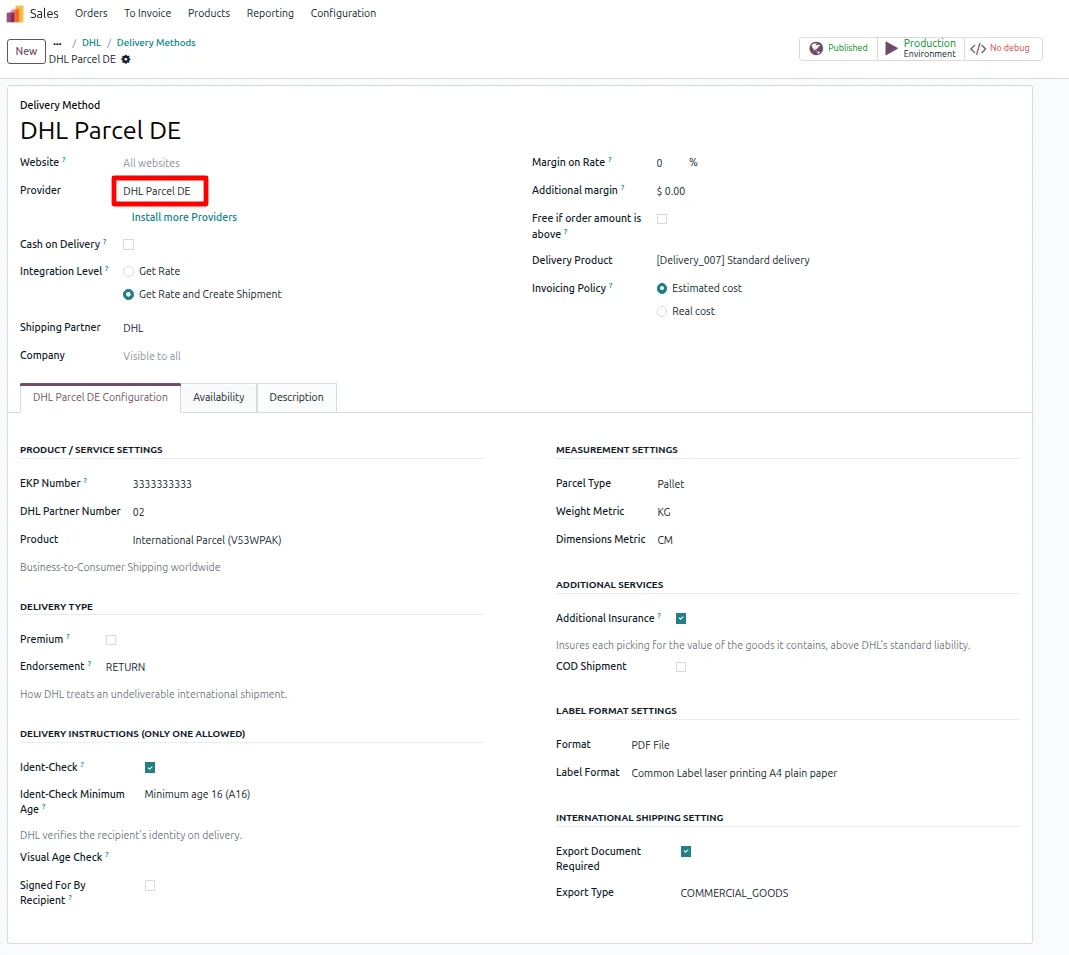
The delivery method is where your DHL contract sits in Odoo. In the DHL Parcel DE Configuration tab you enter the EKP Number and DHL Partner Number, then pick the DHL product you ship with, such as Domestic Parcel or Warenpost International. The same tab carries the extra services, your units in CM or MM and KG or Pounds, and the label settings.
Price shipping with a fixed rate
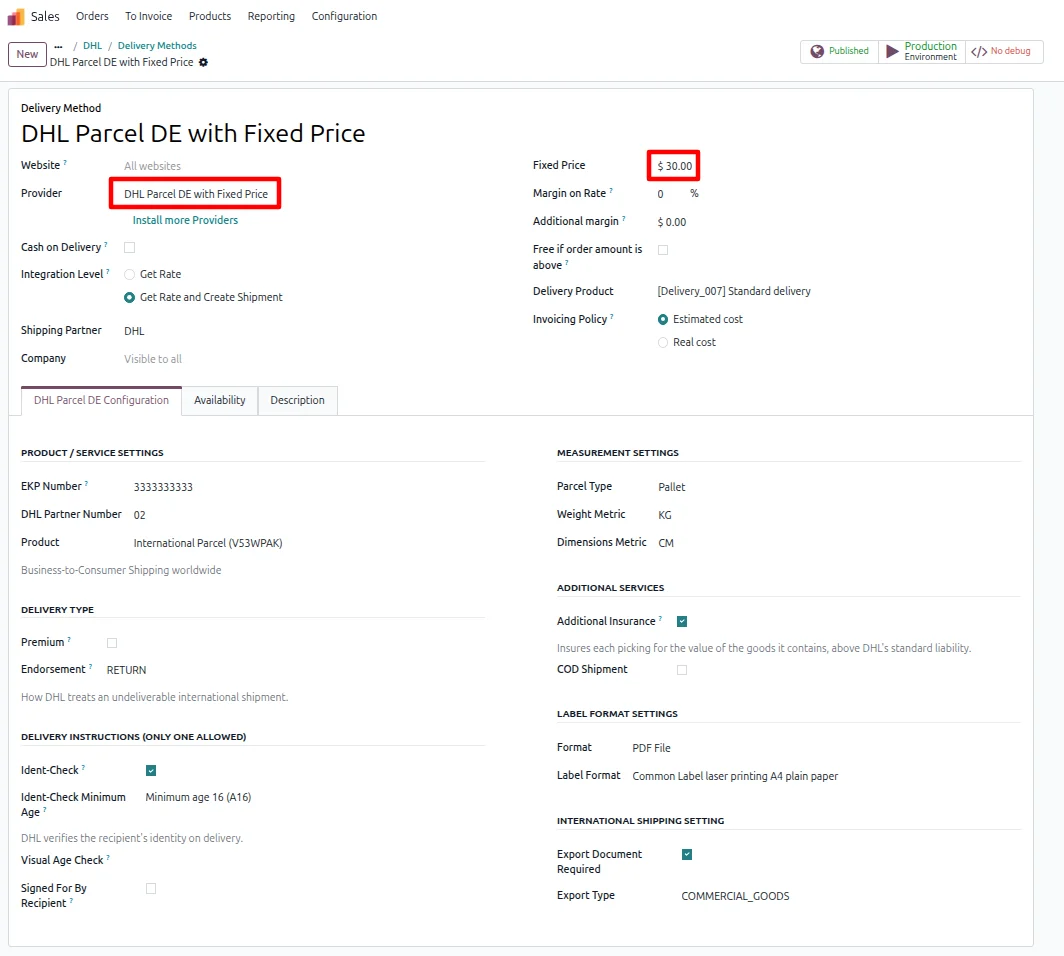
DHL Parcel DE offers no live rate service, so you decide what customers pay. A method set to DHL Parcel DE with Fixed Price charges one agreed amount on every order it applies to. The delivery product you assign becomes the shipping line on the sales order. Pick DHL Parcel DE with Based on Rules instead when the price should follow weight or destination.
Add shipping cost to a quotation
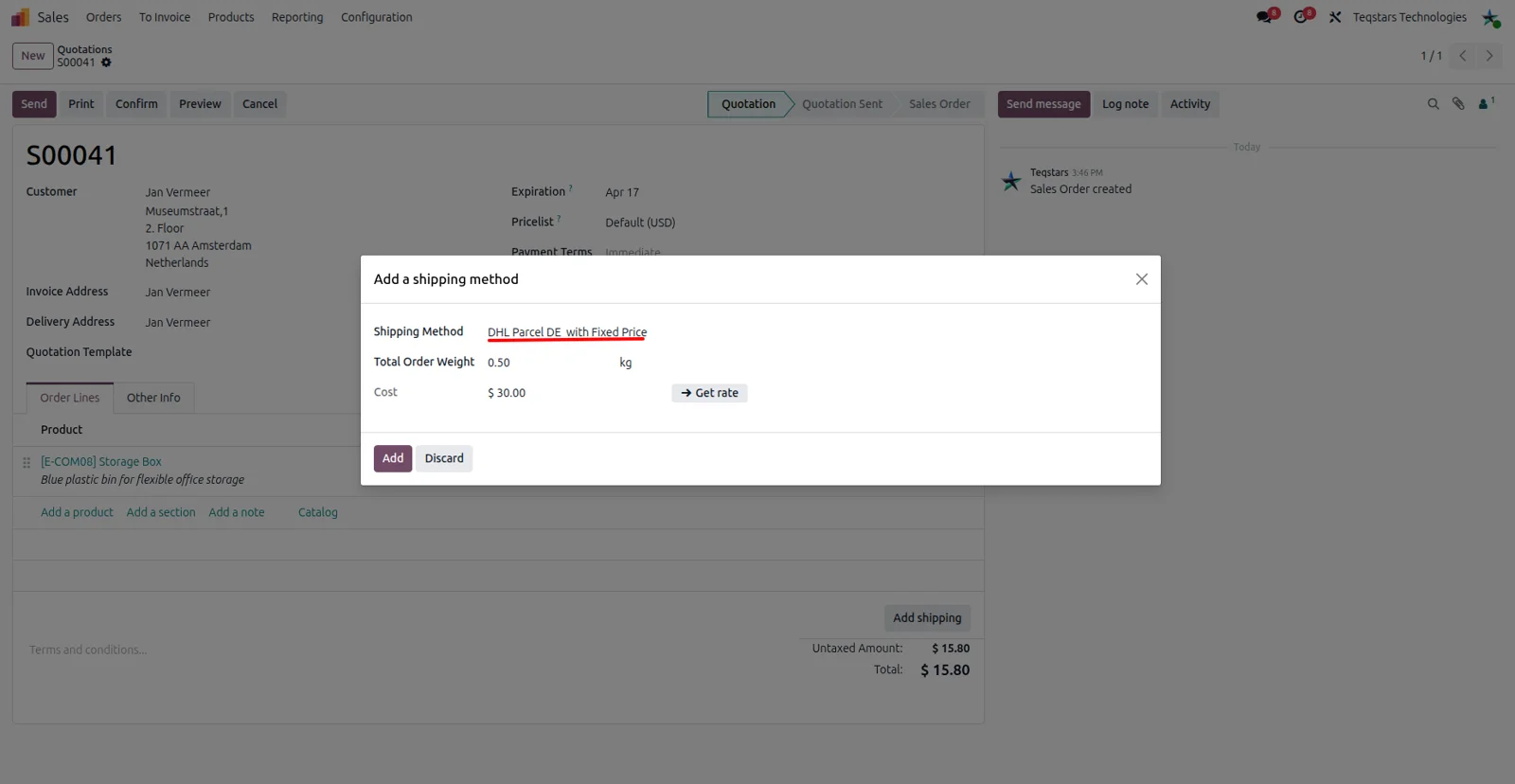
Your sales team adds the carrier charge without guessing. Press Add Shipping on the quotation and choose the DHL Parcel DE method you configured. Odoo totals the weight of the ordered products, and you can type another figure over it. Pressing Add puts the fixed price, or the amount your rules produce, on the order. Website shoppers see the same methods during checkout.
Split an order into several packages
Big orders rarely fit one parcel. Use the Put in Pack operation on the delivery order to divide the goods and give each package its own type, so a bulky item and a small one travel under the right conditions. Each package type needs a base weight, or the shipment cannot be created. Items left loose use the Parcel Type set on the delivery method.
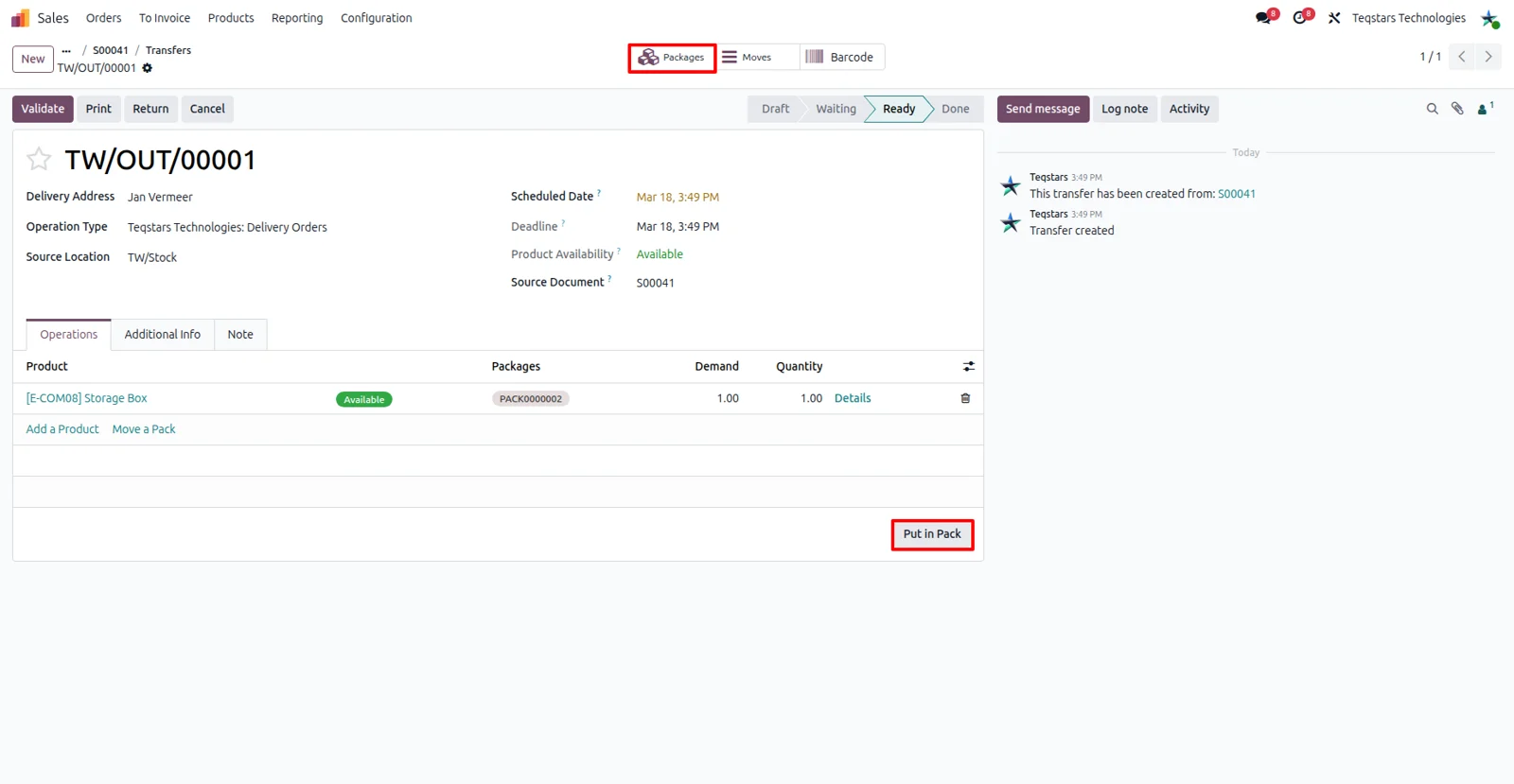
Labels appear when you validate
Validating the delivery order creates the shipment at DHL, and both the label and the tracking number show on that order, with the label kept in the chatter. You choose the output beforehand on the delivery method: a URL, a PDF file or ZPL2. Print formats cover plain A4, A5 sheets, 105x209mm laser labels and thermal labels on roll or folding tape.
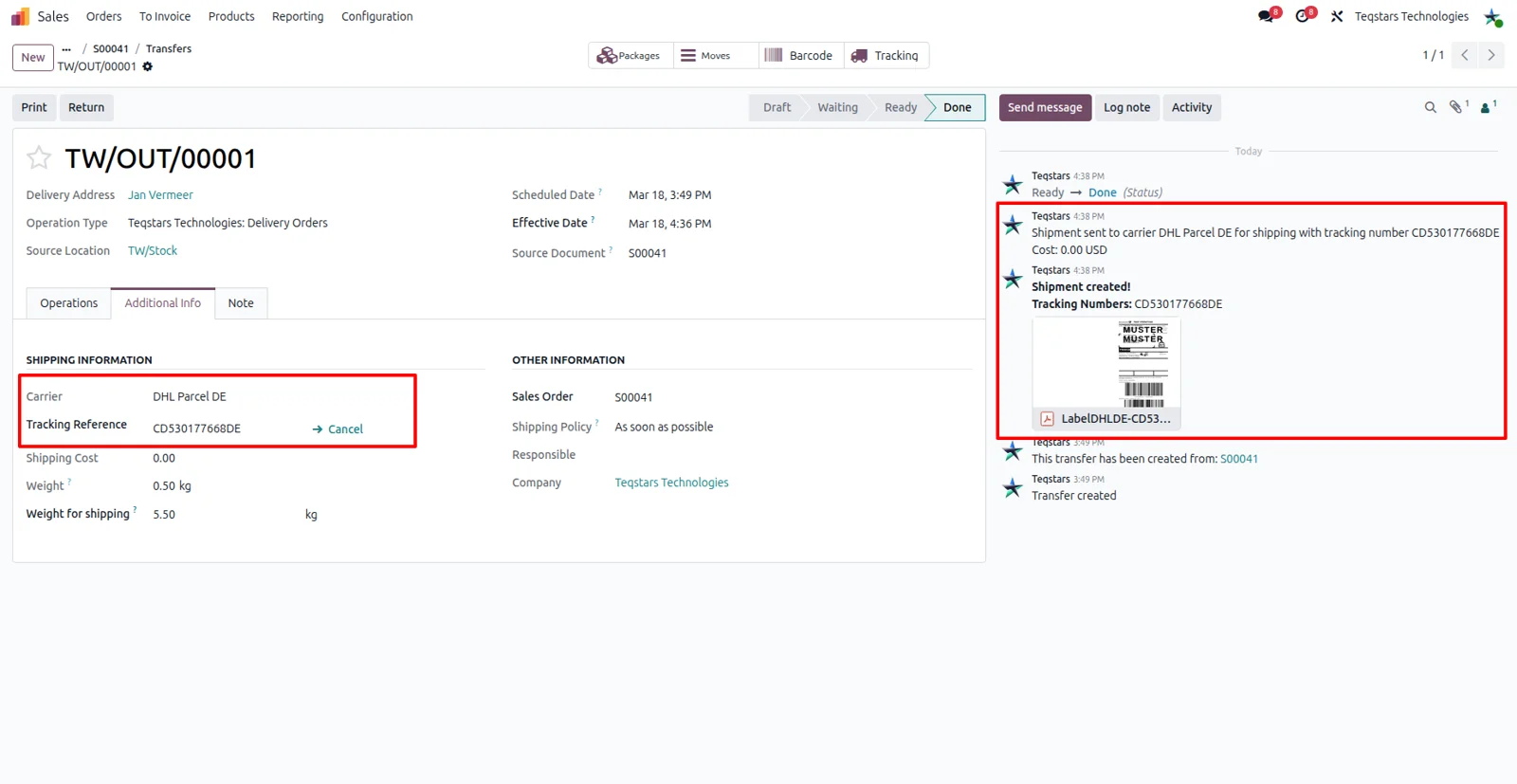
Track parcels from the delivery order
Anyone fielding a customer call can see where a parcel is. The tracking button on the delivery order opens the DHL tracking portal for that shipment, with its status, its location and the updates DHL has recorded. Tracking details also sit with the sales order and the delivery order, so your team reads them beside the rest of the paperwork.
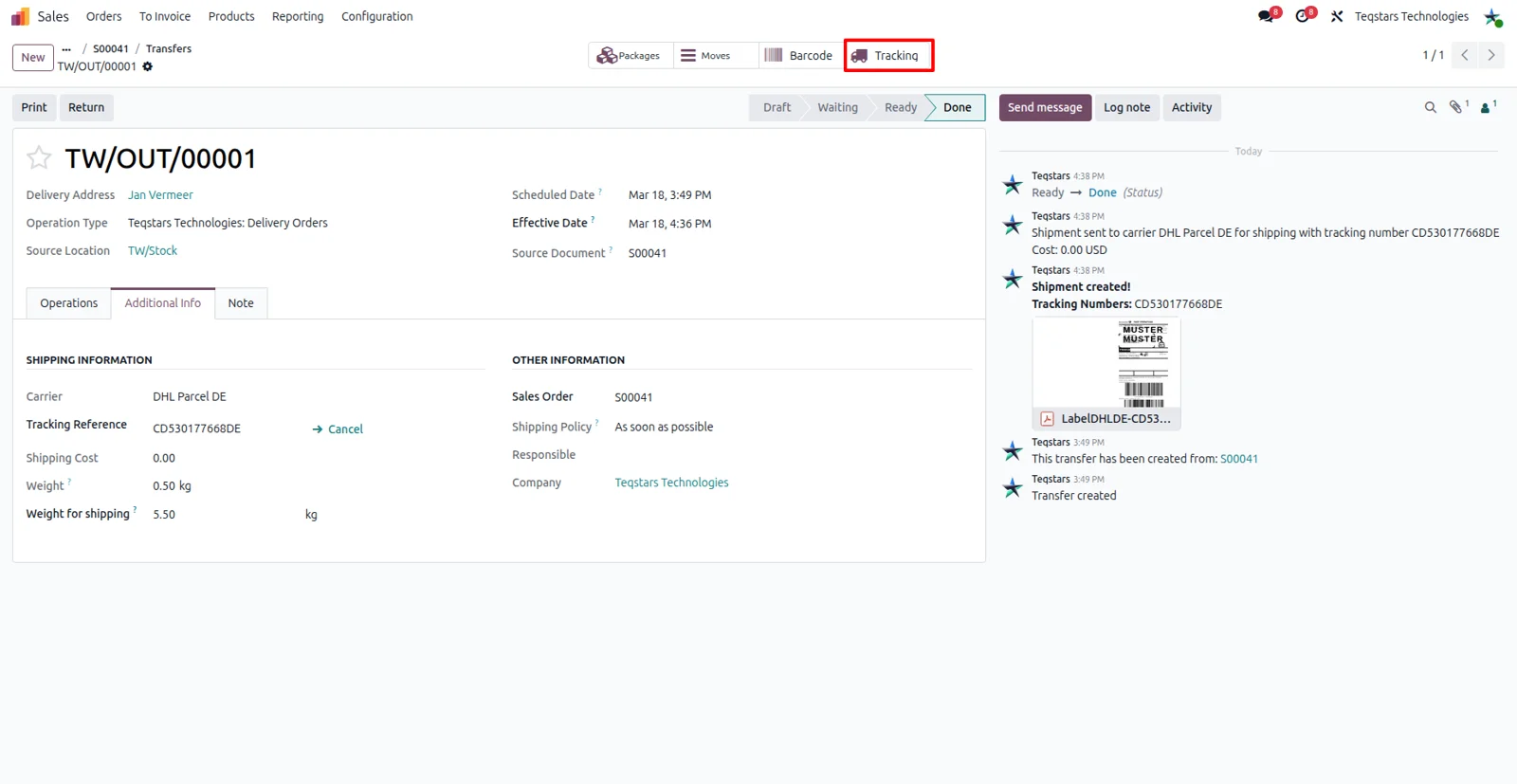
Cancel a DHL shipment in one click
Orders change, and parcels can follow. The Cancel button on the delivery order asks DHL to withdraw the shipment, so nobody signs in to a DHL system to undo it. When DHL will not cancel one of the shipments, the connector tells you which ones stayed active, and you can take those up with DHL directly.
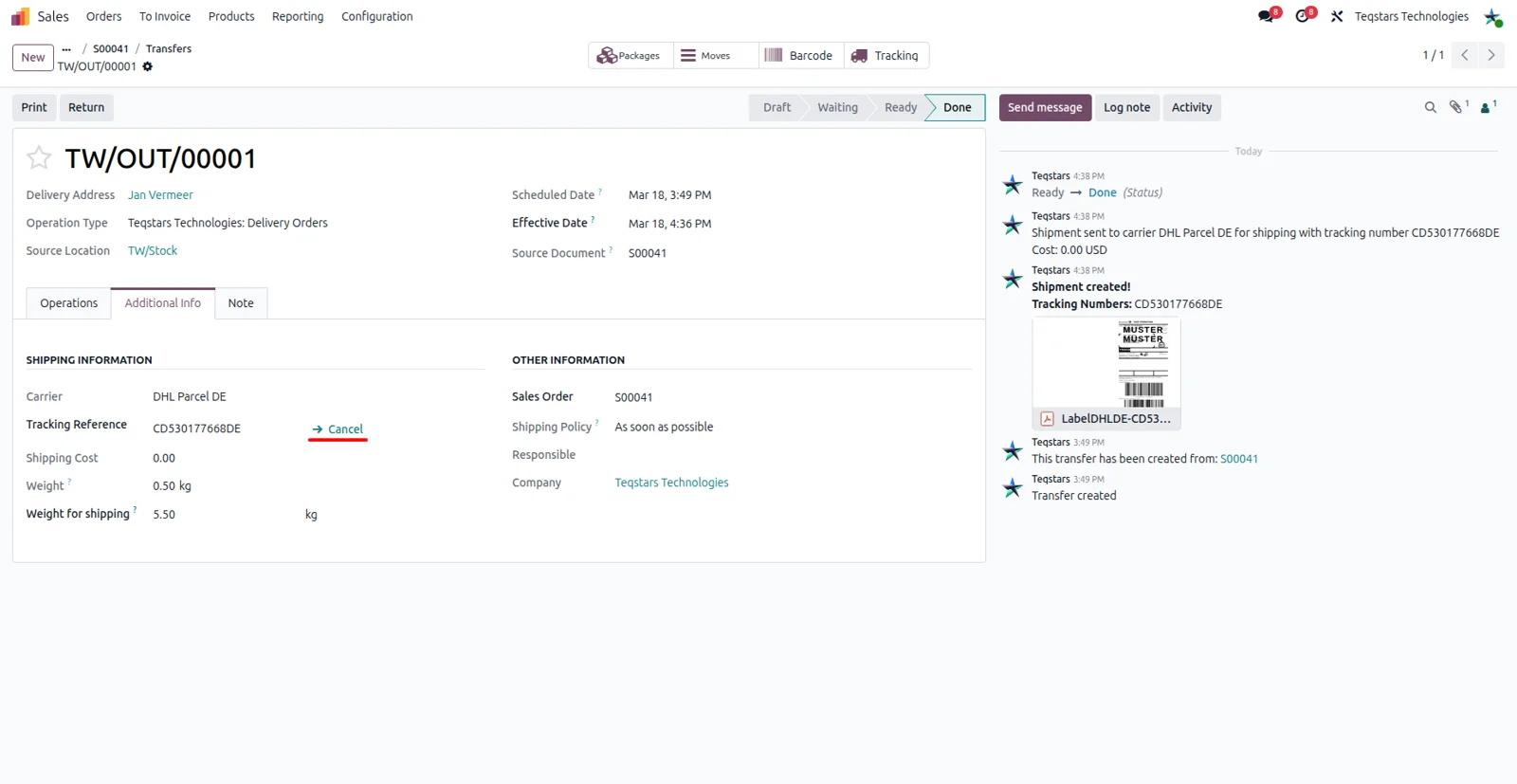
Supported Odoo versions
| Odoo version | Editions | Hosting | Price | Latest release | |
|---|---|---|---|---|---|
| 20.0 | Community & Enterprise | Odoo.sh · On-premise | €108.99 | 20.0.1.0.0 | Buy Docs |
| 19.0 | Community & Enterprise | Odoo.sh · On-premise | €108.99 | 19.0.1.0.3 | Buy Docs |
| 18.0 | Community & Enterprise | Odoo.sh · On-premise | €108.99 | No release notes | Buy |
| 17.0 | Community & Enterprise | Odoo.sh · On-premise | €108.99 | No release notes | Buy |
Support for DHL Parcel (Post & Parcel Germany) Connector
The developers who build the app answer your tickets.
- Free app support from purchase
- 60 days
- First response in working hours, typical
- 4–6 hours
- Support hours, 10:00–18:00 IST
- Mon–Fri
How to connect DHL Parcel DE to Odoo
-
Step 1
Turn on delivery methods
Carrier options only show once Odoo's shipping feature is on. In Inventory settings, go to the Shipping section and enable Delivery Methods. Install the connector build that matches your database: 17.0, 18.0, 19.0 or 20.0.
-
Step 2
Add your DHL account
Under Sale, Configuration, Shipping Partner, create a record and select DHL Parcel DE (Post & Parcel Germany). Paste in the UserId, API KEY and Password that DHL issued you. The smart button at the top switches the record between test and production.
-
Step 3
Create the delivery method
Because you set the prices, choose DHL Parcel DE with Fixed Price or DHL Parcel DE with Based on Rules as the type, then link your shipping partner. The DHL Parcel DE Configuration tab takes the Product, EKP Number and DHL Partner Number.
-
Step 4
Prepare package types
DHL needs a weight for every item it carries, so give each package type a base weight first. Tick bulky product? on types used for oversized goods. Pick a Parcel Type on the method to cover anything packed loose.
-
Step 5
Add the services you sell
Switch on only the DHL options your customers need, such as Additional Insurance, Premium or COD Shipment with its IBAN. For deliveries outside the EU, tick Export Document Required and set an Export Type for customs.
-
Step 6
Ship your first order
Confirm a quotation that carries your DHL method, then open the delivery order and set the carrier. Click Validate: Odoo books the parcel and brings back the label and the tracking number for that order.
Questions before you buy
Not answered here? Talk to the team.