Compare rates, print labels and track every parcel through Easyship
This Easyship Odoo integration puts more than 250 shipping solutions behind one connection. Your team picks a service and its rate on the sales order, then validates the delivery order to get the label, the commercial invoice and the tracking number.
- Odoo 17.0 – 20.0
- Community & Enterprise
- Odoo.sh · On-premise
-
Not for
Odoo Online
Top seller on the Odoo Apps Store
- sales on the Odoo Apps Store
- 3,000+
- apps published
- 100+
- countries running them
- 100+
Shipping work before and after the EasyShip Connector
Without the connector by hand
-
Check carrier rates on another site before quoting a customer.
-
Create each shipping label by hand after the goods are packed.
-
Type a commercial invoice separately for cross-border parcels.
-
Copy tracking numbers back into Odoo one order at a time.
-
Open Easyship on its own to stop a shipment you no longer need.
-
Sign in and out when more than one Easyship account is involved.
With the connector automatic
-
Press Get Rate on the sales order to list services and prices.
-
Validating the delivery order generates the label for that shipment.
-
The commercial invoice comes with the label on validation.
-
The tracking number arrives on the delivery order with the label.
-
One click on the delivery order cancels the shipment in Easyship.
-
Several Easyship accounts can be connected to your Odoo databases.
Rates, labels and tracking between Odoo and Easyship
Every object the connector handles, which way it travels and what triggers it.
| Data | Direction | What happens & when |
|---|---|---|
| Shipping services and rates |

 Easyship to Odoo
|
You ask for rates on a sales order or a delivery order. |
| Package details |
Odoo to Easyship
|
Put in Pack on the delivery order, before you validate it. |
| Shipment request |
Odoo to Easyship
|
Validating the delivery order in Odoo. |
| Shipping label |
Easyship to Odoo
|
Created as soon as the delivery order is validated. |
| Commercial invoice |
Easyship to Odoo
|
Created with the label when the delivery order is validated. |
| Tracking number |
Easyship to Odoo
|
Returned on the validated delivery order with the label. |
| Shipment status and location |
Easyship to Odoo
|
You open Track Shipment on the delivery order. |
| Shipment cancellation |
Odoo to Easyship
|
You click cancel on the delivery order. |
EasyShip Odoo Shipping Connector features
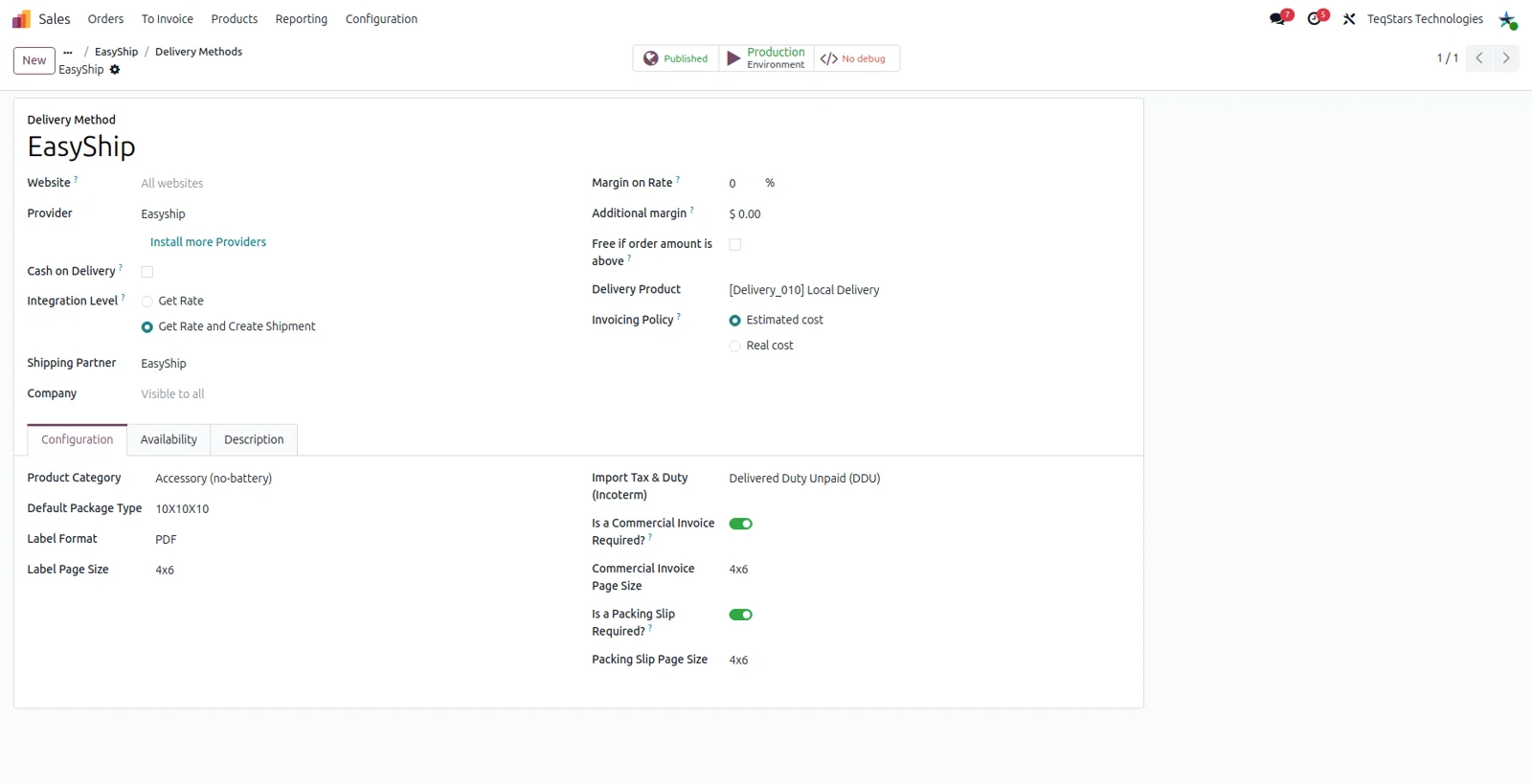
Separate domestic and international delivery methods
You decide which shipping options your team sees by setting up Easyship delivery methods in Odoo. Keep one method for parcels that stay in the country and another for shipments that cross a border, so quotations only offer services that make sense for the destination. Each method is tied to the Easyship account you connected, which matters when more than one account is in play.
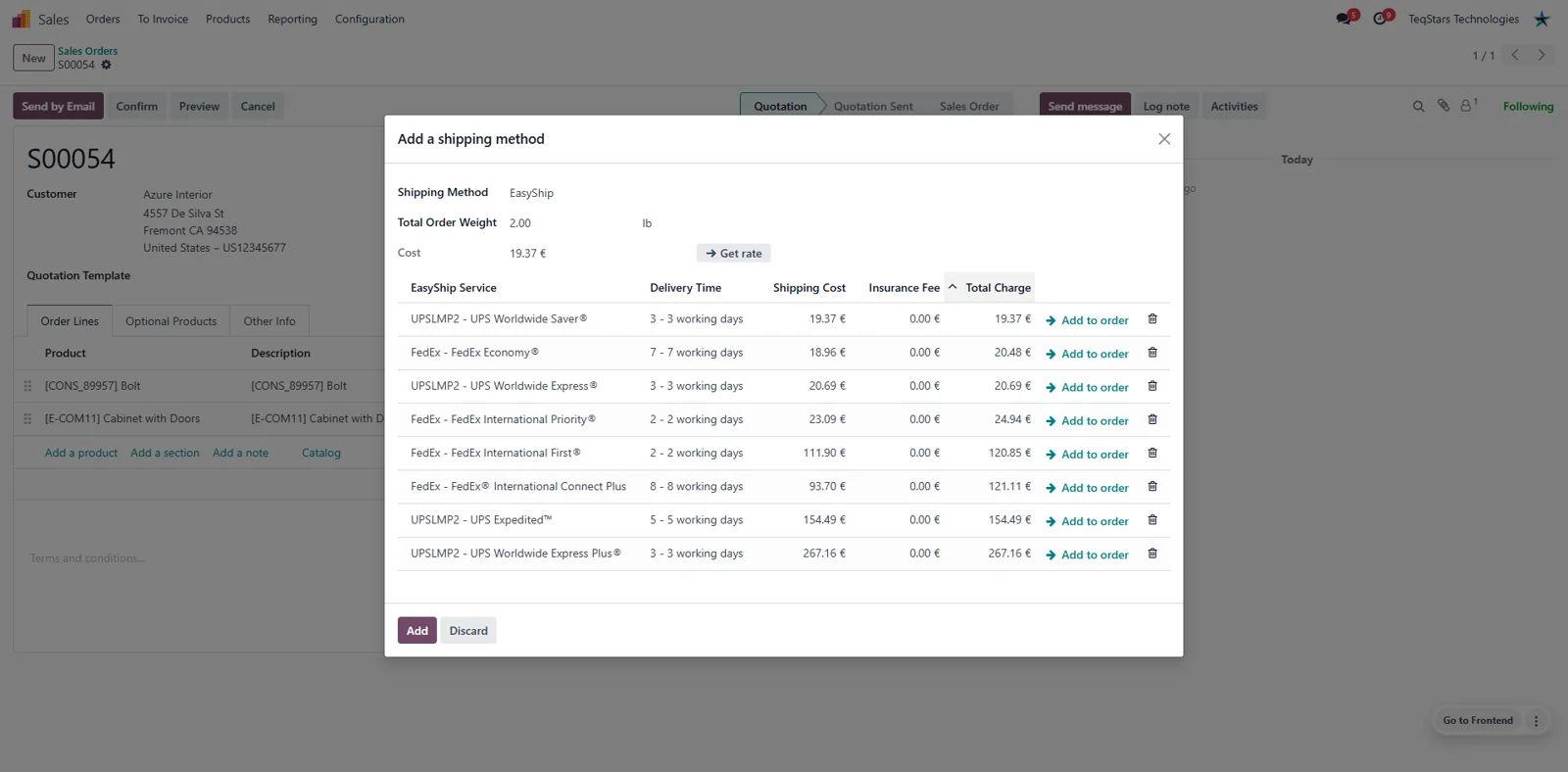
Pick a carrier and rate on the sales order
Your sales team compares shipping before the customer confirms. Ask for rates on the quotation and the available services come back from Easyship in a list, each with its price. One click puts the chosen service and its rate on the order, so the shipping amount the customer sees is the one the carrier quoted rather than a figure someone guessed.
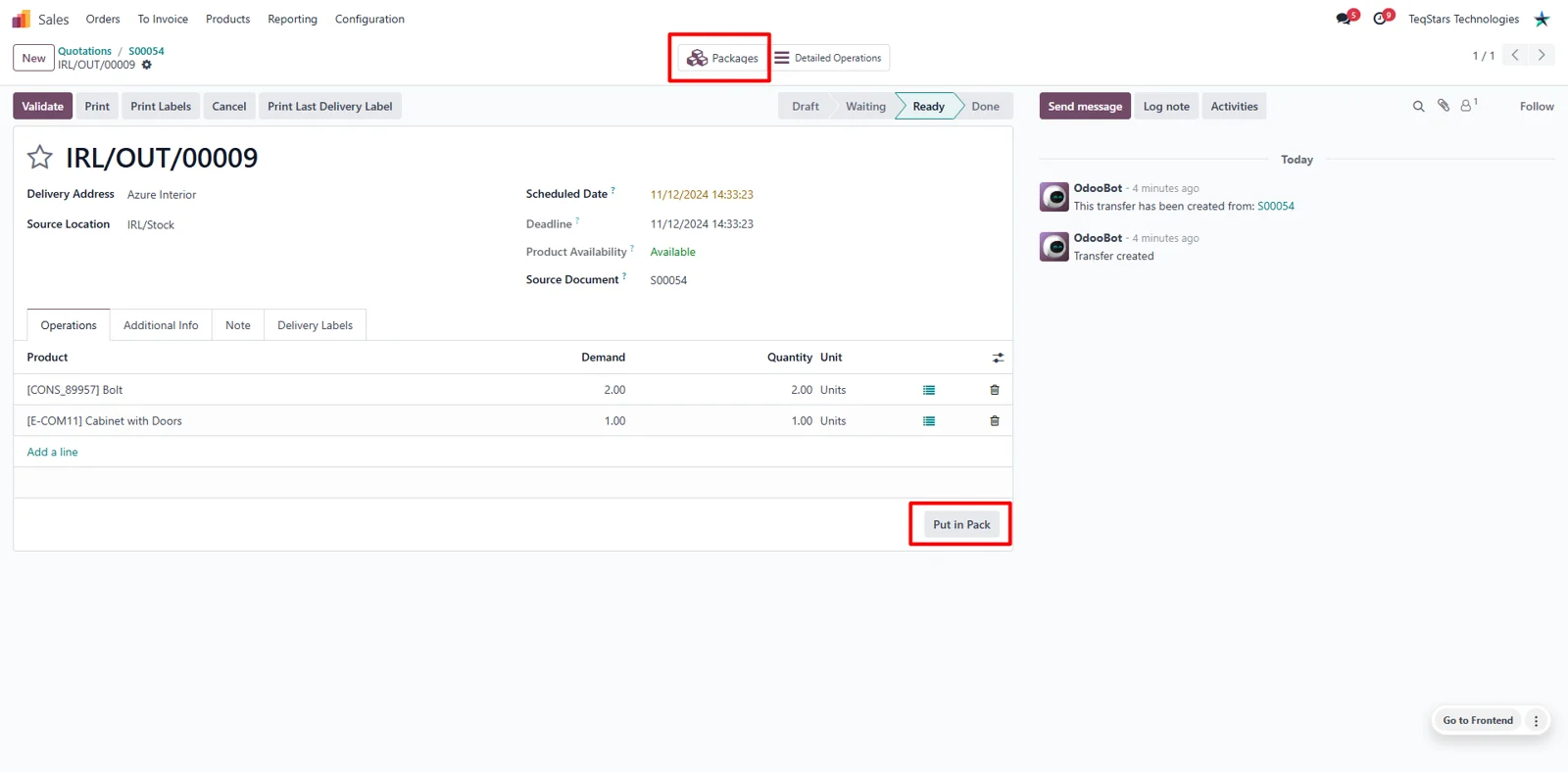
Ship one order in several packages
Orders that need more than one box are handled before you validate. Use Odoo's Put in Pack operation on the delivery order to record what goes into each package, then Easyship works from those packages instead of one lump shipment. Warehouse staff pack the way the goods actually fit, and the rate and label follow the packages they created.
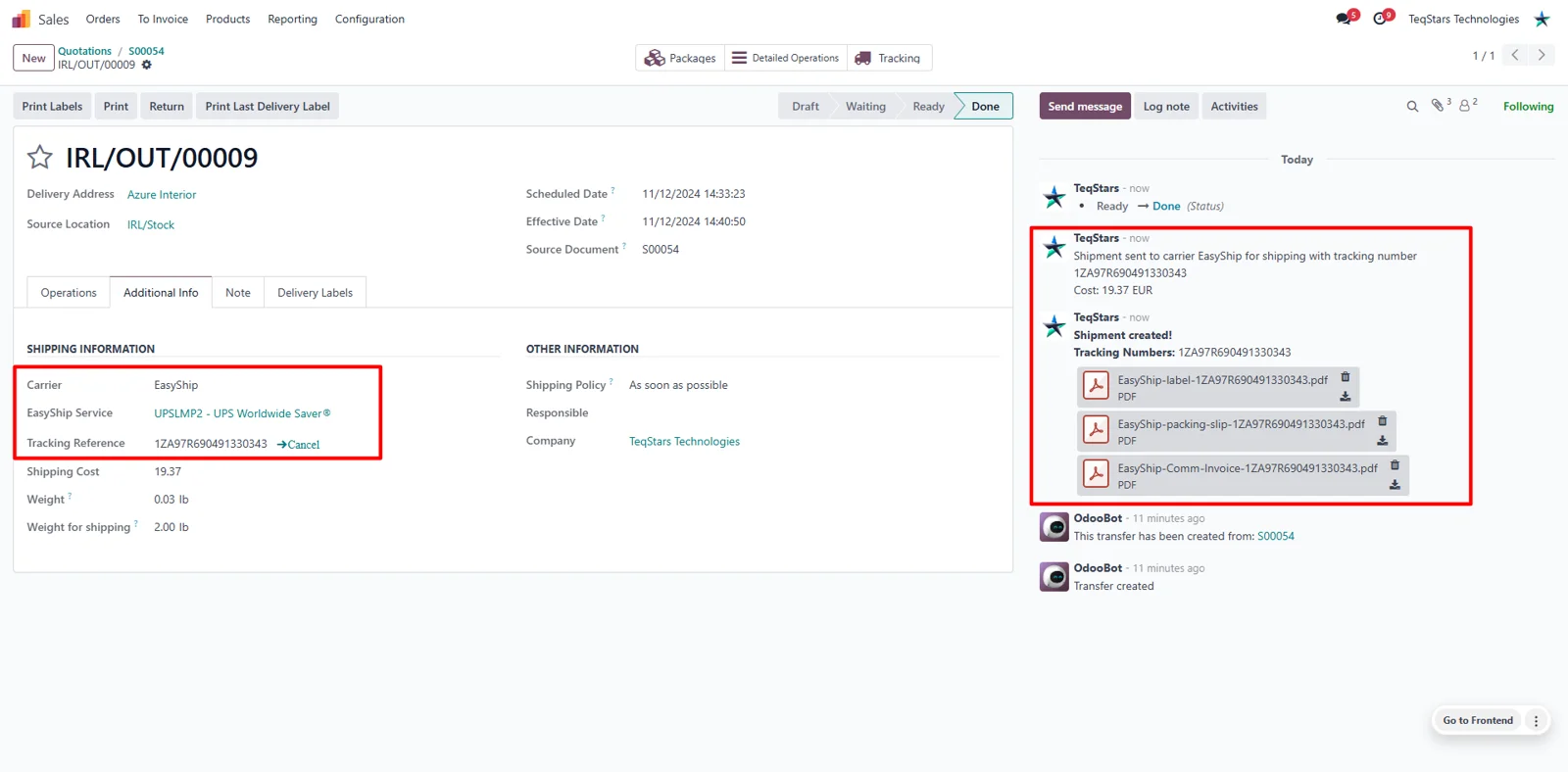
Labels and commercial invoices on validation
Validating the delivery order is all it takes to produce the paperwork. The connector asks Easyship for the shipping label and the commercial invoice, and the tracking number lands on the same delivery order. Your team prints and sticks, with no retyping of addresses or customs details, and cross-border shipments leave with the invoice the carrier expects.
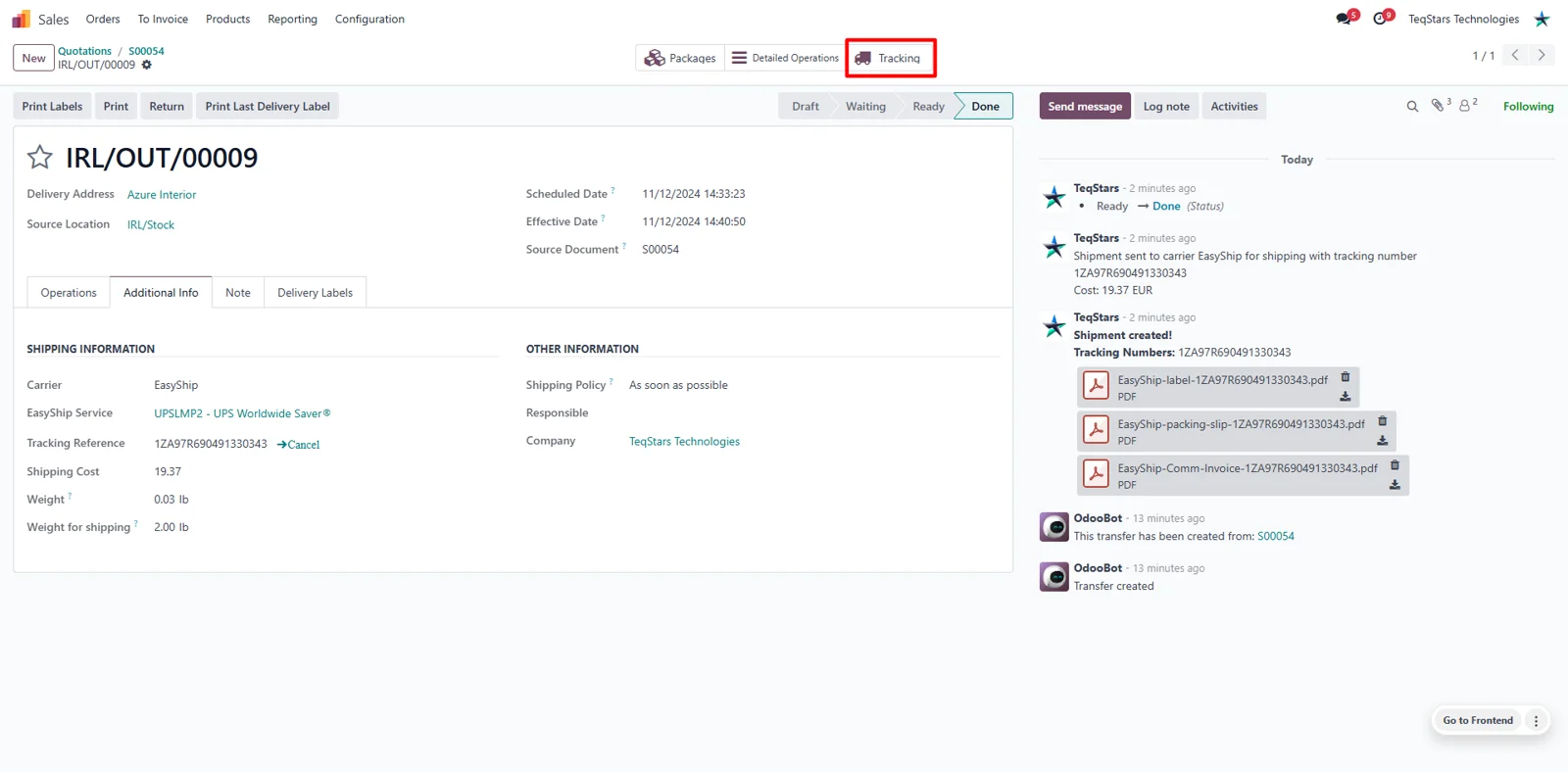
Track parcels from the delivery order
Anyone answering a "where is my order" question can check in Odoo. Open the shipment tracking on the delivery order and you see the current status and location that Easyship reports for that parcel. Customer service stops hunting through carrier websites, and the people picking the next order see the same information as the person on the phone.
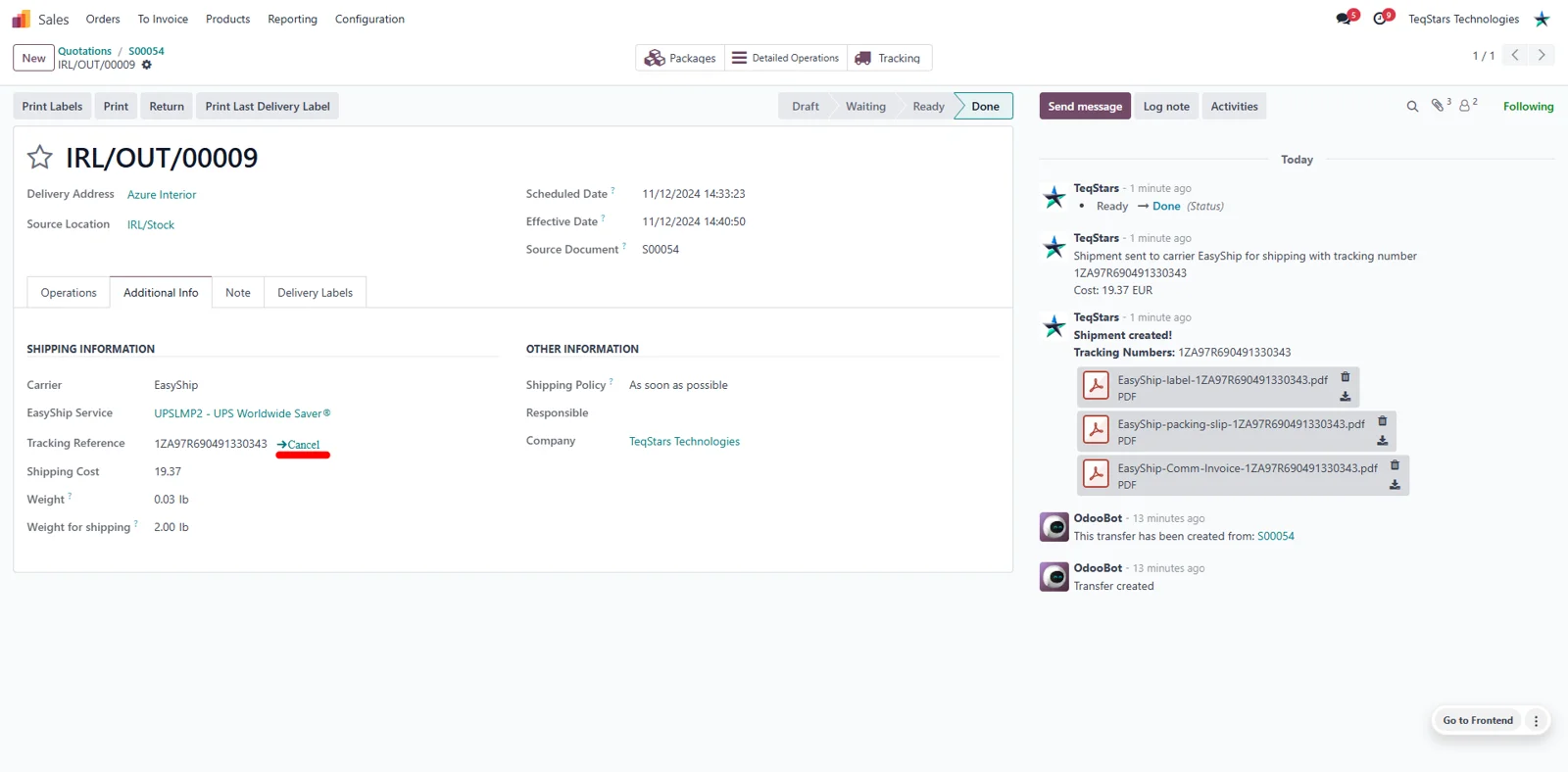
Cancel a shipment in one click
When an order is pulled or a label was booked too early, you cancel from Odoo. A single click on the delivery order cancels that shipment in Easyship, so the booking does not sit there waiting for a parcel that is never collected. Your team keeps control of what has actually been handed to a carrier.
What buyers say on the Odoo Apps Store
THE BEST SUPPORT EVER.
The team, Jigs Patel, is the best support I have experienced. They are very helpful. They are able to listen to customers and provide what they need and explain everything. The app is working beautifully. They are very responsive - I HIGHLY RECOMMEND THIS COMPANY.
Supported Odoo versions
| Odoo version | Editions | Hosting | Price | Latest release | |
|---|---|---|---|---|---|
| 20.0 | Community & Enterprise | Odoo.sh · On-premise | €159.99 | No release notes | Buy |
| 19.0 | Community & Enterprise | Odoo.sh · On-premise | €159.99 | No release notes | Buy |
| 18.0 | Community & Enterprise | Odoo.sh · On-premise | €159.99 | No release notes | Buy |
| 17.0 | Community & Enterprise | Odoo.sh · On-premise | €159.99 | No release notes | Buy |
Support for EasyShip Connector
The developers who build the app answer your tickets.
- Free app support from purchase
- 60 days
- First response in working hours, typical
- 4–6 hours
- Support hours, 10:00–18:00 IST
- Mon–Fri
How to connect Easyship to Odoo
-
Step 1
Install the connector
Add the EasyShip Connector to your Odoo 17.0, 18.0, 19.0 or 20.0 database. It installs on Odoo Enterprise, on-premise or Odoo.sh, and on Odoo Community on-premise.
-
Step 2
Connect your Easyship account
Enter the credentials of your Easyship account in Odoo. If you ship under more than one account, connect each of them so your delivery methods can point at the right one.
-
Step 3
Create your delivery methods
Set up one Easyship delivery method for domestic shipments and another for international ones. These are the options your sales and warehouse teams choose from on orders.
-
Step 4
Quote a rate on an order
On a sales order, ask for rates and pick a service from the list Easyship returns. Warehouse staff can also get rates later on the delivery order itself.
-
Step 5
Pack and validate
Use Put in Pack for multi-box orders, then validate the delivery order. The label, the commercial invoice and the tracking number come back onto that order.
Questions before you buy
Not answered here? Talk to the team.