Quote eShipper rates, print labels and track shipments in Odoo
The eShipper Odoo integration sends your order information to eShipper and brings the label, tracking number and shipping cost back. Your team picks a service and rate on the sales order, then validates the delivery to create the shipment.
- Odoo 17.0 – 20.0
- Community & Enterprise
- Odoo.sh · On-premise
-
Not for
Odoo Online
Top seller on the Odoo Apps Store
- sales on the Odoo Apps Store
- 3,000+
- apps published
- 100+
- countries running them
- 100+
Shipping work before and after the eShipper Connector
Without the connector by hand
-
Retype order addresses and contents into the eShipper portal.
-
Compare carrier services and rates in a browser tab before quoting.
-
Download labels and customs paperwork, then match them to the right order.
-
Copy tracking numbers from the portal into Odoo by hand.
-
Sign in to the portal to drop a shipment you no longer need.
With the connector automatic
-
Validating the delivery order sends the order information to eShipper.
-
Services and rates appear on the sales order, and you pick one.
-
Labels and customs declarations are fetched into Odoo for printing.
-
The tracking number and shipping cost come back to the delivery order.
-
You cancel the shipment from the Odoo delivery order.
Rates, labels and tracking between Odoo and eShipper
Every object the connector handles, which way it travels and what triggers it.
| Data | Direction | What happens & when |
|---|---|---|
| Order information |

 Odoo to eShipper
|
You validate the delivery order for the shipment. |
| Services and rates |
eShipper to Odoo
|
You add the eShipper delivery method on a sales order. |
| Package details |
Odoo to eShipper
|
Packages built with Put in Pack go out with the validated delivery. |
| Shipping label |
eShipper to Odoo
|
eShipper returns the label once the shipment is created. |
| Customs declaration |
eShipper to Odoo
|
Fetched with the label for shipments that need customs papers. |
| Tracking number and shipping cost |
eShipper to Odoo
|
Written on the delivery order after the shipment is created. |
| Shipment status |
eShipper to Odoo
|
You track the shipment from the delivery order. |
| Shipment cancellation |
Odoo to eShipper
|
You cancel the shipment on the Odoo delivery order. |
eShipper Connector features
Pick an eShipper service on the sales order
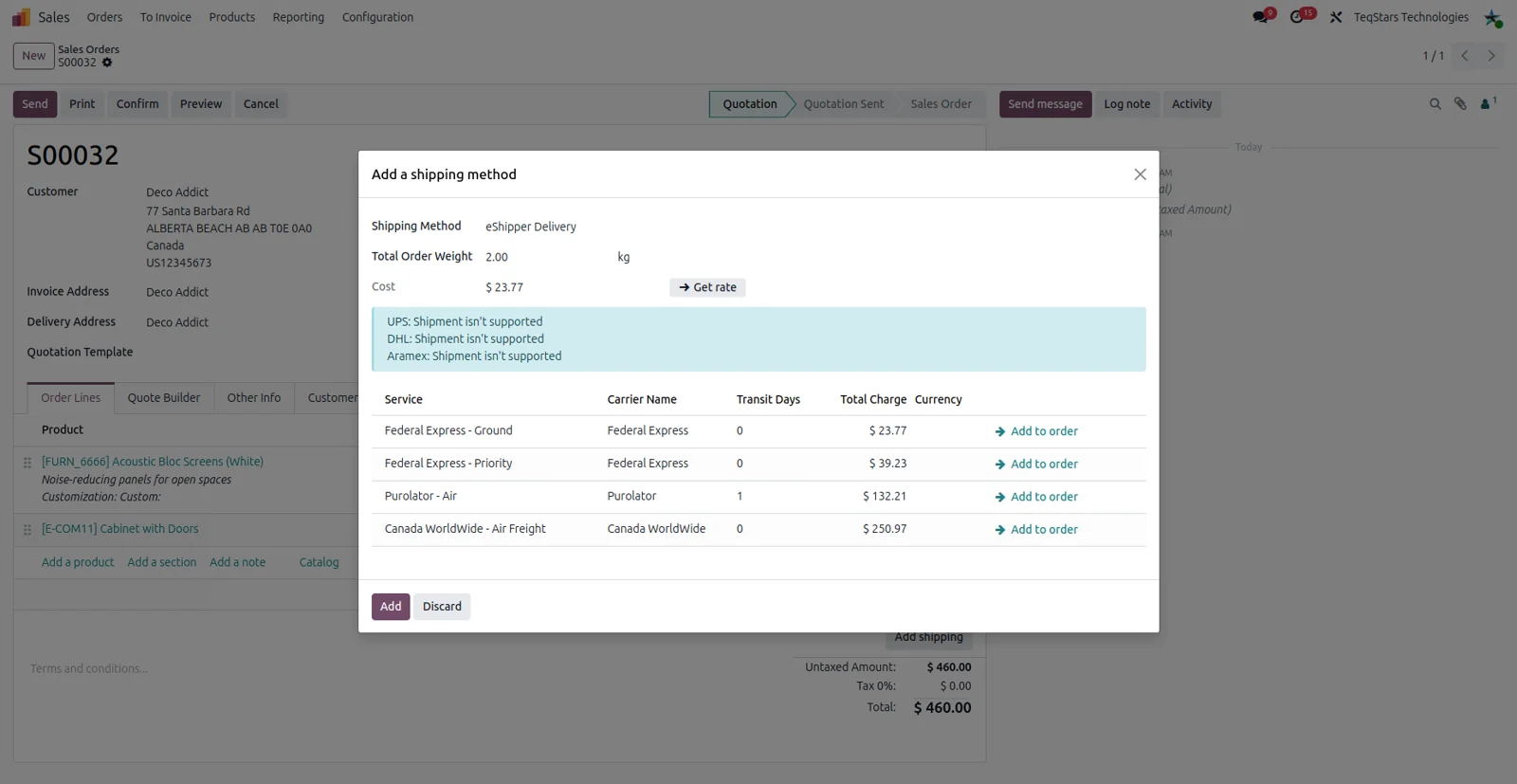
Your sales team quotes real shipping options instead of a flat guess. Add the eShipper delivery method to a quotation and the services and rates available to your account are shown for that order. Choose one and it goes onto the order as the delivery line. Odoo sends the order information to eShipper, so the figure you show the customer comes from the carrier side.
Split an order into several packages
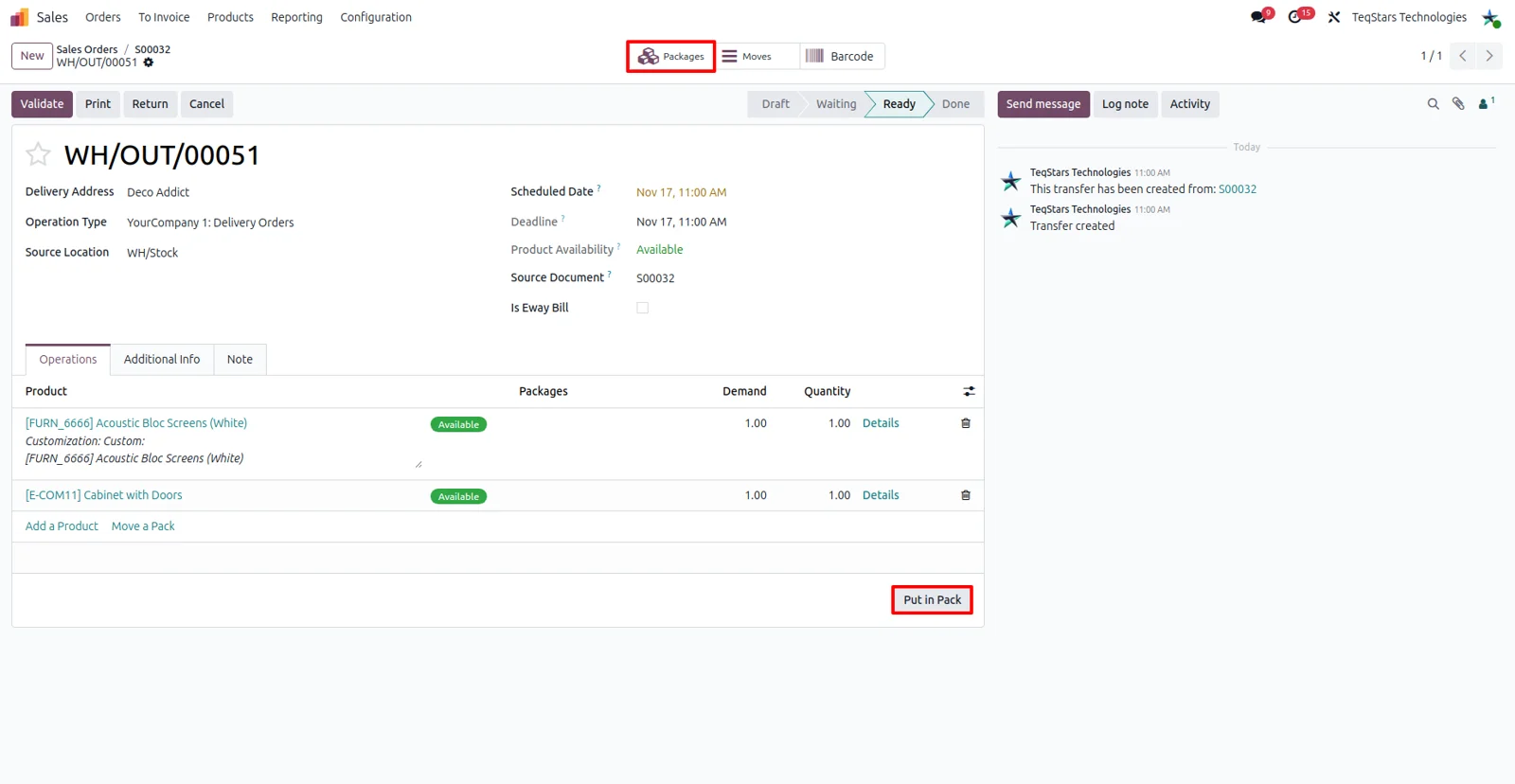
Orders that leave in more than one box are described correctly before they ship. On the delivery order, run the "Put in Pack" operation to place goods into separate packages, and set each package up with its own contents. When you validate the delivery, those package details go from Odoo to eShipper. Use this step whenever a single order needs multiple boxes.
Print labels and customs declarations
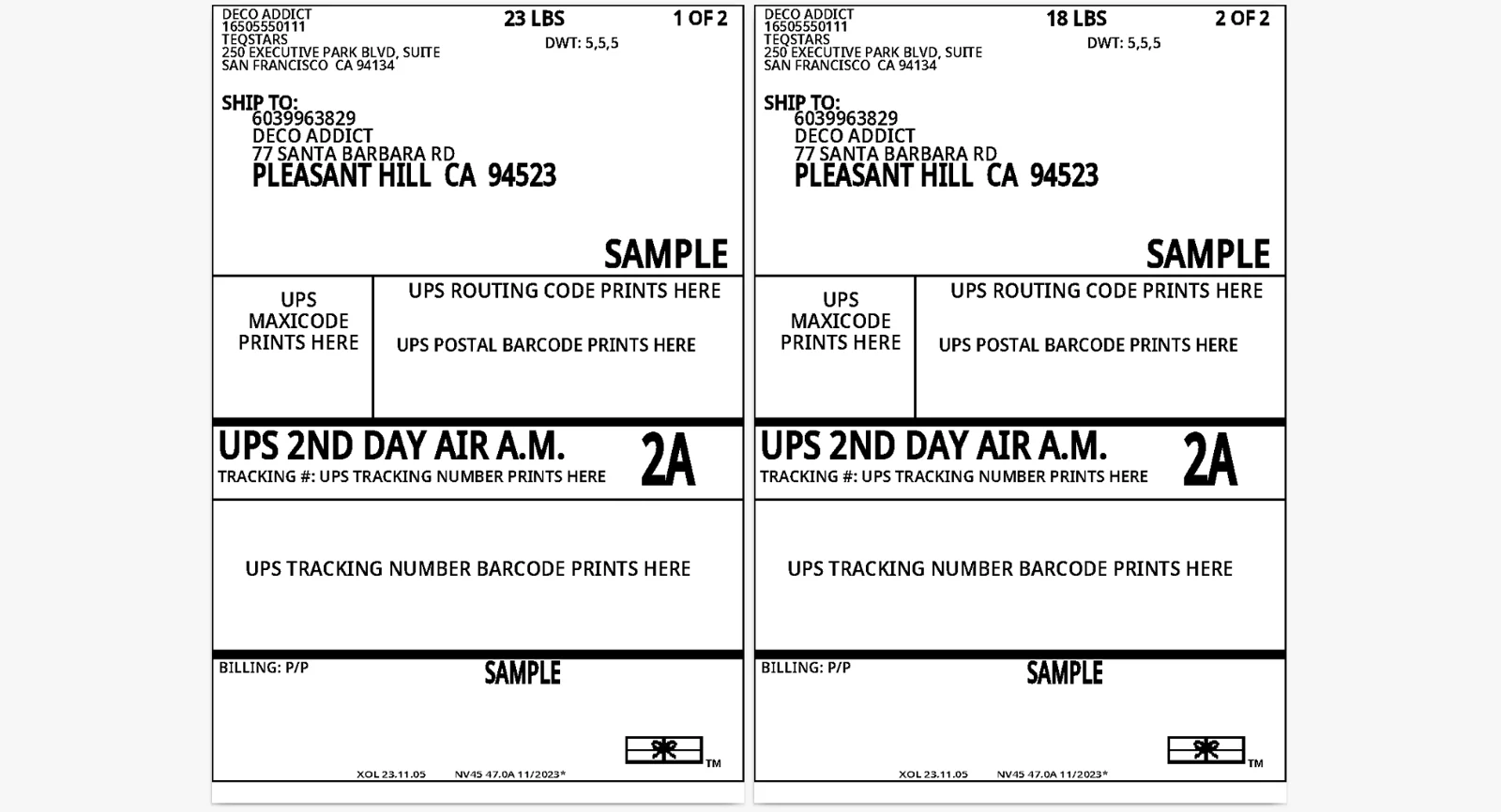
The paperwork for a shipment is ready to print in Odoo. Once the shipment is created, the connector fetches the eShipper shipping label, and customs declarations come across for shipments that need them. Your warehouse team opens the document and prints it for the box, so nobody signs in to a carrier portal to hunt for the right file.
Tracking number and cost on the delivery order
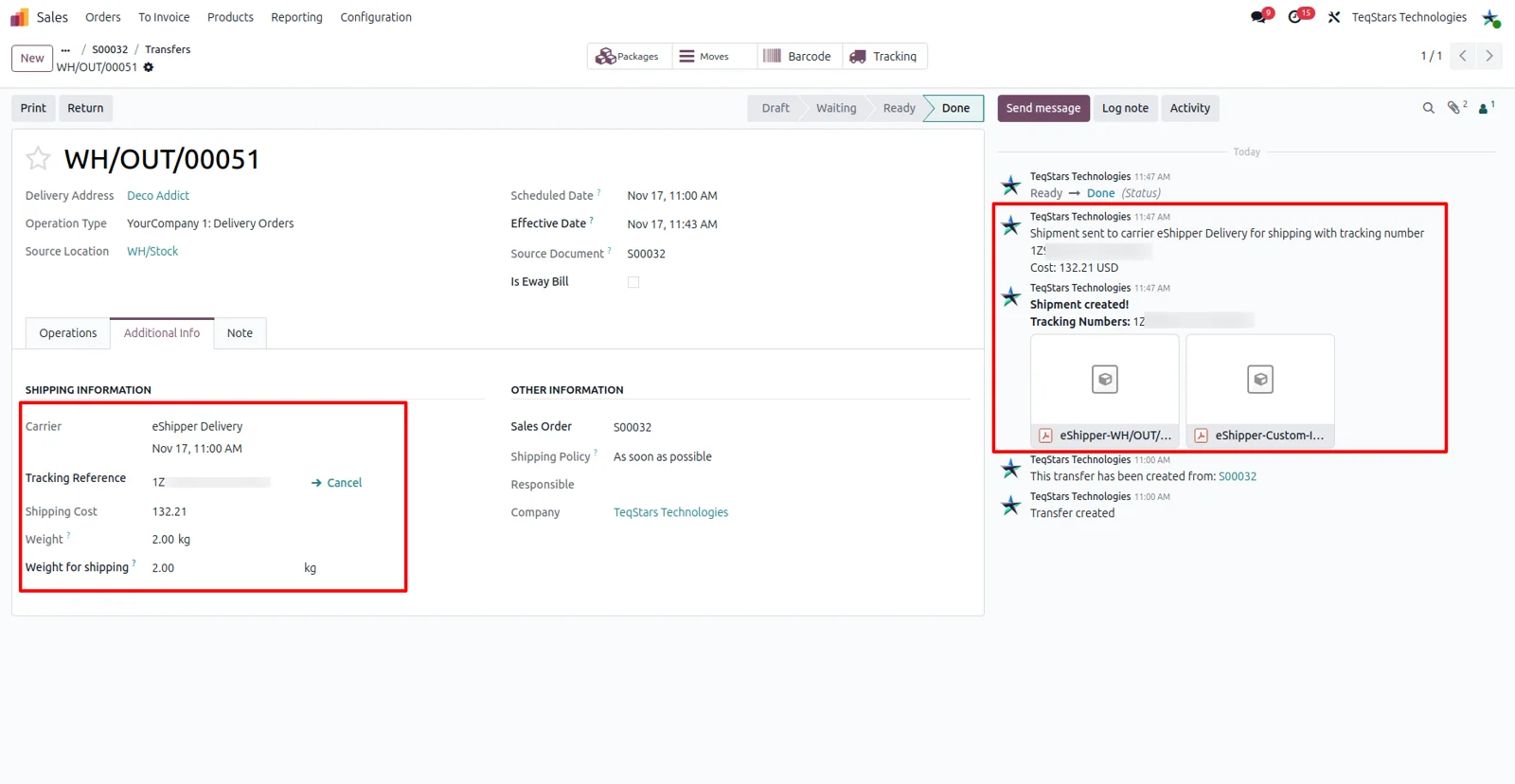
Everyone who opens the delivery order can see how the goods are traveling. After the shipment is created, eShipper returns the tracking number and the shipping cost to Odoo, and they are stored on the delivery order with the rest of the shipping information. Customer service answers "where is my order" from the same record the warehouse used.
Check shipment status in real time
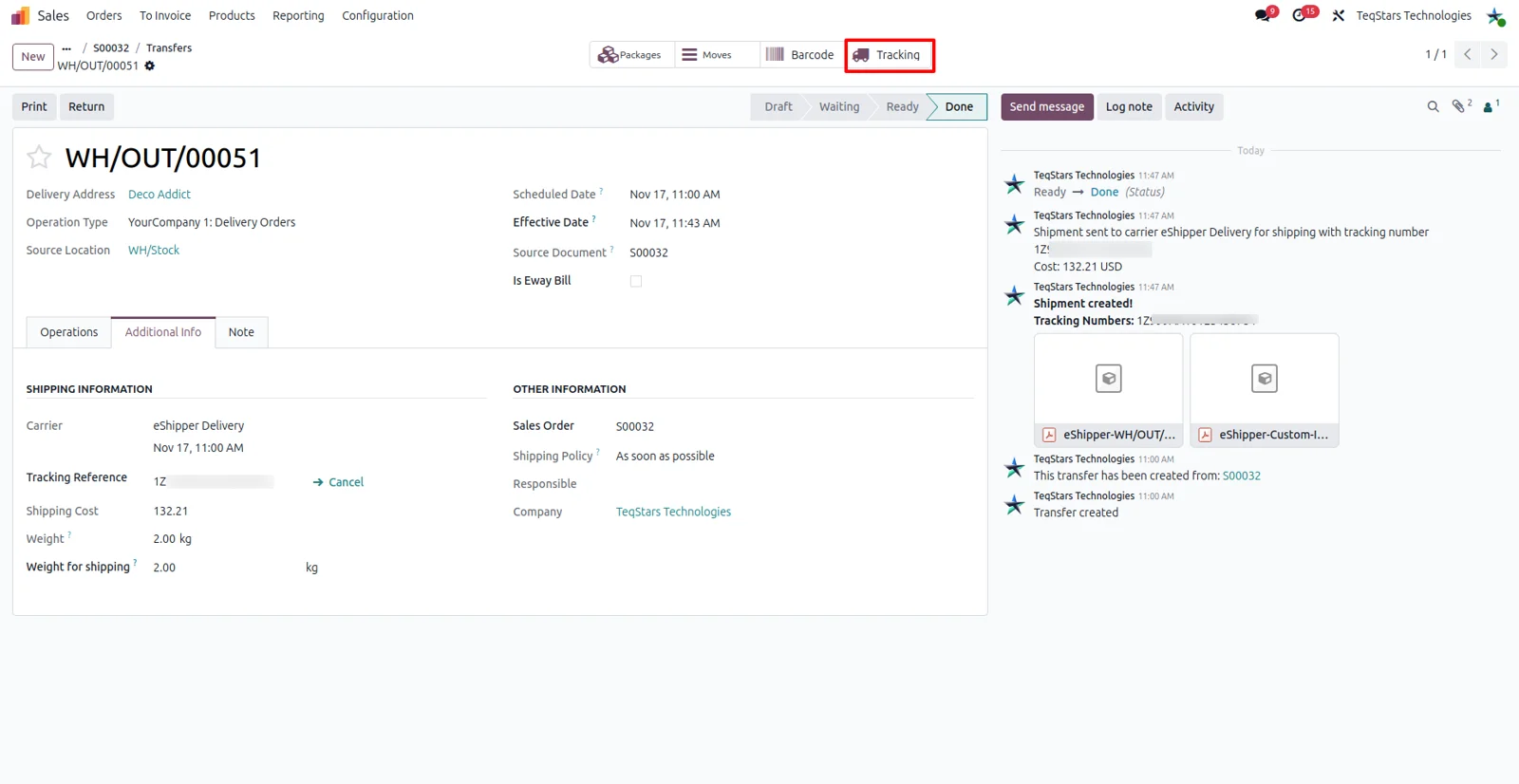
You get current visibility on where a parcel is without asking the carrier. The connector's tracking brings the status and location of the shipment from eShipper into Odoo when you track it from the delivery order. That helps your team spot a parcel that is stuck or delayed and reply to the customer with something concrete.
Supported Odoo versions
| Odoo version | Editions | Hosting | Price | Latest release | |
|---|---|---|---|---|---|
| 20.0 | Community & Enterprise | Odoo.sh · On-premise | €108.99 | No release notes | Buy |
| 19.0 | Community & Enterprise | Odoo.sh · On-premise | €108.99 | No release notes | Buy |
| 18.0 | Community & Enterprise | Odoo.sh · On-premise | €108.99 | No release notes | Buy |
| 17.0 | Community & Enterprise | Odoo.sh · On-premise | €108.99 | No release notes | Buy |
Support for eShipper Connector
The developers who build the app answer your tickets.
- Free app support from purchase
- 60 days
- First response in working hours, typical
- 4–6 hours
- Support hours, 10:00–18:00 IST
- Mon–Fri
How to connect eShipper to Odoo
-
Step 1
Install the connector
Add the eShipper Connector to the Odoo version you run: 17.0, 18.0, 19.0 or 20.0. It installs on Odoo Community and on Odoo Enterprise, whether you host on-premise or on Odoo.sh.
-
Step 2
Add your eShipper account
Enter the details of your eShipper account in Odoo so shipments can be created against it. Ship under two or more accounts? Add each one, since several accounts can serve the same database.
-
Step 3
Create the delivery method
Set up an eShipper delivery method so your team can choose it on orders. Give it a name, point it at the eShipper account you added, and save it for sales and warehouse users.
-
Step 4
Test it on one order
Open a quotation, add the eShipper delivery method and look over the services and rates returned. Pick one, confirm the order, then validate the delivery to create the shipment and get its label.
Questions before you buy
Not answered here? Talk to the team.