Book Gati shipments and get labels when you validate the delivery
This Gati Odoo integration adds Gati as a delivery method on your quotations and pickings. Validating the delivery order submits the shipment to Gati and brings the label back into Odoo. Docket numbers, packet numbers and location codes come from Gati.
- Odoo 17.0 – 20.0
- Community & Enterprise
- Odoo.sh · On-premise
-
Not for
Odoo Online
Top seller on the Odoo Apps Store
- sales on the Odoo Apps Store
- 3,000+
- apps published
- 100+
- countries running them
- 100+
Gati shipping work before and after the connector
Without the connector by hand
-
Retype order and address details into Gati's booking screen
-
Keep a sheet of docket numbers and cross them off while packing
-
Look up Gati location codes before each booking
-
Print labels somewhere else and match them to the right picking
-
Describe every box again on a separate booking form
-
Tell the carrier the collection date by phone or email
With the connector automatic
-
Validating the delivery order sends the shipment details to Gati
-
Gati returns docket numbers for the range you ask for
-
Fetch the location list once, then choose From and To
-
The label comes back into Odoo on the delivery order
-
The 'Put in Pack' button records each box before you validate
-
You enter the pickup date on the delivery order itself
Shipments, labels and numbers between Odoo and Gati
Every object the connector handles, which way it travels and what triggers it.
| Data | Direction | What happens & when |
|---|---|---|
| Shipment booking |

 Odoo to Gati
|
Validating the delivery order in Odoo |
| Shipping label |
Gati to Odoo
|
After the validated delivery is submitted to Gati |
| Docket numbers |
Gati to Odoo
|
You enter a range and request the numbers |
| Packet numbers |
Gati to Odoo
|
You enter a range and request the numbers |
| Gati locations |
Gati to Odoo
|
You fetch the location list |
Gati Odoo Shipping Connector features
Separate domestic and international methods
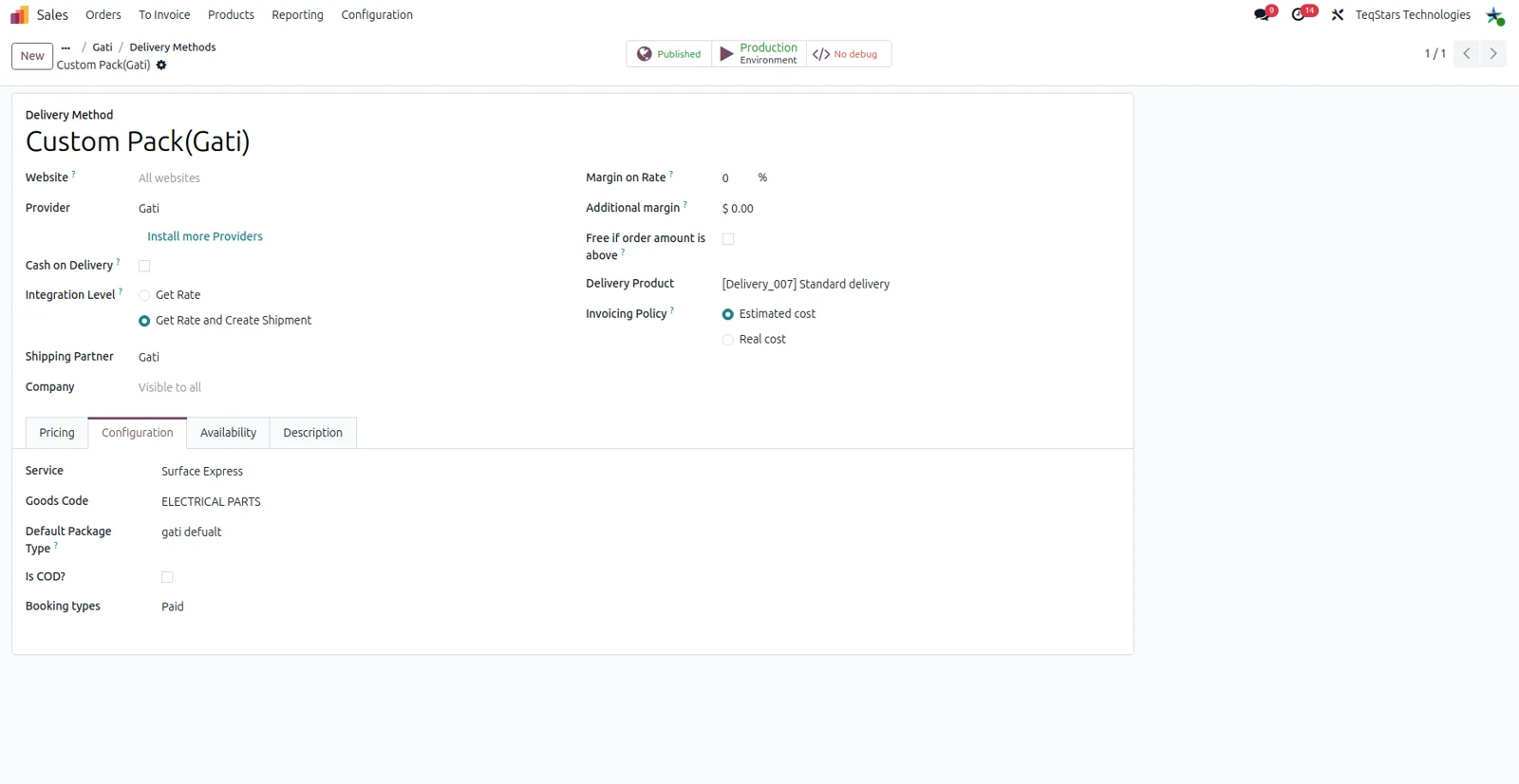
Set up one Gati delivery method for shipments that stay local and another for shipments going abroad. Your team then picks the right one on an order rather than keeping the rules in their heads. Both are configured on Odoo's delivery method form, so the settings behind local and overseas shipping never get mixed together.
Pricing on the Gati delivery method
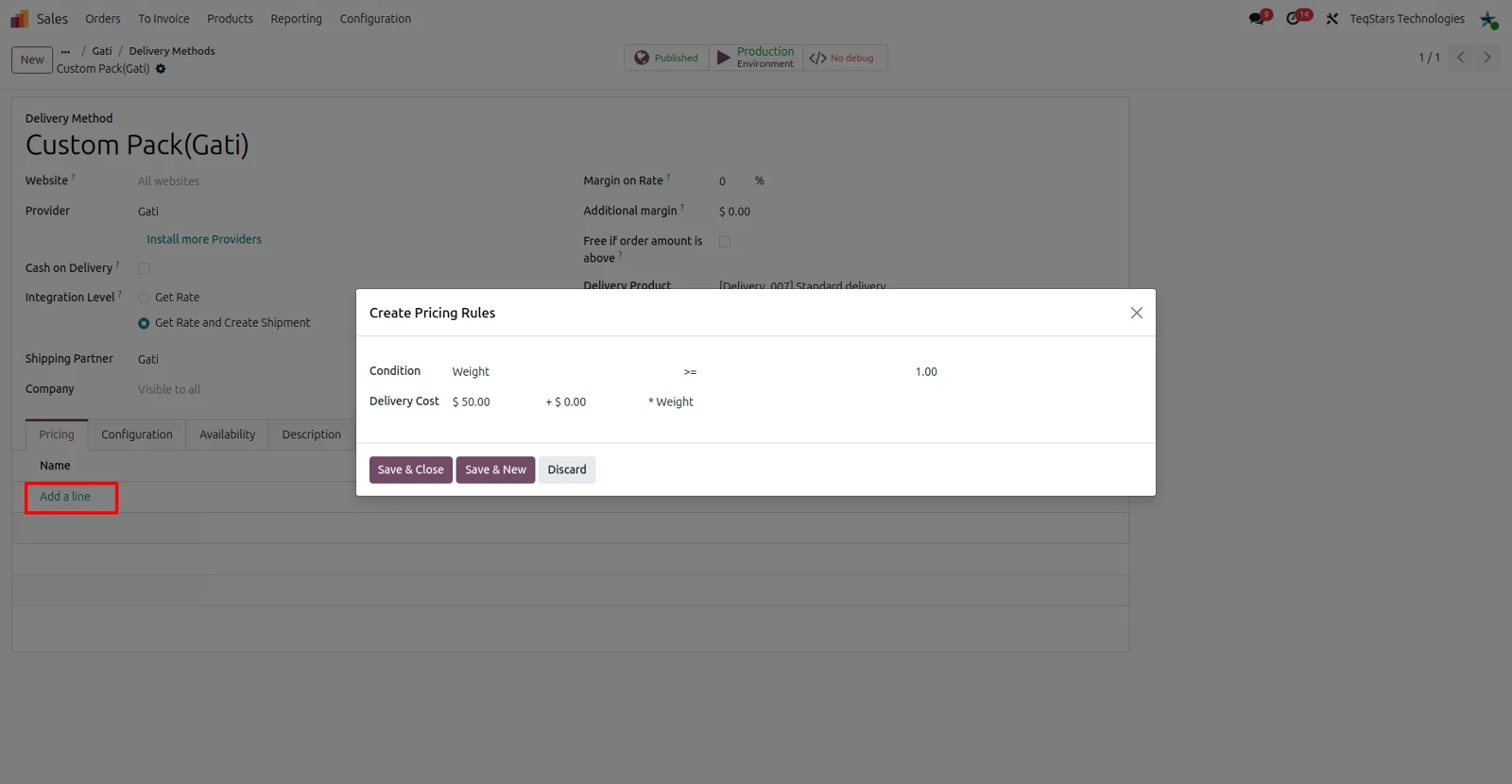
The Gati delivery method carries its own pricing setup, so what Gati shipping costs is decided in the same place as the carrier settings. You fill it in once, before anyone uses the method on a quotation. If you charge differently for local and overseas shipping, each method is priced on its own.
Docket numbers for a range you request
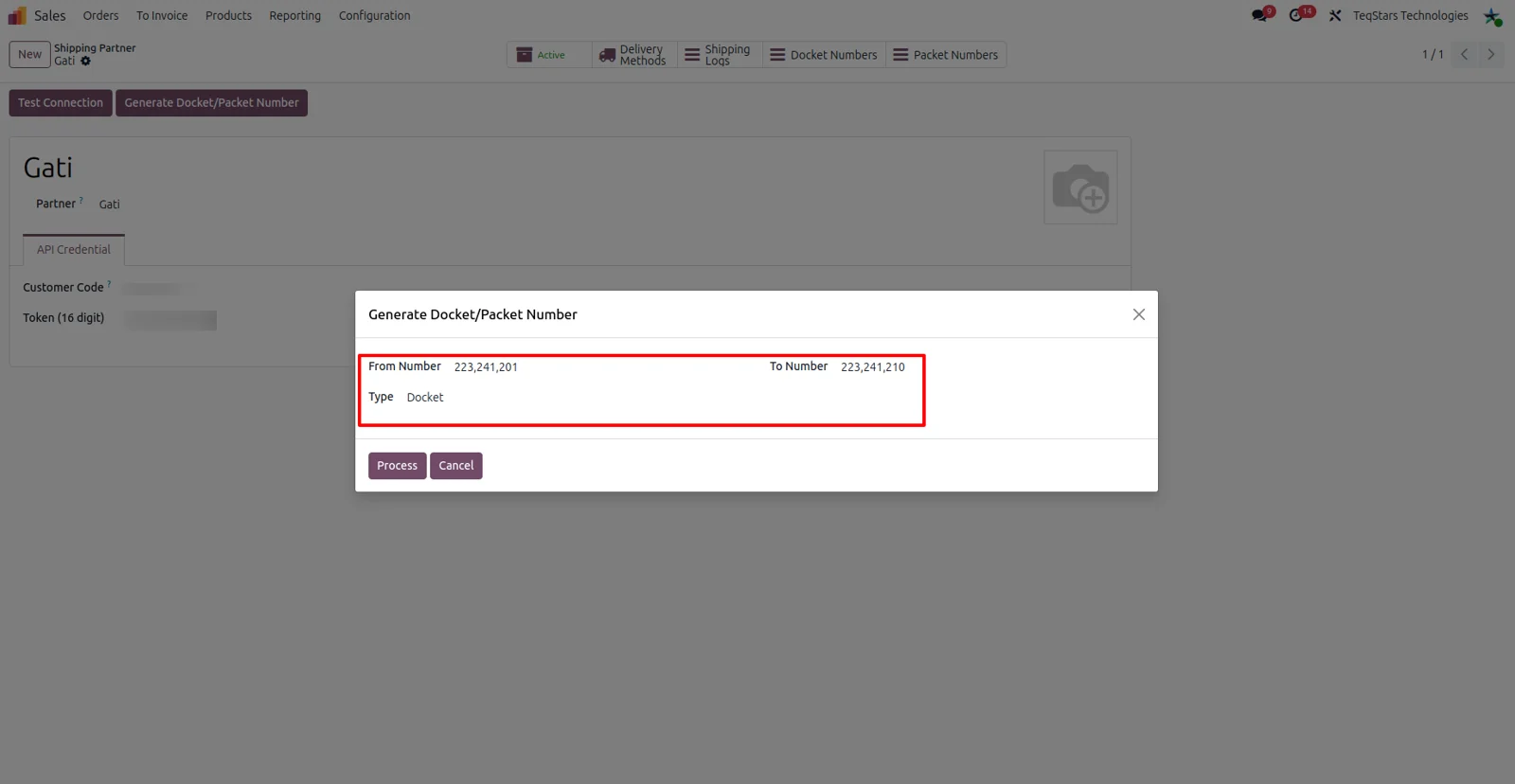
Gati supplies docket numbers for the range you enter, and the connector keeps them in Odoo ready for your shipments. Nobody has to read numbers off a printed sheet while packing goods. When the numbers you hold are running low, ask Gati for another range and the next bookings use them.
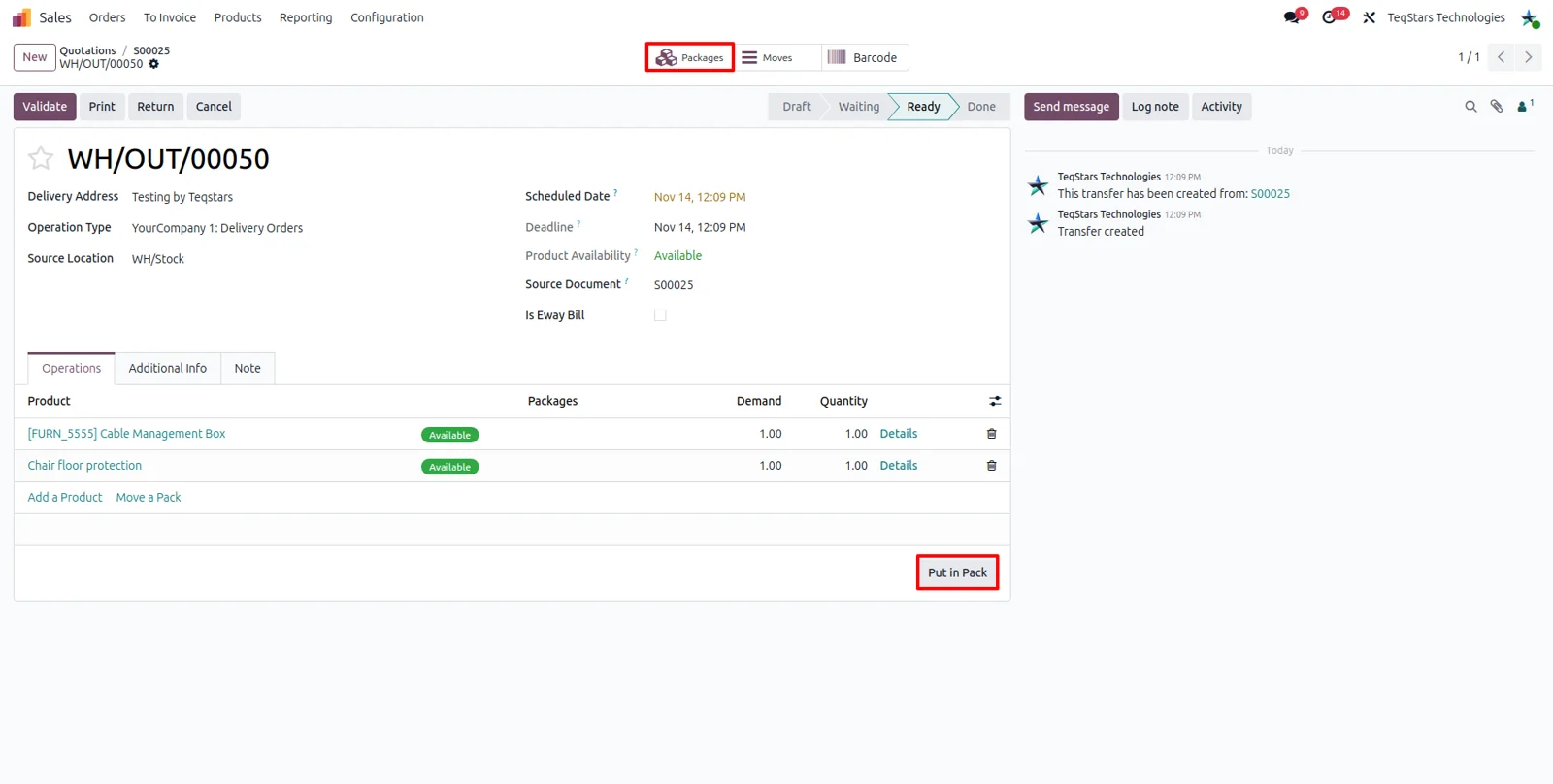
Choose Gati on the sales order
Pick the Gati delivery method while the quotation is still open and the shipping choice is settled before the order goes to the warehouse. Whoever handles the goods sees the carrier already filled in on the delivery order. You can also set the method on the delivery order instead, which helps when the decision changes later.
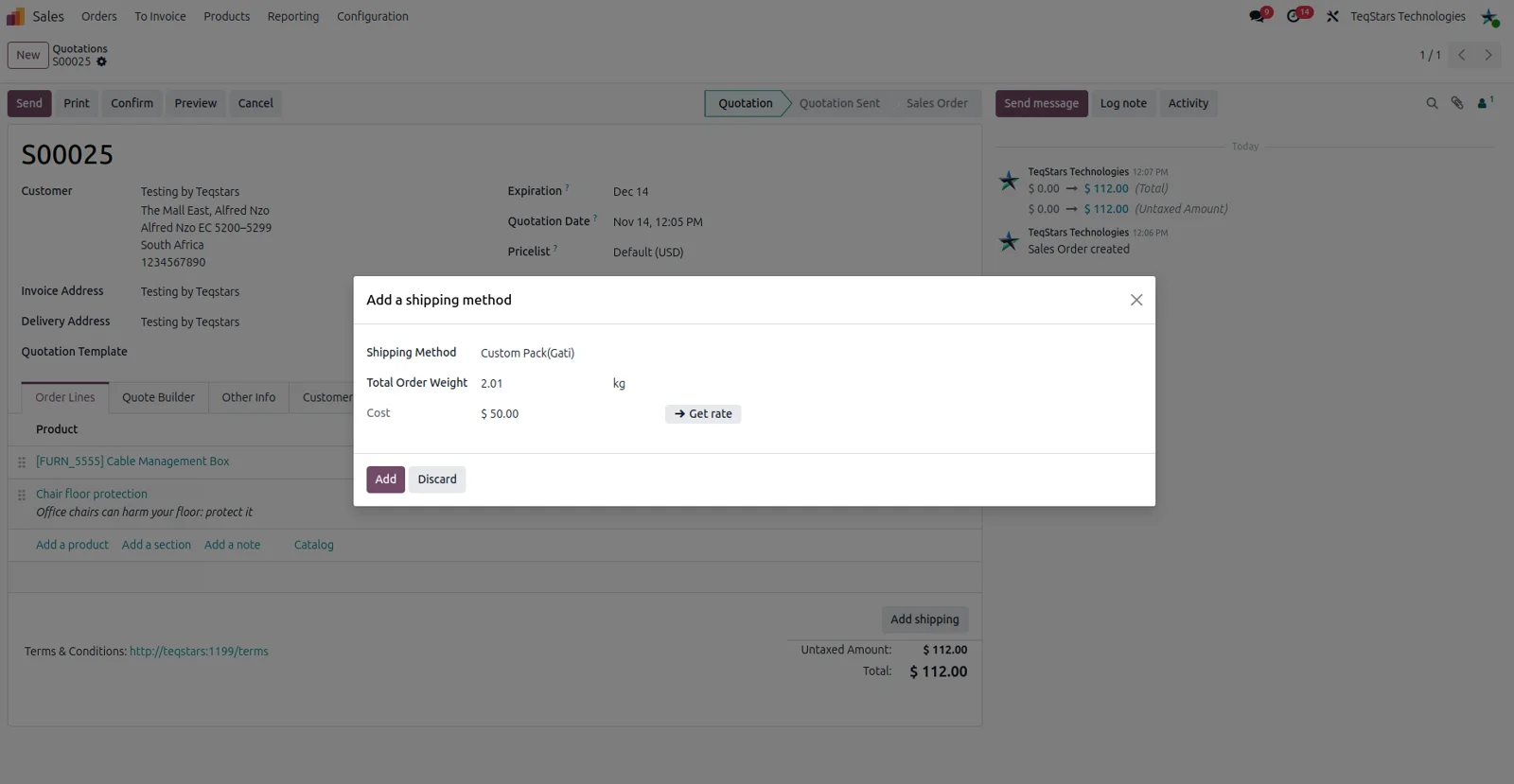
Pickup date on the delivery order
Enter the pickup date on the delivery order and the booking tells Gati when the goods will be collected. The field sits with the other shipping details on the picking, so the person preparing the shipment fills it in while working there. Nothing is sent to Gati until you validate that delivery order.
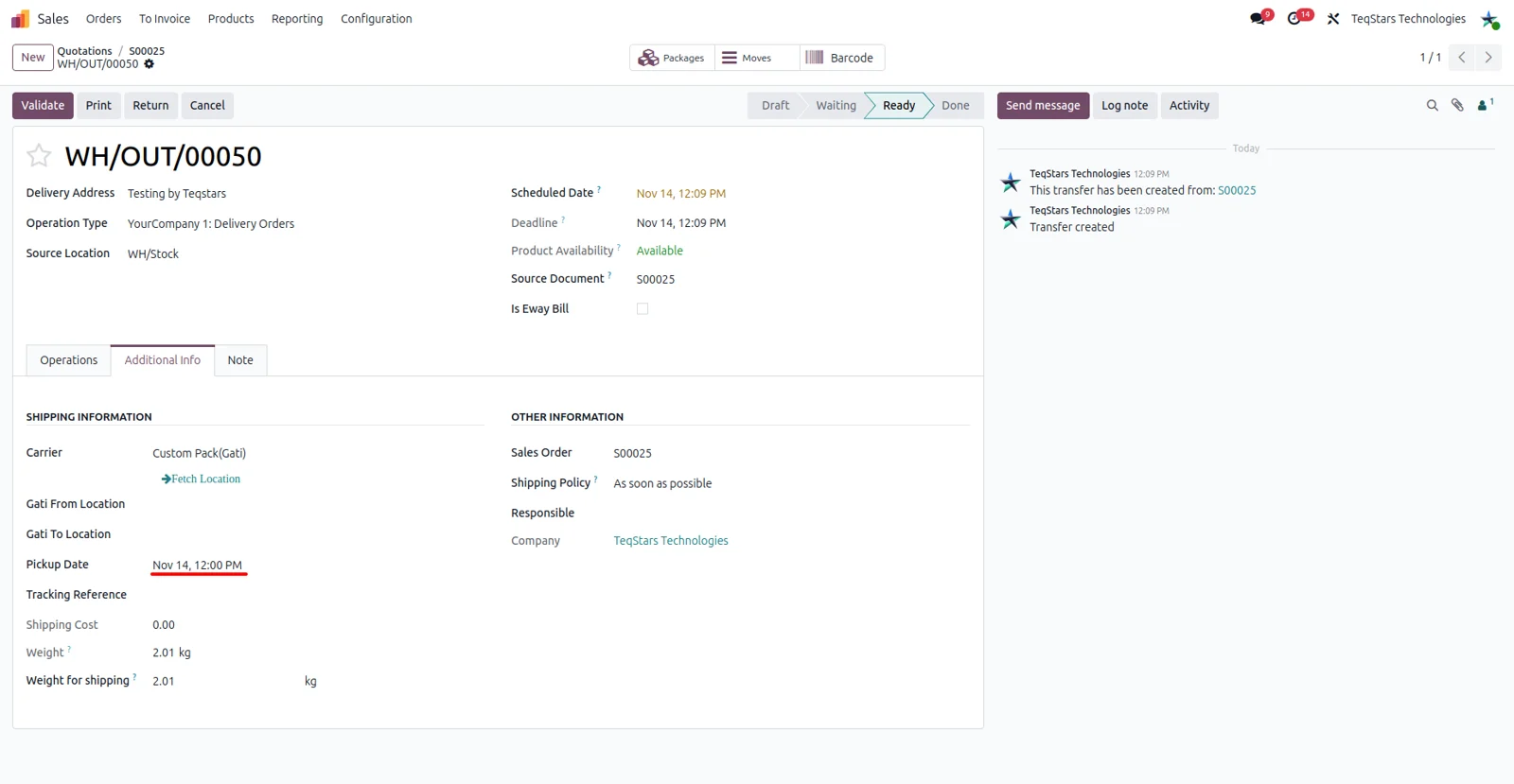
Fetch Gati locations into Odoo
Ask the connector for Gati's location list and it stores the locations in Odoo. From then on you select the From and To locations for a shipment instead of copying codes out of a document. Fetch the list again when Gati's locations change, and the newer ones become available for your bookings.
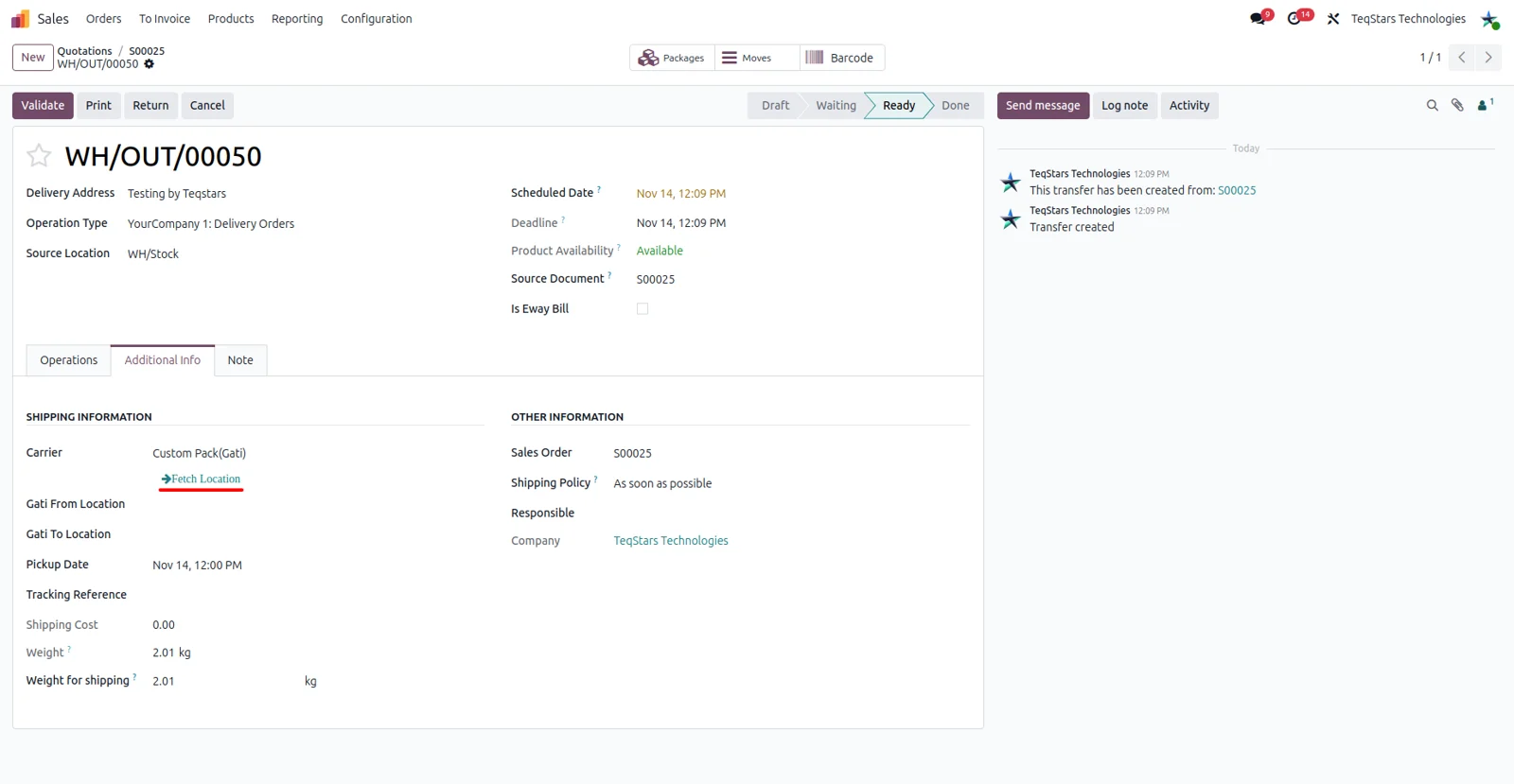
Several boxes in one shipment
When an order leaves in more than one box, press 'Put in Pack' on the delivery order for each package. The connector then describes every parcel in the booking it sends to Gati. The shipping details on the picking cover a single parcel or several, so a multi-box order needs no second booking by hand.
Shipping label ready to print
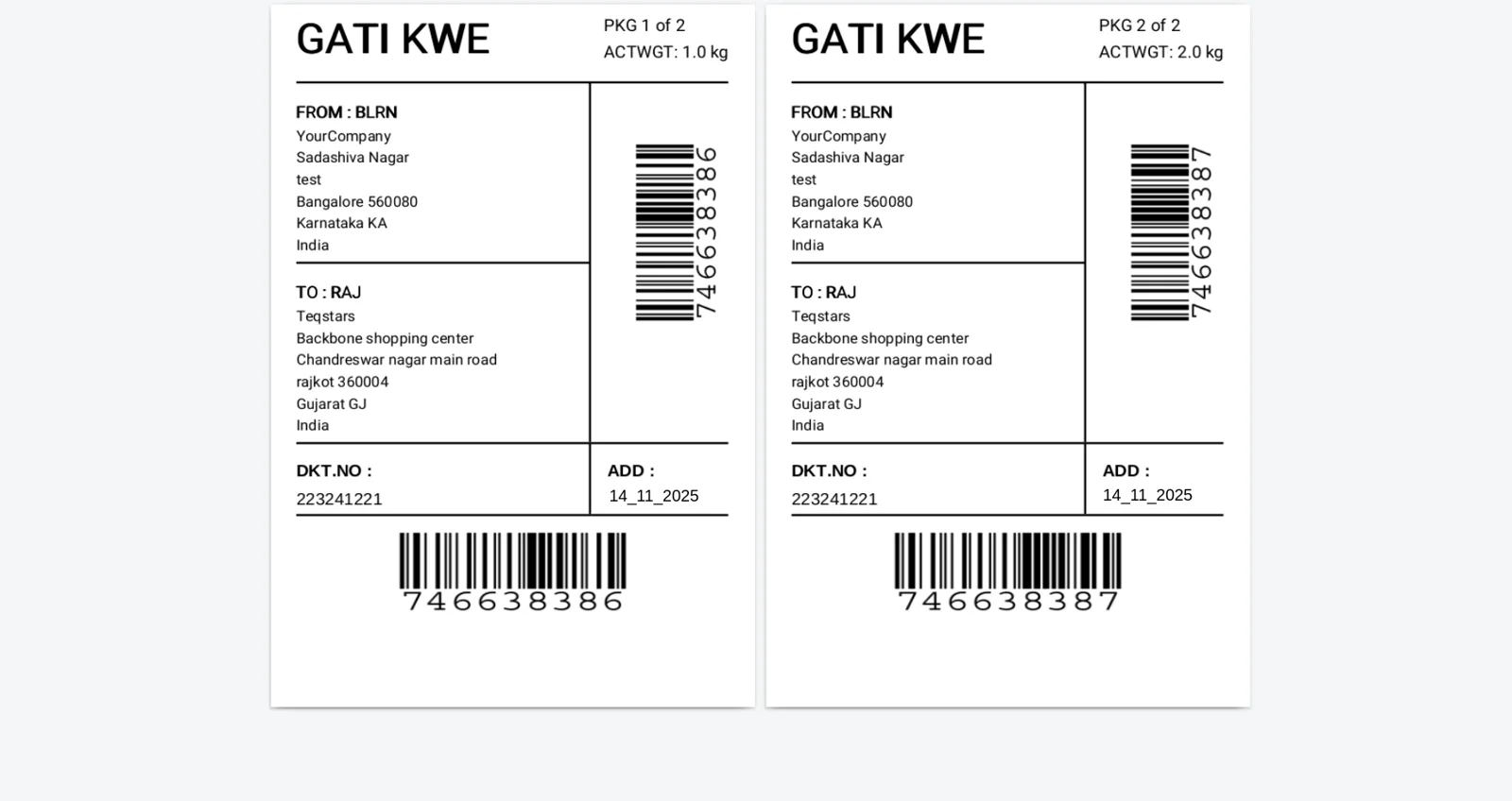
Validate the delivery order and the connector submits the shipment to Gati and brings the label back into Odoo. Your team prints it and sticks it on the box, which cuts the time spent preparing a shipment. Because the label is attached to the picking, finding it again later means opening that delivery order.
Supported Odoo versions
| Odoo version | Editions | Hosting | Price | Latest release | |
|---|---|---|---|---|---|
| 20.0 | Community & Enterprise | Odoo.sh · On-premise | €108.99 | No release notes | Buy |
| 19.0 | Community & Enterprise | Odoo.sh · On-premise | €108.99 | No release notes | Buy |
| 18.0 | Community & Enterprise | Odoo.sh · On-premise | €108.99 | No release notes | Buy |
| 17.0 | Community & Enterprise | Odoo.sh · On-premise | €108.99 | No release notes | Buy |
Support for Gati Connector
The developers who build the app answer your tickets.
- Free app support from purchase
- 60 days
- First response in working hours, typical
- 4–6 hours
- Support hours, 10:00–18:00 IST
- Mon–Fri
How to connect Gati to Odoo
-
Step 1
Install and add your accounts
Install Gati Connector on your Odoo 17.0, 18.0, 19.0 or 20.0 database and enter the credentials of your Gati account. Ship under two or three accounts? Add each one to the database.
-
Step 2
Create the delivery methods
Add a Gati method for local shipping and a second one for overseas shipping, then fill in the pricing on each. Your team chooses between them later on quotations and pickings.
-
Step 3
Request your number ranges
Give Gati the range you want and it returns docket numbers for it. Repeat the request for packet numbers, which identify the parcels that travel inside a shipment.
-
Step 4
Fetch the locations
Pull Gati's location list into Odoo, then set the From and To locations your shipments use. After this nobody looks up a location code while booking an order.
-
Step 5
Ship a test order
Select Gati on a quotation, add the pickup date to the delivery order and press 'Put in Pack' if the goods need more than one box. Validating the delivery books it and returns the label.
Questions before you buy
Not answered here? Talk to the team.