Book nShift shipments and get labels and tracking on your delivery orders
This nShift Odoo integration turns a validated delivery order into a booked shipment, a printable label and a tracking number. Your team picks the nShift shipping method on the sales order or at website checkout. Cancel a parcel in Odoo and nShift cancels the shipment.
- Odoo 17.0 – 20.0
- Community & Enterprise
- Odoo.sh · On-premise
-
Not for
Odoo Online
Top seller on the Odoo Apps Store
- sales on the Odoo Apps Store
- 3,000+
- apps published
- 100+
- countries running them
- 100+
Parcel shipping work before and after the nShift connector
Without the connector by hand
-
Retype order names, addresses and weights into the nShift portal.
-
Print labels in nShift, then match each one to the right picking.
-
Copy tracking numbers back onto Odoo delivery orders one by one.
-
Open the carrier site yourself whenever someone asks where a parcel is.
-
Sign in to nShift separately to cancel a booking you no longer need.
With the connector automatic
-
Validating the delivery order sends the shipment details to nShift.
-
The label comes back to the Odoo delivery order, ready to print.
-
The tracking number is filled in on the delivery order for you.
-
One click on the tracking button shows the parcel's current status.
-
Canceling the parcel in Odoo cancels that shipment in nShift.
Shipments, labels and tracking between Odoo and nShift
Every object the connector handles, which way it travels and what triggers it.
| Data | Direction | What happens & when |
|---|---|---|
| Shipment booking |

 Odoo to nShift
|
You validate the delivery order in Odoo. |
| Shipping label |
nShift to Odoo
|
Returned on the delivery order once nShift accepts the shipment. |
| Tracking number |
nShift to Odoo
|
Returned with the label and stored on the delivery order. |
| Parcel details |
Odoo to nShift
|
Packages you build with 'Put in Pack' go with the booking. |
| Shipment status |
nShift to Odoo
|
You click the tracking button on the delivery order. |
| Shipment cancellation |
Odoo to nShift
|
You cancel the parcel in Odoo. |
nShift/Unifaun Connector features
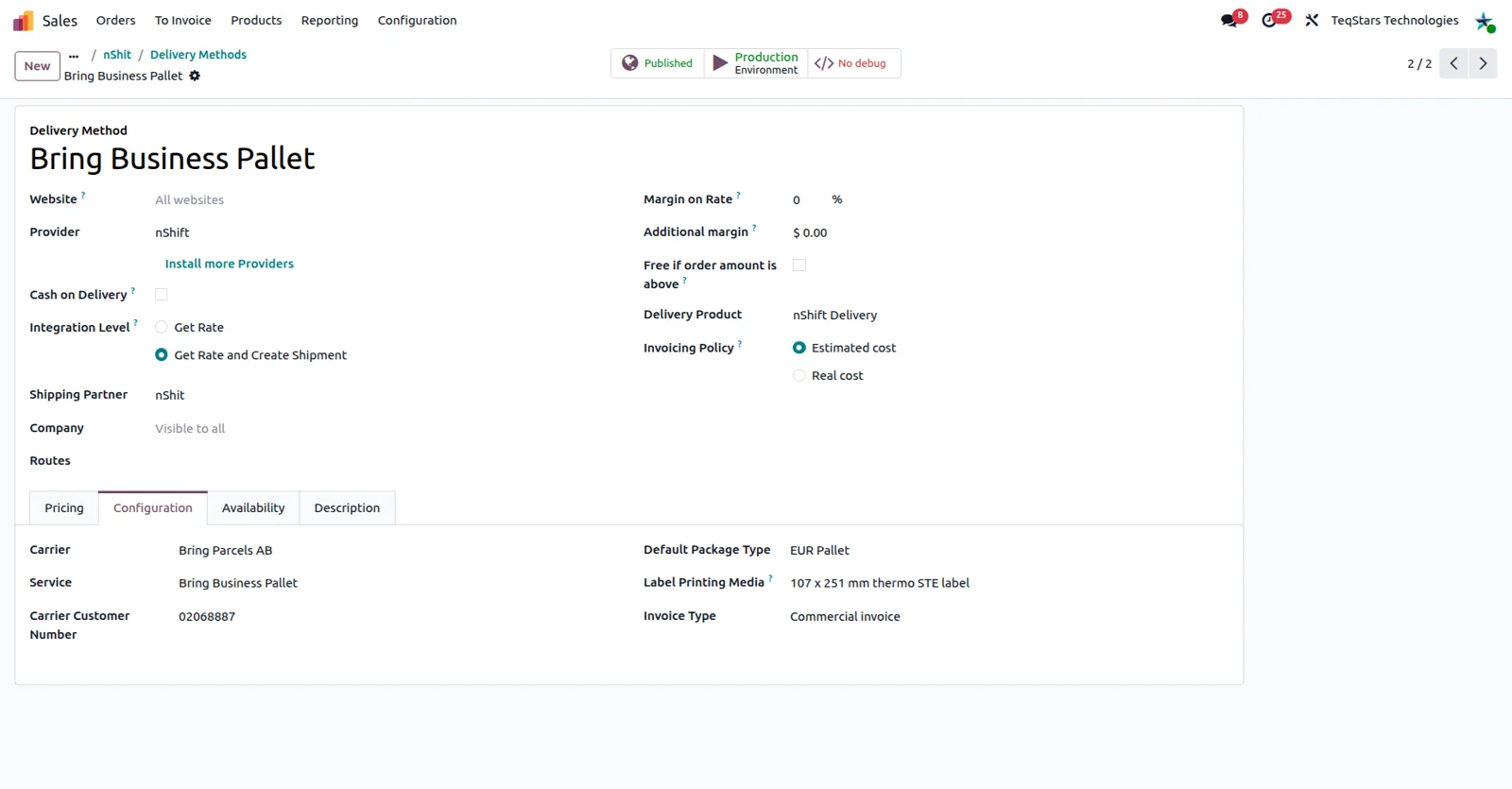
Set up the nShift delivery method
Your team gets a shipping option that already knows which nShift account and service to use, so nobody chooses carrier settings order by order. The nShift fields sit on the Odoo delivery method record, where you name the method and save it. Businesses that ship under more than one nShift account can connect each account and give it its own methods.
Choose nShift shipping on a sales order
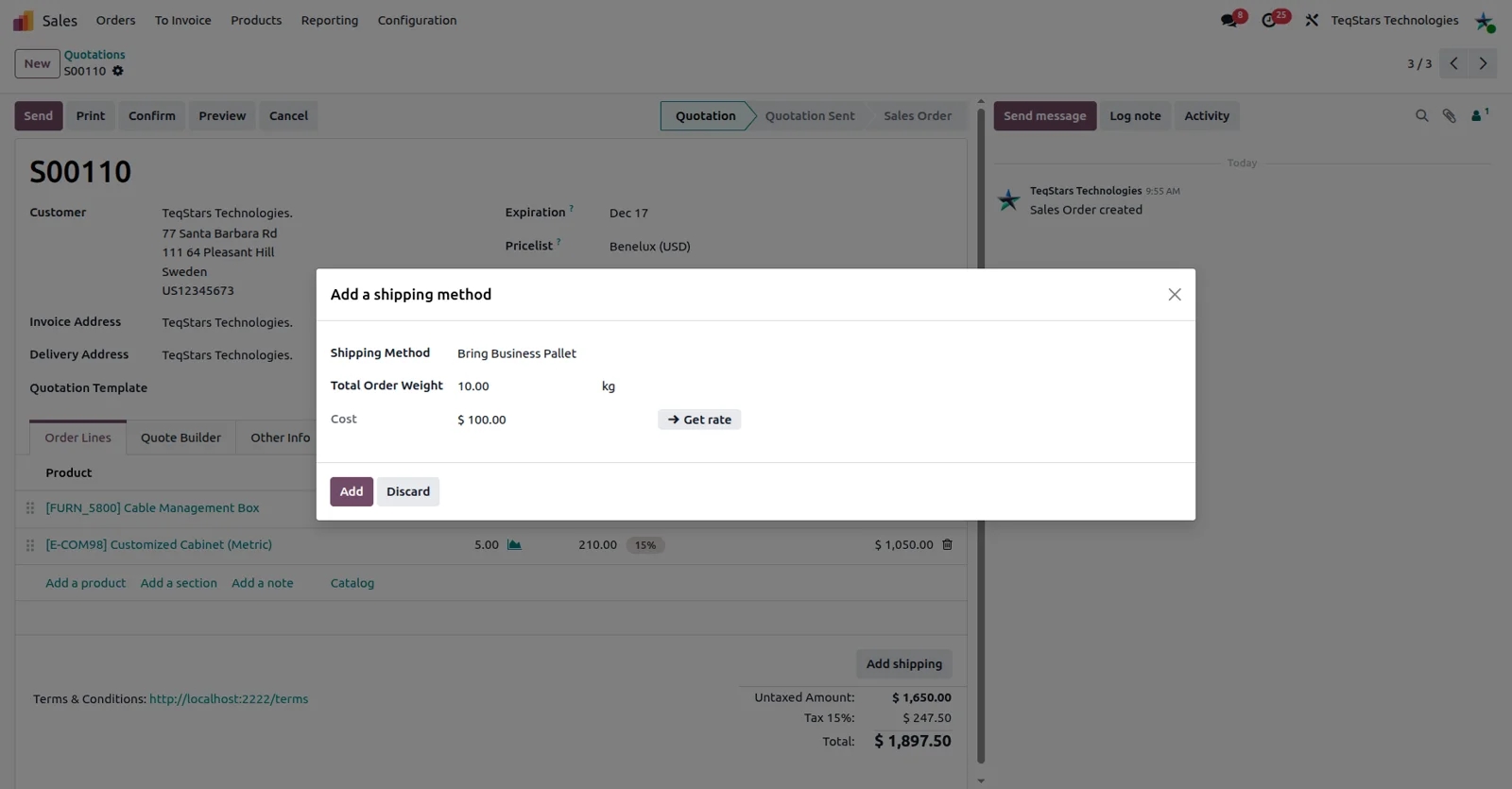
Sales can commit to a shipping service while the quotation is still open, so the warehouse knows how the goods go out. You select the nShift delivery method on the sales order, and the delivery created from that order carries it through to shipping. The warehouse team then works from the picking instead of asking sales what was promised.
Offer nShift shipping on your web shop
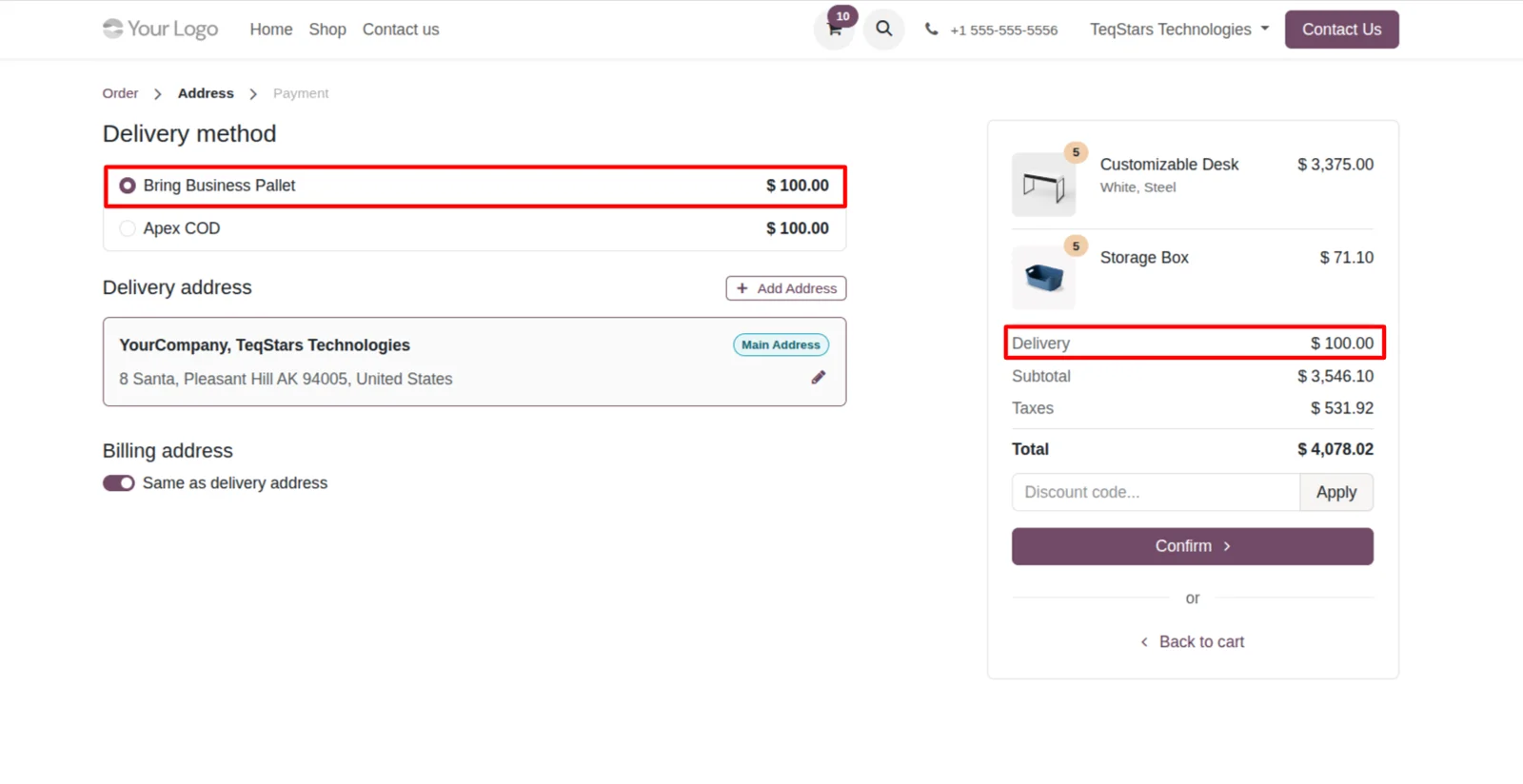
Online shoppers can pick an nShift service at checkout, and their order arrives in Odoo with that choice already set. The method you configured shows up as a shipping option on the website order, so web sales follow the same shipping setup as orders your team enters by hand. No separate rules to maintain for the shop.
Send one shipment as several parcels
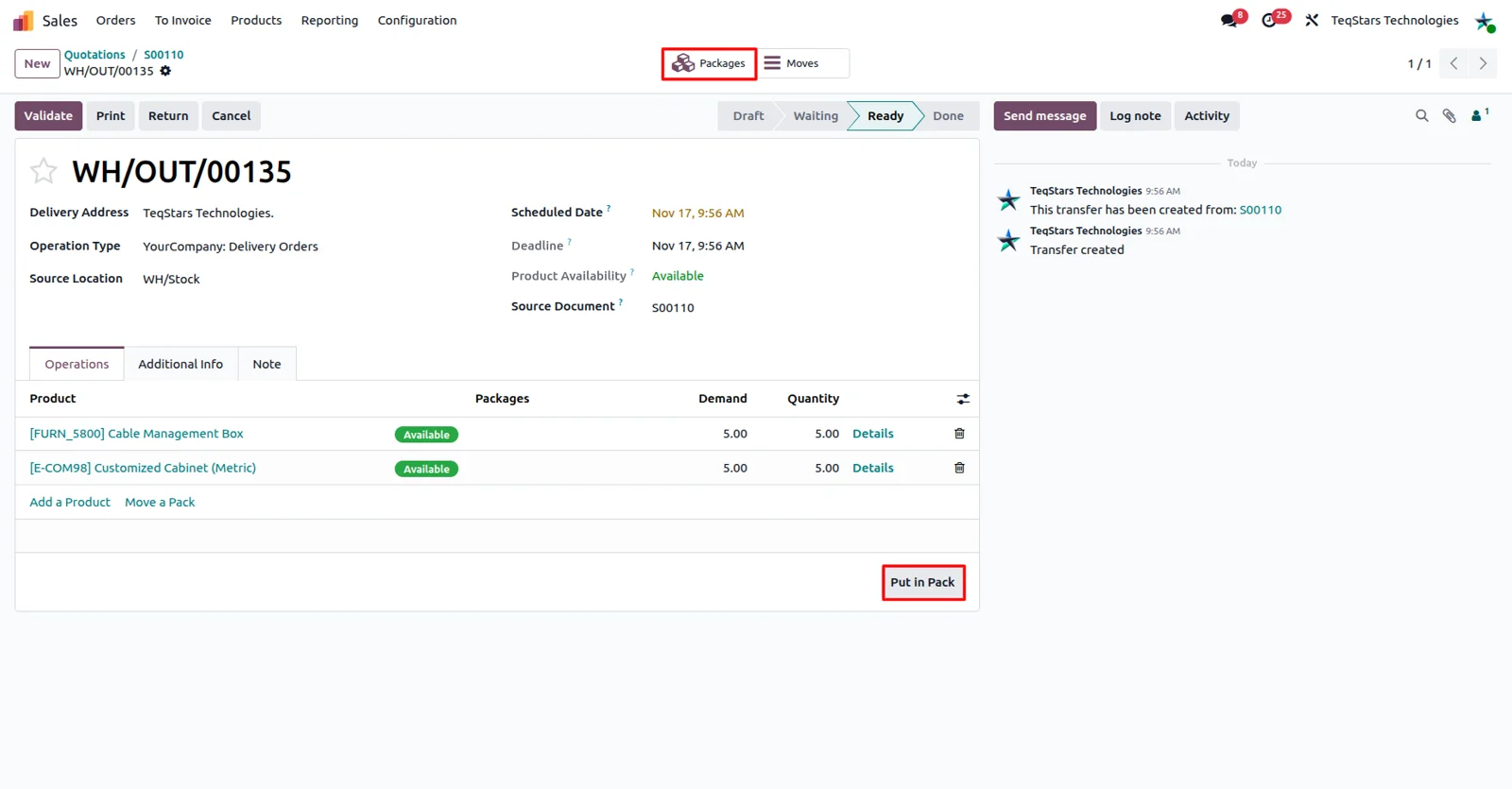
A bulky order can leave as several boxes and still be one shipment in nShift. Use the 'Put in Pack' operation on the delivery order to build each package, and the connector books those parcels together. A single parcel needs no extra work, so small orders stay quick while large ones get the packing detail they need.
Get the shipping label on validation
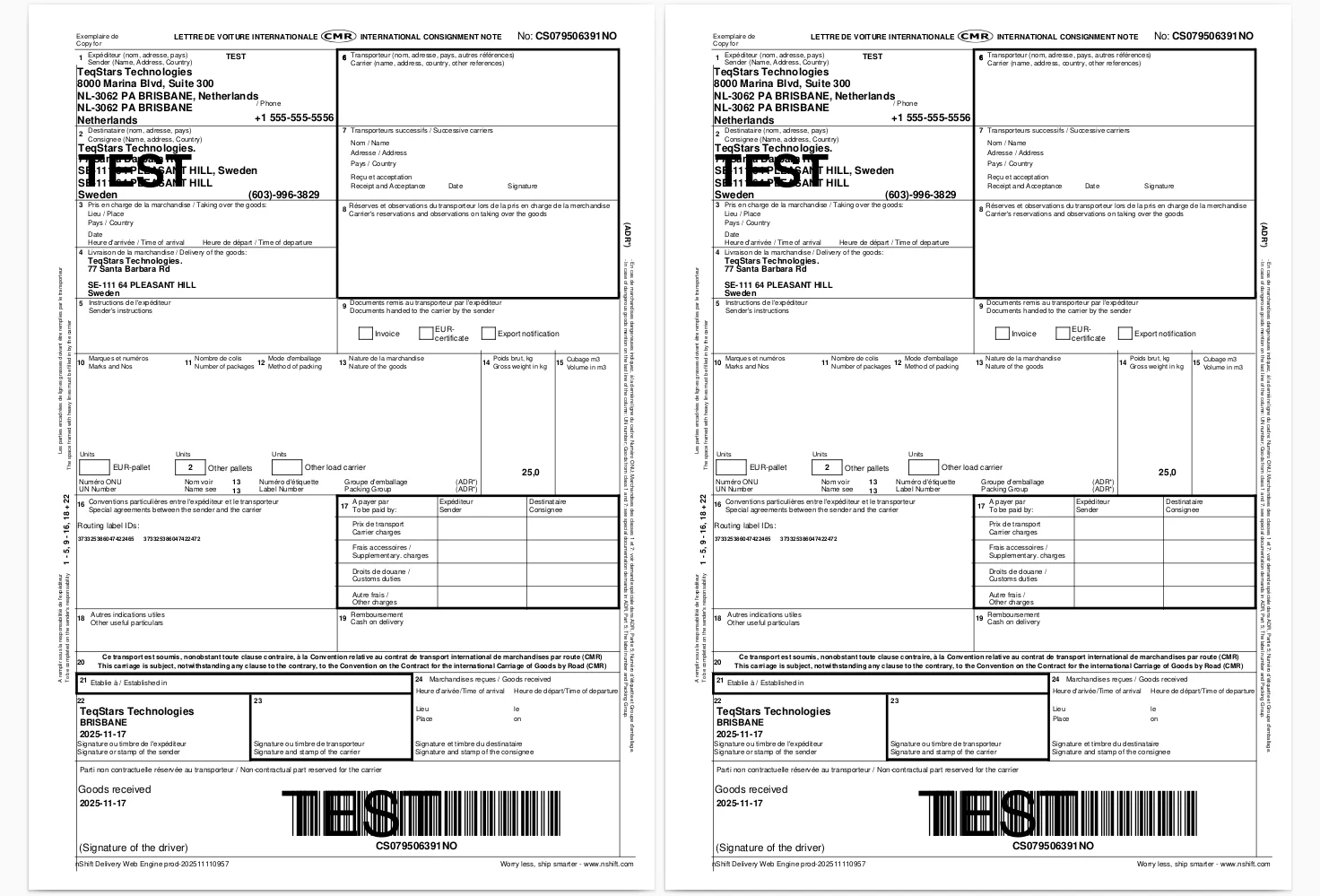
The label your packer needs to print is created when the delivery order is validated, so the box can go out in the same pass. Odoo sends the shipment to nShift at that moment and stores the label that comes back on the delivery order. Fulfillment stops being a trip between two systems for every package.
Track a parcel in one click
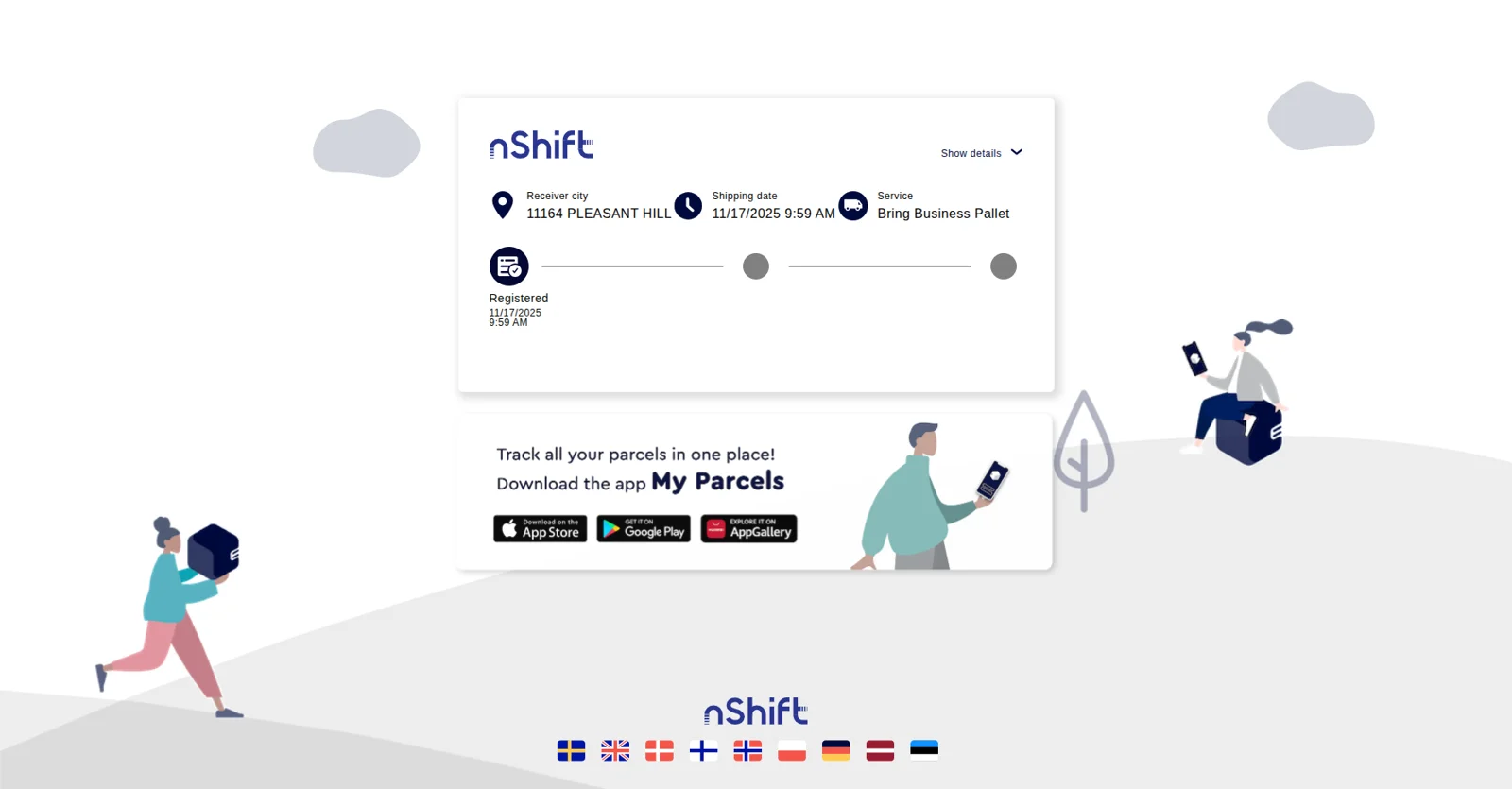
Anyone handling a customer question can see where a parcel is without opening a carrier website. The delivery order keeps the tracking number that nShift returned, and the tracking button shows the current status and location of the shipment. Service staff answer from the order record they already have in front of them.
Cancel a booked shipment from Odoo
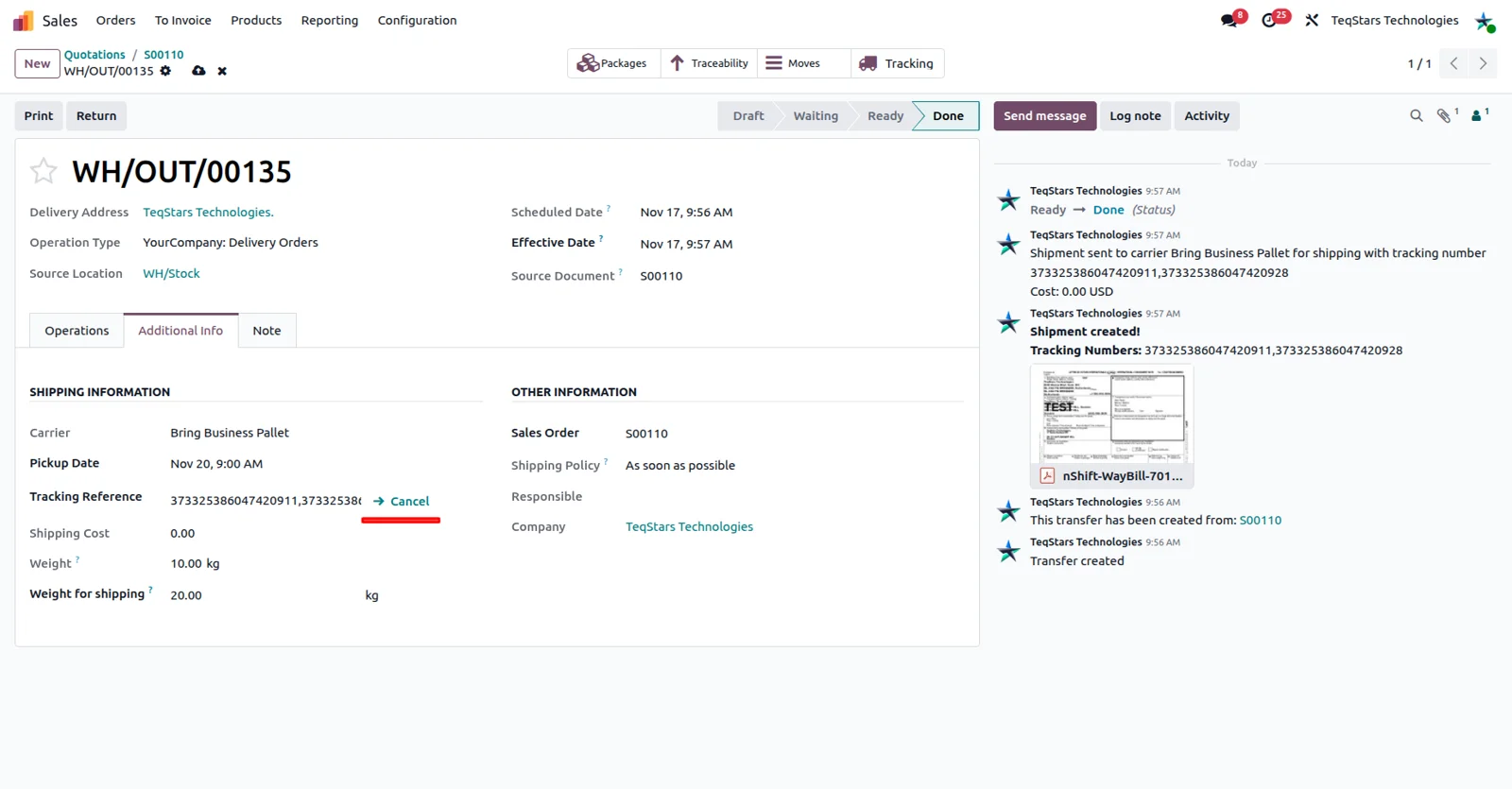
A canceled or corrected order does not leave a stray booking behind at the carrier. When you cancel the parcel in Odoo, the connector cancels that shipment in nShift as well. Your team handles the change in one place, and the nShift side matches what Odoo shows for that delivery.
Supported Odoo versions
| Odoo version | Editions | Hosting | Price | Latest release | |
|---|---|---|---|---|---|
| 20.0 | Community & Enterprise | Odoo.sh · On-premise | €158.99 | No release notes | Buy |
| 19.0 | Community & Enterprise | Odoo.sh · On-premise | €158.99 | No release notes | Buy |
| 18.0 | Community & Enterprise | Odoo.sh · On-premise | €158.99 | No release notes | Buy |
| 17.0 | Community & Enterprise | Odoo.sh · On-premise | €158.99 | No release notes | Buy |
Support for nShift/Unifaun Connector
The developers who build the app answer your tickets.
- Free app support from purchase
- 60 days
- First response in working hours, typical
- 4–6 hours
- Support hours, 10:00–18:00 IST
- Mon–Fri
How to connect nShift to Odoo
-
Step 1
Install the connector
Add the app to your database on Odoo 17.0, 18.0, 19.0 or 20.0. It runs on Odoo Enterprise, hosted on Odoo.sh or on your own server, and on Community installed on your own server.
-
Step 2
Add your nShift account
Enter the account details nShift issued to you so Odoo can send bookings to the right place. Ship under two brands or countries? Register each nShift account separately in the same database.
-
Step 3
Create a delivery method
Open Odoo's shipping methods and add one that uses nShift, picking the service your parcels travel on. Repeat this for every service you sell, since these entries are what your team selects later.
-
Step 4
Select it on orders
On a quotation, choose the nShift method you created, and the delivery order inherits it. Shoppers do the same themselves when the method is published as a shipping option on your website.
-
Step 5
Validate and print
Pack the goods first with 'Put in Pack' when the order ships in several boxes. Validating the delivery order books the shipment with nShift and brings back the label and tracking number.
Questions before you buy
Not answered here? Talk to the team.