A photo or PDF becomes a filled-in invoice, bill or expense record
This Odoo invoice digitization app reads a scan, a snapshot or a PDF and fills in the invoice, bill or expense for you. The product and the customer or vendor are matched against your own records. You review the result and confirm.
- Odoo 17.0 – 20.0
- Community & Enterprise
- Odoo.sh · On-premise
-
Not for
Odoo Online
Top seller on the Odoo Apps Store
- sales on the Odoo Apps Store
- 3,000+
- apps published
- 100+
- countries running them
- 100+
Invoice, bill and expense data entry before and after this app
Without the connector by hand
-
Type every line of each invoice, bill or receipt by hand
-
Search for the right product on each document line yourself
-
Look up the customer or vendor and select the partner manually
-
Open an emailed invoice and retype the details into Odoo
With the connector automatic
-
Drag and drop a photo or PDF, and AI fills in the details
-
Lines are matched against your catalog by name or SKU
-
The partner is detected by name or VAT/Tax ID
-
Emailed invoices are picked up and their key details extracted
Account Invoice, Bill and Expense Digitization features
Turn digitization on per document type
You decide which documents AI reads. The settings screen lists invoices, bills and expenses, each with its own switch, so a team that only wants vendor bills processed can leave customer invoices alone. The same screen chooses the engine behind the extraction, and the default Odoo AI is ready to use without an account of your own.
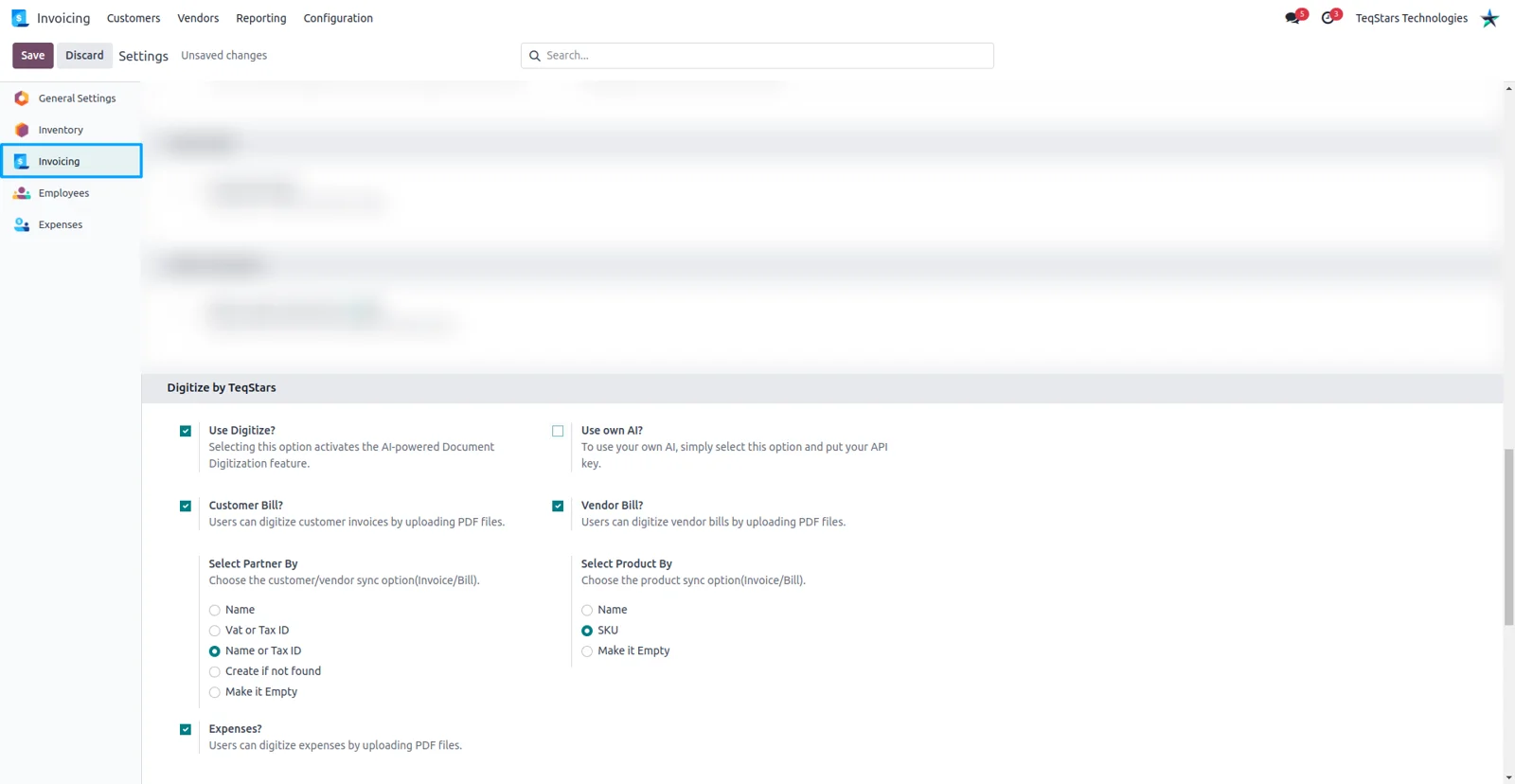
Use your own OpenAI account
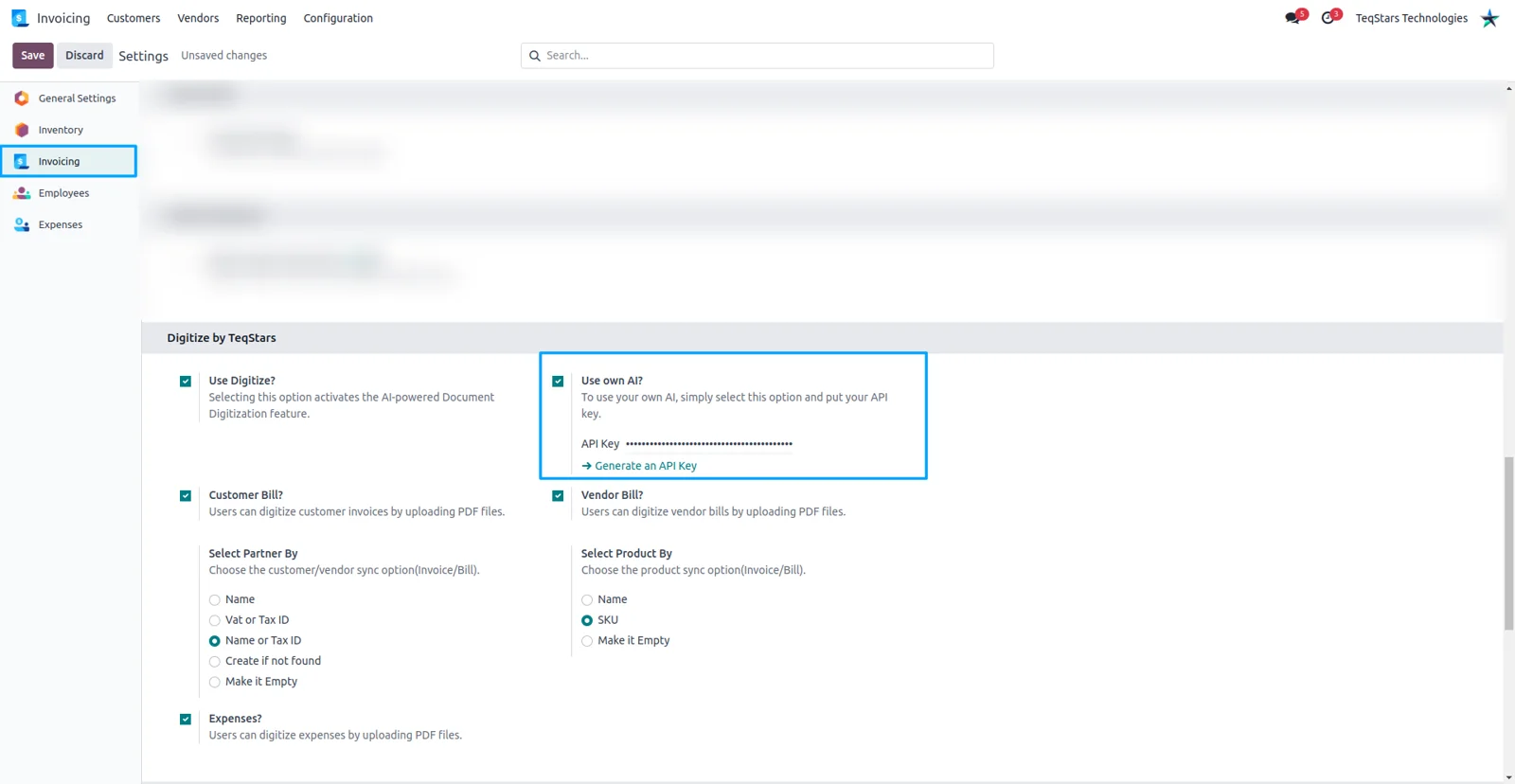
Teams that already pay for OpenAI can keep that arrangement. Switch the setting away from the default Odoo AI and connect your own key, and digitization then runs on your account and your quota. Everything else behaves the same way, so the documents you enabled are read and the fields come back filled in. It is one setting, so you can start on the default and change later.
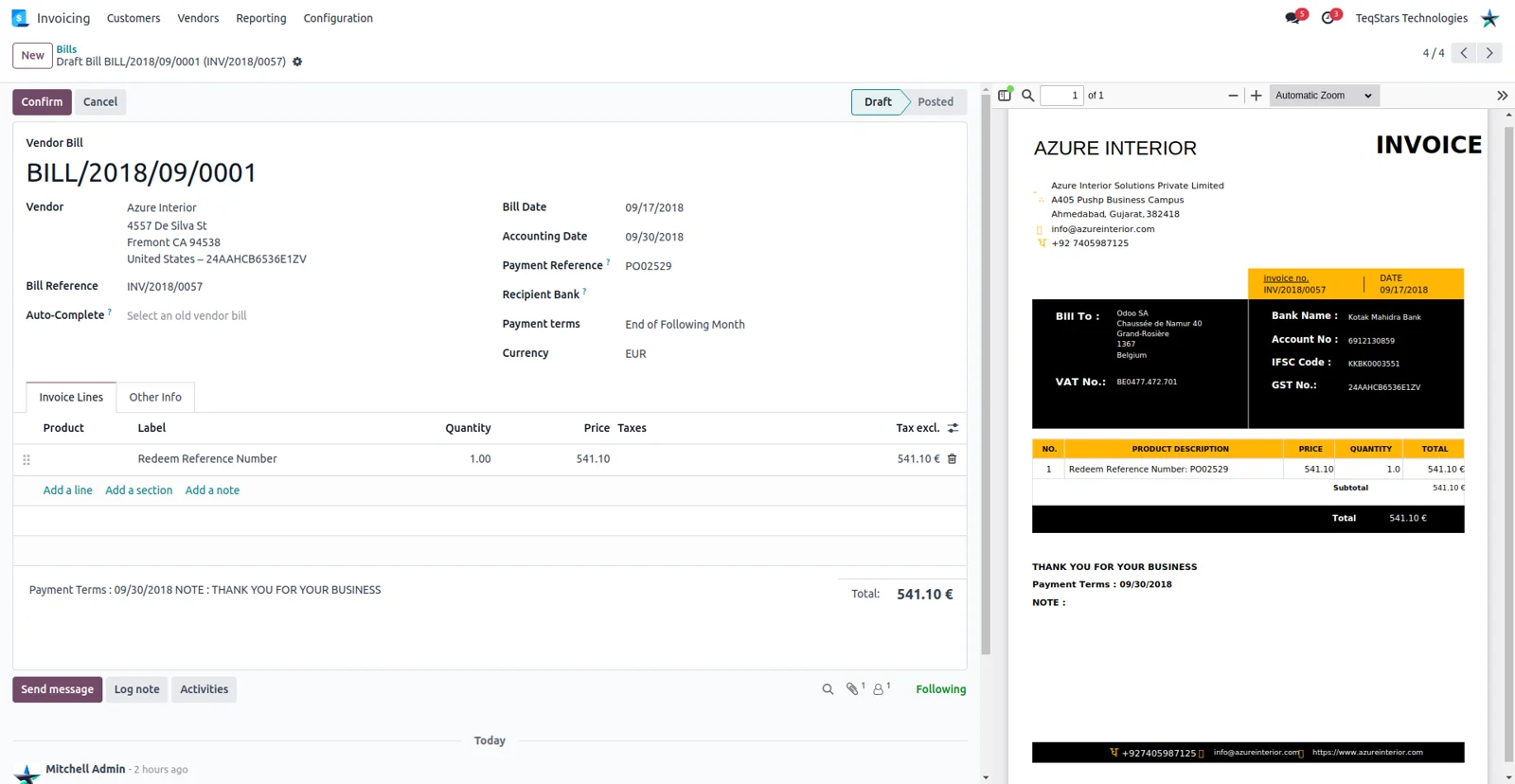
Drag and drop a vendor bill
A bill becomes a record without typing. Open the bill, drag the file onto it or upload it, and AI reads the document and populates the details. Photos work as well as PDF files, so a phone snapshot of a paper bill is enough to start. What you get is an ordinary Odoo bill, waiting for someone to check it and confirm.
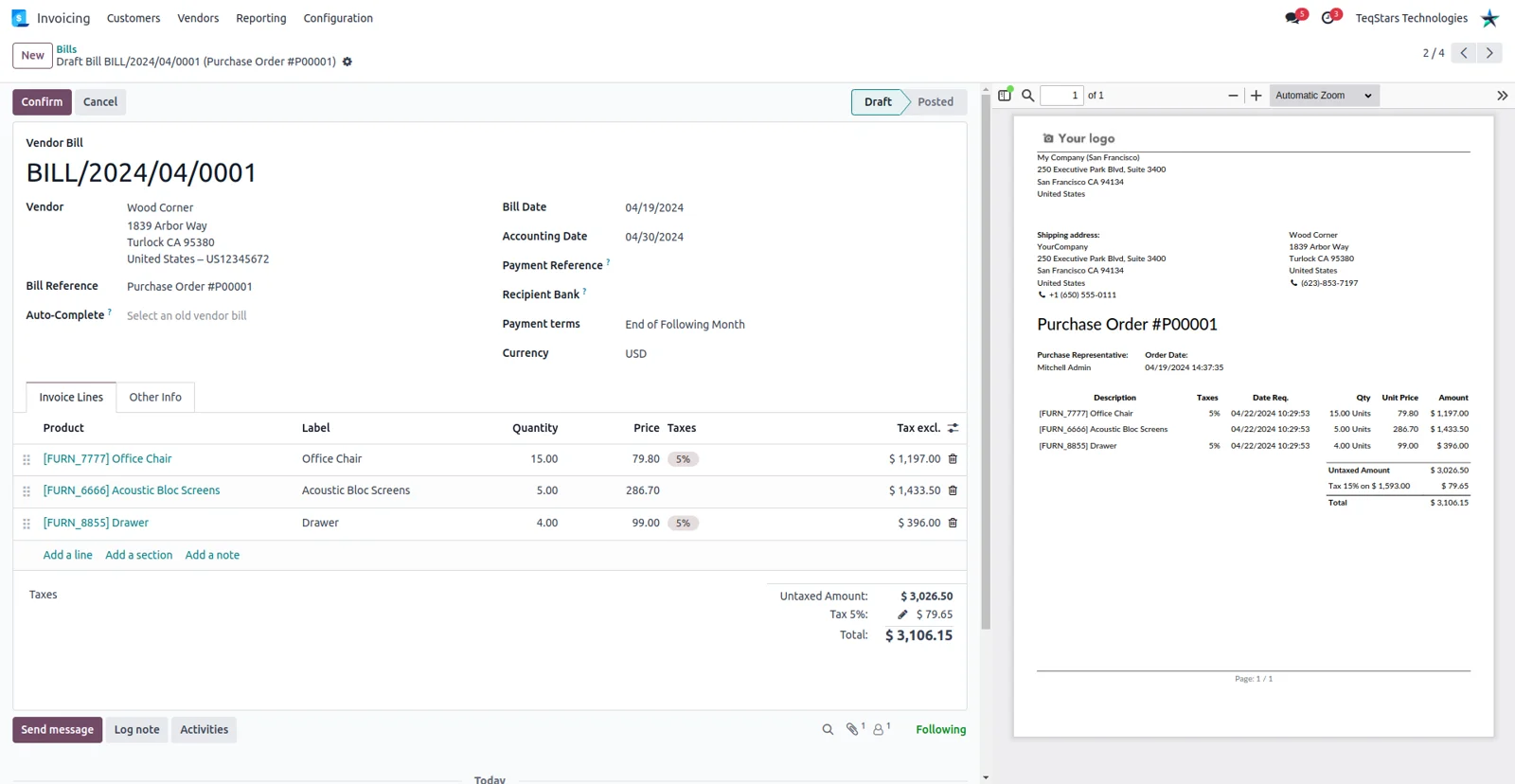
Products and partners matched for you
The extracted lines point at your own records. Every product on the document is matched against your catalog by name or SKU, and the vendor or customer is matched by name or VAT/Tax ID. That takes away the searching and selecting that normally follows a scan. Anything the match gets wrong is visible on the form before you confirm the record.
Digitize expense receipts too
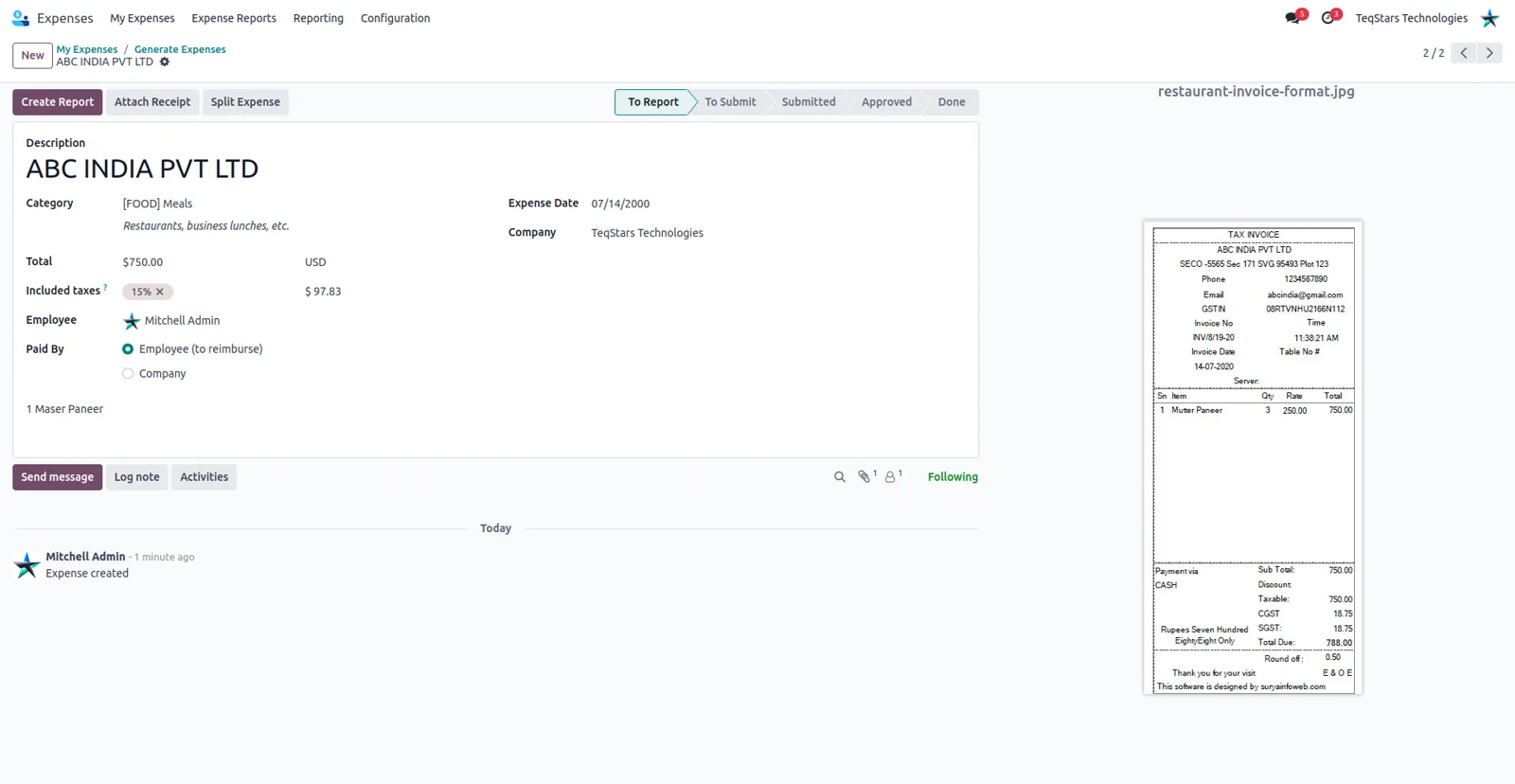
Reimbursement receipts follow the same path as bills. Drag or scan a receipt into an expense, and the app pulls out the details and auto-detects the product or category it belongs to. Staff hand in a photo instead of a typed claim, and finance reviews records that already carry the figures. The Odoo Expenses app needs to be installed for this part.
Supported Odoo versions
| Odoo version | Editions | Hosting | Price | Latest release | |
|---|---|---|---|---|---|
| 20.0 | Community & Enterprise | Odoo.sh · On-premise | €99 | No release notes | Buy |
| 19.0 | Community & Enterprise | Odoo.sh · On-premise | €99 | No release notes | Buy |
| 18.0 | Community & Enterprise | Odoo.sh · On-premise | €99 | No release notes | Buy |
| 17.0 | Community & Enterprise | Odoo.sh · On-premise | €99 | No release notes | Buy |
Support for Account Invoice, Bill and Expense Digitization
The developers who build the app answer your tickets.
- Free app support from purchase
- 60 days
- First response in working hours, typical
- 4–6 hours
- Support hours, 10:00–18:00 IST
- Mon–Fri
How to set up AI invoice digitization in Odoo
-
Step 1
Install the prerequisites
The app leans on software that sits on the server. Your administrator adds the PyMuPDF, pytesseract, opencv-python and pdf2image Python libraries, then installs the Odoo Expenses app and TeqStars' OpenAI Integration Core.
-
Step 2
Pick the AI and the documents
Open the digitization settings to say which records AI should handle. Invoices, bills and expenses each switch on separately. For the engine, keep the default Odoo AI or connect the OpenAI key you already use.
-
Step 3
Send in a document
Get the file to the record. Drag it onto the form, upload a scan or a photo, or let an invoice that reaches you by email be picked up and digitized instead.
-
Step 4
Check and confirm
AI fills the fields and proposes the matching product along with the customer or vendor. Read the record once, correct anything the scan misread, then confirm it so it joins your books.
Questions before you buy
Not answered here? Talk to the team.