Take card, wallet and US bank payments on your own checkout page
This Braintree Odoo integration puts the secure Drop-in form on your website, portal and invoice pay pages. Customers pay with cards, digital wallets or a US bank account. Card charges confirm in the same request, so the invoice is marked Paid right away.
- Odoo 17.0 – 20.0
- Community & Enterprise
- Odoo.sh · On-premise
-
Not for
Odoo Online
Top seller on the Odoo Apps Store
- sales on the Odoo Apps Store
- 3,000+
- apps published
- 100+
- countries running them
- 100+
Payment work before and after the Braintree Odoo integration
Without the connector by hand
-
Shoppers get sent to a third-party payment page and drop off.
-
You offer cards only, with no Google Pay, Apple Pay or Venmo.
-
Repeat buyers type their card number again on every order.
-
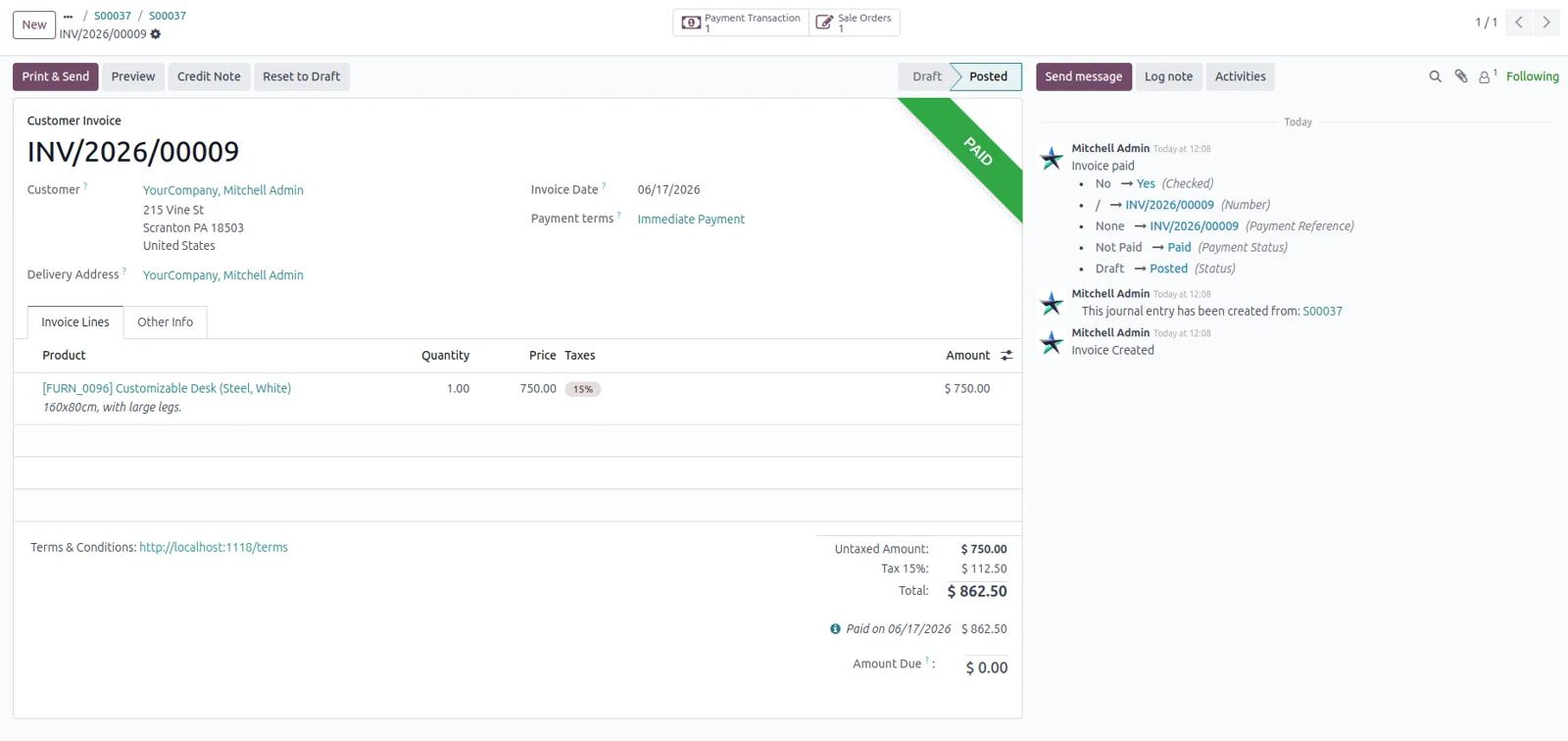
You sign in to the Braintree Control Panel to reverse a charge.
-
Every currency settles through a single merchant account.
-
Someone checks Braintree and marks invoices paid by hand.
With the connector automatic
-
Customers pay inside the Drop-in form on your own checkout page.
-
Cards and the wallets you switch on sit in one widget.
-
A saved token lets logged-in customers pay in one tap.
-
You click Refund or Void on the Odoo transaction.
-
Each mapped currency routes to its own validated merchant account.
-
The matching invoice is reconciled and marked Paid once the transaction is Done.
Payments, refunds and settlement updates between Odoo and Braintree
Every object the connector handles, which way it travels and what triggers it.
| Data | Direction | What happens & when |
|---|---|---|
| Card and wallet charge |

 Odoo to Braintree
|
Customer submits the Drop-in form at checkout or on an invoice. |
| Card payment result |
Braintree to Odoo
|
Braintree answers the same request, moving the transaction to Done or Authorized. |
| Bank account check and ACH charge |
Odoo to Braintree
|
Customer ticks the mandate and submits routing and account numbers. |
| ACH settlement and dispute notices |
Braintree to Odoo
|
Braintree sends a signed notification for settlement, decline, disbursement or dispute. |
| ACH status re-check |
Both ways
|
An administrator clicks Mark ACH as Settled on a pending transaction. |
| Refunds and voids |
Odoo to Braintree
|
You click Refund or Void on the Odoo payment transaction. |
| Capture of an authorized charge |
Odoo to Braintree
|
You click Capture Transaction on a transaction left in Authorized. |
| Saved card or bank token |
Braintree to Odoo
|
Customer ticks Save my payment details while paying. |
| Merchant account validation |
Odoo to Braintree
|
You click Validate on a currency line in the Merchant Accounts table. |
Odoo Braintree Payment Gateway features
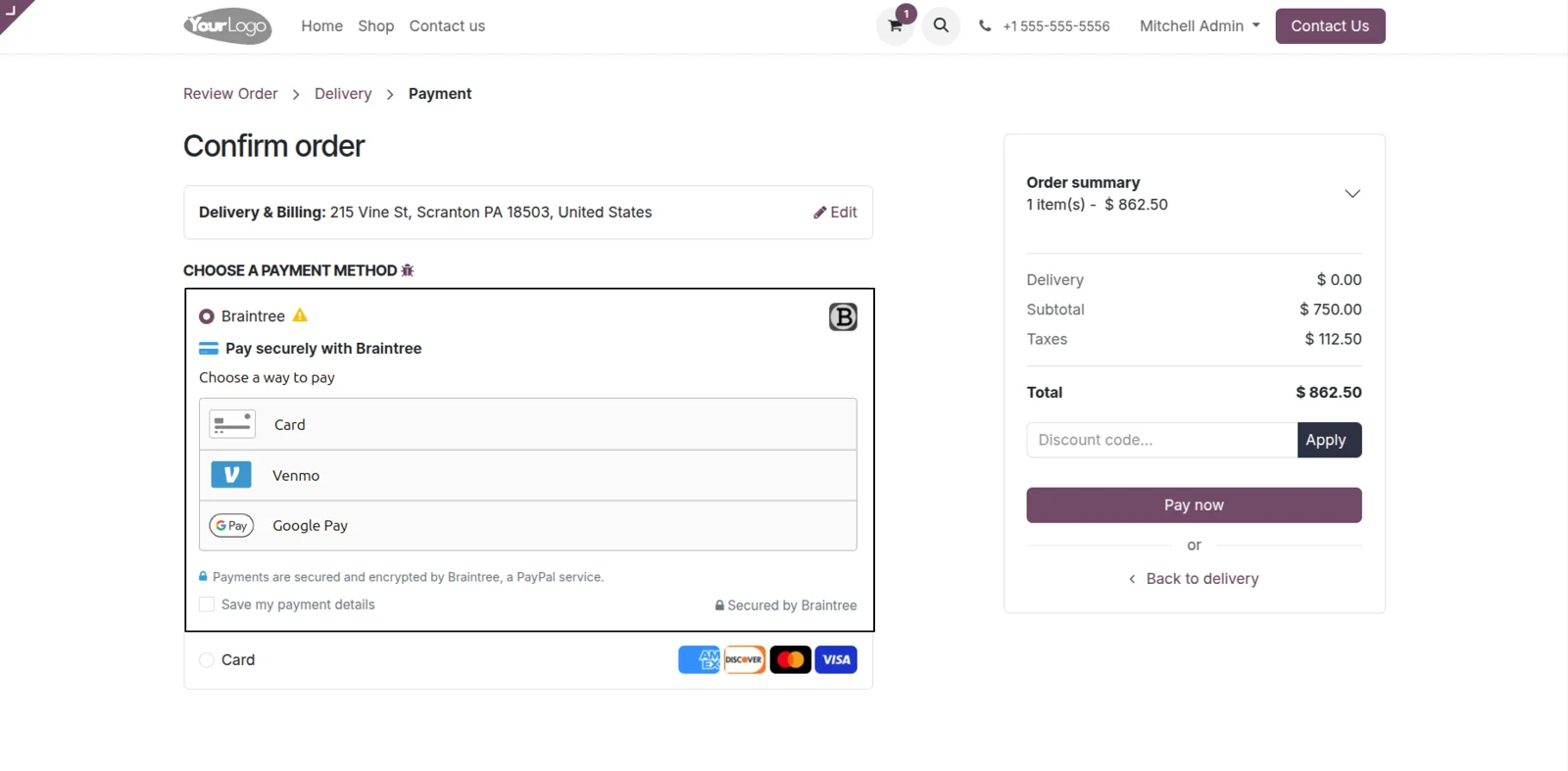
Cards and wallets in one checkout widget
Your customers finish paying on the same page they were shopping on. They pick Braintree at website checkout or on a portal invoice, and the Drop-in form opens inline. Card fields sit next to the wallets you switched on, so a buyer can tap Google Pay, Apple Pay or Venmo instead of typing. A Save my payment details tick box is there too.
Switch on 3D Secure, wallets and saved cards
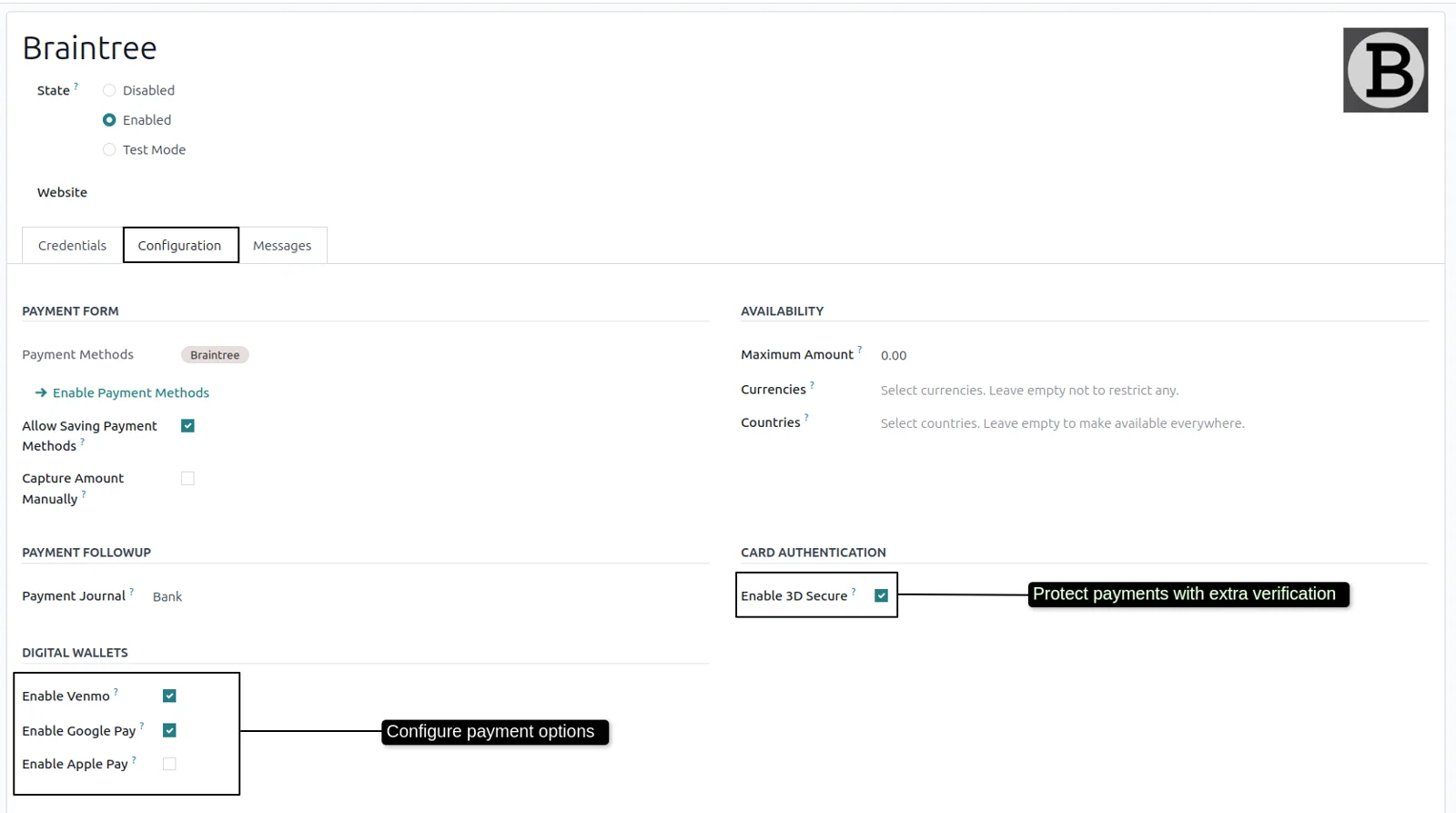
You decide how strict and how fast your card checkout feels, with tick boxes instead of custom work. The Configuration tab of the Cards provider carries Enable 3D Secure for bank authentication with liability shift, Enable Venmo, Enable Google Pay and Enable Apple Pay, plus saved cards and manual capture. Each wallet has to be switched on in your Braintree account first.
US bank payments with a NACHA mandate
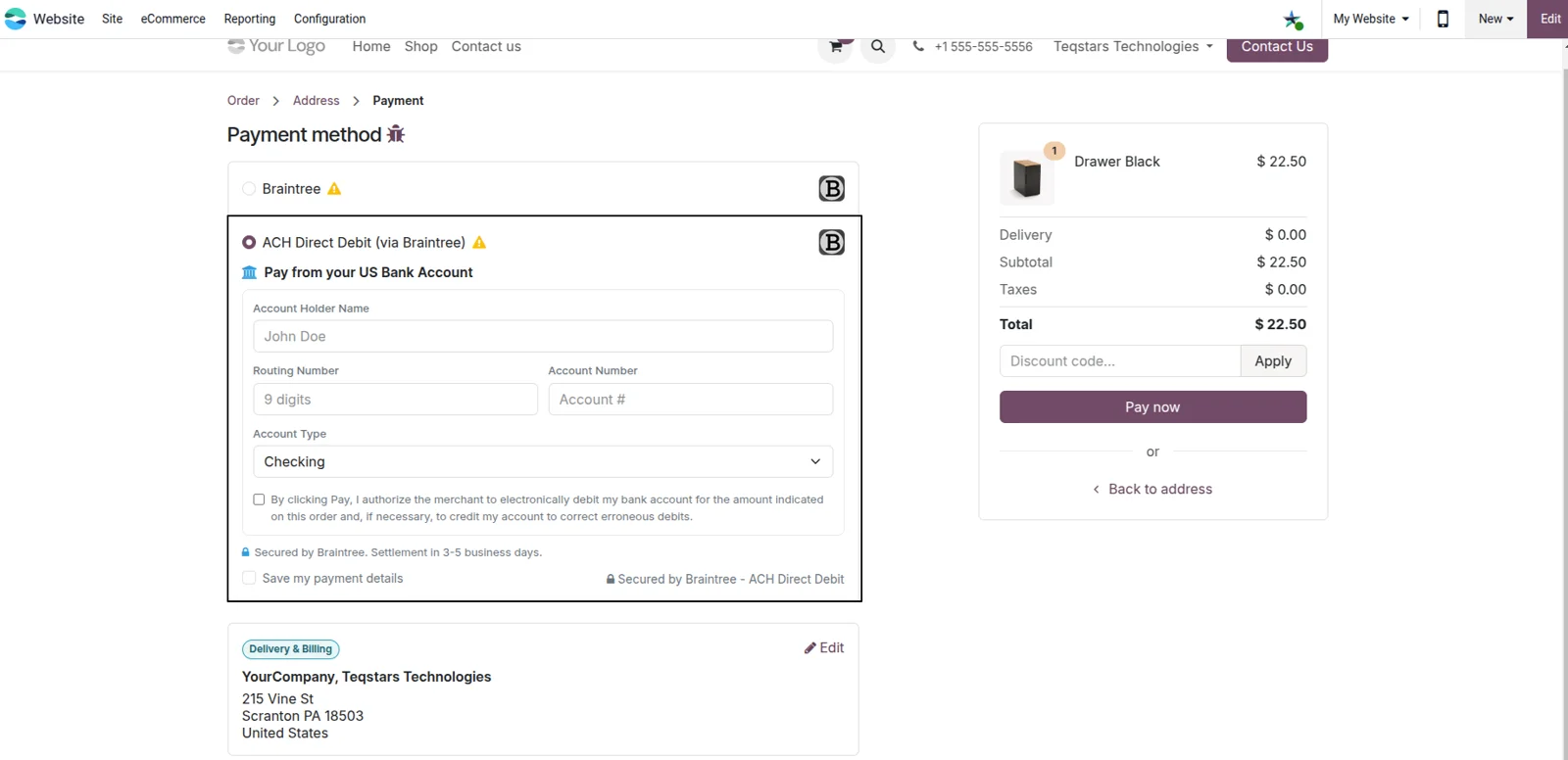
American buyers can pay straight from a checking or savings account, which suits higher-value orders. The form asks for the account holder name, a 9-digit routing number and the account number, then requires the authorization mandate tick box that US banking rules call for. Braintree's network check verifies the account live before the charge is submitted, so no Plaid subscription or extra popup is involved.
Pending bank payments turn Done on settlement
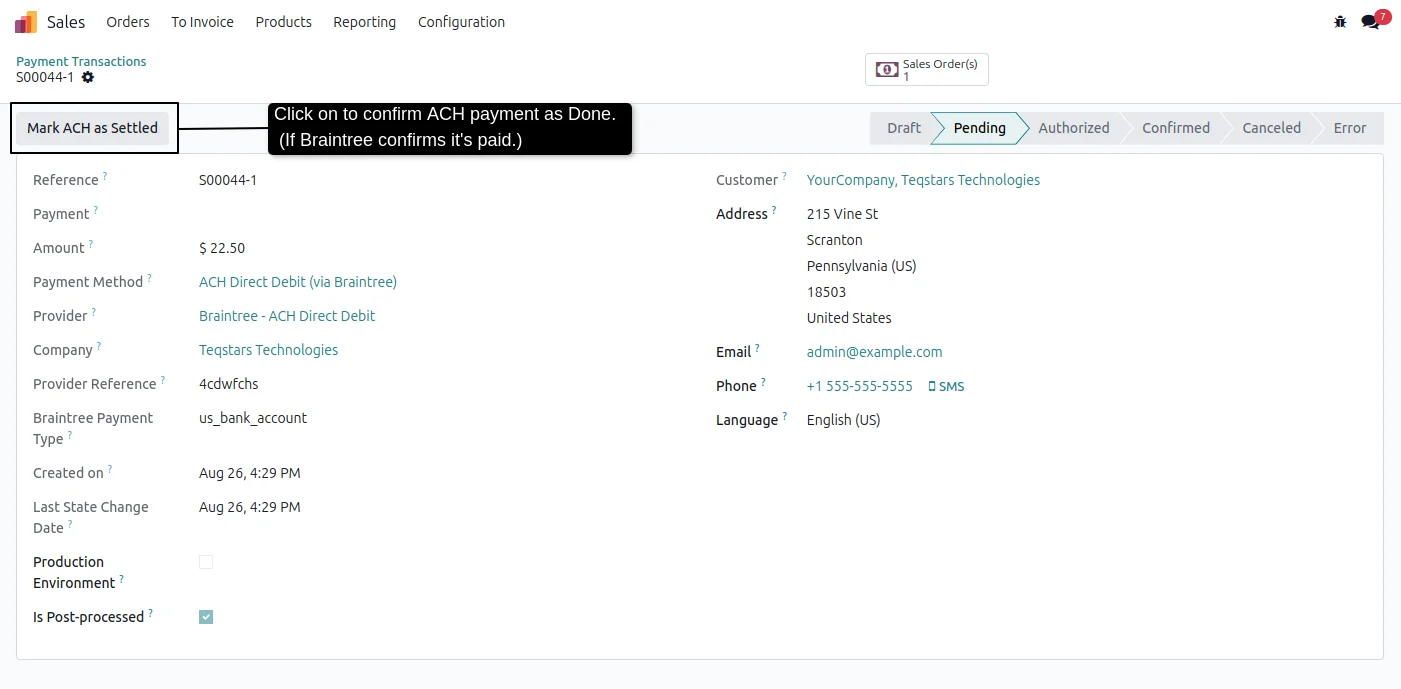
Nobody has to watch the Braintree Control Panel for three to five business days. An ACH transaction waits in Pending, and when Braintree reports the funds as settled the Odoo transaction moves to Done. A settlement decline or a dispute instead raises a red Gateway Reversal Detected ribbon. An administrator can also click Mark ACH as Settled, which asks Braintree for the live status first.
Invoices reconciled as soon as money clears
Your accounting stays current without anyone keying in payments. Each time a Braintree transaction reaches Done, Odoo creates the customer payment record, reconciles the linked invoice as Paid and updates the sale order to match. For card charges that happens in the same checkout request. For ACH it happens once Braintree confirms the bank settlement.
Refund or void without the Control Panel
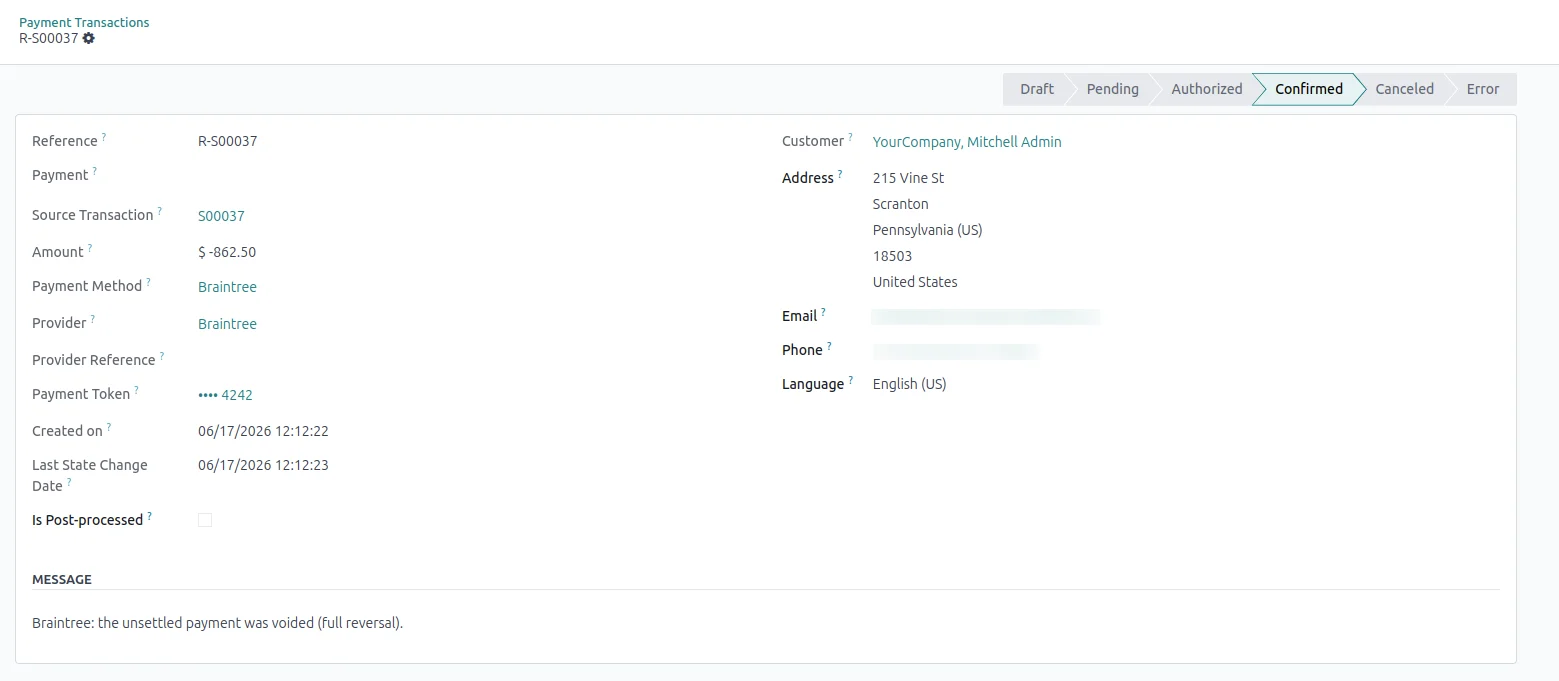
Reversing a charge is one click on the Odoo transaction, and your team keeps the audit trail in one place. The module chooses the right call for you. An unsettled charge is voided in Braintree, while a settled one is refunded in full or in part. A reversal transaction is written in Odoo with the details, and the same movement shows in Braintree.
Two Braintree providers from one module
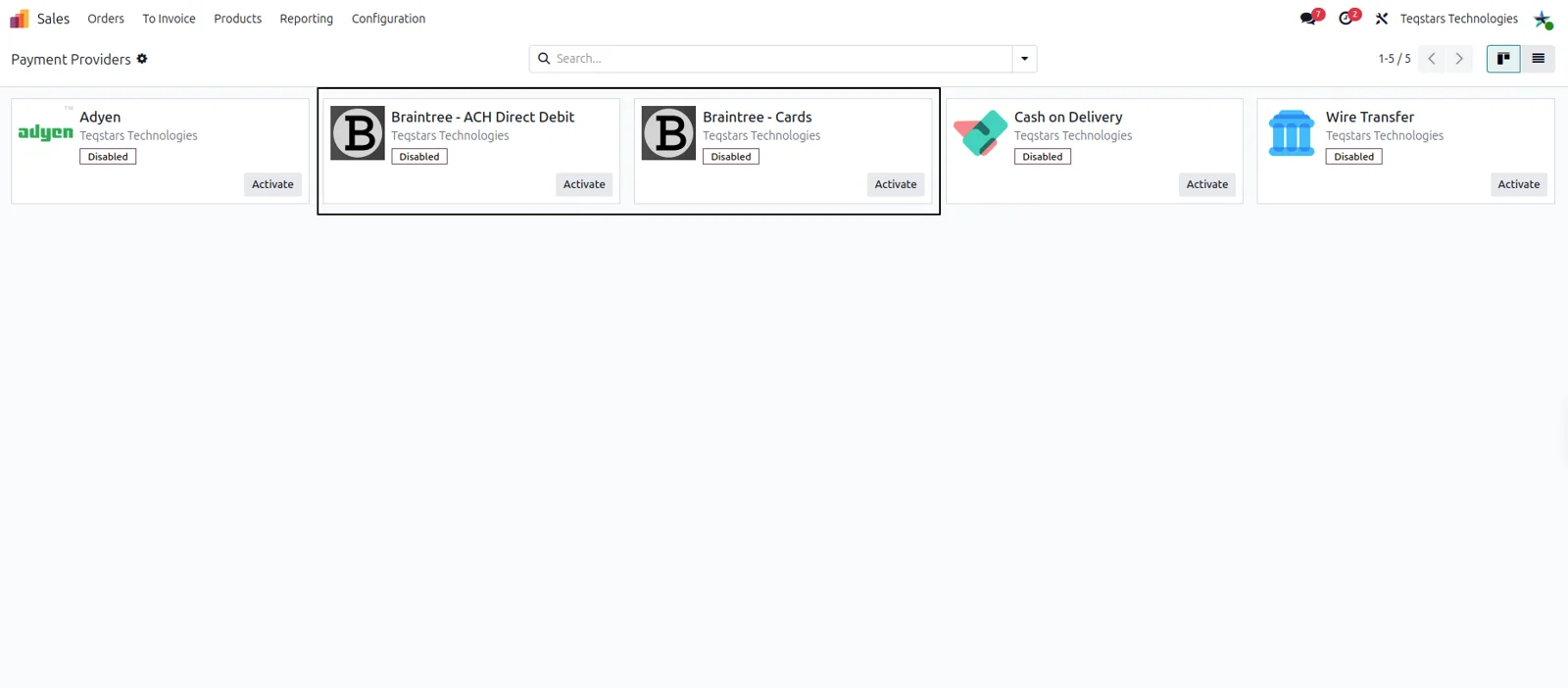
Cards and bank debits stay separate, which keeps their rules and their testing apart. Installing once adds Braintree Cards and Braintree ACH Direct Debit to your Payment Providers list. Each holds its own Merchant ID and keys, its own Test or Enabled state and its own currency scope. Run cards only, bank debits only, or publish both side by side at checkout.
Supported Odoo versions
| Odoo version | Editions | Hosting | Price | Latest release | |
|---|---|---|---|---|---|
| 20.0 | Community & Enterprise | Odoo.sh · On-premise | €169 | No release notes | Buy |
| 19.0 | Community & Enterprise | Odoo.sh · On-premise | €169 | 19.0.1.0.2 | Buy Docs |
| 18.0 | Community & Enterprise | Odoo.sh · On-premise | €169 | No release notes | Buy |
| 17.0 | Community & Enterprise | Odoo.sh · On-premise | €169 | No release notes | Buy |
Support for Odoo Braintree Payment Gateway
The developers who build the app answer your tickets.
- Free app support from purchase
- 60 days
- First response in working hours, typical
- 4–6 hours
- Support hours, 10:00–18:00 IST
- Mon–Fri
How to connect Braintree to Odoo
-
Step 1
Pick the providers you need
Start by deciding what you want to charge: cards and wallets, US bank accounts, or both. The module adds the two providers separately, so each one keeps its own keys and its own sandbox or live setting.
-
Step 2
Paste your Braintree keys
Open Braintree - Cards under Payment Providers and fill the Credentials tab with the Merchant ID, Public Key and Private Key from your Braintree Control Panel. Then set State to Test for sandbox work or Enabled for live orders.
-
Step 3
Choose methods and security
On the Configuration tab, switch on the wallets you want, 3D Secure, saved cards and manual capture. Enable each wallet in Braintree first. Selling in several currencies? Turn on Multi-Currency Setup and validate one merchant account per currency.
-
Step 4
Set up ACH Direct Debit
Braintree Sales has to approve ACH on your account before live bank payments work. On the ACH provider, add the same three keys, read through the mandate text, and reword the Pending Message buyers see while funds clear.
-
Step 5
Add the settlement notifications
Copy the Webhook URL shown on the ACH provider and create a new webhook with it in your Braintree Control Panel. Subscribe to the settled, settlement declined, disbursement and dispute events so pending payments update themselves in Odoo.
Questions before you buy
Not answered here? Talk to the team.