Take card and wallet payments through Credit Agricole and Worldline's CAWL checkout
Your customer pays on CAWL's secure page with a card, Google Pay, Apple Pay or PayPal, then comes straight back to your store. Connect CAWL to Odoo once, and each approval, capture and refund updates the matching sales order or invoice.
- Odoo 17.0 – 20.0
- Community & Enterprise
- Odoo.sh · On-premise
-
Not for
Odoo Online
Top seller on the Odoo Apps Store
- sales on the Odoo Apps Store
- 3,000+
- apps published
- 100+
- countries running them
- 100+
Payment work before and after the CAWL gateway
Without the connector by hand
-
Shoppers who expect Google Pay or Apple Pay abandon the cart.
-
Returning buyers retype their card number on every single order.
-
Someone opens CAWL, checks a payment, then marks the invoice paid.
-
Every refund means signing in to the CAWL dashboard.
-
Pre-orders cannot be authorized now and charged after shipping.
-
A missed status update leaves the transaction stuck with no fix.
With the connector automatic
-
Cards, Google Pay, Apple Pay and PayPal sit in one checkout.
-
Returning customers choose a saved card and pay in one tap.
-
Odoo marks the order or invoice paid when CAWL confirms the payment.
-
You click Refund in Odoo for the whole amount or part of it.
-
Switch on "Capture Manually", then capture when you ship or approve.
-
You click "Refresh from CAWL" to pull the current status.
Payments, captures and refunds between Odoo and CAWL
Every object the connector handles, which way it travels and what triggers it.
| Data | Direction | What happens & when |
|---|---|---|
| Payment authorization |

 Odoo to CAWL
|
A customer picks CAWL on the Odoo payment screen and confirms. |
| Payment and refund status |
CAWL to Odoo
|
CAWL sends a signed update when it approves, captures or refunds. |
| Capture, full or partial |
Odoo to CAWL
|
You capture an approved authorization on the transaction screen. |
| Void of an uncaptured payment |
Odoo to CAWL
|
You void an authorization you have decided not to charge. |
| Refund, full or partial |
Odoo to CAWL
|
You click "Refund" on the payment in Odoo. |
| Saved card charge |
Odoo to CAWL
|
A stored card is used at checkout or charged from Odoo. |
| Latest transaction status |
CAWL to Odoo
|
You click "Refresh from CAWL" on the transaction form. |
Odoo CAWL Payment Gateway features
CAWL at your Odoo checkout
Your shopper stays on the familiar Odoo payment screen and simply selects CAWL from the list of providers you offer. Buyers who stored a card on an earlier order choose it in the same place, so they confirm and pay in one tap. That short path suits repeat buyers and subscription customers who order from you often.
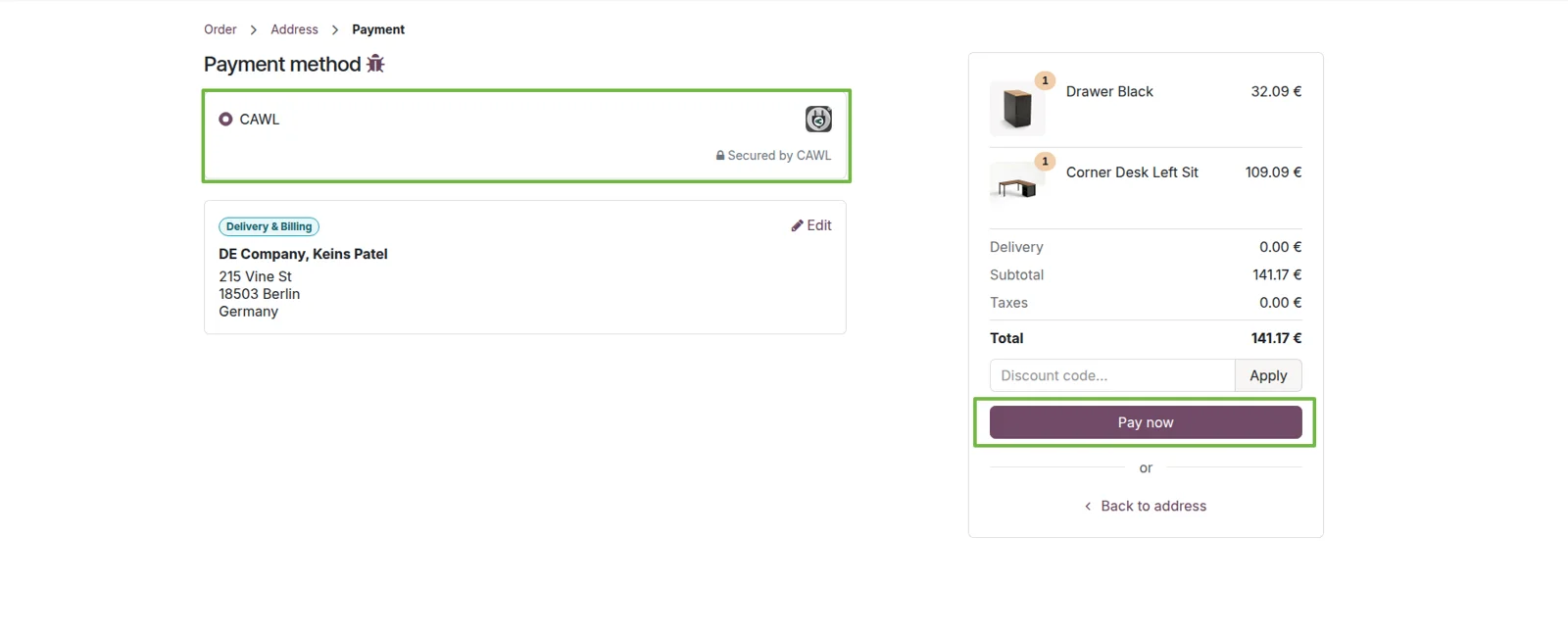
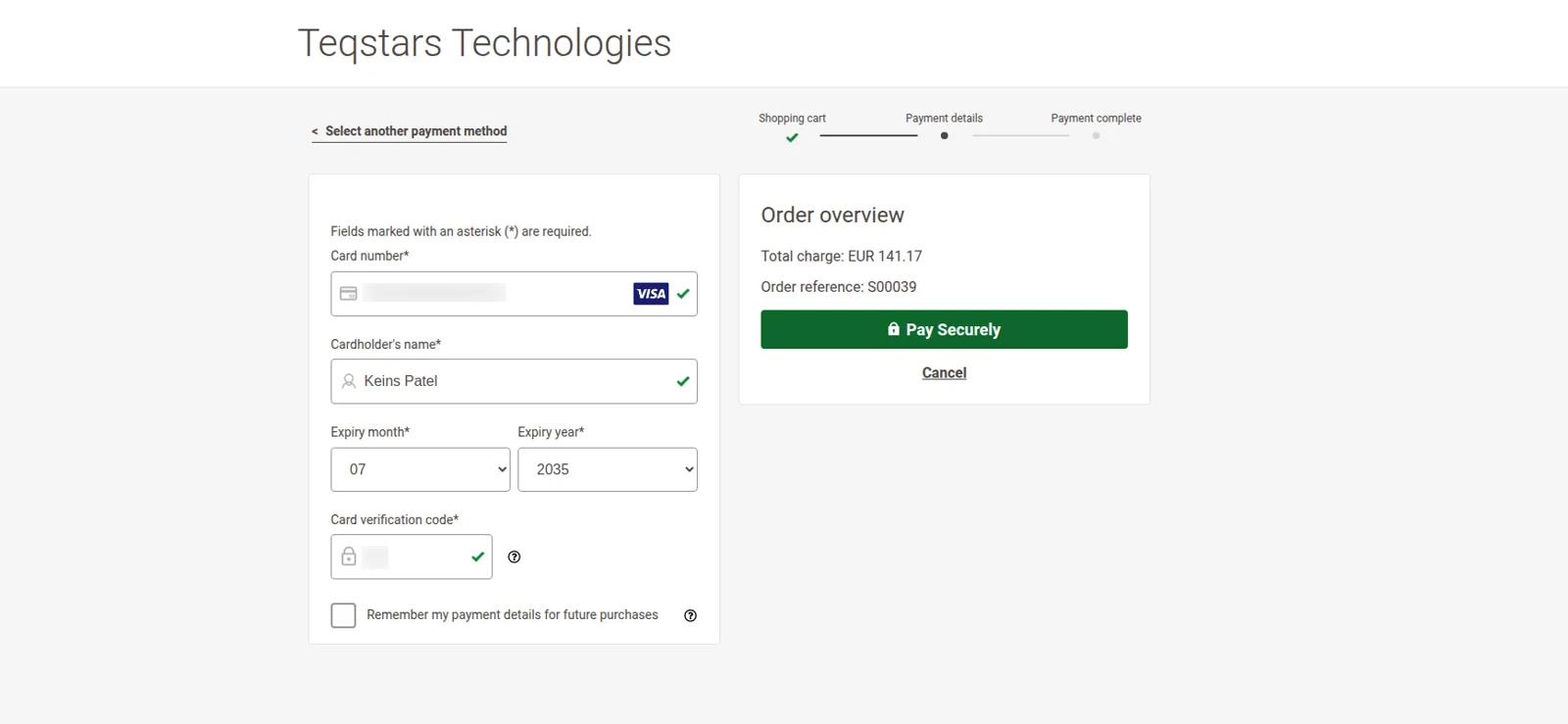
Pay on CAWL's secure page
Card details are typed on CAWL's own secure page, so they never reach your Odoo server and CAWL carries the compliance work. The page lists the methods you switched on in your CAWL account, such as Visa, Mastercard and American Express, plus Google Pay, Apple Pay and PayPal. When the bank asks for stronger verification, CAWL applies 3D Secure during the payment.
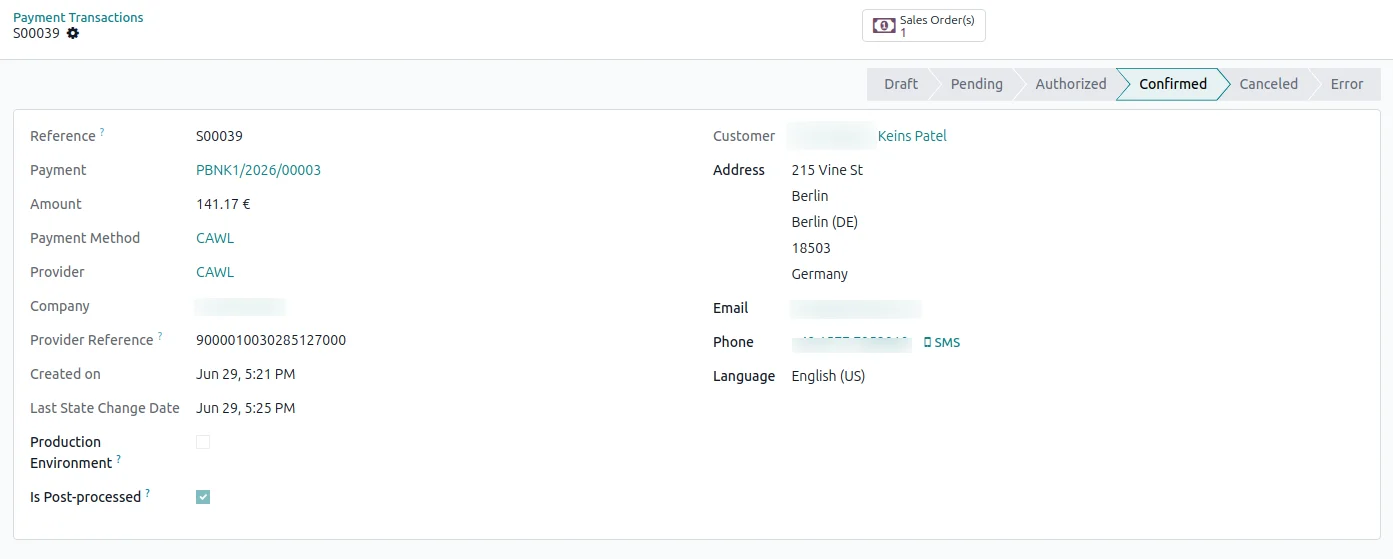
Odoo marks the transaction Done
The Odoo payment transaction switches to Done the moment CAWL confirms the money, so nobody has to compare two screens. CAWL reports approvals, captures and refunds to Odoo as signed notifications, which protects the update against tampering. Your finance team reads the current state on the transaction instead of asking the web team what happened.
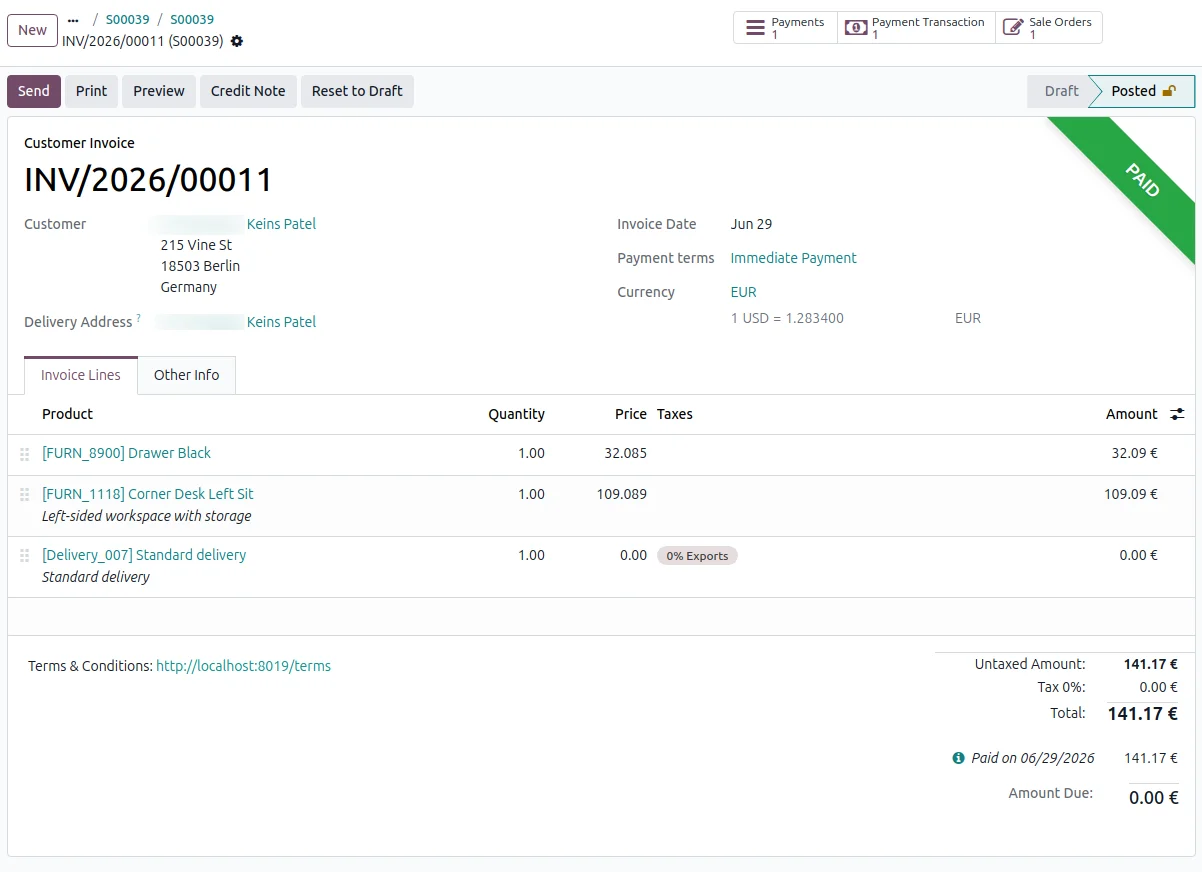
Invoices reconciled without data entry
Odoo matches the confirmed CAWL payment to the invoice or sales order behind it and marks the document paid. That keeps your books current while the customer is still on the thank-you page, and it removes the daily round of manual reconciliation. B2B teams get the same result from a payment link sent with the invoice.
Refund in full or in part
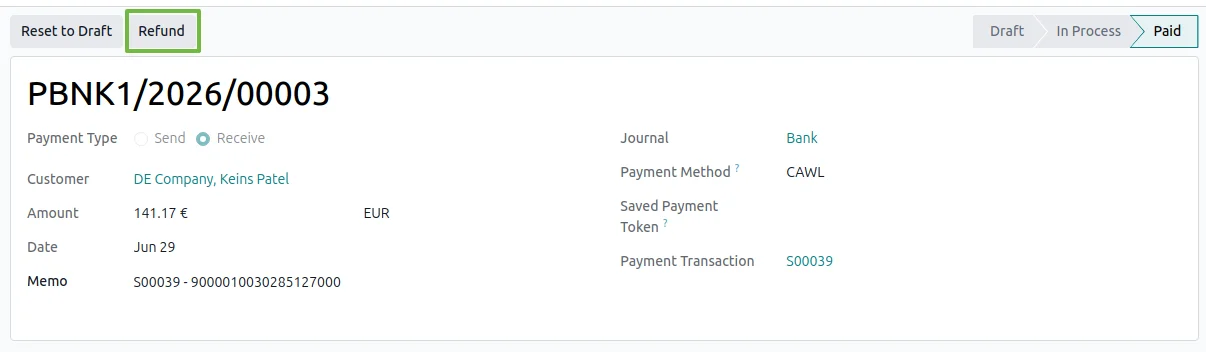
Open the payment in Odoo and click "Refund" to send money back for the whole amount or only a share of it. CAWL credits the customer, and the refund is recorded against the original payment so your accounts show both sides. Nobody needs a login to the CAWL dashboard to settle a return.
Authorize now, capture when you ship
Switch on "Capture Manually" in the provider settings and every checkout only authorizes the customer's card. You then capture the full amount, or part of it, from the transaction once you ship the goods or clear a fraud review, and you can void an authorization you decide not to charge. Pre-orders and high-value orders both fit this flow.
Refresh a delayed status in one click
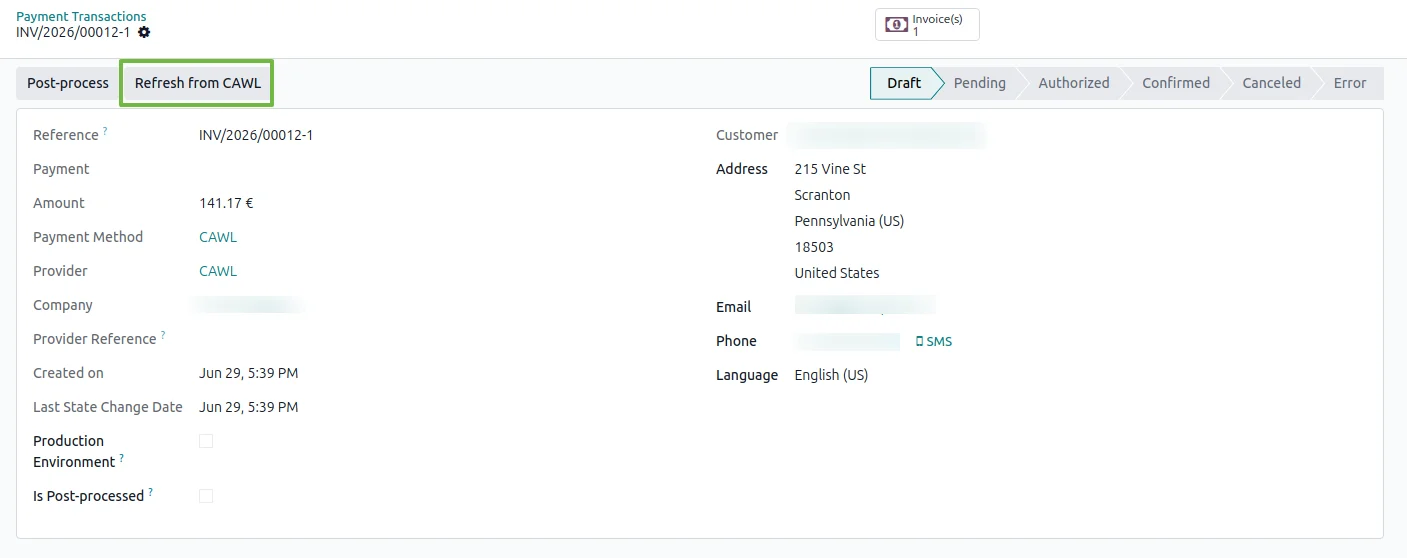
Every CAWL transaction in Odoo carries a "Refresh from CAWL" button for the rare case where an update arrives late. One click asks CAWL for the current state of that payment and writes it onto the record. Your own team handles the edge case in seconds, so there is no ticket and no waiting on a developer.
Supported Odoo versions
| Odoo version | Editions | Hosting | Price | Latest release | |
|---|---|---|---|---|---|
| 20.0 | Community & Enterprise | Odoo.sh · On-premise | €99 | No release notes | Buy |
| 19.0 | Community & Enterprise | Odoo.sh · On-premise | €99 | No release notes | Buy |
| 18.0 | Community & Enterprise | Odoo.sh · On-premise | €99 | No release notes | Buy |
| 17.0 | Community & Enterprise | Odoo.sh · On-premise | €99 | No release notes | Buy |
Support for Odoo CAWL Payment Gateway
The developers who build the app answer your tickets.
- Free app support from purchase
- 60 days
- First response in working hours, typical
- 4–6 hours
- Support hours, 10:00–18:00 IST
- Mon–Fri
How to connect CAWL to Odoo
-
Step 1
Add your CAWL credentials
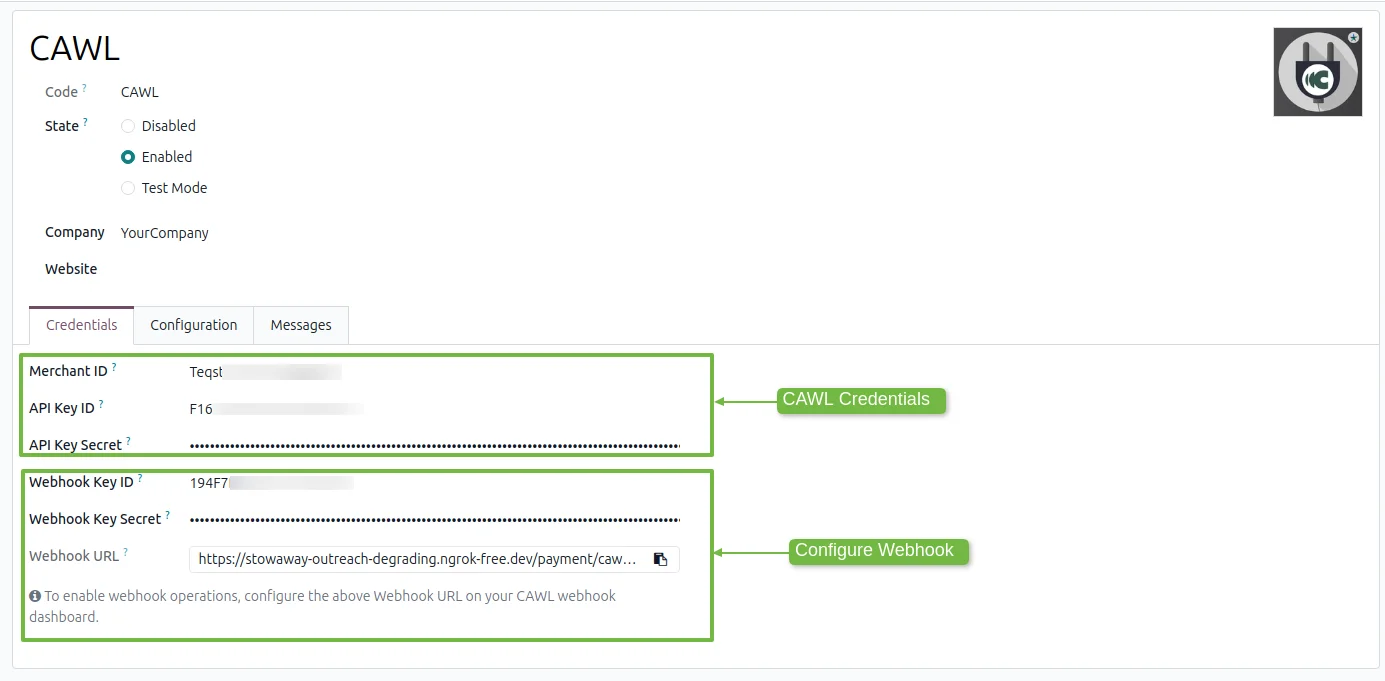
Open the CAWL provider in Odoo and paste the Merchant ID and API keys from your CAWL account. Choose Sandbox or Production, and decide whether shoppers may store a card for later orders.
-
Step 2
Switch on live updates
The provider screen shows a notification address for you to copy into your CAWL dashboard. CAWL then reports each payment and refund to Odoo as it happens, which takes reconciliation off your team's list.
-
Step 3
Publish the provider
Set the provider to Published. CAWL becomes a payment choice on your website, in the customer portal and on invoice payment pages, and confirmed payments update the matching order or invoice.
Questions before you buy
Not answered here? Talk to the team.