Take card, Apple Pay and Google Pay payments on your store page
This Checkout.com payment gateway for Odoo keeps shoppers on your own page, where they pay by card, Apple Pay or Google Pay. Odoo marks the invoice or order paid the second the charge clears. Refunds, captures and voids each take one click.
- Odoo 17.0 – 20.0
- Community & Enterprise
- Odoo.sh · On-premise
-
Not for
Odoo Online
Top seller on the Odoo Apps Store
- sales on the Odoo Apps Store
- 3,000+
- apps published
- 100+
- countries running them
- 100+
Collecting and reconciling card payments before and after this gateway
Without the connector by hand
-
Buyers are sent to an outside payment page, and some carts are abandoned
-
Only cards are on offer, with no wallet option at checkout
-
Someone checks the bank, then marks each invoice paid by hand
-
Finance signs in to the Checkout.com Dashboard to reimburse a customer
-
A crashed browser leaves a payment nobody can confirm
-
Large orders cannot be held for review before the card is charged
With the connector automatic
-
Customers pay in a widget on your page, with no redirect
-
Card, Apple Pay and Google Pay sit in the same widget
-
Invoices and orders update the moment the payment clears
-
You press Refund on the payment in Odoo, in full or in part
-
You click "Refresh from Checkout.com" to pull the current status
-
Turn on manual capture, then press Capture or Void after your review
Payments, refunds and status updates between Checkout.com and Odoo
Every object the connector handles, which way it travels and what triggers it.
| Data | Direction | What happens & when |
|---|---|---|
| Card and wallet payment |

 Checkout.com to Odoo
|
A customer completes payment in the widget on your page |
| Payment status change |
Checkout.com to Odoo
|
Checkout.com sends a signed notice for approval, decline or void |
| Refund, full or partial |
Both ways
|
You press Refund in Odoo, and Checkout.com reports the final state |
| Capture or void of an authorized payment |
Odoo to Checkout.com
|
You press Capture or Void on the Odoo transaction |
| Latest transaction status |
Checkout.com to Odoo
|
You click "Refresh from Checkout.com" on the transaction |
Odoo Checkout.com Payment Gateway features
Customers pay on your own page
Shoppers finish paying on the page they were already browsing, with no jump to an outside payment site. They choose Checkout.com on Odoo's standard payment screen, and the secure Flow widget opens in place. Card fields, Apple Pay and Google Pay all sit in that single widget on your branded page. Card details go straight to Checkout.com and never reach your Odoo server.
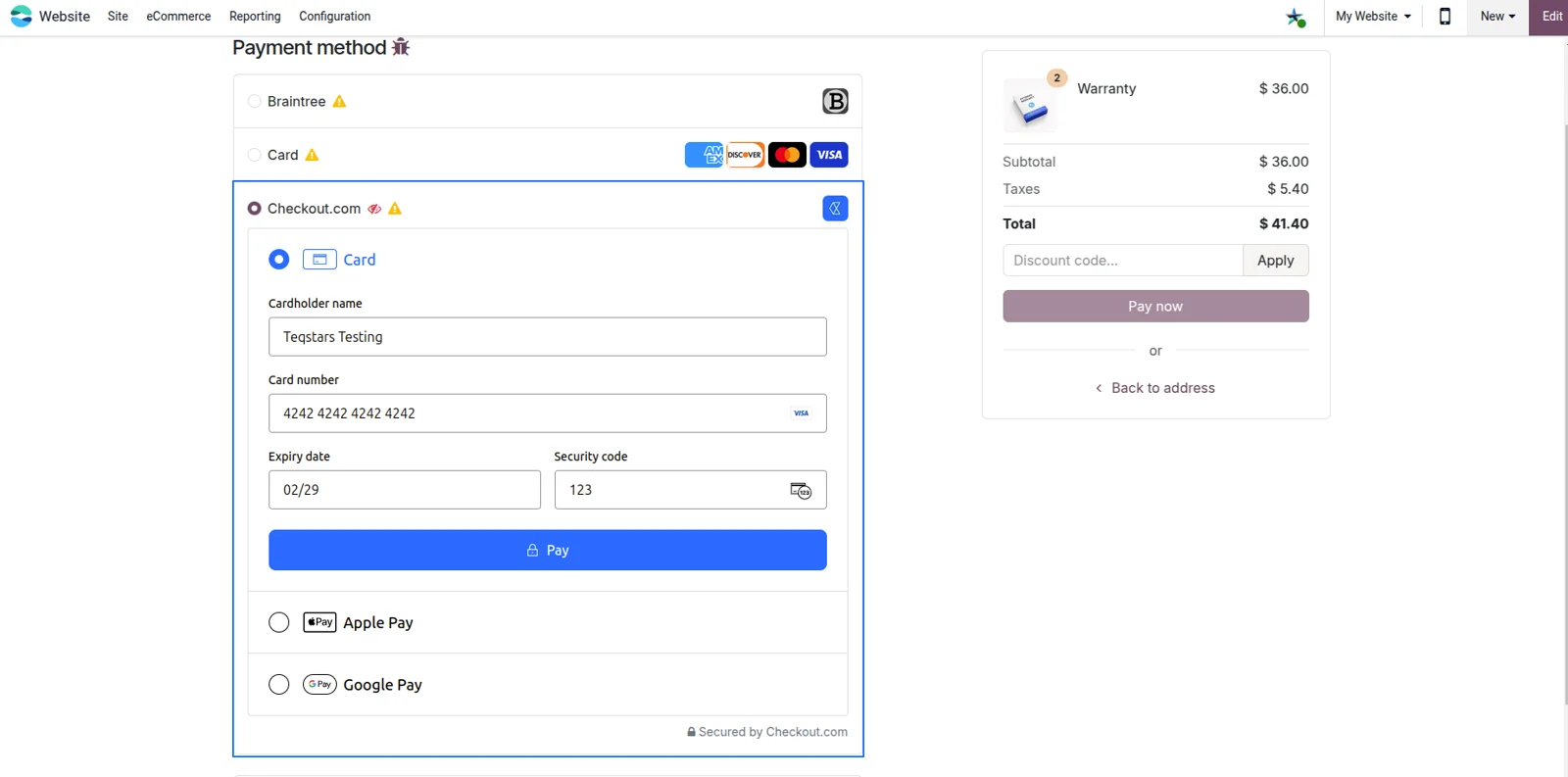
One-tap Apple Pay and Google Pay
Wallet shoppers pay with a single tap and no card number to type, which is the slowest part of most checkouts. Apple Pay and Google Pay are switched on in your Checkout.com Dashboard, and they then appear inside the same widget on your store. Nothing extra is configured on the Odoo side. Buyers on a phone recognize the button and finish in seconds.
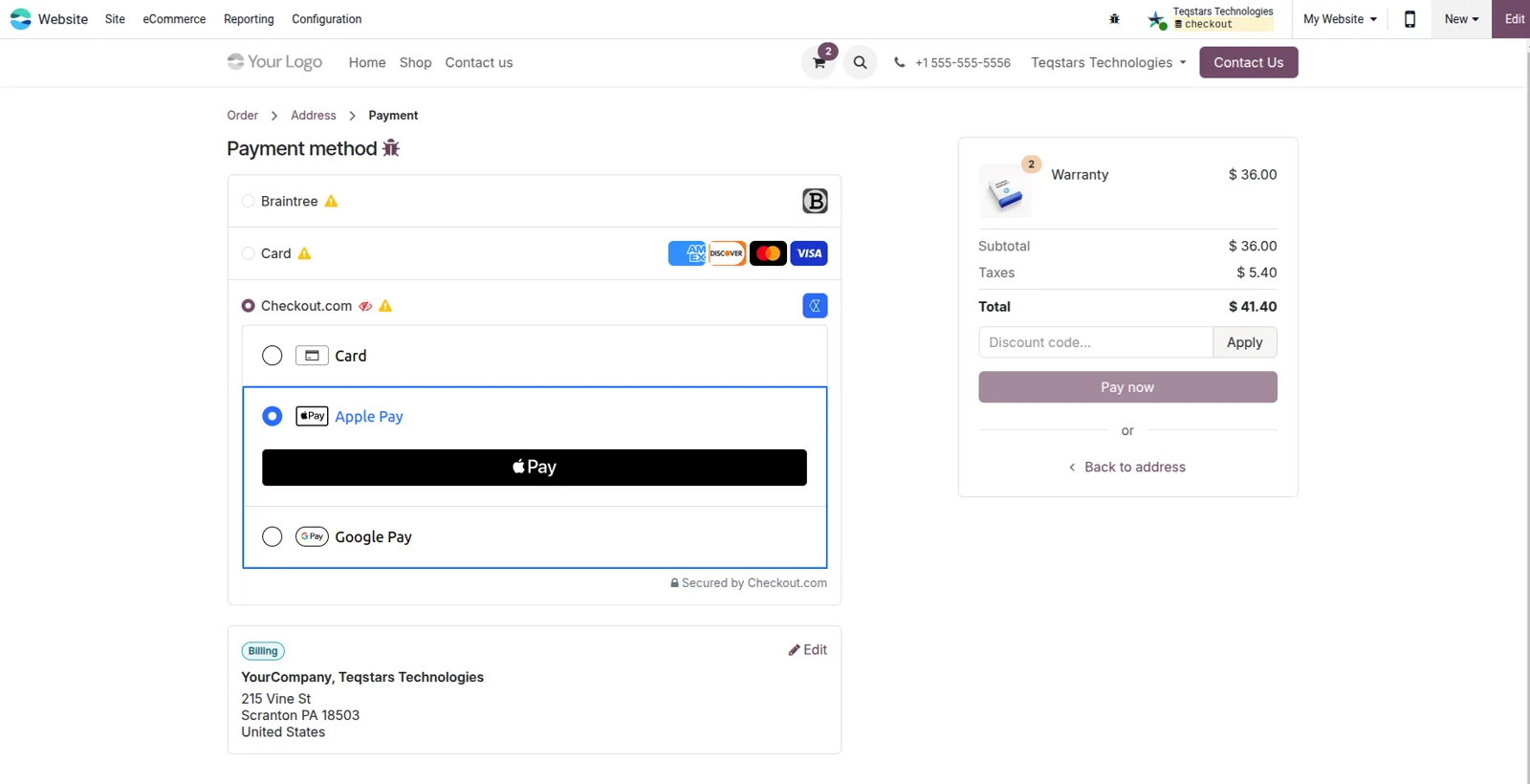
Transactions confirm when the charge clears
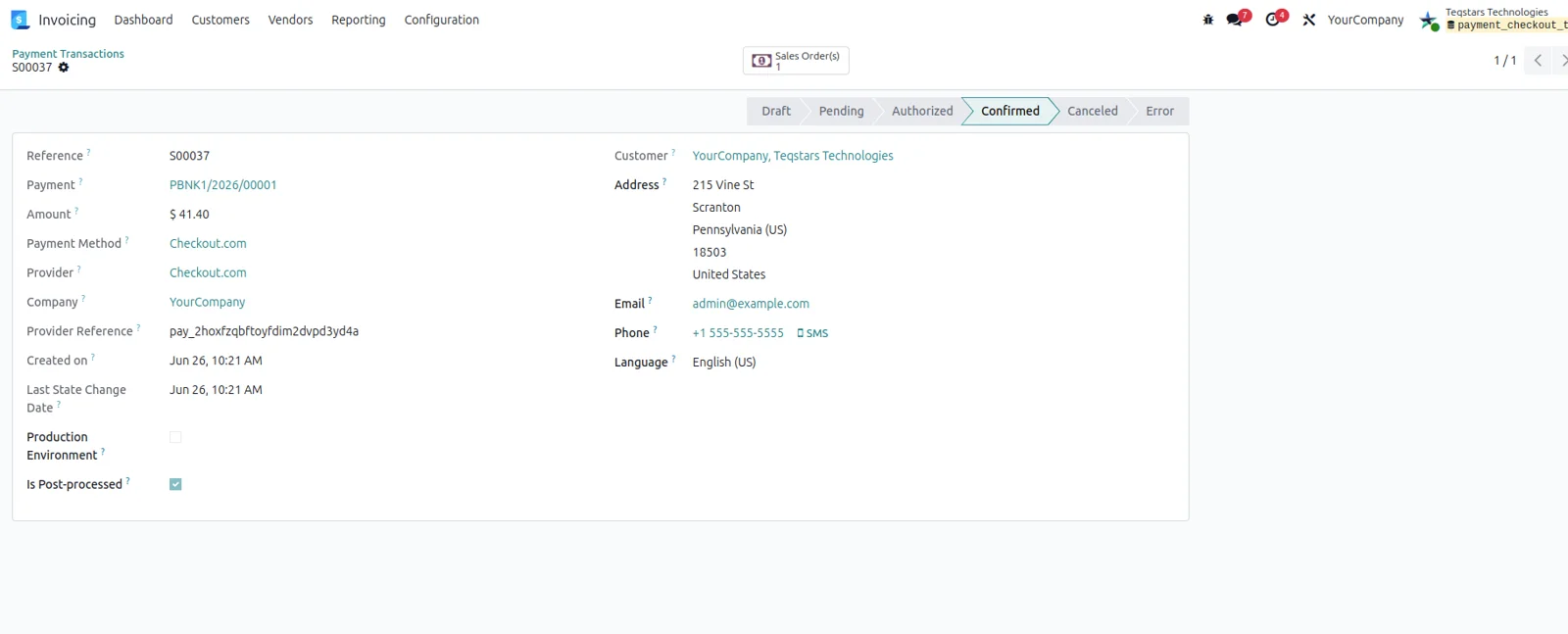
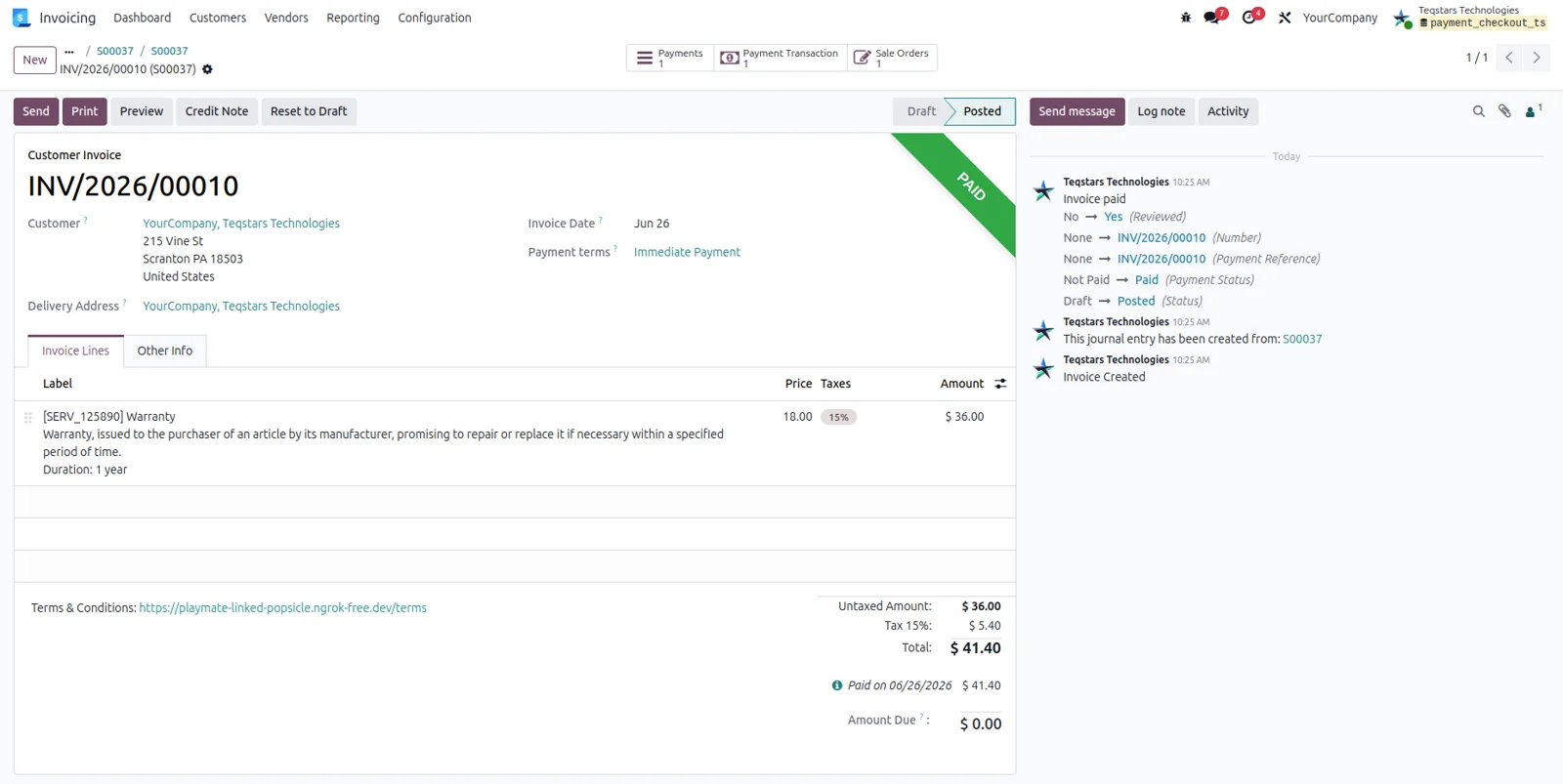
You can see which payments went through without opening the Checkout.com Dashboard. Checkout.com sends Odoo a signed notice for each payment event, and the matching transaction switches to Confirmed as soon as the charge goes through. The Odoo record carries the same provider reference, the one beginning with pay_, and the same amount as the charge at Checkout.com, so finance can tie the two together.
Invoices marked paid without data entry
Invoices and sale orders are set to Paid without anyone typing a figure. Once a payment is confirmed, Odoo matches it to the document behind the checkout and reconciles it. B2B teams can send a payment link with each invoice, and the client's card or wallet payment closes the document. The daily bank check before marking invoices paid stops being part of the routine.
Full or partial refunds in one click
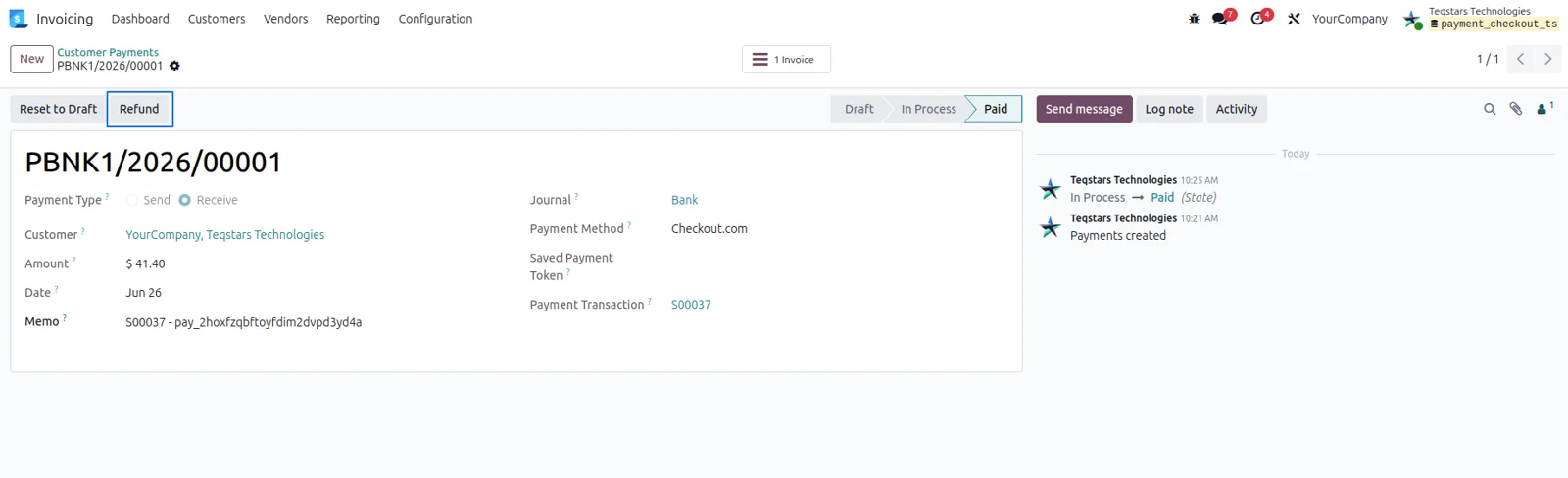
Refunds go out from your Invoicing app in one click, for the whole amount or part of it. Open the customer payment, press Refund, and Checkout.com credits the card. Odoo creates a linked refund transaction, prefixed R-, against the original payment with a negative amount, so every reimbursement can be traced. Keep the Checkout.com notices enabled so the refund's final state reaches Odoo once it settles.
Hold a payment for review, then capture
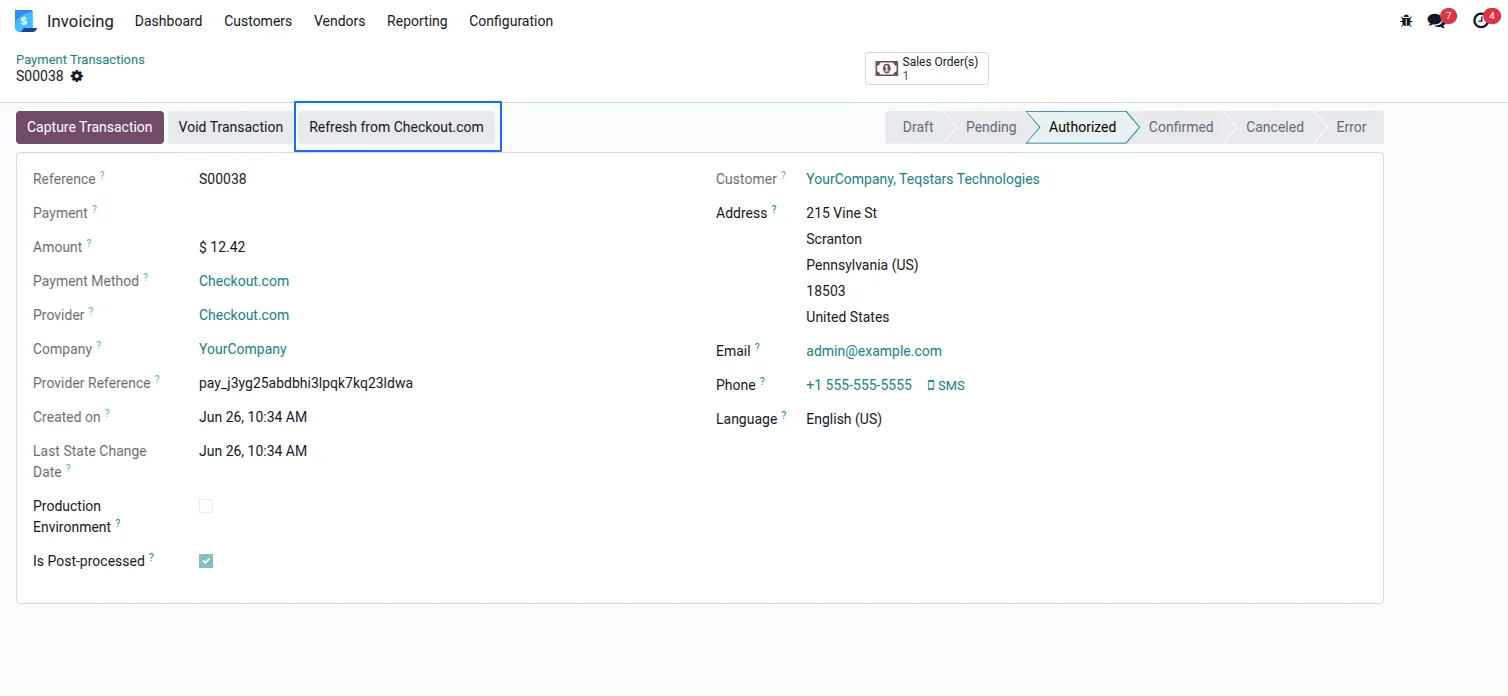
High-value or suspicious orders can wait for your review before any money moves. Turn on "Capture Manually" on the provider, and every checkout only authorizes the card. The payment stays Authorized until you press Capture or Void on the transaction. The same screen carries a "Refresh from Checkout.com" button, so when a payment notice fails to arrive you can pull the current status yourself.
Supported Odoo versions
| Odoo version | Editions | Hosting | Price | Latest release | |
|---|---|---|---|---|---|
| 20.0 | Community & Enterprise | Odoo.sh · On-premise | €99 | No release notes | Buy |
| 19.0 | Community & Enterprise | Odoo.sh · On-premise | €99 | No release notes | Buy |
| 18.0 | Community & Enterprise | Odoo.sh · On-premise | €99 | No release notes | Buy |
| 17.0 | Community & Enterprise | Odoo.sh · On-premise | €99 | No release notes | Buy |
Support for Odoo Checkout.com Payment Gateway
The developers who build the app answer your tickets.
- Free app support from purchase
- 60 days
- First response in working hours, typical
- 4–6 hours
- Support hours, 10:00–18:00 IST
- Mon–Fri
How to connect Checkout.com to Odoo
-
Step 1
Collect four credentials
Sign in to your Checkout.com Dashboard and gather four values. Under "Developers → Keys" you find the public and secret API keys. The Processing Channel ID and the signature key that verifies incoming payment notices come from the same dashboard.
-
Step 2
Set up the provider in Odoo
Paste those four values into the Checkout.com provider record in Odoo, then choose Sandbox or Production. Click "Enable Webhook" once, and Checkout.com starts sending signed updates for payments, refunds and status changes to your Odoo database.
-
Step 3
Test, then publish
Run end-to-end payments with sandbox keys and test cards first. Swap in your live keys and switch the provider to Production when you are satisfied, with no code change. Publish the provider so shoppers see it.
Questions before you buy
Not answered here? Talk to the team.