Book GLS Ireland parcels, labels and returns straight from your delivery orders.
Validate a delivery order in Odoo and this GLS Ireland integration creates the shipping label, commercial invoice and tracking number. Rates come from your own fixed prices or pricing rules. Cancel a shipment or print a return label from the same screen.
- Odoo 17.0 – 20.0
- Community & Enterprise
- Odoo.sh · On-premise
-
Not for
Odoo Online
Top seller on the Odoo Apps Store
- sales on the Odoo Apps Store
- 3,000+
- apps published
- 100+
- countries running them
- 100+
Booking GLS Ireland parcels before and after the connector
Without the connector by hand
-
Re-type names, addresses and weights into the GLS portal
-
Download labels from the carrier site and match them to orders
-
Create the commercial invoice for the parcel separately
-
Copy tracking numbers back onto the Odoo delivery order
-
Check the carrier website each time a customer asks about a parcel
-
Contact GLS to drop a booking you no longer need
-
Set up a return shipment by hand for every customer sending goods back
With the connector automatic
-
Validate the delivery order and the shipment is sent to GLS
-
The label is attached to that delivery order on validation
-
The commercial invoice is created with the label
-
The tracking number is saved on the delivery order
-
Open tracking from the order to see the current GLS status
-
Cancel the shipment on the delivery order with one click
-
Click 'Print Return Label' and GLS Ireland gets the return
Shipments, labels and tracking between Odoo and GLS Ireland
Every object the connector handles, which way it travels and what triggers it.
| Data | Direction | What happens & when |
|---|---|---|
| Shipment booking |

 Odoo to GLS
|
You validate the delivery order in Odoo. |
| Shipping label |
GLS to Odoo
|
Comes back and is attached when the delivery is validated. |
| Commercial invoice |
GLS to Odoo
|
Created with the label on the validated delivery order. |
| Tracking number |
GLS to Odoo
|
Returned with the label and stored on the delivery order. |
| Shipment status |
GLS to Odoo
|
You open tracking for that parcel from the delivery order. |
| Shipment cancellation |
Odoo to GLS
|
You cancel the shipment on the delivery order. |
| Return shipment |
Odoo to GLS
|
You click 'Print Return Label' on the order. |
GLS Connector (Ireland) features
Set up your GLS delivery methods
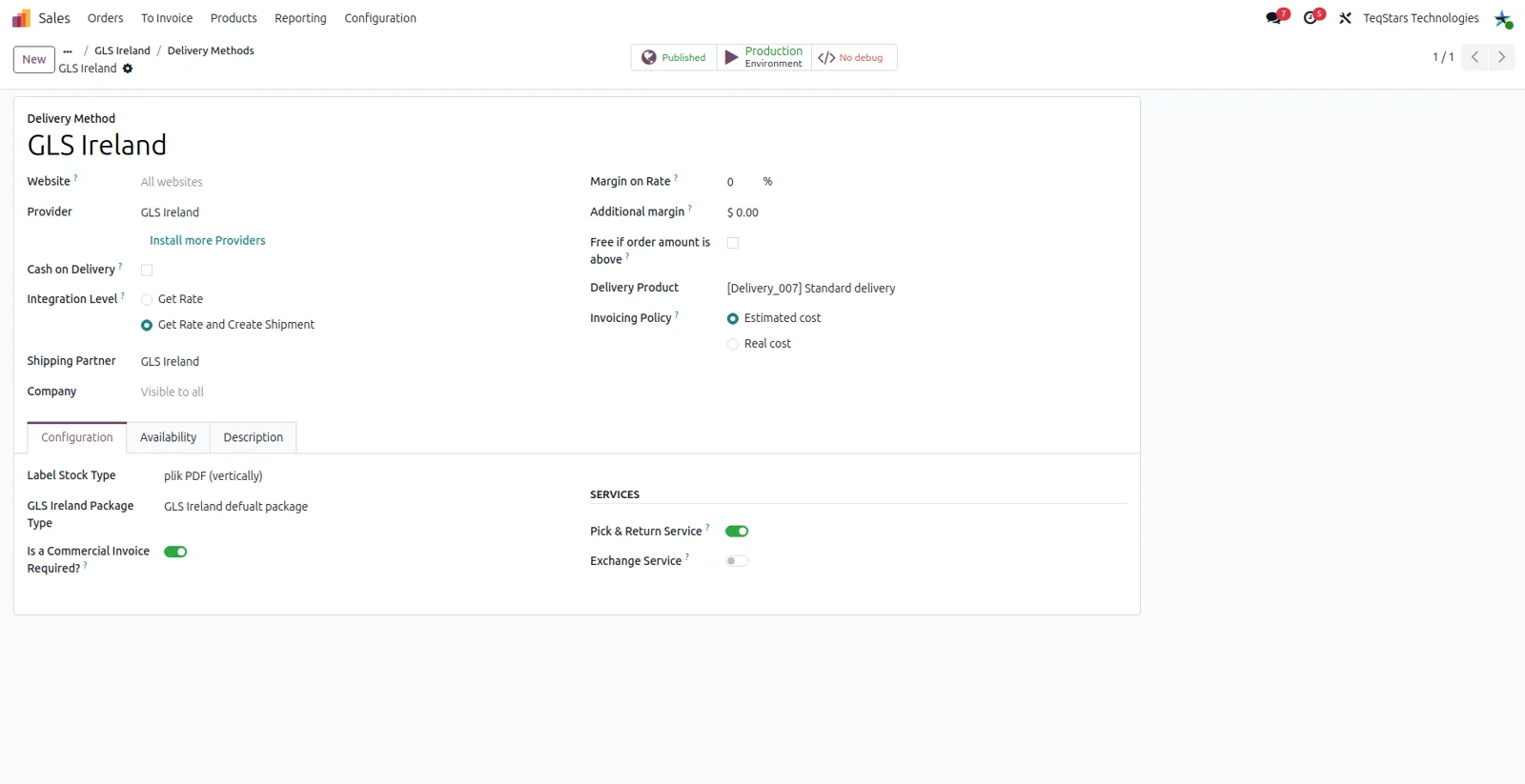
Your team picks GLS the way it picks any other Odoo carrier. On the delivery method form you choose GLS Ireland as the provider and point the record at the GLS account you ship under. One method can serve Irish deliveries and parcels going abroad. Create a method for each account or service you use, and it becomes selectable on quotations and delivery orders.
Fixed price or rule-based shipping rates
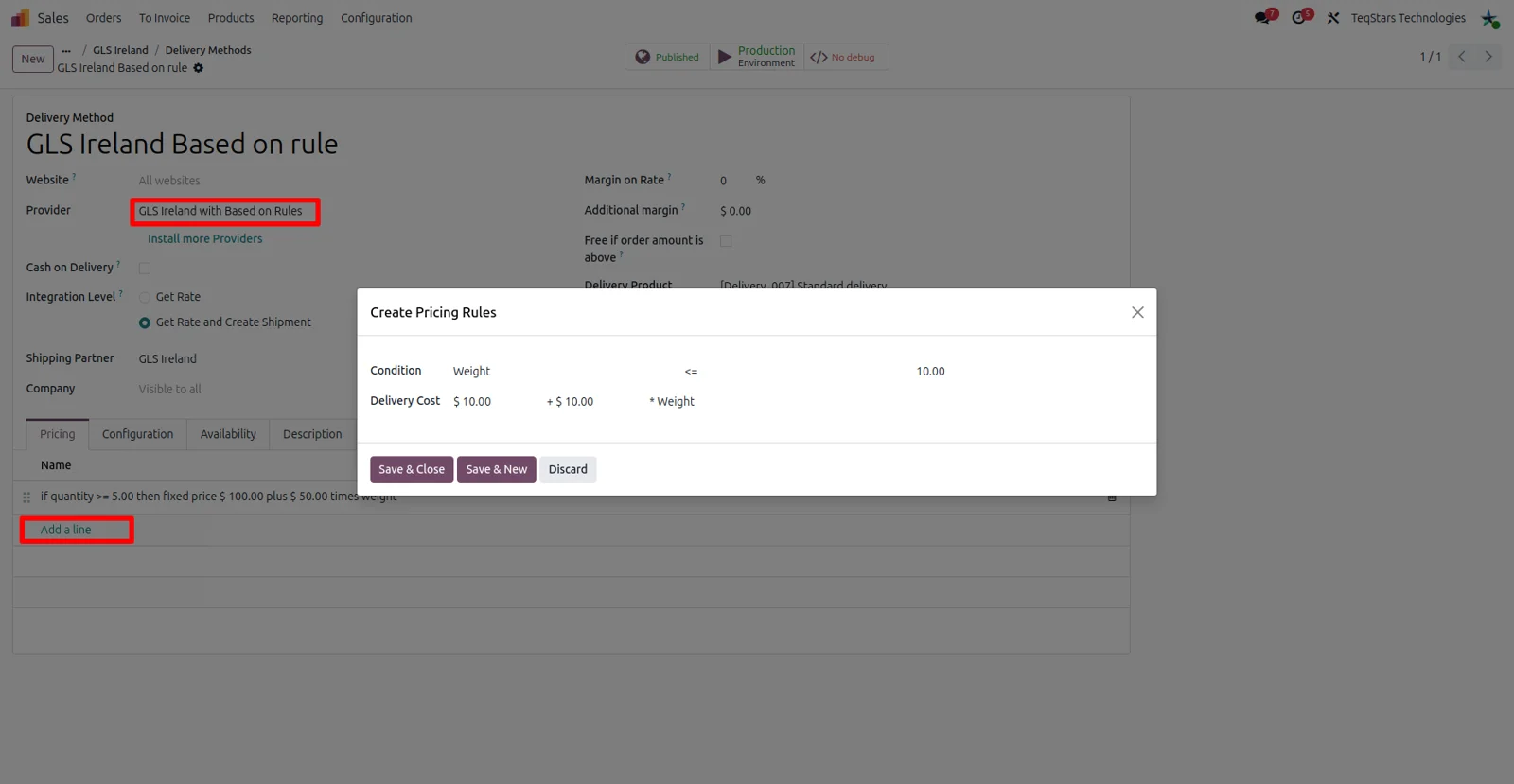
You decide what customers pay for GLS delivery, because live GLS rate lookups are not part of this connector. Put a single flat amount on the delivery method, or switch it to 'Based on Rule' and build a table of conditions with the price for each line. The same approach works for local shipments and for parcels sent outside Ireland.
Shipping cost on the sale order
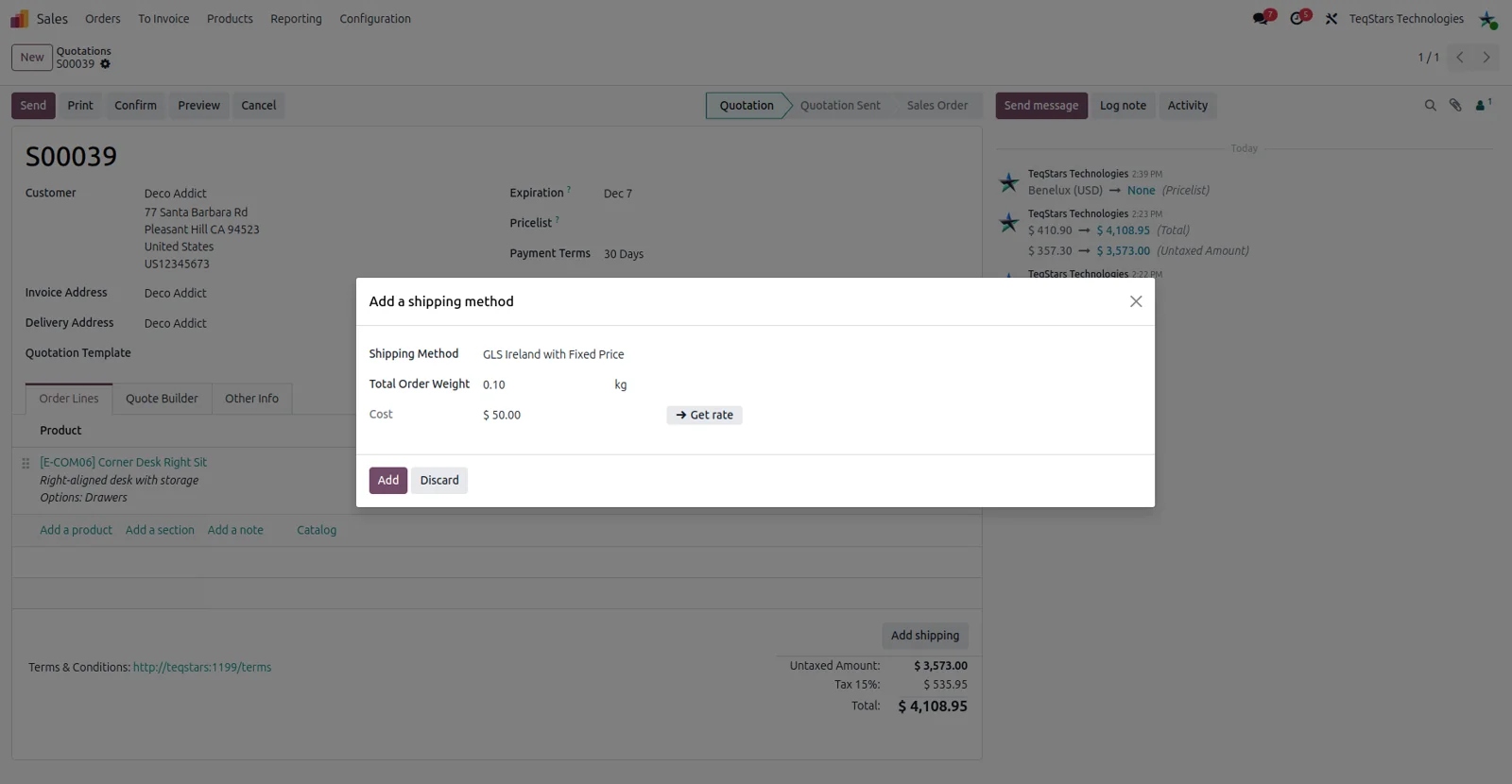
Your salespeople see the delivery charge before the order is confirmed. On the quotation they add shipping, choose the GLS method, and Odoo fills in the cost from the fixed price set on that method. Choose the rule-based method instead and the matching rule supplies the amount. Either way the figure comes from your own configuration.
Pack several parcels on one delivery
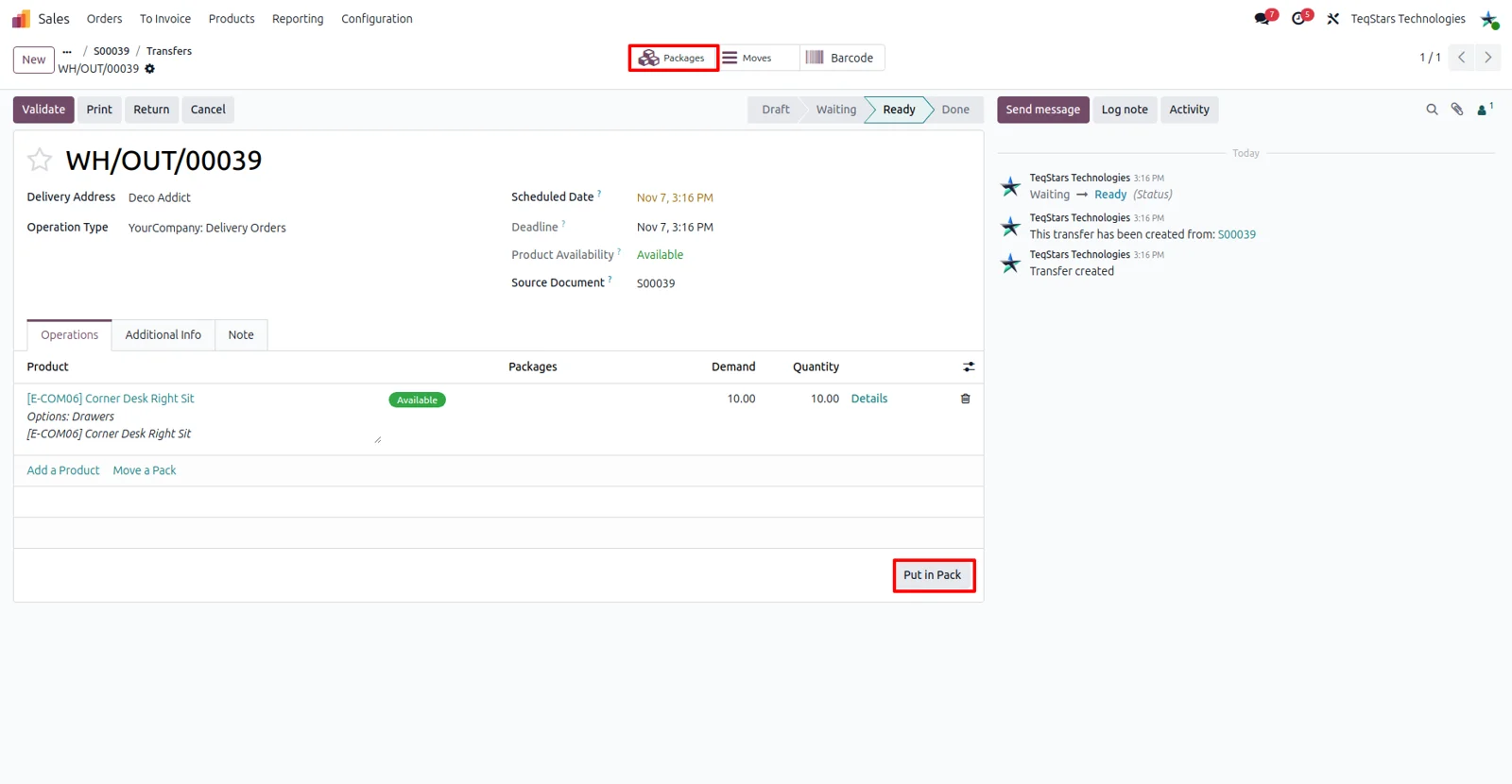
Orders that go out in more than one box are described correctly before they leave. Use Odoo's 'Put in Pack' operation on the delivery to group products into packages, then validate. Each package is recorded on the delivery order, and the shipment is booked with GLS Ireland on that basis. Your warehouse staff and the driver see the same parcel count.
Labels and commercial invoices on validation
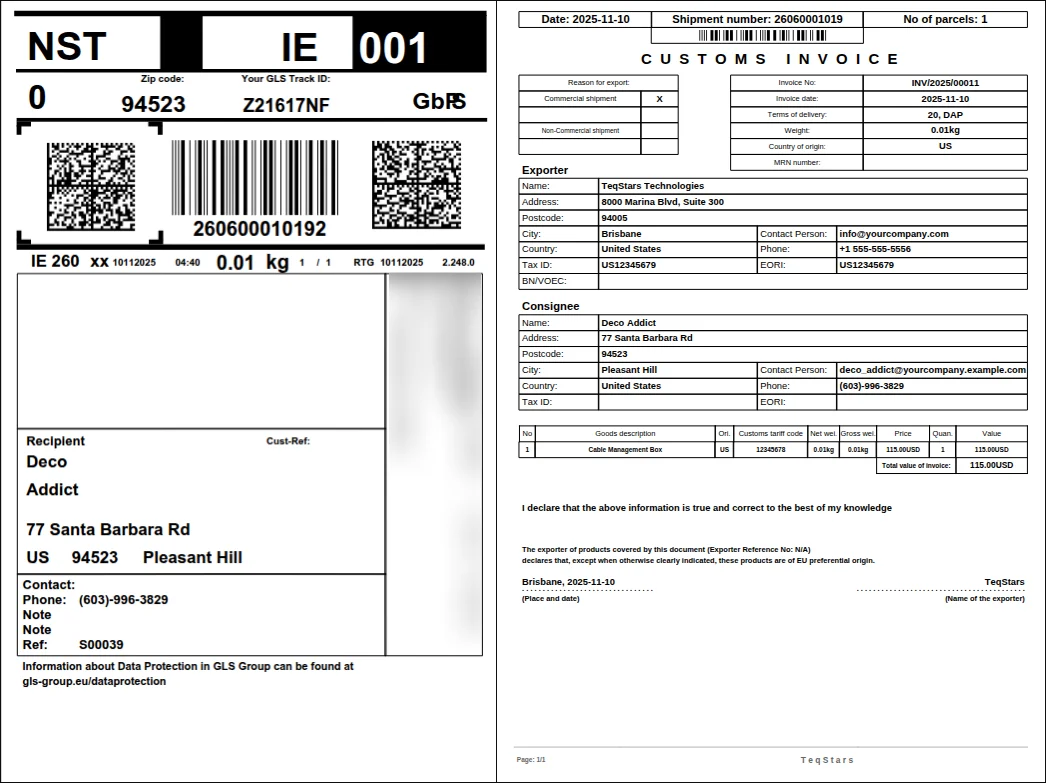
Validating the delivery order produces the paperwork for the parcel. The connector sends the shipment to GLS Ireland and brings back the shipping label, along with a commercial invoice for the goods. Both documents are attached to the delivery order, so the person packing can print and stick them on without typing the address details again.
Tracking numbers and parcel status
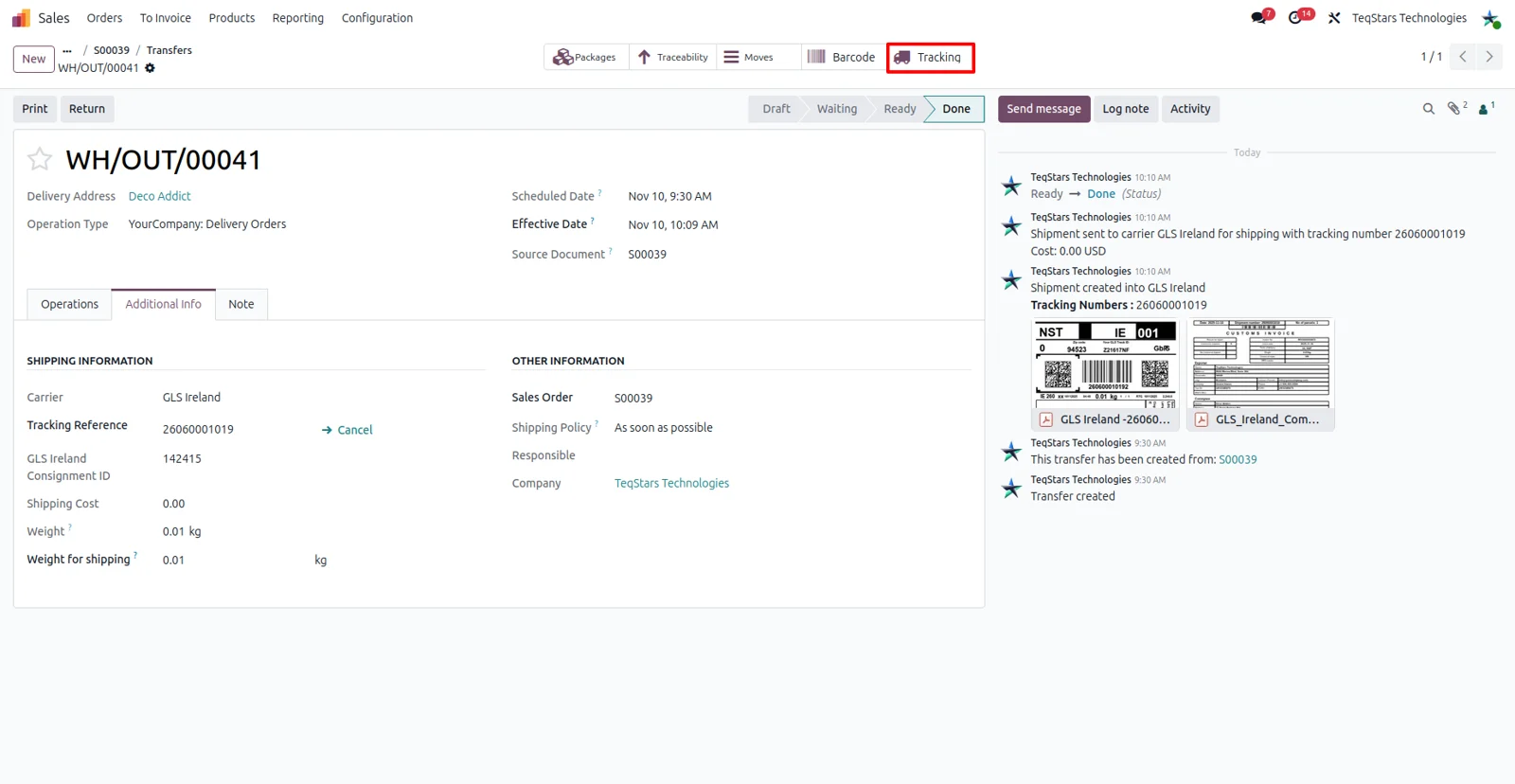
You can answer a customer asking where their order is. Each validated shipment keeps its GLS tracking number on the delivery order, next to the label. Open tracking for that parcel and Odoo shows you the current GLS status and location. Because the number stays on the record, anyone on your team can find it again from the order later.
Cancel a GLS shipment in one click
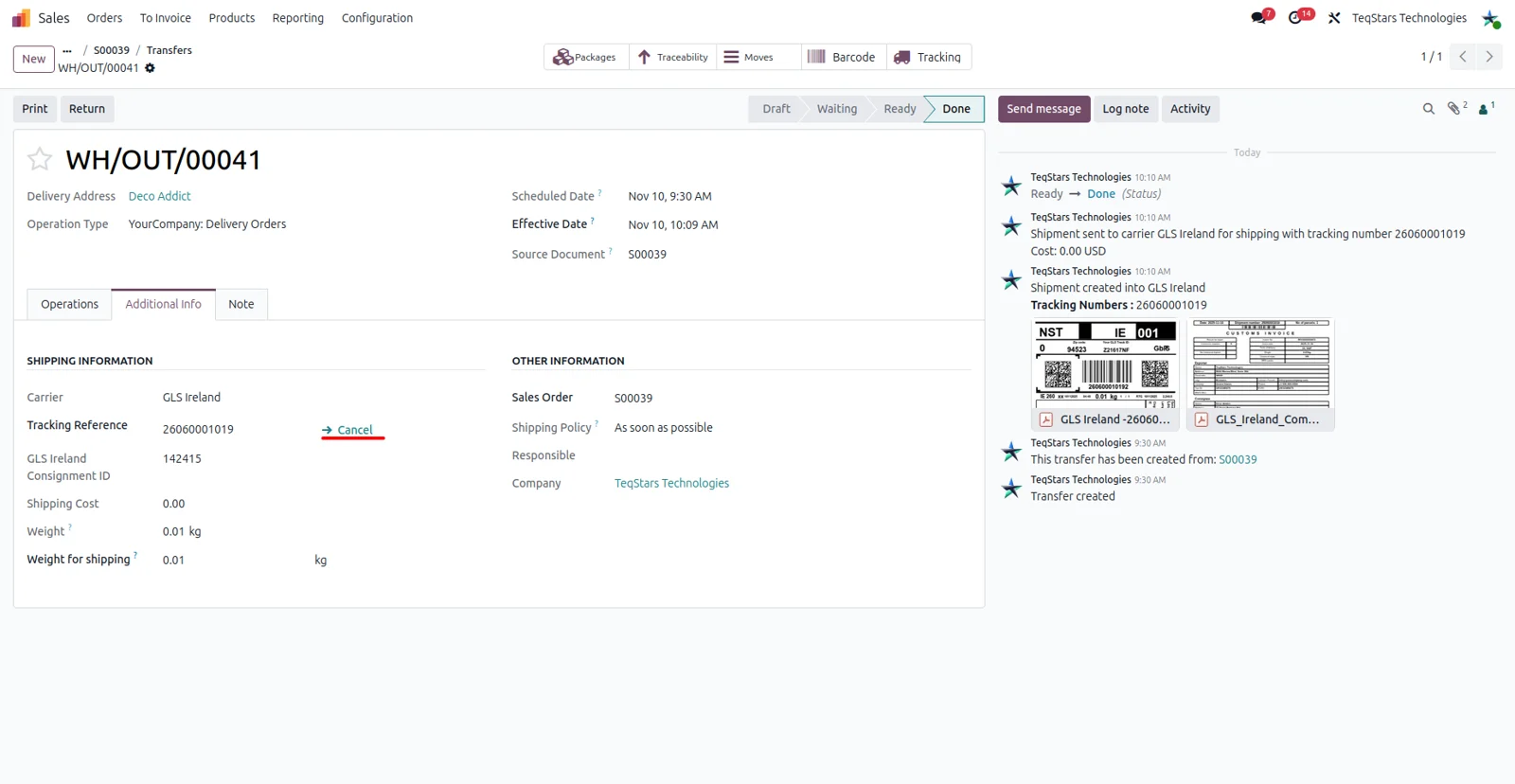
When an order is pulled or booked twice, you do not have to chase the carrier. Open the delivery order, cancel the shipment, and the connector passes that cancellation to GLS Ireland. It takes a single click, and the delivery order keeps the record of what was booked and then dropped for anyone reviewing it afterwards.
Return labels for customers sending goods back
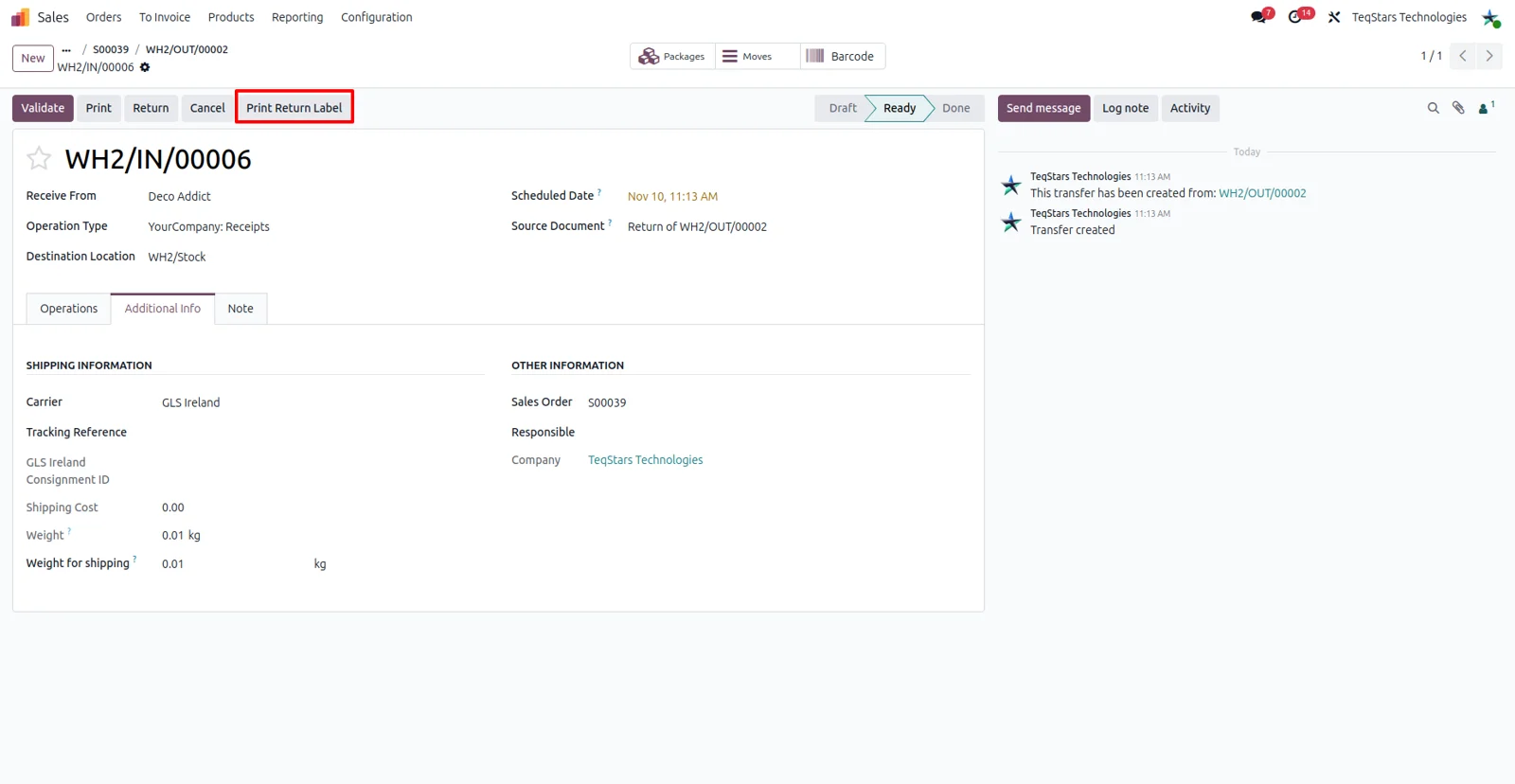
Returns and exchanges get the same treatment as outbound parcels. Click 'Print Return Label' on the order and the connector creates the return shipment with GLS Ireland, so the customer has a label for the box coming back to you. Pick & Return and Exchange services are supported, which covers replacements as well as plain returns.
Supported Odoo versions
| Odoo version | Editions | Hosting | Price | Latest release | |
|---|---|---|---|---|---|
| 20.0 | Community & Enterprise | Odoo.sh · On-premise | €208.99 | No release notes | Buy |
| 19.0 | Community & Enterprise | Odoo.sh · On-premise | €208.99 | No release notes | Buy |
| 18.0 | Community & Enterprise | Odoo.sh · On-premise | €208.99 | No release notes | Buy |
| 17.0 | Community & Enterprise | Odoo.sh · On-premise | €208.99 | No release notes | Buy |
Support for GLS Connector (Ireland)
The developers who build the app answer your tickets.
- Free app support from purchase
- 60 days
- First response in working hours, typical
- 4–6 hours
- Support hours, 10:00–18:00 IST
- Mon–Fri
How to connect GLS Ireland to Odoo
-
Step 1
Install the connector
Add the gls_ie_delivery app to your database. It runs on Odoo 17.0, 18.0, 19.0 and 20.0, on Community and on Enterprise hosted on-premise or on Odoo.sh.
-
Step 2
Add your GLS Ireland account
Enter the account you ship under so shipments are booked and billed in the right place. If your business ships under more than one GLS Ireland account, you can set up several on the same database.
-
Step 3
Create a GLS delivery method
Add a delivery method and select GLS Ireland as its carrier. This is the record your sales and warehouse teams will pick on quotations and delivery orders, so give it a name they recognize.
-
Step 4
Decide how rates are priced
On that method, choose a flat charge or the 'Based on Rule' option. With rules you list the conditions you want to price on and the amount for each, which is what customers then see.
-
Step 5
Ship one order end to end
Take a quotation, add the GLS method, confirm it, then validate the delivery. Check that the label, commercial invoice and tracking number appear on the delivery order before you go live.
Questions before you buy
Not answered here? Talk to the team.