Offer Klarna Pay Later and installments on your Odoo checkout
Shoppers choose Pay Now, Pay Later or Pay Over Time on Klarna's hosted page and come straight back to your store. Approvals and refunds update the matching Odoo transaction and invoice. To connect Klarna to Odoo you pick your region and paste two credentials.
- Odoo 17.0 – 20.0
- Community & Enterprise
- Odoo.sh · On-premise
-
Not for
Odoo Online
Top seller on the Odoo Apps Store
- sales on the Odoo Apps Store
- 3,000+
- apps published
- 100+
- countries running them
- 100+
Klarna payments before and after this gateway
Without the connector by hand
-
Shoppers who want to split the cost check out somewhere else
-
Someone checks Klarna, then marks each invoice paid by hand
-
Every refund means signing in to the Klarna portal
-
No way to authorize a pre-order now and charge it later
-
A delayed update leaves finance guessing at the real status
With the connector automatic
-
Pay Now, Pay Later and Pay Over Time show at checkout
-
Invoices and sale orders update when Klarna approves the payment
-
You click Refund on the Odoo transaction, full or partial
-
Turn on manual capture, then capture the order when you ship
-
One click on "Refresh from Klarna" pulls the current status
Payments, captures and refunds between Odoo and Klarna
Every object the connector handles, which way it travels and what triggers it.
| Data | Direction | What happens & when |
|---|---|---|
| Payment approval |

 Klarna to Odoo
|
Klarna approves the order and the Odoo transaction is set to Done |
| Invoice reconciliation |
Klarna to Odoo
|
Payment is confirmed, so the invoice or sale order is matched and marked paid |
| Capture of an authorized order |
Odoo to Klarna
|
You click Capture on the transaction, with manual capture turned on |
| Cancellation |
Odoo to Klarna
|
You cancel a transaction that has not been captured yet |
| Full or partial refund |
Odoo to Klarna
|
You click Refund on a paid transaction and choose the amount |
| Latest transaction status |
Klarna to Odoo
|
You click "Refresh from Klarna" on the transaction form |
Odoo Klarna Payment Gateway features
Pay Now, Pay Later and installments
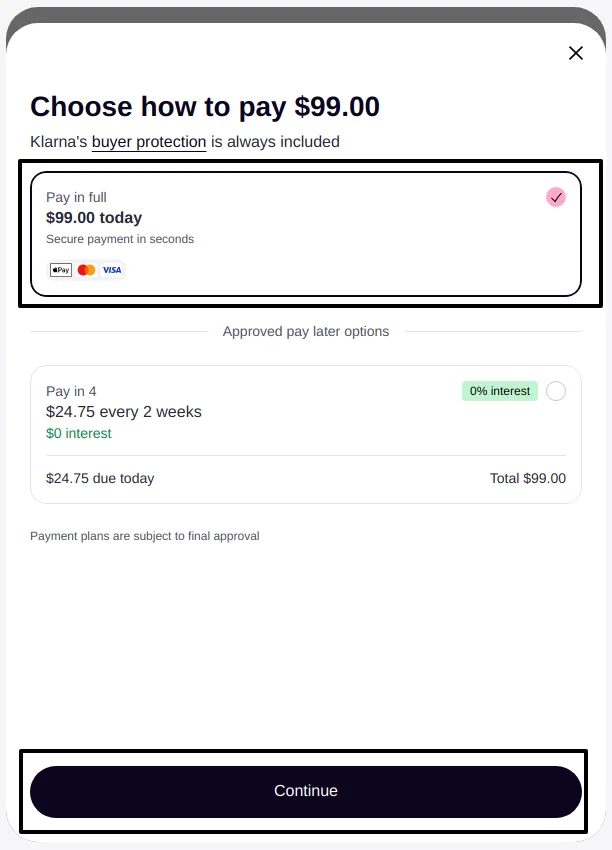
Your customers get the flexible ways to pay they already use elsewhere. On Klarna's page they choose Pay Now, Pay Later or Pay Over Time in installments, and cards where Klarna supports them. Klarna decides which of those options a shopper in that country can see, so there is nothing per-country for you to set up in Odoo.
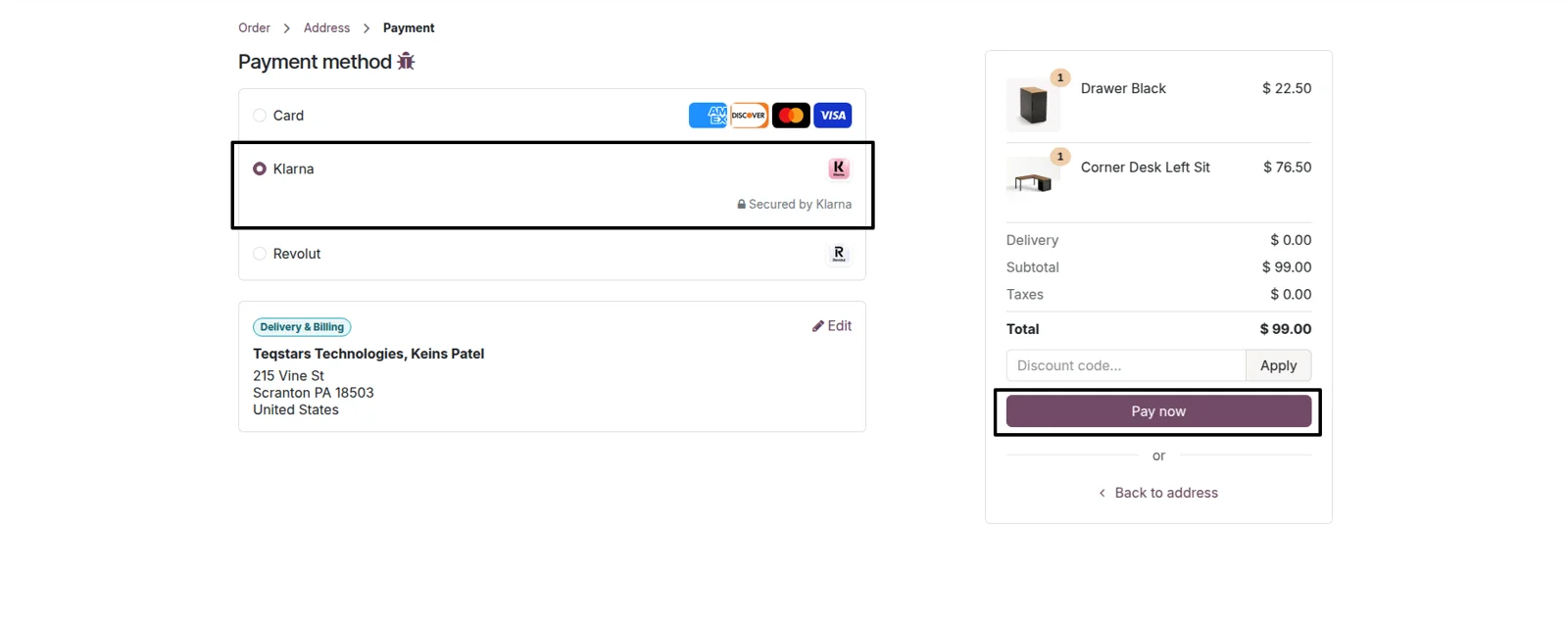
Klarna appears on the Odoo payment screen
Buyers stay in the checkout they started, then pay on a page they recognize. Your customer reaches the standard Odoo payment screen and picks Klarna from the list of payment options. Klarna's secure hosted page opens for the payment, and the shopper is sent back to the order or invoice page afterward.
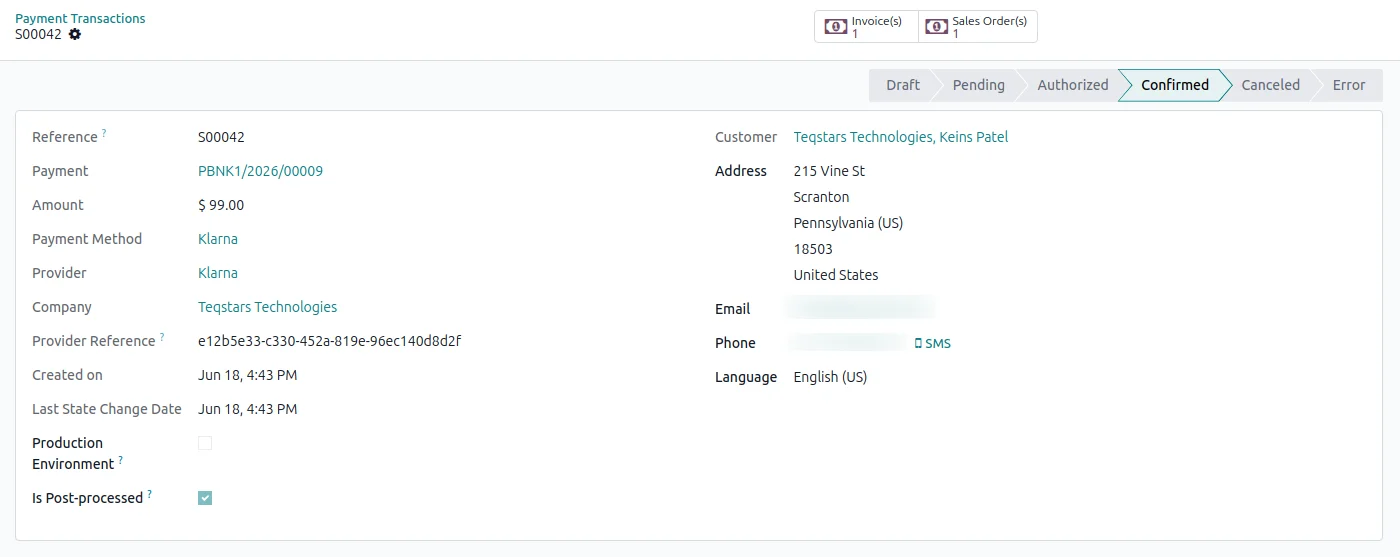
Transactions marked Done on approval
Your team stops comparing Klarna orders with Odoo records one by one. When Klarna approves the order, the matching Odoo payment transaction is set to Done, and the same happens after a capture or a completed Klarna review. The reference and amount on the transaction match the order you can open in the Klarna Merchant Portal.
Invoices reconciled after payment
Finance gets paid invoices without typing anything. Once Klarna confirms the payment, the invoice or sale order behind the transaction is matched to it and marked paid. That covers web store orders and the invoice pay pages you send to customers, so B2B collections settle the same way as a storefront sale.
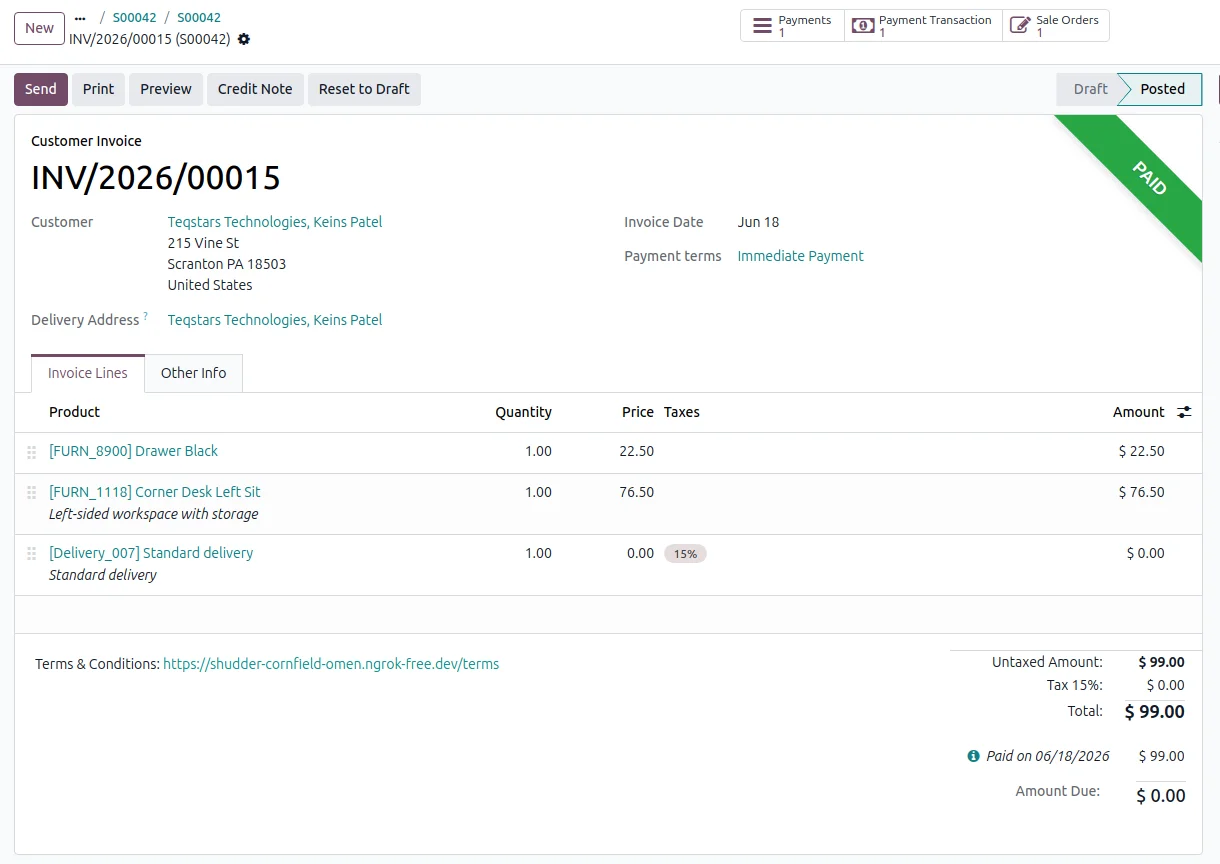
Refund in full or in part
Returns are handled where the order already lives. Open the paid transaction in Odoo, click Refund, and send back the whole amount or only part of it. Klarna reimburses the customer and the refund is recorded against the original payment in your accounting. The same refund shows in your Klarna Merchant Portal, linked to the original order.
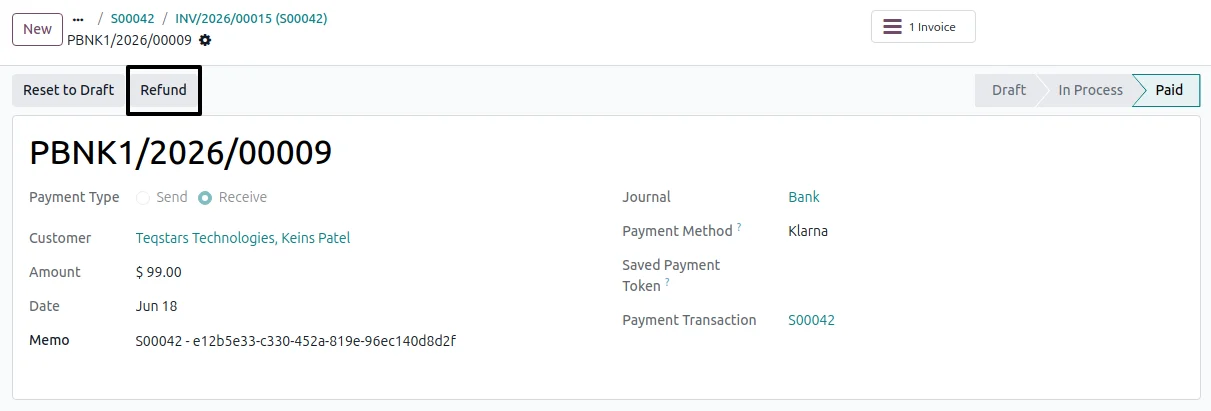
Hold a payment, capture it later
Pre-orders and high-value orders can wait for your approval before any money moves. Switch on "Capture Manually" in the provider settings and Klarna orders are only authorized at checkout. You then capture the transaction when you ship it, or cancel it while it is still uncaptured, which suits fraud review too.
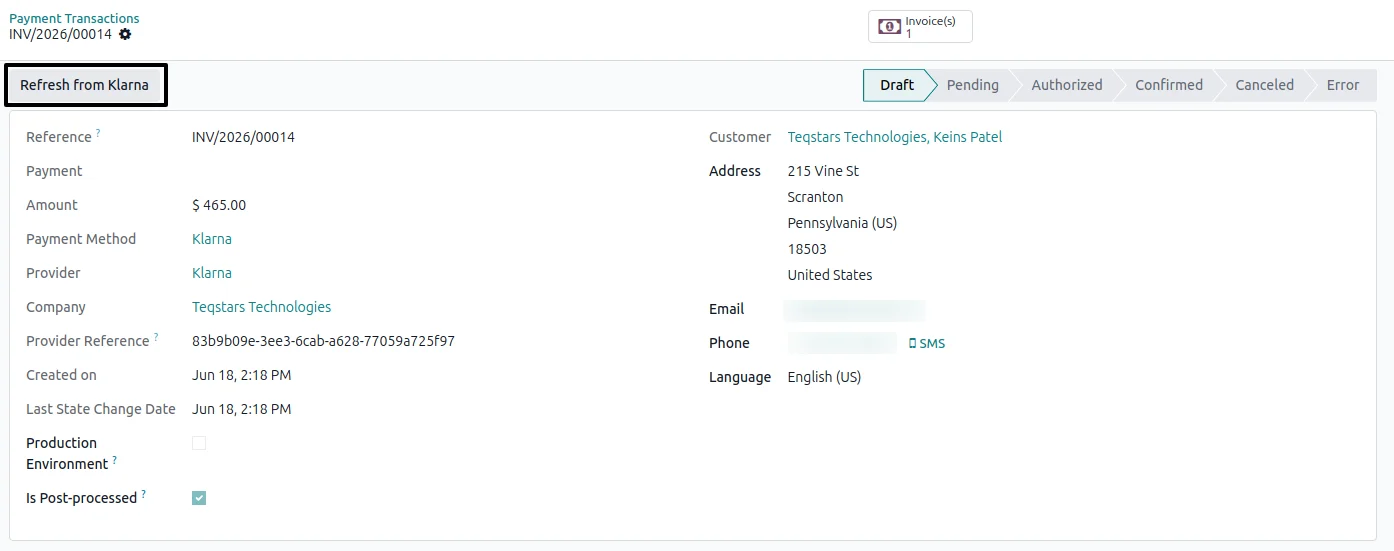
Refresh a status in one click
A delayed update never leaves you calling a developer. Every Klarna transaction form carries a "Refresh from Klarna" button, and one click asks Klarna for the current status and updates the Odoo record. It gives your finance team a manual fallback for the odd order that looks out of date.
Supported Odoo versions
| Odoo version | Editions | Hosting | Price | Latest release | |
|---|---|---|---|---|---|
| 20.0 | Community & Enterprise | Odoo.sh · On-premise | €99 | No release notes | Buy |
| 19.0 | Community & Enterprise | Odoo.sh · On-premise | €99 | No release notes | Buy |
| 18.0 | Community & Enterprise | Odoo.sh · On-premise | €99 | No release notes | Buy |
| 17.0 | Community & Enterprise | Odoo.sh · On-premise | €99 | No release notes | Buy |
Support for Odoo Klarna Payment Gateway
The developers who build the app answer your tickets.
- Free app support from purchase
- 60 days
- First response in working hours, typical
- 4–6 hours
- Support hours, 10:00–18:00 IST
- Mon–Fri
How to connect Klarna to Odoo
-
Step 1
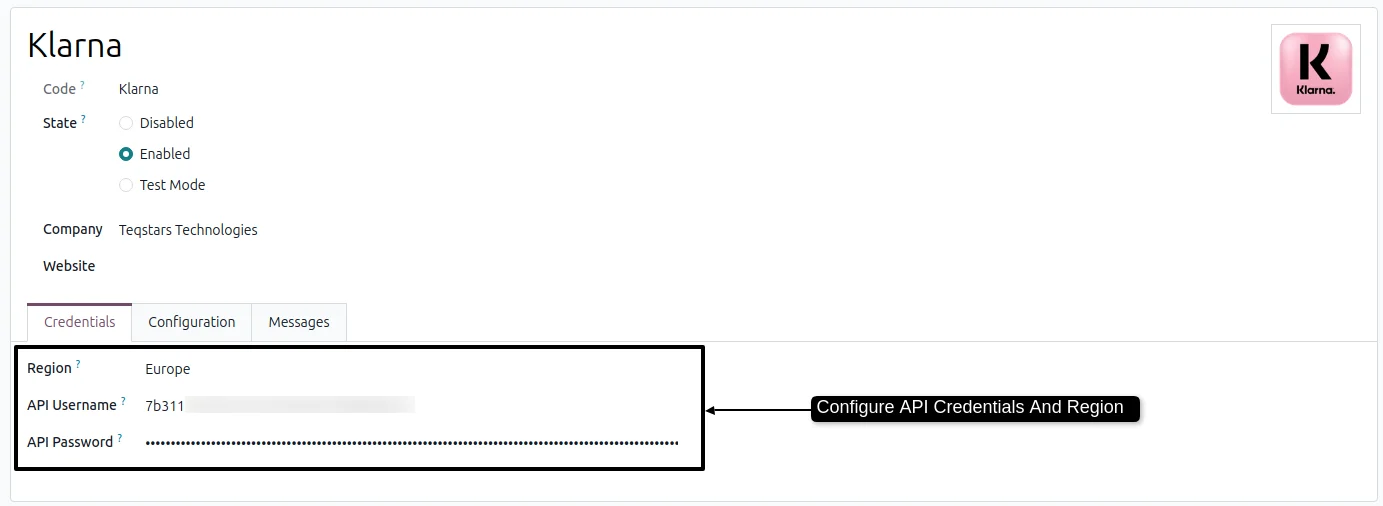
Enter your Klarna credentials
This tells Odoo which Klarna account to charge through. In the provider settings, set your region to Europe, North America or Oceania, then paste the API username and password from Klarna.
-
Step 2
Choose test or live, and capture
Run the whole flow safely before customers see it. Sandbox mode works with Klarna Playground credentials, Production uses your live keys. Also decide here whether payments are captured right away or held for your review.
-
Step 3
Publish and start collecting
Set the provider to Published and Klarna becomes a payment option on your storefront, the customer portal and your invoice pay pages. Approved payments then update the related orders and invoices.
Questions before you buy
Not answered here? Talk to the team.