Helcim card payments on your quotes, invoices and Odoo webshop
This Helcim Odoo integration adds Helcim as a card payment method for sales orders, invoices and eCommerce checkout. Customers can store their card details for their next purchase. You start on test credentials and switch to production when you're ready to charge real cards.
- Odoo 17.0 – 20.0
- Community & Enterprise
- Odoo.sh · On-premise
-
Not for
Odoo Online
Top seller on the Odoo Apps Store
- sales on the Odoo Apps Store
- 3,000+
- apps published
- 100+
- countries running them
- 100+
Taking card payments before and after the Helcim app
Without the connector by hand
-
Read card numbers over the phone into a separate card terminal
-
Email an invoice PDF and wait for a bank transfer
-
Ask repeat customers for their card details on every order
-
Chase a quotation approval, then chase the payment separately
-
Email the customer to tell them their payment arrived
With the connector automatic
-
Customers enter card details on Helcim's secure hosted payment page
-
Customers pay the invoice from the Odoo customer portal by card
-
Customers can choose to save their payment details for next time
-
Customers accept the quotation and pay it in the same portal visit
-
The portal shows a payment confirmation on the sales order
Payment Helcim features
Add Helcim to your payment methods
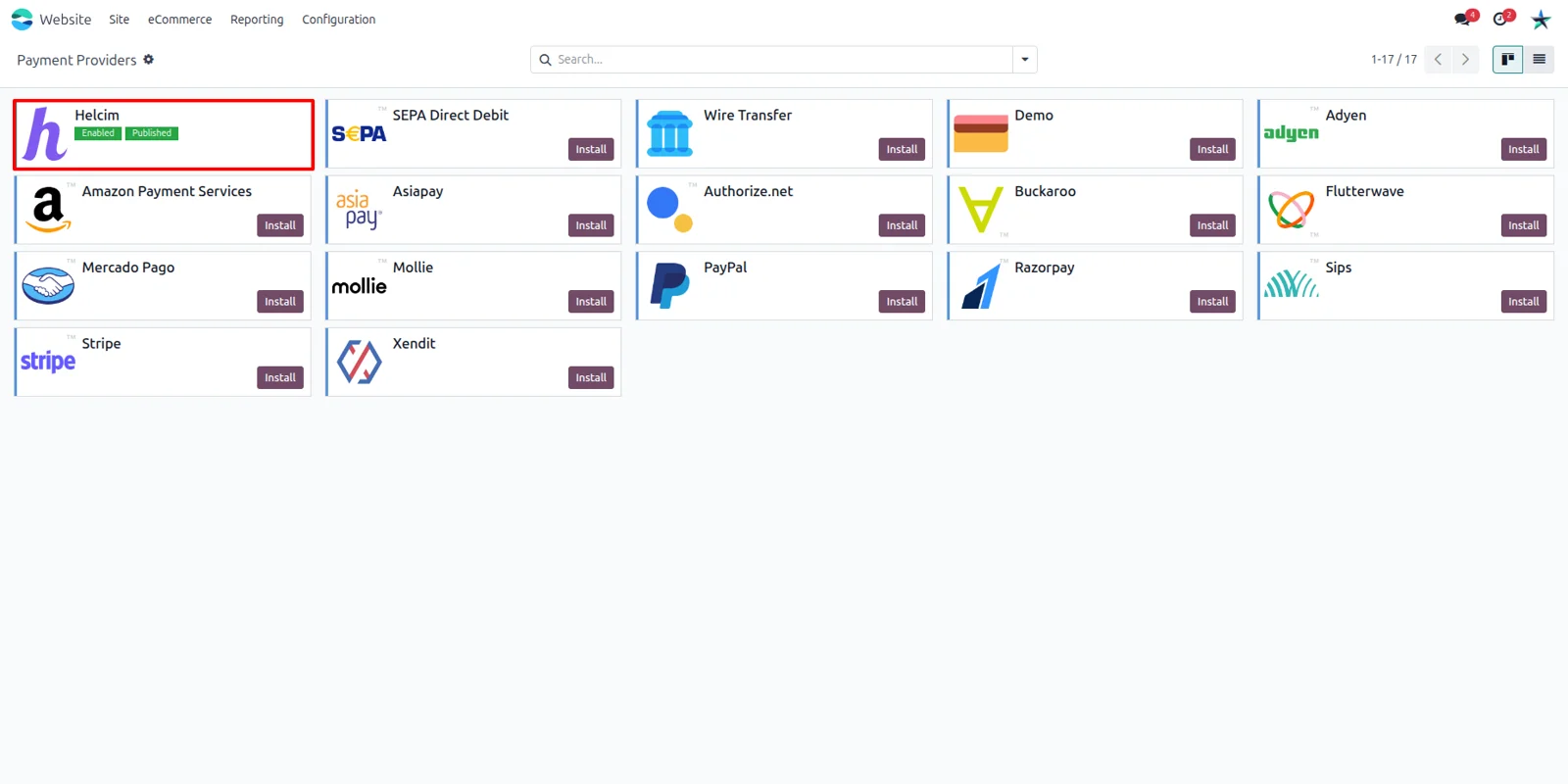
Your webshop and portal can offer Helcim next to the card providers you already run. Odoo's payment providers list holds Helcim as its own record, so you enable it the same way you enabled Stripe or PayPal, and you can leave those switched on. Customers then choose the card option they trust at checkout.
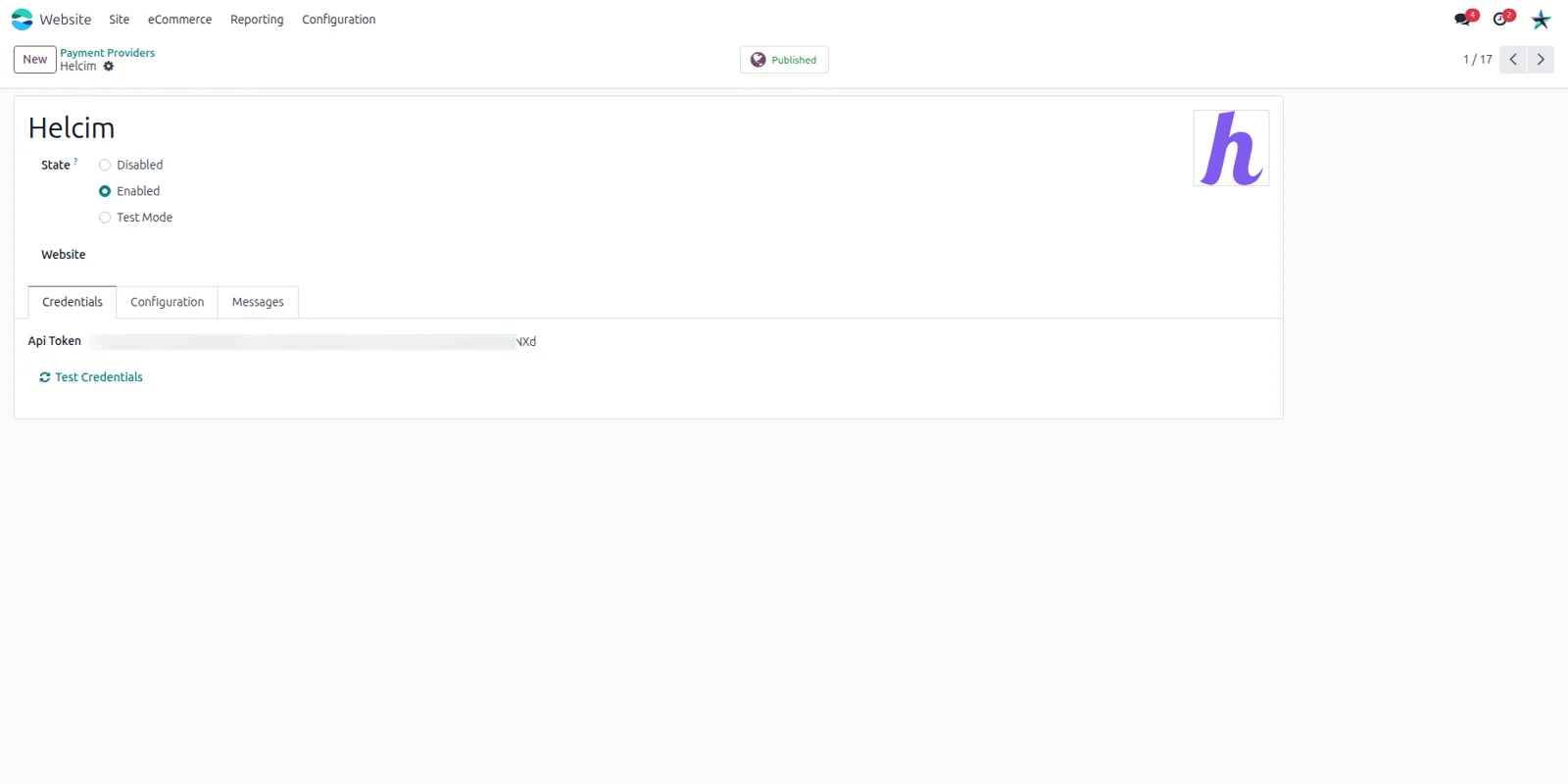
Enter your token for test or live
You can try Helcim on test credentials first and move to real charges when the flow looks right to you. Open the Helcim provider in Odoo and paste your API token on the "Credentials" tab, which is what connects Odoo to your Helcim account. The same screen is where you point the provider at your production environment.
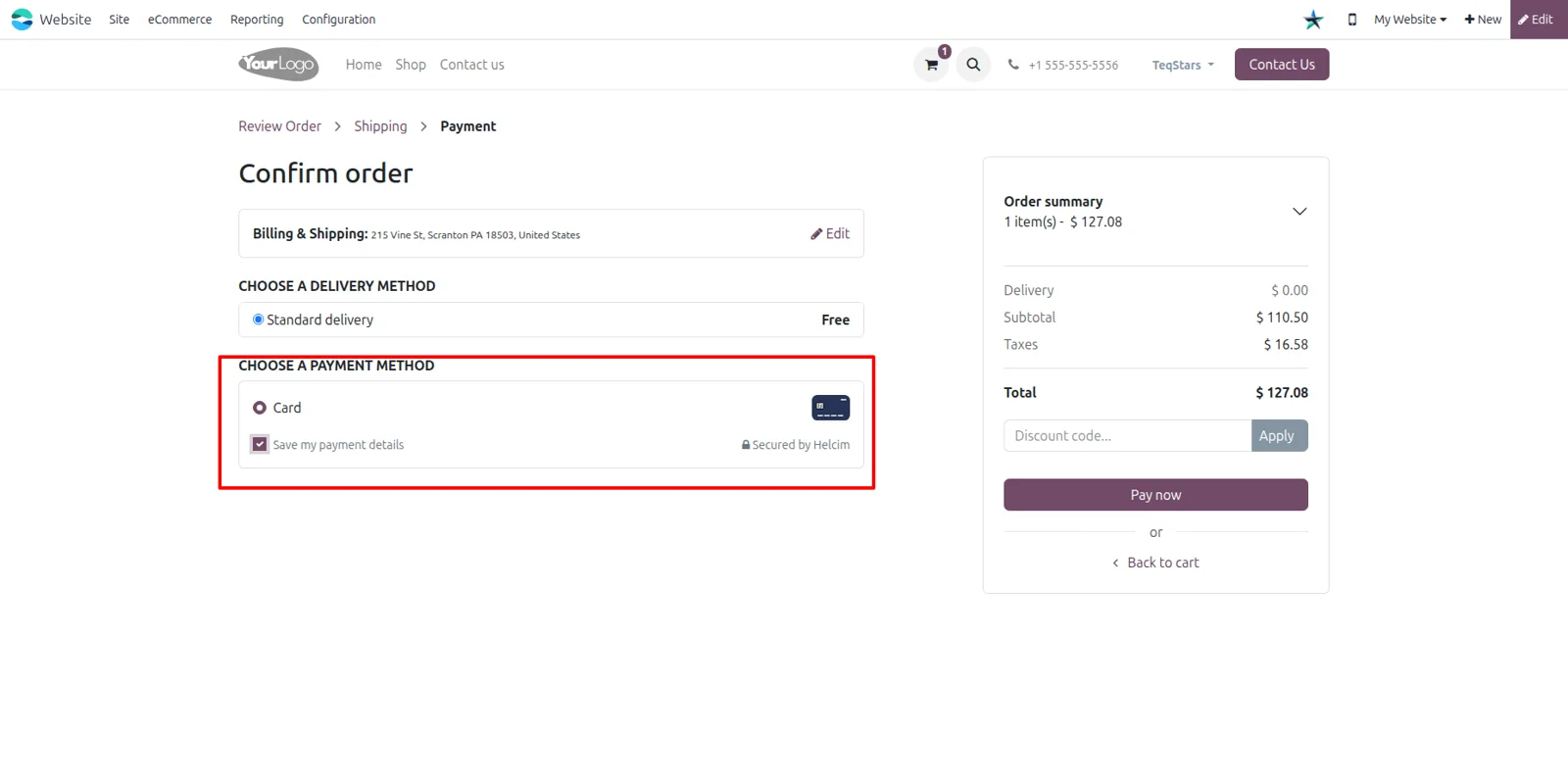
Card checkout on your Odoo eCommerce
Shoppers on your Odoo website finish an order by card instead of waiting for an offline payment. Helcim appears on the checkout page as a secure card method, and the shopper can tick "Save my payment details" so the next order needs fewer keystrokes. Saving is the customer's choice, not something you set for them.
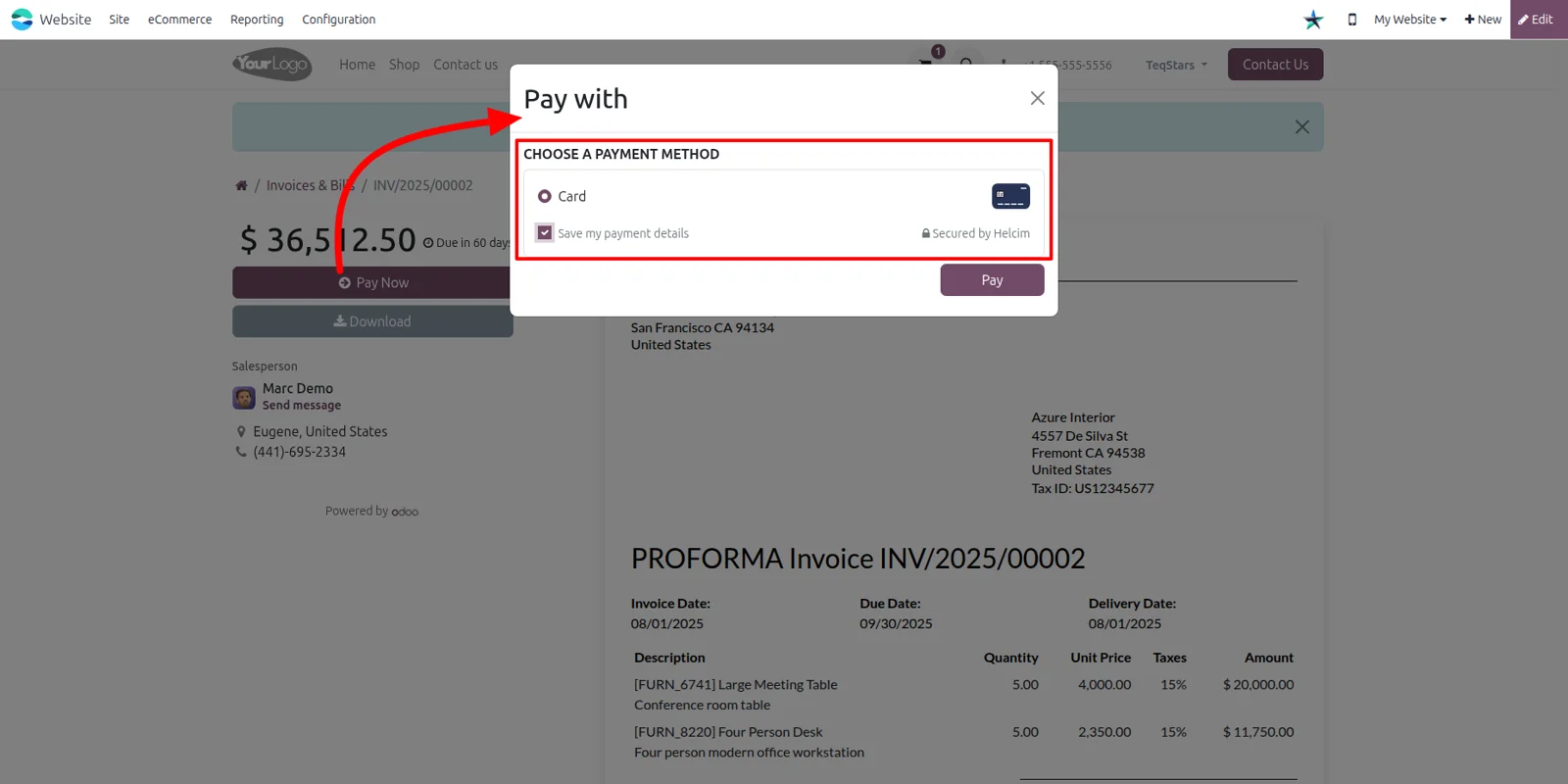
Customers pay invoices from the portal
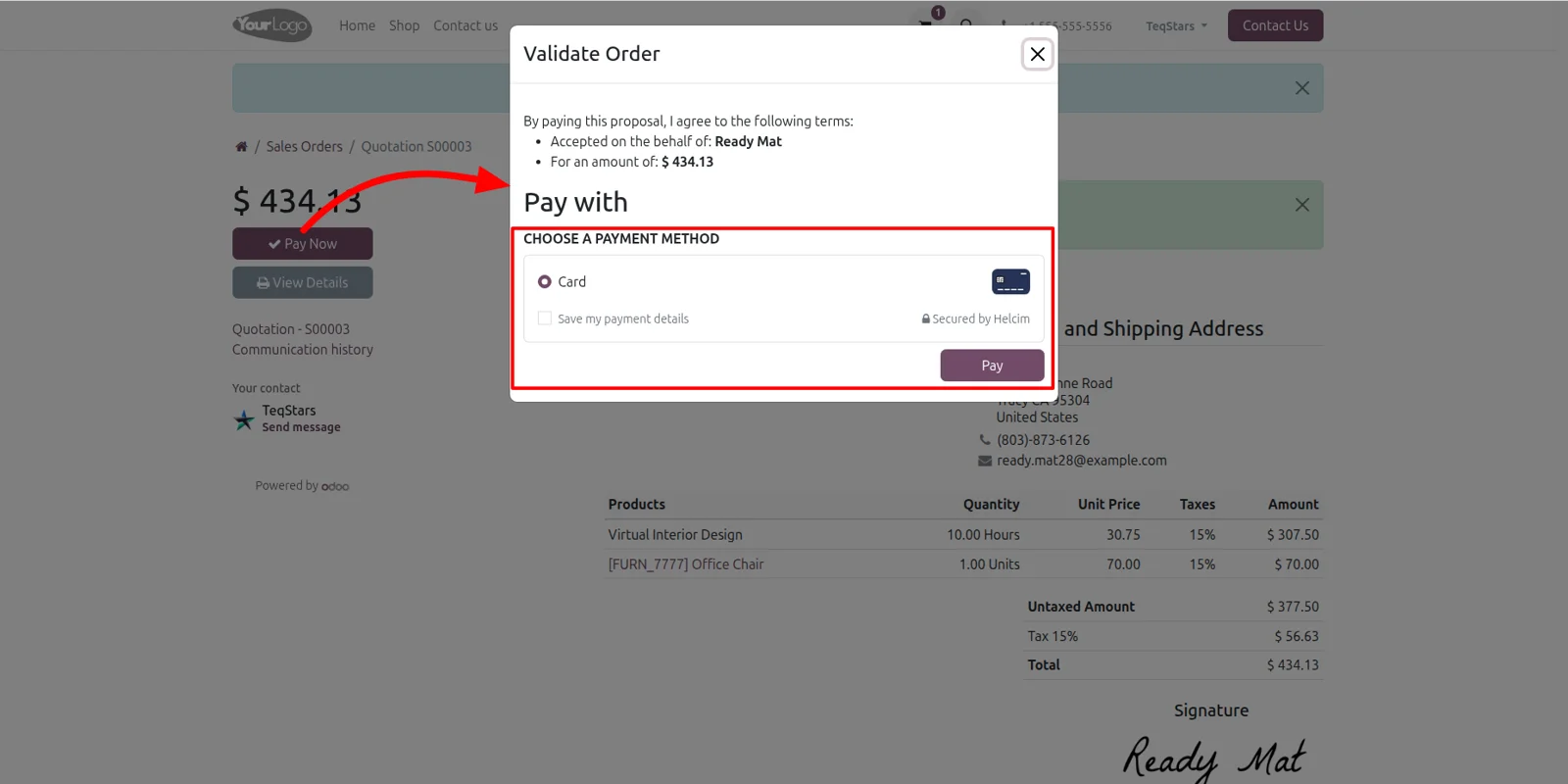
An invoice you send stops being a reminder and becomes something a customer can settle the moment they open it. In the Odoo customer portal, a proforma invoice carries a pay button that opens the Helcim payment pop-up. The customer can also save their payment details there to make future invoices quicker to settle.
Quotation accepted and paid in one visit
Approval and money arrive together, which shortens the gap between a quote and a confirmed order. A customer opens the quotation in the Odoo portal, accepts it, and pays online through the Helcim pop-up in the same session. Your sales team sees the result on the sales order rather than waiting for a transfer to show up.
Copy a payment link from a quotation
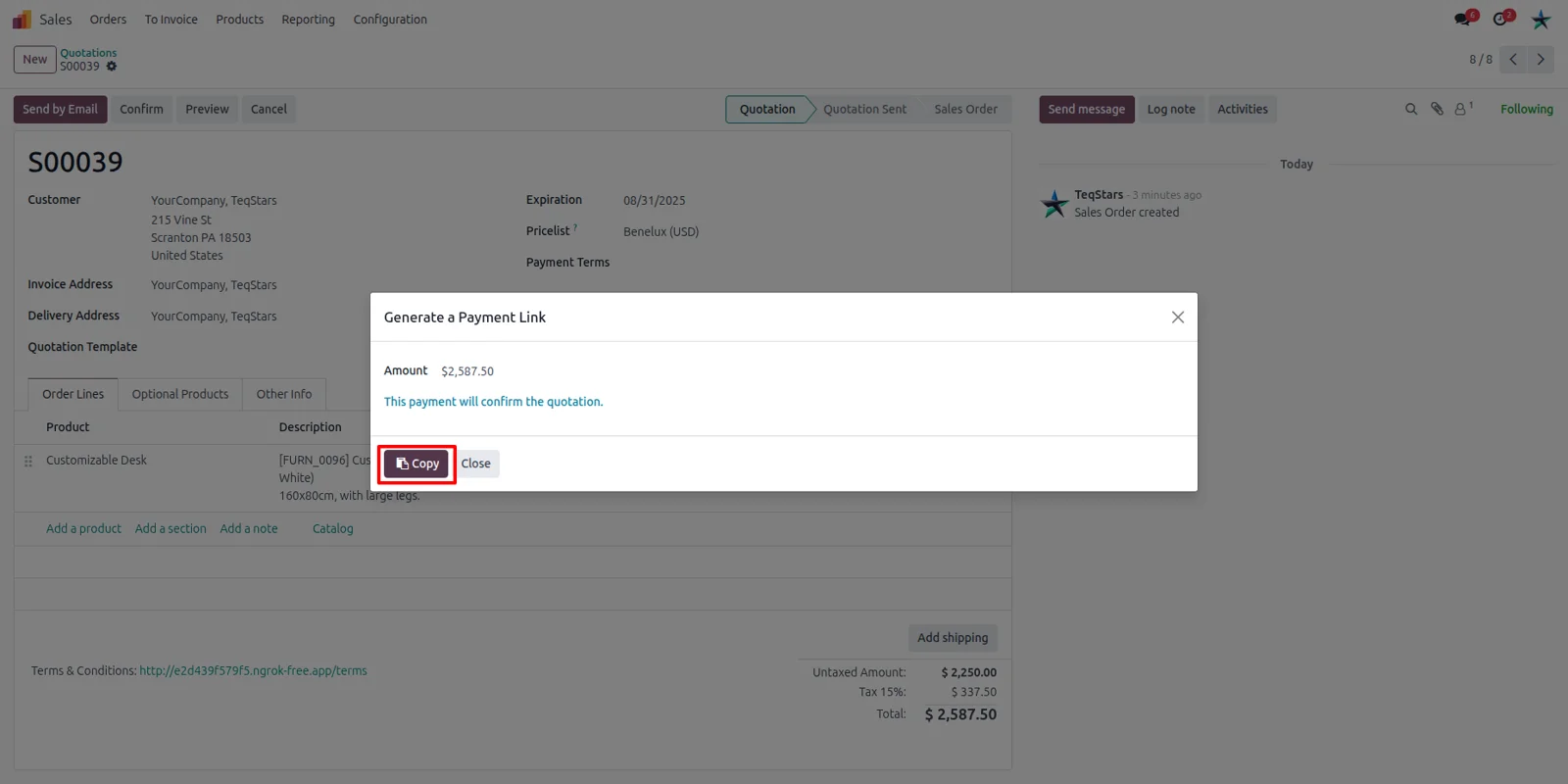
For customers who never open the portal, you can simply send them a link to pay. A salesperson opens the quotation in Odoo's backend and clicks "Copy" to take its unique payment URL, then pastes it into an email or a chat. The link opens a secure payment page built for that one document.
Supported Odoo versions
Support for Payment Helcim
The developers who build the app answer your tickets.
- Free app support from purchase
- 60 days
- First response in working hours, typical
- 4–6 hours
- Support hours, 10:00–18:00 IST
- Mon–Fri
How to connect Helcim to Odoo
-
Step 1
Install and open Helcim
Install Payment Helcim on your Odoo 17.0, 19.0 or 20.0 database. Then open the payment providers list in Odoo and pick the Helcim record the app adds, so every setting sits in one place.
-
Step 2
Paste your API token
On the "Credentials" tab, enter the API token from your Helcim account. Keep the provider on test credentials while you try things out, and move it to production when you want to charge real cards.
-
Step 3
Enable it for customers
Switch the Helcim provider on so it shows up at website checkout and in the customer portal. Customers then see a card option on their quotations and invoices rather than payment instructions.
-
Step 4
Try one payment yourself
Pay a test invoice from the portal, or copy a quotation's payment link and open it as a customer would. A confirmation on the sales order tells you the setup works end to end.
Questions before you buy
Not answered here? Talk to the team.