Qatar customers pay in Qatari Riyal and Odoo marks the invoice paid
This SADAD Odoo integration sends your shoppers to SADAD's hosted page, where they pay by card, SADAD, Apple Pay or Google Pay. Odoo updates the transaction and reconciles the invoice once SADAD confirms. Refunds take one click on the payment in Odoo.
- Odoo 17.0 – 19.0
- Community & Enterprise
- Odoo.sh · On-premise
-
Not for
Odoo Online
Top seller on the Odoo Apps Store
- sales on the Odoo Apps Store
- 3,000+
- apps published
- 100+
- countries running them
- 100+
Qatar payment work before and after this gateway
Without the connector by hand
-
Qatar shoppers who expect SADAD or Apple Pay leave your checkout
-
Check the SADAD panel, then mark each invoice paid by hand
-
Sign in to the SADAD panel every time you owe a refund
-
An order stays unresolved when the buyer closes the browser mid-payment
-
Hunt through the SADAD panel for a payment's current status
With the connector automatic
-
Cards, SADAD, Apple Pay and Google Pay on one hosted page
-
Odoo marks the invoice paid as soon as SADAD confirms the charge
-
Click "Refund" on the payment record in Odoo
-
A background sync checks with SADAD and settles that payment
-
Click "Refresh from SADAD" on the transaction to read the status
Payments, refunds and statuses between Odoo and SADAD
Every object the connector handles, which way it travels and what triggers it.
| Data | Direction | What happens & when |
|---|---|---|
| Payment request |

 Odoo to SADAD
|
A customer selects SADAD on your checkout or invoice pay page. |
| Payment confirmation |
SADAD to Odoo
|
SADAD confirms the charge and returns the buyer to your page. |
| Refund request |
Odoo to SADAD
|
You open the payment in Odoo and click "Refund". |
| Refund confirmation |
SADAD to Odoo
|
The refund stays pending until SADAD confirms it, then settles. |
| Pending transaction status |
SADAD to Odoo
|
The background sync runs, or you click "Refresh from SADAD". |
Odoo SADAD Payment Gateway features
Customers pick SADAD at checkout
Your buyers see SADAD listed with your other payment options on the standard Odoo payment screen, so the checkout they already know stays the same. Once the provider is published, that option shows on your website checkout, the customer portal and invoice payment pages. The customer selects SADAD, confirms the amount, and Odoo passes the payment to SADAD.
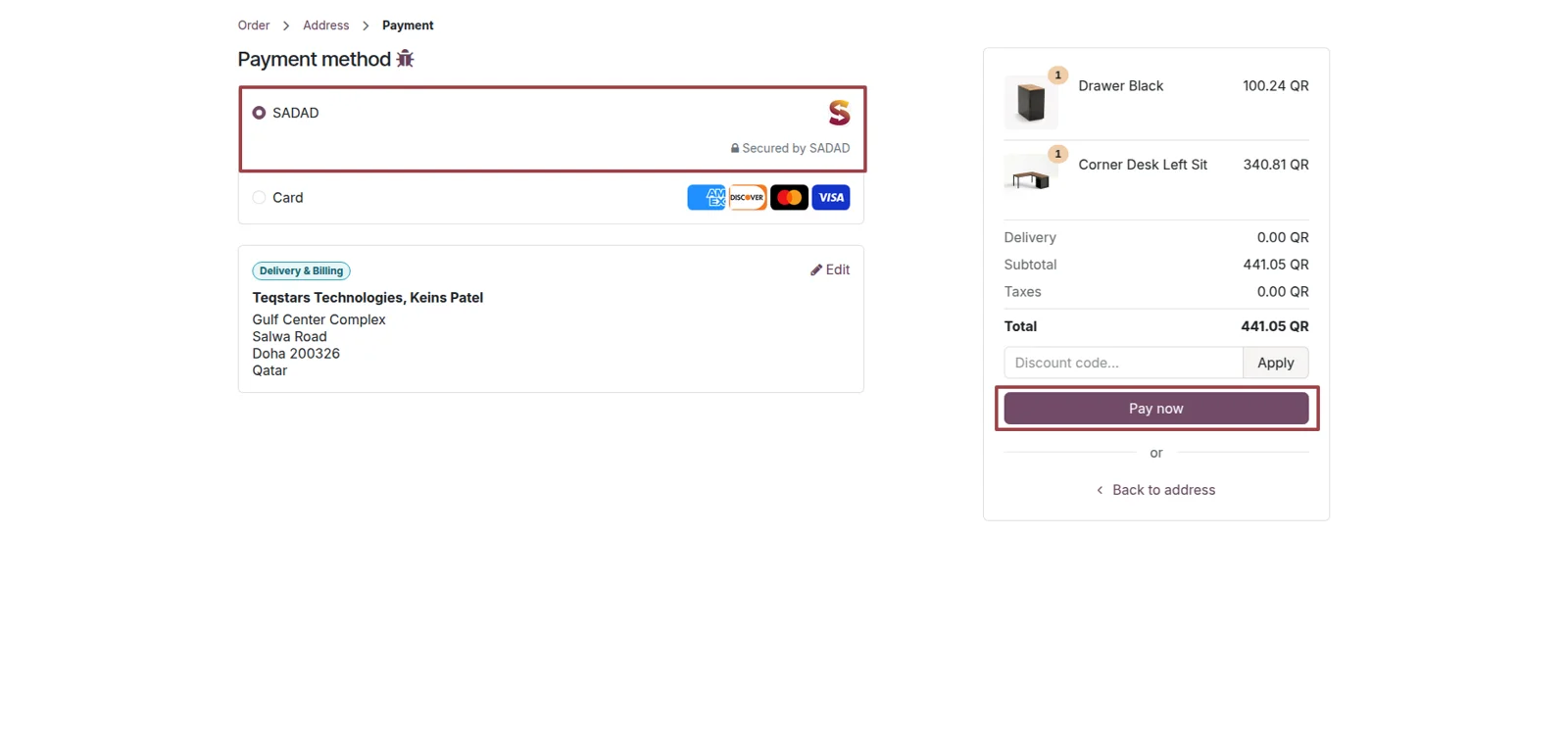
Cards, SADAD, Apple Pay and Google Pay
On SADAD's hosted page your customer chooses how to pay: a card, the SADAD method, Apple Pay or Google Pay. Every method you have enabled on your SADAD account appears there, so there is no second list to maintain in Odoo. Visa and Mastercard are supported, and SADAD runs the card authentication on its own page.
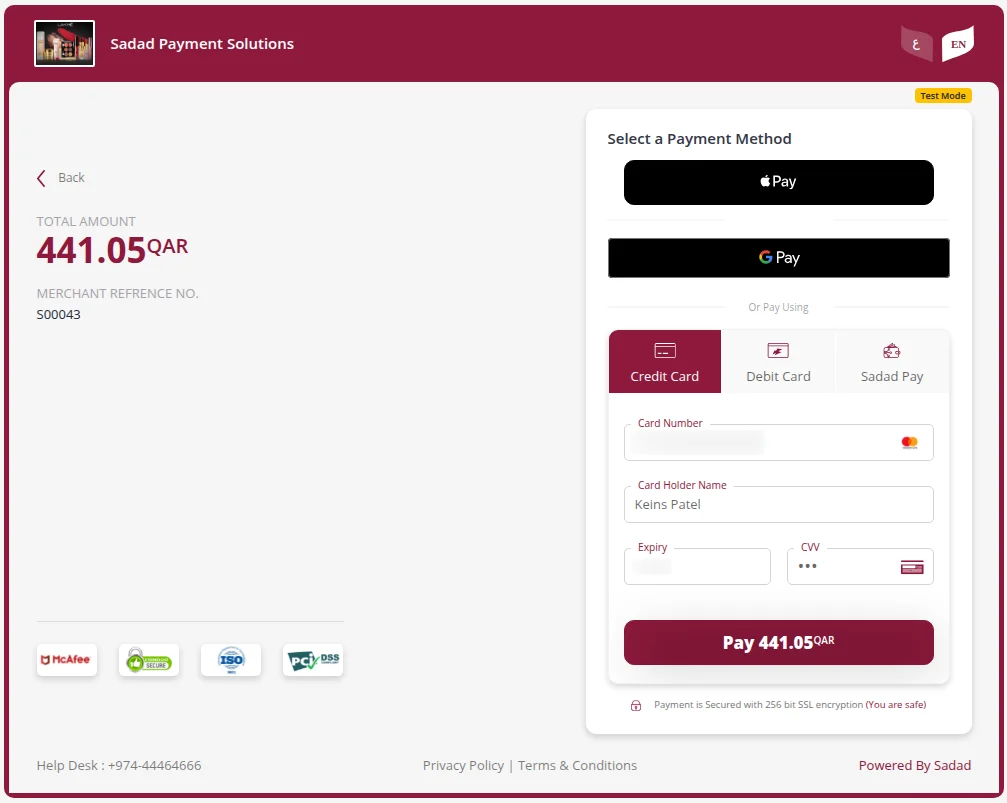
Transactions move to Done on confirmation
Your finance team sees a settled payment in Odoo the moment SADAD confirms the charge, and nobody edits a record to get there. The matching Odoo transaction switches to the Done state and keeps SADAD's confirmation with it. That gives everyone one place to check whether a web order or portal payment really went through.
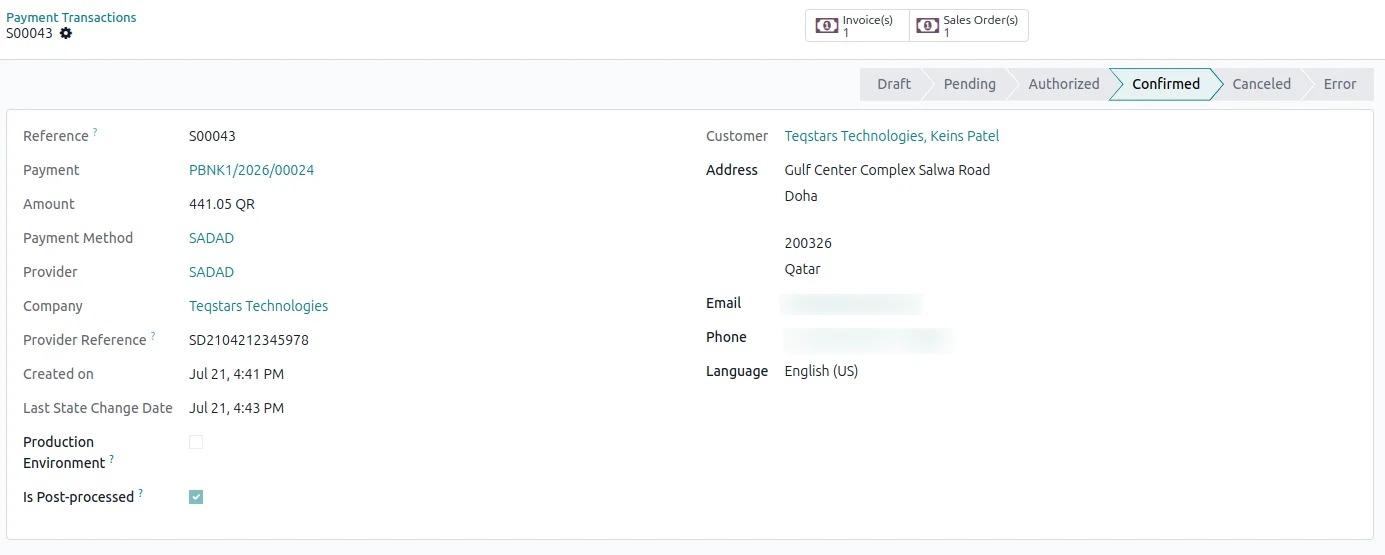
Invoices and orders reconcile on payment
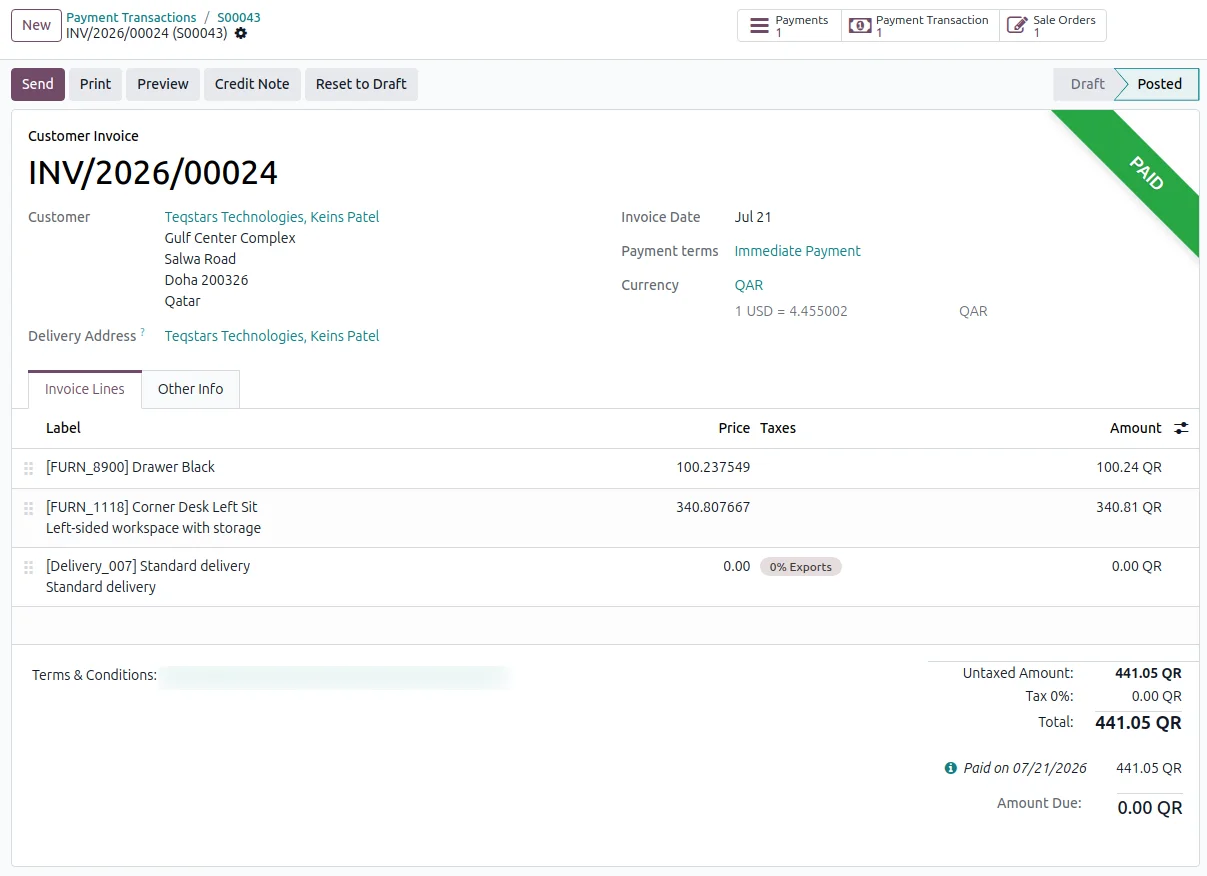
The invoice or sale order behind the payment is matched and marked paid once SADAD confirms, so your books need no typing. Odoo links the payment to the right record and closes it. B2B teams can send a payment link with each invoice, let the client pay through SADAD, and find the invoice reconciled afterwards.
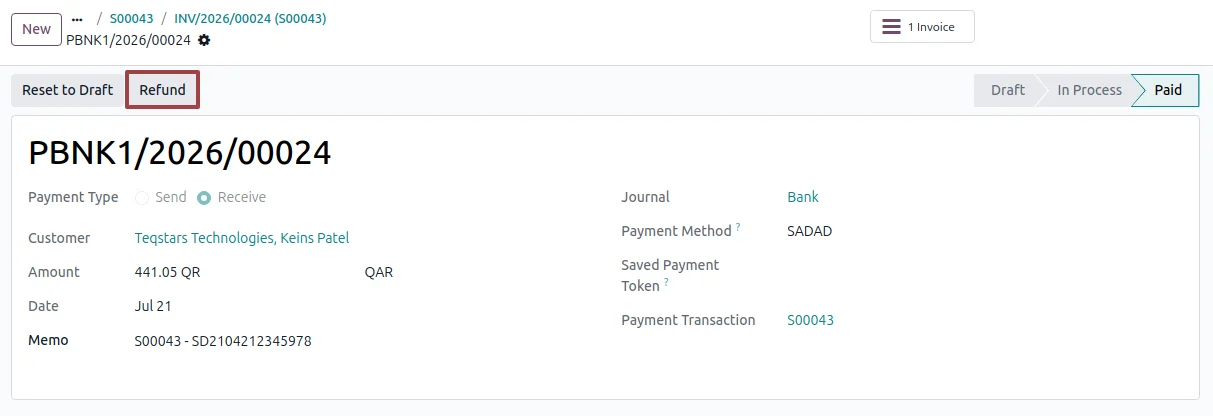
Refund a payment in one click
You return money to a Qatar customer by opening the payment in Odoo and clicking "Refund", so nobody signs in to the SADAD panel. SADAD credits the customer the full amount, and the refund is logged against the original payment in your accounting. It reads as pending until SADAD confirms the credit, then it settles.
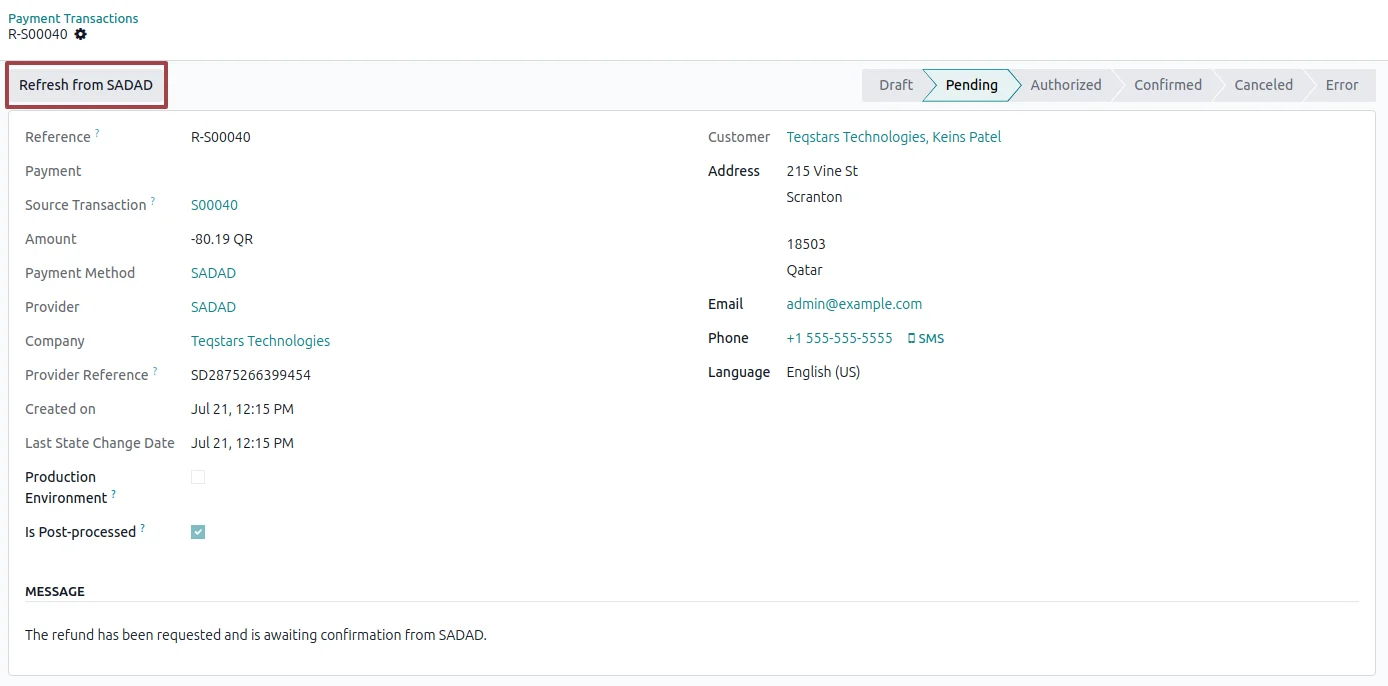
Pull a payment's latest status on demand
When a confirmation is slow, anyone on your team can click "Refresh from SADAD" on the transaction and read the current status straight away, with no help from IT. The button sits on the transaction record itself. A background sync also checks back with SADAD, so a payment the shopper never returned from still gets settled.
Supported Odoo versions
Support for Odoo SADAD Payment Gateway
The developers who build the app answer your tickets.
- Free app support from purchase
- 60 days
- First response in working hours, typical
- 4–6 hours
- Support hours, 10:00–18:00 IST
- Mon–Fri
How to connect SADAD to Odoo
-
Step 1
Enter your SADAD credentials
Open the SADAD provider record in Odoo and fill in the Secret Key, the Merchant ID and the Website Domain you registered with SADAD. Then choose whether this provider runs in Sandbox or Production.
-
Step 2
Publish the payment method
Set the provider to Published so your customers can actually choose it. SADAD then shows up as a payment option in three places: your website checkout, the customer portal and the invoice payment pages.
-
Step 3
Test in Sandbox, then go live
Keep the provider in Sandbox with your SADAD test key and run a payment from checkout to paid invoice. When the results look right, enter your live key and switch to Production. No code changes are needed.
-
Step 4
Collect payments and watch the books
Customers now pay on SADAD's page, and Odoo updates the transaction and reconciles the invoice when SADAD confirms. The background sync and the refresh button cover the payments where a confirmation is delayed.
Questions before you buy
Not answered here? Talk to the team.