Refund Stripe website payments straight from the paid Odoo invoice
Your team opens an invoice a customer paid by Stripe on your Odoo website, clicks "Create Stripe Refund" and sends back the whole amount or part of it. Odoo can also create, validate and reconcile the matching credit note for you.
- Odoo 17.0 – 20.0
- Community & Enterprise
- Odoo.sh · On-premise
-
Not for
Odoo Online
Top seller on the Odoo Apps Store
- sales on the Odoo Apps Store
- 3,000+
- apps published
- 100+
- countries running them
- 100+
Stripe refund work before and after this app
Without the connector by hand
-
Search the Stripe dashboard for the right charge and refund it there.
-
Draft a customer credit note in Odoo by hand afterwards.
-
Validate that credit note and reconcile it against the invoice.
-
Copy the Stripe refund reference back onto the Odoo record.
-
Keep a side list of which invoices were only partly refunded.
With the connector automatic
-
Your team clicks "Create Stripe Refund" on the paid Odoo invoice.
-
Odoo creates the credit note when you switch that setting on.
-
The same setting validates the credit note and reconciles it with the invoice.
-
Odoo stores the Stripe refund reference with the date and time.
-
The payment transaction reads Partial Refund or Refunded.
Refunds and refund details between Odoo and Stripe
Every object the connector handles, which way it travels and what triggers it.
| Data | Direction | What happens & when |
|---|---|---|
| Refund on a Stripe transaction |

 Odoo to Stripe
|
You click Create Stripe Refund on the invoice and confirm an amount. |
| Refund reference, date and time |
Stripe to Odoo
|
Stripe confirms the refund against the original payment. |
Stripe Payment Refund features
Refund a paid invoice in Odoo
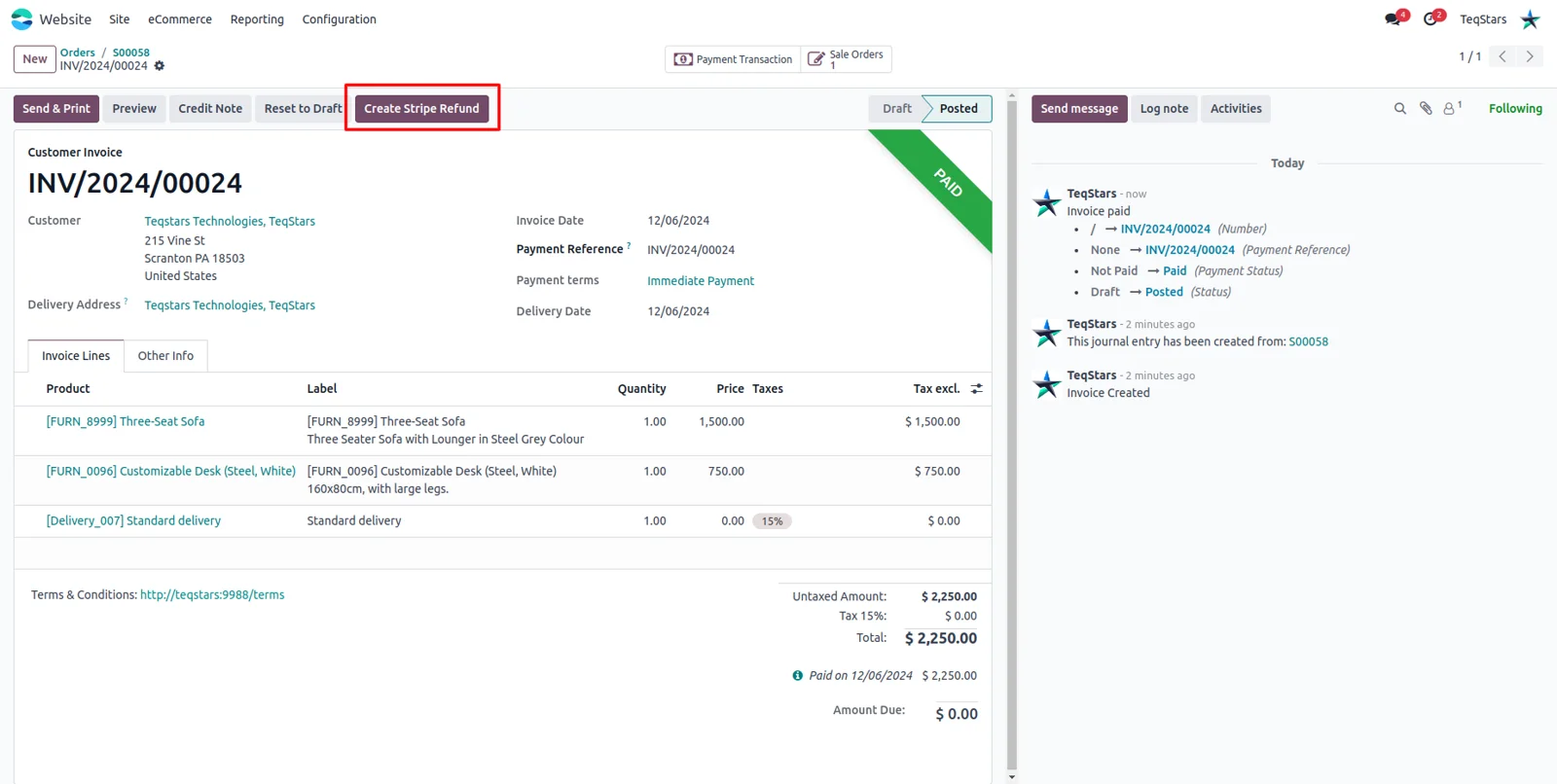
Open a customer invoice that Stripe collected and a "Create Stripe Refund" button sits in the toolbar. One click starts the refund against that exact Stripe transaction, so nobody searches the Stripe dashboard for the charge. The button only shows on invoices in Paid or In Payment that were settled through Stripe, including payments taken on a card your customer saved.
Send back part of the amount
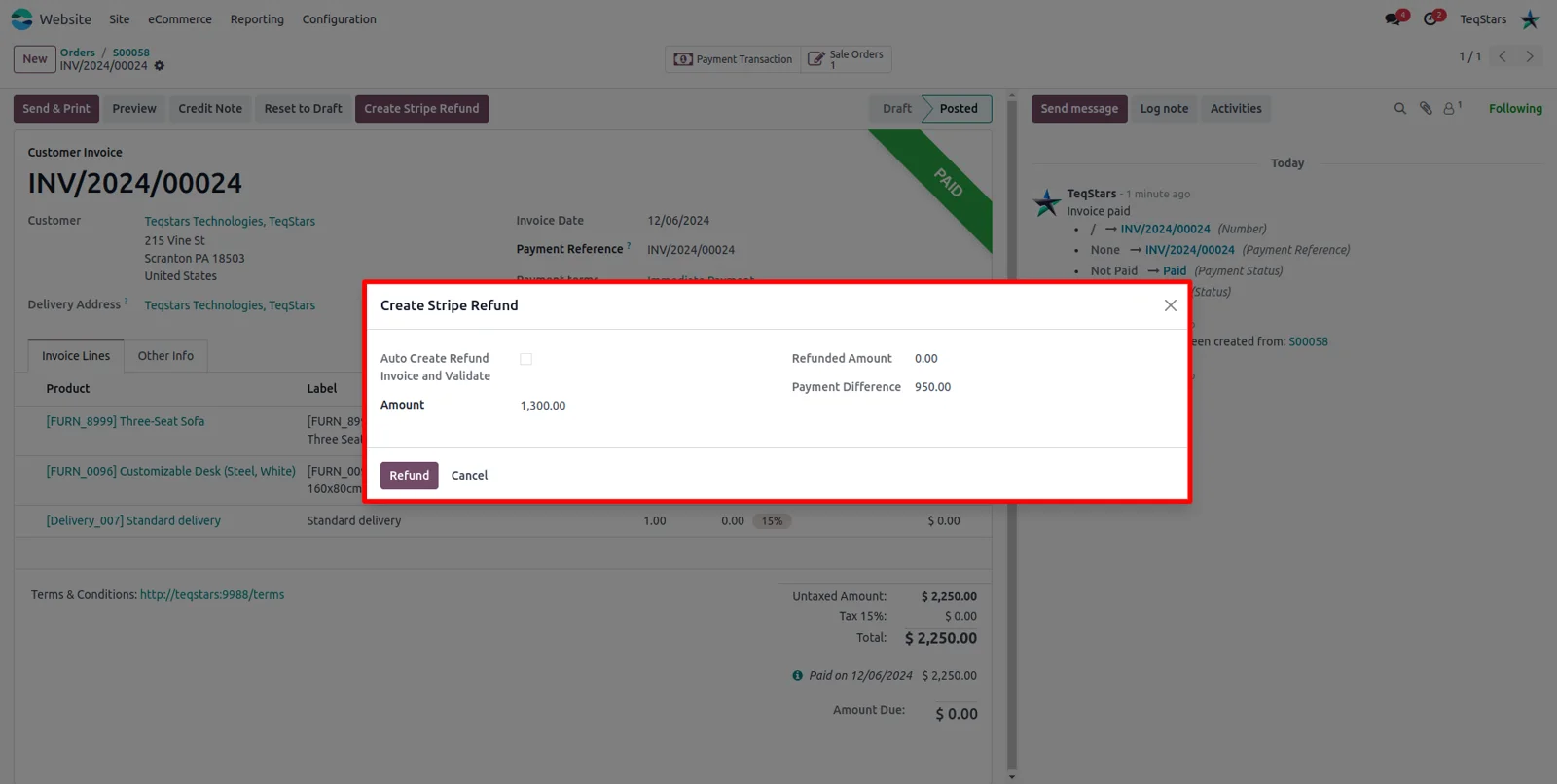
The refund window lets your team type a smaller figure, so you can return a deposit or one disputed line instead of the whole invoice. Any amount up to the balance still refundable is accepted, and you can repeat that until nothing remains. Whatever you enter is what Stripe refunds against the original payment, so the customer sees a single clear credit.
Credit notes posted and reconciled
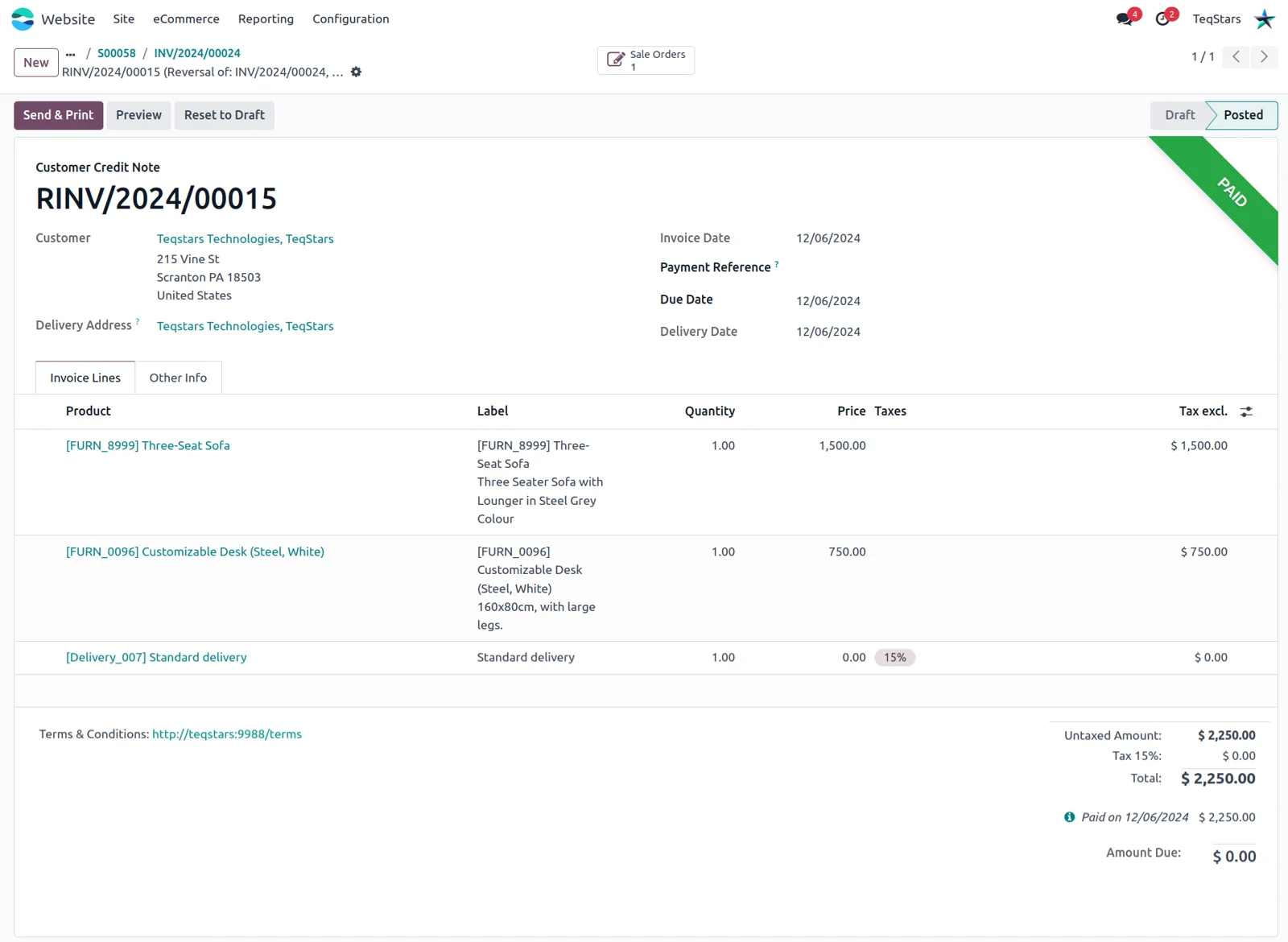
Switch on the credit note setting and the accounting side is handled for you. Once the Stripe refund goes through, Odoo raises the customer credit note, validates it and reconciles it with the invoice, so your accountant finds a matched pair rather than an invoice left open. This automation is skipped for refunds of partial payments.
Partial Refund marked on the transaction
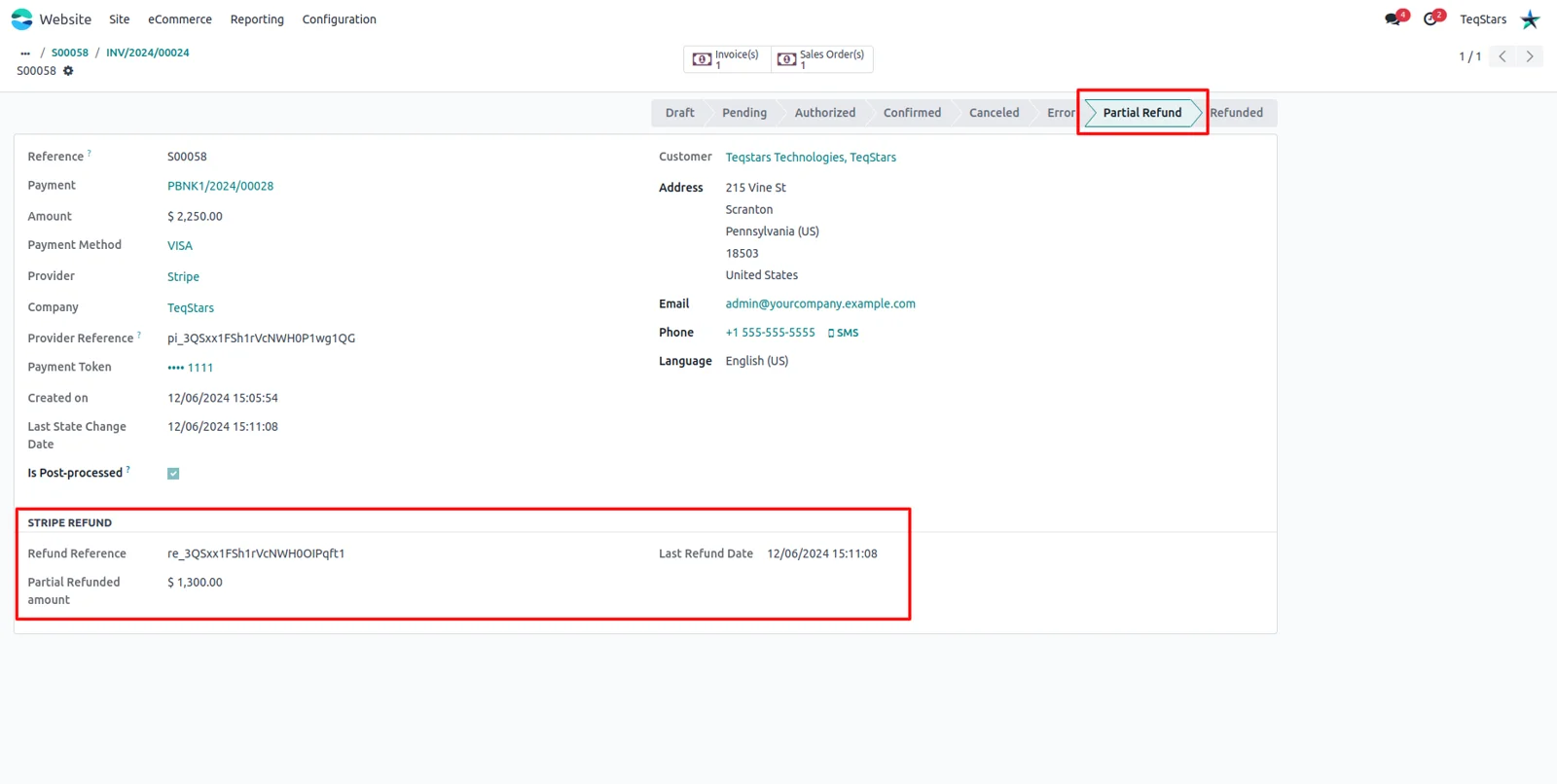
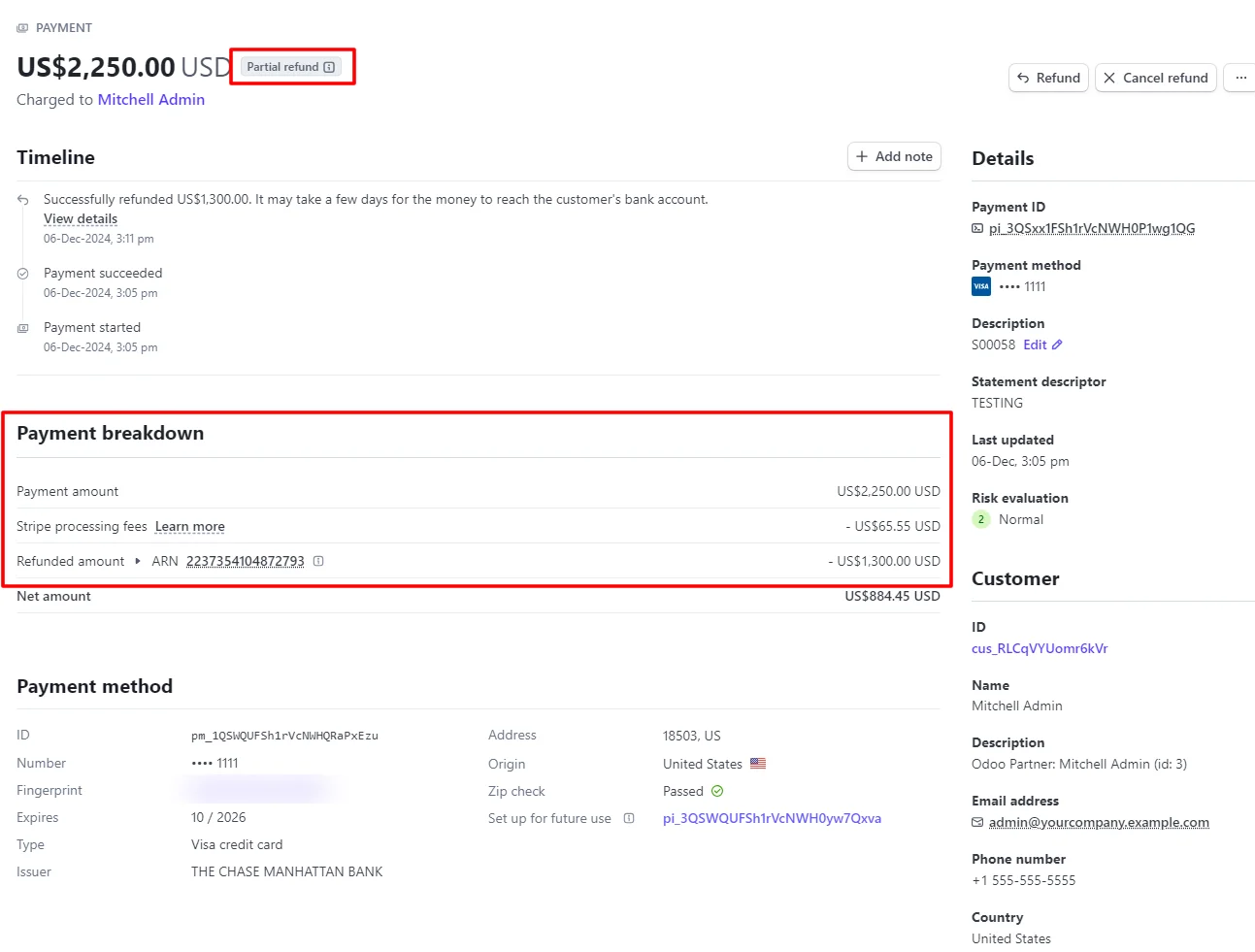
Each payment transaction keeps a record of what was returned. After a part refund, Odoo marks the transaction Partial Refund and saves the Stripe refund reference with the date and time it was made. Finance can then tie a line on the Stripe statement to an Odoo record, and a later refund of the rest moves the transaction to Refunded.
The refund appears in Stripe
The refund your team started in Odoo is created in Stripe against the original payment, so the money going back is recorded once. Open that payment in your Stripe dashboard and the refunded amount is listed there, partial or full. Nobody has to enter a second refund on the Stripe side, and the reference saved in Odoo points to it.
Refund notes in the invoice chatter
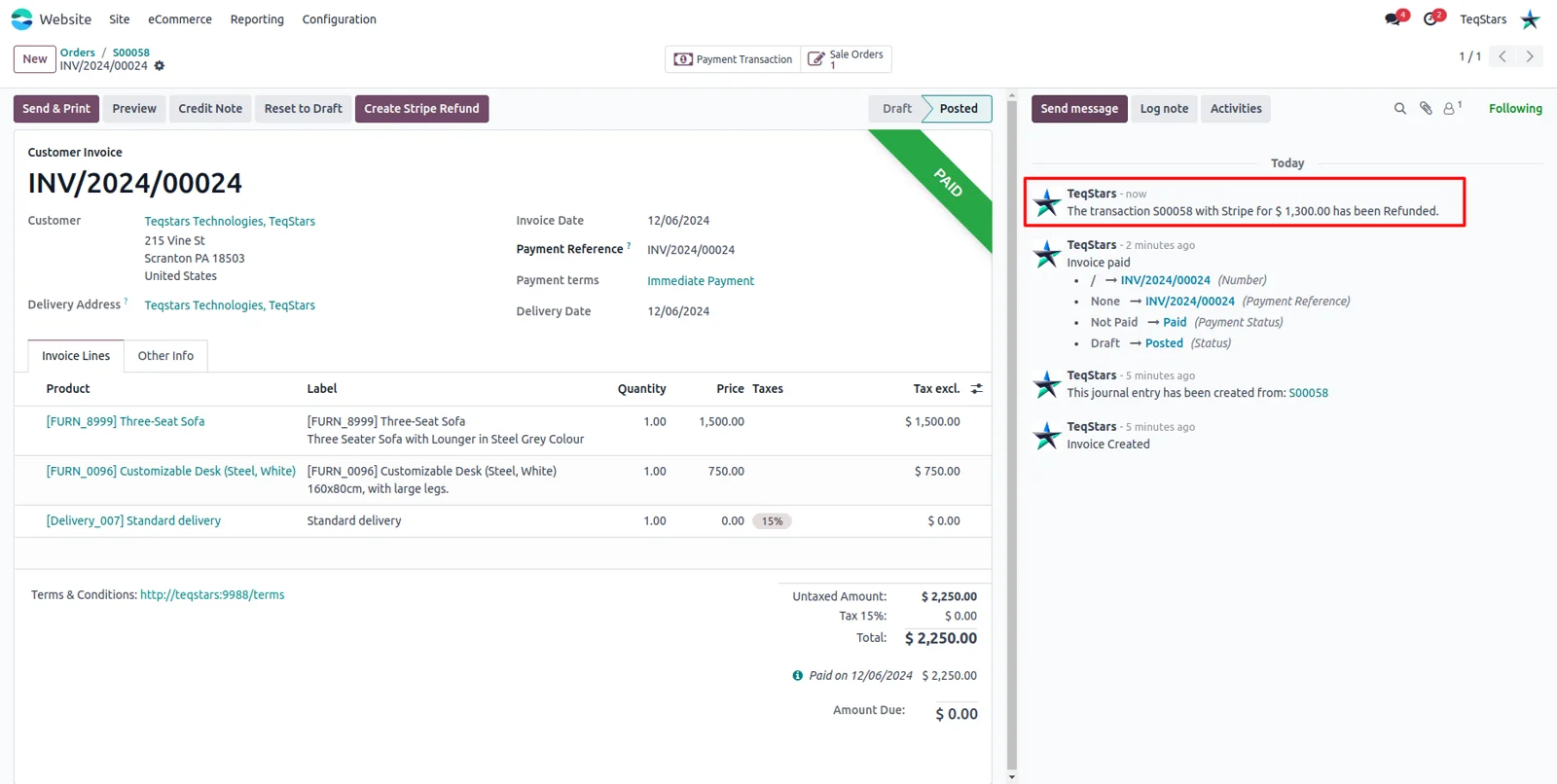
The invoice logs a message each time a Stripe refund is processed, so your team reads what was refunded and when in the thread they already follow. That helps when a customer calls about a credit a week later. Because the note sits on the invoice itself, accounting and support see the same history without opening Stripe.
Supported Odoo versions
| Odoo version | Editions | Hosting | Price | Latest release | |
|---|---|---|---|---|---|
| 20.0 | Community & Enterprise | Odoo.sh · On-premise | €49.99 | No release notes | Buy |
| 19.0 | Community & Enterprise | Odoo.sh · On-premise | €49.99 | No release notes | Buy |
| 18.0 | Community & Enterprise | Odoo.sh · On-premise | €49.99 | No release notes | Buy |
| 17.0 | Community & Enterprise | Odoo.sh · On-premise | €49.99 | No release notes | Buy |
Support for Stripe Payment Refund
The developers who build the app answer your tickets.
- Free app support from purchase
- 60 days
- First response in working hours, typical
- 4–6 hours
- Support hours, 10:00–18:00 IST
- Mon–Fri
How to set up Stripe refunds in Odoo
-
Step 1
Install on your own Odoo
Add the app to an Odoo 17, 18, 19 or 20 database that you host on Odoo.sh or on-premise. Both Enterprise and Community work. Odoo Online will not accept third-party apps, so choose one of the other two.
-
Step 2
Add your Stripe credentials
Fill in the keys from your Stripe account on the Stripe record in Odoo's payment providers. Those credentials point Odoo at the same account that collected the money, which is the account a refund has to be sent against.
-
Step 3
Decide how credit notes are handled
Choose whether Odoo should raise the credit note once a refund clears, then validate and reconcile it. Leave the option off and your accountant posts the entry by hand. It is skipped for refunds of partial payments.
-
Step 4
Run your first refund
Open an invoice that Stripe collected and press "Create Stripe Refund". Enter the full balance or a smaller figure and confirm. Then check the payment transaction, where the Stripe reference and the refund status are stored.
Questions before you buy
Not answered here? Talk to the team.