Send Omnisend campaigns from Odoo with contacts and orders already synced
Your Odoo contacts, audiences and campaigns stay matched with Omnisend, both ways. Products and sale orders export too, so Omnisend automations can work with real purchase data. This Omnisend Odoo integration runs every import and export from one account record.
- Odoo 18.0 – 20.0
- Community & Enterprise
- Odoo.sh · On-premise
-
Not for
Odoo Online
Top seller on the Odoo Apps Store
- sales on the Odoo Apps Store
- 3,000+
- apps published
- 100+
- countries running them
- 100+
Email marketing work before and after the Omnisend Odoo integration
Without the connector by hand
-
Copy new Odoo customers into Omnisend lists by hand
-
Rebuild an Omnisend list every time a segment changes
-
Retype or screenshot email designs to review them in Odoo
-
Log in to Omnisend to check whether a campaign went out
-
Upload product and order data for e-commerce automations yourself
-
Guess which Odoo mailing lists came from Omnisend
With the connector automatic
-
Export a contact and its consent from the partner record in one click
-
Audiences sync both ways on a schedule you set, or when you run it
-
Import Omnisend templates with their full HTML body
-
A schedule you set refreshes campaign send status in Odoo
-
Sale orders export on a schedule you set, products when you run the sync
-
Omnisend-synced audiences are marked in the Odoo mailing list view
Contacts, audiences, campaigns and orders between Odoo and Omnisend
Every object the connector handles, which way it travels and what triggers it.
| Data | Direction | What happens & when |
|---|---|---|
| Contacts |

 Both ways
|
A schedule you set exports contacts; imports run when you start them. |
| Audiences |
Both ways
|
On a schedule you set, or when you run the sync. |
| Audience membership |
Odoo to Omnisend
|
A schedule you set sends contacts into their Omnisend audience. |
| Segments and contact tags |
Omnisend to Odoo
|
You run the import from the operations wizard. |
| Email templates with HTML body |
Omnisend to Odoo
|
You run the template import. |
| Contact attributes |
Omnisend to Odoo
|
You run the attribute import before mapping fields. |
| Campaigns |
Both ways
|
You import them, or create and send one from Odoo. |
| Campaign send status |
Omnisend to Odoo
|
A schedule you set, or a manual refresh on the campaign. |
| Products and variants |
Both ways
|
You run the product sync when your catalog changes. |
| Product categories and images |
Both ways
|
Sent and imported with the product operations you run. |
| Sale orders |
Odoo to Omnisend
|
A schedule you set, plus an on-demand export. |
| Contact consent |
Odoo to Omnisend
|
Sent together with the contact export. |
Omnisend Connector features
Map Odoo fields to Omnisend attributes
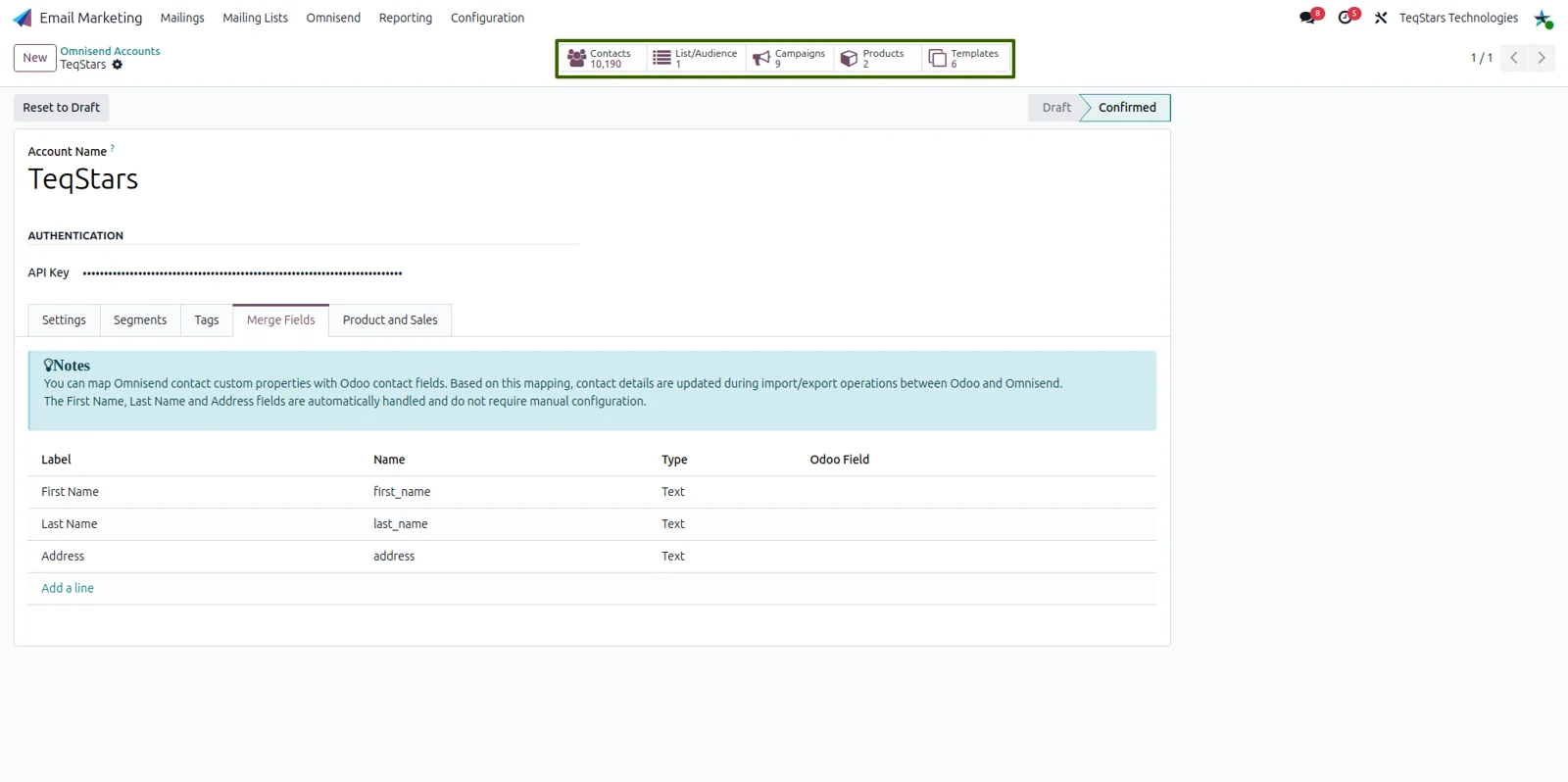
Contacts reach Omnisend carrying the values your campaigns filter and personalize on. The attribute list is imported from your Omnisend account, then you pair each Omnisend attribute with the Odoo contact field that holds the same information. Exports follow that pairing, so job title, phone or any custom attribute arrives filled in rather than empty.
Run one import or export at a time
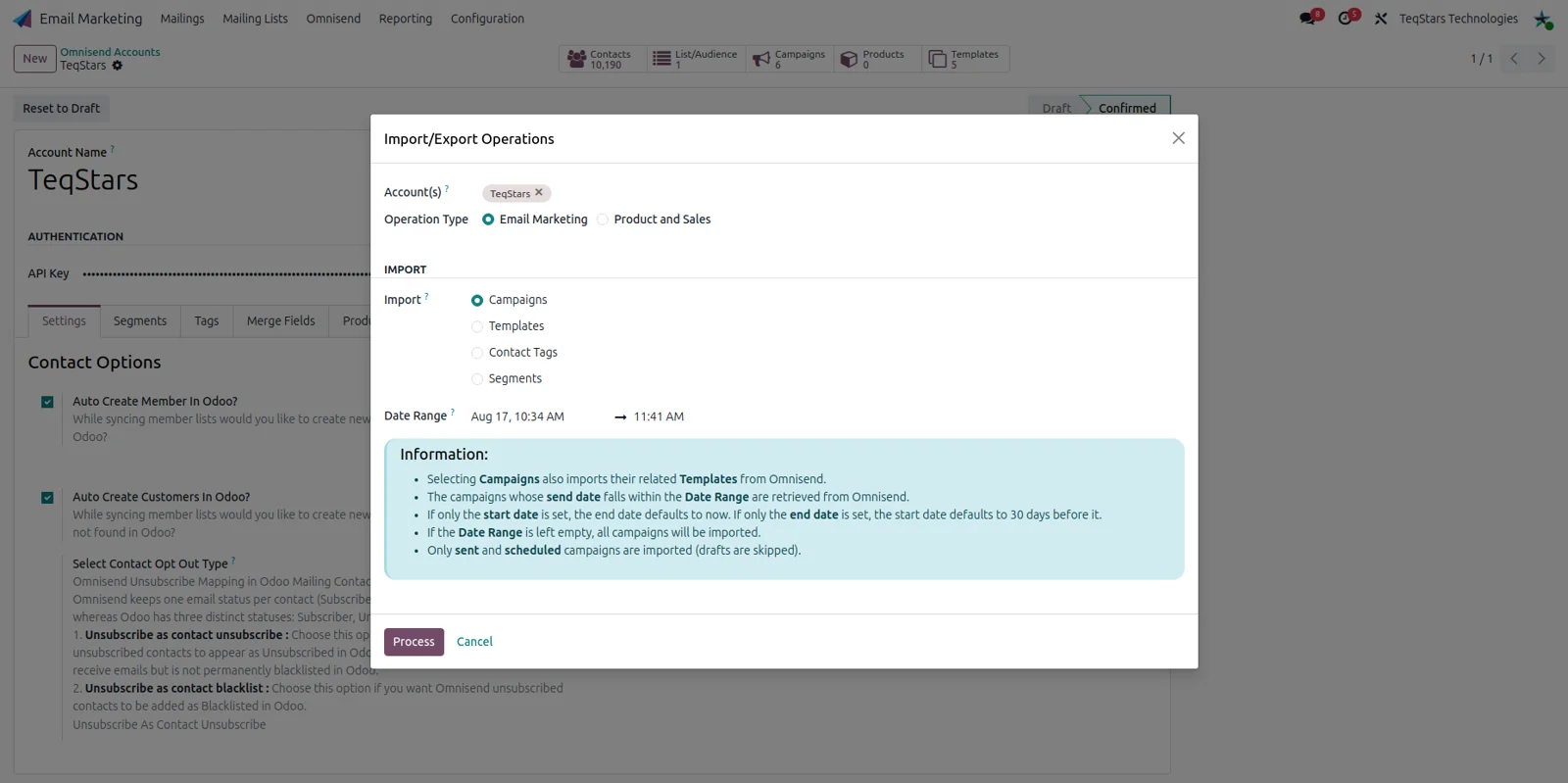
You decide exactly what moves and when. A single wizard lists every operation the connector supports, from contact, segment and template imports through to product and order exports. Choose one operation, run it, and nothing else is touched. That makes a first load easy to do in stages, and it lets your team repeat one piece after something changes in Omnisend.
Keep audiences matched both ways
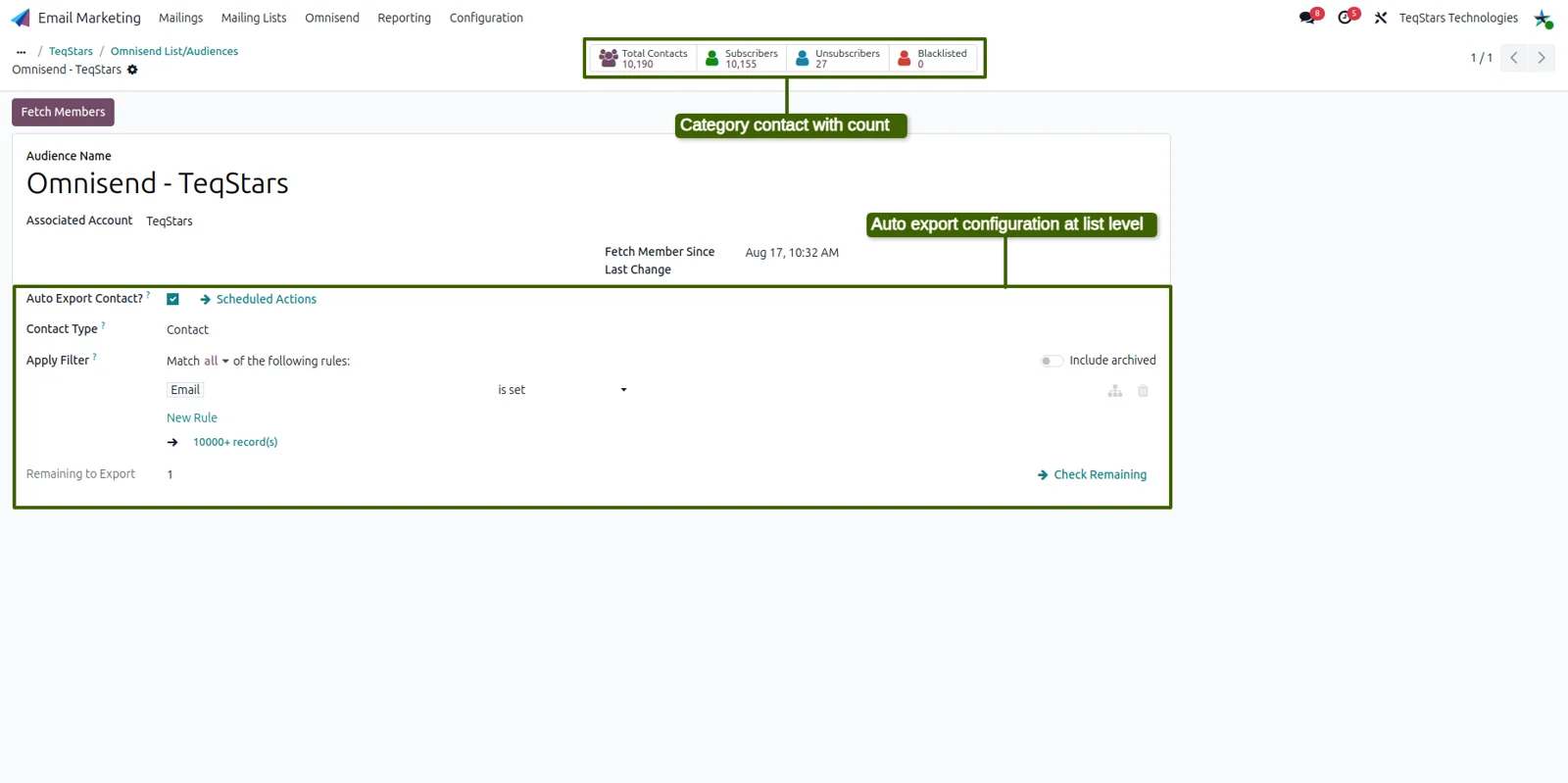
The groups your team builds in Odoo and the lists built in Omnisend end up holding the same people. Audience records sync in both directions on a schedule you set, and you can start the sync yourself whenever you want. Contacts assigned to an audience in Odoo are sent to the matching Omnisend audience, so marketing can target that group in a campaign.
Import Omnisend templates into Odoo
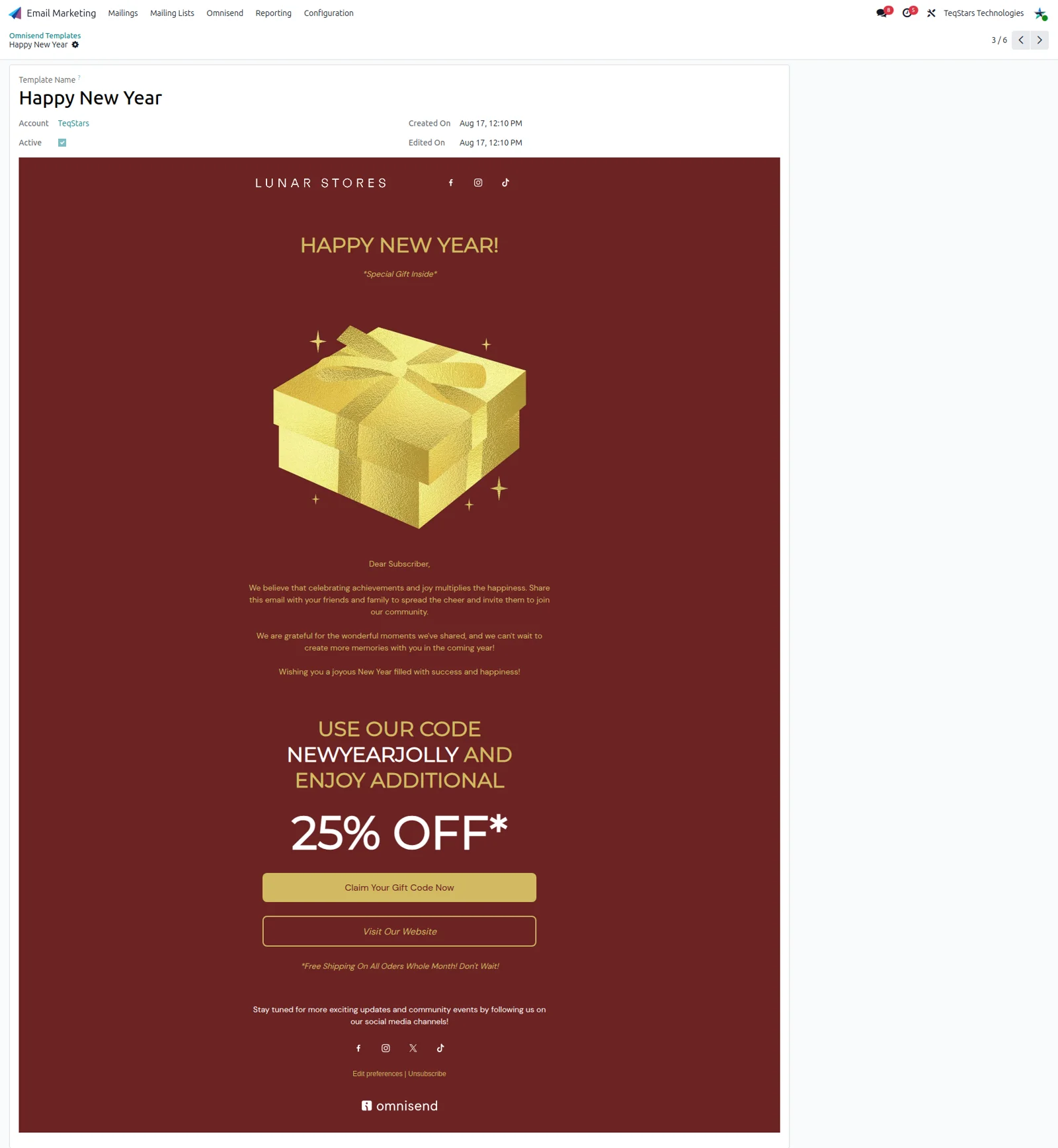
Designs your team already approved in Omnisend become reusable inside Odoo. The template import brings each Omnisend email template across with its full HTML body, so the layout and copy sit on the Odoo record for anyone to read. Campaigns you build in Odoo then pick one of those imported templates instead of starting from a blank editor.
Create and launch campaigns in Odoo
Your marketing team writes and sends Omnisend campaigns while working on Odoo data. A campaign record takes an imported template and a synced audience, then sends through Omnisend. Campaigns created in Omnisend can be imported as well, and a schedule you set refreshes their send status, so the Odoo list shows which ones have already gone out.
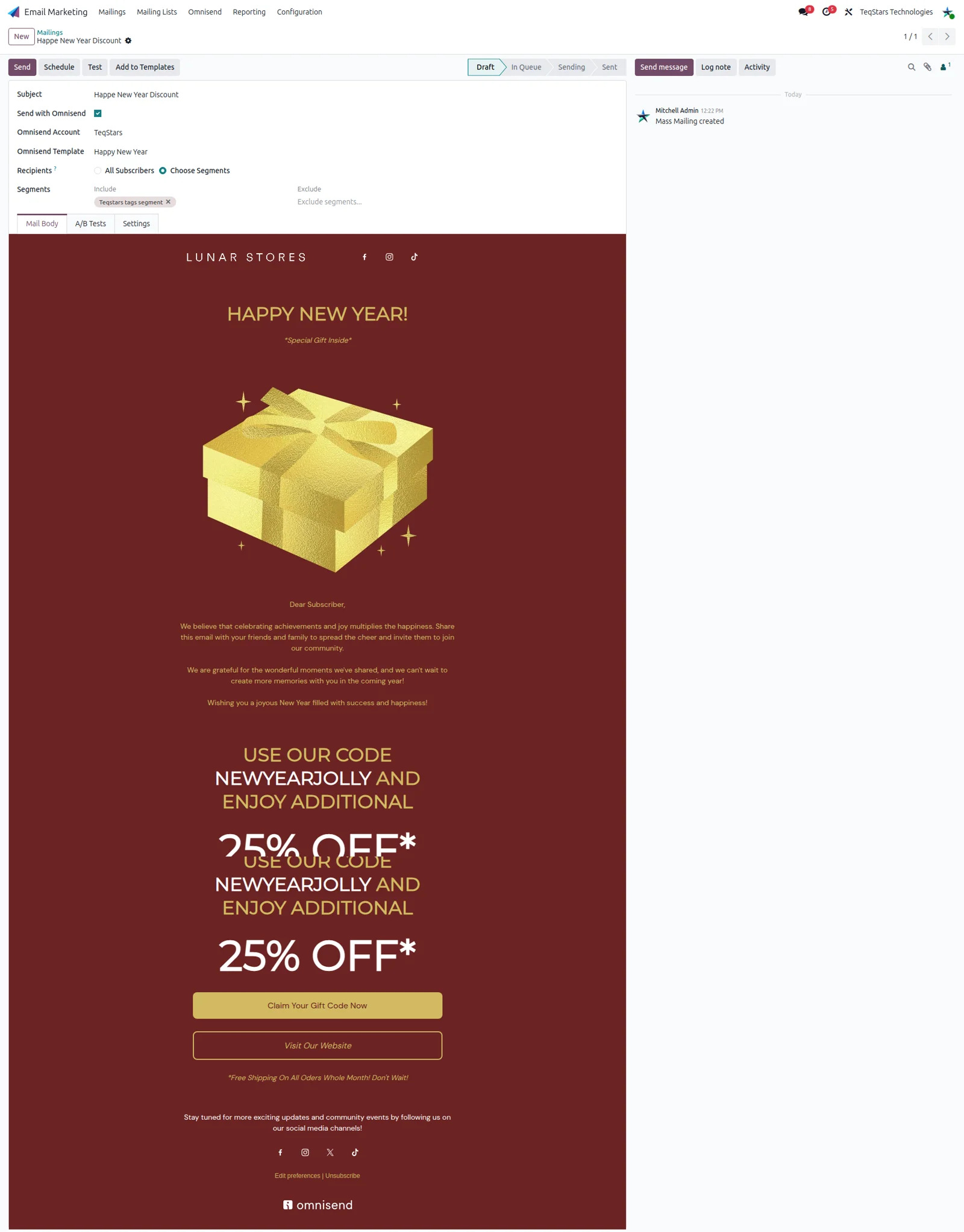
Open each campaign report in Omnisend
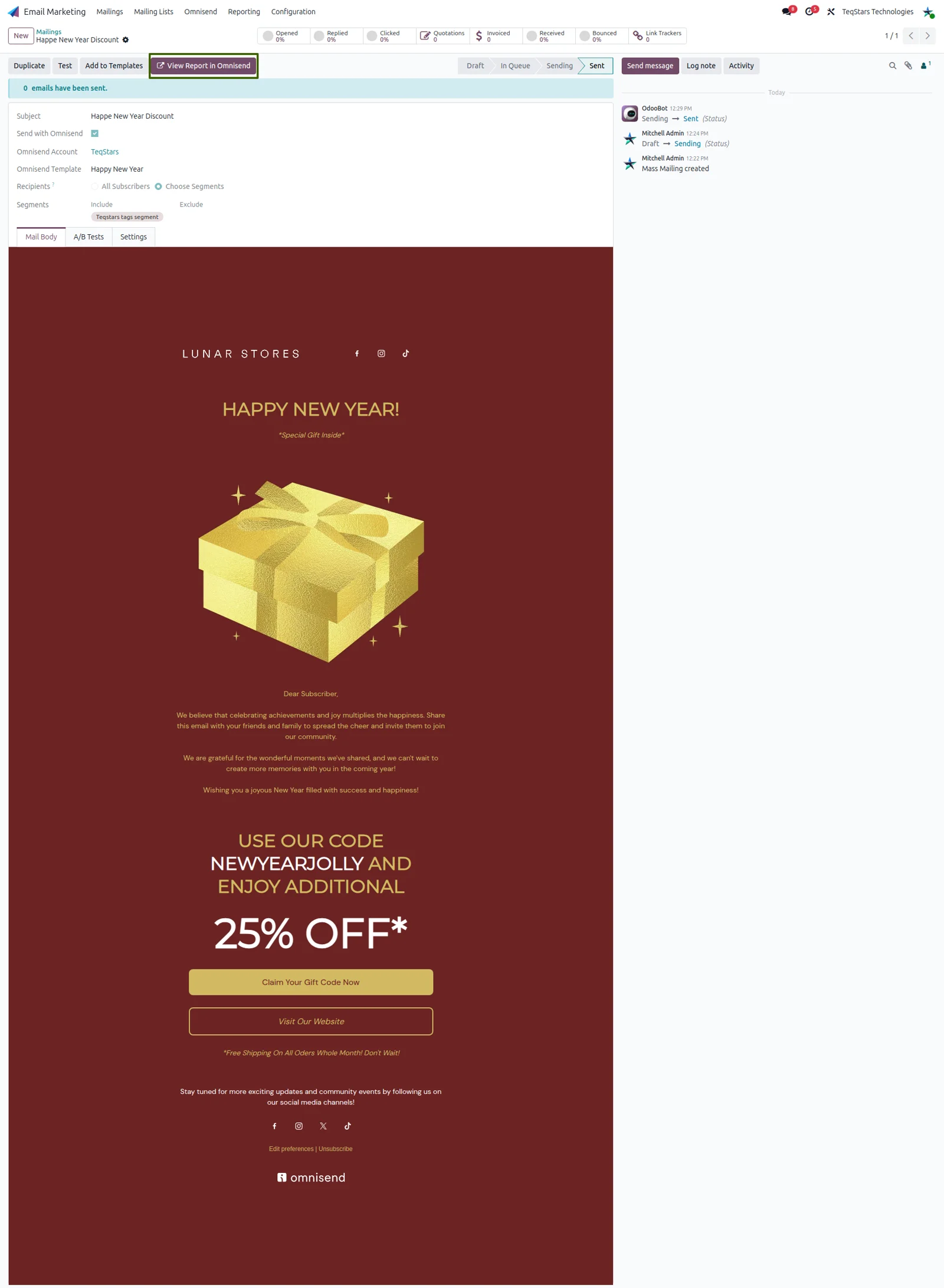
You read performance numbers at the source, one click away from the Odoo campaign. Opens, clicks and bounces are not copied into Odoo. Instead the campaign record carries a "View Report" button that opens that campaign's full report in Omnisend. What Odoo stores is the campaign itself and its send status, refreshed on a schedule you set or by hand.
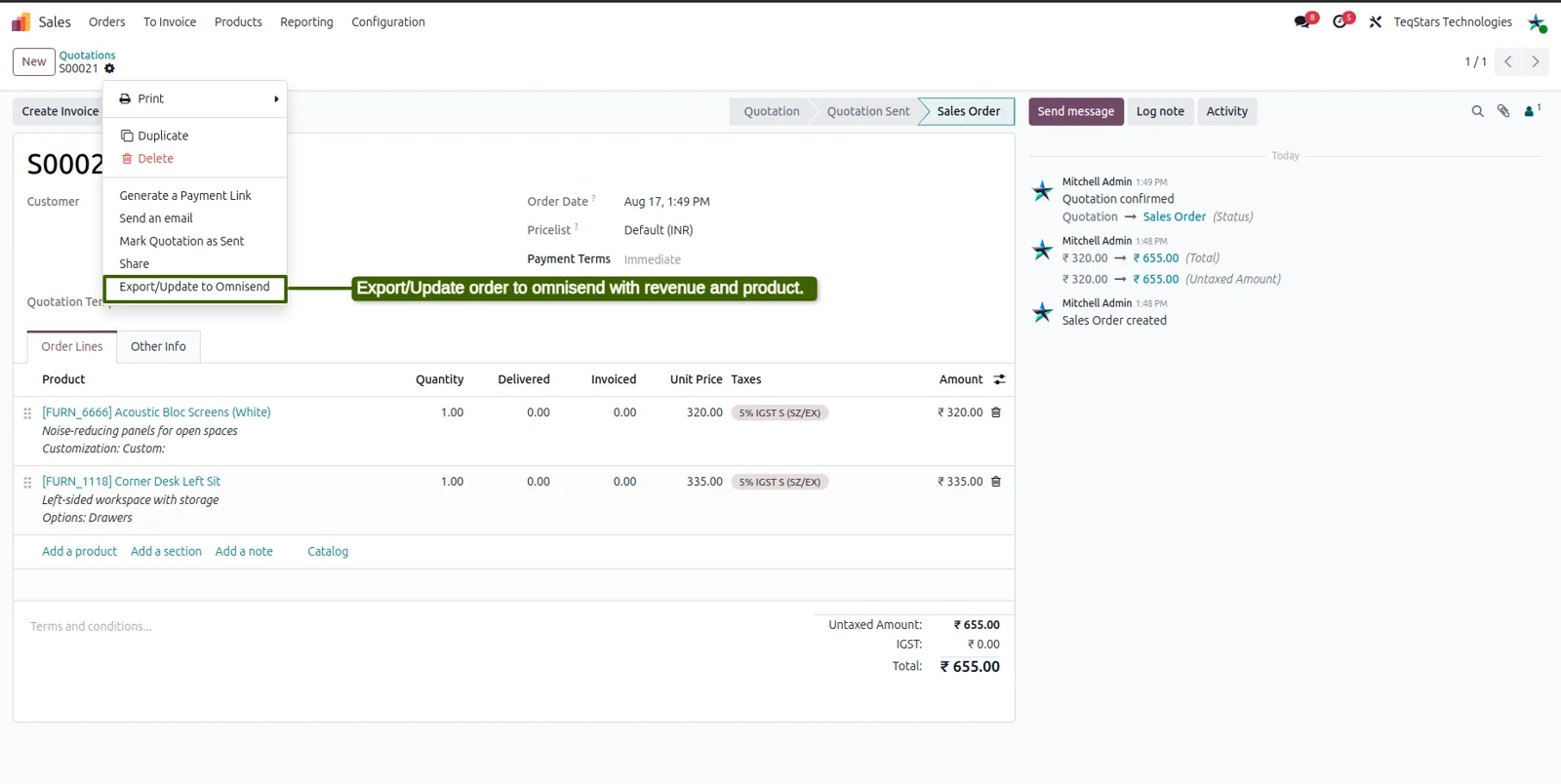
Export sale orders for e-commerce flows
Omnisend automations can act on what your customers actually bought. Odoo sale orders are exported to Omnisend on a schedule you set, and your team can send them on demand too. Products, variants and categories go across as well, which gives purchase-based automations and revenue tracking the catalog and order data they need.
Supported Odoo versions
Support for Omnisend Connector
The developers who build the app answer your tickets.
- Free app support from purchase
- 60 days
- First response in working hours, typical
- 4–6 hours
- Support hours, 10:00–18:00 IST
- Mon–Fri
How to connect Omnisend to Odoo
-
Step 1
Add your Omnisend account
Open the "Accounts" menu under Omnisend and create a record. Paste the key shown in your Omnisend dashboard, which is what lets Odoo read and write your Omnisend data, then confirm the account.
-
Step 2
Set preferences and mapping
On the account configuration, say what Odoo may create during an import, such as contacts and partners. Import your Omnisend attributes, then pair each one with the Odoo contact field that holds the same value.
-
Step 3
Load your existing data
Before you depend on the schedules, bring the backlog across from the operations wizard. Import contacts, audiences and segments first, then export products and sale orders. Running one operation at a time lets you check each result.
-
Step 4
Send your first campaign
Create a campaign in Odoo using an imported template and a synced audience, then send it through Omnisend. Afterwards, use the report link on the campaign record to read its results in Omnisend.
Questions before you buy
Not answered here? Talk to the team.