Your Odoo invoices, bills and payments mirrored in QuickBooks Online.
Confirm an invoice in Odoo and the connector creates it in your QuickBooks company under the same number. Documents from QuickBooks come back for review before they become Odoo records. Numbers are checked first, so re-running a QuickBooks Odoo sync never duplicates a document.
- Odoo 17.0 – 20.0
- Community & Enterprise
- Odoo.sh · On-premise
-
Not for
Odoo Online
Top seller on the Odoo Apps Store
- sales on the Odoo Apps Store
- 3,000+
- apps published
- 100+
- countries running them
- 100+
Accounting entry work before and after the connector
Without the connector by hand
-
Re-type every posted invoice into QuickBooks by hand
-
Search QuickBooks lists before adding a customer a second time
-
Look up state, county and district tax rates yourself
-
Open each QuickBooks invoice to mark it paid after a payment run
-
Compare two charts of accounts line by line
-
Ask around when a document shows up in one system only
With the connector automatic
-
Confirming the invoice in Odoo creates the QuickBooks record
-
The connector matches an existing contact or creates it during the export
-
"Quick Calc Taxes" applies QuickBooks Automated Sales Tax rates in Odoo
-
Exported payments are linked to the invoice or bill they settle
-
"Sync Chart of Accounts" lists each QuickBooks account with a suggested Odoo match
-
Every call is recorded with its error detail and a "Retry" button
Invoices, payments and accounts between Odoo and QuickBooks Online
Every object the connector handles, which way it travels and what triggers it.
| Data | Direction | What happens & when |
|---|---|---|
| Customer invoices |

 Both ways
|
Posting in Odoo with auto-export on, or an import run you start or schedule. |
| Vendor bills |
Both ways
|
Confirming the bill in Odoo, or a fetch from QuickBooks you run or schedule. |
| Credit notes and vendor refunds |
Both ways
|
Posting the credit note, or picking that type in the sync window. |
| Customer and vendor payments |
Both ways
|
Registering and reconciling a payment in Odoo, or an import of settled documents. |
| Customers and vendors |
Odoo to QuickBooks
|
The "Export/Update to QBO" action, or any document export that needs them. |
| Products |
Odoo to QuickBooks
|
The same action on products, or an export of a document using them. |
| Chart of accounts |
QuickBooks to Odoo
|
Clicking "Sync Chart of Accounts" on the connection. |
| Sales tax rates |
QuickBooks to Odoo
|
Clicking "Quick Calc Taxes" on a sale order or draft invoice. |
Odoo QuickBooks Online Integration features
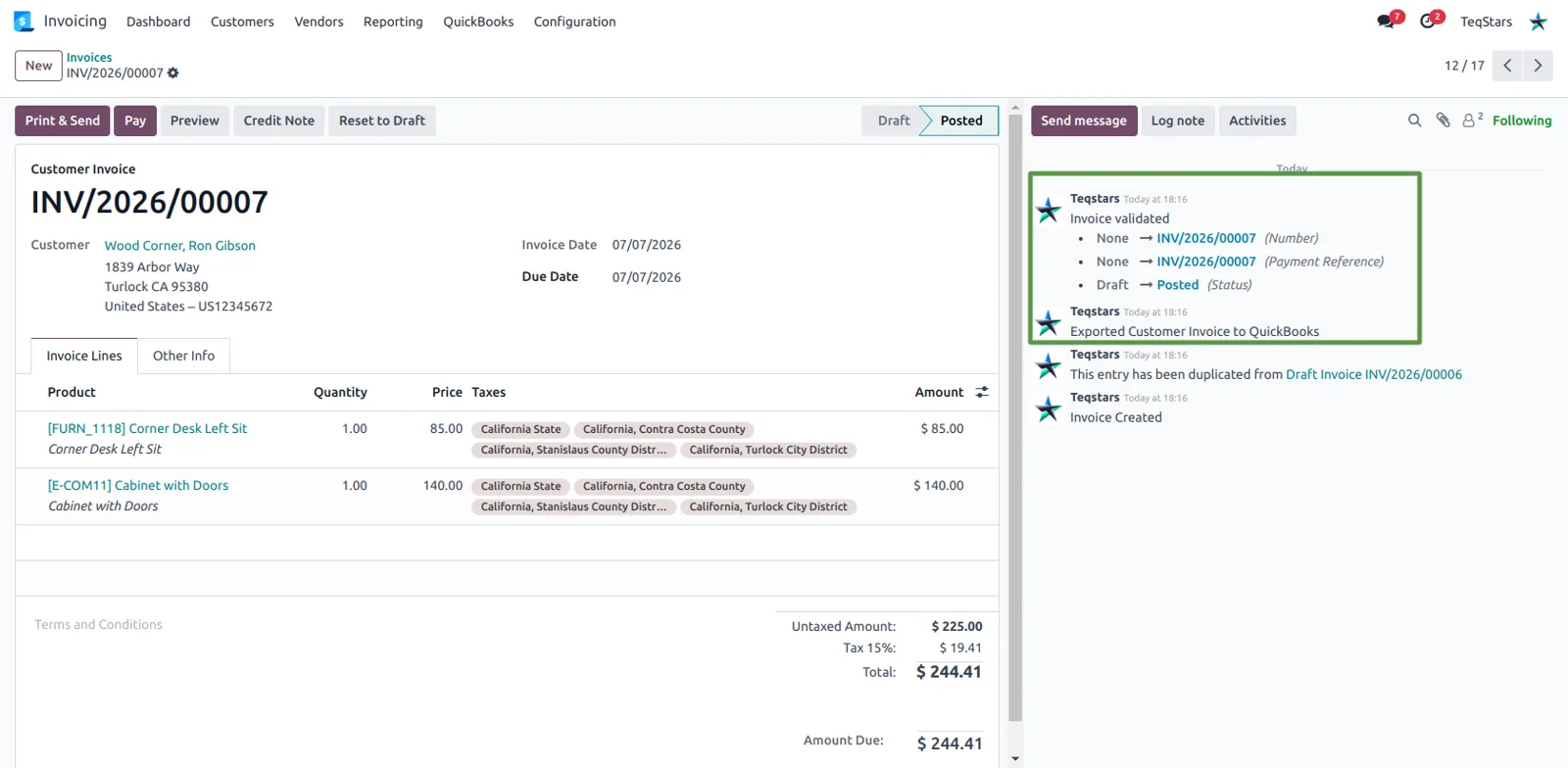
Invoices export when you confirm them
Your team posts an invoice in Odoo and the matching QuickBooks Invoice is created at that moment, with the chatter recording the result. Toggles on the connection decide which types behave this way, covering customer invoices and credit notes, vendor bills and vendor refunds. If QuickBooks rejects the document, Odoo rolls the posting back to draft and names the cause, so neither side keeps a record the other lacks.
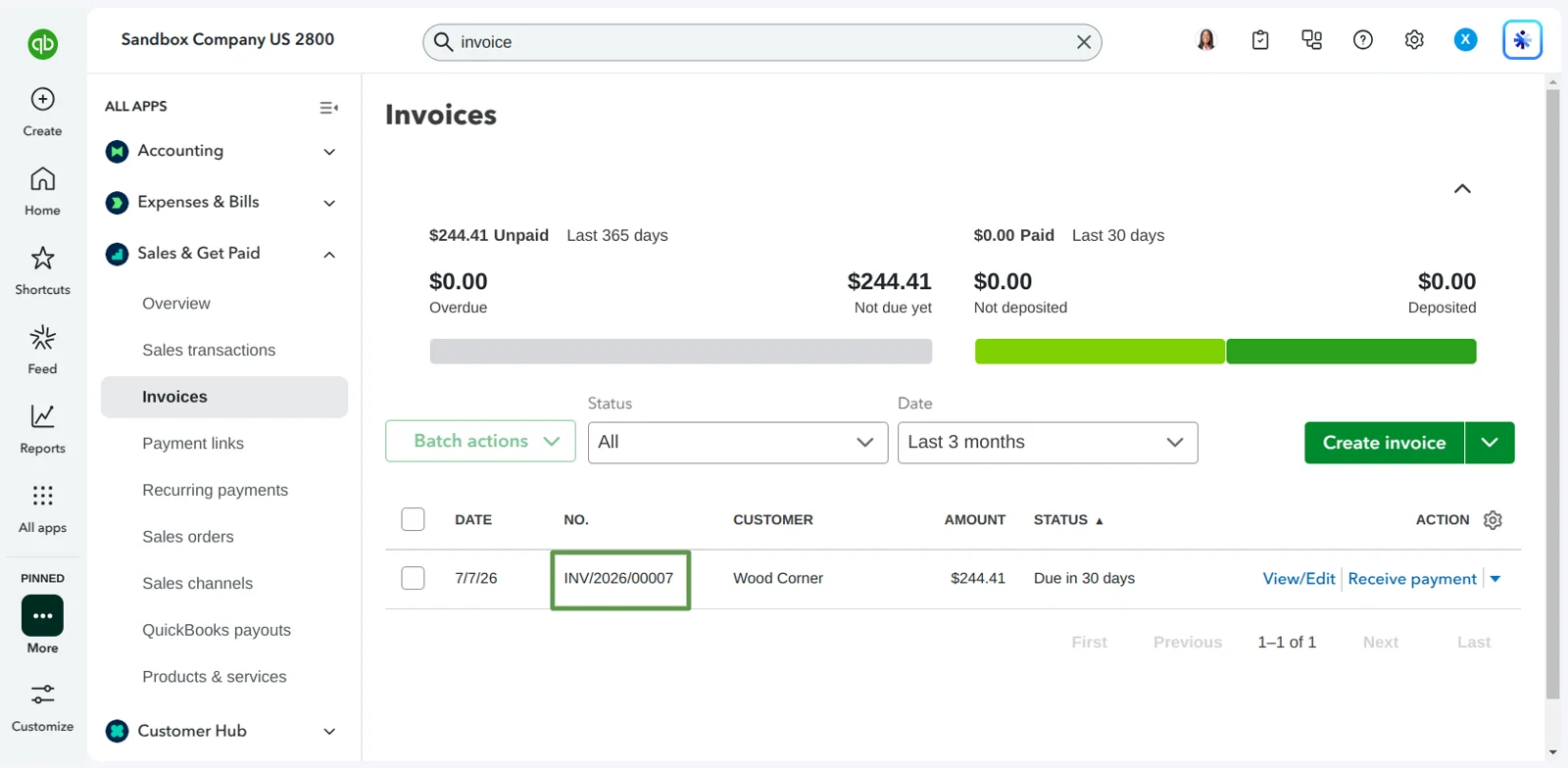
Same document number, no duplicates
The document keeps its Odoo number in QuickBooks, so anyone can find it in either system with the same reference. Before creating anything, the connector asks QuickBooks whether that number is already there. A match is linked to the Odoo document and flagged as exported rather than copied. That makes a first export against a QuickBooks company you have been using by hand safe to run.
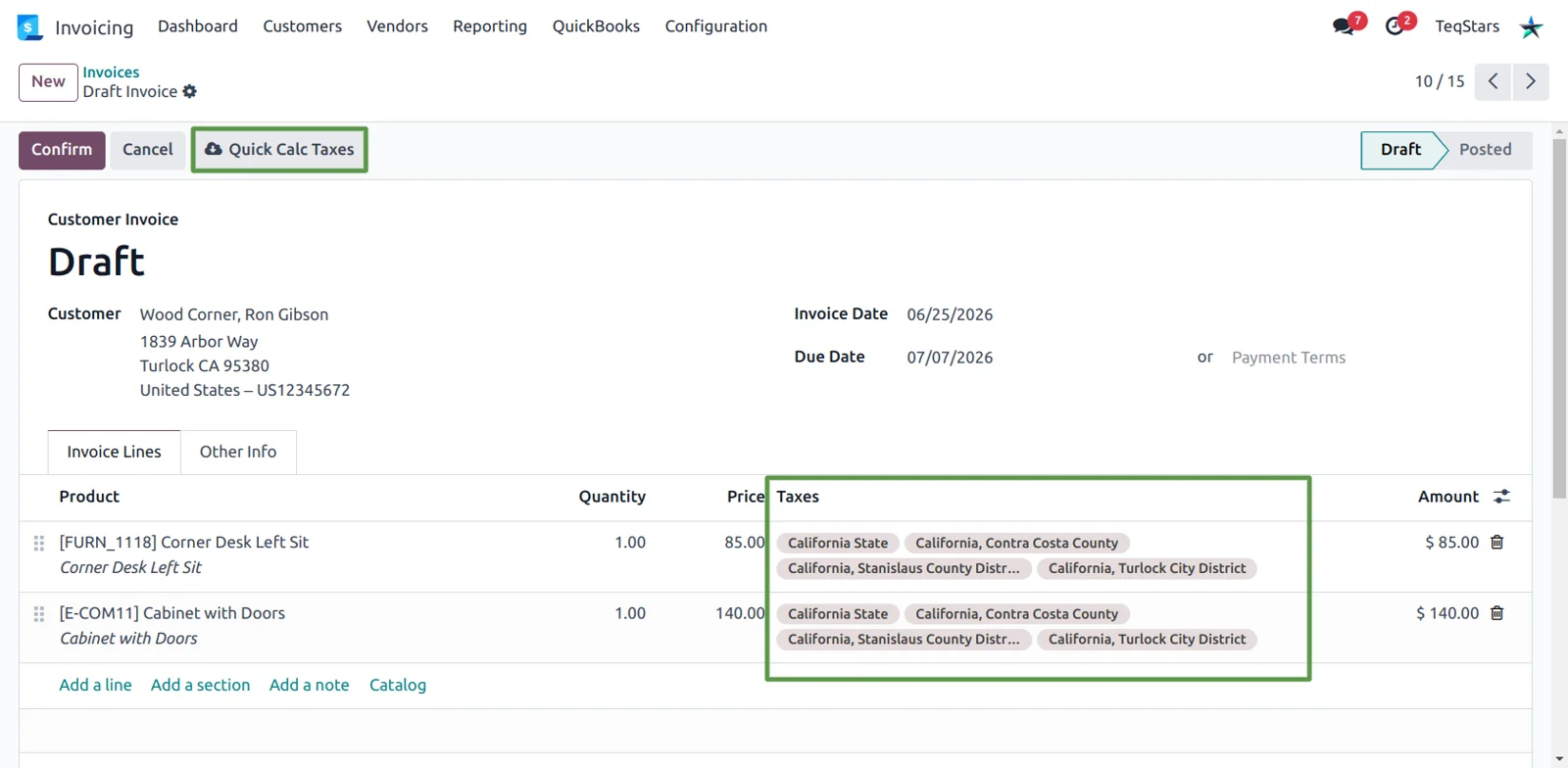
US sales tax rates from QuickBooks
Click "Quick Calc Taxes" on a sale order or draft invoice and Odoo shows the same total QuickBooks will, split into state, county and district tax. The rates come from QuickBooks Automated Sales Tax for the customer's shipping address. Outside the US you set a QuickBooks tax code on each Odoo tax instead, and lines whose taxes have no code are sent as non-taxable with a warning in the log.
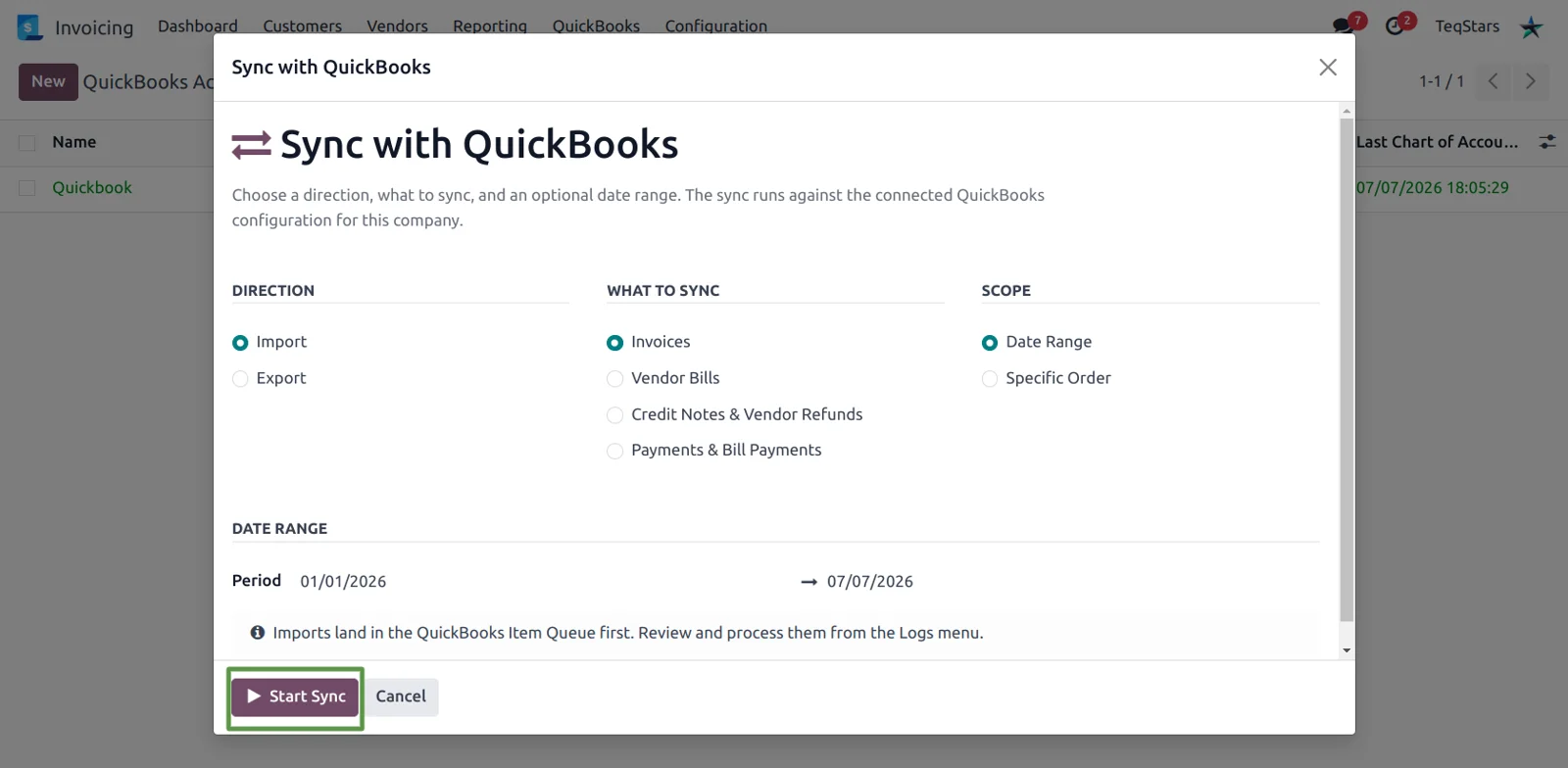
Import QuickBooks documents by date or number
The "Sync with QuickBooks" window fetches invoices, bills, credit notes or payments from QuickBooks when you need them. Choose the import direction and a period, or switch the scope to "Specific Order" and type a single QuickBooks document number. The same window works the other way too, which is how you send documents that were posted in Odoo before the connection existed.
Review imports before they post
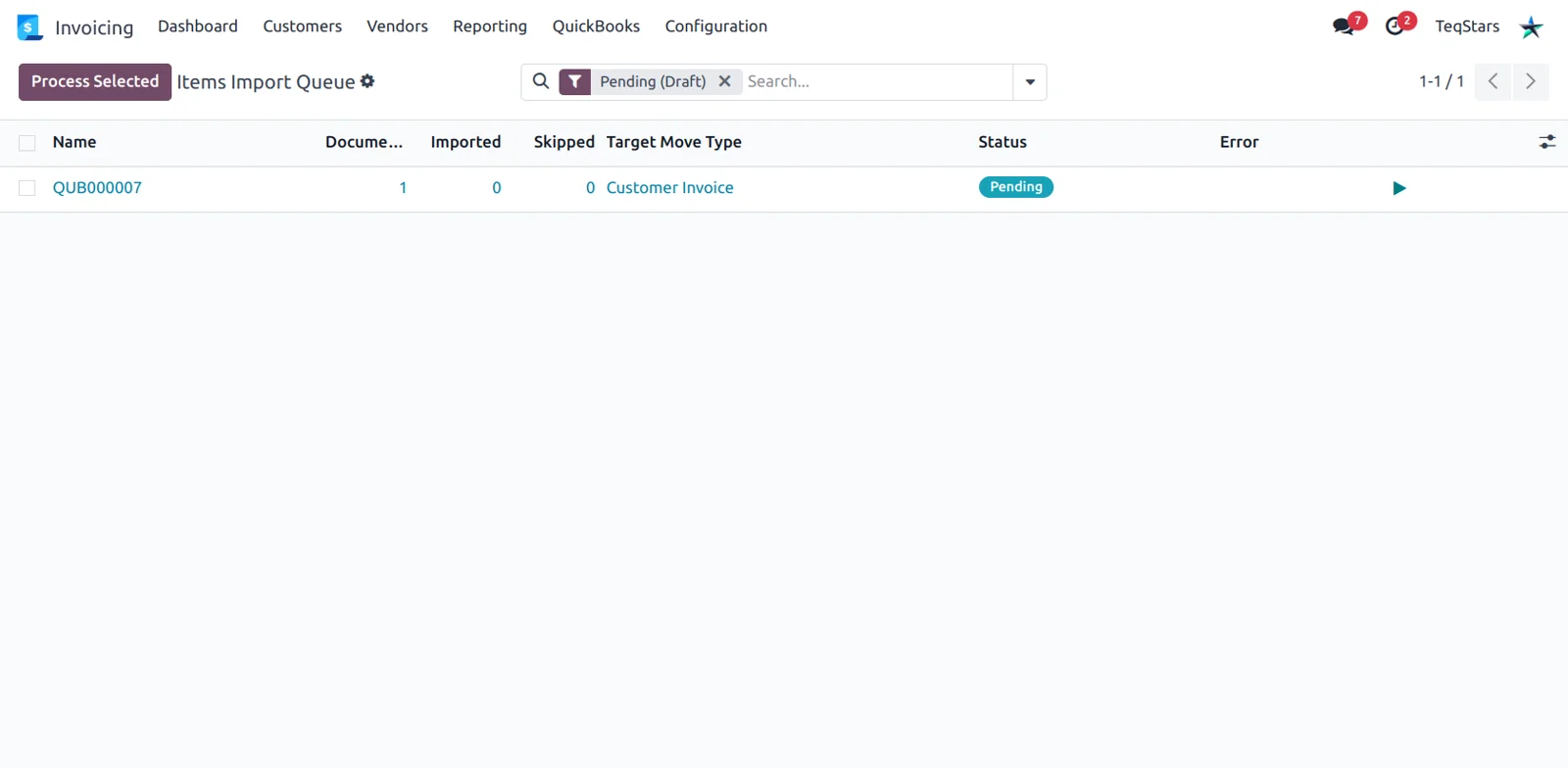
Nothing fetched from QuickBooks becomes an Odoo record until it is processed, so a surprise import never touches your books. The "Items Queue" list shows how many documents a row holds, how many became Odoo records, what was skipped and the payload received. Imported invoices, bills and credit notes arrive as drafts for review, while payments are posted and reconciled against the document they settle.
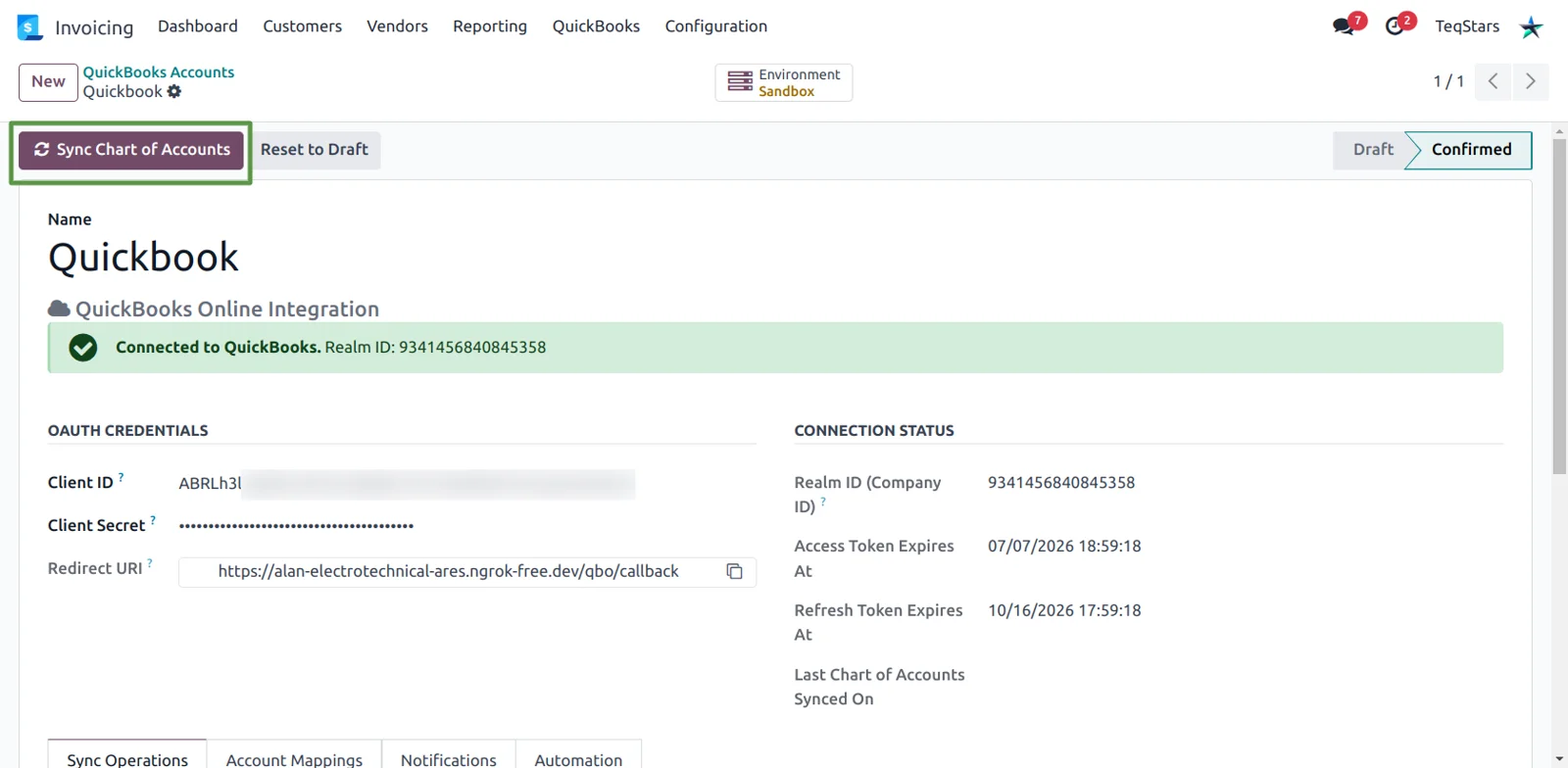
Map your chart of accounts once
Clicking "Sync Chart of Accounts" reads your active QuickBooks accounts and creates one row per account for linking to an Odoo account. Matches are proposed by code and name and marked as auto-mapped, so you only fill the gaps. The mapping decides where discount lines post and which QuickBooks bank account a payment is deposited to or drawn from. Running it again adds new accounts and keeps the links you set.
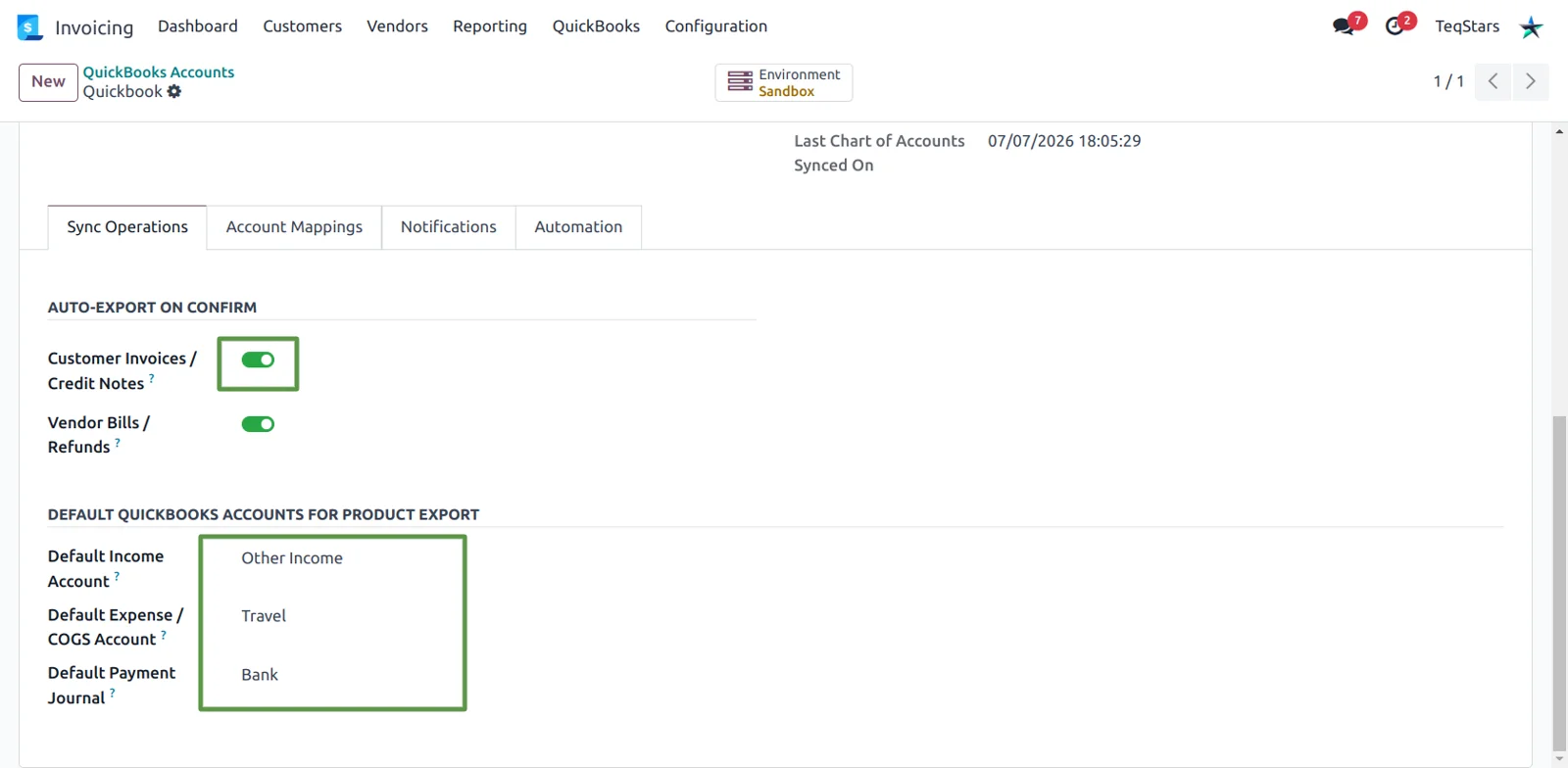
Choose which documents sync
You can send customer invoices to QuickBooks and leave vendor bills untouched. The "Sync Operations" tab holds the auto-export toggles plus the default QuickBooks income and expense accounts used for any product the connector has to create there. On the "Automation" tab you tick the types allowed for import and for export, and that choice applies to the sync window and to the export on confirmation.
Supported Odoo versions
| Odoo version | Editions | Hosting | Price | Latest release | |
|---|---|---|---|---|---|
| 20.0 | Community & Enterprise | Odoo.sh · On-premise | €199 | No release notes | Buy |
| 19.0 | Community & Enterprise | Odoo.sh · On-premise | €199 | 19.0.1.0.0 | Buy Docs |
| 18.0 | Community & Enterprise | Odoo.sh · On-premise | €199 | No release notes | Buy |
| 17.0 | Community & Enterprise | Odoo.sh · On-premise | €199 | No release notes | Buy |
Support for Odoo QuickBooks Online Integration
The developers who build the app answer your tickets.
- Free app support from purchase
- 60 days
- First response in working hours, typical
- 4–6 hours
- Support hours, 10:00–18:00 IST
- Mon–Fri
How to connect QuickBooks Online to Odoo
-
Step 1
Create your Intuit app
A free Intuit Developer account supplies the two keys the connection needs. Create an app there with the accounting scope and copy its Client ID and Client Secret. Development keys suit a Sandbox company, production keys your live one.
-
Step 2
Register the redirect link
Odoo builds a redirect address from your own domain and shows it read-only on the connection form. Paste that value into the "Redirect URIs" of your Intuit app, under the tab matching your keys. It has to match exactly, and production requires HTTPS.
-
Step 3
Authorize and confirm
Enter the two keys on the connection, pick Sandbox or Production, and click "Authorize". You sign in to QuickBooks once and pick the company. Back in Odoo, confirming the connection records your QuickBooks company ID, and access is renewed in the background.
-
Step 4
Map accounts and defaults
Run "Sync Chart of Accounts", then work through the rows the connector could not match. Set the default income and expense accounts used for products it creates in QuickBooks, plus a default payment journal, before you export anything.
-
Step 5
Pick what syncs and when
On the "Automation" tab, tick the document types to import and export. For heavy volume, switch on background processing so records are handled in small batches on a schedule you set. Then confirm an invoice and check the logs.
Questions before you buy
Not answered here? Talk to the team.