Skip to Content

Top seller on the Odoo Apps Store Browse 100+ Odoo Apps

One SendCloud link gives Odoo over 25 shipping carriers

This SendCloud Odoo integration turns a validated delivery order into a carrier label and tracking details on the order. Pick the SendCloud service yourself, or let the order weight decide. Customers can choose a service point when they want to collect the parcel.

  • Odoo 17.0 – 20.0
  • Community & Enterprise
  • Odoo.sh · On-premise
  • Not for Odoo Online

Top seller on the Odoo Apps Store

sales on the Odoo Apps Store
3,000+
apps published
100+
countries running them
100+

Shipping work before and after the SendCloud Odoo integration

Without the connector by hand

  1. Retype each order's address into the carrier tool by hand
  2. Download labels elsewhere and match them to the right orders
  3. Copy tracking numbers back into Odoo for your team
  4. Email the customer to ask which pick-up point they want
  5. Weigh the order and look up which service fits it
  6. Log in to SendCloud to cancel a parcel you printed

With the connector automatic

  1. Validating the delivery order sends the shipping information to SendCloud
  2. The shipping label is generated when you validate the delivery order
  3. Tracking and shipping details are recorded on the delivery order
  4. Select a service point on the delivery order; it goes with the shipment
  5. With no service set, the connector picks one in the matching weight range
  6. Cancel the shipment on the delivery order in one click

Shipment data, labels and tracking between Odoo and SendCloud

Every object the connector handles, which way it travels and what triggers it.

DataDirectionWhat happens & when
Shipment and address details Odoo to SendCloud

When you validate the delivery order

Service point choice Odoo to SendCloud

Sent with the shipping information when a service point is selected

Shipment quote SendCloud to Odoo

When shipping is added to a quotation or picked at website checkout

Shipping label SendCloud to Odoo

Generated on validation of the delivery order

Tracking details SendCloud to Odoo

Recorded on the delivery order once the shipment is created

Cancellation request Odoo to SendCloud

When you cancel the shipment on the delivery order

SendCloud Odoo Shipping Connector features

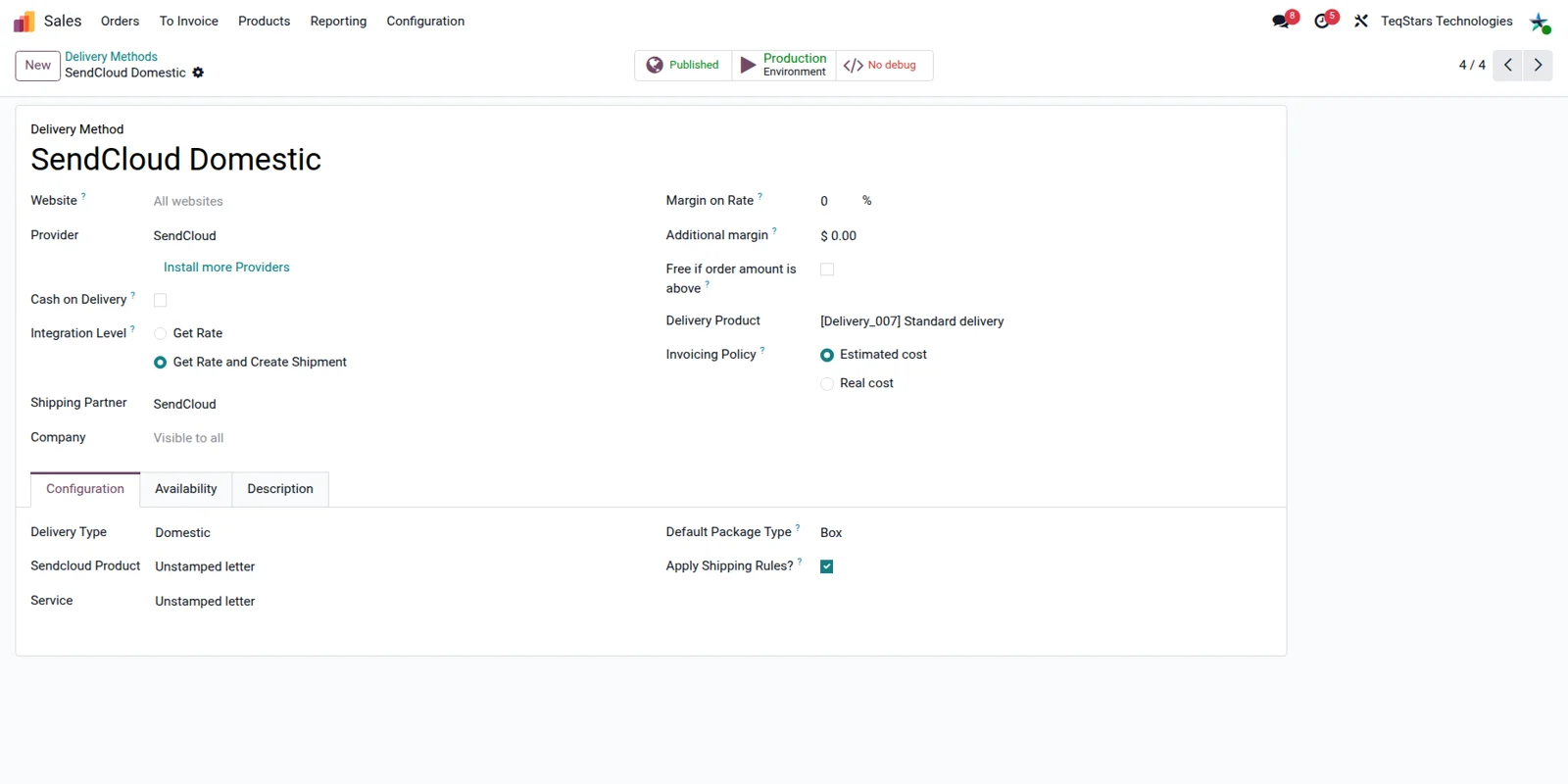
Set up domestic and international methods

Shipping inside your country and shipping abroad rarely need the same service. Create one SendCloud delivery method per flow, name each one so your team recognizes it, and set the SendCloud service it should use. Leave the service empty and the connector chooses one inside the appropriate weight range, based on the order weight, when it sends the shipment data.

Odoo delivery method form for SendCloud showing the service and shipping options for that method

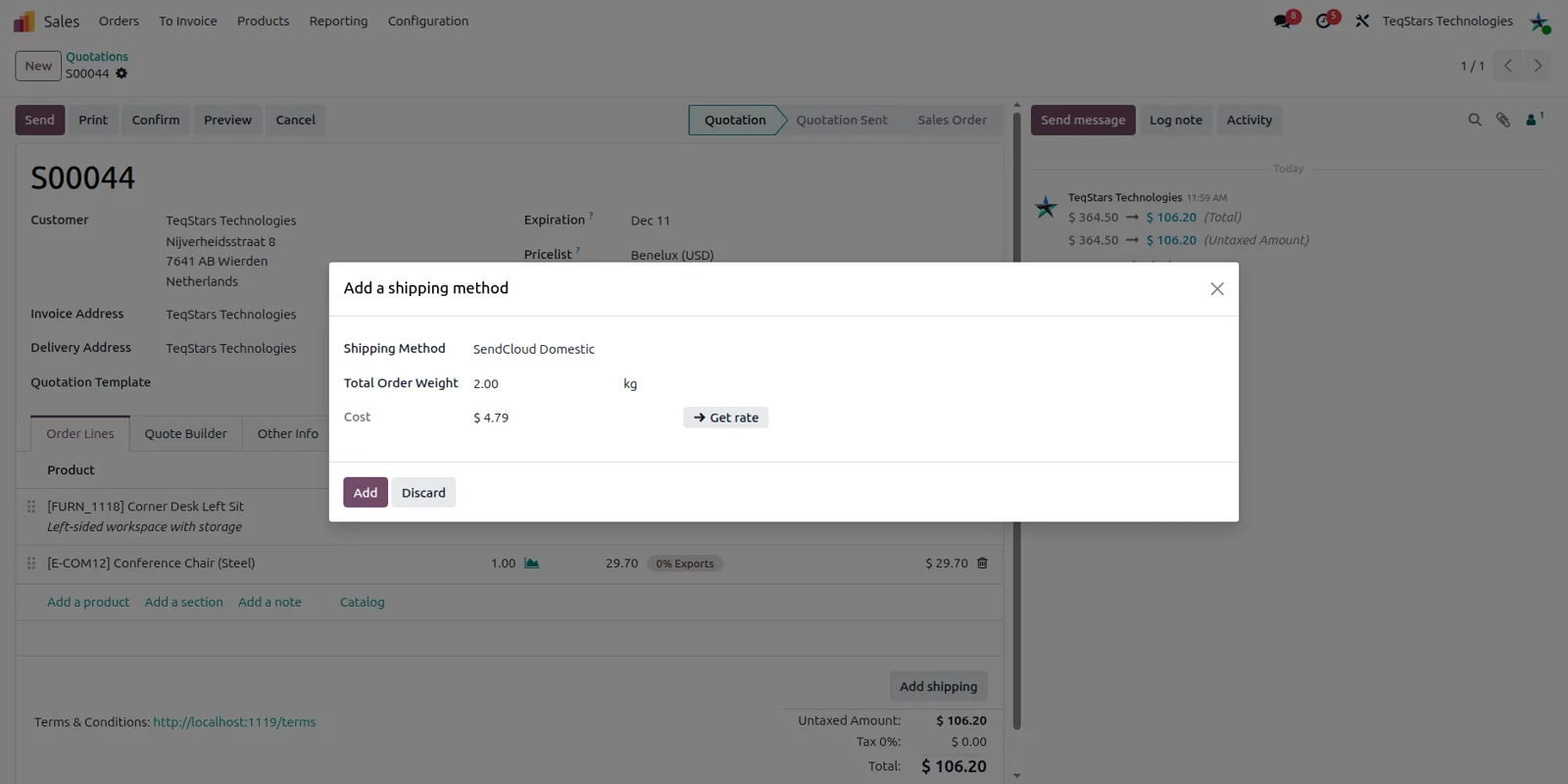
Quote shipping on the sales order

Your salespeople see the shipping charge before the quotation goes out. Add shipping on the sales order, choose one of your SendCloud delivery methods, and the shipment quote is added as a line on the order. The method stays on the order through to the delivery, so the warehouse ships with the service the customer agreed to pay for.

Odoo sales order with a SendCloud delivery method selected and the shipping charge line added

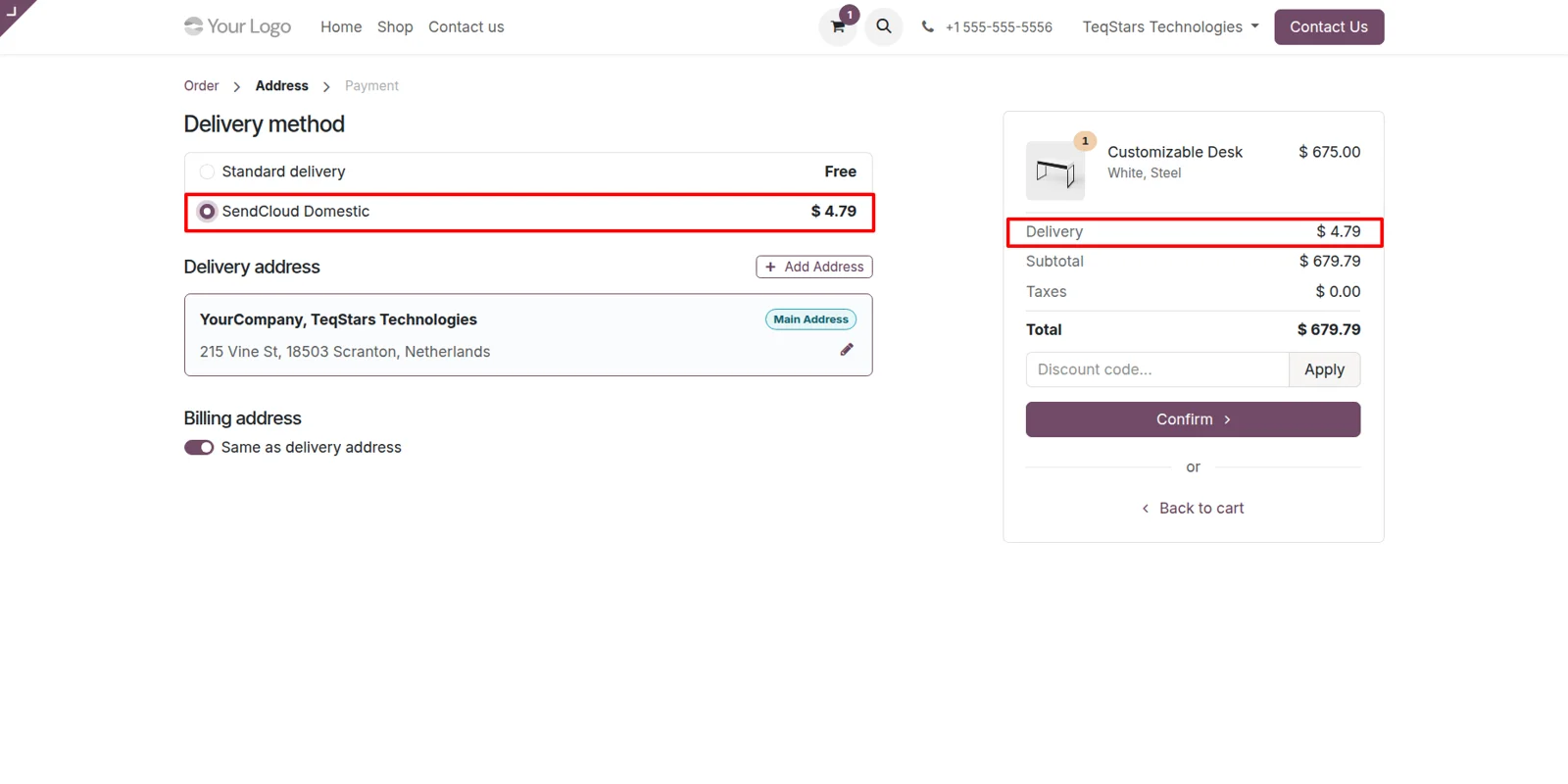
Let shoppers choose shipping at checkout

Website customers see the same SendCloud delivery methods your sales team uses, so the options stay consistent across both channels. During checkout the customer picks the one that suits them and the shipping charge is added to the order. Because you decide which methods are published, a domestic option and a separate international one can sit side by side.

Odoo website checkout offering SendCloud delivery methods with their shipping charges

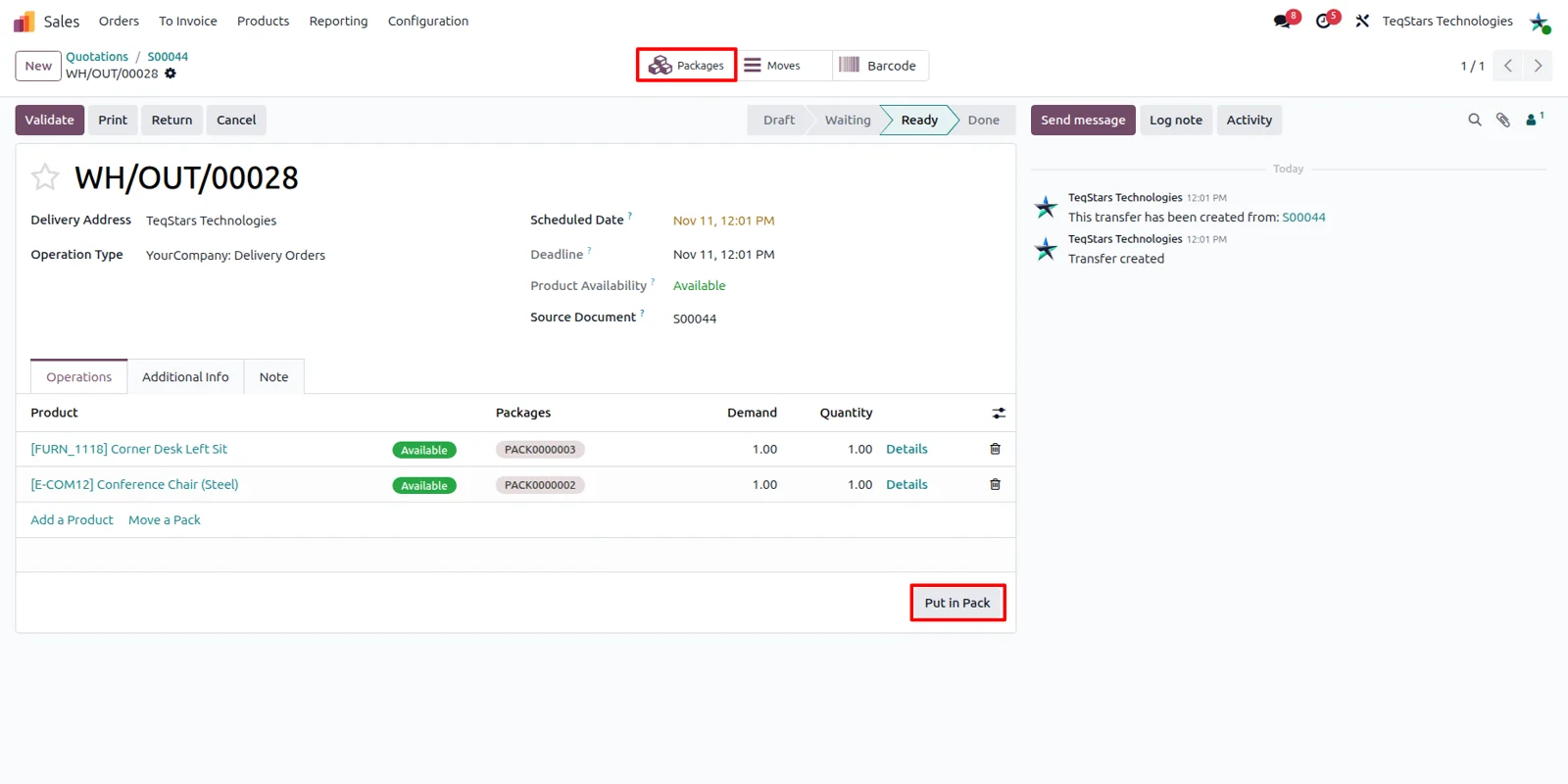
Split one order into several parcels

A bulky order can go out as several boxes and still be handled as one shipment. Use Odoo's Put in Pack operation on the delivery order to group the products into packages before you validate it. Single-parcel and multi-parcel shipments both work, so your packing team decides how many boxes an order needs instead of the configuration deciding for them.

Put in Pack operation in an Odoo delivery order, building several packages for one SendCloud shipment

Choose a service point for pick-up

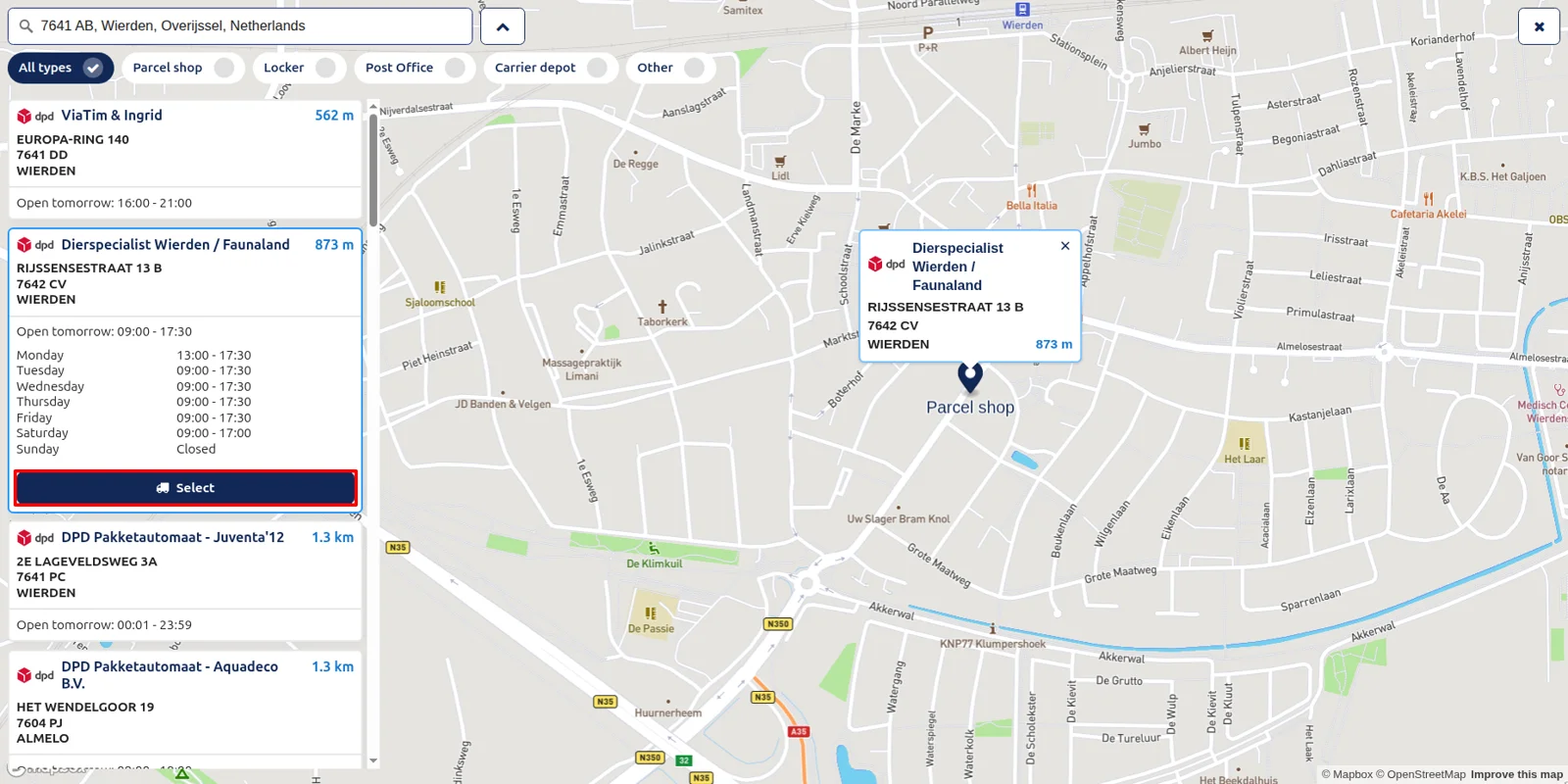
Customers who would rather collect a parcel can have it sent to a pick-up location. When the Service Points option is enabled in your SendCloud integration, you select a service point on the delivery order from the locations offered. The chosen point is sent to SendCloud together with the rest of the shipping information for that shipment.

Pick-up point list in an Odoo delivery order used to choose a SendCloud service point

Generate labels when you validate

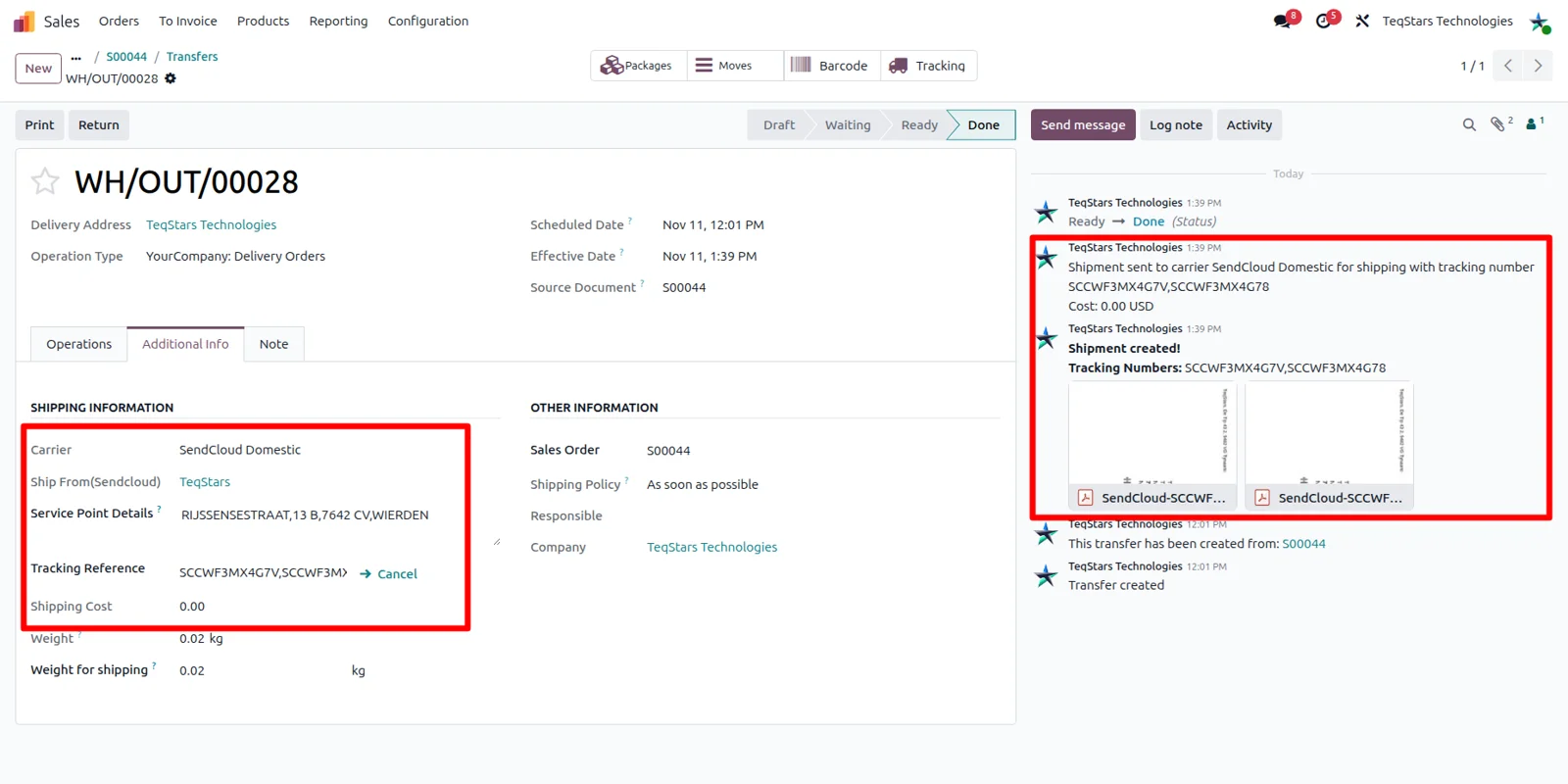
The warehouse gets a printable carrier label as part of the normal validation click. When you validate the delivery order, Odoo sends the shipping information to SendCloud and the shipping label is generated for that shipment. The tracking and shipping details are recorded on the delivery order, so anyone opening the order can see what was sent to the carrier.

Validated Odoo delivery order showing the SendCloud shipping label and tracking information

Cancel a shipment in one click

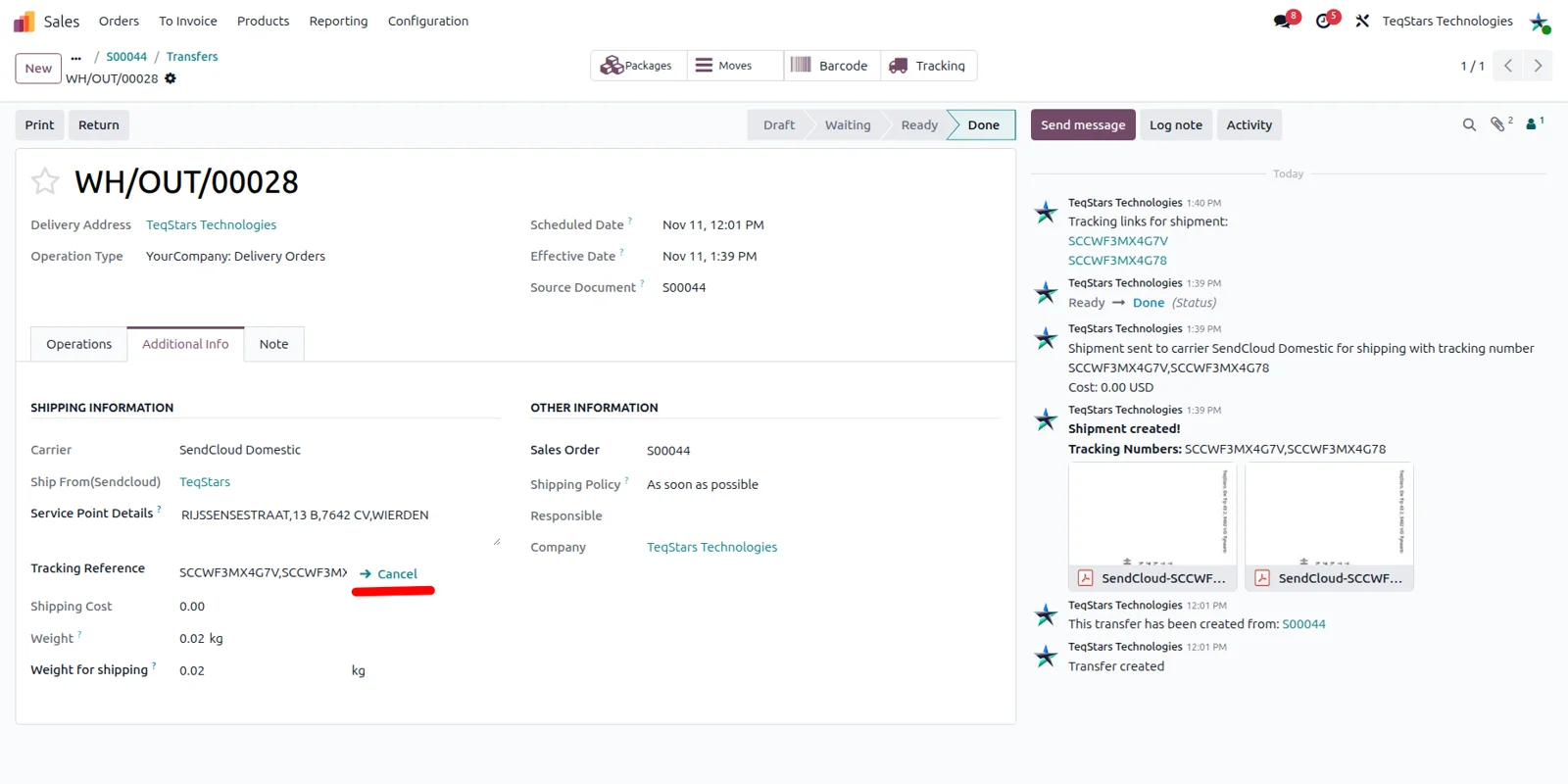
Orders change after a label is printed, and one click on the delivery order handles it. Cancel the shipment there and the connector sends the cancellation to SendCloud for you. Nobody on your team needs a second login to the carrier portal to undo the parcel, and the delivery order stays the one place where the shipment is managed.

Cancel shipment action on an Odoo delivery order that sends the cancellation to SendCloud

What buyers say on the Odoo Apps Store

5 out of 5, from14 reviews

5 stars
14
4 stars
0
3 stars
0
2 stars
0
1 star
0

SendCloud Connector is rated 5 out of 5 from 14 reviews on the Odoo Apps Store, the latest in .

Read the reviews on the Odoo Apps Store
David Perez · Odoo 17.0

PErfect plugin and support

The best plugin fo Sendcloud and the best support solving probems

Odoo Apps Store customer · Odoo 16.0

Great App and Great support

We purchased this app to integrate SendCloud with odoo. We had particular requirements and teqstars made all the modifications with a fair price and very fast development. The support is great and we really suggest all the add-ons these guys do. Very satisfied!

Delegalog · Odoo 14.0

Excellent!

Great plugin. It works perfectly. Easy implementation through a simple video. Support is great and most important quick and effective. Very nice response to any doubt. Highly recommended

Nander Knobben · Odoo 15.0

Streamlined Shipping with SendCloud Odoo Integration

The SendCloud Odoo Integration is an outstanding tool for simplifying e-commerce shipping processes. As Europe's number one shipping tool, it truly lives up to its reputation, offering seamless integration with all major carriers in one single platform.

Its efficiency is second to none, drastically reducing shipment preparation time. This feature alone is a game-changer, allowing businesses to focus more on customer satisfaction and less on logistics.

The ability to connect to major carriers like UPS, DHL, and DPD with ease, and at a fraction of the cost of other shipping integrations, is simply remarkable. This cost-effectiveness makes it a must-have for any business looking to optimize their shipping processes.

In summary, the SendCloud Odoo Integration is a powerful, economical, and efficient solution for managing e-commerce shipping. It is a well-deserving recipient of a five-star rating.

Odoo Apps Store customer · Odoo 14.0

As usual we keep using the module of teqstars on our projects. Recommended.

Víctor · Odoo 17.0

great plugin!!!!

tahnk you so much for your support great plugin!!!!tahnk you so much for your support

Read more reviews on the Odoo Apps Store

Customer success

Odoo and Sendcloud, in real projects

How TeqStars connected Odoo with Sendcloud for these customers. Every story is approved by the customer before it is published.

All customer stories

Supported Odoo versions

Odoo versionEditionsHosting PriceLatest release
20.0 Community & Enterprise Odoo.sh · On-premise €99 20.0.1.0.0 Buy
19.0 Community & Enterprise Odoo.sh · On-premise €99 19.0.1.0.4 Buy
18.0 Community & Enterprise Odoo.sh · On-premise €99 No release notes Buy
17.0 Community & Enterprise Odoo.sh · On-premise €99 No release notes Buy

Support for SendCloud Connector

The developers who build the app answer your tickets.

Free app support from purchase
60 days
First response in working hours, typical
4–6 hours
Support hours, 10:00–18:00 IST
Mon–Fri

How to set up SendCloud shipping in Odoo

  1. Step 1

    Create your delivery methods

    Add a SendCloud delivery method for domestic shipping and another for international shipping. Separate methods let your team and your website show the right option for each destination.

  2. Step 2

    Choose a service or leave it open

    Set the SendCloud service on the delivery method when you always want the same one. Leave it empty and the connector selects a service within the matching weight range from the order weight.

  3. Step 3

    Add shipping to the order

    On the quotation, add shipping to get the shipment quote and the charge line. Website shoppers pick from the same published delivery methods during checkout.

  4. Step 4

    Validate to get the label

    Pack the goods, then validate the delivery order. Odoo sends the shipping information to SendCloud, the label is generated, and tracking details are recorded on the order.

Questions before you buy

Not answered here? Talk to the team.

SendCloud connects more than 25 shipping carriers through one integration, among them UPS, DHL and DPD. Your carrier contracts and services stay on the SendCloud side, and in Odoo you only decide which delivery method belongs to which flow. Adding another carrier is therefore a change in SendCloud, not a new Odoo connector.

The connector picks a service for you. With no service set on the delivery method, it selects one within the appropriate weight range, based on the weight of the order, at the moment the shipment data is sent to SendCloud. Name a service on the method when you want every shipment to use the same one.

No. Odoo Online does not allow the installation of third-party apps, so this connector cannot run there. It works with Odoo Enterprise on Odoo.sh or on your own server, and with Odoo Community on-premise. We ship it for Odoo 17.0, 18.0, 19.0 and 20.0.

On the delivery order itself. Once the shipment has been created, the tracking and shipping details sit on that order, and your team can follow the parcel's progress from there. Customer service then answers questions from the same record that holds the picking and the label.

Yes. What Odoo sends appears in your SendCloud account, so the shipment list there remains the carrier-side view of your parcels. Odoo sends the address, parcel and service point information when you validate the delivery order, and SendCloud passes the shipment on to the carrier you selected.

Talk to the team that built it

Contact us
100%