Quote carrier rates, print labels and track every Starshipit shipment in Odoo
Your team picks a Starshipit service on the order, and validating the delivery brings back the label, the commercial invoice and the tracking number. This Starshipit Odoo integration also tracks and cancels shipments from the same delivery order.
- Odoo 17.0 – 20.0
- Community & Enterprise
- Odoo.sh · On-premise
-
Not for
Odoo Online
Top seller on the Odoo Apps Store
- sales on the Odoo Apps Store
- 3,000+
- apps published
- 100+
- countries running them
- 100+
Shipping desk work before and after the Starshipit Connector
Without the connector by hand
-
Retype the customer address into the Starshipit portal for each parcel.
-
Quote a shipping price from memory because no carrier rates sit on the order.
-
Download labels in Starshipit, then attach them to the matching order.
-
Type a commercial invoice by hand for every overseas parcel.
-
Copy tracking numbers into Odoo and check carrier sites for progress.
-
Sign in to Starshipit to stop a shipment someone already canceled in Odoo.
With the connector automatic
-
Validating the delivery order sends the shipment details to Starshipit.
-
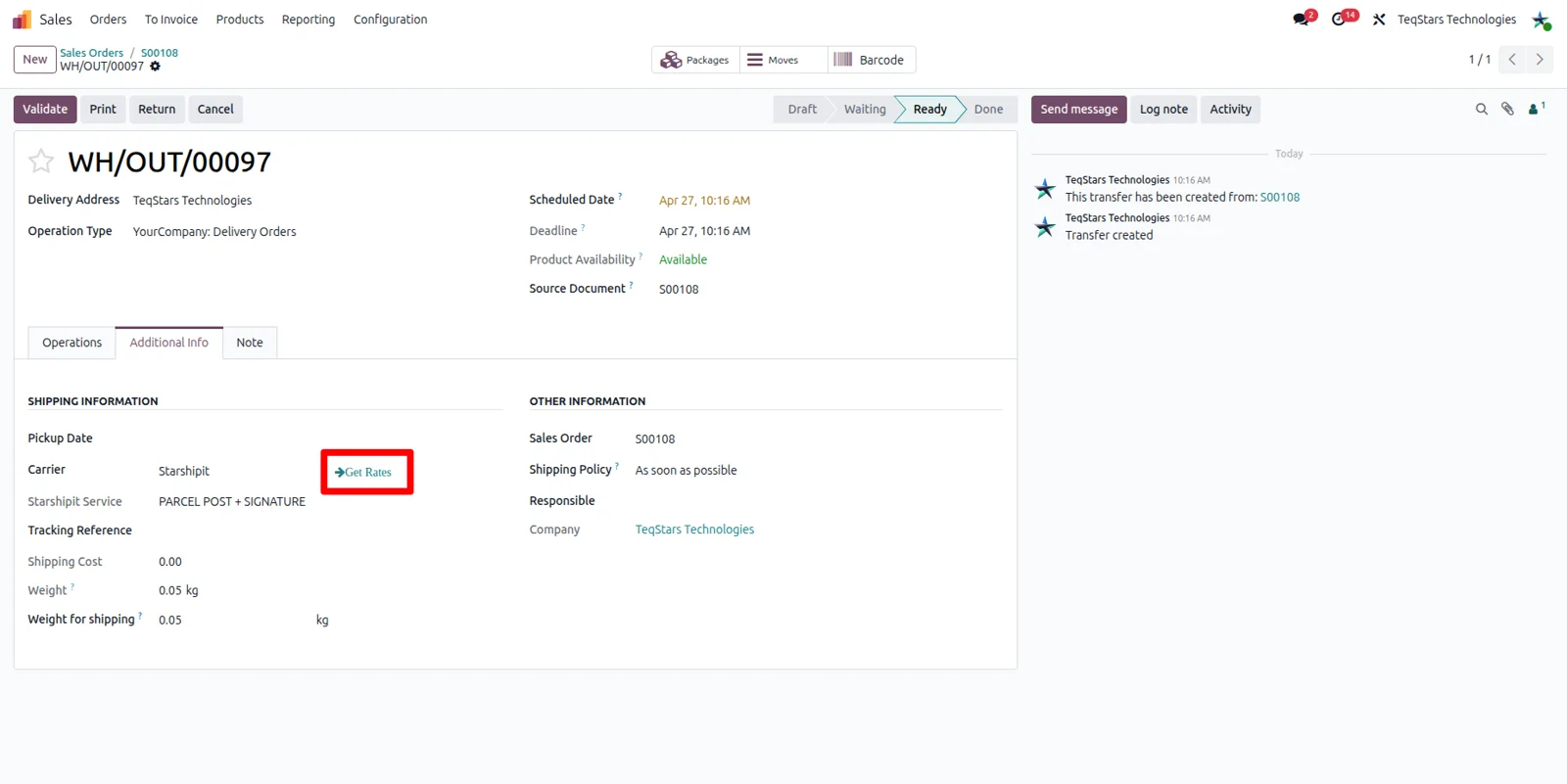
Press the rate button on the order to list Starshipit services and prices.
-
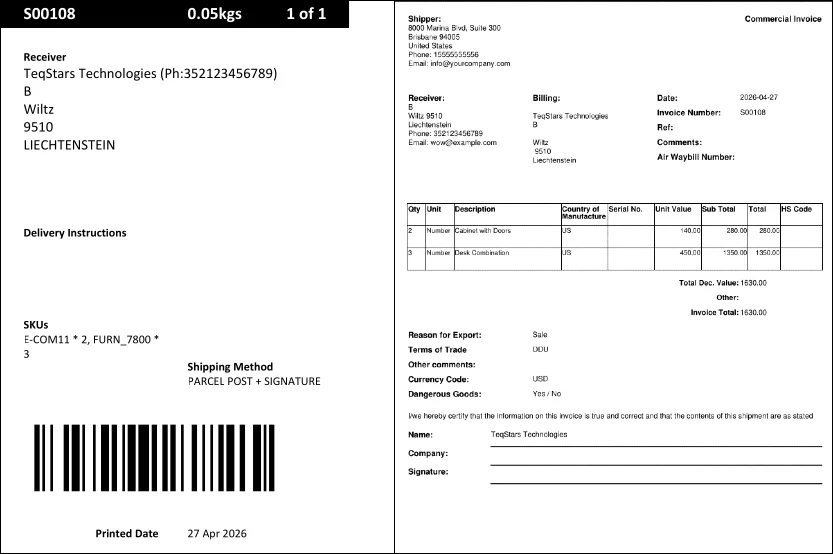
Labels are generated against the delivery order once your team validates it.
-
The commercial invoice is generated with the label on validation.
-
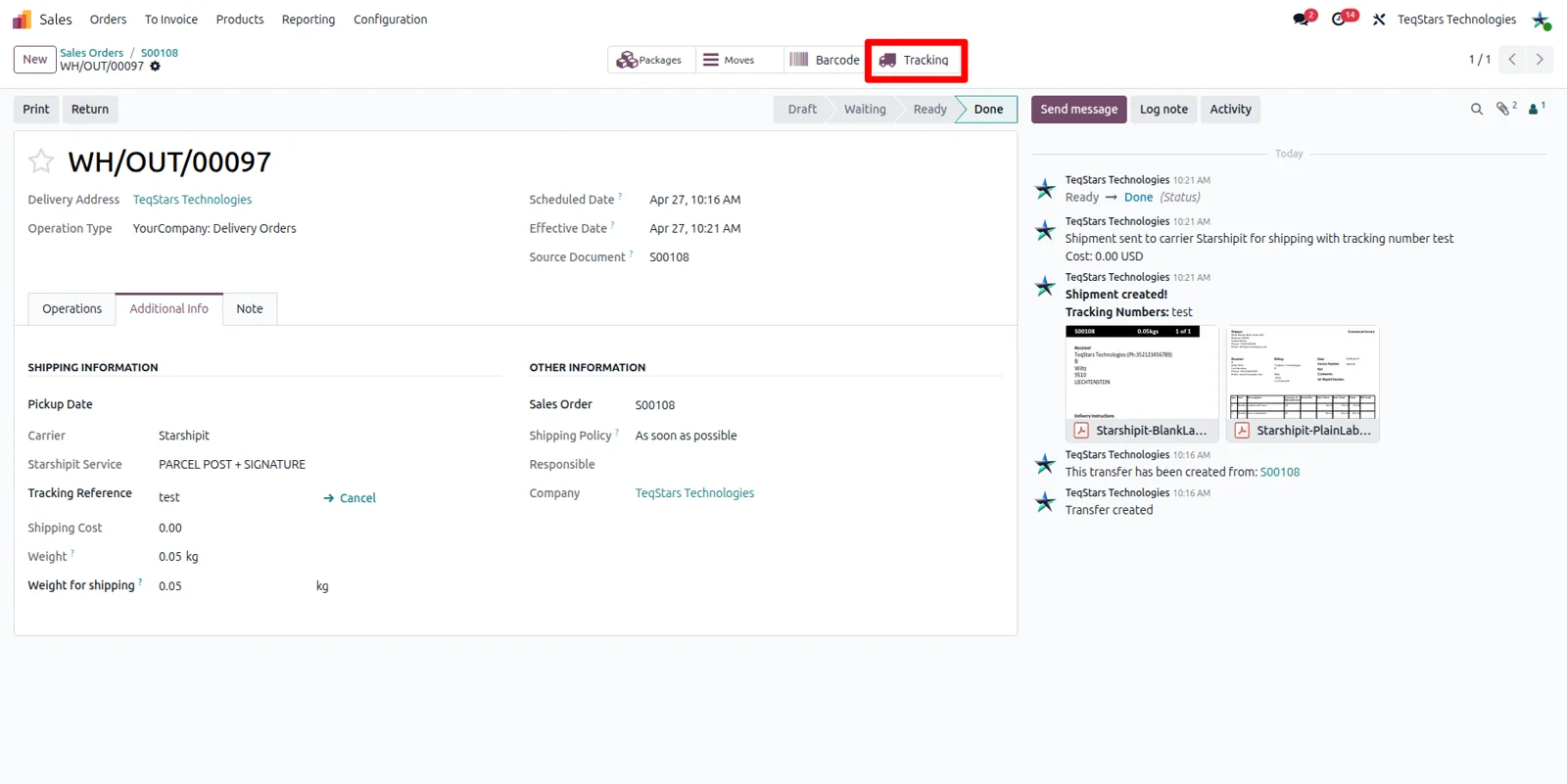
The tracking number is stored on the delivery order, where you track status.
-
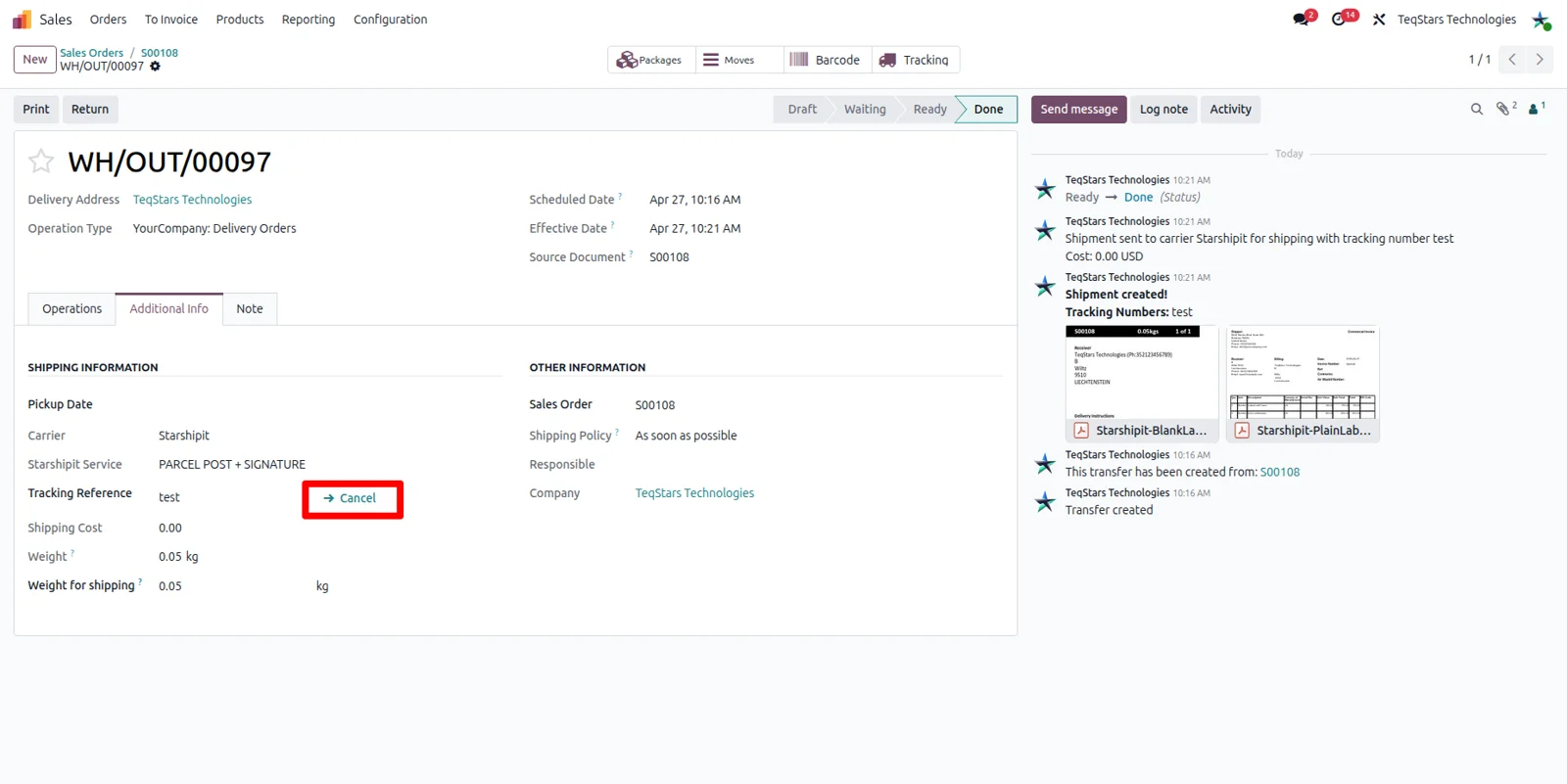
Click cancel on the Odoo delivery order to cancel the Starshipit shipment.
Rates, shipments, labels and tracking between Odoo and Starshipit
Every object the connector handles, which way it travels and what triggers it.
| Data | Direction | What happens & when |
|---|---|---|
| Shipping services and rates |

 Starshipit to Odoo
|
You ask for rates on a website order, sales order or delivery order. |
| Shipment booking |
Odoo to Starshipit
|
Your team validates the delivery order. |
| Shipping label |
Starshipit to Odoo
|
Generated as soon as the delivery order is validated. |
| Commercial invoice |
Starshipit to Odoo
|
Generated with the label when the delivery order is validated. |
| Tracking number |
Starshipit to Odoo
|
Returned with the label and stored on the delivery order. |
| Shipment status |
Starshipit to Odoo
|
You track the shipment from the Odoo delivery order. |
| Shipment cancellation |
Odoo to Starshipit
|
You click cancel on the delivery order in Odoo. |
Starshipit Connector features
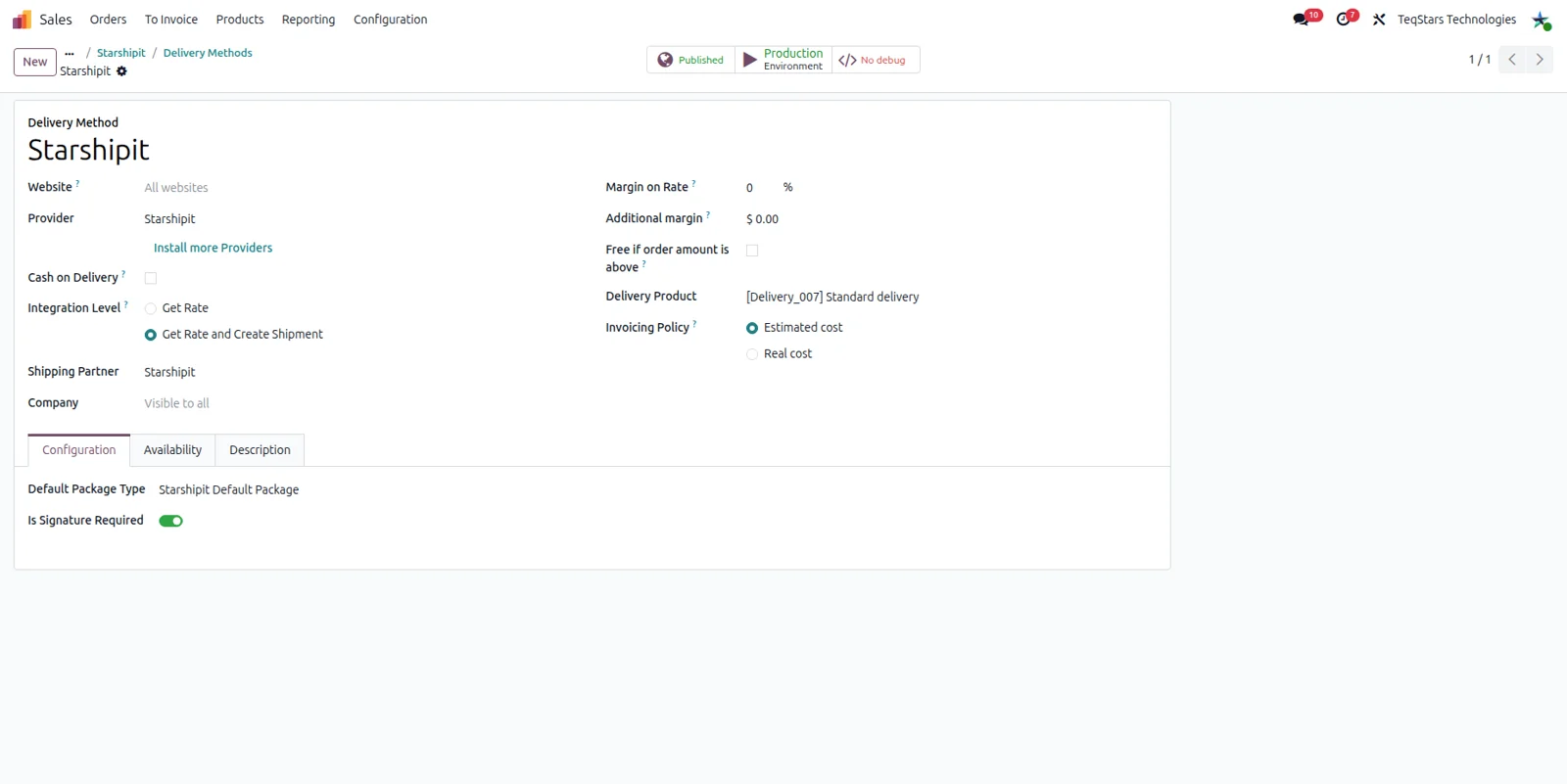
Set up Starshipit delivery methods
You end up with one delivery method per way you ship, ready for both domestic and overseas parcels. On the delivery method form you name the method, point it at Starshipit and pick the carrier service you ship that lane with. From then on, your sales team can ask it for a price and your warehouse can use it to book the parcel.
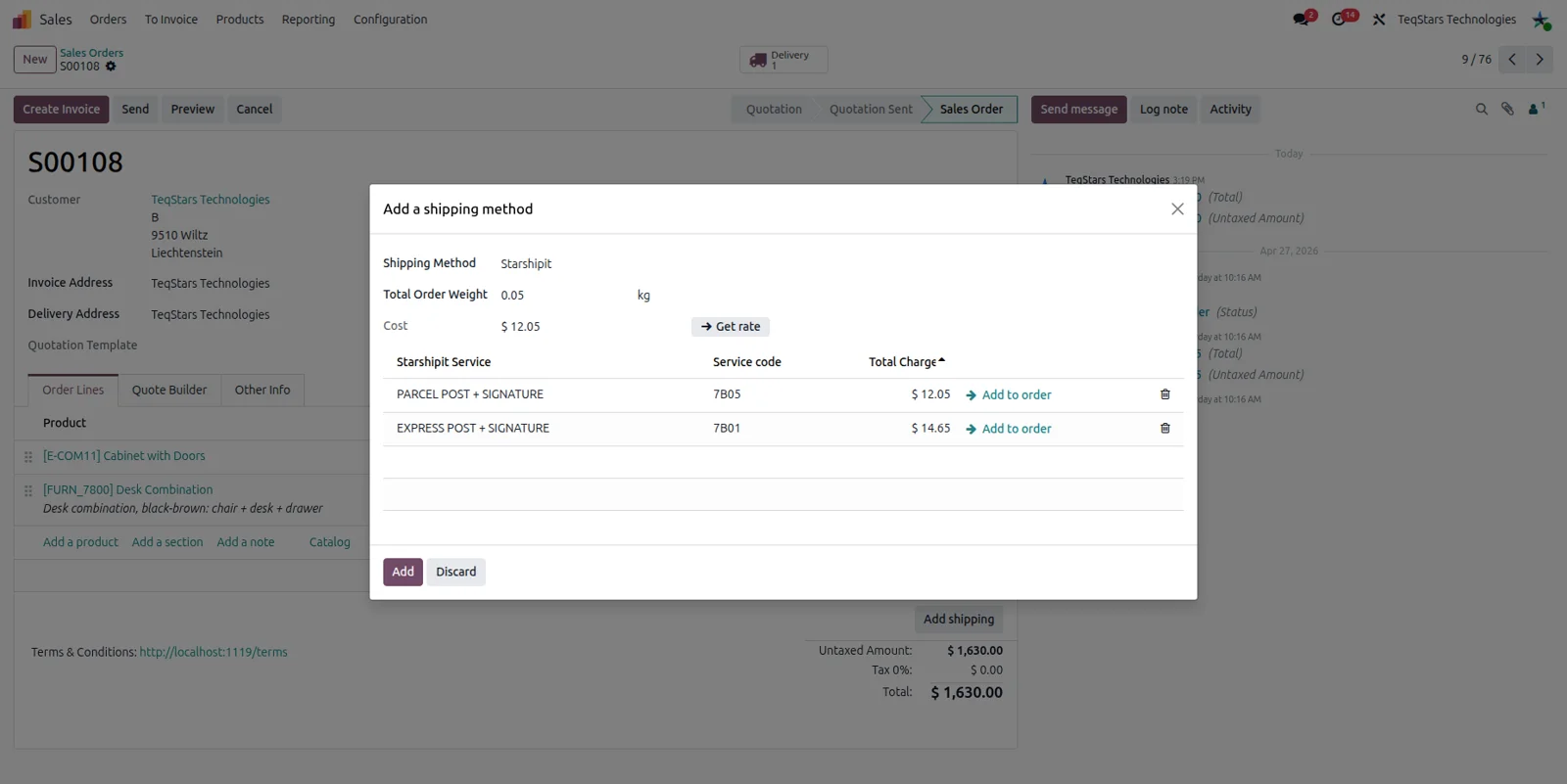
Compare rates on the sales order
Your salespeople see the real shipping options before they confirm a quotation. Asking for rates on the sales order returns the Starshipit services that suit the order and the price of each one. One click puts the service you want on the order, so the customer is charged the figure the carrier quoted rather than a rough estimate.
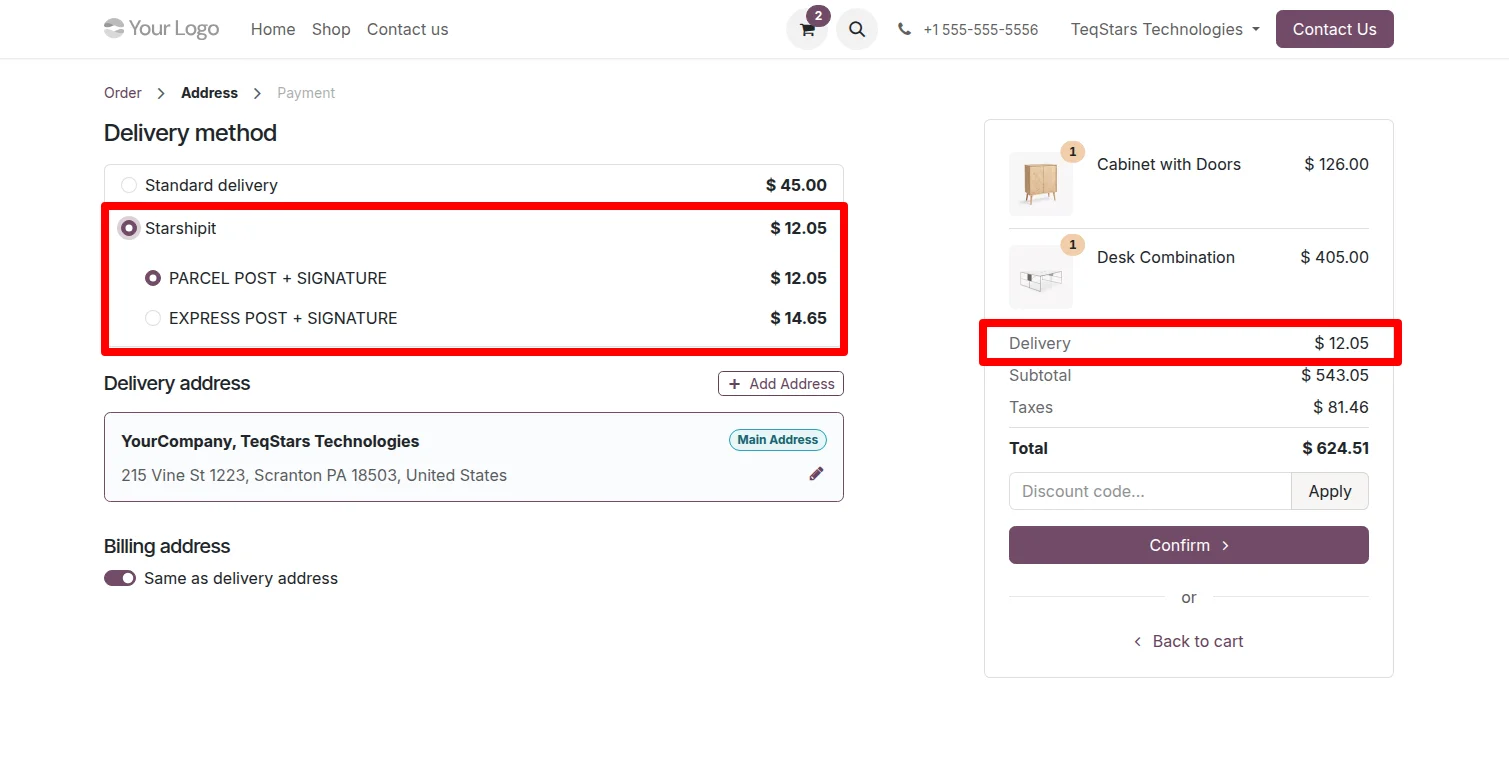
Shipping choices at website checkout
Online shoppers pick their own delivery service instead of accepting one flat charge. During checkout, the website order shows the Starshipit services available for the address entered, each with its rate. The shopper chooses one, and the order that reaches your Odoo sales team already carries that delivery method for the warehouse to ship.
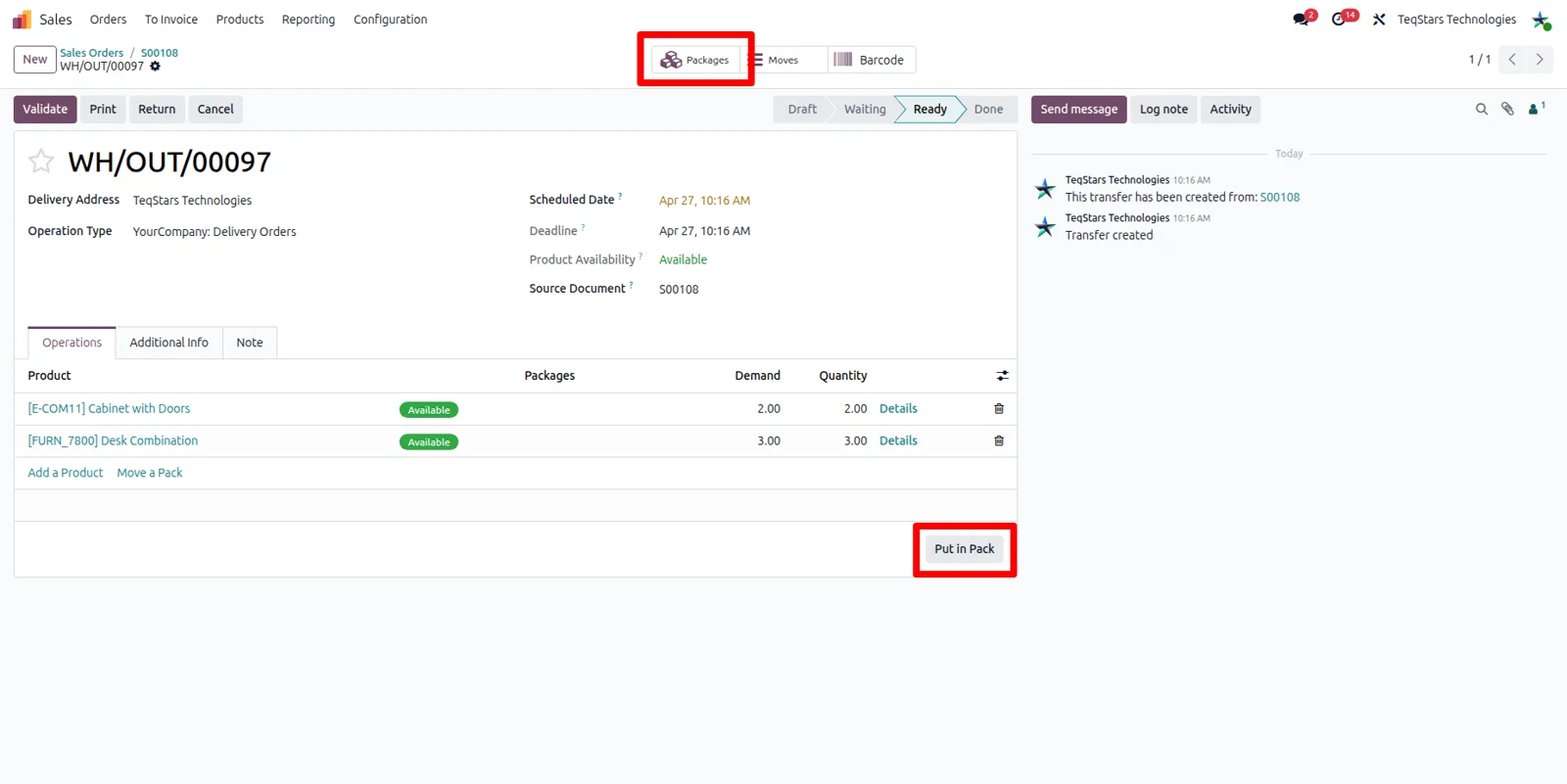
Ship an order in several packages
Orders that need more than one box are priced and labeled per box. Run the "Put in Pack" operation on the delivery order to group the goods into packages before you validate. The connector then uses those packages when it asks Starshipit for rates and when it books the shipment, so each parcel gets its own paperwork.
Quote rates from the delivery order
Your warehouse can check prices at the moment of packing, not only when the order was sold. Asking for rates on the delivery order returns the Starshipit services for what is actually in the picking. That helps when the packed weight differs from the quotation or when someone needs a faster service than the one originally chosen.
Labels and commercial invoices on validation
Packers get the paperwork they need the moment a picking is done. Validating the delivery order generates the shipping label and the commercial invoice, so there is nothing to download from the Starshipit portal and nothing to file against the right order by hand. Overseas parcels leave with their customs document attached to the same delivery order.
Track shipments on the delivery order
Anyone answering a "where is my parcel" call can check the delivery order and reply. The tracking number Starshipit returns is stored on the shipment, and the tracking view shows the current status and location of the parcel. Customer service stops guessing from carrier websites and your team sees progress against the Odoo order it belongs to.
Cancel a shipment in one click
A canceled sale no longer leaves a live booking sitting in Starshipit. When an order falls through or the wrong service was chosen, cancel the shipment from the Odoo delivery order and the connector cancels it in Starshipit too. Your warehouse keeps the decision in the same place it books parcels, with no second login.
Supported Odoo versions
| Odoo version | Editions | Hosting | Price | Latest release | |
|---|---|---|---|---|---|
| 20.0 | Community & Enterprise | Odoo.sh · On-premise | €109.98 | No release notes | Buy |
| 19.0 | Community & Enterprise | Odoo.sh · On-premise | €109.98 | No release notes | Buy |
| 18.0 | Community & Enterprise | Odoo.sh · On-premise | €109.98 | No release notes | Buy |
| 17.0 | Community & Enterprise | Odoo.sh · On-premise | €109.98 | No release notes | Buy |
Support for Starshipit Connector
The developers who build the app answer your tickets.
- Free app support from purchase
- 60 days
- First response in working hours, typical
- 4–6 hours
- Support hours, 10:00–18:00 IST
- Mon–Fri
How to connect Starshipit to Odoo
-
Step 1
Install the connector
Add the app to your database so Odoo can talk to Starshipit. It ships for Odoo 17.0, 18.0, 19.0 and 20.0, on Community or on Enterprise hosted on Odoo.sh or your own server.
-
Step 2
Link your Starshipit account
Enter your Starshipit account details in Odoo so rate requests and bookings reach the right account. Ship under two brands or regions? Connect more than one Starshipit account to your Odoo databases.
-
Step 3
Create the delivery methods
Add a delivery method for Starshipit and select the carrier service behind it. Repeat the step for each lane you sell, such as a local service and an international one, so rates come back correctly.
-
Step 4
Quote, pack and ship
On a quotation or delivery order, ask for rates and choose a service. Use "Put in Pack" when the order needs several boxes, then validate the picking to get the label, invoice and tracking number.
Questions before you buy
Not answered here? Talk to the team.