Create Swiss Post labels and tracking numbers when you validate a delivery
This Swiss Post Odoo integration produces the shipping label as soon as a delivery order is validated, and stores the tracking number with it. You price shipping with a fixed amount or your own rules. One click opens the parcel on the Swiss Post portal.
- Odoo 17.0 – 20.0
- Community & Enterprise
- Odoo.sh · On-premise
-
Not for
Odoo Online
Top seller on the Odoo Apps Store
- sales on the Odoo Apps Store
- 3,000+
- apps published
- 100+
- countries running them
- 100+
Swiss Post shipping work before and after this connector
Without the connector by hand
-
Retype every delivery address into the Swiss Post shipping portal.
-
Download labels from the carrier site and match them to the right order.
-
Copy tracking numbers back into Odoo one order at a time.
-
Check a spreadsheet for a shipping price before confirming a quotation.
-
Search the carrier portal by hand when a customer asks where a parcel is.
With the connector automatic
-
Validating the delivery order sends the shipment details to Swiss Post.
-
The label comes back and stays attached to that delivery order.
-
The tracking number is saved on the delivery order with the label.
-
The delivery method prices the order from your fixed rate or your rules.
-
You press the tracking button and the Swiss Post page for that parcel opens.
Shipment details, labels and tracking numbers between Odoo and Swiss Post
Every object the connector handles, which way it travels and what triggers it.
| Data | Direction | What happens & when |
|---|---|---|
| Shipment details |

 Odoo to Swiss Post
|
You validate the delivery order in Odoo. |
| Shipping label |
Swiss Post to Odoo
|
Returned and kept on the delivery order after validation. |
| Tracking number |
Swiss Post to Odoo
|
Comes back with the label when the delivery is validated. |
Swiss Post (DIE Post) Connector features
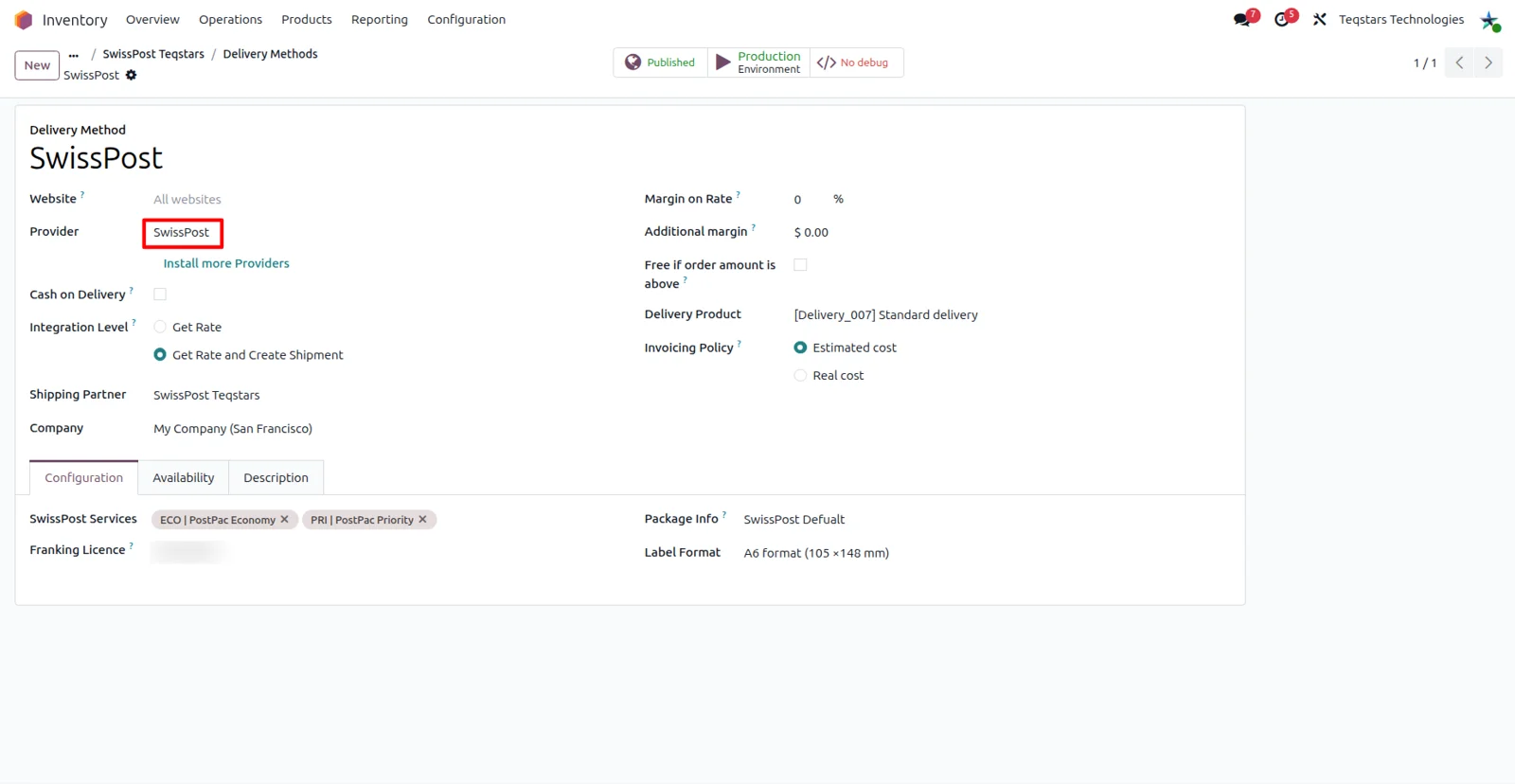
Set up Swiss Post as a delivery method
Your team picks Swiss Post the same way it picks any other carrier in Odoo. You create a delivery method for the Swiss Post service you ship with, so warehouse staff choose it on a quotation or a delivery order instead of opening the carrier portal. The same screen holds the account you connected, and you can register more than one Swiss Post account in the database.
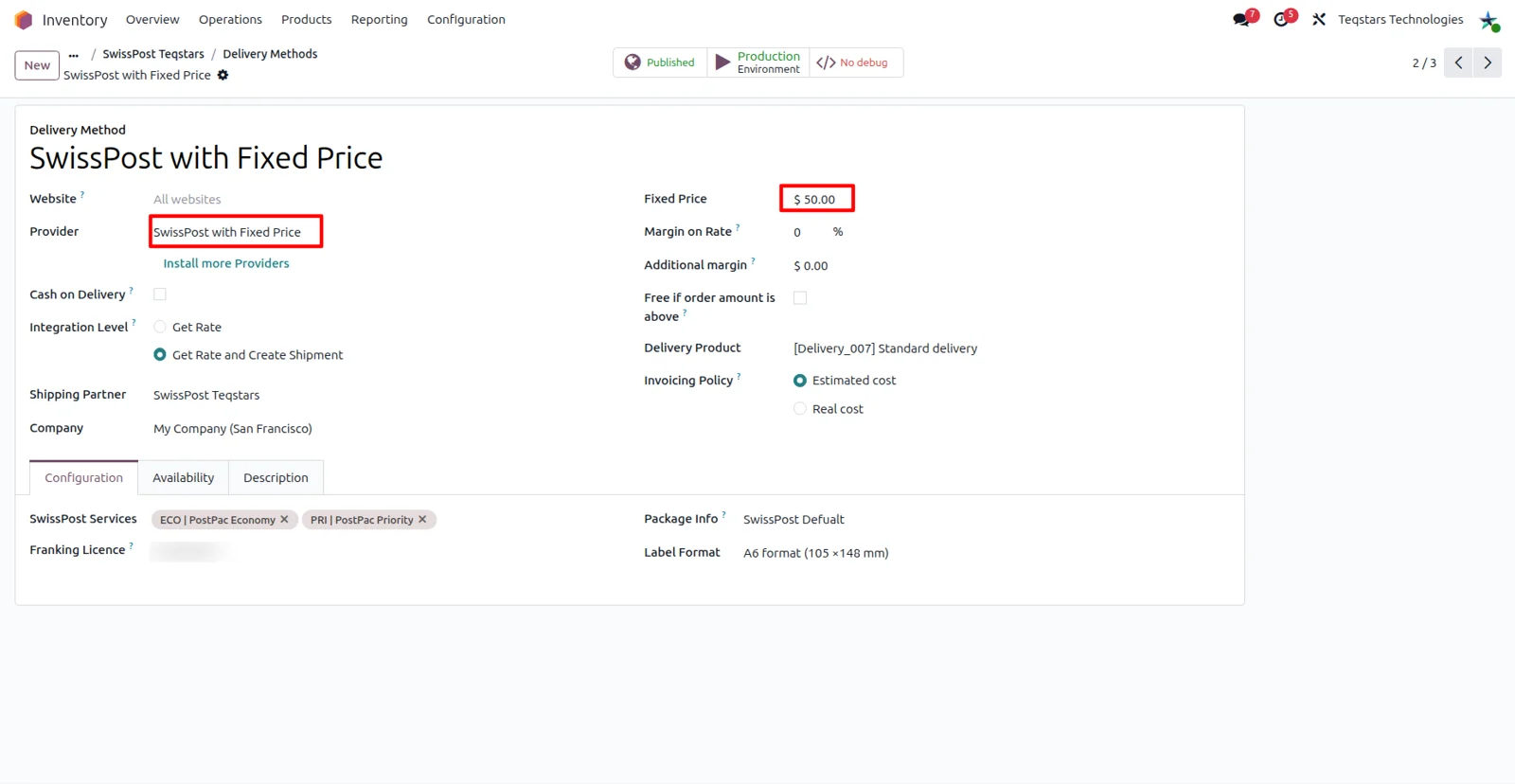
Charge one fixed shipping price
When your shipping price is a flat amount, this is the quickest option to set up. You choose the fixed price computation on the Swiss Post delivery method and type the amount you charge customers. Odoo then adds that amount as the delivery line, so quotations and orders carry a shipping cost your team agreed on rather than a figure someone looks up.
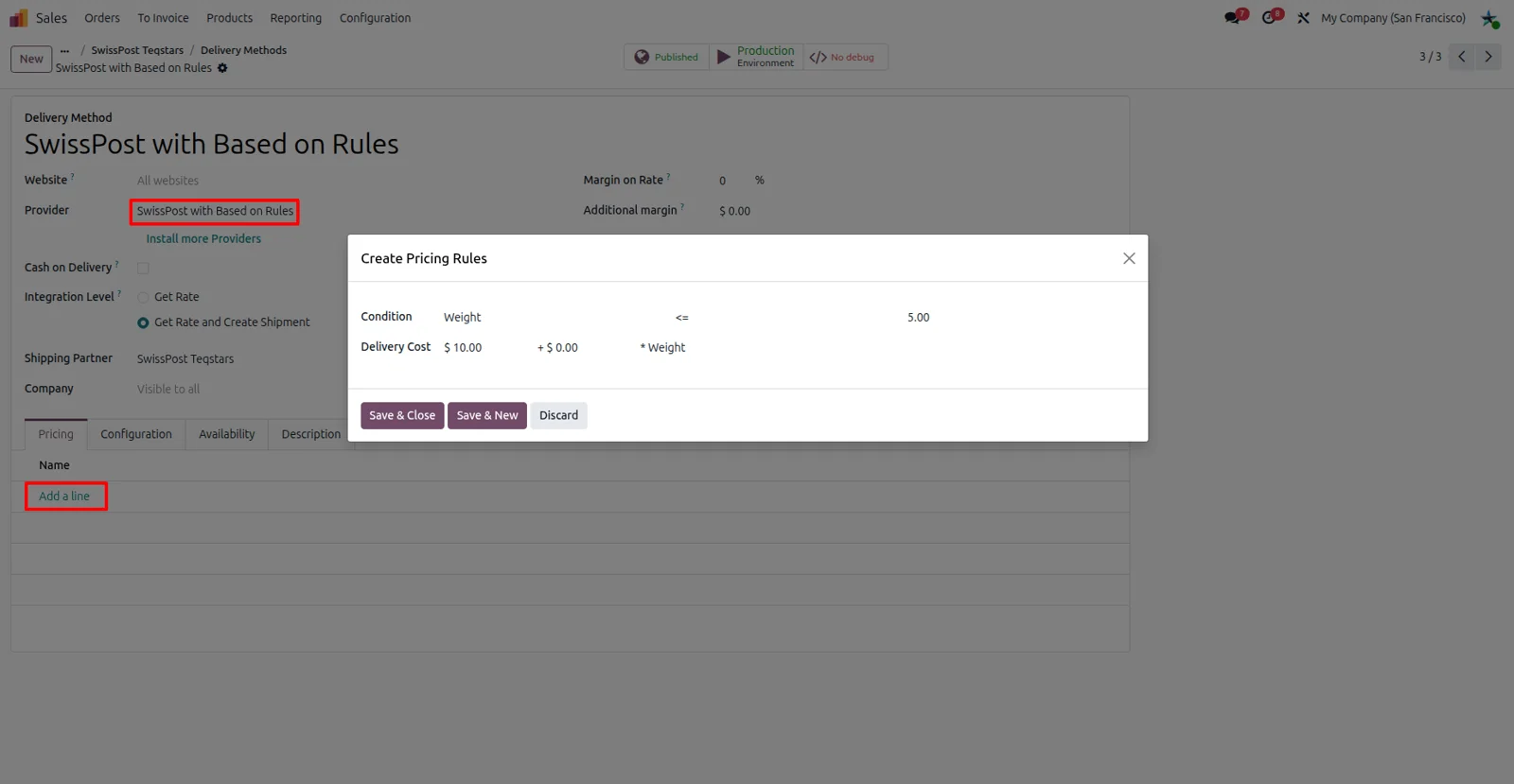
Price shipping with your own rules
Rules let one Swiss Post delivery method cover small parcels and heavy pallets. You add pricing rules to the method and the matching rule decides what the customer pays. Because live Swiss Post rate lookups are not part of the service, you keep full control over the numbers and can mirror the margins your business already works with.
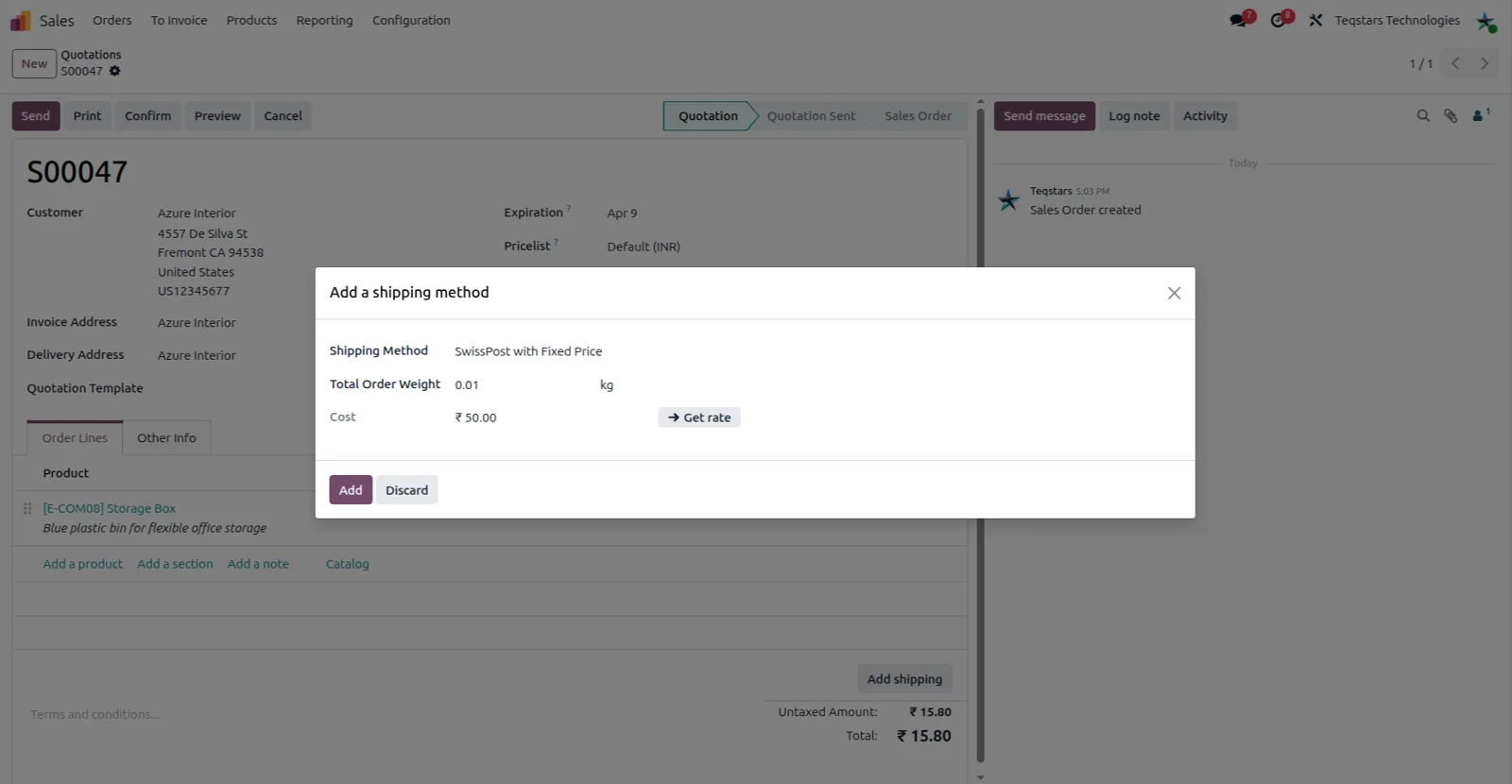
Show the shipping cost on the order
Your sales team sees the delivery amount before the customer confirms. On the sales order you select the Swiss Post delivery method and ask for the rate, and Odoo adds the shipping line from the fixed price you set. The customer gets a total that already includes delivery, and nobody has to edit the order later.
Labels created at delivery validation
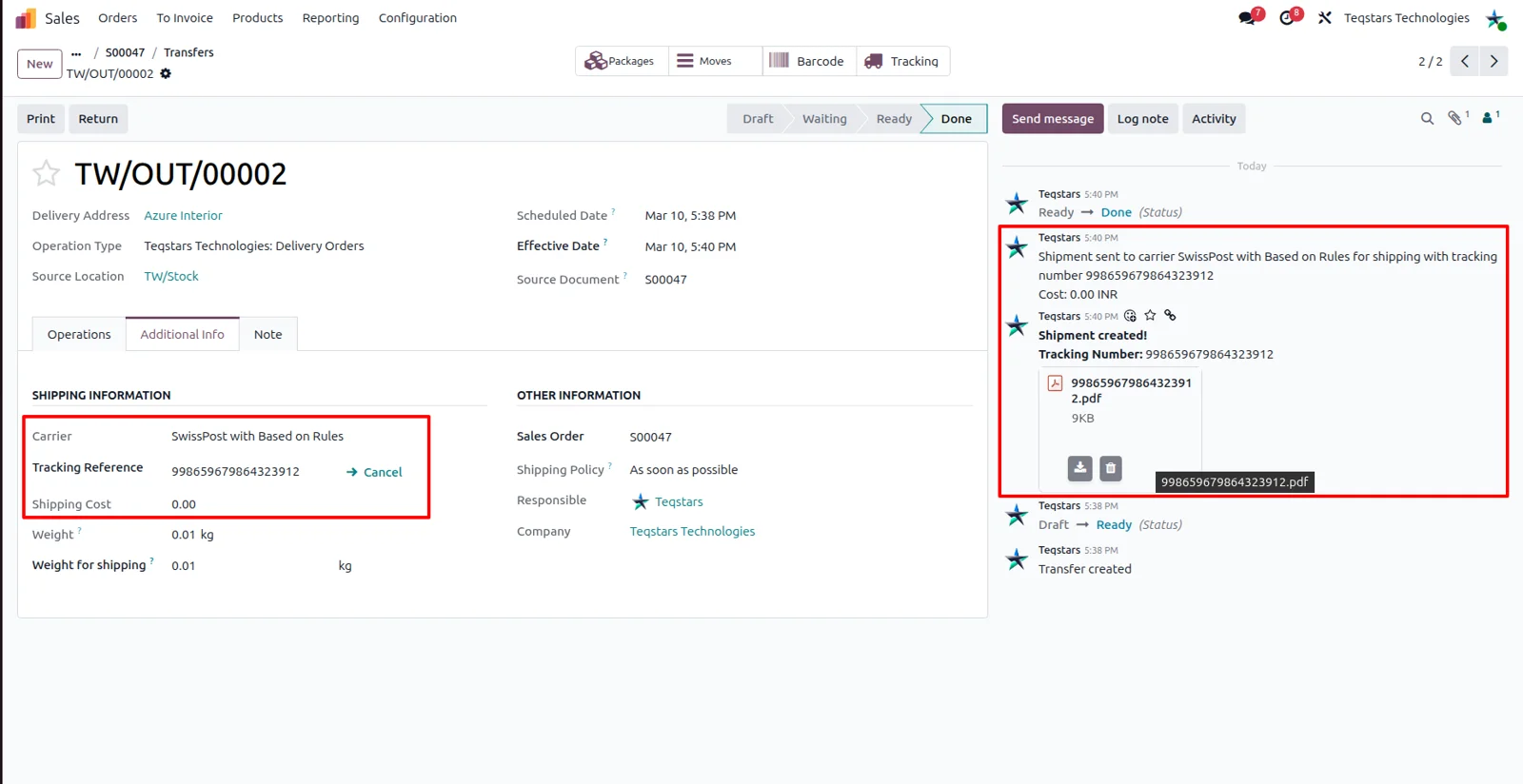
Packing gets faster because the paperwork is ready when the picking is done. Validating the delivery order in Odoo asks Swiss Post for the shipment, and the label comes back attached to that order together with the tracking number. Your team prints and sticks it, and the order already shows which parcel belongs to which customer.
Open parcel status on the Swiss Post portal
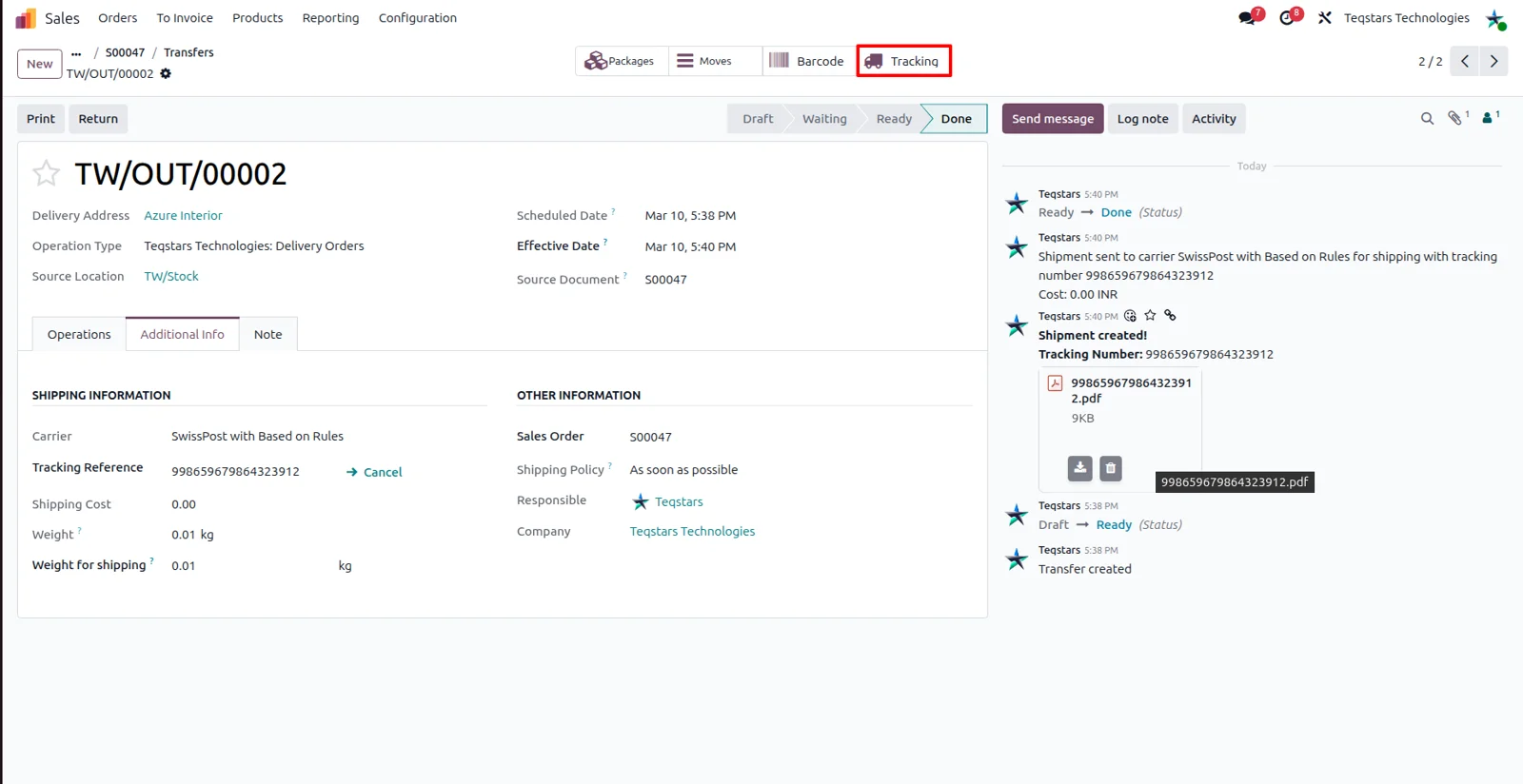
When a customer calls about a parcel, you answer from the delivery order. The tracking button on the order takes you straight to the official Swiss Post tracking page for that shipment, so nobody searches for the number or logs in somewhere else. It works for domestic Swiss parcels and for cross-border shipments alike.
Supported Odoo versions
| Odoo version | Editions | Hosting | Price | Latest release | |
|---|---|---|---|---|---|
| 20.0 | Community & Enterprise | Odoo.sh · On-premise | €158.99 | No release notes | Buy |
| 19.0 | Community & Enterprise | Odoo.sh · On-premise | €158.99 | No release notes | Buy |
| 18.0 | Community & Enterprise | Odoo.sh · On-premise | €158.99 | No release notes | Buy |
| 17.0 | Community & Enterprise | Odoo.sh · On-premise | €158.99 | No release notes | Buy |
Support for Swiss Post (DIE Post) Connector
The developers who build the app answer your tickets.
- Free app support from purchase
- 60 days
- First response in working hours, typical
- 4–6 hours
- Support hours, 10:00–18:00 IST
- Mon–Fri
How to connect Swiss Post to Odoo
-
Step 1
Install and add your account
Install the Swiss Post connector on Odoo 17.0, 18.0, 19.0 or 20.0, then register the Swiss Post account details you ship under. Databases that ship for several brands can hold more than one account.
-
Step 2
Create a Swiss Post delivery method
Add a delivery method for Swiss Post and name it after the service your team sells, for example a domestic or a cross-border option. Pick the carrier on the method so orders use the right service.
-
Step 3
Decide what customers pay
Choose a fixed amount on the delivery method, or add pricing rules so the charge follows the order. Live Swiss Post rates are not retrieved, so the figures stay the ones you entered.
-
Step 4
Validate a delivery and print
Pick and validate a delivery order that uses the Swiss Post method. The label and the tracking number appear on that order, ready to print and hand to the driver.
Questions before you buy
Not answered here? Talk to the team.