Quote UPS rates, print labels and track shipments from your Odoo deliveries
This UPS Odoo integration adds domestic and international delivery methods to your sales orders and website checkout. Validating the delivery order sends the shipment to UPS and returns the label, commercial invoice and tracking number. Multiple UPS accounts are supported.
- Odoo 17.0 – 20.0
- Community & Enterprise
- Odoo.sh · On-premise
-
Not for
Odoo Online
Top seller on the Odoo Apps Store
- sales on the Odoo Apps Store
- 3,000+
- apps published
- 100+
- countries running them
- 100+
UPS shipping work before and after the connector
Without the connector by hand
-
Open the UPS site and retype an order's address to get a rate
-
Quote shipping charges from a rate sheet or an educated guess
-
Key the shipment into UPS again after the goods are packed
-
Type commercial invoice details by hand for cross-border parcels
-
Copy tracking numbers from the carrier site into customer emails
-
Sign in to UPS to void a shipment nobody is sending
With the connector automatic
-
Odoo asks UPS for a rate using the order's delivery address
-
The quoted amount is added to the order as a delivery charge
-
Validating the delivery order submits the shipment to UPS
-
The commercial invoice is produced along with the shipping label
-
The tracking number is stored on the delivery order record
-
One click on the cancel option cancels the shipment in UPS
Rates, labels and tracking between Odoo and UPS
Every object the connector handles, which way it travels and what triggers it.
| Data | Direction | What happens & when |
|---|---|---|
| Shipment quote |

 Both ways
|
Adding the UPS delivery method to a sales order or website order |
| Shipment request |
Odoo to UPS
|
Validating the delivery order in Odoo |
| Shipping label |
UPS to Odoo
|
Returned to the delivery order once it is validated |
| Commercial invoice |
UPS to Odoo
|
Created with the label when the delivery order is validated |
| Tracking number |
UPS to Odoo
|
Comes back with the label and is saved on the delivery order |
| Shipment status |
UPS to Odoo
|
You open the tracking view for the shipment |
| Shipment cancellation |
Odoo to UPS
|
You click the cancel shipment option on the delivery order |
UPS Connector features
Set up domestic and international methods
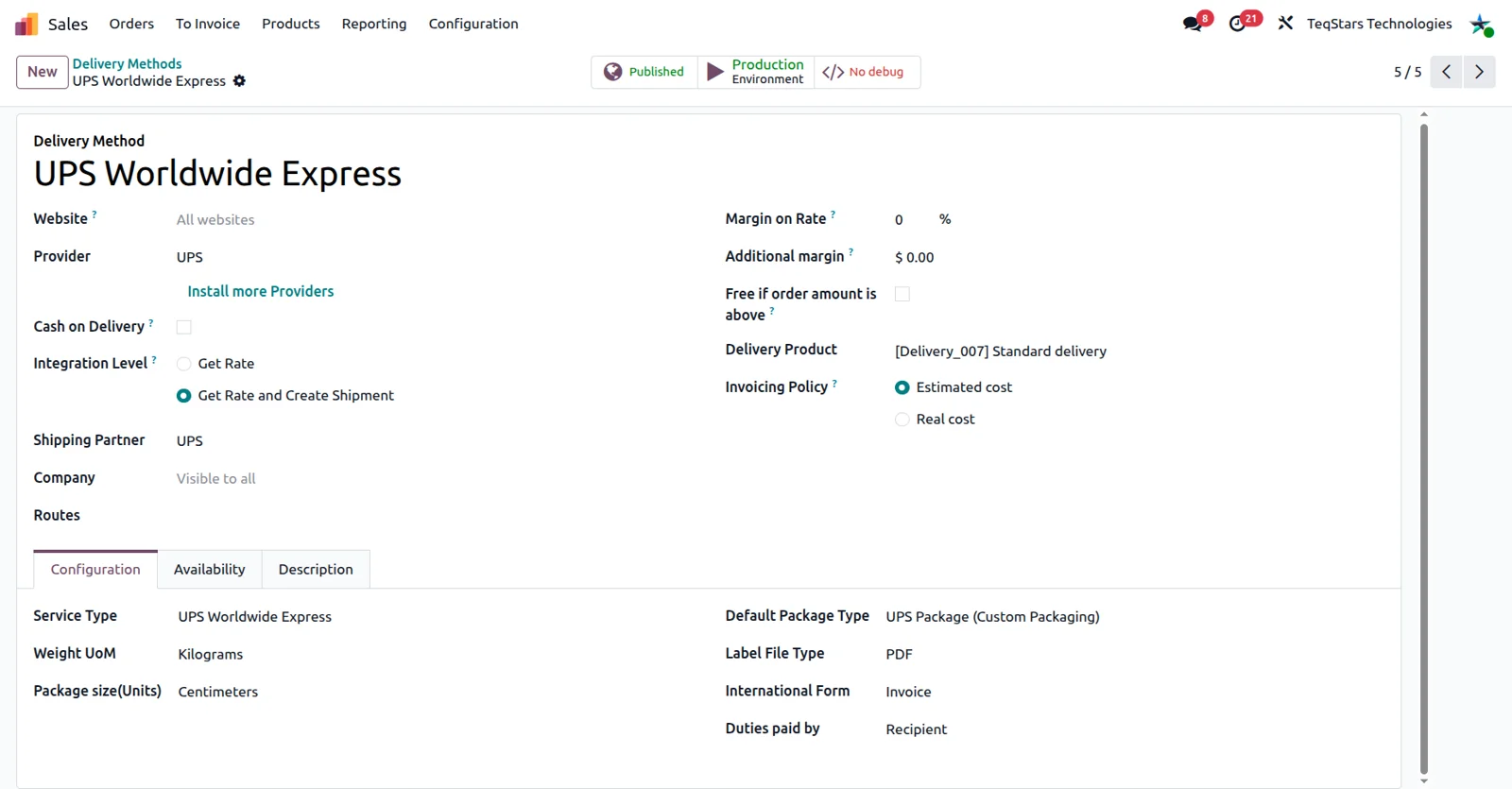
Local and cross-border shipping stay apart from the start. On the UPS delivery method screen you create one method for parcels that stay in the country and another for shipments going abroad, so your team picks the right one when an order arrives. The app also supports connecting several UPS accounts to your Odoo databases, which suits companies that ship on more than one account.
Add the UPS charge to a quotation
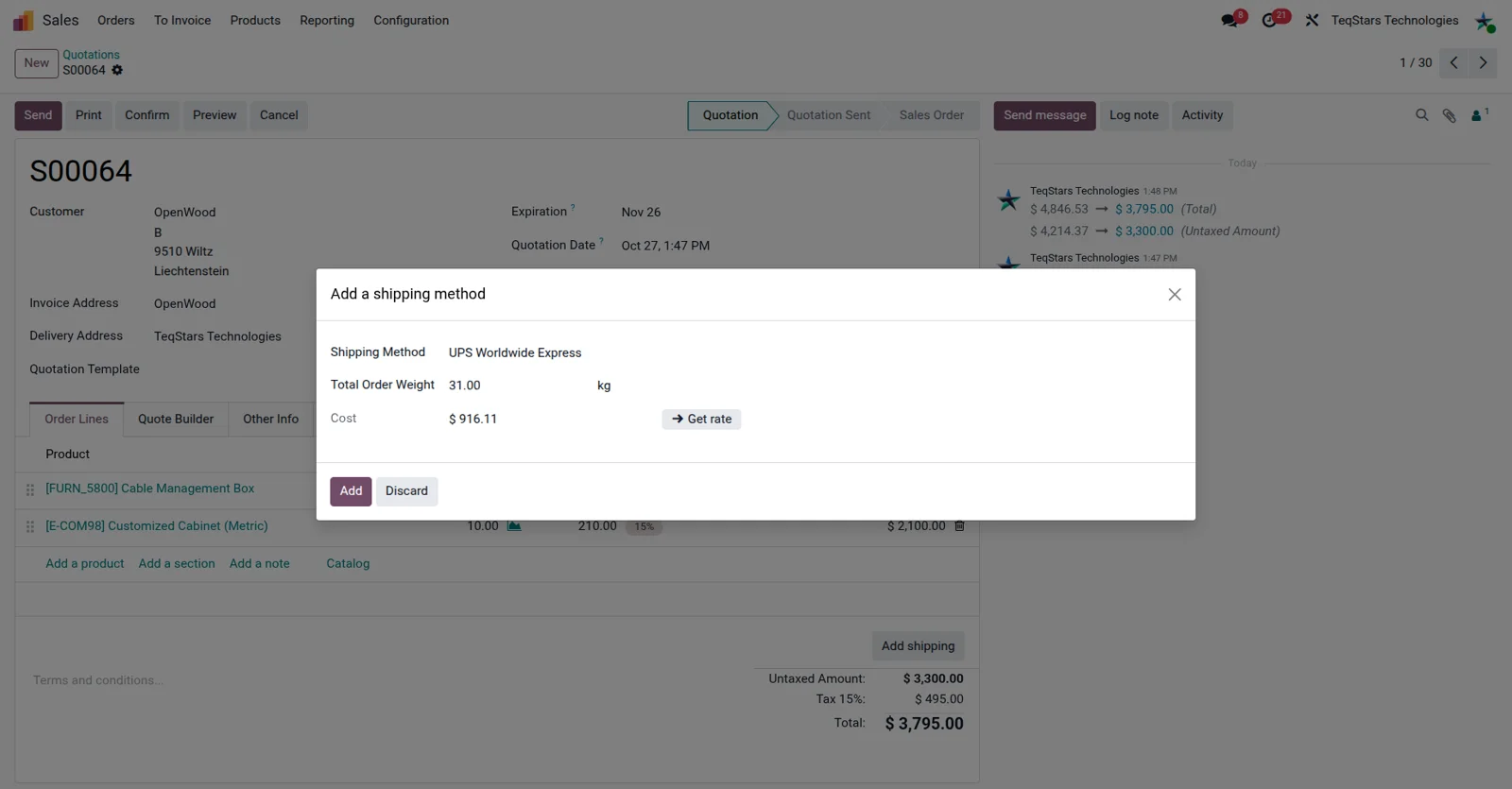
Your salespeople see what the shipment costs before the order is confirmed. Choose the UPS delivery method on a quotation and Odoo requests a rate for that order, then puts the amount on the document as a delivery charge. The figure comes from UPS rather than a static price list, so the customer is billed close to what the carrier charges you.
Show UPS options at website checkout
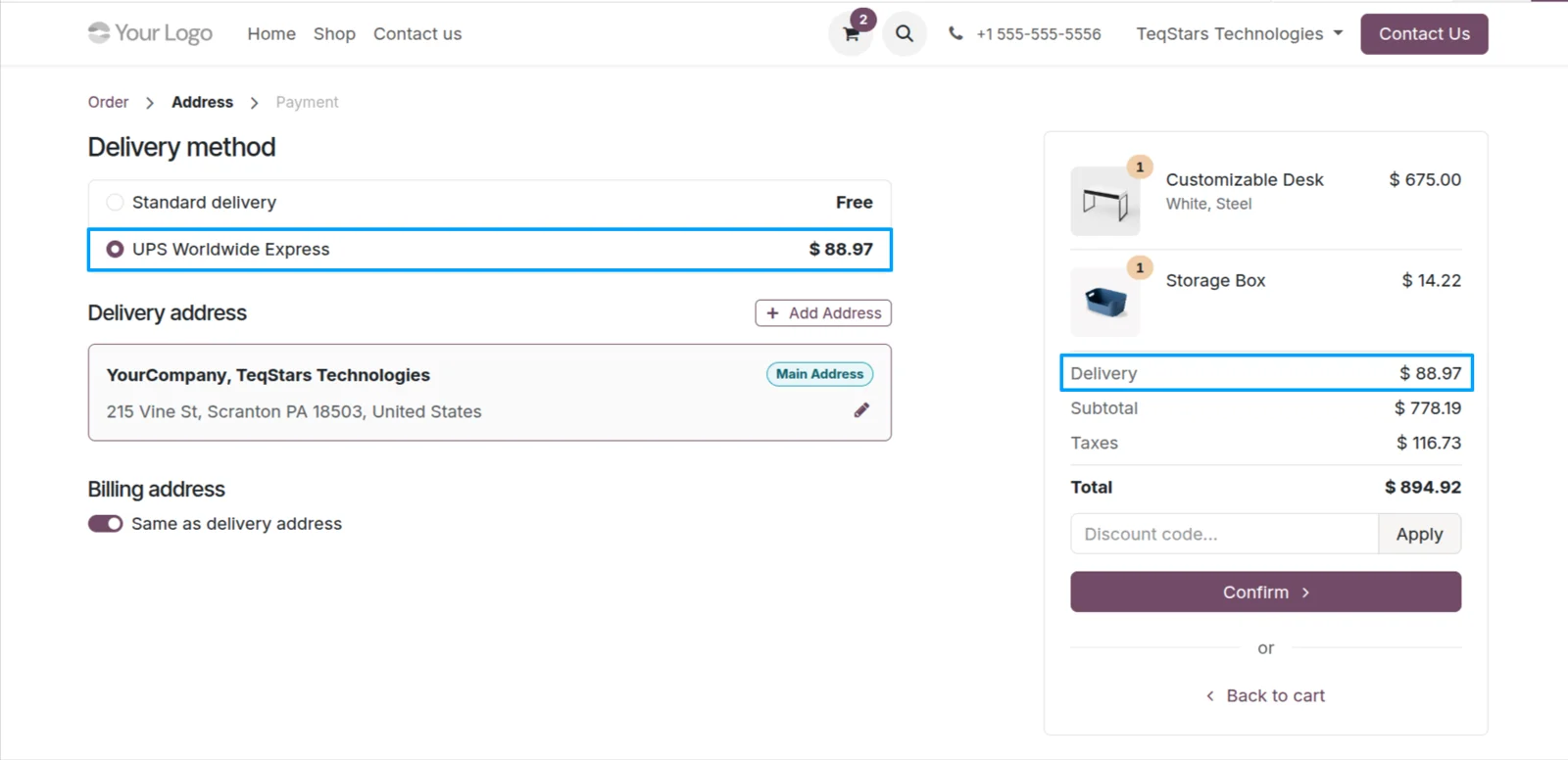
Online shoppers pick a UPS service and see the price beside it. Once a UPS delivery method is published on your website, the shop asks UPS for the rate that fits the cart and adds it to the order total, so the charge is clear before payment. Buyers shipping to another country get the international methods you configured.
Ship one order in several packages
Orders that need two or three boxes are sorted out before any label exists. Use the "Put in Pack" button on the delivery order to split the goods into packages and give each package its details. When the delivery is validated, UPS receives the shipment as the packages you built, so the paperwork matches what actually leaves your dock.
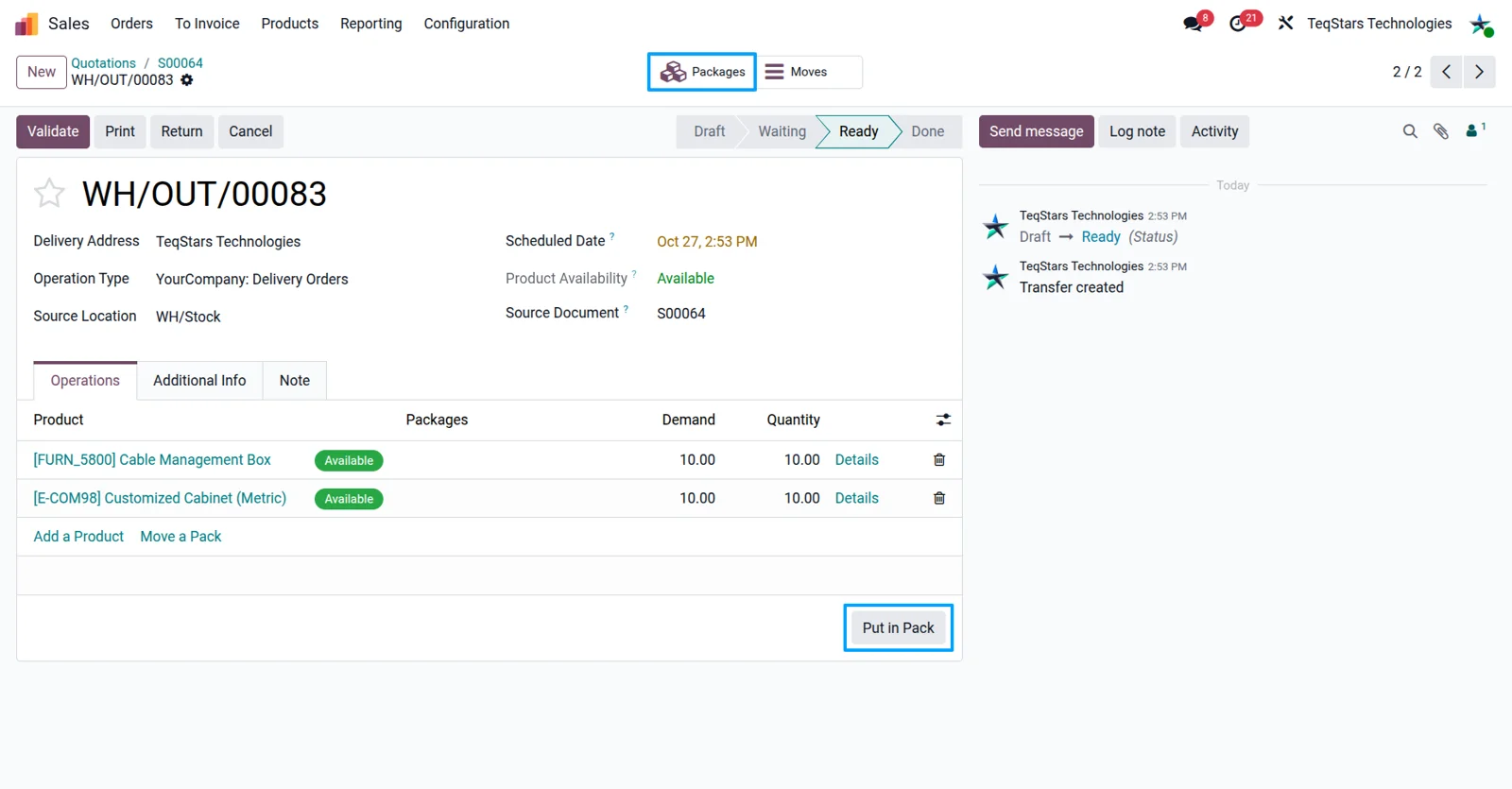
Get labels and tracking on validation
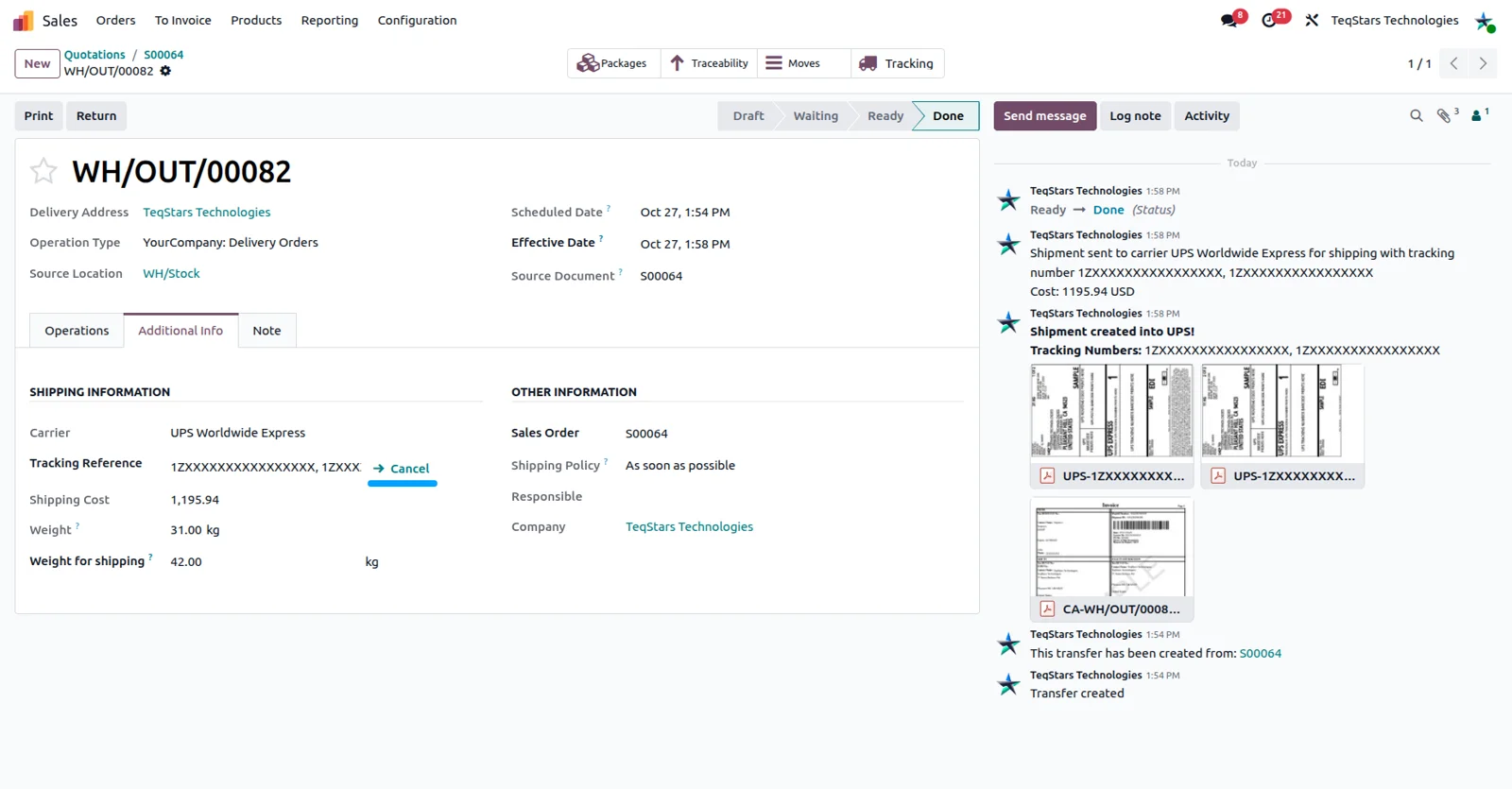
Validating the delivery order is the whole action needed to book the shipment. Odoo submits it to UPS, and the tracking number and shipping label come back onto that same delivery order. Your warehouse team prints the label from the picking they just finished, and a later reprint means opening the same record again instead of searching a carrier portal.
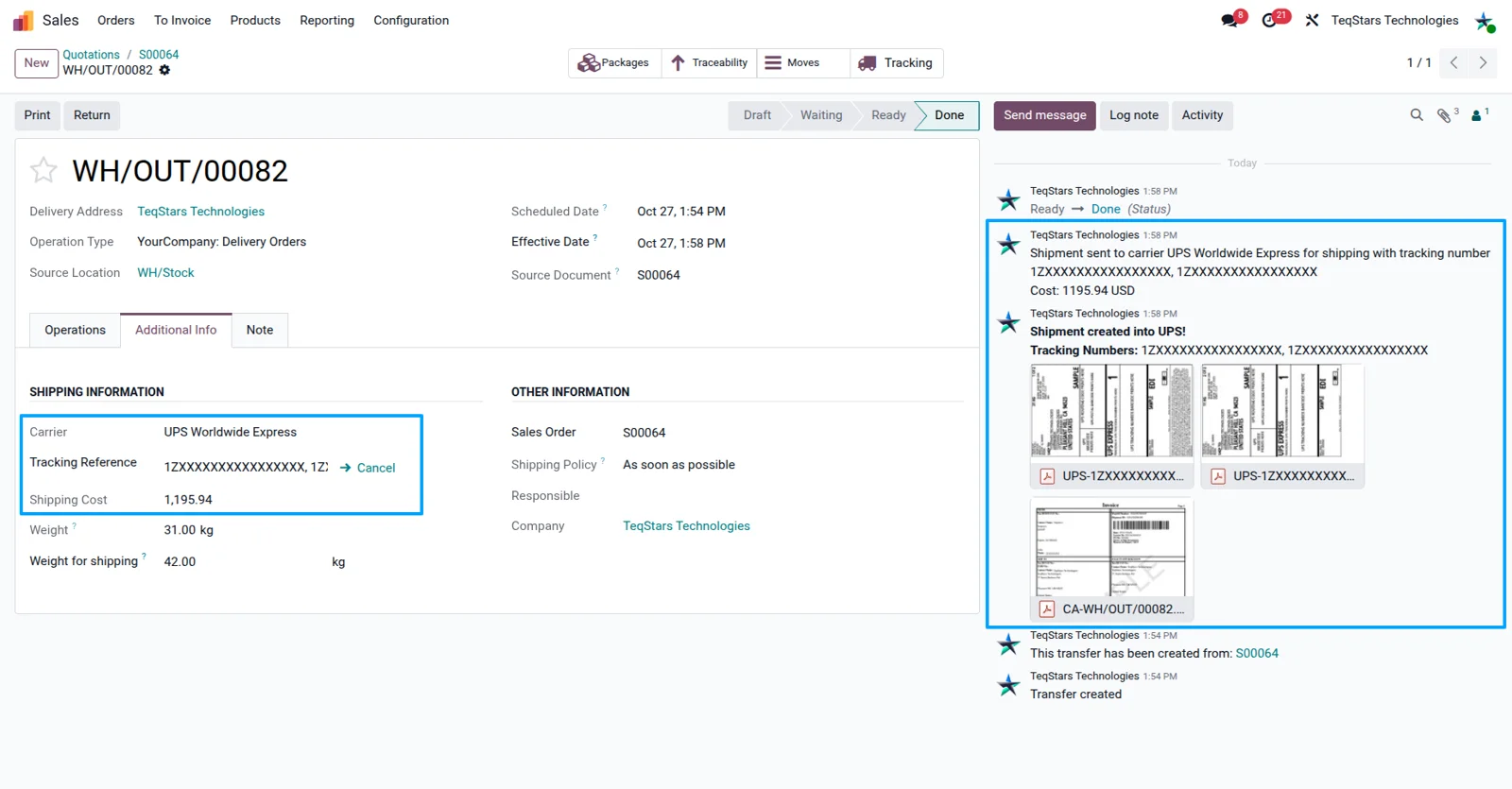
Produce the commercial invoice too
Parcels going abroad leave with their shipping document already prepared. Validating the delivery order produces the commercial invoice next to the label, so nobody retypes order lines and addresses into a separate form. The document is built from the delivery it belongs to, which keeps it consistent with what you are sending and saves a second pass of data entry.
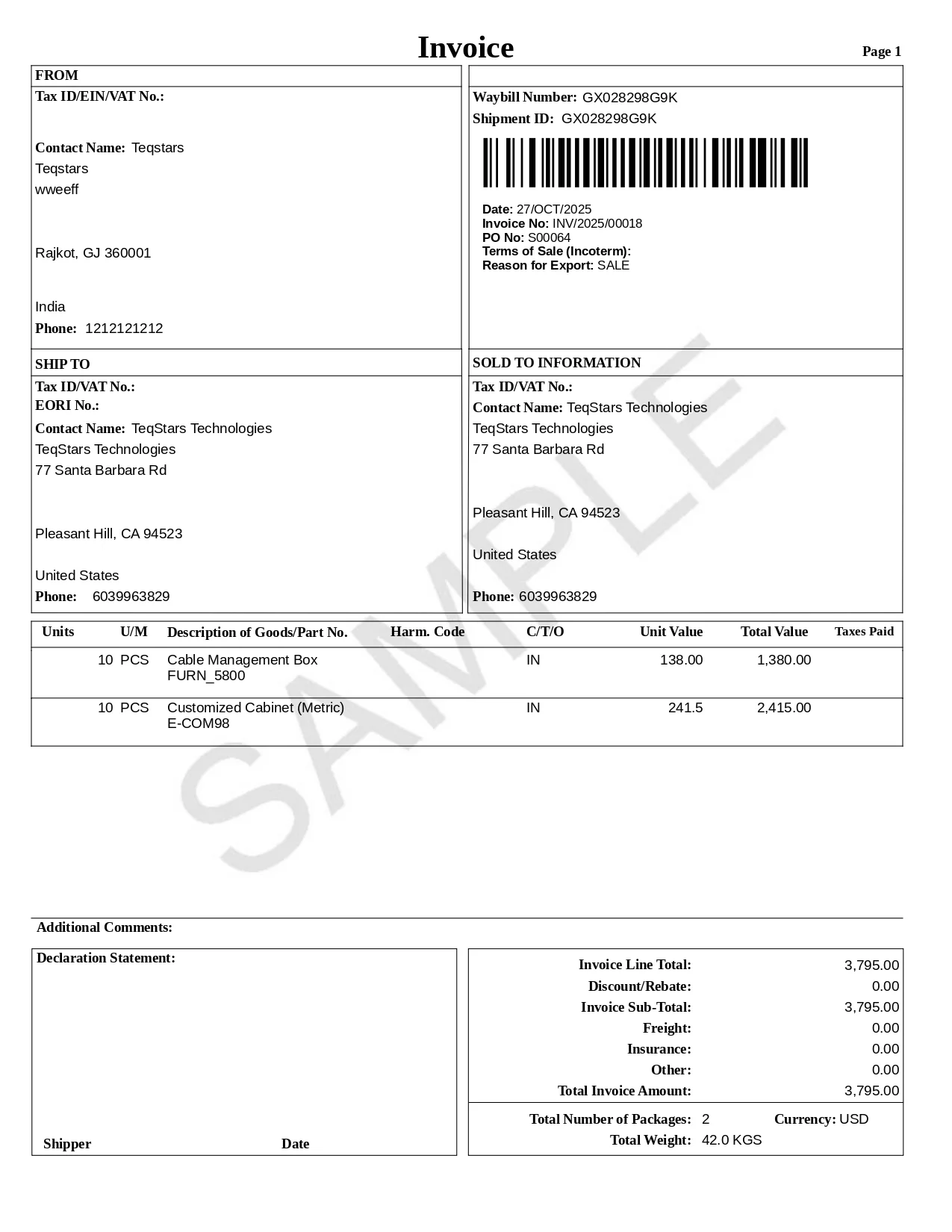
Check where a parcel is
You answer "where is my order" from the delivery record itself. The tracking view opens the UPS status for that shipment, showing the stage it has reached and where it was last scanned. Because the information comes from UPS, your support team reads what the carrier currently reports rather than a note somebody typed days ago.
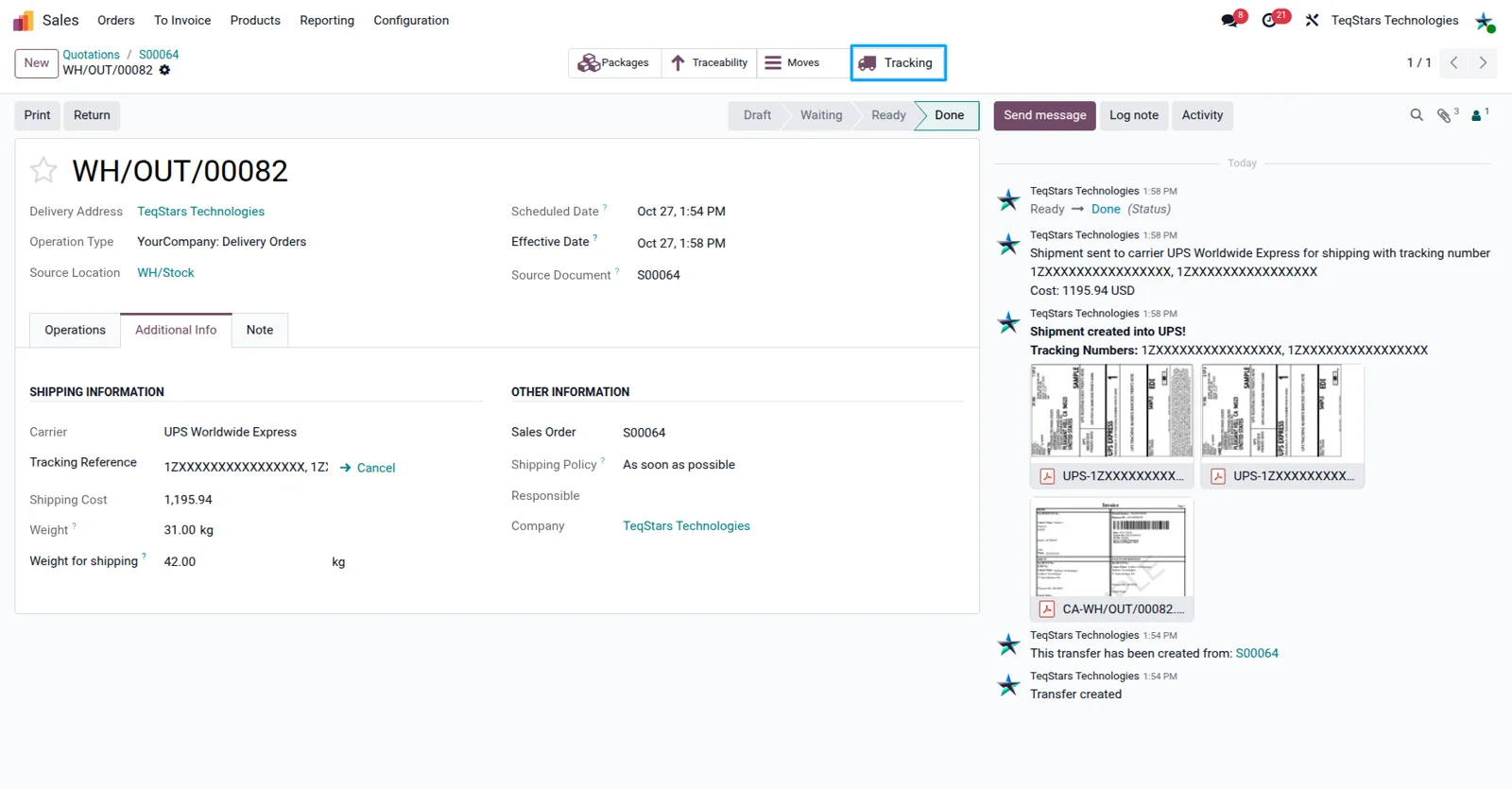
Cancel a shipment in one click
A shipment booked by mistake is dropped with a single click. The cancel option on the delivery order tells UPS to cancel that shipment, so an unused label is not left open against your account. Your team makes the correction on the record where the shipment started, rather than signing in to UPS separately to void it.
What buyers say on the Odoo Apps Store
5 out of 5, from3 reviews
UPS Connector is rated 5 out of 5 from 3 reviews on the Odoo Apps Store, the latest in .
Read the reviews on the Odoo Apps StoreSupported Odoo versions
| Odoo version | Editions | Hosting | Price | Latest release | |
|---|---|---|---|---|---|
| 20.0 | Community & Enterprise | Odoo.sh · On-premise | €108.99 | No release notes | Buy |
| 19.0 | Community & Enterprise | Odoo.sh · On-premise | €108.99 | No release notes | Buy |
| 18.0 | Community & Enterprise | Odoo.sh · On-premise | €108.99 | No release notes | Buy |
| 17.0 | Community & Enterprise | Odoo.sh · On-premise | €108.99 | No release notes | Buy |
Support for UPS Connector
The developers who build the app answer your tickets.
- Free app support from purchase
- 60 days
- First response in working hours, typical
- 4–6 hours
- Support hours, 10:00–18:00 IST
- Mon–Fri
How to connect UPS to Odoo
-
Step 1
Install the connector
Add the ups_delivery app to your database. It is built for Odoo 17.0, 18.0, 19.0 and 20.0, and it runs on Odoo Enterprise, on-premise or Odoo.sh, as well as on Odoo Community on-premise.
-
Step 2
Link your UPS account
Enter the UPS account details in Odoo and paste the credentials UPS issues you. The connection is OAuth based, which is what authorizes Odoo to request rates, labels and cancellations. Add a second account if you ship on more than one.
-
Step 3
Create your delivery methods
Set up one UPS delivery method for shipments staying in the country and another for shipments going abroad. Publish the methods your online buyers should see, and keep the rest for sales orders your team enters.
-
Step 4
Price the order
On a quotation, pick the UPS method and request the rate. The delivery charge is added to the order, so the customer approves a document that already includes shipping.
-
Step 5
Pack, then validate
In the warehouse, use "Put in Pack" when the goods need more than one box, then validate the delivery order. The shipment goes to UPS, and the label, commercial invoice and tracking number are stored on the record.
Questions before you buy
Not answered here? Talk to the team.