Print USPS labels and get live rates when you ship from Odoo.
This USPS Odoo integration links your USPS business account to quotations, website checkout and delivery orders. Your team quotes a real shipping cost before an order is confirmed. Validating the delivery order brings back the label, the tracking number and the cost.
- Odoo 17.0 – 20.0
- Community & Enterprise
- Odoo.sh · On-premise
-
Not for
Odoo Online
Top seller on the Odoo Apps Store
- sales on the Odoo Apps Store
- 3,000+
- apps published
- 100+
- countries running them
- 100+
Shipping work before and after the USPS Connector
Without the connector by hand
-
Look up parcel prices on the USPS site before quoting a customer.
-
Retype addresses and weights into the carrier portal for each parcel.
-
Download labels from USPS and match every one to its order.
-
Paste tracking numbers onto the order after the parcel ships.
-
Sign in to the carrier site to void a label you no longer need.
With the connector automatic
-
Click 'Get Rate' on the quotation for a live USPS price.
-
Validating the delivery order sends addresses, weights and packages to USPS.
-
USPS returns the label PDF and Odoo attaches it to the delivery order.
-
The tracking number and shipping cost appear on the delivery order.
-
One click on 'Cancel' in Odoo voids the label with USPS.
Rates, labels and tracking between Odoo and USPS
Every object the connector handles, which way it travels and what triggers it.
| Data | Direction | What happens & when |
|---|---|---|
| Shipping rate request |

 Both ways
|
You click 'Get Rate' on a quotation, or a shopper picks USPS at checkout. |
| Shipment and package details |
Odoo to USPS
|
You click 'Validate' on the delivery order. |
| Shipping label PDF |
USPS to Odoo
|
Returned on validation and attached to the delivery order in the chatter. |
| Tracking number and shipping cost |
USPS to Odoo
|
Returned with the label when the delivery order is validated. |
| Tracking status and location |
USPS to Odoo
|
You click the 'Tracking' button on the delivery order. |
| Shipment cancellation |
Odoo to USPS
|
You click 'Cancel' on the delivery order, which voids the label. |
USPS Connector features
Set up domestic and international methods
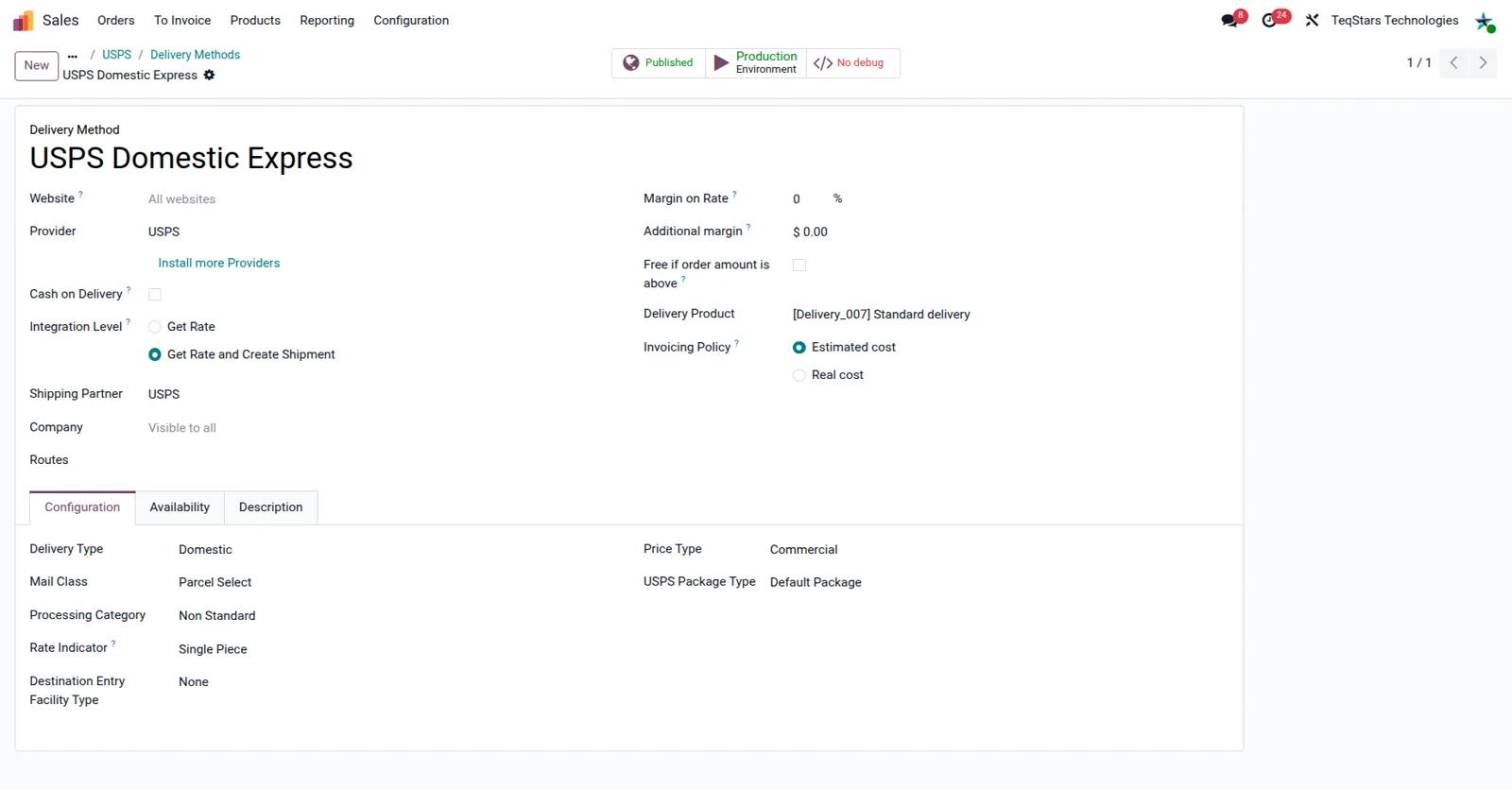
Each USPS service you sell becomes its own delivery method. Set 'Provider' to USPS, point the method at your shipping partner record, then choose a 'Delivery Type' of Domestic or International. The Configuration tab holds what USPS prices on: Mail Class or Mail Class International, Processing Category, Rate Indicator and Price Type. The USPS Package Type you pick here applies when the delivery order names none.
Quote USPS rates on a sales order
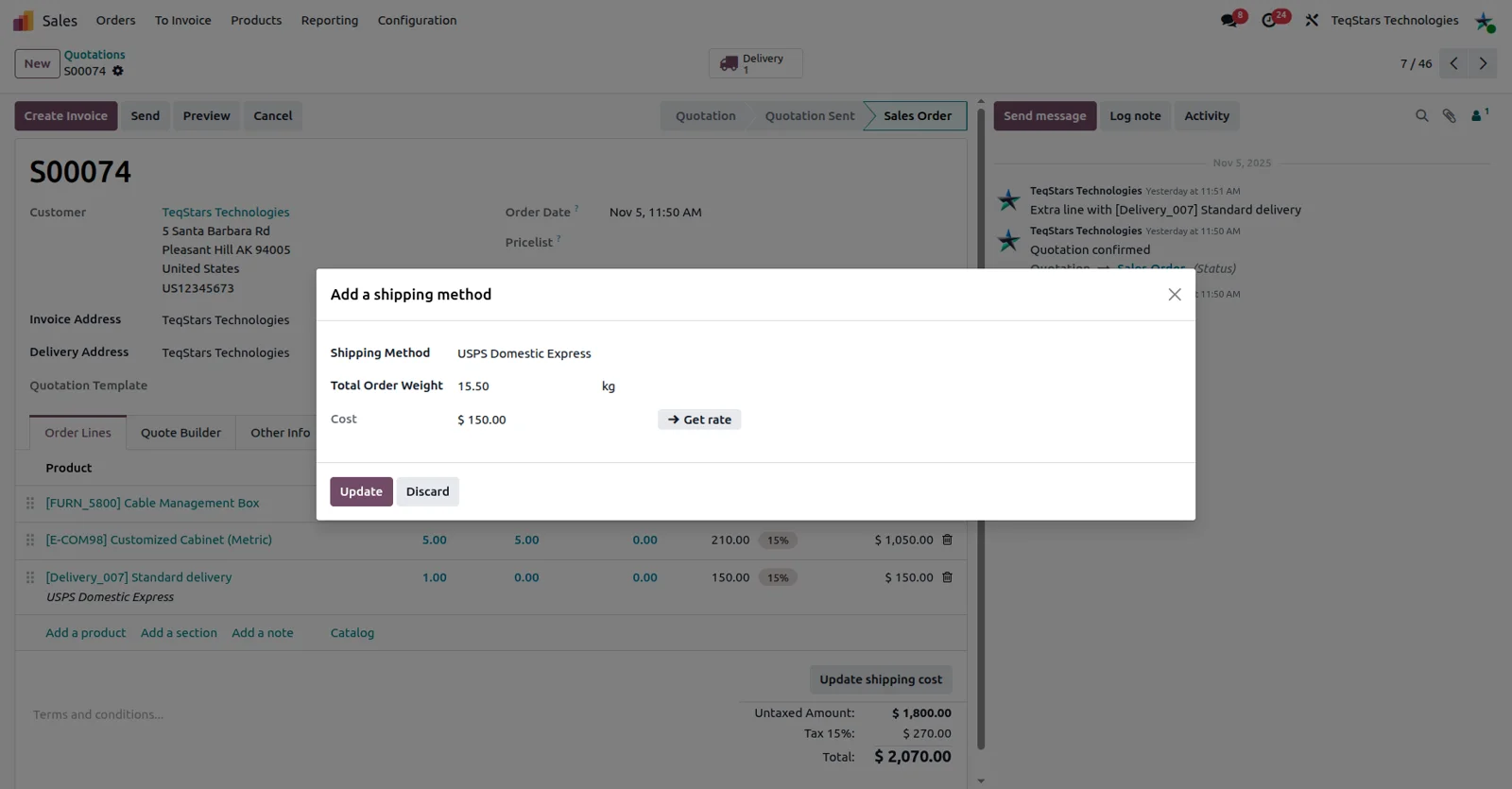
Your sales team sees a real USPS price before the customer says yes. Click 'Add Shipping' on the quotation and choose one of your USPS delivery methods. Odoo totals the order weight from the products, and you can type a different weight when the pack is unusual. 'Get Rate' asks USPS for the cost, and 'Add' places that charge on the order as a line.
USPS rates at website checkout
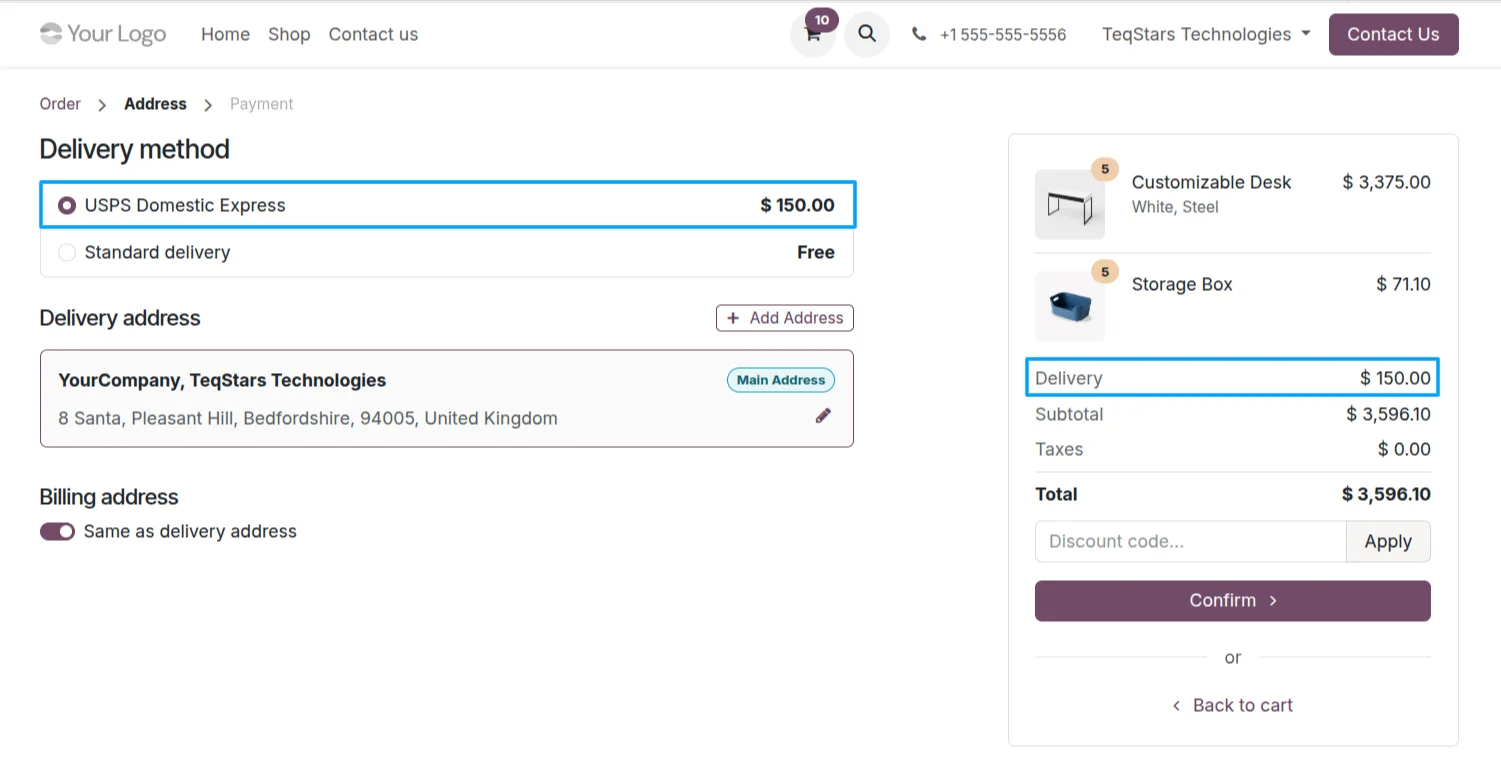
Online shoppers choose a USPS service themselves. Once your delivery methods are configured, the Odoo eCommerce app offers them during checkout and works out the rate from what sits in the cart. The shopper sees the shipping charge with the order total, and the method they picked carries through to the delivery order your warehouse processes.
Ship one order in several boxes
A large order can go out as more than one parcel. On the delivery order, use the 'Put in Pack' operation to split the goods into packages before you validate. USPS then issues a separate label and tracking number for each box. One package works the same way when a single box is enough, so your packers decide how the goods travel.
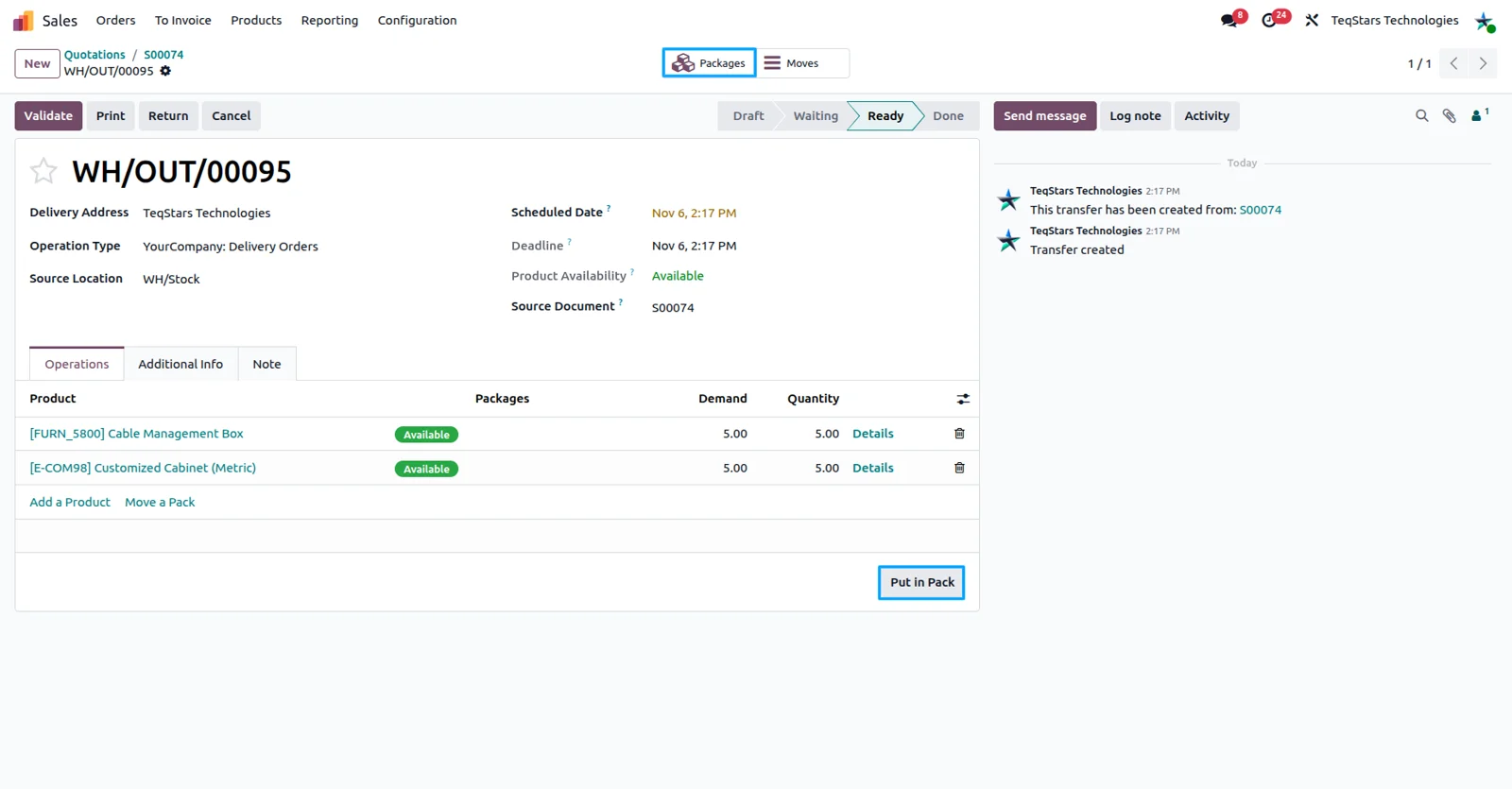
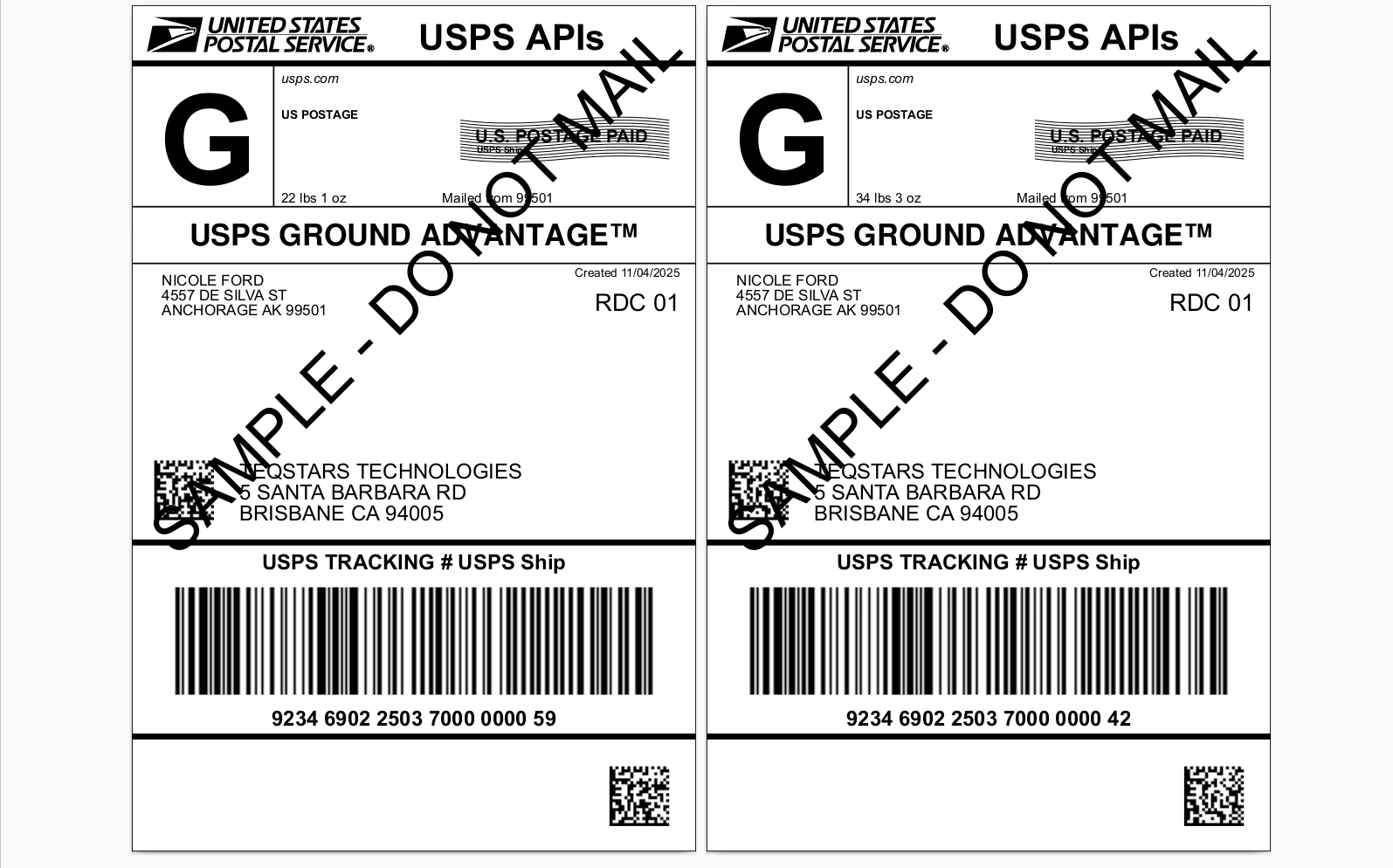
Labels created when you validate
The USPS label is ready the moment the delivery order is validated. Odoo sends the shipment details, and USPS answers with the label as a PDF that is attached to the delivery order in the chatter. Open the attachment to check it and print it for the box. A chatter note records the shipment together with its tracking number.
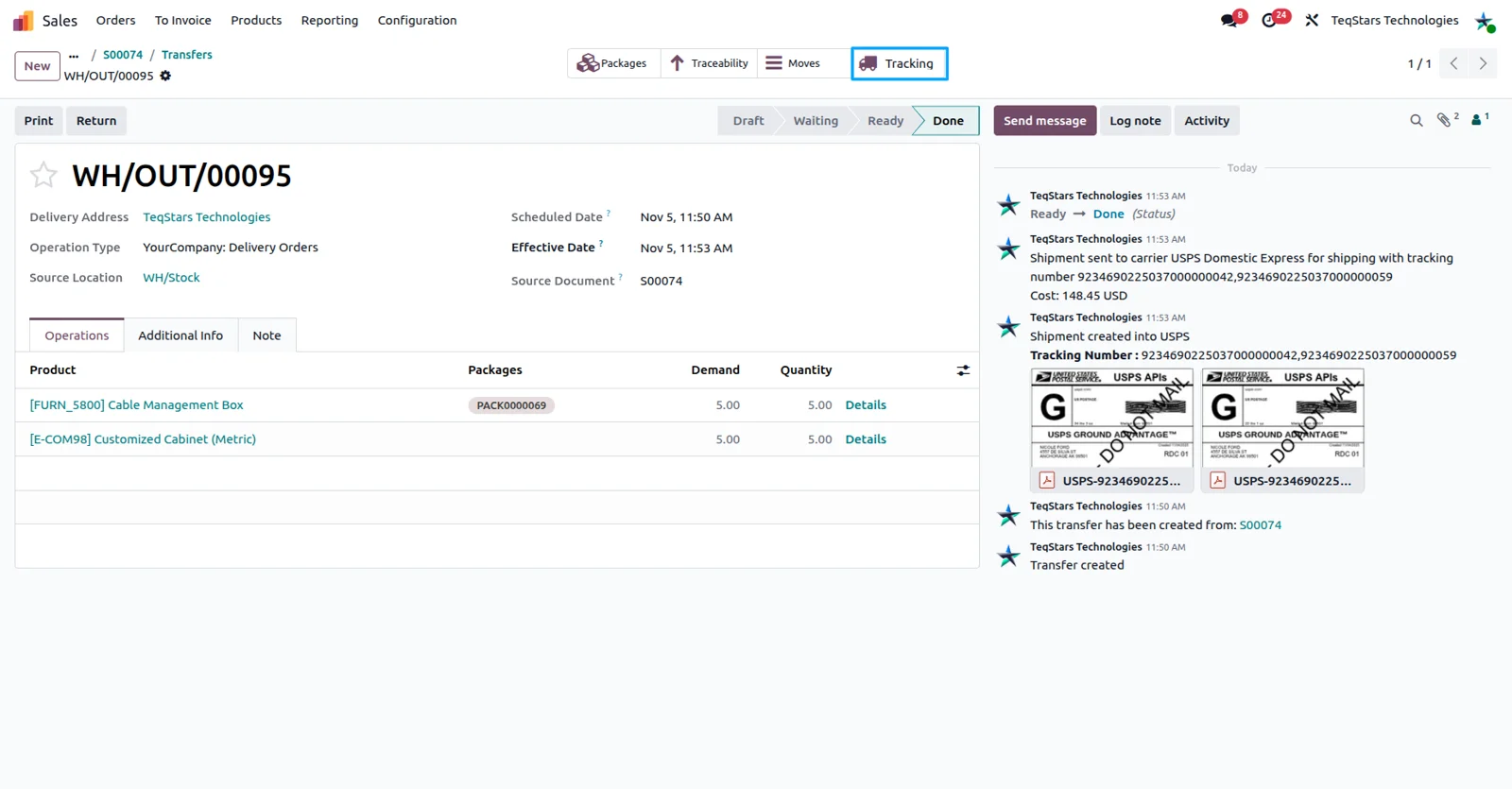
Track a parcel from the delivery order
You can answer a where-is-my-parcel call from the delivery order itself. The 'Tracking' button opens the status, the current location and the updates USPS has posted for that shipment. Tracking references also sit with the sales order, so whoever picks up the conversation can see how the parcel is moving before replying to the customer.
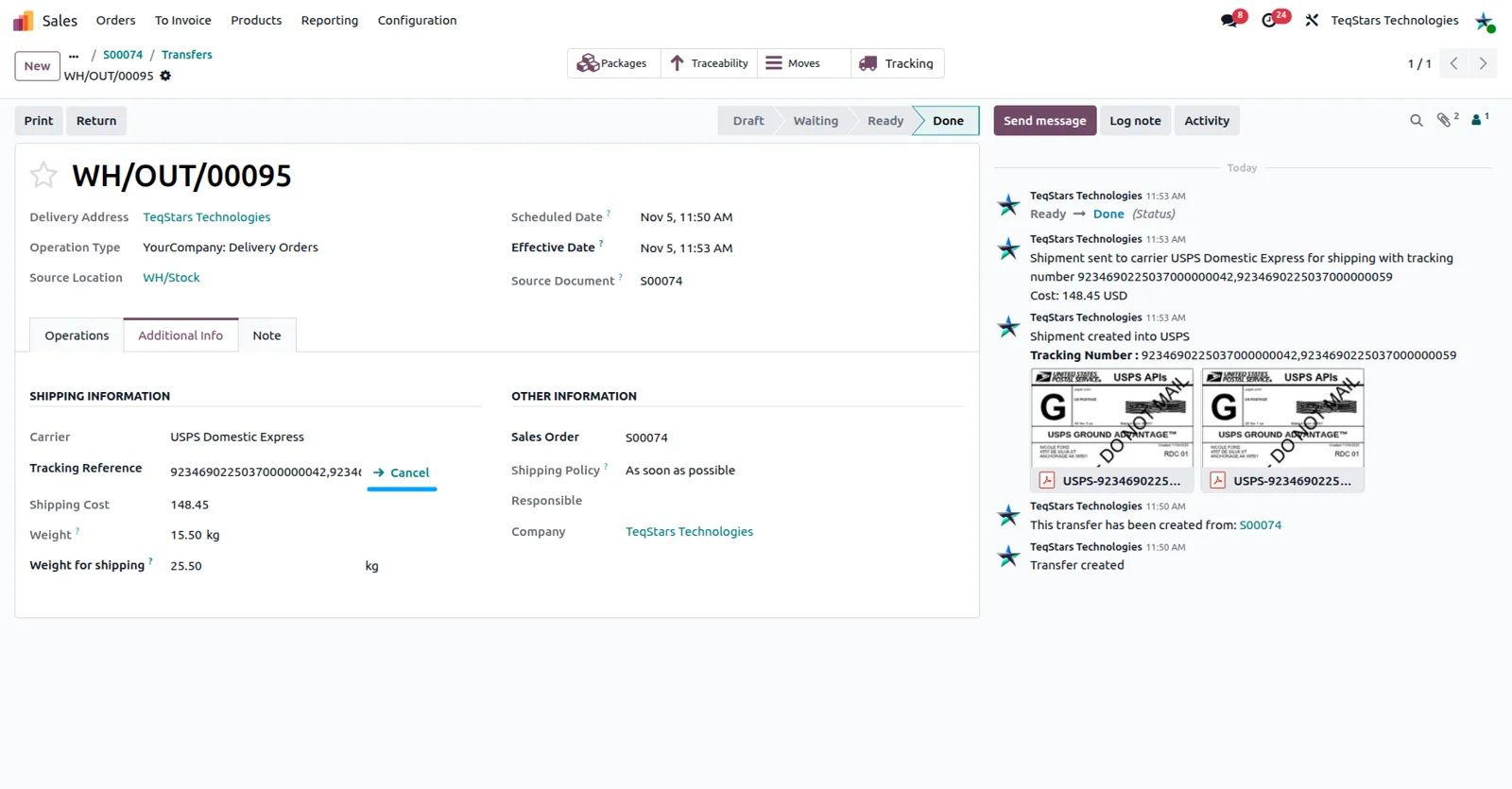
Cancel a shipment with one click
A cancelled order should not leave a live label sitting in USPS. Click 'Cancel' on the delivery order and Odoo asks USPS to void the label for that shipment, so nobody has to sign in to the carrier portal to stop it. If USPS turns the request down, Odoo shows the message it returned and you can correct the shipment and try again.
Supported Odoo versions
| Odoo version | Editions | Hosting | Price | Latest release | |
|---|---|---|---|---|---|
| 20.0 | Community & Enterprise | Odoo.sh · On-premise | €108.99 | 20.0.1.0.0 | Buy Docs |
| 19.0 | Community & Enterprise | Odoo.sh · On-premise | €108.99 | 19.0.1.0.1 | Buy Docs |
| 18.0 | Community & Enterprise | Odoo.sh · On-premise | €108.99 | No release notes | Buy |
| 17.0 | Community & Enterprise | Odoo.sh · On-premise | €108.99 | No release notes | Buy |
Support for USPS Connector
The developers who build the app answer your tickets.
- Free app support from purchase
- 60 days
- First response in working hours, typical
- 4–6 hours
- Support hours, 10:00–18:00 IST
- Mon–Fri
How to connect USPS to Odoo
-
Step 1
Create your USPS app
Your keys come from USPS. Register a business account through the Business Customer Gateway, sign in to the USPS Developer Dashboard, open your apps and use 'Add App'. Name the app and check 'Public Access I' before saving.
-
Step 2
Copy the credentials into Odoo
Open the 'Credentials' tab of the approved app and copy the Consumer Key and Consumer Secret. In Odoo, go to Sale, then Configuration, then Shipping partner, create a record and paste them into 'Client ID' and 'Client Secret'.
-
Step 3
Finish the account record
Add the rest of what USPS issued you: the CRID in 'Customer Registration ID', plus Mailer ID, Manifest Mailer ID, Account Type and Account Number. Click 'Generate New Token' for the access token, and keep 'Environment' on test until certified.
-
Step 4
Add your delivery methods
Create one method per service you want to sell, from Sale or from Inventory under Configuration. If the menu is missing, switch on 'Delivery Methods' in the Shipping part of Inventory settings first.
-
Step 5
Quote, pack and validate
Test the whole path on one order. Fetch a price with 'Add Shipping' on the quotation, then open the transfer in Inventory, check the carrier field, pack the goods and click 'Validate' to get the label and tracking number.
Questions before you buy
Not answered here? Talk to the team.