Four Walmart marketplaces, one Odoo, from listings to settlement
This Walmart Odoo integration imports your orders, returns and listings, and sends prices, stock and tracking to Walmart. The United States, Canada, Mexico and Chile each get their own credentials, currency and warehouse. Seller-fulfilled and WFS orders stay apart.
- Odoo 17.0 – 20.0
- Community & Enterprise
- Odoo.sh · On-premise
-
Not for
Odoo Online
Top seller on the Odoo Apps Store
- sales on the Odoo Apps Store
- 3,000+
- apps published
- 100+
- countries running them
- 100+
Walmart selling before and after the connector
Without the connector by hand
-
Retype each Walmart order, its addresses, fees and taxes into Odoo.
-
Confirm every new order in Seller Center before the clock runs out.
-
Copy tracking numbers into Seller Center after each shipment goes out.
-
Edit the same price and quantity twice, in Odoo and on Walmart.
-
Guess which item broke a rejected upload of five hundred SKUs.
-
Enter Walmart's payout, commission and fee lines into your books by hand.
With the connector automatic
-
Import Orders creates the sale order with addresses, shipping, fees and taxes.
-
Seller-fulfilled orders are acknowledged on Walmart right after import, once you enable it.
-
You validate the delivery and press Update in Marketplace; a schedule can do it.
-
Prices and stock go to Walmart on a schedule you switch on.
-
The feed line names the SKU, Walmart's error code and its description.
-
Post the settlement report, then Auto Reconcile matches invoices and posts each charge type.
Orders, listings, stock and settlements between Walmart and Odoo
Every object the connector handles, which way it travels and what triggers it.
| Data | Direction | What happens & when |
|---|---|---|
| Seller-fulfilled orders |

 Walmart to Odoo
|
A schedule you switch on, or the Import Orders operation |
| WFS orders |
Walmart to Odoo
|
The same order job, for the US, Canada and Mexico |
| Order acknowledgement |
Odoo to Walmart
|
Right after import when Auto Acknowledge Orders is on |
| Shipping status and tracking |
Odoo to Walmart
|
You validate the delivery and press Update in Marketplace |
| Order cancellation |
Both ways
|
Found at import, or you cancel in Odoo then Cancel In Walmart |
| Listings with variants and SKUs |
Walmart to Odoo
|
You run the Import Listings operation |
| New and updated listings |
Odoo to Walmart
|
You export from the listing list or the Operations popup, US only |
| Prices |
Odoo to Walmart
|
Export Prices, or a schedule you switch on |
| Seller stock levels |
Both ways
|
Export and import operations, or a schedule you switch on |
| WFS stock on hand |
Walmart to Odoo
|
Import into the WFS warehouse, all four markets |
| Customer returns |
Walmart to Odoo
|
A schedule you switch on, for all four markets |
| Refunds and credit notes |
Odoo to Walmart
|
You issue the refund from a return, or send a posted credit note |
| Settlement reports |
Walmart to Odoo
|
Import operation or a schedule you switch on, US only |
| Product types and specifications |
Walmart to Odoo
|
Import operation, then Fetch Spec per product type, US only |
Walmart Connector features
Import Walmart orders into Odoo
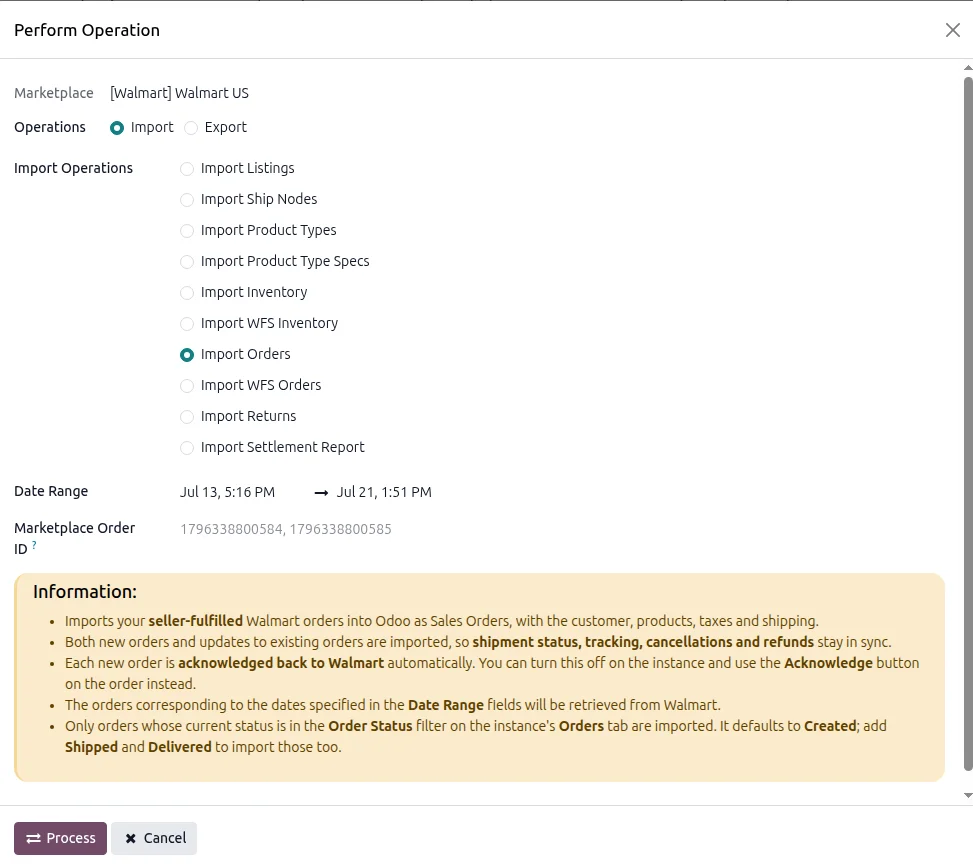
Walmart orders become Odoo sale orders with the customer, addresses and product lines already filled in. Shipping, fees and taxes come in on the same order. You choose a date range in the Import Orders wizard, or paste the Walmart order IDs you want. Each order is created using the workflow set for that market, and only the Walmart statuses you ticked in the order filter are collected. An order that is already in Odoo gets updated, not duplicated.
Seller-fulfilled and WFS in parallel
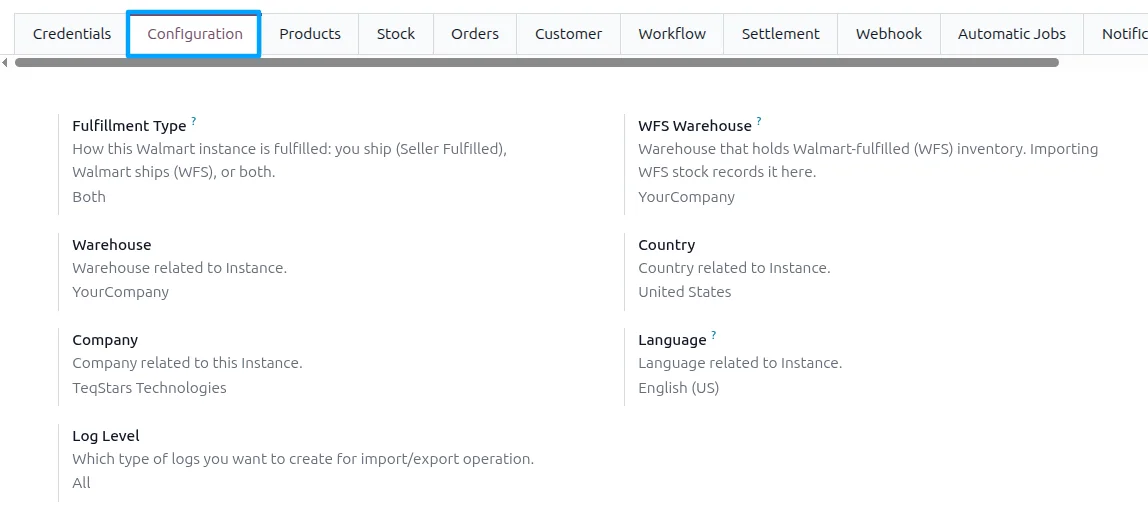
For each market you choose Seller-Fulfilled, WFS or both, and give each stream its own warehouse. Orders you ship yourself follow your seller workflow and draw on your own stock. Orders that Walmart Fulfillment Services ships follow a second workflow and sit against the WFS warehouse, which keeps the two streams apart. WFS orders are marked acknowledged when they come in, and no tracking is sent for them, because Walmart already shipped them.
Map Walmart attributes to Odoo
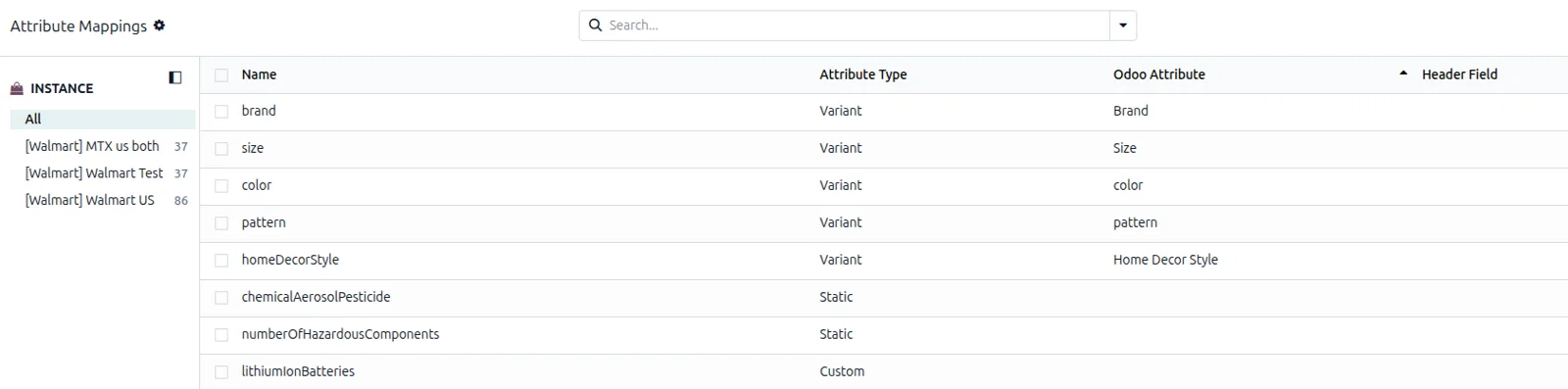
Walmart will not create a listing unless it carries the attributes its product type demands. The connector imports those product types and fetches the specification behind the ones you sell, which creates a row for each Walmart attribute. You decide where its value comes from: a listing field, an Odoo variant attribute like Color, or a value typed on the listing. Value mappings pair Walmart's wording with yours. This applies to the United States market.
See which SKU Walmart rejected
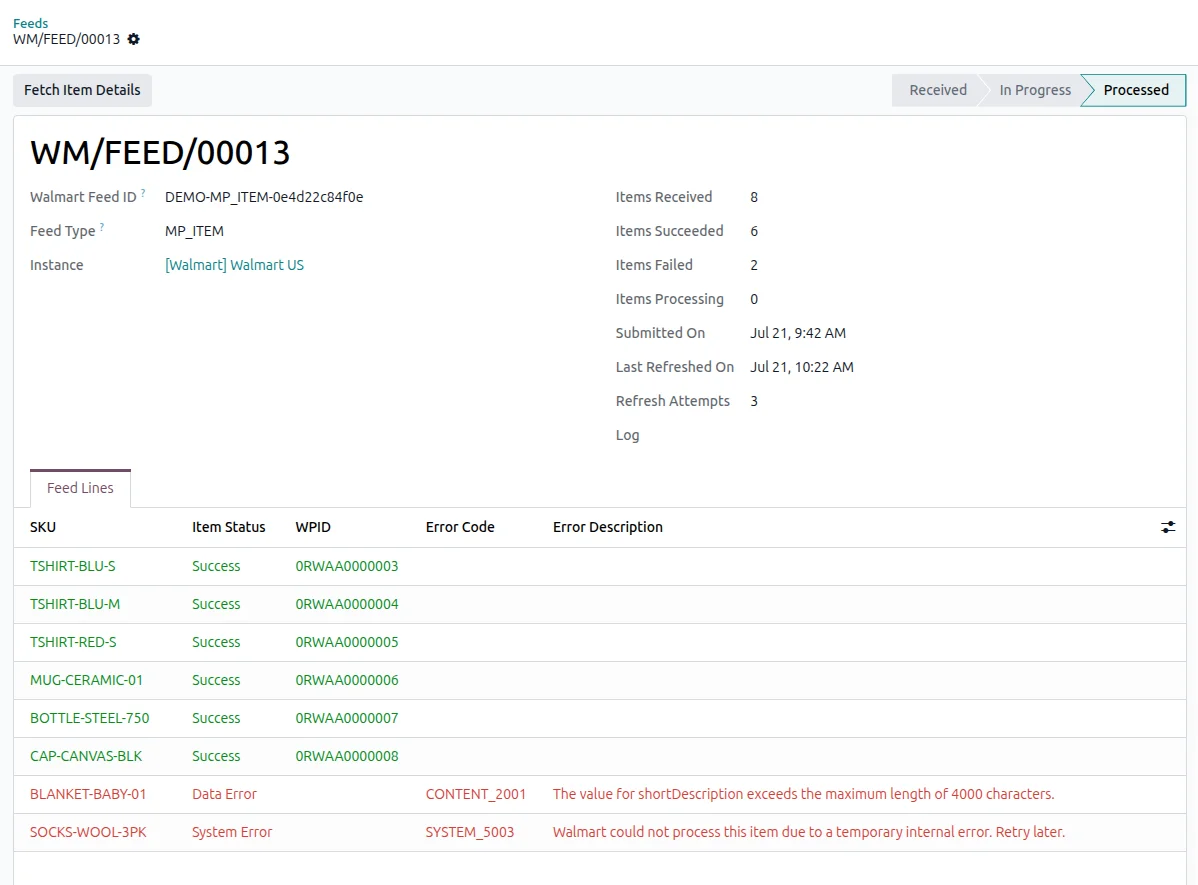
Every export to Walmart is handed over as a job that Walmart works through on its own clock, and the connector follows each job until it ends. The feed record keeps one line per SKU, with its own result and with Walmart's error code and description when an item is refused. A feed of five hundred items can finish with three failures, so check the item counts. Fix the data in Odoo and send just those items again.
Reconcile Walmart payouts in your books
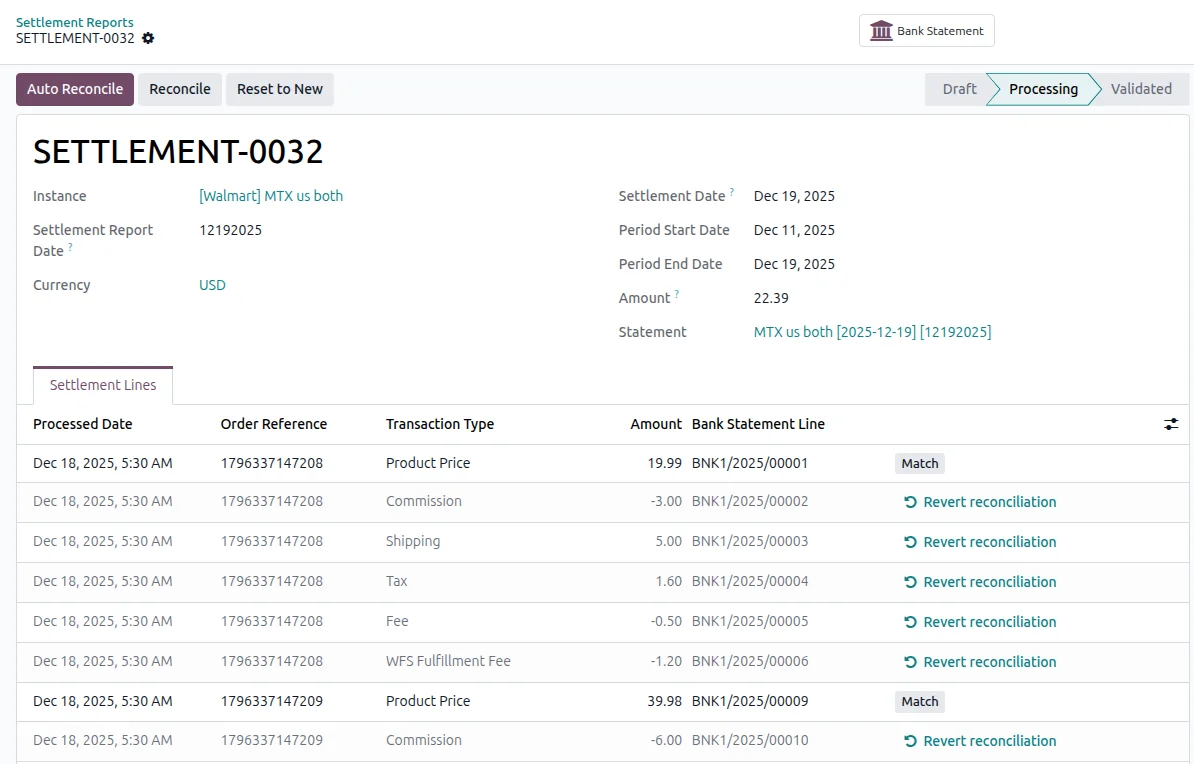
Walmart pays one net amount for a period, and the settlement report breaks that payment down. Import the report, then press Post to get a bank statement with one line per charge. Auto Reconcile matches product charges against the posted invoice or credit note for that order, and posts commission, shipping and fees to the accounts you mapped. Lines it cannot match are flagged with the reason, such as an order that was never imported. Settlement reports are a United States feature.
Import returns and push refunds
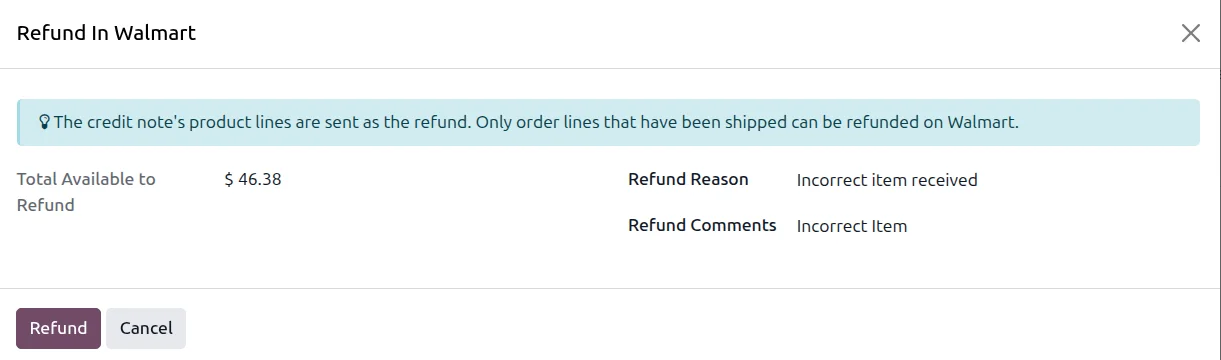
Customer returns are imported for all four markets, each one linked to the order behind it with header and line detail. From a return you can push the refund to Walmart for the United States and Mexico, and Odoo writes the matching credit note and links it. For the United States and Canada you can instead send a posted credit note from the invoice, with the shipping charge included.
Send tracking from each delivery
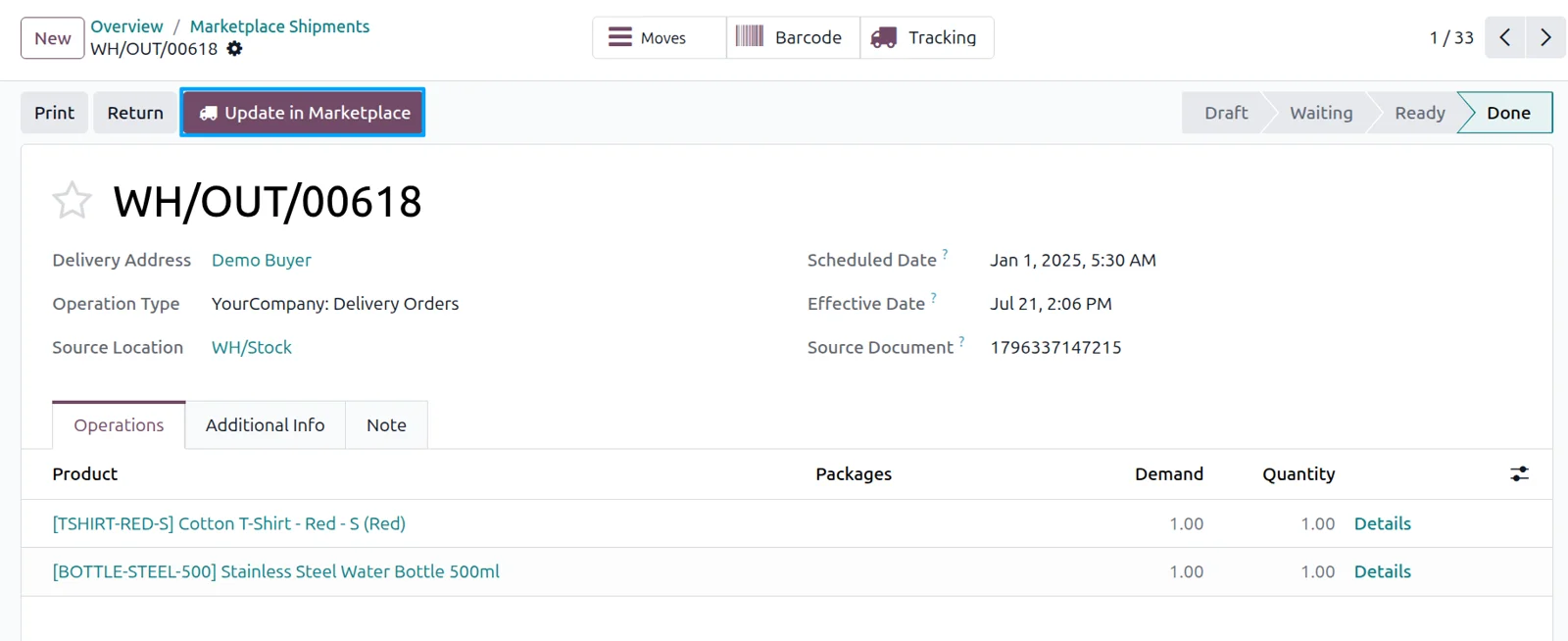
Validate a delivery in Odoo and press Update in Marketplace to tell Walmart which items shipped and under which tracking number. When an order goes out in several deliveries, each validated delivery is reported on its own with its own tracking. The order is only marked Shipped after all of them have been sent. Map your carriers to Walmart's names first, and a schedule you switch on can handle the sending.
Supported Odoo versions
| Odoo version | Editions | Hosting | Price | Latest release | |
|---|---|---|---|---|---|
| 20.0 | Community & Enterprise | Odoo.sh · On-premise | €369.99 | 20.0.1.0.0 | Buy Docs |
| 19.0 | Community & Enterprise | Odoo.sh · On-premise | €369.99 | 19.0.1.0.2 | Buy Docs |
| 18.0 | Community & Enterprise | Odoo.sh · On-premise | €369.99 | No release notes | Buy |
| 17.0 | Community & Enterprise | Odoo.sh · On-premise | €369.99 | No release notes | Buy |
Support for Walmart Connector
The developers who build the app answer your tickets.
- Free app support from purchase
- 60 days
- First response in working hours, typical
- 4–6 hours
- Support hours, 10:00–18:00 IST
- Mon–Fri
How to connect Walmart to Odoo
-
Step 1
Create your Walmart keys
Walmart has to recognize your Odoo database before anything moves. In Seller Center, open API Key Management and create a key pair for the market you are connecting. One pair covers one marketplace, so repeat this per country.
-
Step 2
Add the marketplace in Odoo
Under Marketplaces, Configuration, Instance, click New, choose Walmart and pick your Marketplace Region. Paste in the Client ID and Client Secret. Test Connection checks the pair, and Confirm opens the remaining setup.
-
Step 3
Pick fulfillment and warehouses
Decide which stock Walmart gets to see. On the Configuration tab choose a Fulfillment Type of Seller-Fulfilled, WFS or Both, then name the warehouse behind each one, including the separate warehouse for stock Walmart holds.
-
Step 4
Set taxes and order workflow
Imported orders can arrive already confirmed, invoiced and paid. Set the Tax System, then choose how far Odoo should take an order. Seller-fulfilled and WFS orders keep their own workflow each.
-
Step 5
Prepare the US catalog
Only needed for the United States. Import Walmart's product types, fetch the specification for the types you sell, then match Walmart's attributes and their allowed values to your Odoo attributes. Exported listings then carry what Walmart expects.
-
Step 6
Import listings, then orders
Run Import Listings to bring your live Walmart items into Odoo. Matching to existing products follows your choice of barcode, internal reference or either value. Then import orders for a date range and read the result in the logs.
Questions before you buy
Not answered here? Talk to the team.