Register GLS parcels, print labels and cancel shipments from your delivery orders
This GLS Odoo integration creates the shipment and label when you validate a delivery order. You set prices yourself with a fixed price or your own rules, since GLS has no live rate service. Tracking links and cancellation live on the same order.
- Odoo 17.0 – 20.0
- Community & Enterprise
- Odoo.sh · On-premise
-
Not for
Odoo Online
Top seller on the Odoo Apps Store
- sales on the Odoo Apps Store
- 3,000+
- apps published
- 100+
- countries running them
- 100+
GLS shipping work before and after the connector
Without the connector by hand
-
Retype order addresses and weights into the GLS shipping portal for each parcel.
-
Download labels from GLS and attach them to the right order by hand.
-
Copy tracking numbers into Odoo so your team can answer customers.
-
Look up a shipping price in a spreadsheet before quoting a customer.
-
Phone or email GLS to stop a parcel you no longer ship.
With the connector automatic
-
Validating the delivery sends the address and each package's weight to GLS.
-
The label comes back in your chosen format, attached to the delivery order.
-
Tracking numbers are posted in the order chatter at validation.
-
Clicking Get Rate applies your fixed price or your pricing rules.
-
One click on the delivery order sends a cancellation request per parcel.
Shipments, labels and cancellations between Odoo and GLS
Every object the connector handles, which way it travels and what triggers it.
| Data | Direction | What happens & when |
|---|---|---|
| Shipment with parcel details |

 Odoo to GLS
|
Validating the delivery order registers every package as its own parcel. |
| Shipping label file |
GLS to Odoo
|
Returned at validation and attached to the delivery order. |
| Tracking numbers |
GLS to Odoo
|
Created at validation and listed in a chatter message. |
| Cancellation request |
Odoo to GLS
|
Clicking Cancel on the delivery order, one request per parcel. |
GLS Connector features
Set the GLS service and label format
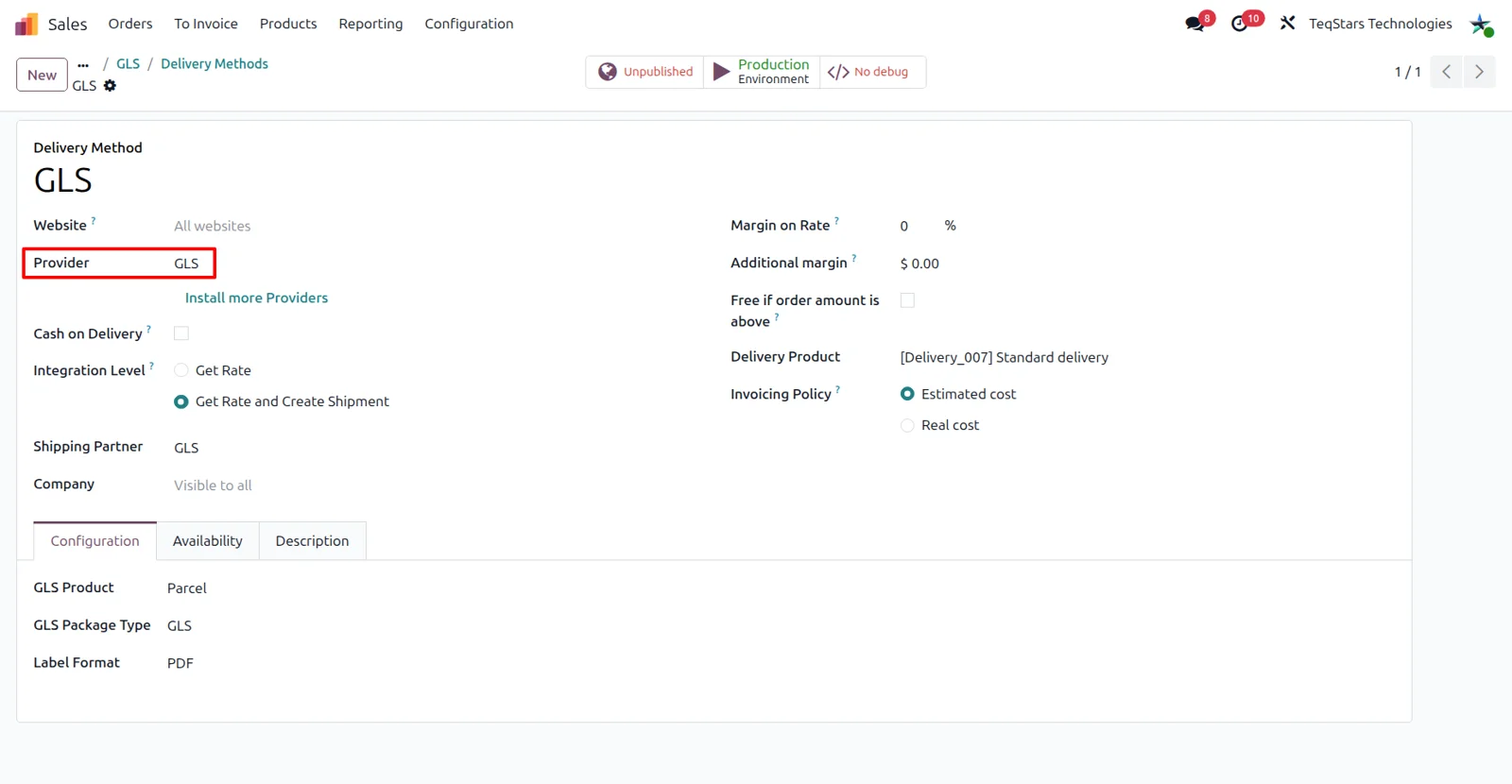
Each GLS delivery method carries the shipping choices your packers would otherwise decide themselves. On the Configuration tab you pick the GLS Product for the shipment: Parcel, Express or Freight, with Pharma and Pharma Plus also available. You choose the label format there, and the GLS Package Type whose weight is used for the parcel. A package type shows up here once its carrier is set to GLS.
Price GLS shipping with your own rules
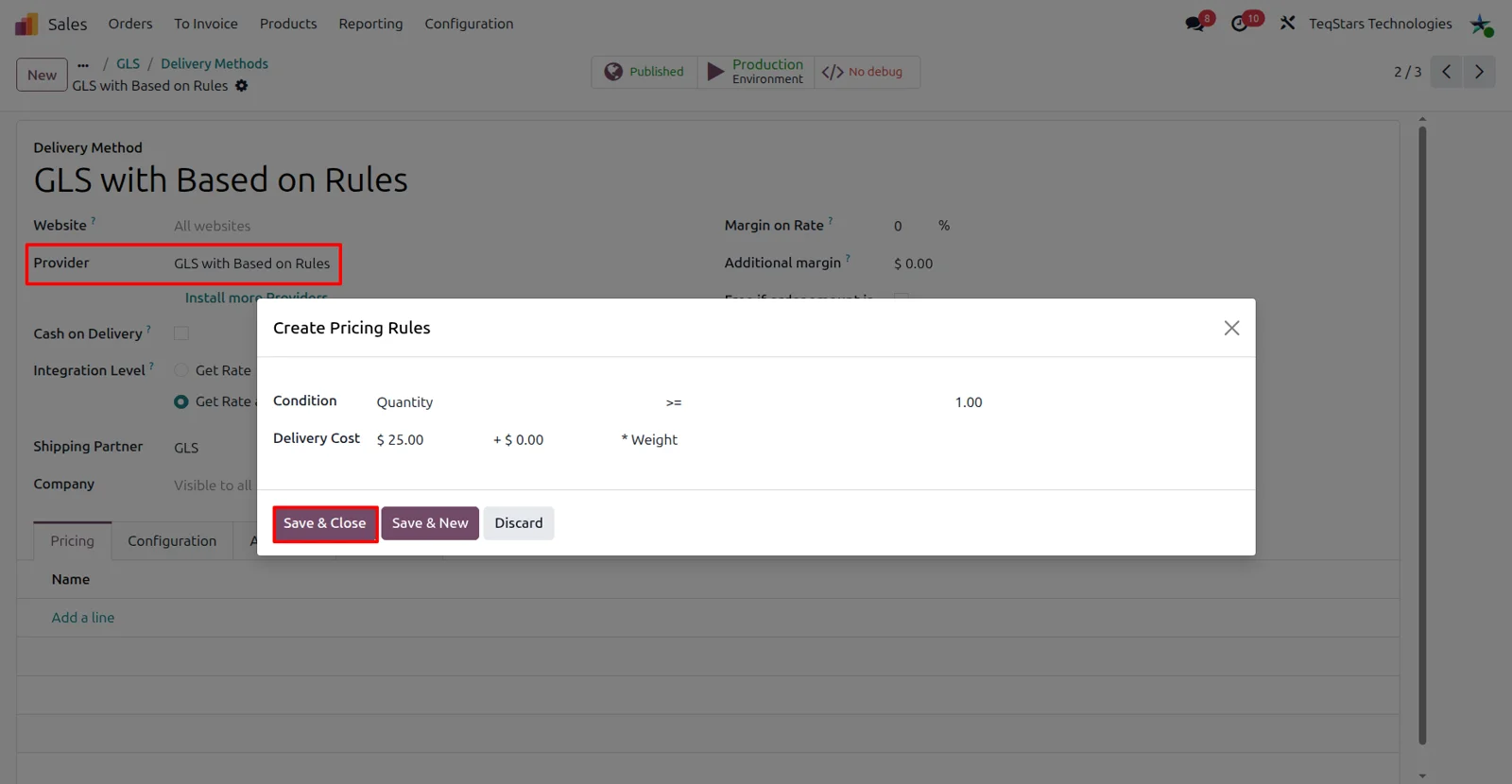
GLS has no live rating service, so you decide what customers pay for delivery. Choose GLS with Based on Rules and add rules that work out the charge from order criteria such as quantity, weight or amount. When one price is enough, GLS with Fixed Price charges the price of the delivery product you assigned. Both are ordinary Odoo delivery methods, so your sales team works as usual.
Show the GLS rate on quotations
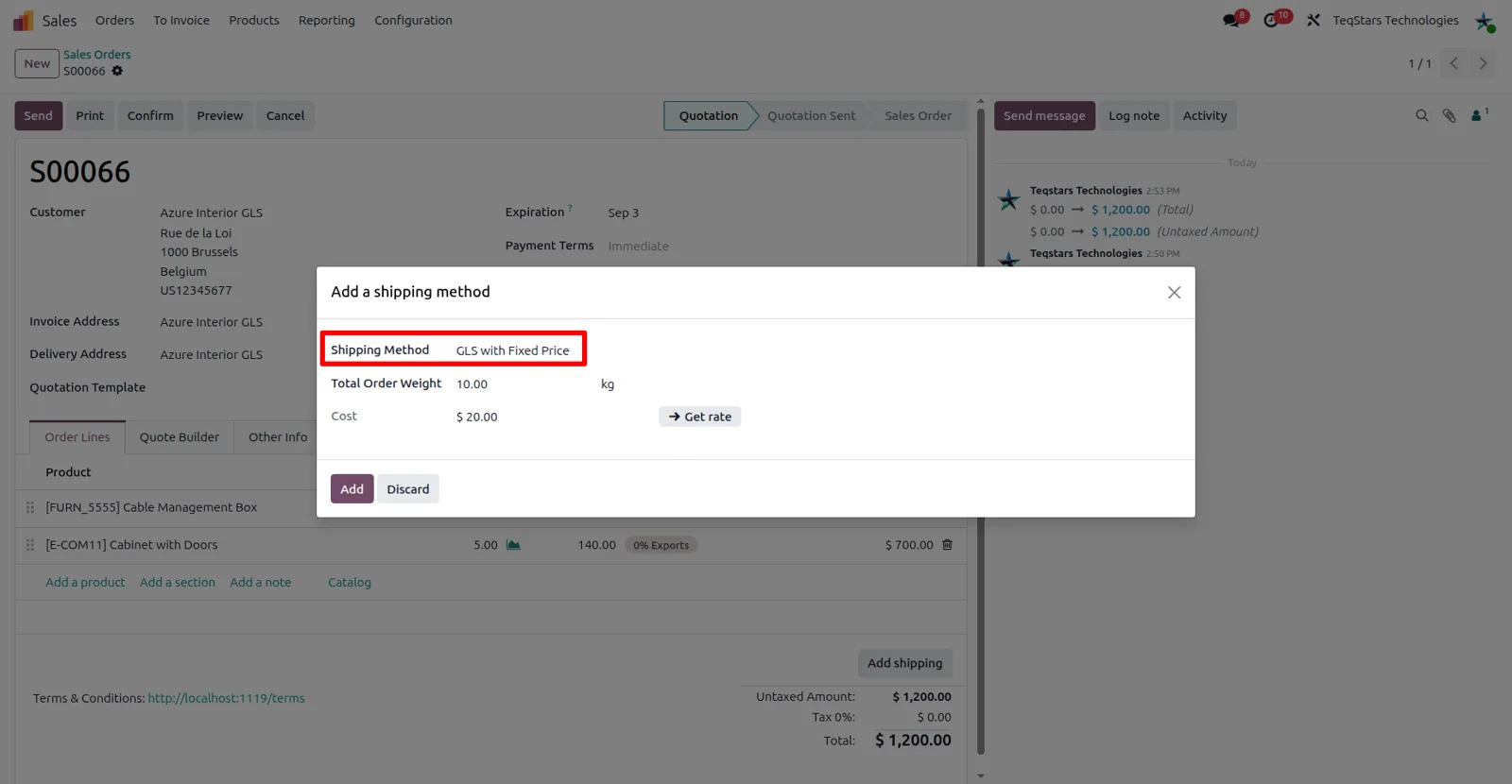
Your quotation carries the shipping charge before the customer confirms the order. Click Add on the quotation, select the GLS delivery method, then press Get Rate. Odoo takes the amount from the fixed price or the rules on that method, because GLS does not quote live. The total order weight is calculated from the products, and you can enter a weight yourself. Website shoppers pick the same methods at checkout.
Split one order into several parcels
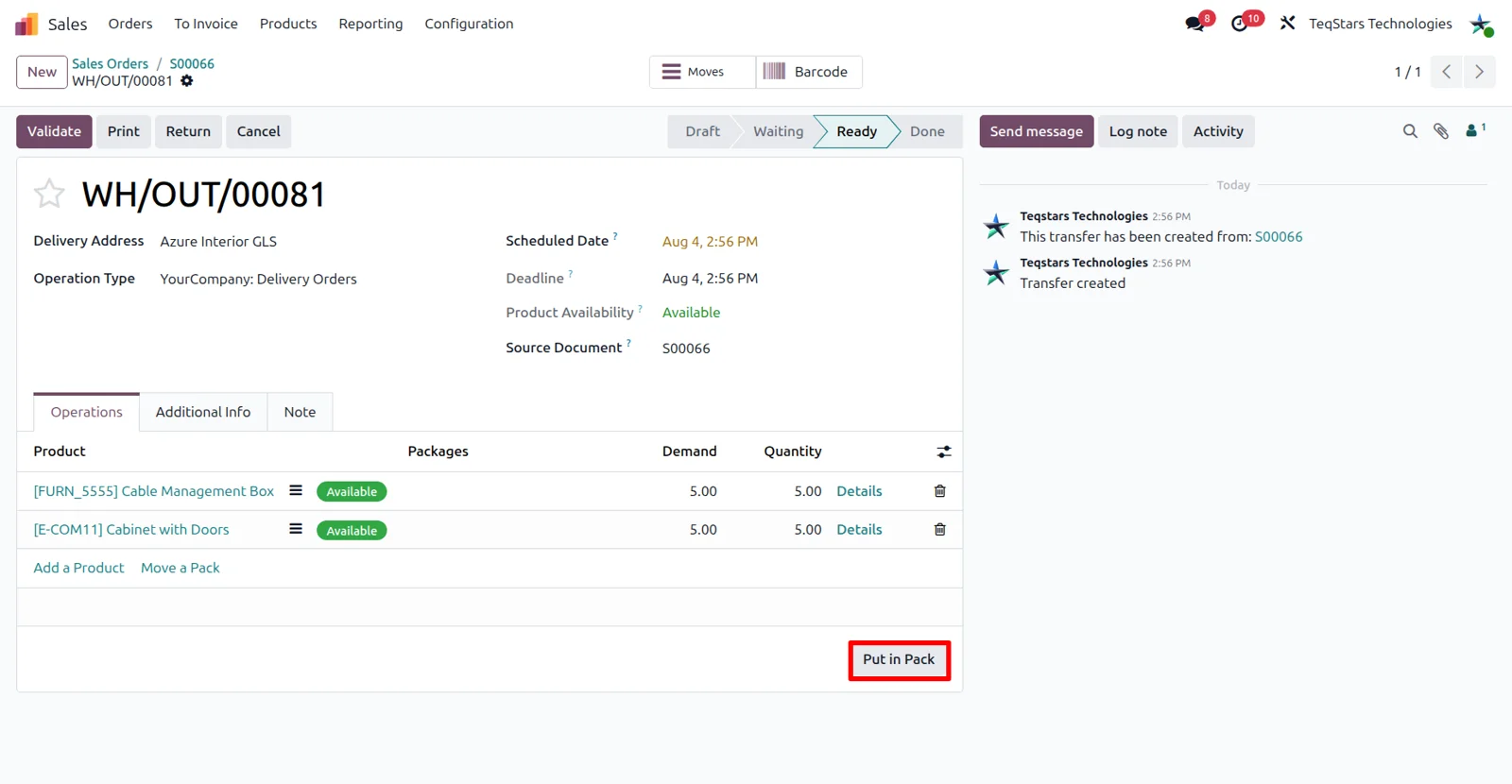
Orders that fill more than one box stay accurate at GLS. Use the Put in Pack operation on the delivery order to spread the goods across packages before you validate. Every package is then registered with GLS as a separate parcel carrying its own weight. Turn on the Packages feature under Operations in the Inventory settings first, otherwise the operation is not offered on the delivery order.
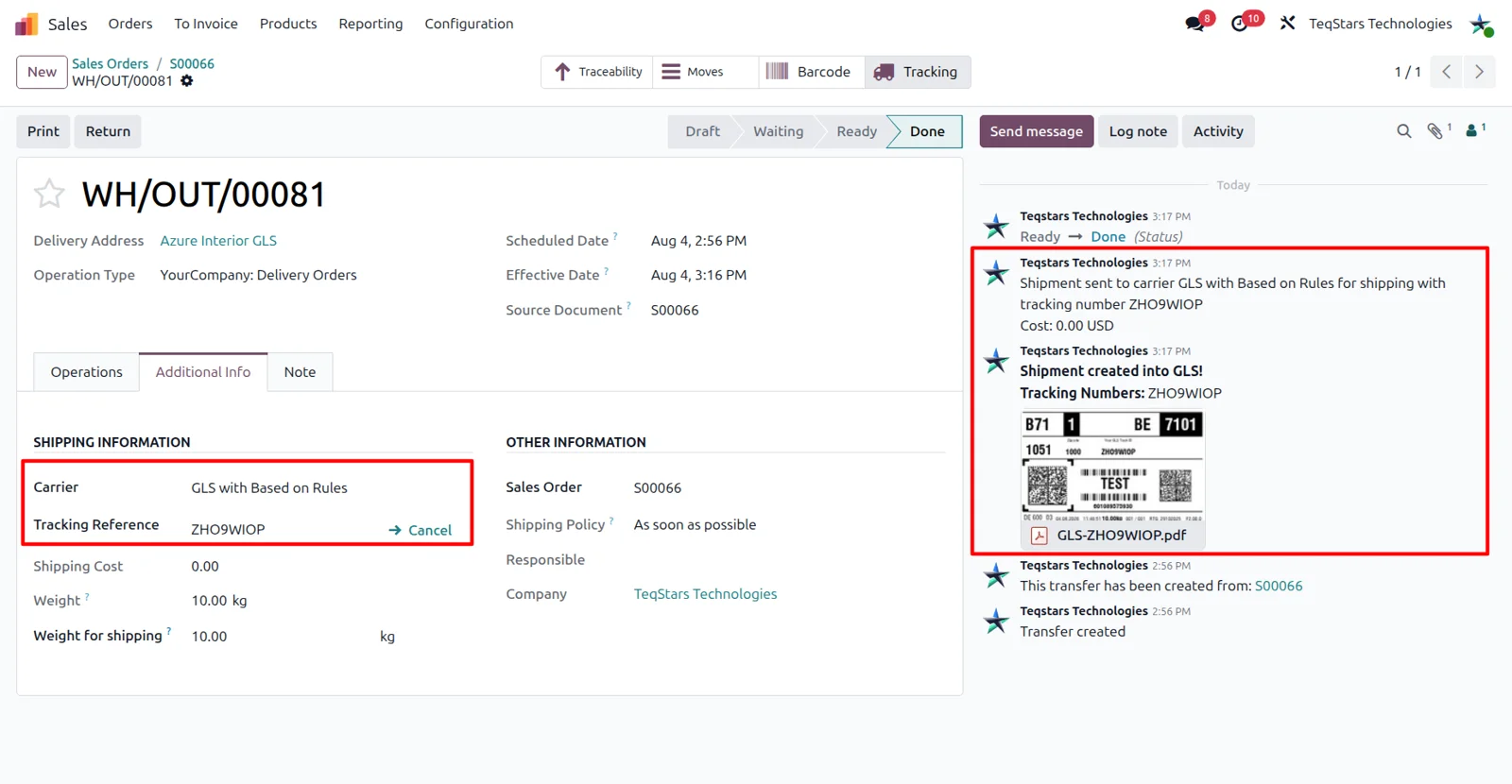
Labels and tracking numbers after validation
Clicking Validate on the delivery order creates the shipment at GLS and brings the paperwork back with it. The tracking numbers are generated and posted as a chatter message, and the shipping label is attached to the same order. Labels arrive in the format you chose, whether that is PDF, PNG or ZPL for a Zebra printer. Several PDF parcel labels for one order are merged into a single document.
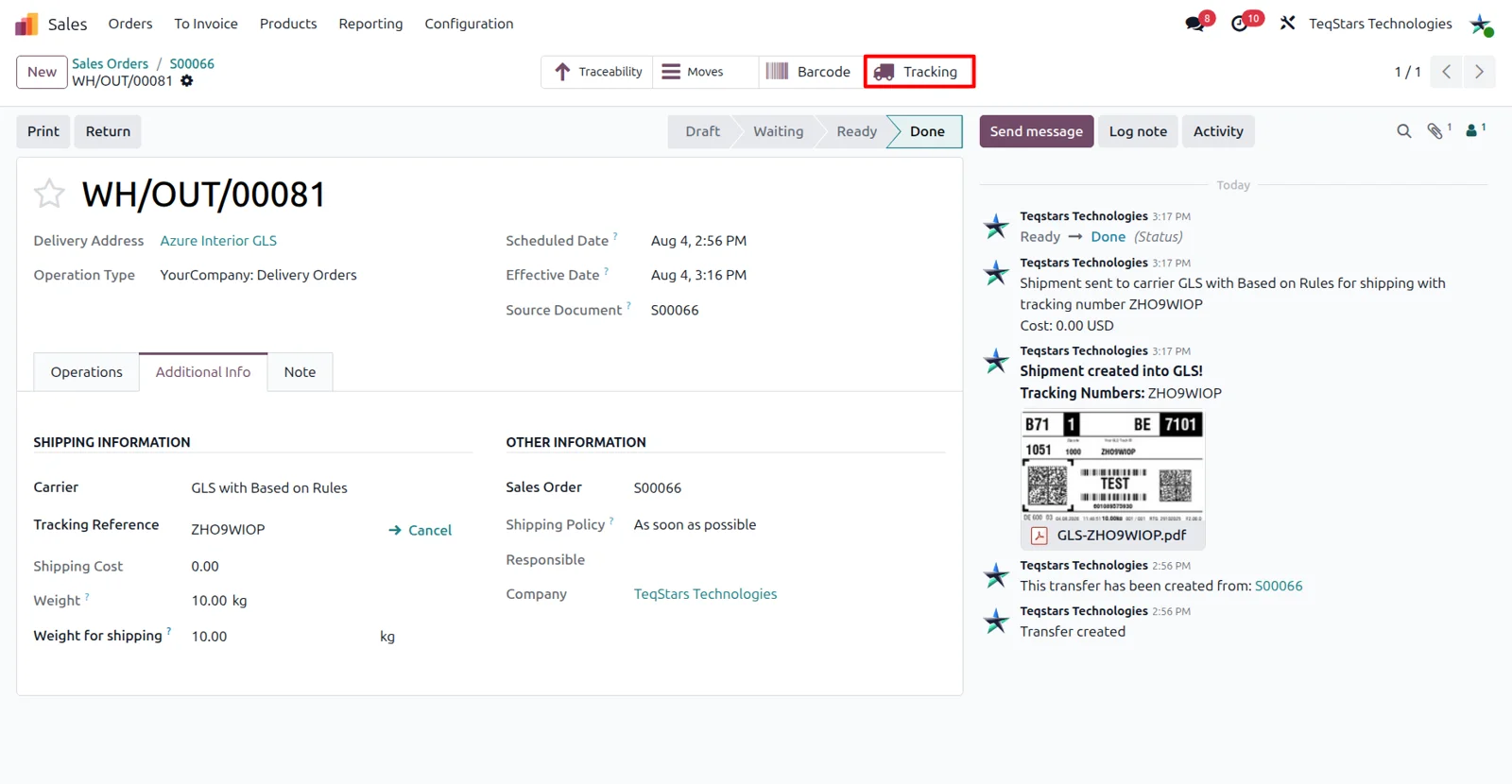
Open GLS tracking from the delivery order
Anyone handling a customer question can see where the parcel is. The Tracking button on the delivery order opens the GLS tracking page in a new tab when the shipment is a single parcel. For a shipment of several parcels, the connector posts the tracking links in the chatter so you can open each one. GLS shows status, location and progress there. Delivery status is not copied back into Odoo.
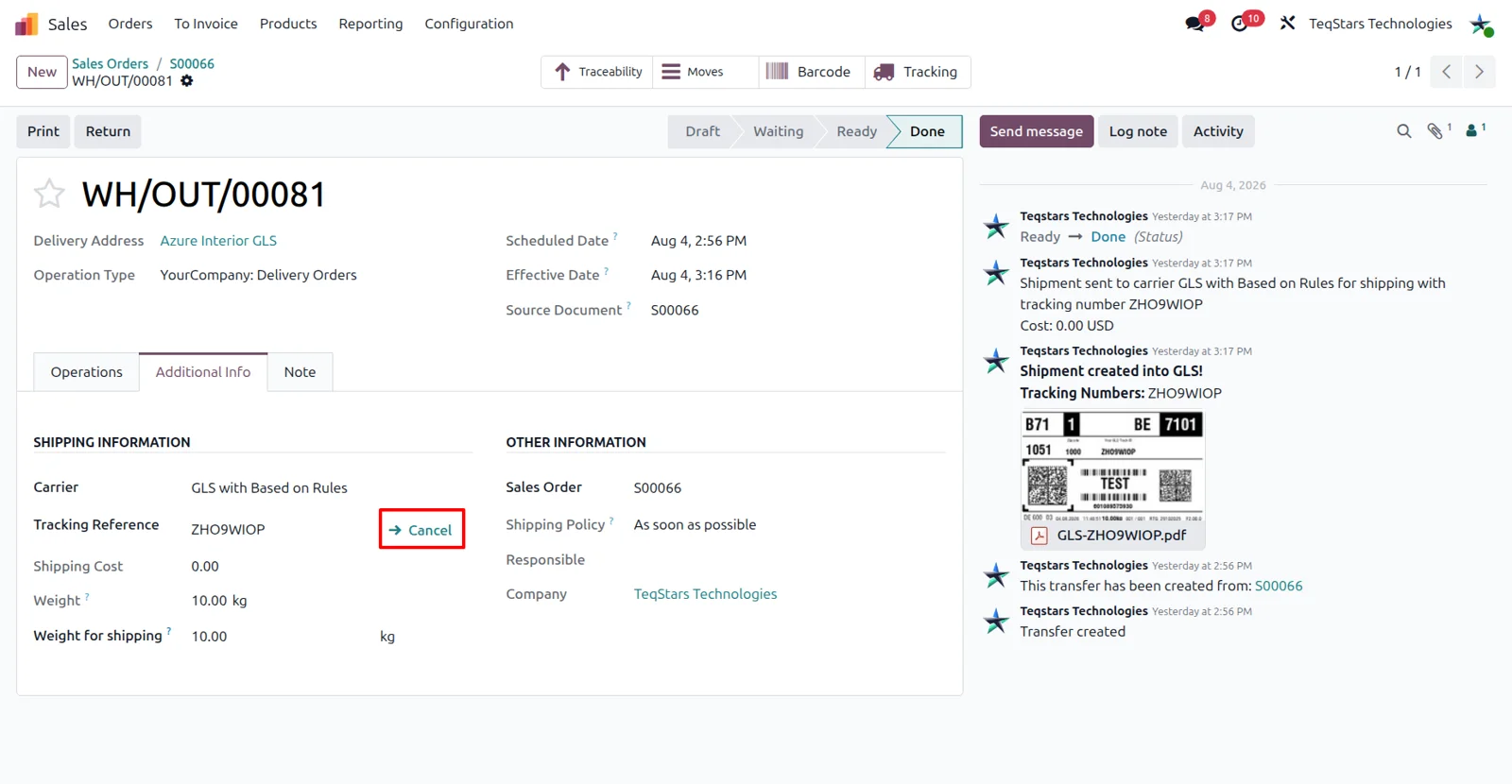
Cancel a GLS shipment in one click
Stopping a parcel you no longer ship takes a single click on the delivery order. Odoo sends a cancellation request to GLS for each parcel and writes the answer in the chatter, so you have a record of it. The request goes through while the parcel has not been handed over for transport. GLS either confirms it at once or marks it pending, and both answers mean the shipment is cancelled.
Supported Odoo versions
| Odoo version | Editions | Hosting | Price | Latest release | |
|---|---|---|---|---|---|
| 20.0 | Community & Enterprise | Odoo.sh · On-premise | €106.99 | 20.0.1.0.0 | Buy Docs |
| 19.0 | Community & Enterprise | Odoo.sh · On-premise | €106.99 | 19.0.1.0.0 | Buy Docs |
| 18.0 | Community & Enterprise | Odoo.sh · On-premise | €106.99 | No release notes | Buy |
| 17.0 | Community & Enterprise | Odoo.sh · On-premise | €106.99 | No release notes | Buy |
Support for GLS Connector
The developers who build the app answer your tickets.
- Free app support from purchase
- 60 days
- First response in working hours, typical
- 4–6 hours
- Support hours, 10:00–18:00 IST
- Mon–Fri
How to connect GLS to Odoo
-
Step 1
Enter your GLS credentials
Go to Sale, then Configuration, then Shipping Partner, and create a record with GLS as the partner. Paste the GLS API Key, GLS API Secret and GLS Contact ID, which is where GLS reads your shipper address.
-
Step 2
Check the service and go live
Ask GLS to enable the ShipIT-Farm service (v1) on your application. Without it a token is still issued, but shipments and labels fail. Then test your setup and press the Test smart button to switch the partner to Production.
-
Step 3
Build a GLS delivery method
Create a delivery method using GLS with Fixed Price or GLS with Based on Rules, and link your GLS shipping partner and a delivery product. On the Configuration tab, set the GLS Product, Label Format and GLS Package Type.
-
Step 4
Ship your first order
Add the GLS method to a quotation and confirm it, then open the delivery order in Inventory. Use Put in Pack for several boxes, click Validate to register the shipment and get the label, and use Tracking to follow it.
Questions before you buy
Not answered here? Talk to the team.