Sync contacts both ways and send Klaviyo campaigns from Odoo
This Klaviyo Odoo integration keeps profiles, lists and subscription status in step in both directions. Build, schedule and send Klaviyo campaigns on top of Odoo Email Marketing. Received, opened, clicked and bounced figures come back onto the Odoo campaign.
- Odoo 17.0 – 20.0
- Community & Enterprise
- Odoo.sh · On-premise
-
Not for
Odoo Online
Top seller on the Odoo Apps Store
- sales on the Odoo Apps Store
- 3,000+
- apps published
- 100+
- countries running them
- 100+
Klaviyo contact and campaign work before and after the connector
Without the connector by hand
-
Export contacts to a spreadsheet, then upload the file into Klaviyo again.
-
Open Klaviyo daily and copy new list members back into Odoo.
-
Log in to Klaviyo to check how yesterday's campaign performed.
-
Chase unsubscribes and suppressions separately in each system.
-
Hope a broken import shows up before the next send.
With the connector automatic
-
One click exports contacts to a Klaviyo list, or a schedule fills it hourly.
-
A scheduled action imports Klaviyo list members on the interval you set.
-
Received, opened, clicked and bounced counts appear on the Odoo campaign.
-
Blacklist and Klaviyo suppression status stay in step both ways.
-
Failures are logged per record and the rest of the import continues.
Profiles, lists, campaigns and reports between Odoo and Klaviyo
Every object the connector handles, which way it travels and what triggers it.
| Data | Direction | What happens & when |
|---|---|---|
| Lists and audiences |

 Both ways
|
You run the import or the export for the account. |
| Profiles and list members |
Klaviyo to Odoo
|
A scheduled action imports members on its interval. |
| Contacts and mailing contacts |
Odoo to Klaviyo
|
One click on the record, or auto export on a list, hourly. |
| Email templates with body |
Both ways
|
You run the template import, or push an Odoo template back. |
| Campaigns |
Both ways
|
You import campaigns, or send a mailing from Odoo. |
| Campaign statistics and clicked links |
Klaviyo to Odoo
|
A scheduled action imports campaign activity every hour. |
| Segments and metrics |
Klaviyo to Odoo
|
You run the import operation for the account. |
| Subscription and blacklist status |
Both ways
|
A status change on either side, such as blacklisting in Odoo. |
Klaviyo Connector features
Decide what each account syncs
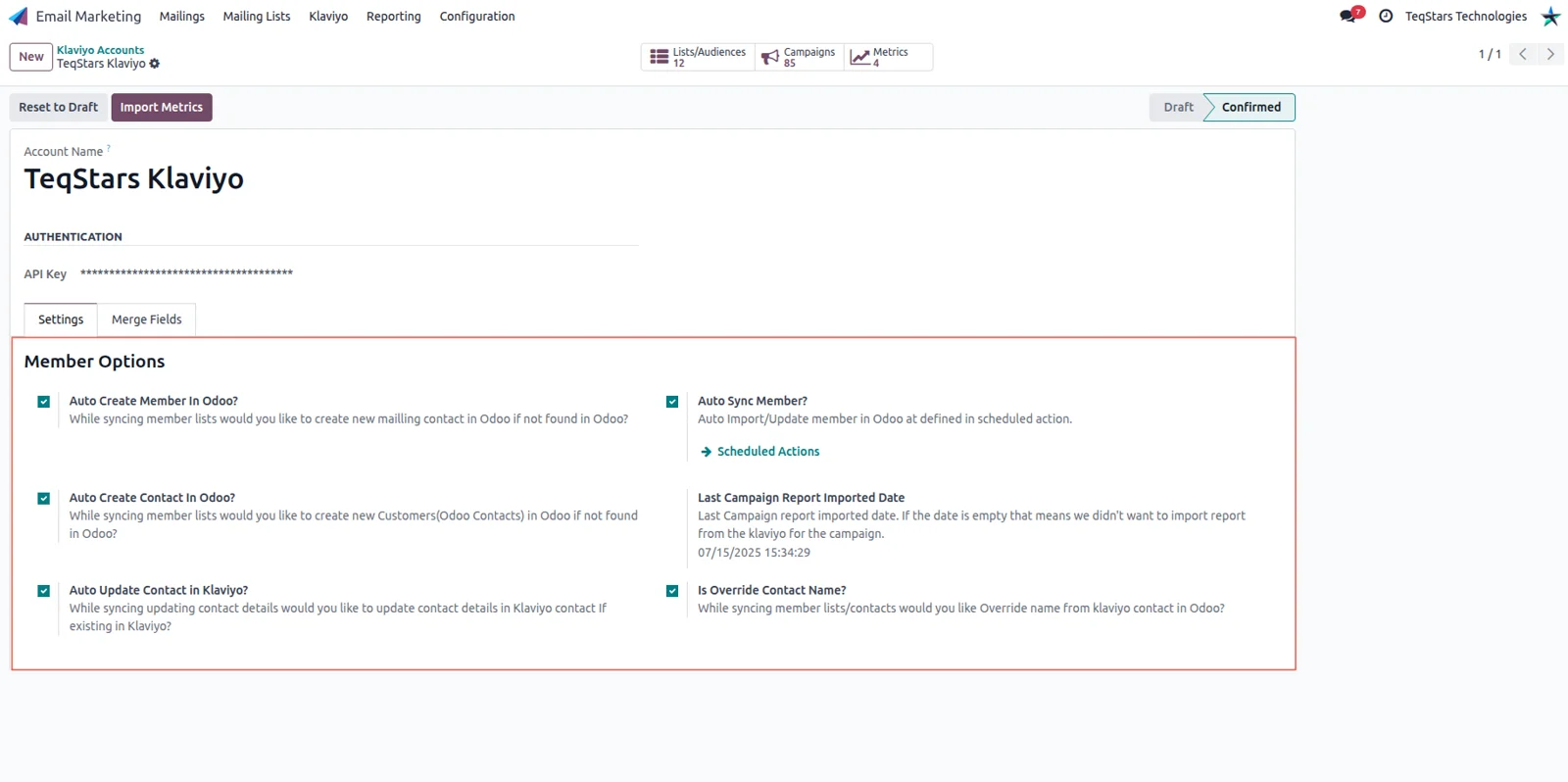
The Klaviyo account record in Odoo carries its own switches, so you set how much the connector picks up. Turn on member sync to bring list members in, and allow arriving profiles to update the contacts you already keep. Auto Create Member adds the Odoo mailing contact for a new profile, and Auto Create Customer also creates the matching customer.
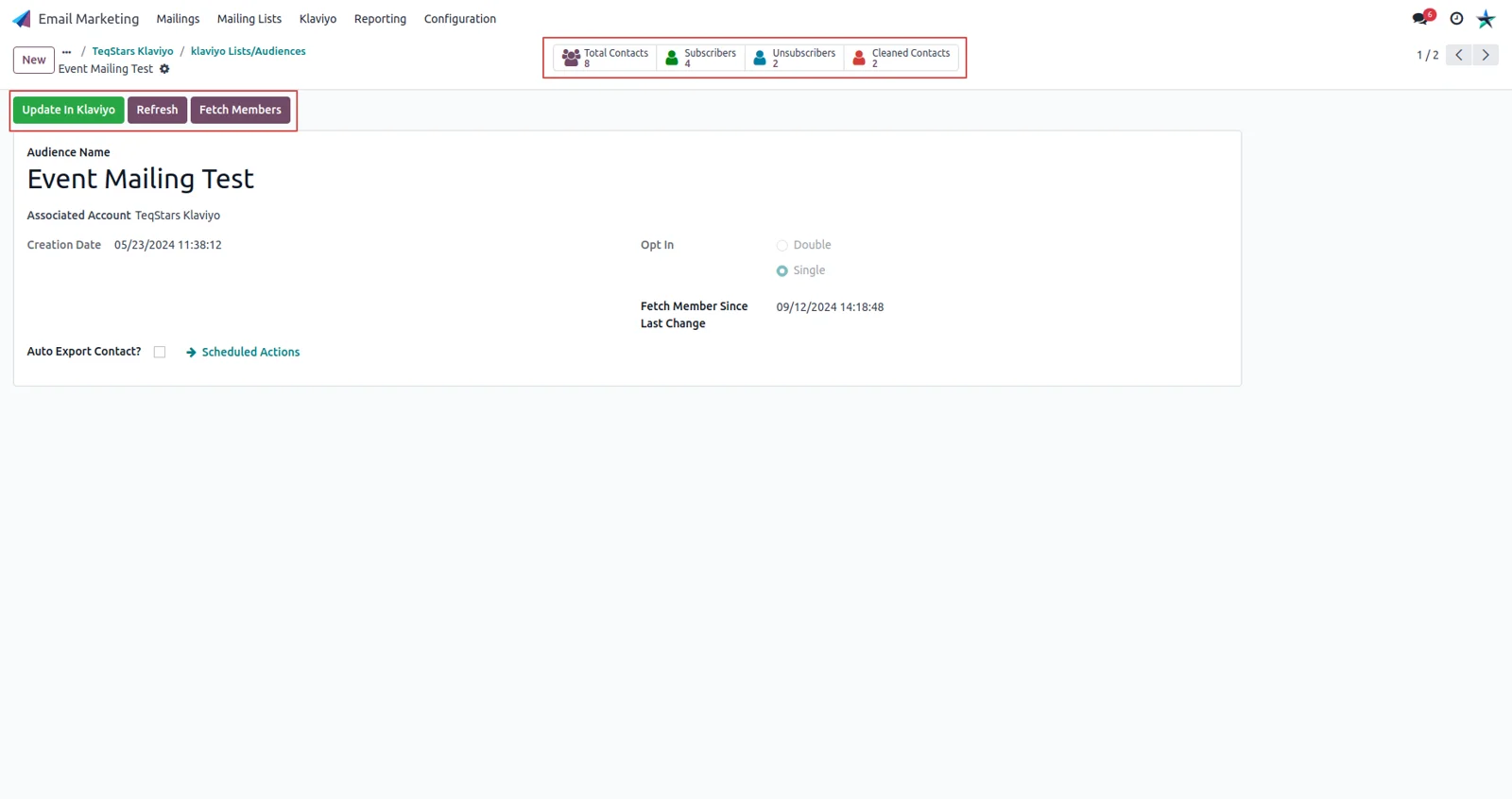
Klaviyo lists with subscriber counts
Every imported Klaviyo list shows how many profiles it holds, split into subscribed, unsubscribed and cleaned, so you can judge an audience before you write the email. The list also records whether Klaviyo runs it as single or double opt-in, and the connector refuses a subscription change that would break the double opt-in rule for that list.
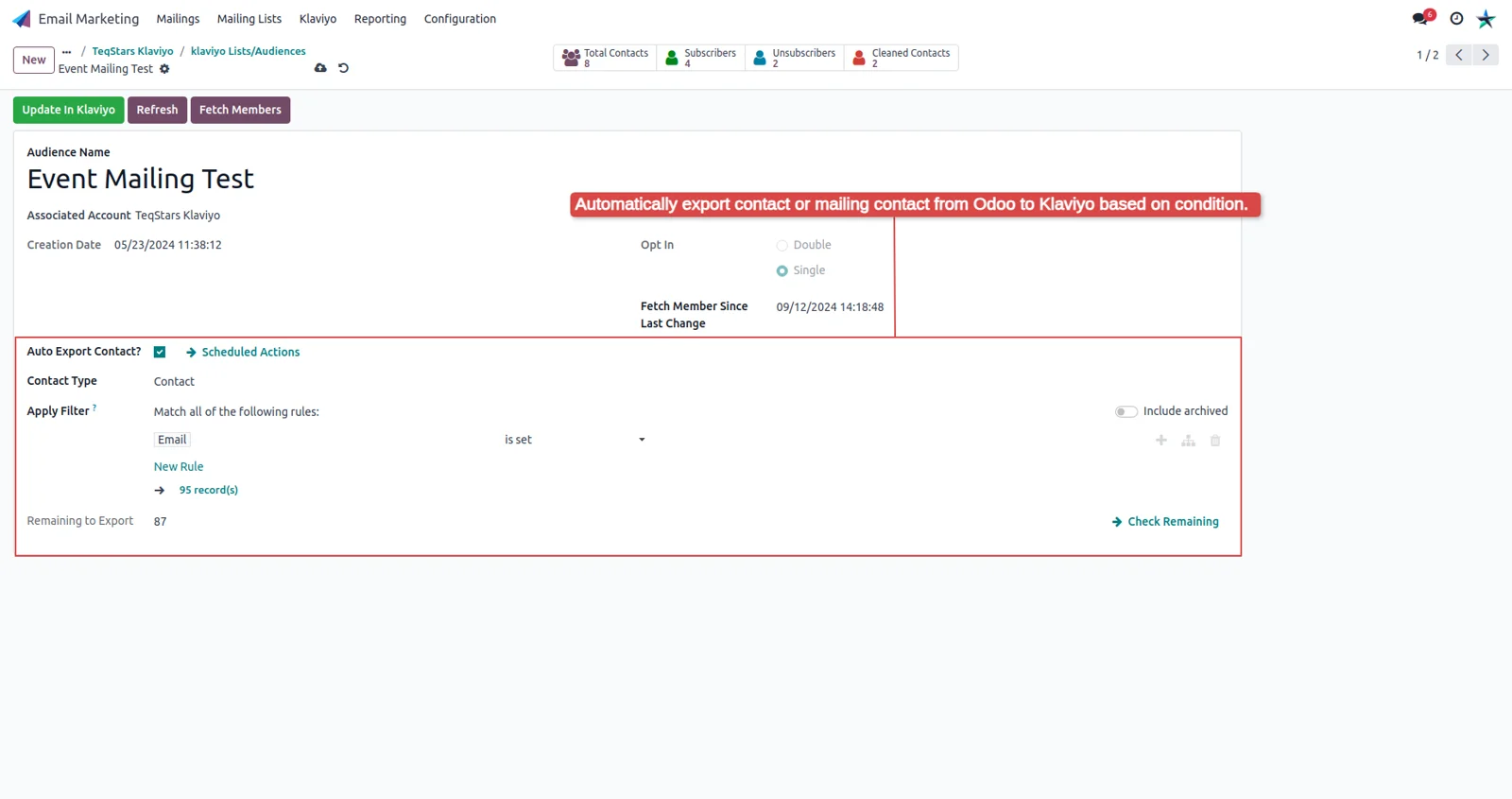
Keep a list filled from Odoo contacts
Switch on Auto Export for a Klaviyo list and it stays stocked with the people you choose. Pick whether the source is your Odoo customers or your mailing contacts, then add a filter so only those records go over. A scheduled action exports them hourly, and the list tells you how many records are still waiting to go.
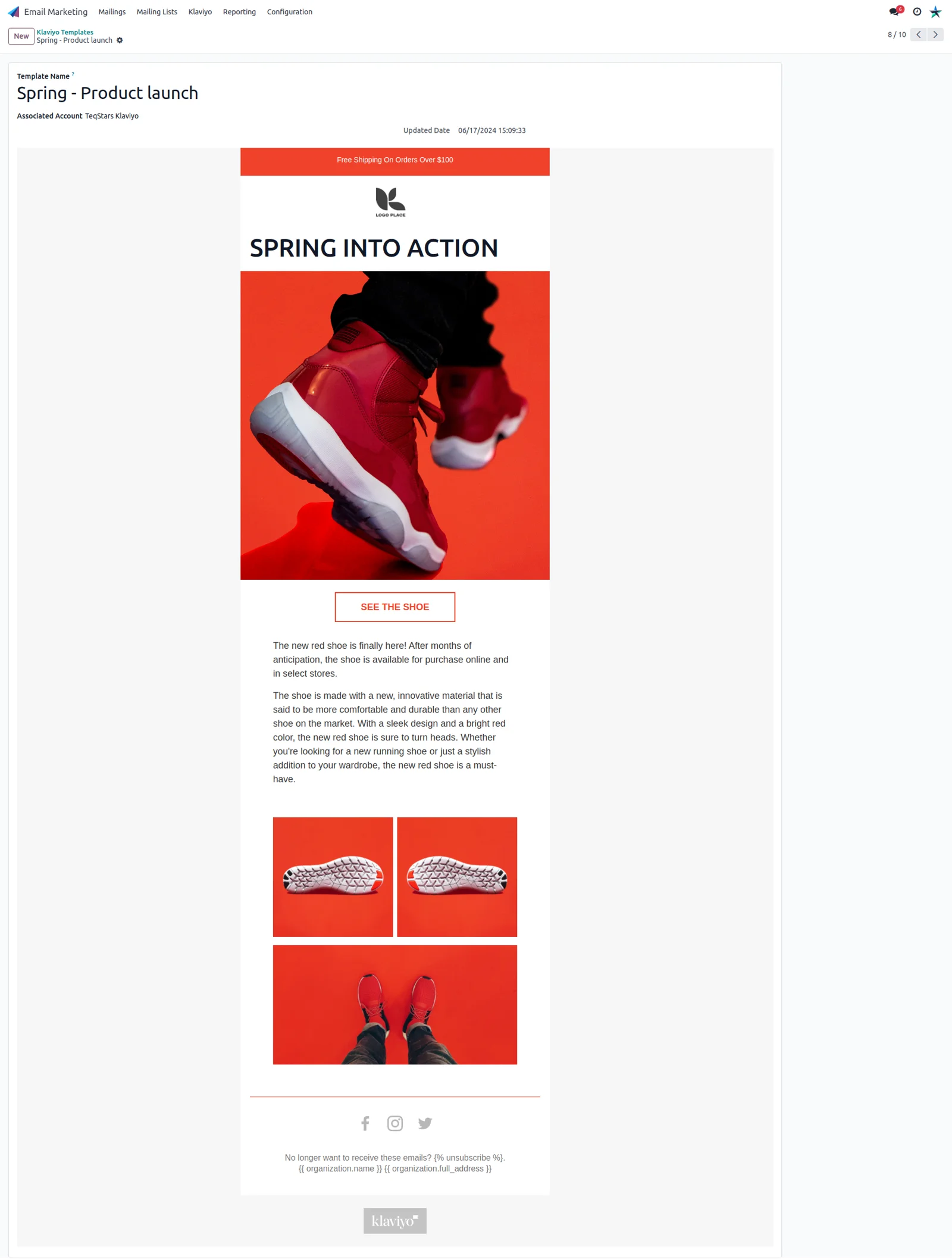
Import and update email templates
Klaviyo templates come into Odoo with their body, so a design your team already built in Klaviyo can be reused for an Odoo mailing. The same screen works the other way: push an Odoo template to Klaviyo as a new template, or update the Klaviyo version after you edit the one in Odoo.
Import lists, segments and campaigns
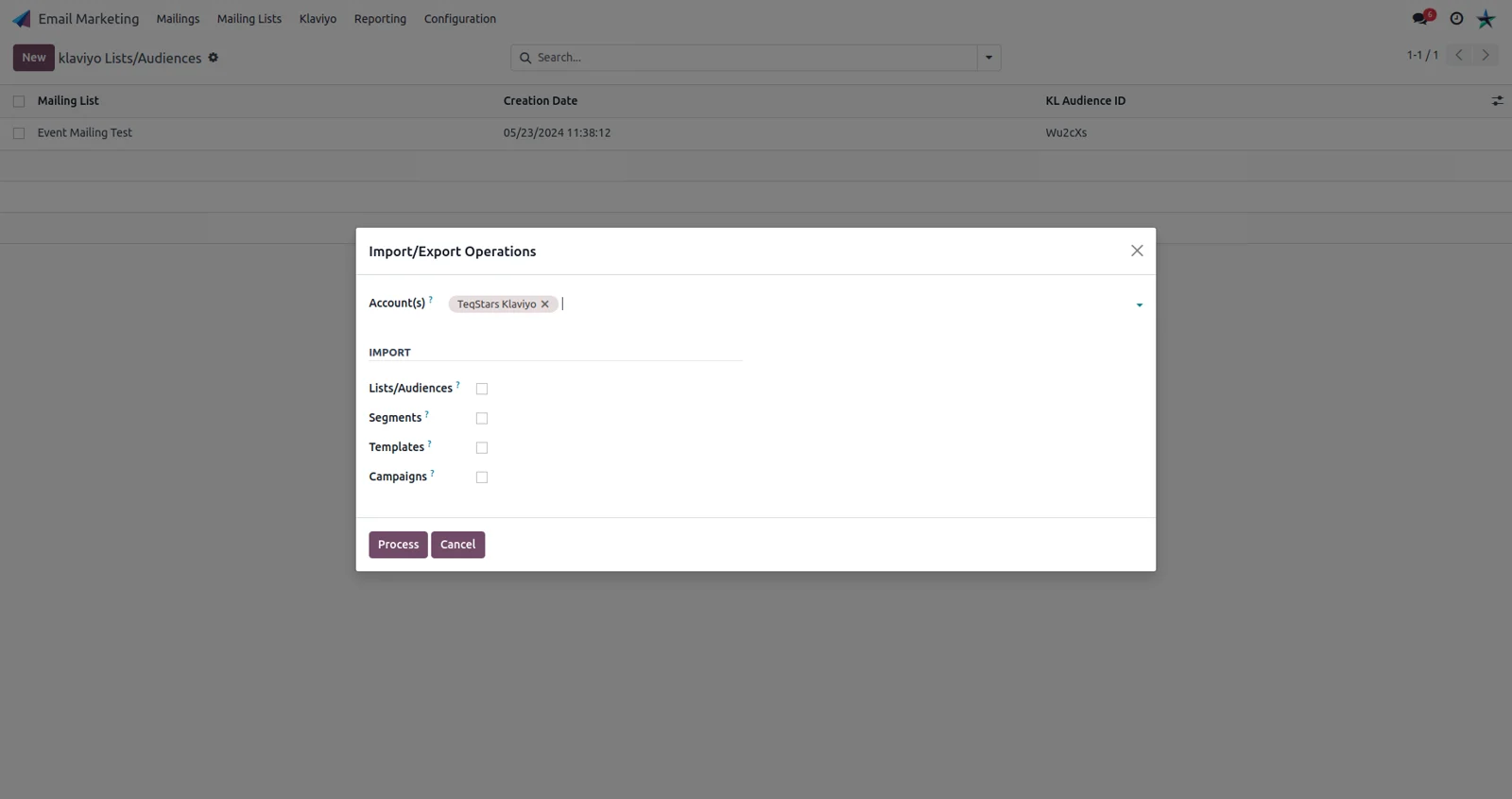
One import operation brings your Klaviyo lists, segments, templates and campaigns into Odoo, which is how a fresh database gets filled on day one. Long imports are handled in the background in batches, so a big account does not block your screen. Anything that fails is written to a log entry you can open and read.
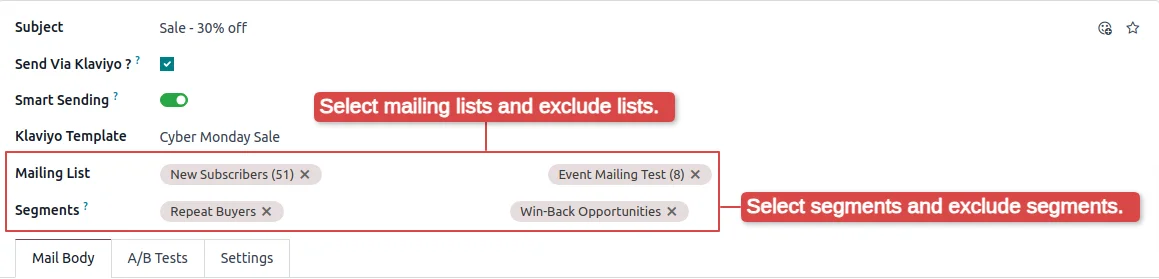
Include or exclude lists and segments
Choose exactly who receives the email before it goes out. Add the Klaviyo lists and segments you want to reach, and name the ones to leave out, such as a segment of people who just bought. Then send the campaign or schedule it for a later time. Segments imported from Klaviyo are available here as recipients or as exclusions.
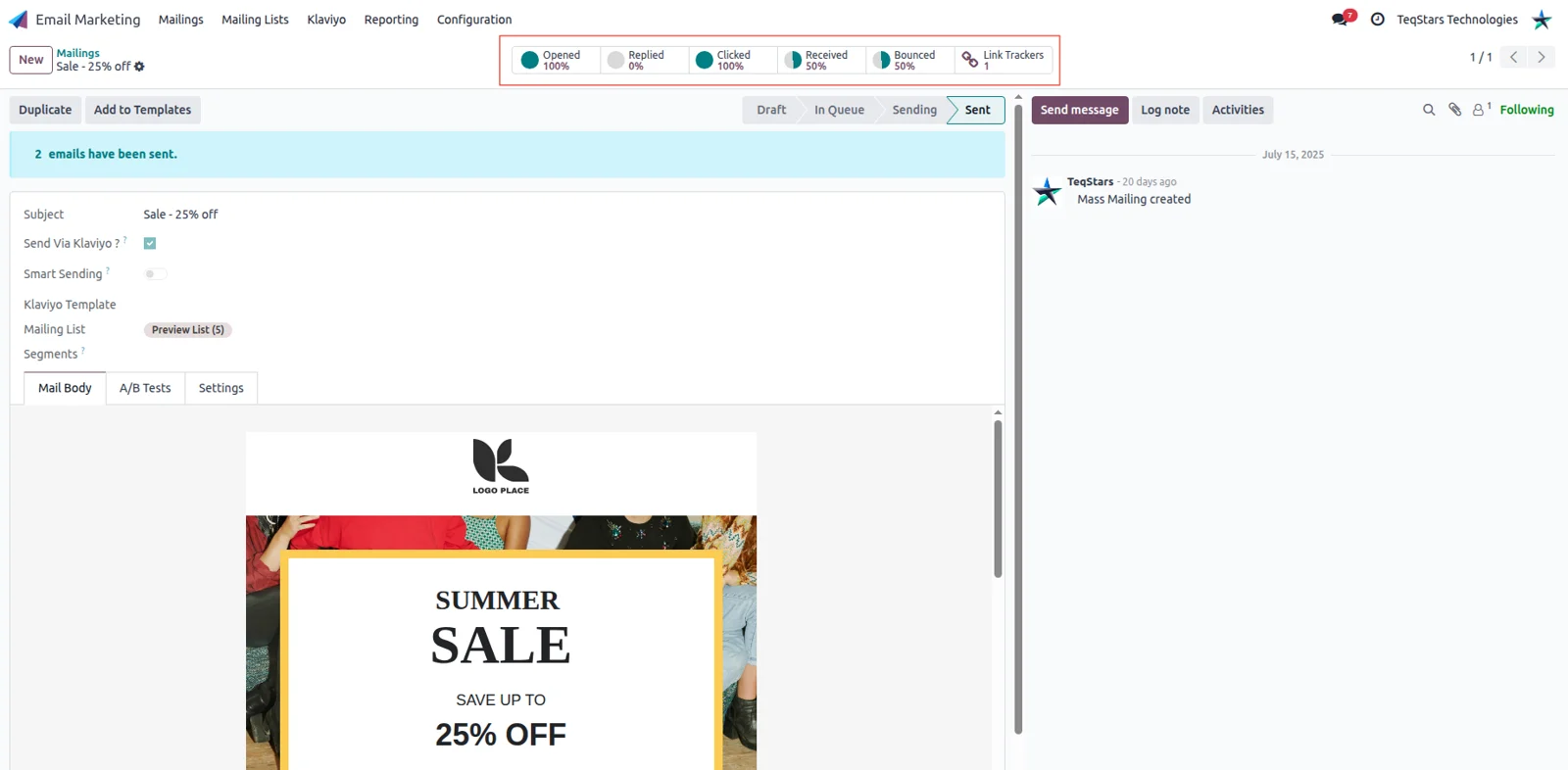
Send a campaign and read its results
Send a Klaviyo campaign from the Odoo mailing record and the figures come back to that same record. You choose which Klaviyo metrics to report on, such as Received, Opened, Clicked and Bounced Email. A scheduled action imports campaign activity every hour, so the counts and the links people clicked show on the Odoo campaign.
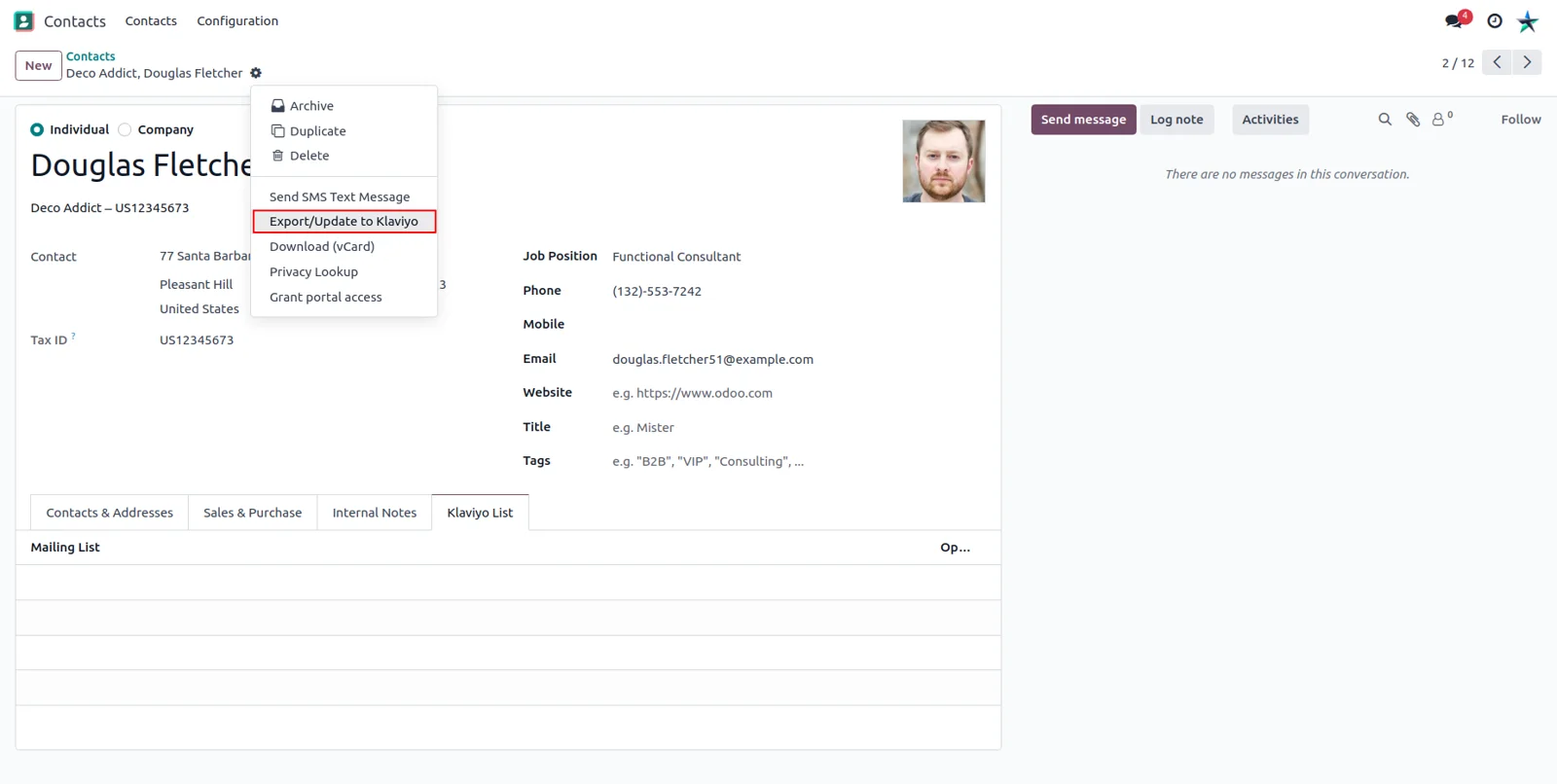
Export a customer in one click
Your sales team can send a customer to Klaviyo from the contact form, and update that profile later the same way. The connector matches on email address, so someone who already exists in Klaviyo is updated in place rather than duplicated. The contact form also shows which Klaviyo lists that person belongs to and their subscription status.
Supported Odoo versions
| Odoo version | Editions | Hosting | Price | Latest release | |
|---|---|---|---|---|---|
| 20.0 | Community & Enterprise | Odoo.sh · On-premise | €99 | No release notes | Buy |
| 19.0 | Community & Enterprise | Odoo.sh · On-premise | €99 | No release notes | Buy |
| 18.0 | Community & Enterprise | Odoo.sh · On-premise | €99 | No release notes | Buy |
| 17.0 | Community & Enterprise | Odoo.sh · On-premise | €99 | No release notes | Buy |
Support for Klaviyo Connector
The developers who build the app answer your tickets.
- Free app support from purchase
- 60 days
- First response in working hours, typical
- 4–6 hours
- Support hours, 10:00–18:00 IST
- Mon–Fri
How to connect Klaviyo to Odoo
-
Step 1
Create a private key in Klaviyo
In Klaviyo, open Settings, then Account, then API Keys, and create a private key. Copy it. This is what lets Odoo read and write in your Klaviyo account.
-
Step 2
Add the account in Odoo
Go to Klaviyo, then Accounts, create a record, paste the private key and confirm the connection. Map the Klaviyo profile attributes you care about to the Odoo contact fields you use.
-
Step 3
Import and export your data
Run the import operation to bring in lists, segments, templates and campaigns. Export your contacts to a Klaviyo list by hand, or let the auto export schedule keep filling it.
-
Step 4
Send and review
Build the mailing in Odoo Email Marketing, pick the lists and segments to include or exclude, then send or schedule it. Campaign figures are imported back hourly.
Questions before you buy
Not answered here? Talk to the team.