Odoo and Google Drive, OneDrive or Dropbox keep the same files
Connect Google Drive, OneDrive, SharePoint, Dropbox, Nextcloud and ownCloud to Odoo at the same time. Attachments on a saved record are uploaded to the folder your rules name, and cloud changes come back into Odoo. Portal users open only what you share with them.
- Odoo 18.0 – 20.0
- Community & Enterprise
- Odoo.sh · On-premise
-
Not for
Odoo Online
Top seller on the Odoo Apps Store
- sales on the Odoo Apps Store
- 3,000+
- apps published
- 100+
- countries running them
- 100+
Document work before and after the cloud connector
Without the connector by hand
-
Download a file from Odoo, then upload it to Google Drive by hand
-
Create a folder for each customer or order on the drive yourself
-
Email contracts and quotes to customers as attachments
-
Re-upload files a colleague renamed or moved in the cloud
-
Ask for more server storage as attachments pile up
-
Dig through server logs when someone says a file is missing
With the connector automatic
-
Attachments on a saved record are uploaded to the matching cloud folder
-
Directory rules create each record's folder from the pattern you set
-
Customers open shared files on the Odoo portal as Viewer or Editor
-
Cloud renames and moves update the Odoo document
-
Attachment offload moves file content to the cloud, records stay in Odoo
-
Activity logs name the reason, and failed uploads retry on your schedule
Documents, attachments and deletions between Odoo and your cloud drives
Every object the connector handles, which way it travels and what triggers it.
| Data | Direction | What happens & when |
|---|---|---|
| Documents |

 Both ways
|
A change in the connected cloud, or the sync run you schedule |
| Folders and subfolders |
Both ways
|
A directory created on either side |
| Record attachments |
Odoo to cloud storage
|
Saving a record, once attachment sync is on for that connection |
| Attachments added before setup |
Odoo to cloud storage
|
You switch on Upload Existing Attachments and press Sync Existing Attachments |
| Renames and moves |
Cloud storage to Odoo
|
A file or folder renamed or moved in the cloud service |
| Deletions |
Both ways
|
Deleting in Odoo always, cloud deletions only with the Delete event ticked |
| Attachment file content |
Odoo to cloud storage
|
Ticking Move Attachments to External Storage, or the button on one attachment |
Advanced Cloud Storage Solution features
Invoice and receipt files uploaded on save
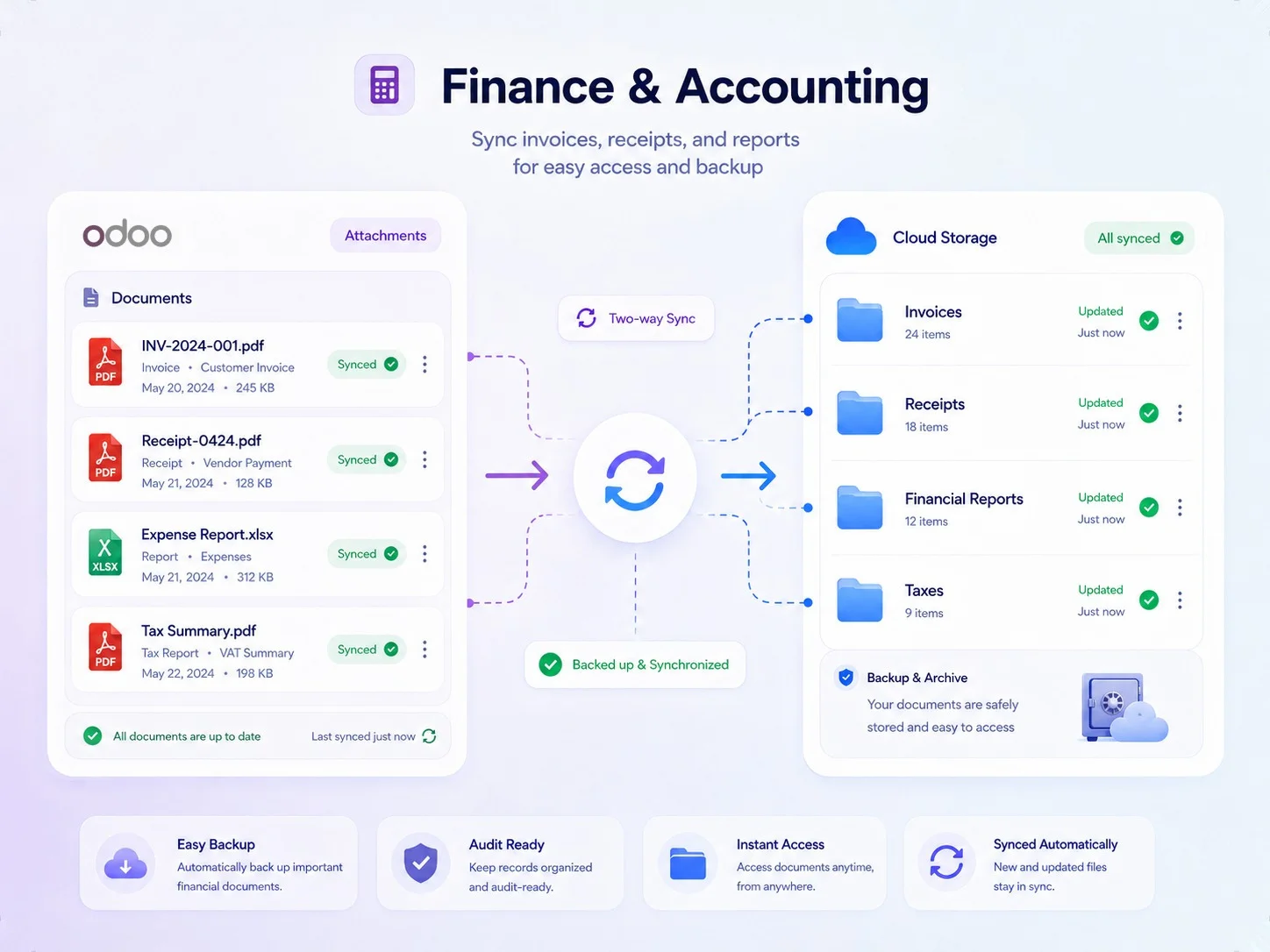
Switch on Real-Time Attachment Sync to Cloud? for a connection and every file attached to a record is uploaded when you save it. An invoice PDF, a receipt or an expense report reaches the cloud folder your rules name, so finance files sit together on the drive your team already uses. Edits made to those files in the cloud update the Odoo copy.
A cloud folder for every record
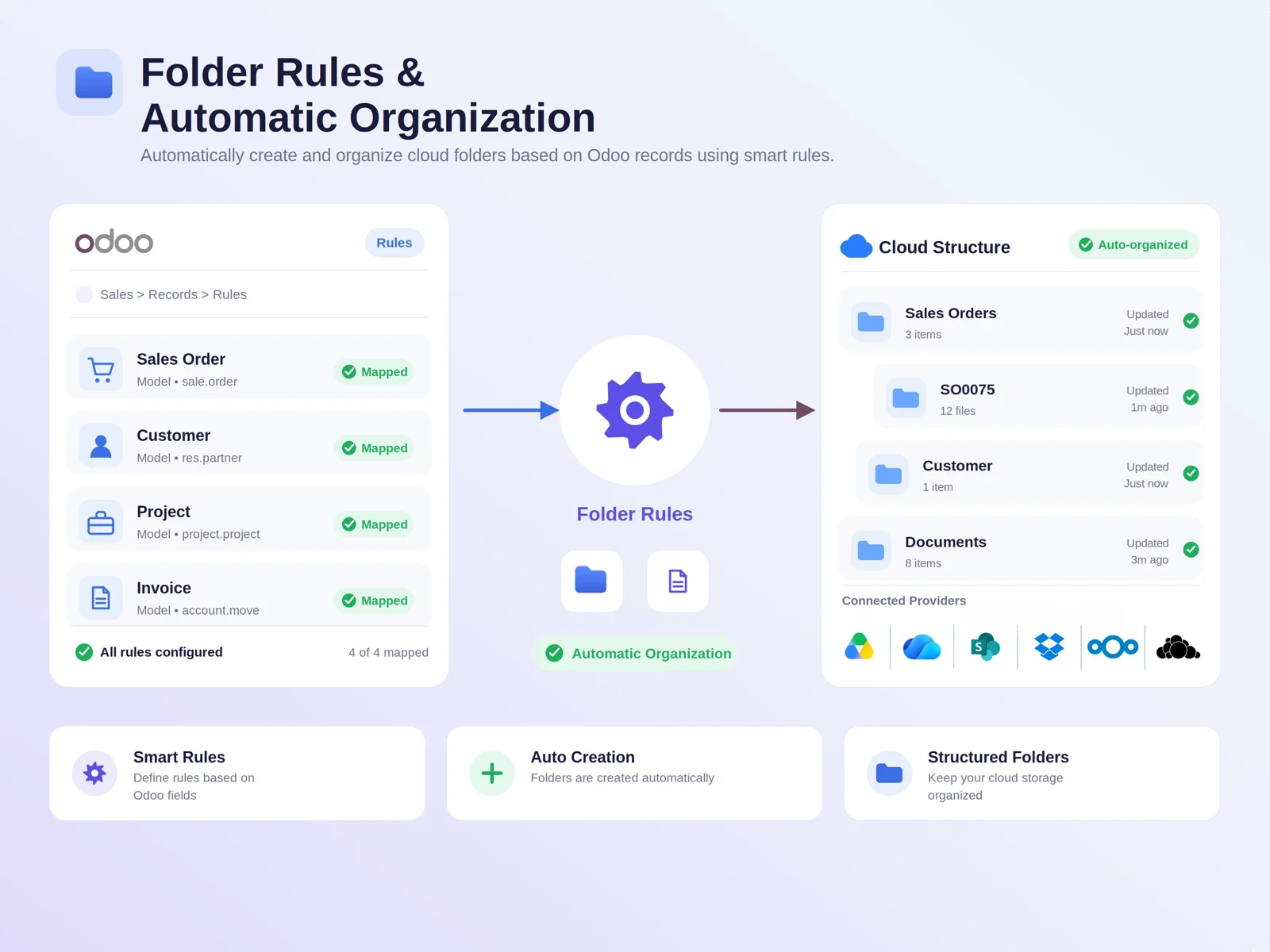
Set the folder pattern once per model and new records file themselves. A rule carries a Rule Name, the Model To Sync, a Directory Name and a Priority that decides which rule applies first. Nest a rule under a parent rule to put each customer folder inside its parent folder, or use Only with attachments and Only These Records to narrow it. Records Matching Now counts what your filter catches before you save.
Browse and upload in the File Manager
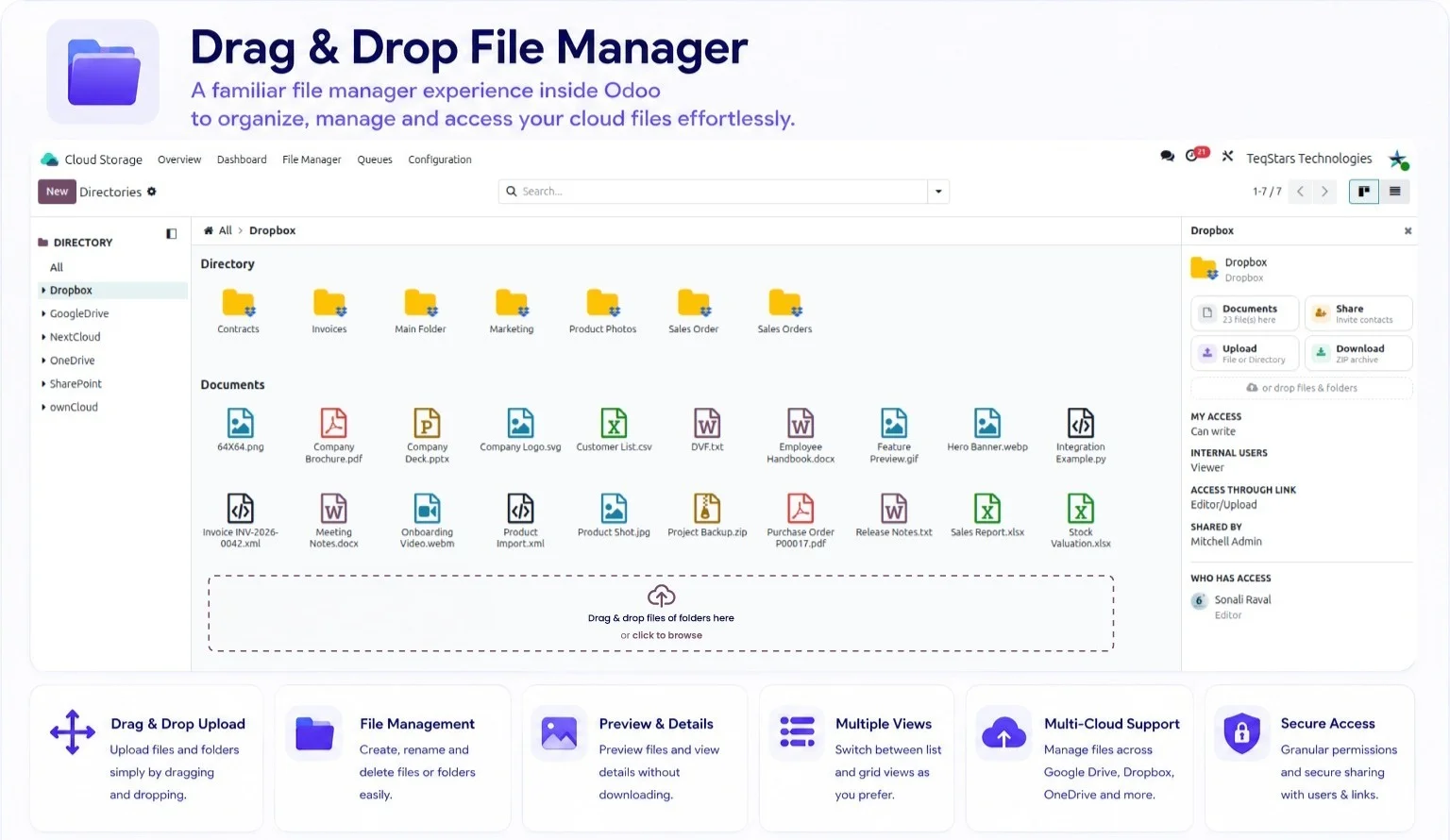
Open Cloud Storage, File Manager, Directory to walk the folder tree, drag files in, preview one without downloading it, and rename, move or search across folders. Each document shows its size, type, sync status and last upload, plus a link that opens the file in Google Drive, Dropbox or whichever provider holds it. You see the folders you own or that someone shared with you.
Customer and vendor portal sharing
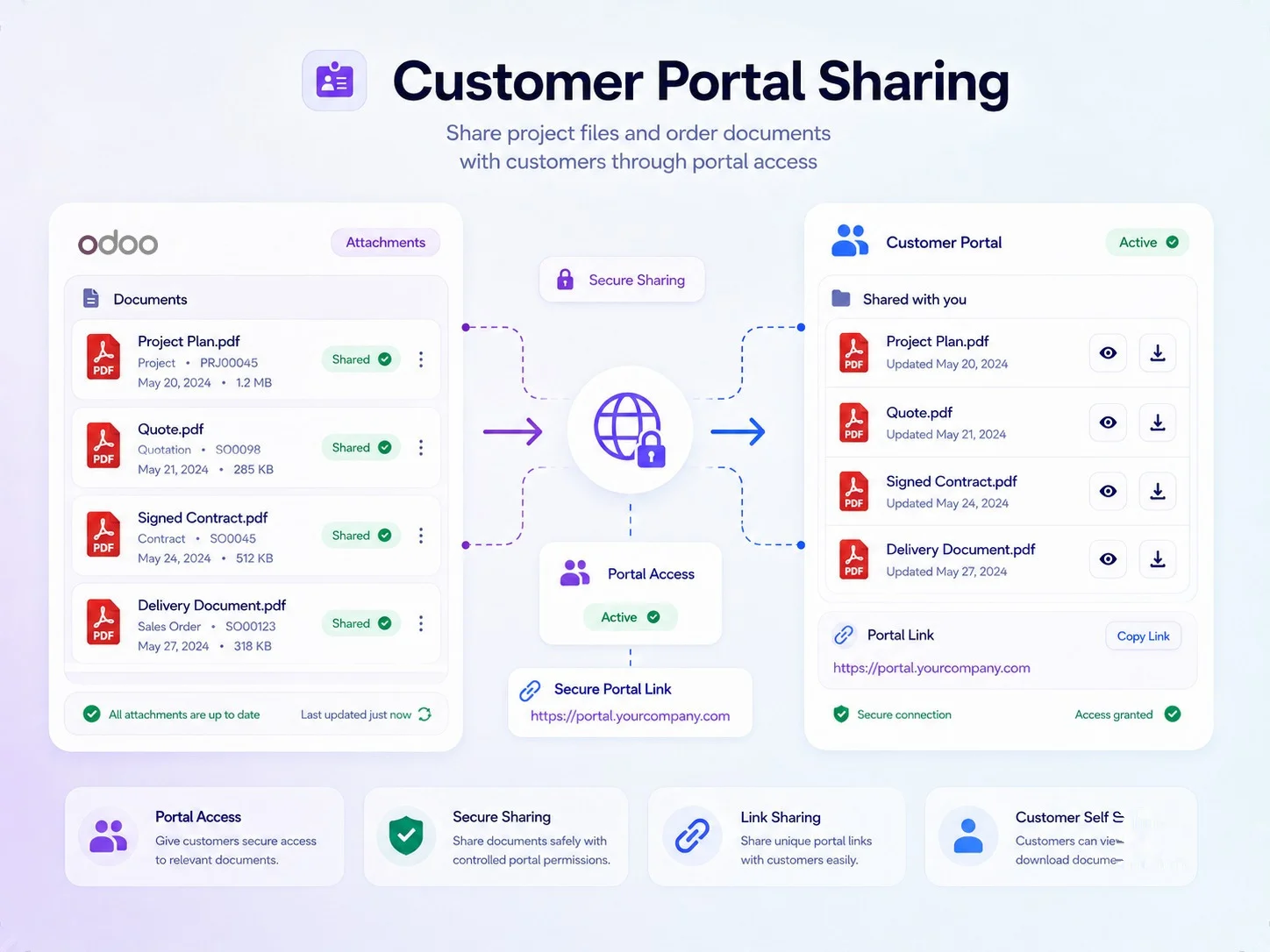
Share one document or a whole directory with internal users and contacts, as Viewer or Editor. Set Access Expires On, tick Notify by Email, or turn on a share link that stops working on the date you pick. Customers and vendors get a Cloud Documents card on the portal home, where they preview, download and upload what you shared. Sharing in Odoo never changes permissions on your drive.
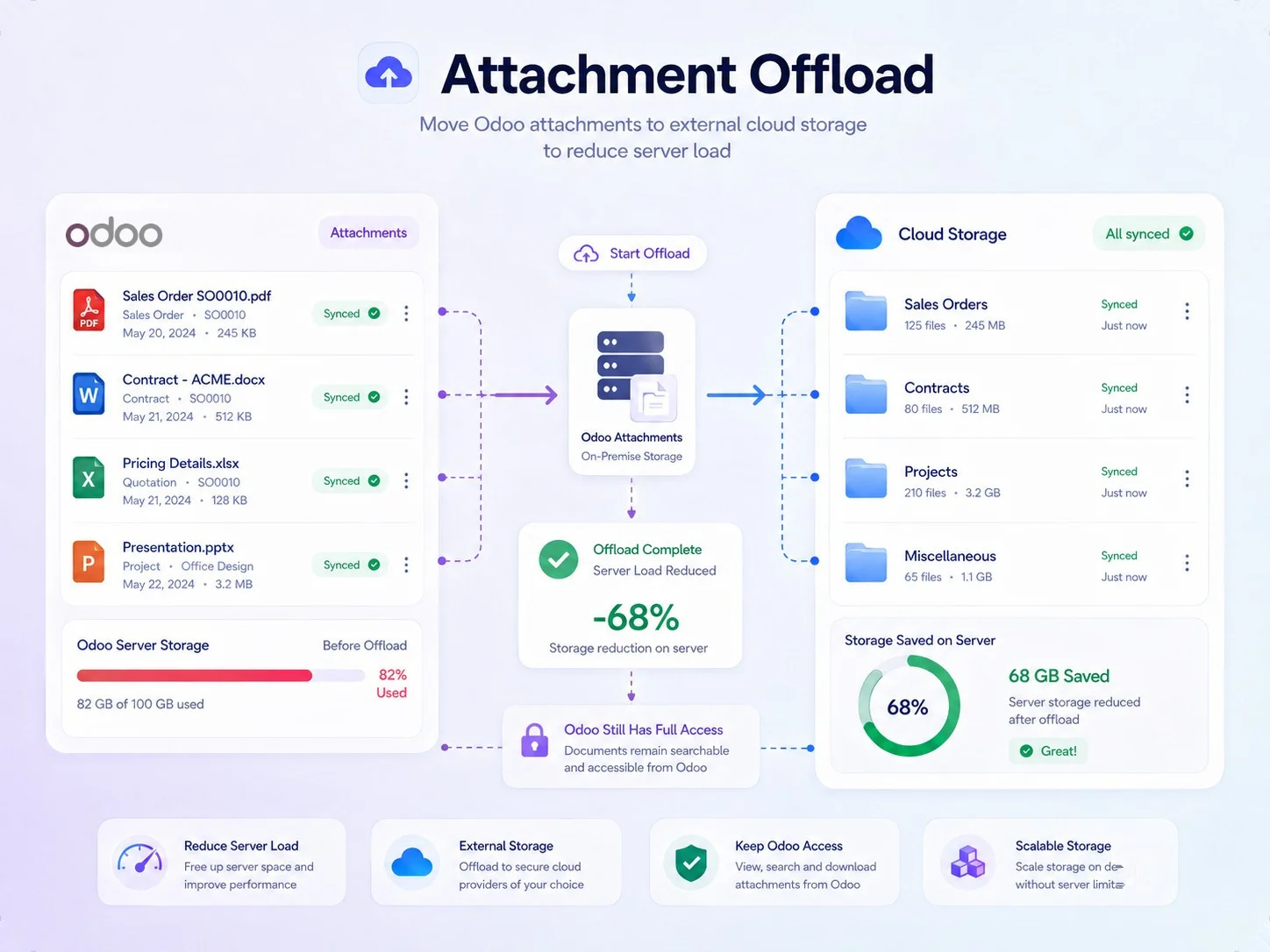
Move attachment files off your server
Tick Move Attachments to External Storage and the app moves attachment files from the Odoo filestore to the connected cloud. The attachment records stay in Odoo, so sales orders and contracts still open normally. Each moved attachment lists its External Copies, naming the provider that holds it, the status and the last error. Clear the setting and press Bring Files Back into Odoo to reverse the move.
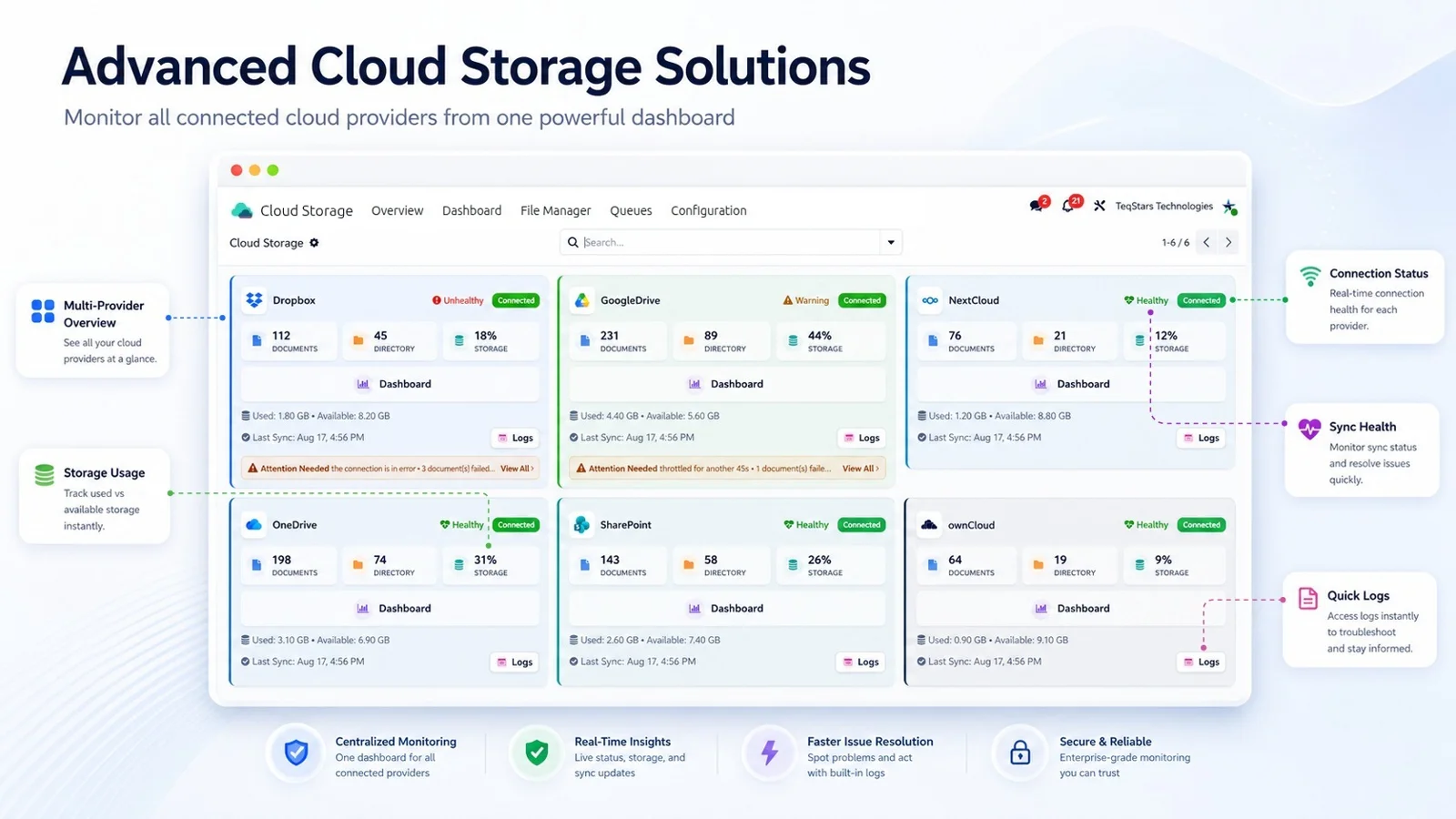
Six cloud connections side by side
Watch all six connections on one screen, each with its own folder, events and settings. A card shows whether the connection is Connected, how much storage the account uses, and how many documents and directories it holds, with an Attention Needed strip when something waits for you. Missing Scopes names the permissions you still have to grant on the cloud account. Odoo allows one connection per service.
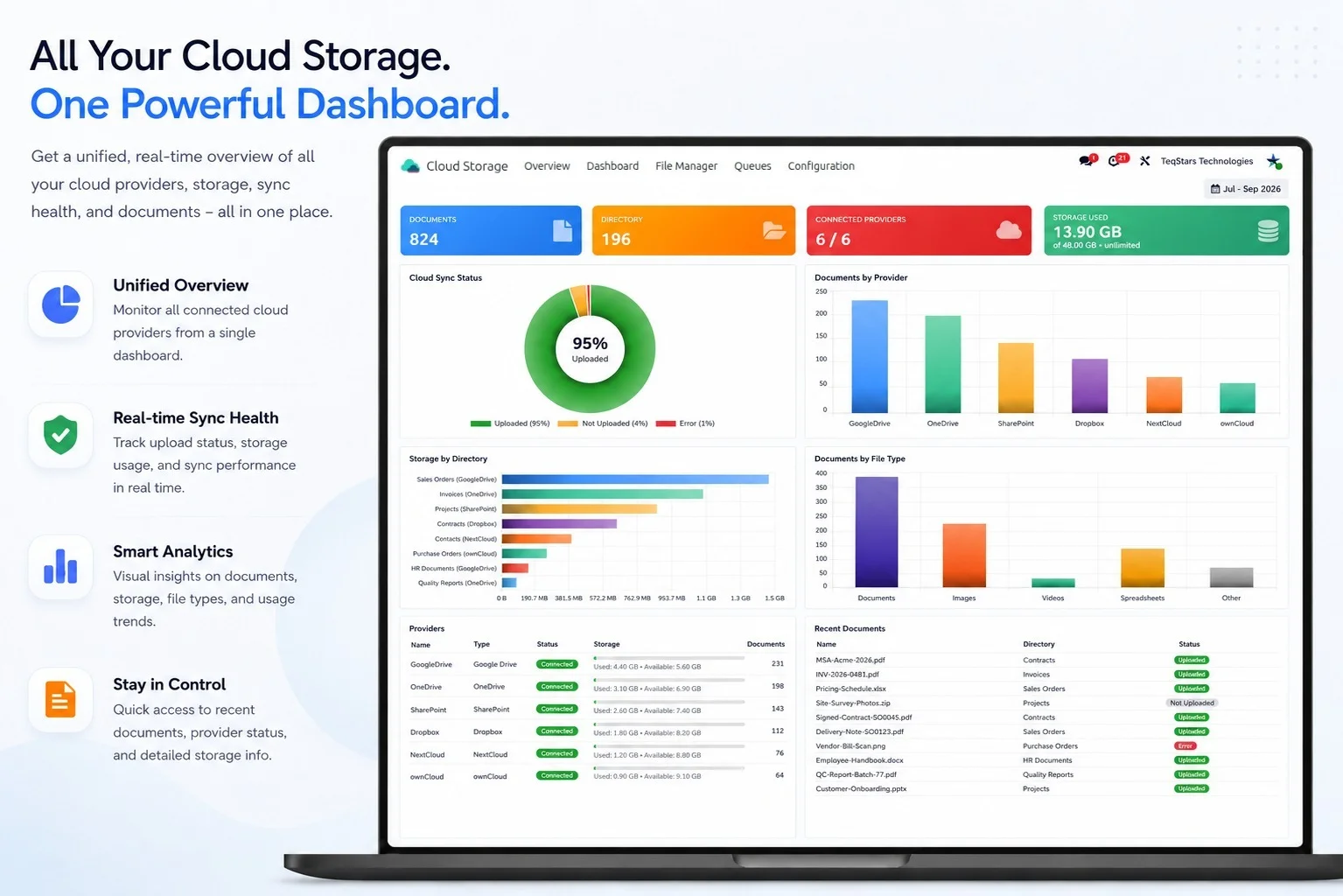
Storage and sync health on one dashboard
The dashboard counts your documents and directories, the providers connected, and the storage used against what the accounts hold. A sync ring shows the share already uploaded. Charts split documents by provider, by file type and by directory, beside a list of the most recent documents. You can tell where your files sit before a colleague asks you.
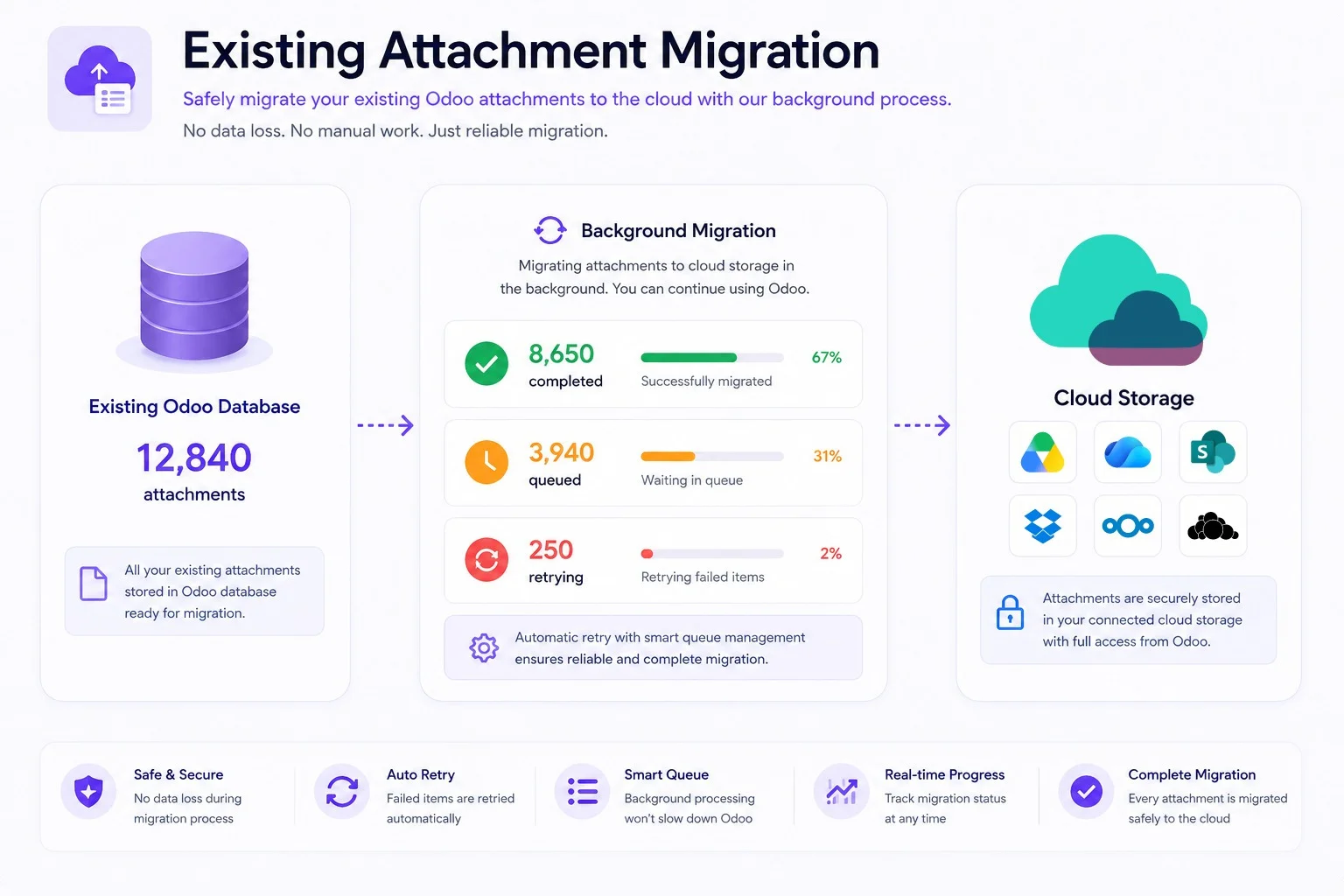
Upload the attachments you already had
Files attached before you turned sync on stay where they are, so your drive is not flooded on day one. When you do want them up there, switch on Upload Existing Attachments in the settings and press Sync Existing Attachments on the provider. The transfer runs in the background and shows what finished, what still waits and what is retrying. A failed file keeps its reason and its retry time.
Supported Odoo versions
| Odoo version | Editions | Hosting | Price | Latest release | |
|---|---|---|---|---|---|
| 20.0 | Community & Enterprise | Odoo.sh · On-premise | €169.99 | 20.0.1.0.0 | Buy Docs |
| 19.0 | Community & Enterprise | Odoo.sh · On-premise | €169.99 | 19.0.1.0.0 | Buy Docs |
| 18.0 | Community & Enterprise | Odoo.sh · On-premise | €169.99 | No release notes | Buy |
Support for Advanced Cloud Storage Solution
The developers who build the app answer your tickets.
- Free app support from purchase
- 60 days
- First response in working hours, typical
- 4–6 hours
- Support hours, 10:00–18:00 IST
- Mon–Fri
Advanced Cloud Storage Solution video tutorials


How to connect Google Drive, OneDrive or Dropbox to Odoo
-
Step 1
Install and open Cloud Storage
Install the app from Odoo Apps. A Cloud Storage menu appears, holding Configuration, File Manager and Queues, which is where every later setting lives.
-
Step 2
Get your login details
Each service hands you what the connection needs. Google Drive, OneDrive, SharePoint and Dropbox give a Client ID and Client Secret. Nextcloud and ownCloud take your server address, a username and an app password.
-
Step 3
Create the provider and connect
Under Configuration, Connections, Providers, click New, pick the Provider Type and paste your details. Copy the Redirect URI into the app on the cloud side, sign in once, then use Test Connection and Connect.
-
Step 4
Pick the changes and sync
Activate the event lines on the connection to decide which cloud changes reach Odoo, then run a first sync. Switch on Real-Time Attachment Sync to Cloud? so new attachments are uploaded when a record is saved.
-
Step 5
Turn on the background jobs
Scheduled actions arrive switched off. Enable the ones you want under Settings, Technical, Automation, Scheduled Actions, so changes are collected on the schedule you set whenever live updates cannot reach your server.
Questions before you buy
Not answered here? Talk to the team.