The right US sales tax on every quotation, invoice and refund
Your team adds a product and the connector asks TaxJar for the rate for that delivery address, so the tax appears on the order. Validated invoices and credit notes are sent to TaxJar, ready for filing. This Odoo TaxJar integration covers US sales tax.
- Odoo 17.0 – 20.0
- Community & Enterprise
- Odoo.sh · On-premise
-
Not for
Odoo Online
Official TaxJar Partner Since Dec 2020
Top seller on the Odoo Apps Store
- sales on the Odoo Apps Store
- 3,000+
- apps published
- 100+
- countries running them
- 100+
US sales tax work before and after the TaxJar connector
Without the connector by hand
-
Look up city, county and state rates before quoting a customer
-
Update rate tables by hand when a state changes its rate
-
Check which product categories are taxable in which state
-
Export posted invoices to a spreadsheet for the filing period
-
Remember which resale and government customers pay no tax
-
Find address typos only when a return is rejected
With the connector automatic
-
TaxJar returns the rate when a product is added to the order
-
Rates are requested again once the refresh interval you set has passed
-
A TaxJar tax category on the product decides how each line is taxed
-
Validating an invoice sends it to TaxJar as a transaction
-
The exemption type on the contact removes tax from that customer's orders
-
Clicking "Validate Address" checks a contact against TaxJar
Rates, invoices and refunds between Odoo and TaxJar
Every object the connector handles, which way it travels and what triggers it.
| Data | Direction | What happens & when |
|---|---|---|
| Sales tax rates |

 TaxJar to Odoo
|
Adding a product or changing the address or warehouse on an order |
| Nexus states |
TaxJar to Odoo
|
Clicking "Sync States" on the TaxJar account |
| Product tax categories |
TaxJar to Odoo
|
Importing TaxJar's tax categories from the account screen |
| Customer address check |
Both ways
|
Clicking "Validate Address" on a contact |
| Validated customer invoices |
Odoo to TaxJar
|
Validating an invoice while transaction sync is switched on |
| Credit notes as refunds |
Odoo to TaxJar
|
Confirming a credit note in Odoo |
| Cancelled transactions |
Odoo to TaxJar
|
Resetting an invoice or refund to draft removes it in TaxJar |
| Past posted invoices |
Odoo to TaxJar
|
Running the date-range export wizard for a chosen period |
Odoo Taxjar Connector features
Tax fills in on quotations
Add a product to a quotation and the sales tax line fills in, worked out from where you ship from and where the customer takes delivery. Delivery charges follow the destination state's rule, and discounts are reflected in the amount. Change the address or the warehouse on the order and the connector asks TaxJar again, so the figure on the document matches the sale.
Set breakdown and refresh rate
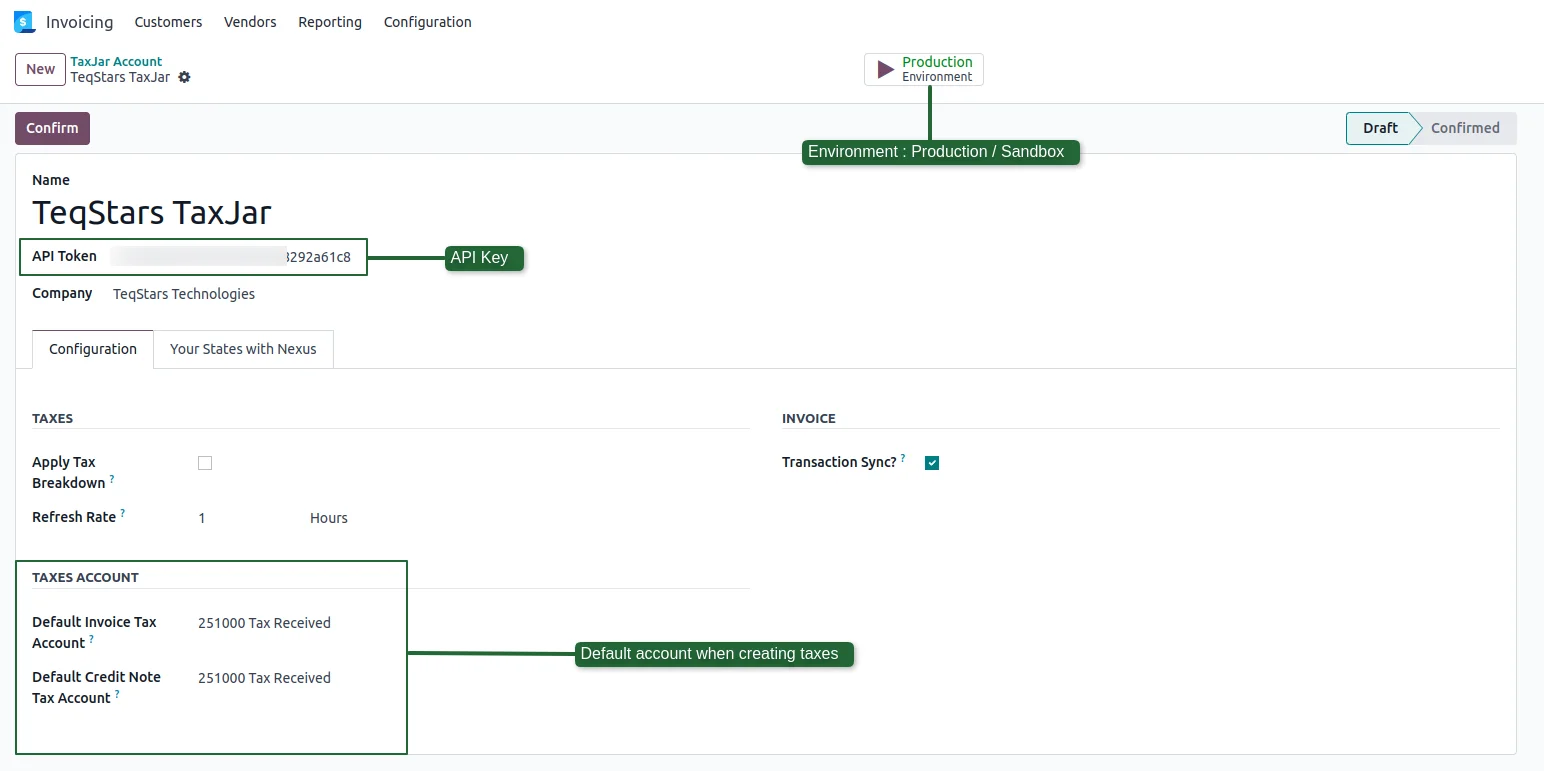
One screen in Odoo holds your TaxJar settings. Paste the token, then decide whether tax shows as a single line or splits into state, county, city and special district amounts. The refresh rate you choose controls how long a known rate is reused before a new one is requested. You also name the tax accounts used for invoices and for credit notes, and each company can hold its own account.
Import your nexus states
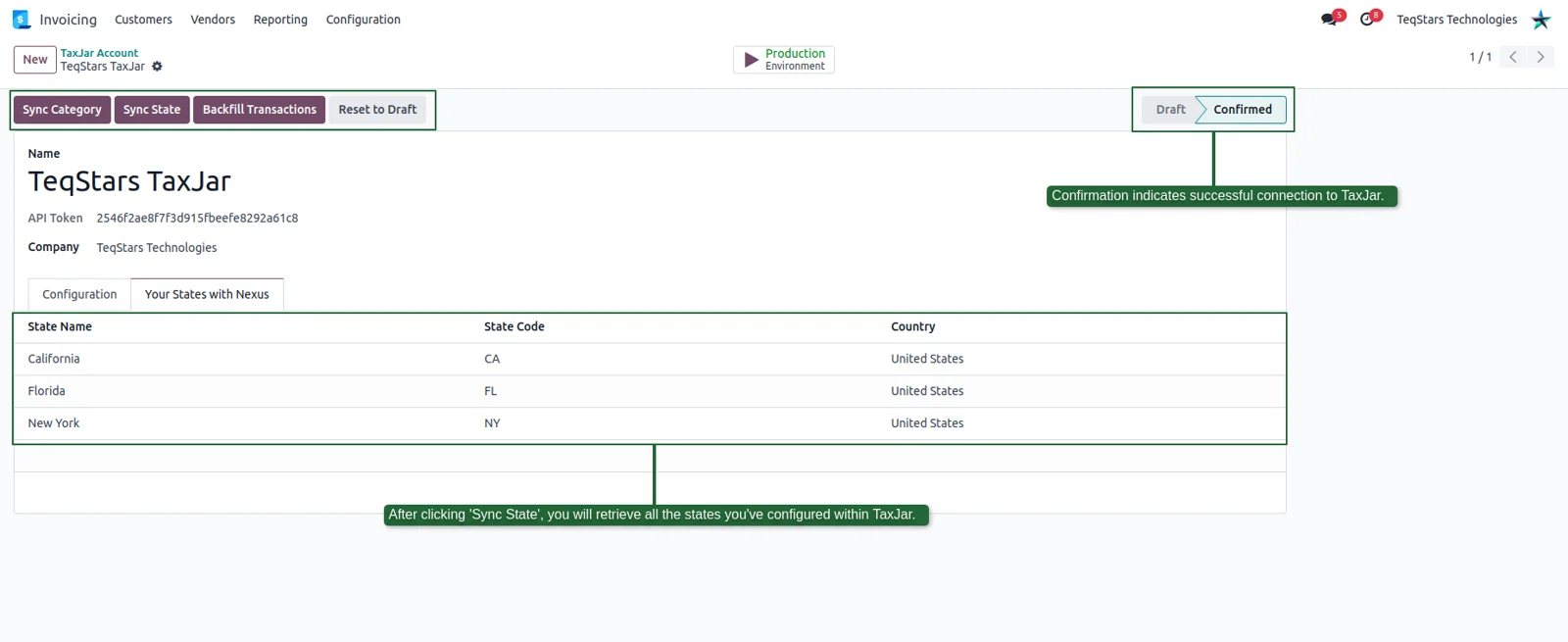
Clicking Confirm checks the token and moves the account from draft to confirmed, which switches tax calculation on. Odoo then brings in the states from your TaxJar state settings, so you can see where orders will be taxed. Tax is calculated only for states you are registered in, or you can cover every US state with one setting. Reset to draft turns calculation off again.
Tag products with tax categories
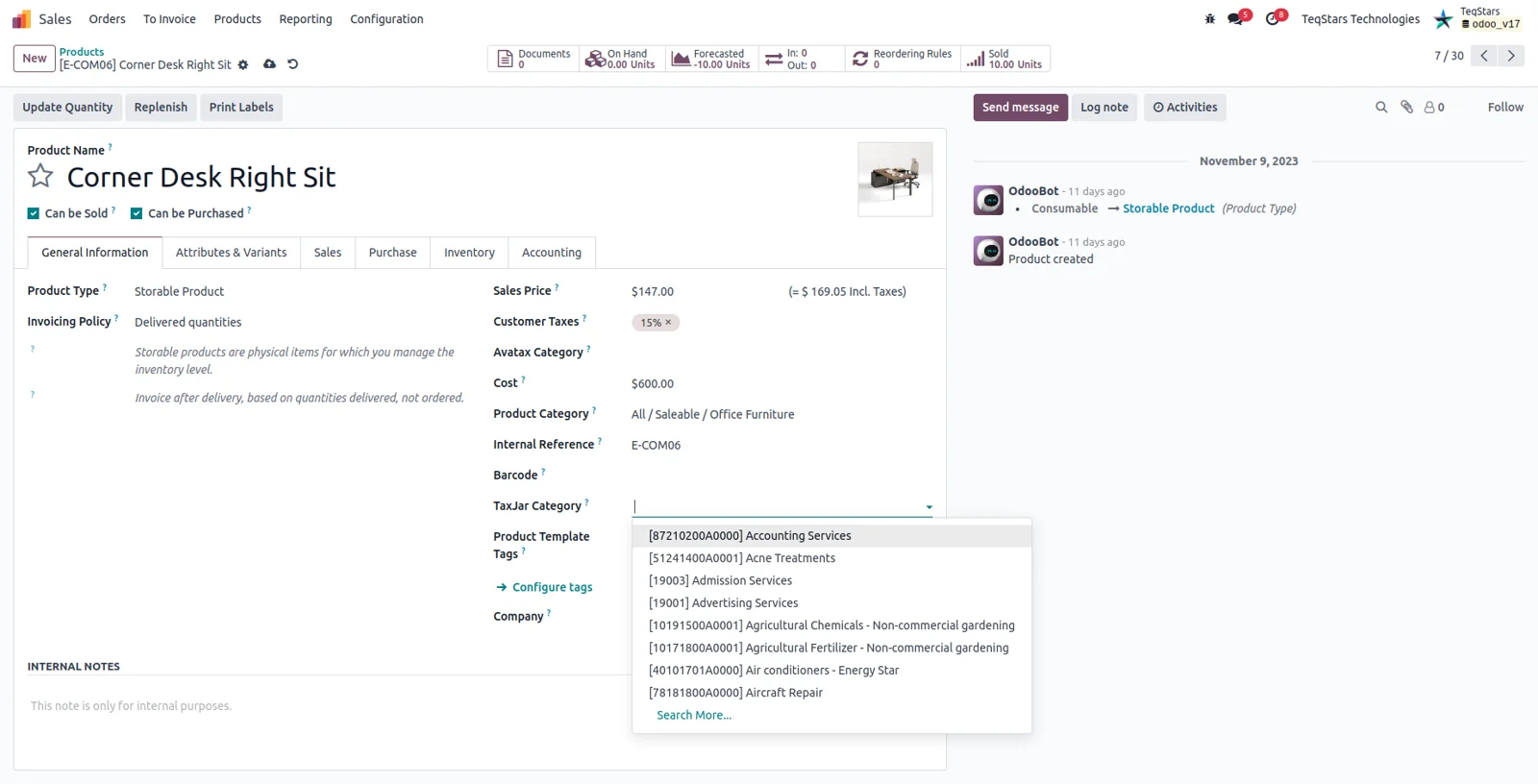
Clothing, food and software are taxed differently from state to state. Set a TaxJar product tax category on a single product, or set it on an Odoo product category so the products under it follow the same rule. TaxJar then knows whether a line is fully taxable, taxed at a special rate or exempt in a given state. You tag an item once and later orders use it.
Mark customers as tax exempt
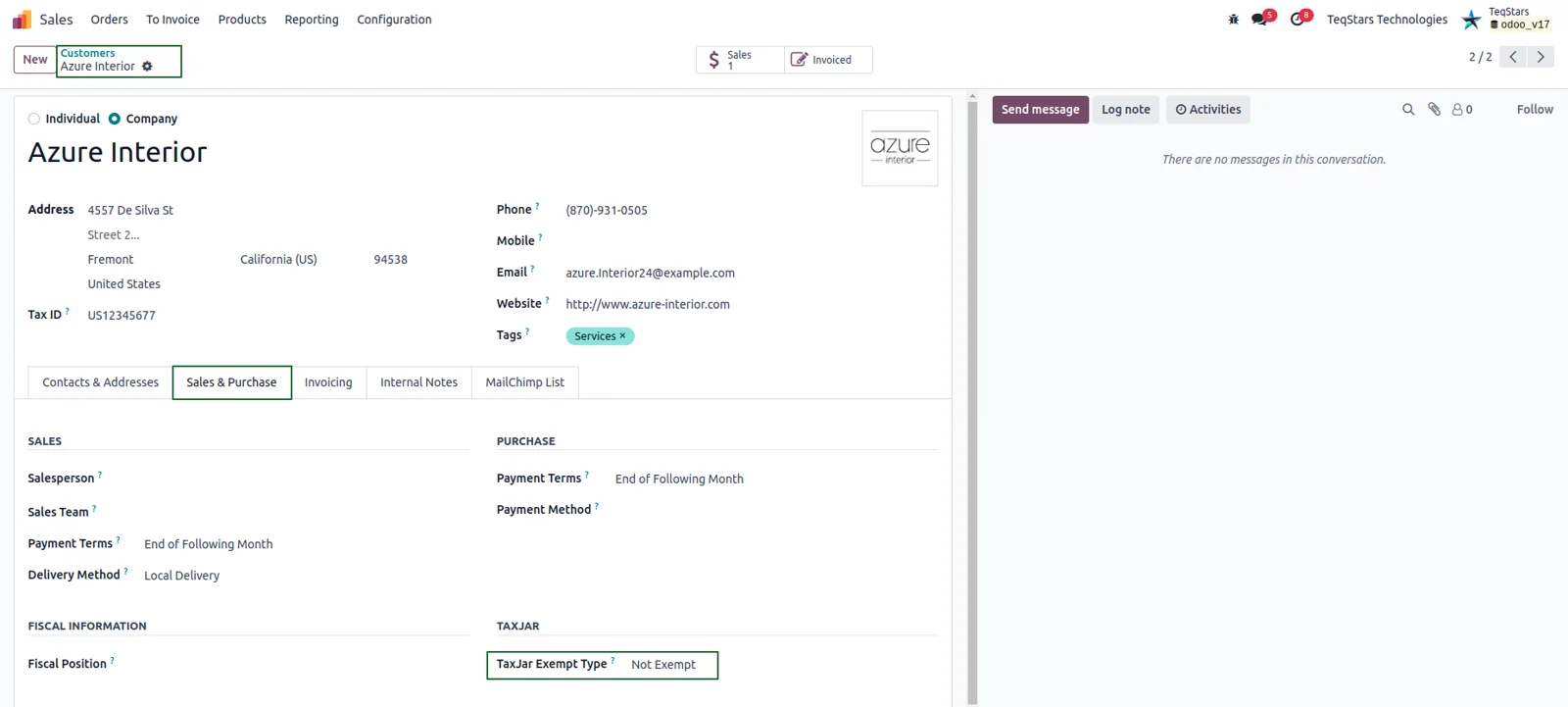
Wholesale buyers, government bodies and resale clients should not be charged sales tax. Pick the TaxJar exemption type on the contact's Sale and Purchase tab and their orders are taxed accordingly from then on. One click applies the same choice to that customer's other contacts. When a customer and their delivery address hold different exemption settings, Odoo shows a warning with a one-click correction.
Send invoices to TaxJar on validation
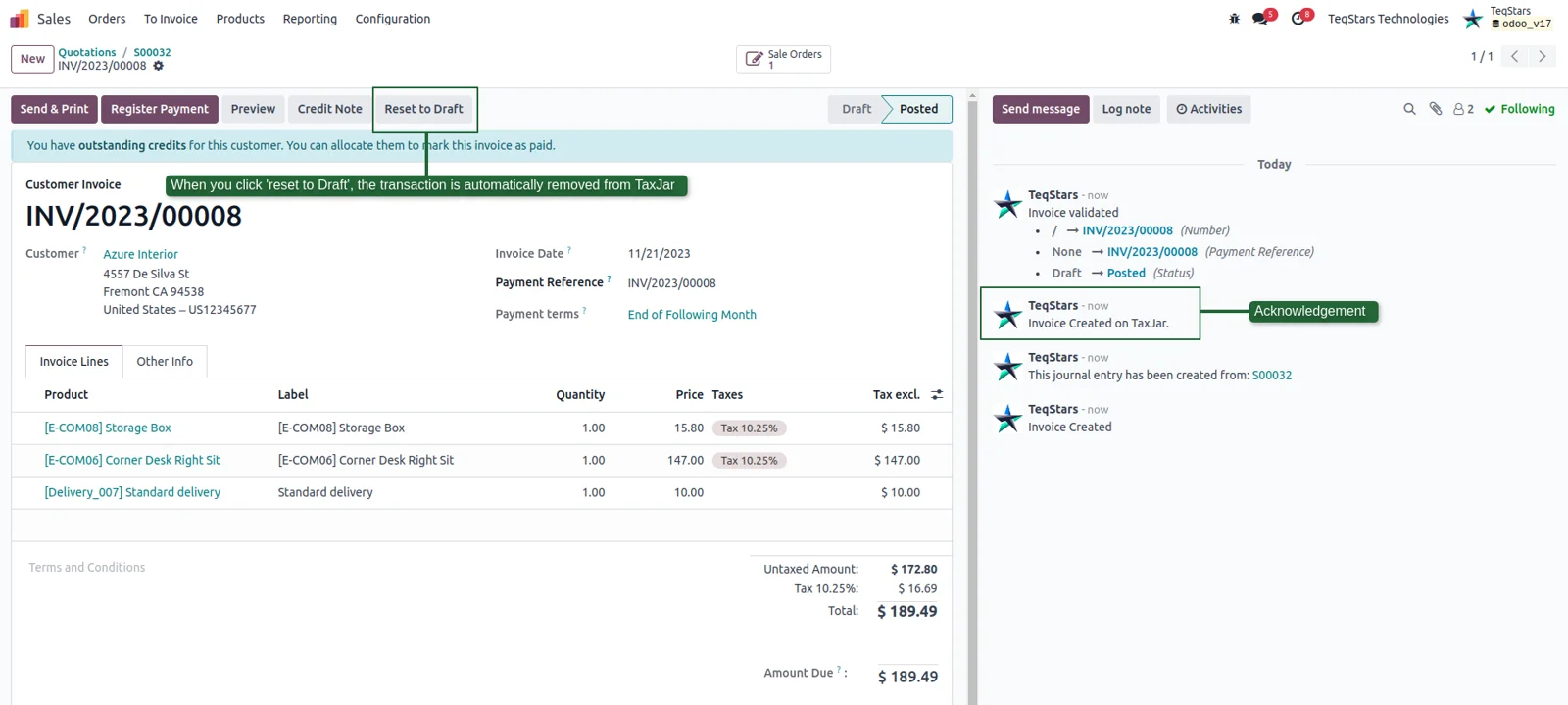
Validating a customer invoice sends it to TaxJar as a transaction, provided transaction sync is switched on in the account. A note is posted on the invoice so your team can see it was recorded. Amounts in other currencies are converted to USD before they are sent. When filing comes round, the sales in TaxJar match the invoices in your Odoo books.
Record refunds and cancellations
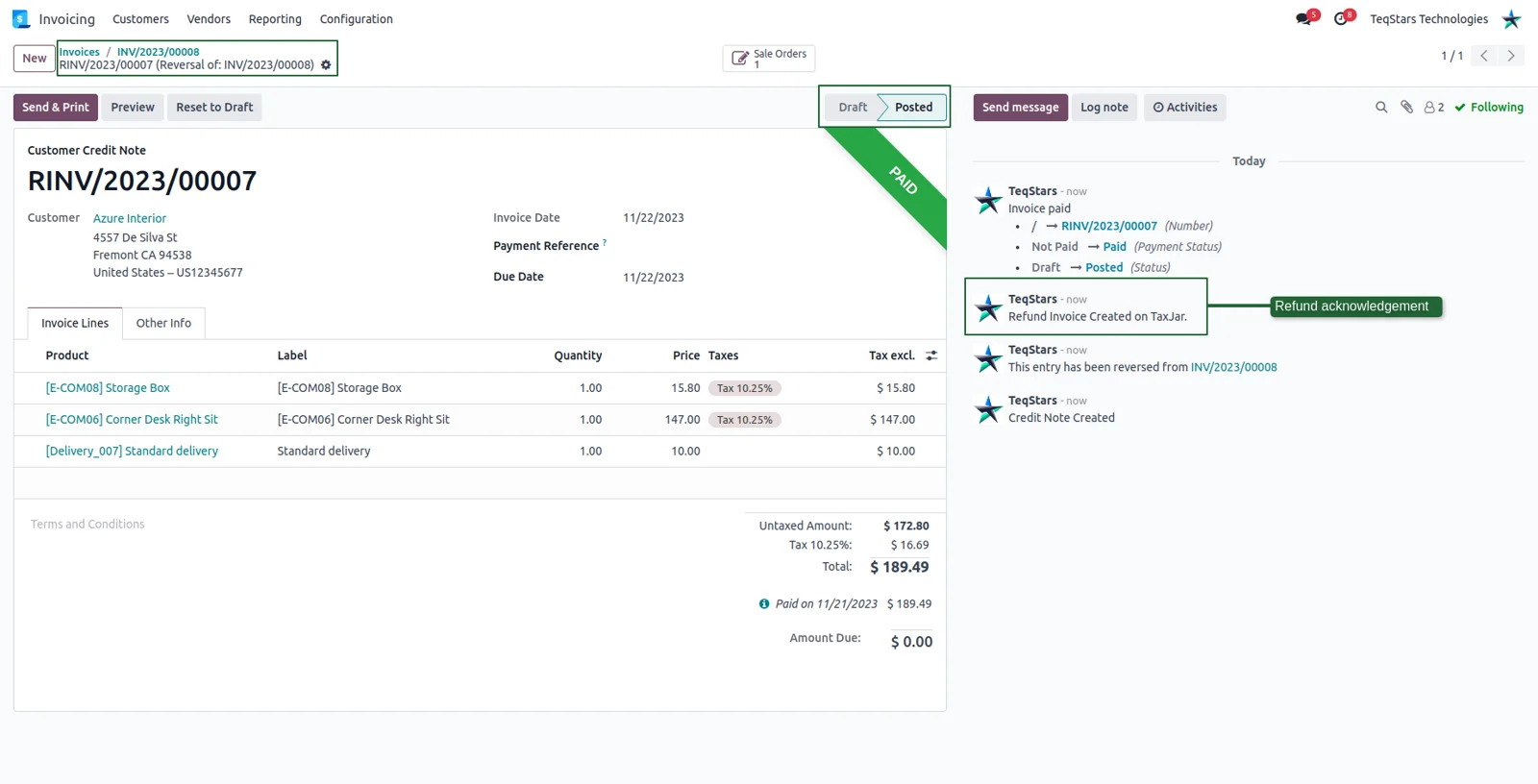
Confirming a credit note records a matching refund in TaxJar, so a return lowers the tax you report instead of sitting in Odoo alone. Reset an invoice or a credit note back to draft and the connector removes that transaction from TaxJar. Your reported figures then follow what really happened, including sales that were cancelled after posting.
What buyers say on the Odoo Apps Store
5 out of 5, from18 reviews
Odoo Taxjar Connector is rated 5 out of 5 from 18 reviews on the Odoo Apps Store, the latest in .
Read the reviews on the Odoo Apps StoreQuick connector and easy to customize
The TaxJar connector is quick and easy to integrate with Odoo. Teqstars, especially Gops, helped us complete the customization efficiently and on time. The extended support from Gops was extremely valuable and greatly appreciated. We look forward to continuing this level of collaboration going forward. Thank you, team.
Great App and Support
The app works great and the support is excellent. We had an issue specific to our business and the teqstars team built, tested and deployed a fix to accommodate our needs in no time!
Highly recommended
Well-Built TaxJar Integration with Strong Support!
We have been using the TaxJar integration with Odoo and are very satisfied with its accuracy and overall reliability. The app integrates smoothly with Odoo’s sales and invoicing workflows and ensures correct tax calculation based on customer location.
The configuration is clear and easy to manage, allowing us to align tax rules with our business requirements without unnecessary complexity. Tax calculations are applied consistently, which has helped us reduce manual effort.
We also appreciate the responsiveness and professionalism of the support provided. Queries were addressed promptly, and guidance was clear whenever we needed assistance.
Overall, this TaxJar integration has improved our tax compliance process and operational efficiency. A special thanks to the TeqStars team for their excellent support, technical expertise, and commitment to delivering a reliable solution.
Very useful app, great developer
Easy to setup and works great right out of the box. The TeqStars team was quickly implemented customizations we requested, they are attentive, professional and offered a fair price.
Supported Odoo versions
| Odoo version | Editions | Hosting | Price | Latest release | |
|---|---|---|---|---|---|
| 20.0 | Community & Enterprise | Odoo.sh · On-premise | €240 | No release notes | Buy |
| 19.0 | Community & Enterprise | Odoo.sh · On-premise | €240 | 19.0.1.0.7 | Buy Docs |
| 18.0 | Community & Enterprise | Odoo.sh · On-premise | €240 | No release notes | Buy |
| 17.0 | Community & Enterprise | Odoo.sh · On-premise | €240 | No release notes | Buy |
Support for Odoo Taxjar Connector
The developers who build the app answer your tickets.
- Free app support from purchase
- 60 days
- First response in working hours, typical
- 4–6 hours
- Support hours, 10:00–18:00 IST
- Mon–Fri
How to connect TaxJar to Odoo
-
Step 1
Copy your TaxJar token
Log in to TaxJar and open Account, then API Access, to generate a token. That token is the only thing you need to bring over from TaxJar.
-
Step 2
Add the account in Odoo
Go to Invoicing or Accounting, then Configuration, TaxJar, TaxJar Account. Paste the token, pick your tax breakdown and refresh rate, and click Confirm to check the connection.
-
Step 3
Bring in states and categories
Click "Sync States" to list your nexus states from TaxJar. Import TaxJar's product tax categories as well, so food, clothing and software carry their own rules.
-
Step 4
Link it to a fiscal position
Add the TaxJar account on a fiscal position. Odoo fills in the country and federal states from the account, and orders matching that rule then get TaxJar taxes.
-
Step 5
Tag products and check addresses
Set TaxJar categories on your products or product categories, complete the warehouse address you ship from, and fill in customer addresses. Then quote and invoice as usual.
Questions before you buy
Not answered here? Talk to the team.