
Integration guide
To connect ChatGPT to Odoo, you add Odoo as a custom MCP app in ChatGPT's developer mode, pointed at an MCP server inside Odoo such as the TeqStars Advanced MCP Server. Each person signs in to Odoo once, and ChatGPT can then query, summarize and act on live Odoo data from the chat window they already use.
ChatGPT is already open in your team's browser every day. What if it could also see the sales pipeline, invoices, tasks and inventory sitting in your Odoo? This guide shows how to register your Odoo database in ChatGPT as a custom MCP app (OpenAI's earlier name for it was a custom connector), using the Advanced MCP Server for Odoo by TeqStars. Once it is set up, every ChatGPT user in your workspace can query, summarize and act on live Odoo data through the same chat window they already use.
Why connect ChatGPT to Odoo?
Connecting ChatGPT to Odoo turns a trip through Odoo's menus, filters and exports into one sentence in the chat. ChatGPT calls tools on your Odoo server, reads the records the signed-in user may see, and answers with live figures, a summary or a chart, or takes an action you allowed.
Odoo already holds every customer, quote, invoice, project and inventory line your team relies on. Answering even a straightforward business question usually means opening three menus, applying filters and exporting to a spreadsheet. When ChatGPT is connected to Odoo, that whole trip through the interface collapses into a single sentence, asked from wherever your team already uses ChatGPT.
The main reasons teams connect ChatGPT to Odoo:
- Ask questions in plain English and get answers backed by real Odoo data
- Generate summaries, charts and reports without opening a report builder
- Read and cite documents attached to Odoo records, with the passage quoted
- Take actions you allow (confirm orders, post invoices, schedule activities) from the chat
- Set up ongoing Slack or Microsoft Teams alerts from a single sentence, through their incoming webhooks
- Keep every AI request within Odoo permissions and recorded in an audit log
The result: your team works faster on accurate, current data, and ChatGPT AI for Odoo stays secure and simple to run.
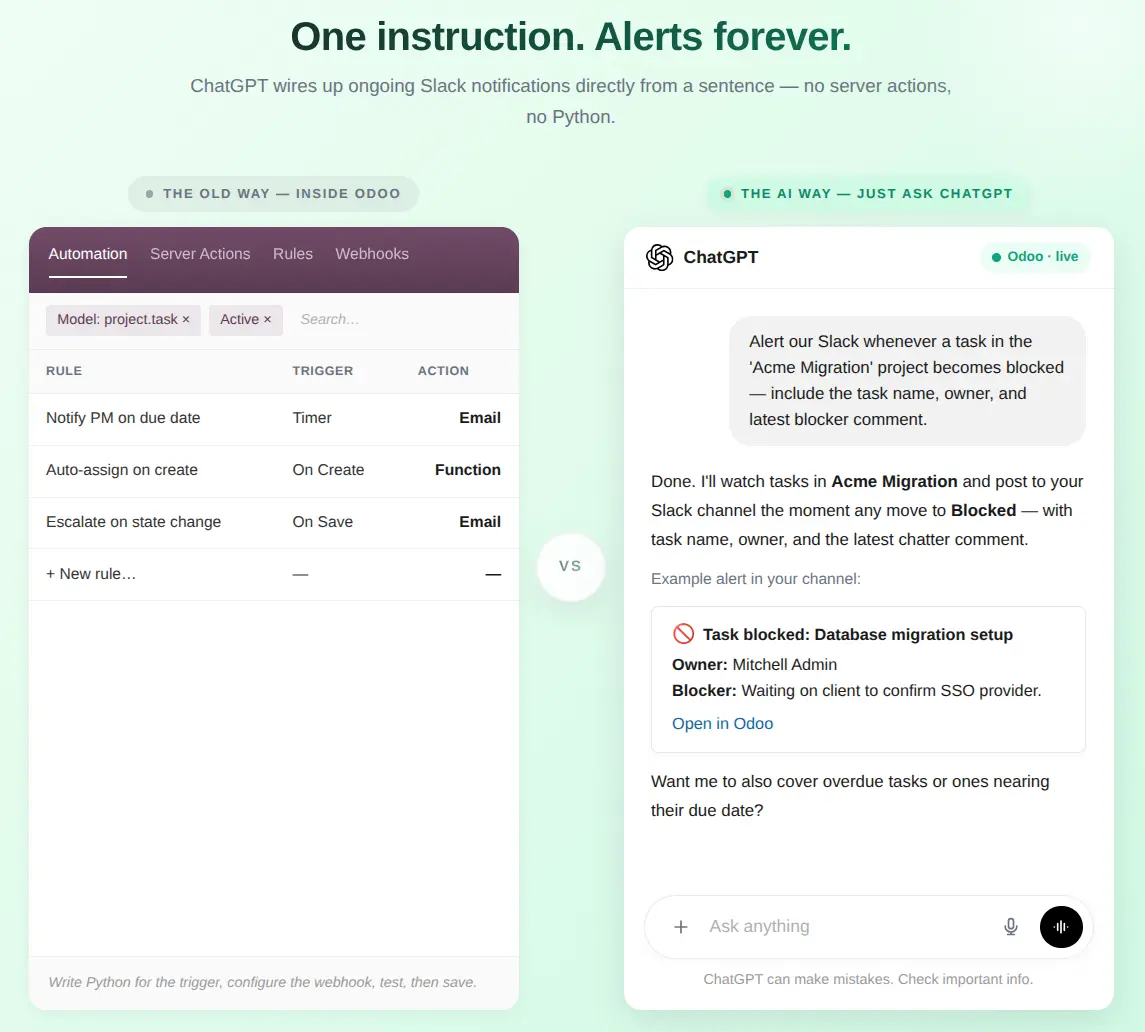
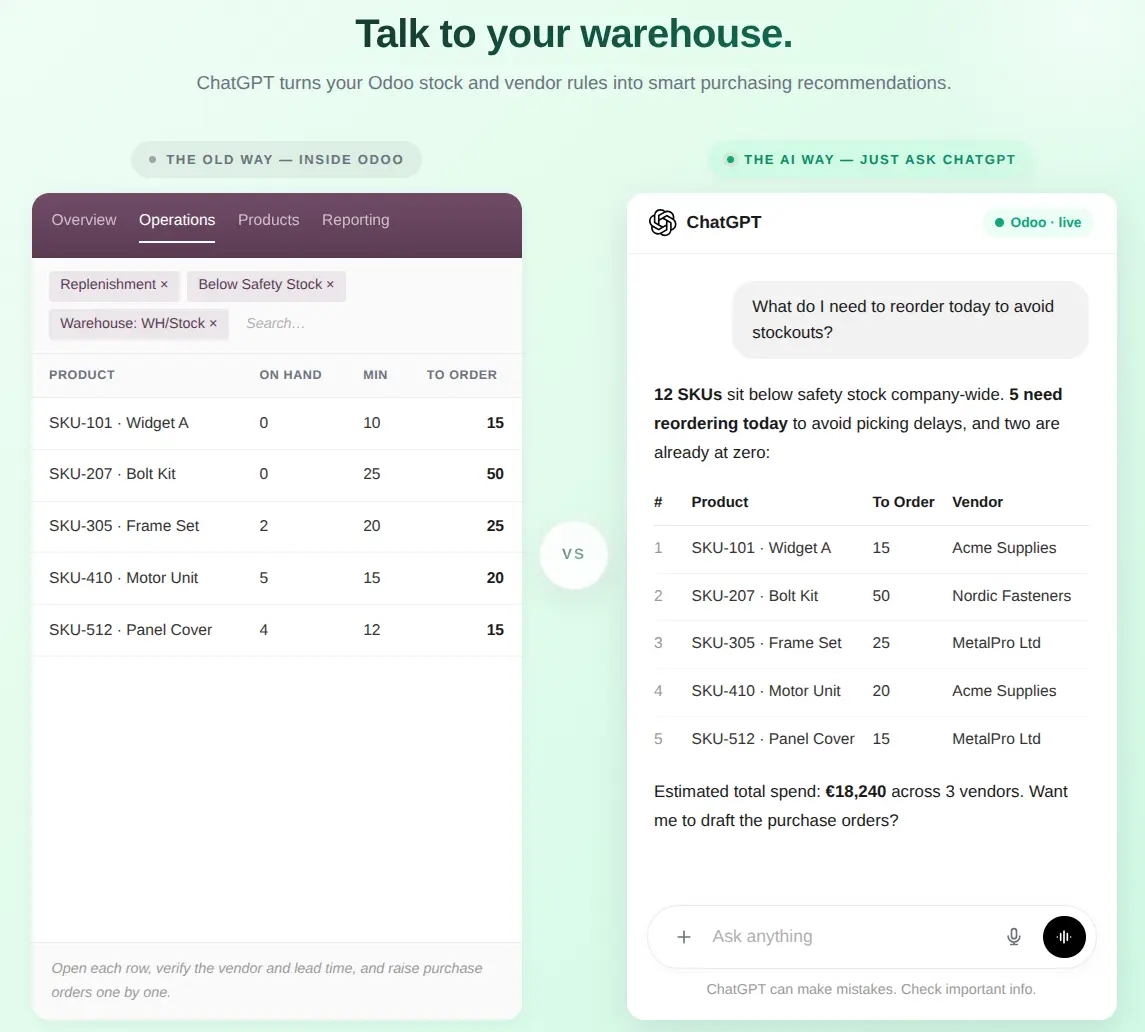
How does ChatGPT talk to Odoo?
ChatGPT talks to Odoo through the Model Context Protocol (MCP), an open standard for connecting AI assistants to other systems. Odoo publishes a list of tools; ChatGPT picks the one that answers your question and calls it with your sign-in token. Our guide on connecting AI assistants to Odoo with MCP explains the standard and the other clients.
You ask in ChatGPT
You select the Odoo app in a chat, or mention it, and ask "List the 5 most recent sales orders".
ChatGPT calls an Odoo tool
ChatGPT sends the request, for example a search on sales orders, to the MCP Endpoint URL with the OAuth token from your Odoo sign-in.
Odoo answers as you
Odoo checks the token, runs the tool as your Odoo user, logs the call and returns the records; ChatGPT writes the answer.
ChatGPT in Odoo or Odoo in ChatGPT: which setup do you need?
"Connect ChatGPT to Odoo" means one of three different setups, and search results mix them up. This guide covers the first: your team works in ChatGPT, and ChatGPT reaches into Odoo.
| Setup | Where people work | What it needs | Use it for |
|---|---|---|---|
| ChatGPT connects to Odoo (MCP) | In ChatGPT | The TeqStars Advanced MCP Server in Odoo 17.0 to 20.0; a ChatGPT plan with MCP apps | Questions, reports and actions on Odoo data from the chat your team already uses |
| Odoo's AI app uses OpenAI | In Odoo | Odoo Enterprise with the AI app; an OpenAI or Google Gemini API key, required on Odoo.sh and on-premise | Ask AI, AI fields, agents and text help inside Odoo screens |
| Custom development | Where you build it | Developer time, a middleware or your own server calling Odoo's external API, offered on Odoo's Custom plans | A process no ready tool covers |
Sources: Odoo's AI API keys documentation, the AI app in Odoo Enterprise, and Odoo's external API documentation.
What you need before you connect ChatGPT to Odoo
- An Odoo database on version 17.0 to 20.0, Community or Enterprise, hosted on Odoo.sh or your own server (Odoo Online blocks third-party apps).
- Odoo published over HTTPS on a public address, entered as web.base.url, because the MCP link uses it.
- A reverse proxy that forwards /odoo/mcp, the /oauth/ paths and the /.well-known/ discovery paths to Odoo.
- ChatGPT Business, Enterprise or Edu for full MCP with write actions; Pro gets read and fetch only.
- A ChatGPT workspace admin or owner, who turns on developer mode and publishes the app.
- An Odoo user with the MCP User or MCP Administrator role for everyone who will connect.
How to connect ChatGPT to Odoo, step by step
Five steps take you from a fresh Odoo database to a working ChatGPT and Odoo integration. Steps 1 to 3 happen in Odoo, step 4 in ChatGPT, and step 5 checks both.
-
Install the app and grant MCP Administrator access
Apps · Settings › Users & Companies › Users
Install the app
- In Odoo, open Apps, search for "Advanced MCP Server" and click Install.
- If it is not listed, click Update Apps List (developer mode), remove the default Apps filter and search again.
Grant MCP Administrator access
The MCP Server menu stays hidden until a user has an MCP role. Go to Settings › Users & Companies › Users, open your user and, in the MCP Server section of the access rights (the Other tab), set MCP Administrator. Save, then refresh the browser.
Give everyone who will use ChatGPT the MCP User role too: Odoo refuses the ChatGPT sign-in for a user without an MCP role.
If the menu is still missing after a refresh, hard-refresh with Ctrl+Shift+R (Cmd+Shift+R on macOS) to reload the menu cache.
-
Enable the MCP server and check dynamic registration
MCP Server › Configuration › Server Settings
The server ships disabled and rejects every AI request until you switch it on. ChatGPT signs in with OAuth 2.1, and the simplest way for it to register with Odoo is dynamic client registration, which this form controls.
- At the top of the Server Settings form, click the red Disabled button; it turns green and reads Enabled.
- Under Features, check that Allow Dynamic Client Registration is on (it is by default): ChatGPT's app registers itself through it.
- The Connect a New Tool button now shows in the form header; you use it in step 3.
Optional: tune before you continue
- Token Settings: how long OAuth access and refresh tokens stay valid before ChatGPT refreshes them or the user signs in again.
- Audit: how many days the log keeps entries, and Log Request/Response Payloads, best kept off unless you are debugging, since payloads can hold customer data.
- Rate limits: the per-minute and per-day limits apply to API-key connections; ChatGPT's OAuth connection is not limited by them.
Your Odoo must be reachable over public HTTPS for ChatGPT's OAuth sign-in to complete. For servers on a private network, OpenAI offers Secure MCP Tunnel.
-
Create a secure OAuth connection for ChatGPT
Server Settings › Connect a New Tool
Click Connect a New Tool, the button that appeared in the header when you enabled the server. The wizard offers three cards. ChatGPT cannot present API keys, so pick browser login:
- Wizard step 1, Pick auth type: choose Browser login (OAuth, auto-setup).
- Wizard step 2, Configure: skipped for browser login. Odoo creates the connection the first time ChatGPT registers, and the Odoo user who signs in is the user ChatGPT acts as.
- Wizard step 3, Done: copy the MCP Endpoint URL, in the form
https://your-odoo/odoo/mcp?db=your-database. You paste it into ChatGPT in step 4.
After ChatGPT has connected, open the connection to tighten it: Allowed Tools, Allowed Models, Tools Requiring Approval for sensitive actions, and an IP Whitelist. ChatGPT calls Odoo from OpenAI's servers, not from your office, so an office-only whitelist blocks it.
-
Add Odoo as an app in ChatGPT developer mode
ChatGPT › Settings › Apps
Now switch to ChatGPT and register your Odoo app. OpenAI's help pages call it a custom MCP app; older screens and guides say custom connector.
Turn on developer mode
- Business: an admin or owner turns it on in Settings › Apps › Advanced settings, or while creating an app. Each admin turns it on for themselves.
- Enterprise and Edu: admins grant access in Workspace Settings › Permissions & Roles › Connected Data; enabled members then switch it on in Settings › Apps › Advanced Settings.
- Pro: developer mode connects MCP apps with read and fetch permissions only.
Create the Odoo app
- Open Workspace settings › Apps › Create (admins) or Settings › Apps › Create.
- Enter a name and a description, and paste the MCP Endpoint URL you copied from Odoo in step 3.
- Choose OAuth as the authentication and click Scan Tools.
- ChatGPT opens Odoo's consent page: sign in with your own Odoo account, click Allow Access, then click Create in ChatGPT.
Publish it to your team
- The app first appears as a draft, marked Dev. Test it, then an admin or owner publishes it from Workspace settings › Apps › Drafts.
- Enterprise and Edu admins can pick the actions it may take and the groups that may use it before they publish.
Full MCP, including write actions, is in beta for ChatGPT Business, Enterprise and Edu, on the web (October 2026). ChatGPT Team was renamed Business in August 2025.
-
Test your first query and check the audit log
MCP Server › Audit Logs
Open a new ChatGPT conversation, select your Odoo app and try any of these:
- "What tools do you have available for Odoo?"
- "How many customers do we have in Odoo?"
- "List the 5 most recent sales orders."
Then open Odoo › MCP Server › Audit Logs. Each tool call adds a row with the connection, the tool, the time, the duration and the outcome. Listing the tools is not logged, so check a question that reads data, such as the customer count.
If ChatGPT returned real data and the call appears in the audit log, the integration is live.
The user guide covers each screen in detail
Read the browser login (OAuth) guide and the Advanced MCP Server documentation, try the free demo, or watch the video tutorials on YouTube.
What can ChatGPT do in Odoo, and where are the limits?
With the TeqStars module, ChatGPT can search and read records, build reports and charts, answer from attached documents, create and update records, move orders and invoices through their states, post notes and schedule activities. What it may do in your database depends on the tools the connection allows and the rights of the Odoo user; what it may do in ChatGPT depends on the plan and on OpenAI's rules.
Works well when
- Your team uses ChatGPT Business, Enterprise or Edu on the web
- Odoo runs on Odoo.sh or your own server with public HTTPS
- Each person connects with their own Odoo account
- Risky tools wait for an approver before they run
Look at it again when
- You need it in the ChatGPT mobile app: MCP apps are web only
- You plan to use agent mode, which does not use custom apps
- Deep research must write: it can use the app for reading only
- Your database runs on Odoo Online, where third-party apps cannot be installed
Two more points from OpenAI's help article: ChatGPT may ask you to confirm before a write action, and after an admin approves an app, ChatGPT keeps a frozen copy of its tool list. When a module update adds or changes tools, an admin refreshes the app's actions in workspace settings.
How do you keep ChatGPT's access to Odoo safe?
Each person signs in to Odoo with their own account, so ChatGPT works with that person's groups and record rules and never with a shared key. The Advanced MCP Server adds limits on top, and ChatGPT adds its own controls on the workspace side.
Personal sign-in
The consent page names the AI tool and the Odoo account. Each token belongs to the person who signed in, so answers follow their access rights.
Allowed tools and models
A connection can list the tools and Odoo models it may use. Calls outside the list are refused with a clear message.
Approvals in Odoo
Tools you mark, such as deleting records or staging a mass mailing, wait until the assigned approver or an MCP Administrator clicks Approve.
Controls in ChatGPT
Admins publish the app, and Enterprise and Edu admins choose its allowed actions and the groups that may use it.
Read-only audit log
Every tool call keeps the user, connection, tool, model, IP address, duration and status, and nobody can edit or delete the entries.
Revoke at once
Revoking a connection invalidates its tokens, ends live sessions and expires pending approvals; the log keeps the history.
ChatGPT acts as the person who signed in, so it never sees more of Odoo than they can.
Why does ChatGPT fail to connect to Odoo?
When ChatGPT cannot reach Odoo, the cause is nearly always the address, the sign-in or one setting. Match what you see below; the troubleshooting guide lists further cases.
| What you see | Likely cause | What to check |
|---|---|---|
| Scan Tools fails or times out | ChatGPT cannot reach Odoo, or the proxy drops a path | The public HTTPS address in web.base.url, and that /odoo/mcp, /oauth/ and /.well-known/ reach Odoo; the MCP address should answer 401 without a token |
| "MCP Server is disabled" | The master switch is off | The Enabled button on MCP Server › Configuration › Server Settings |
| The Odoo sign-in refuses you | Your Odoo user has no MCP role | MCP User or MCP Administrator on the user, in Settings › Users |
| ChatGPT cannot register with Odoo | Allow Dynamic Client Registration is off | Switch it on, or create a Custom OAuth client in the wizard with ChatGPT's redirect address |
| Calls fail after a module update | ChatGPT still uses its frozen tool list | An admin refreshes the app's actions in ChatGPT workspace settings |
| ChatGPT reads but never writes | A Pro plan, a read-only connection, or the tool is not allowed | The ChatGPT plan, and the connection's scope and Allowed Tools in Odoo |
| The Odoo app is missing in a chat | The ChatGPT mobile app, agent mode, or an unpublished draft | Use ChatGPT on the web, outside agent mode, with the app published or in developer mode |
Why choose TeqStars for your ChatGPT and Odoo integration?
You could stitch this together yourself with a middleware layer, an API description and a lot of glue code. Or you could install one app and be done. TeqStars ships the MCP server that ChatGPT's apps talk to, and we built it native to Odoo, opinionated and dependable:
- Built for ChatGPT's sign-in: OAuth 2.1 with PKCE and dynamic client registration
- The same app also serves Claude, Cursor, Gemini CLI and Continue.dev: one integration for every MCP-capable AI
- Works inside ChatGPT conversations through its apps, on the web
- Controls per connection: allowed tools and models, approval gates, IP whitelists and a full audit trail
- Compatible with Odoo Community, Enterprise and Odoo.sh; not Odoo Online, which allows no third-party apps
- No external infrastructure: no Node.js, no Redis, no Docker, no gateway to babysit
- Dedicated onboarding and support, including a free live setup session with the developer
The Advanced MCP Server is rated 5 out of 5 on the Odoo Apps Store (October 2026). For Claude, read how to connect Claude to Odoo.
The app was easy to configure and works smoothly with AI tools such as ChatGPT and Claude.
Frequently asked questions
Can ChatGPT connect to Odoo?
Yes. ChatGPT connects to Odoo as a custom MCP app in developer mode, pointed at an MCP server inside Odoo. The TeqStars Advanced MCP Server provides that server for Odoo 17.0 to 20.0, Community and Enterprise.
Which ChatGPT plan do I need to connect Odoo?
In October 2026, OpenAI offered full MCP, including write actions, in beta to ChatGPT Business, Enterprise and Edu workspaces on the web. Pro users could connect MCP apps with read and fetch permissions in developer mode. Plus was not listed. Check OpenAI's help article before you buy, as the rules change.
Does ChatGPT use an API key to connect to Odoo?
No. ChatGPT cannot present custom API keys; it signs in with OAuth and the authorization code flow with PKCE. That is why the Odoo connection for ChatGPT uses browser login, and API keys stay for tools such as Cursor, Claude Code and scripts.
Is connecting ChatGPT the same as Odoo's AI app?
No. Odoo's AI app, part of Odoo Enterprise, runs inside Odoo and calls OpenAI or Google Gemini with an API key. Connecting ChatGPT works the other way round: your team stays in ChatGPT, and ChatGPT reaches into Odoo through MCP. Many teams use both.
Can ChatGPT create or change records in Odoo?
Yes, on plans with full MCP and when the connection allows the tool. ChatGPT may ask you to confirm a write, the module's write tools accept a preview run that saves nothing, and you can put deletes, method calls, state changes or mass mailing behind an approval in Odoo.
Does the Odoo app work in the ChatGPT mobile app?
No. OpenAI's help article says MCP apps are available on ChatGPT web only. Your team uses the Odoo app from chatgpt.com in a browser; the same connection keeps working there on any computer.
Can ChatGPT agent mode or deep research use Odoo?
Agent mode does not use custom apps. Deep research can use them for read and fetch actions only, never for writes, according to OpenAI. For Odoo, that means deep research can read records your user may see, but cannot change them.
Does ChatGPT see everyone's Odoo data once it is connected?
No. Each person signs in to Odoo with their own account on the consent page, and Odoo runs every call as that person. ChatGPT therefore sees only the records that user may see in Odoo, and every call is logged under their name.