
Integration guide
To connect Claude to Odoo, you install the TeqStars Advanced MCP Server in Odoo, which adds an MCP server to your database, and give Claude its address: as a custom connector in claude.ai or Claude Desktop, or with one command in Claude Code. Claude can then read, analyze and act on live Odoo data under your own Odoo permissions.
Connecting Claude AI to your Odoo ERP lets your team query, analyze and act on business data through natural conversation, instead of navigating menus or writing custom reports. This guide walks you through the whole connection with the Advanced MCP Server for Odoo by TeqStars, a native Odoo module that connects claude.ai, Claude Desktop and Claude Code to your Odoo database through the open Model Context Protocol (MCP). By the end, Claude reads and acts on your live Odoo data within each user's permissions, with every call recorded in an audit log.
Why connect Claude to Odoo?
An Odoo Claude integration replaces the menus, filters and spreadsheet exports behind a business question with one request in Claude. Claude calls tools on your Odoo server, works only with the records the connected user may see, and answers with figures, a summary, a chart, or an action you have allowed.
Odoo holds every piece of business data your team touches: customers, sales orders, invoices, inventory, projects, HR files and more. Getting an answer out of it usually means navigating menus, applying filters or exporting spreadsheets. When Claude AI is connected to Odoo, that whole loop collapses into a conversation.
The main reasons teams connect Claude to Odoo:
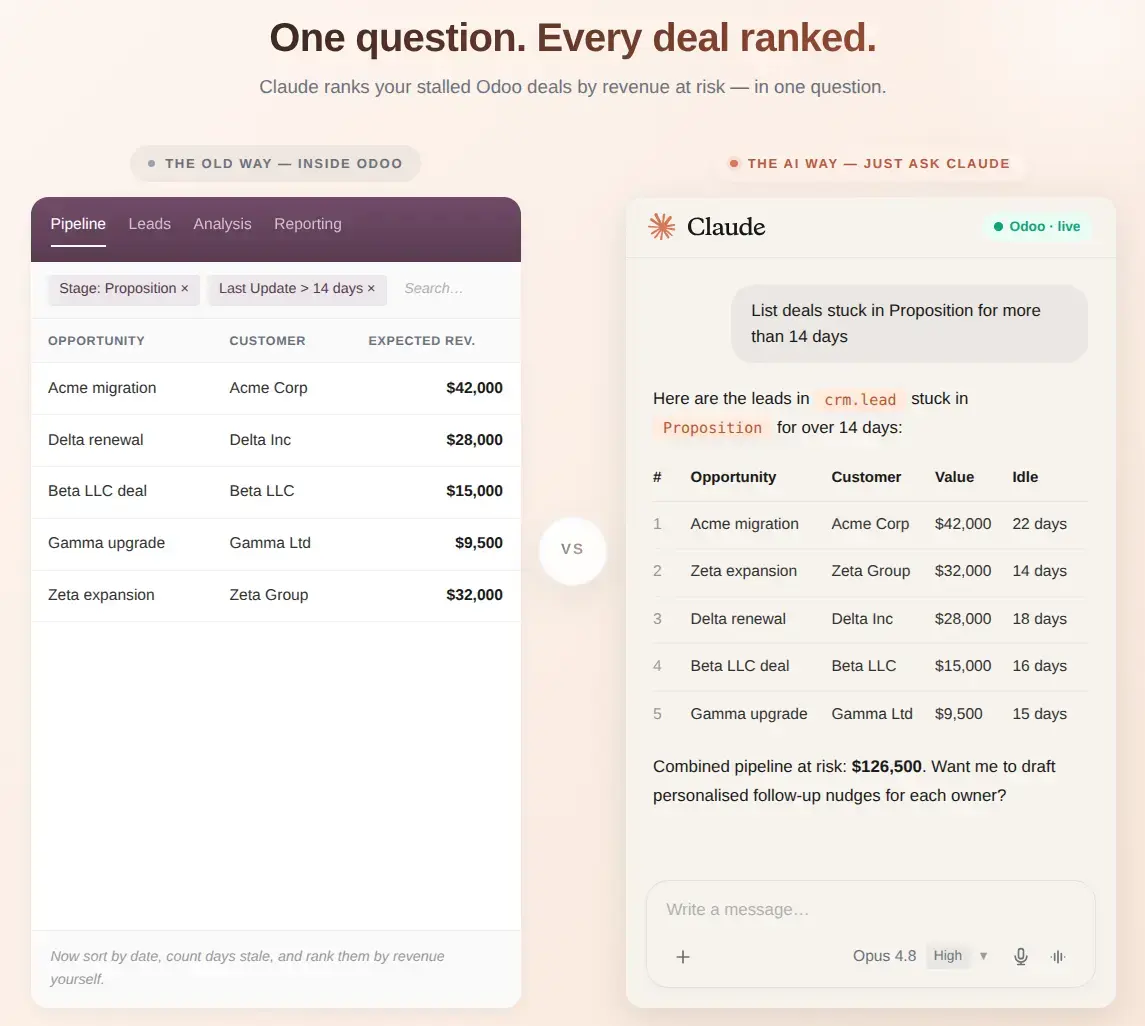
- Ask questions in plain English and get answers backed by real Odoo data
- Generate summaries, charts and reports without opening a report builder
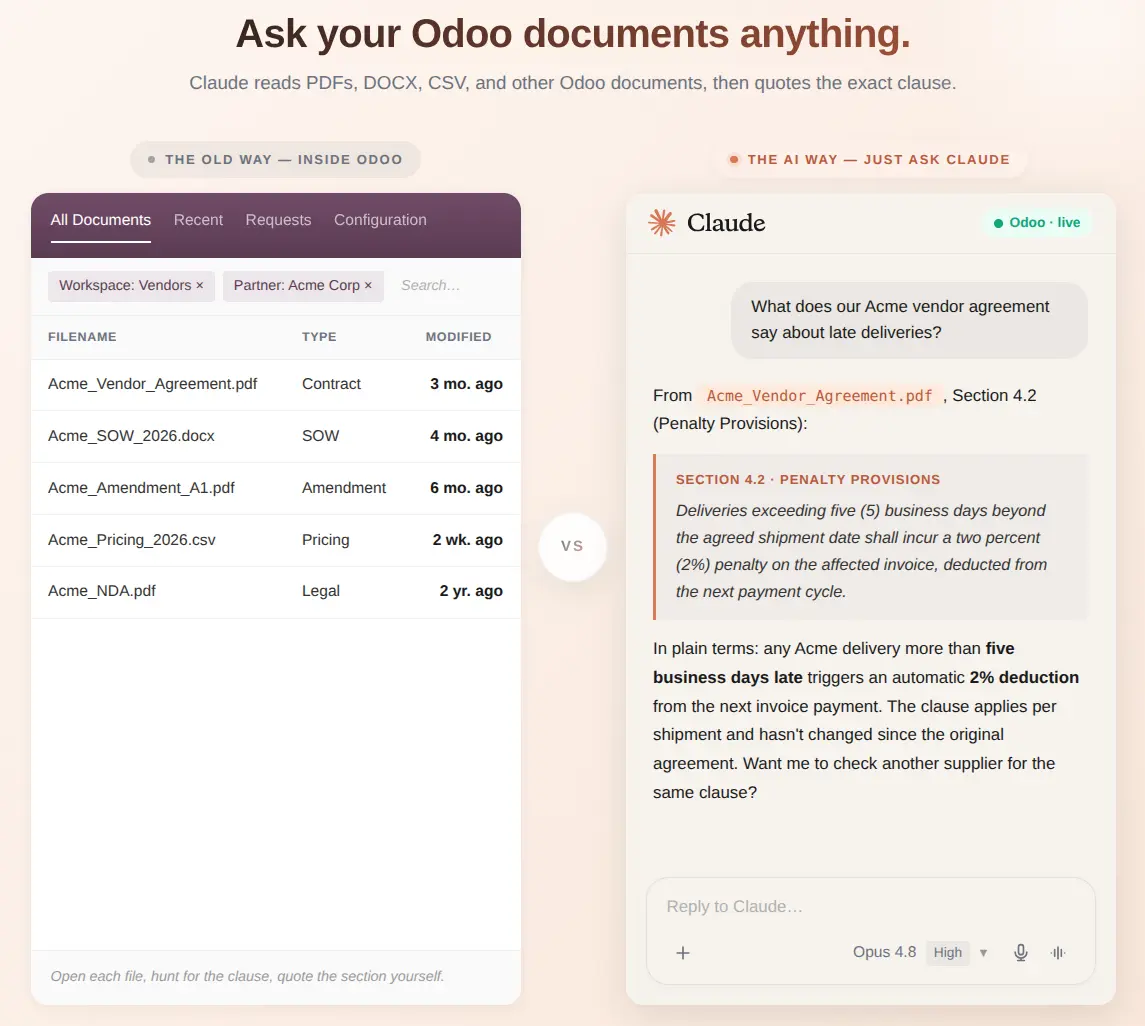
- Read and cite documents attached to Odoo records, with the exact passage quoted
- Take actions you allow (confirm orders, post invoices, schedule activities) directly from the chat
- Set up ongoing Slack or Microsoft Teams alerts from a single sentence, delivered to their incoming webhooks
- Keep every AI request within Odoo permissions and recorded in the audit log
Claude AI for Odoo, secure and simple to run:
How does Claude reach your Odoo data?
Claude reaches Odoo through the Model Context Protocol, the open standard Anthropic introduced in November 2024 for connecting AI applications to other systems. The Odoo side publishes tools; Claude chooses one, calls it and reads the result. Our overview of connecting AI assistants to Odoo with MCP covers the standard in more depth.
You ask Claude
"How many customers do we have in Odoo?" in claude.ai, Claude Desktop or a Claude Code session with the Odoo connector on.
Claude calls the Odoo tool
Claude picks a tool, such as a record count on contacts, and sends it to Odoo's MCP address with your token or API key.
Odoo answers for your user
The module checks the connection, runs the tool with that Odoo user's rights, writes the call to the audit log and returns the result to Claude.
Which Claude client should you connect to Odoo?
All three Claude clients reach the same Odoo tools; they differ in how they sign in and where their requests start. Plan details are from Anthropic's help pages in October 2026.
| Claude client | Sign-in to Odoo | Requests start from | Use it for |
|---|---|---|---|
| claude.ai | Browser login | Anthropic's cloud | Everyday questions and reports for the whole team; Team and Enterprise owners add the connector once for everyone |
| Claude Desktop | Browser login | Anthropic's cloud, for custom connectors | The same work in the desktop app; an API key works only through a local bridge program |
| Claude Code | API key | Your computer | Developers and power users working in a terminal, including Odoo databases on an internal network |
Sources: Claude Help Center, Claude's custom connector docs and the Claude Code MCP docs. ChatGPT works differently; see how to connect ChatGPT to Odoo.
What you need before you connect Claude to Odoo
- Odoo 17.0 to 20.0, Community or Enterprise, on Odoo.sh or a server you run. Odoo Online does not accept third-party apps.
- For claude.ai and Claude Desktop: Odoo on a public HTTPS address, saved as web.base.url, so Anthropic's cloud can reach it.
- A reverse proxy that passes /odoo/mcp, /oauth/ and /.well-known/ through to Odoo.
- A Claude plan with custom connectors: Free allows one, Pro, Max, Team and Enterprise allow more.
- On Team or Enterprise, an Owner or Primary Owner to add the connector for the organization.
- An Odoo user per person with the MCP User role, or MCP Administrator for whoever sets it up.
How to connect Claude to Odoo, step by step
Five steps take a fresh Odoo database to a working Claude and Odoo integration. Steps 1 to 3 are done in Odoo, step 4 in the Claude client you chose, and step 5 checks that both sides agree.
-
Install the app and grant MCP Administrator access
Apps · Settings › Users & Companies › Users
Install the app
- Go to Apps in Odoo, search for "Advanced MCP Server" and click Install.
- Not in the list? Click Update Apps List (developer mode), clear the default Apps filter and search again.
Grant MCP Administrator access
The MCP Server menu appears only for users with an MCP role. Open Settings › Users & Companies › Users, pick your user, and on the Other tab set MCP Server to MCP Administrator. Save and refresh the browser.
Colleagues who will use Claude need the MCP User role: without an MCP role, Odoo turns down their sign-in from claude.ai or Claude Desktop.
Menu still missing after the refresh? Press Ctrl+Shift+R (Cmd+Shift+R on macOS) to reload the menu cache.
-
Enable the MCP server
MCP Server › Configuration › Server Settings
The server is installed in a Disabled state and refuses every AI request until you turn it on.
- Click the red Disabled button at the top of the Server Settings form; it switches to a green Enabled.
- The Connect a New Tool button then shows in the form header, ready for step 3.
Optional: tune before you continue
- Features: Allow Dynamic Client Registration (on by default) lets claude.ai and Claude Desktop register themselves; Enable Event Streaming and Enable Report Generation switch the alert and report tools on or off.
- Rate limits: requests per minute and per day for API-key connections, the kind Claude Code uses.
- Token Settings: how long the OAuth tokens of browser-login connections stay valid.
- Audit: how long log entries are kept, and Log Request/Response Payloads, which should stay off outside debugging because payloads can contain customer data.
-
Create a secure connection for Claude
Server Settings › Connect a New Tool
Click Connect a New Tool in the header; the same button sits above the list under MCP Server › Configuration › Connections. The wizard has three steps:
- Wizard step 1, Pick auth type: API key for Claude Code (and Claude Desktop through a bridge), or Browser login (OAuth) for claude.ai and Claude Desktop connectors.
- Wizard step 2, Configure (API key only): name the connection, choose the Odoo user Claude will act as and set the scope: Full Access, Read Only or Custom. Browser login skips this step, and the user who signs in becomes the one Claude acts as.
- Wizard step 3, Done: copy the MCP Endpoint URL and, for an API key, the key itself, shown only once. The Claude Code tab holds a ready-made command.
Once saved, open the connection to refine Allowed Tools, Allowed Models, Tools Requiring Approval, the IP Whitelist and, for API keys, the rate limits.
-
Connect your Claude client to the MCP endpoint
claude.ai · Claude Desktop · Claude Code
Pick the Claude client you use and follow its tab only.
claude.ai and Claude Desktop
Add Odoo as a custom connector:
- Pro and Max: open Customize › Connectors, click + Add, then Add custom connector. Enter a name and the MCP Endpoint URL.
- If Claude asks how to register its OAuth client, choose Register automatically: the module supports dynamic registration, not Claude's published identity.
- Click Connect, sign in to Odoo with your own account and click Allow Access on the consent page.
- Team and Enterprise: an Owner adds the connector under Organization settings › Connectors › Add › Custom › Web; each member then clicks Connect under Customize › Connectors and signs in to Odoo as themselves.
Custom connectors reach Odoo from Anthropic's cloud, not from your computer. Odoo must answer on public HTTPS, and a firewall or IP whitelist must let Anthropic's published IP addresses through.
Claude Code
Run the command from the wizard's Claude Code tab, or this one with your own values:
claude mcp add --transport http odoo "https://your-odoo/odoo/mcp?db=your-database" --header "Authorization: Bearer YOUR_API_KEY"Add
--scope userto use Odoo in every project, then check it withclaude mcp list. Claude Code discovers the Odoo tools when it connects.Claude Desktop with an API key
Claude Desktop's Settings › Developer › Edit Config file starts local programs; it does not take a remote URL. To use an API key there, run the open-source mcp-remote bridge, which needs Node.js 18 or later on your computer:
{
  "mcpServers": {
    "odoo": {
      "command": "npx",
      "args": ["-y", "mcp-remote", "https://your-odoo/odoo/mcp?db=your-database",
               "--header", "Authorization:${AUTH_HEADER}"],
      "env": { "AUTH_HEADER": "Bearer YOUR_API_KEY" }
    }
  }
}
Save, quit and restart Claude Desktop; the Odoo tools then appear in Claude's connector menu. This route is optional: the custom connector in the first tab needs no bridge.
-
Test your first query and verify the audit log
MCP Server › Audit Logs
Open your Claude client with the Odoo connector enabled and try any of these:
- "What tools do you have available for Odoo?"
- "How many customers do we have in Odoo?"
- "List the 5 most recent sales orders."
Then look in Odoo › MCP Server › Audit Logs. Each tool call is a row with the connection name, the tool, the time, how long it took and whether it worked. The tool list itself is not logged, so confirm with the customer count or the sales orders.
If Claude returned real data and the call shows in the audit log, the integration is live.
More detail lives in the documentation
The AI client setup page and the Advanced MCP Server documentation cover every screen. You can also try the free demo or watch the tutorials on YouTube.
What can Claude do in Odoo, and what should you watch?
With the TeqStars module, Claude can search and read records, count and group them, build charts and dashboards, quote attached documents, create and update records, move documents through their states, post notes and schedule activities. The connection's allowed tools and the Odoo user's rights decide which of these Claude may actually do.
A good fit when
- Your team already works in claude.ai, Claude Desktop or Claude Code
- Odoo runs on Odoo.sh or your own server, reachable over HTTPS
- People should connect with their own Odoo accounts
- Deletes and mass mailings should wait for an approver
Look at it again when
- Your database is on Odoo Online, which takes no third-party apps
- Odoo sits on a private network and you want claude.ai, not Claude Code
- You plan to run Research with write tools on: it calls connector tools without asking
- Your documents are scanned PDFs without text, which the search skips
How do you keep Claude's Odoo access under control?
Give each person their own connection or sign-in, so Claude works with that person's groups and record rules and the log shows who asked. On Team and Enterprise, Anthropic notes that a shared credential gives everyone who uses it the same access, which is why browser login suits shared organization connectors.
Own sign-in per person
Each Odoo token or key belongs to one user. Claude sees what that user may see, and nothing an administrator alone could open.
Tool and model lists
A connection can be limited to named tools and Odoo models; anything outside them is refused with a clear message.
Approval before risky calls
Marked tools, such as delete or execute method, wait until the chosen approver or an MCP Administrator approves them in Odoo.
Claude's own controls
Claude asks before using connector tools, and you can switch tools off in its Search and tools menu.
A log nobody can edit
Every tool call records the user, connection, tool, model, IP address, duration and outcome; even administrators cannot change it.
Rotate or revoke
Rotate Key issues a new API key; revoking ends sessions, invalidates tokens and expires waiting approvals at once.
Claude works as the Odoo user behind the connection, so it can never see more than that person.
Why can't Claude connect to Odoo?
Connection problems almost always trace back to the address, the sign-in method or one setting. Look up what you see; the troubleshooting guide goes further.
| Symptom | Likely cause | Fix |
|---|---|---|
| The connector cannot reach Odoo | Odoo is not public, web.base.url is wrong, or the proxy drops a path | Serve Odoo on public HTTPS and pass /odoo/mcp, /oauth/ and /.well-known/ through; without a token the MCP address should answer 401 |
| Sign-in fails when you click Connect | Claude's published identity was chosen, or dynamic registration is off | Re-add the connector with Register automatically, and check Allow Dynamic Client Registration in Odoo |
| Odoo refuses your account | The user has no MCP role | Give the user MCP User or MCP Administrator in Settings › Users |
| Claude Desktop shows no Odoo tools | A url entry was added to claude_desktop_config.json | Remove it and add a custom connector, or use the mcp-remote bridge |
| Claude Code gets "Unauthorized" | A wrong or rotated key, or a revoked connection | Copy a fresh key with Rotate Key and keep the header as Bearer, one space, then the key |
| "Rate limit exceeded" in Claude Code | The API-key connection hit its per-minute or per-day limit | Raise the limit on the connection, or look for a prompt that loops |
| A tool Claude needs is missing | The tool is inactive or outside the connection's Allowed Tools | Check MCP Server › Configuration › Tools and the connection, then reconnect in Claude |
Why choose TeqStars for your Claude and Odoo integration?
Many AI integrations for Odoo need an extra server, a third-party service or custom code, which adds cost, moving parts and security risk. The TeqStars module takes a different approach: one native Odoo module, one secure setup and one place to manage every AI tool your team uses. Built by the Odoo specialists at TeqStars, it brings Claude safely inside Odoo with no external service to host, no development work and no tie to a single AI vendor.
- Supports every Claude client, claude.ai, Claude Desktop and Claude Code, from one connection model
- Both Bearer API keys and OAuth 2.1 with dynamic client registration
- Per-connection allow-lists, IP restrictions, approval gates and, for API keys, rate limits
- A complete audit log of every AI tool call inside Odoo
- Works on Odoo Community, Enterprise and Odoo.sh
- Runs entirely inside Odoo: no Node.js, no Redis and no external service on the server
- Dedicated TeqStars support and personal onboarding, including a free live setup session
The Advanced MCP Server is rated 5 out of 5 on the Odoo Apps Store (October 2026).
It honestly feels like Odoo finally speaks our language.
Frequently asked questions
Can Claude connect to Odoo?
Yes. Claude connects to Odoo through MCP: claude.ai and Claude Desktop as a custom connector, Claude Code with the claude mcp add command. On the Odoo side, the TeqStars Advanced MCP Server provides that MCP server for Odoo 17.0 to 20.0, Community and Enterprise.
Do I need a paid Claude plan to connect Odoo?
Not for a first test. In October 2026, Claude's Free plan allowed one custom connector, and Pro, Max, Team and Enterprise allowed more. On Team and Enterprise, an Owner adds the connector for the organization and each member connects with their own Odoo account.
Why does my Claude Desktop config with an Odoo URL not work?
Claude Desktop's config file starts local programs, so a remote URL with headers placed there is not loaded. Add Odoo as a custom connector instead, or start the mcp-remote bridge from the config file to send your Odoo API key.
Should Claude use an API key or browser login with Odoo?
Use browser login for claude.ai and Claude Desktop connectors: each person signs in to Odoo as themselves. Use an API key for Claude Code, created in Odoo for one person and one computer. Never share one key across a team, because everyone would act as the same Odoo user.
Can Claude see Odoo data the user is not allowed to see?
No. The module runs every data tool as the Odoo user behind the connection, without extra privileges, so groups and record rules apply. A connection can be narrowed further to chosen tools and models, but never widened beyond that user.
Can Claude create or change records in Odoo?
Yes, when the connection allows write tools. Claude asks before it uses a connector tool, the write tools offer a preview run that saves nothing, and risky tools can wait for approval in Odoo. Switch write tools off before running Research, which calls tools without asking.
Is Claude Code useful for Odoo developers?
Yes. Connected to Odoo, Claude Code can list models, describe their fields, search records and test domains on a real database while you build a module or a report. Point it at a staging database and a read-only connection when you only need answers.