Ask Claude or ChatGPT about your Odoo data, then act on it
Your team asks questions in plain English and gets answers from live Odoo records, under each user's own access rights. Risky actions wait for a person to approve them, and every request is logged. One module, running inside your own Odoo.
- Odoo 17.0 – 20.0
- Community & Enterprise
- Odoo.sh · On-premise
-
Not for
Odoo Online
Top seller on the Odoo Apps Store
- sales on the Odoo Apps Store
- 3,000+
- apps published
- 100+
- countries running them
- 100+
Odoo questions and actions before and after the MCP Server
Without the connector by hand
-
Build a filter and export a spreadsheet for every question someone asks.
-
Retype figures from a PDF or an email into an Odoo form.
-
Open contracts and handbooks one by one to find a single clause.
-
Rebuild the same chart in a spreadsheet and mail it around.
-
Hope nobody deletes the wrong records through an integration key.
-
Keep your own notes of who changed what through outside tools.
With the connector automatic
-
Ask in the chat and the AI reads the Odoo records and answers.
-
The AI reads the file and creates the Odoo record you asked for.
-
Ask a question and get the answer with the source paragraph quoted.
-
The AI builds a dashboard page you share with one browser link.
-
Gated tools stop and wait until your approver clicks Approve.
-
Every request is recorded with user, tool, time, IP and status.
What moves between Odoo and your AI assistant
Every object the connector handles, which way it travels and what triggers it.
| Data | Direction | What happens & when |
|---|---|---|
| Odoo record data |

 Odoo to AI assistant
|
The AI calls a tool during your chat, within the connection's permissions. |
| New and changed records |
AI assistant to Odoo
|
You ask in the chat for a record to be created or updated. |
| Record change alerts |
Odoo to AI assistant
|
A record is created, written to or deleted on a watched model. |
| Approval results |
Odoo to AI assistant
|
The AI checks the request after the approver clicks Approve or Reject. |
Advanced MCP Server features
Document Q&A with quoted sources
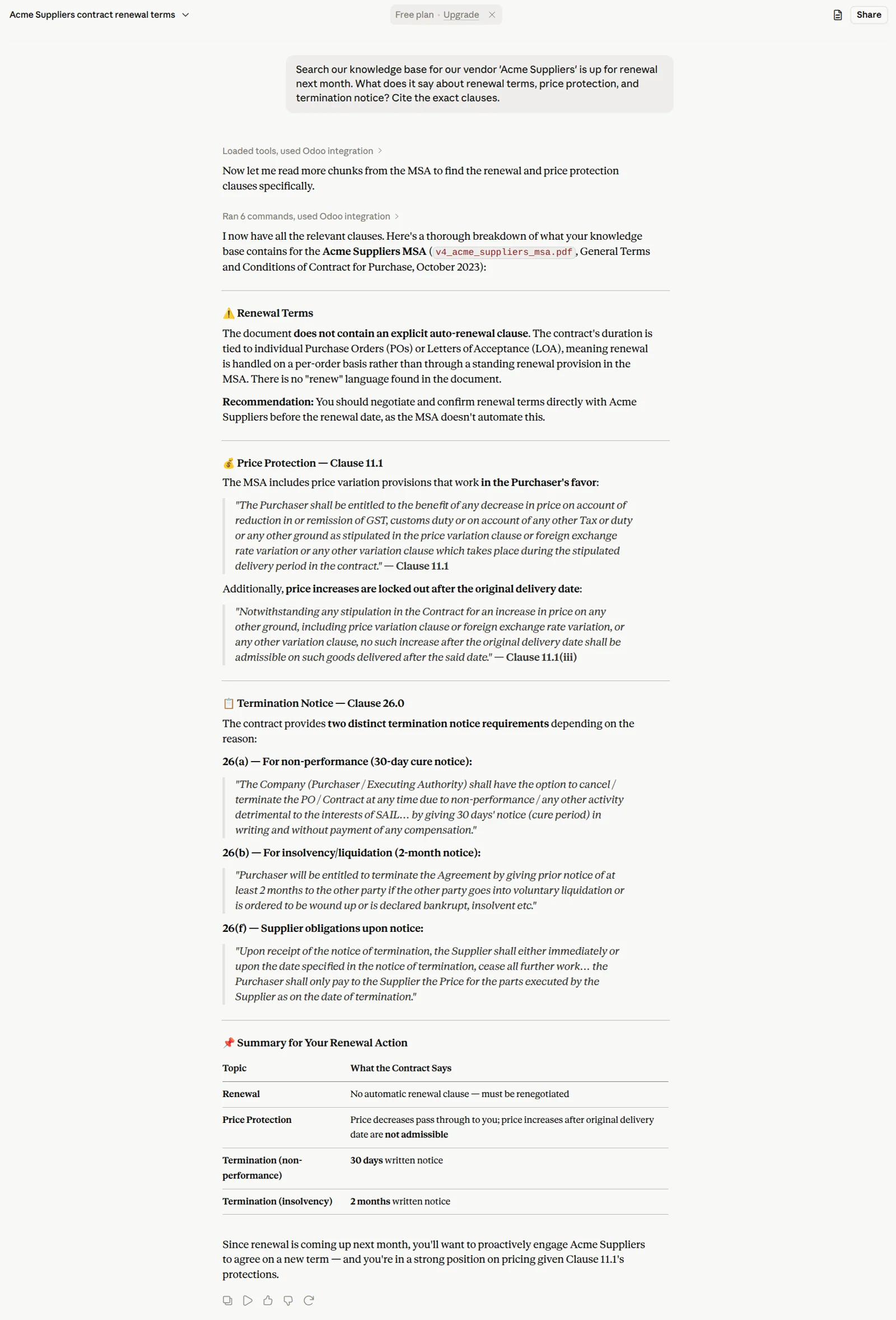
Ask what your refund policy says and the answer comes back with the exact paragraph quoted from the file it came from, so you can check it yourself. The AI searches your indexed Odoo documents at once, including contracts, handbooks and policy PDFs. Answers stay within the document and record access rights of the user the connection acts as.
Risky actions wait for a human
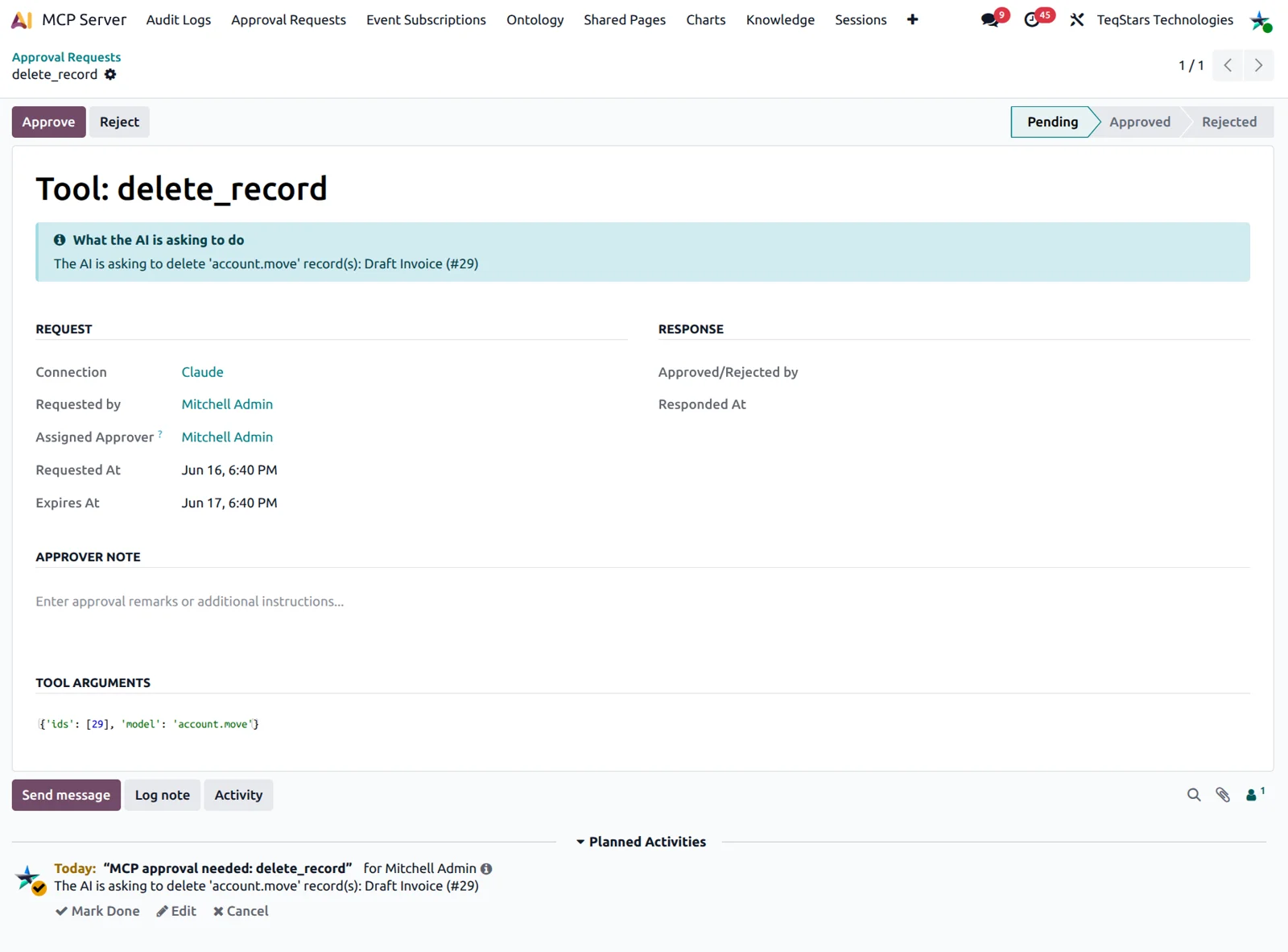
When someone asks the AI to do something you have gated, the call does not run. Odoo files a request with a plain-English summary, such as permanently deleting 12 quotations, and sends an activity to the approver you picked. That approver clicks Approve or Reject and can leave a note. Approving runs the call under the requester's own access rights, and nobody can approve their own request.
Every AI request recorded in Odoo
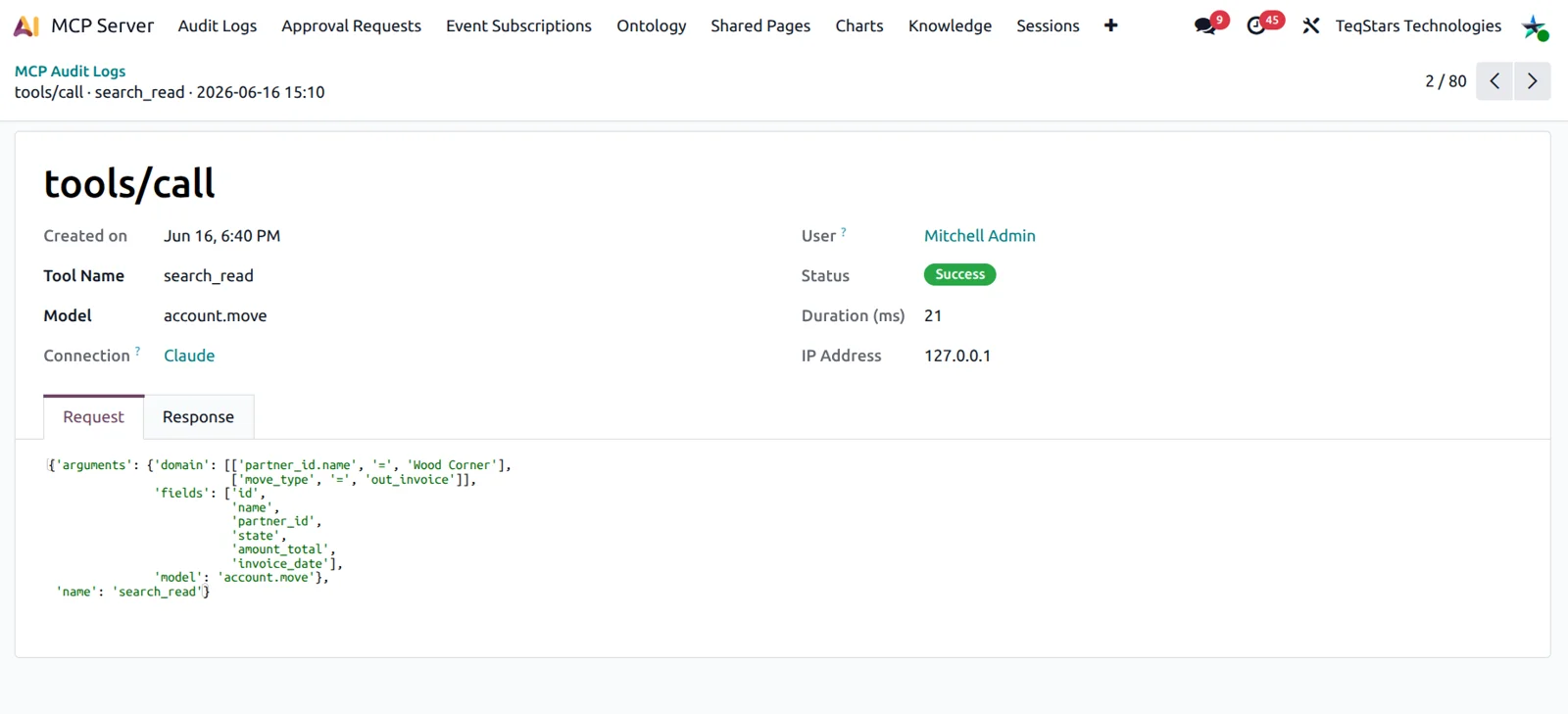
Open the log and you can see who asked what, through which connection, from which IP address, and whether the call worked. Each line keeps the time, the tool, the Odoo model and how long the call took. Quick filters cover errors, tool calls and the last 7 days. Entries cannot be edited or deleted, even by an MCP Administrator, and a daily cleanup drops rows past your retention period of 90 days by default.
Set what each connection can touch
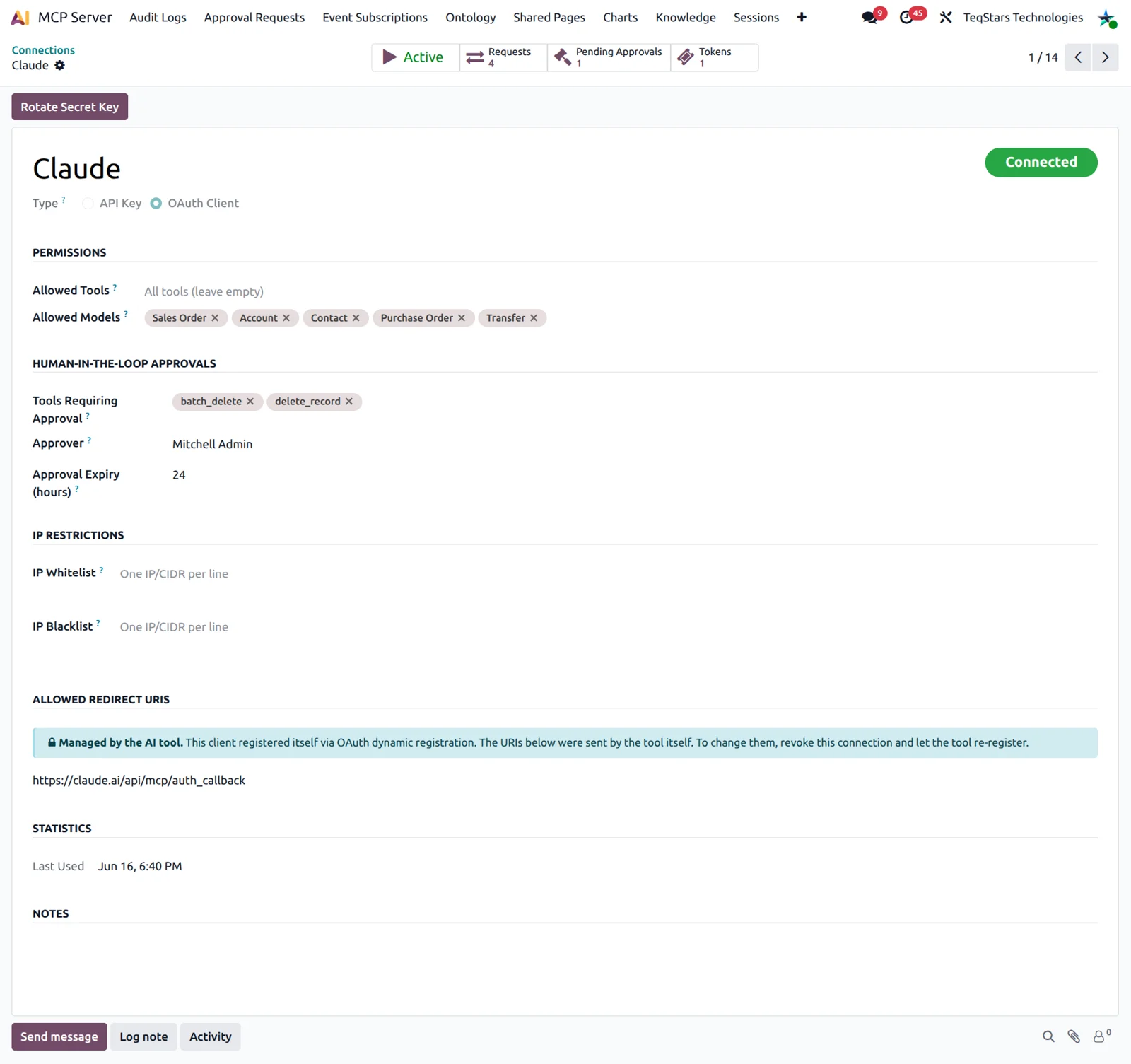
Every connection carries its own rules on a single Odoo form. Whitelist the tools it may call and the models it may read or write, and calls to anything else are refused with a clear message. Add the IP addresses or ranges it can be used from, and override the default limits of 60 requests a minute and 10,000 a day. Tighten a live connection and its next request follows the new rules.
Dashboards you share by link
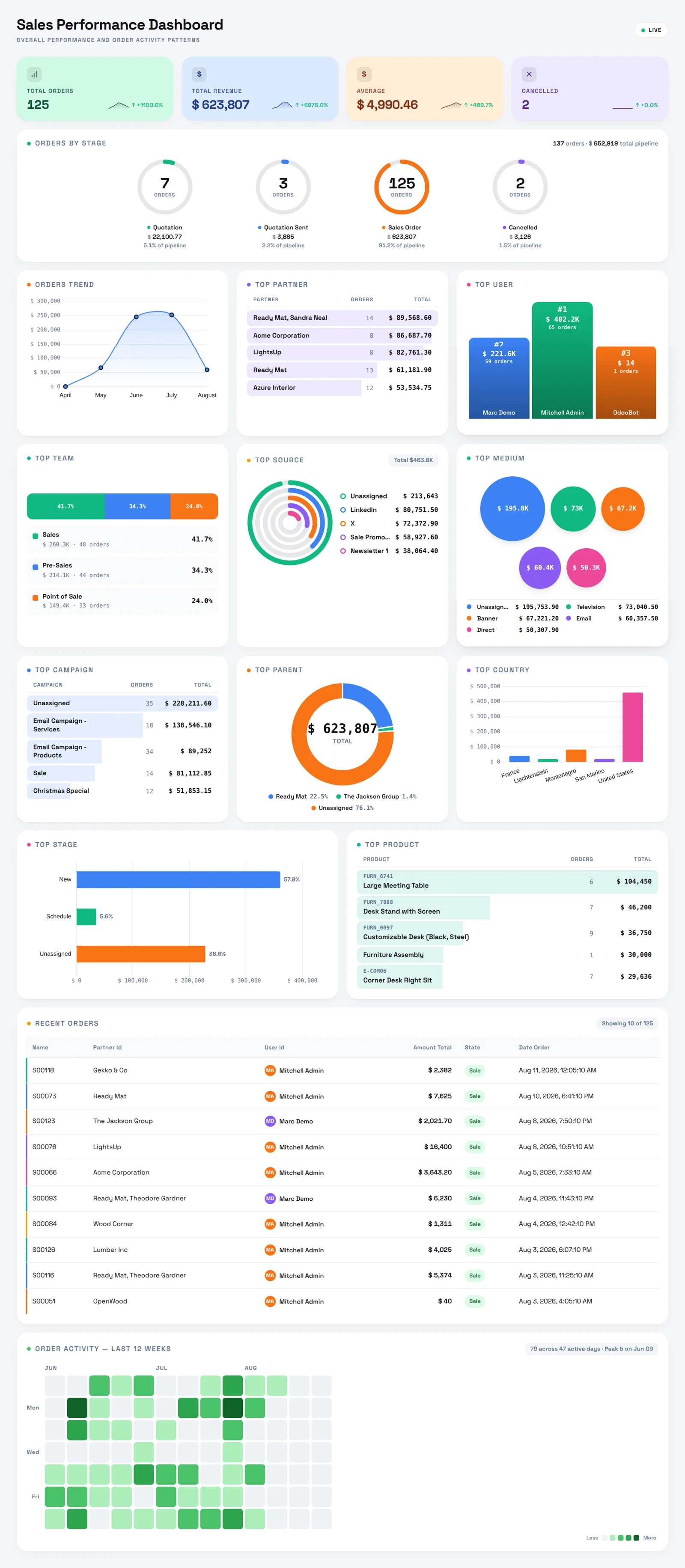
Ask for a sales dashboard for this month and the AI builds a page of KPI cards and charts from live Odoo figures. Nine chart types are available, from bars and lines through funnels and sunbursts. The page opens in any browser through one link, with no Odoo login needed, and the AI asks you before it shares. A field allowlist keeps public viewers to the fields they need.
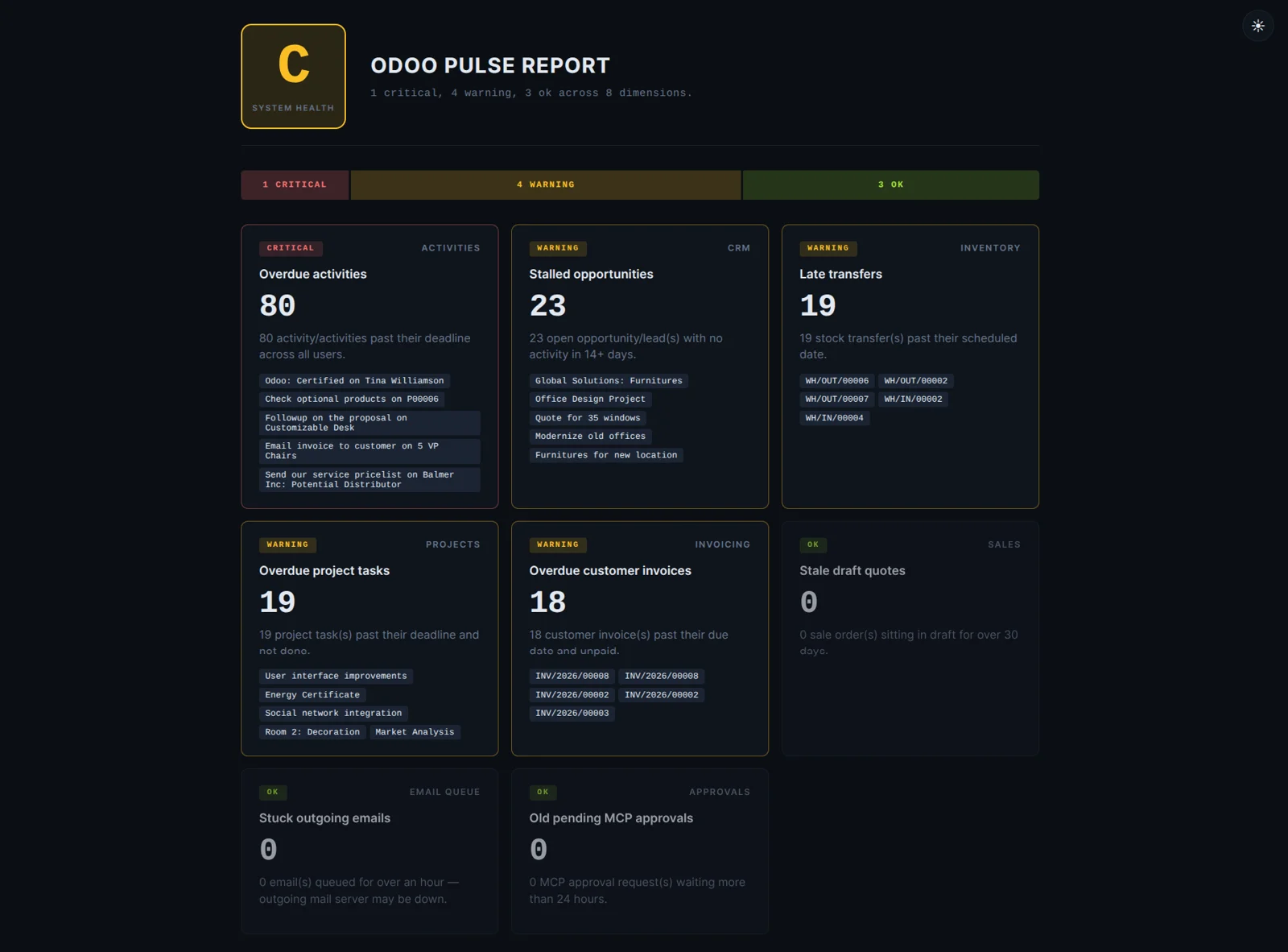
A graded health report for leadership
One prompt gives your leadership team a letter grade from A to F for the business, a grade for each department underneath and a written summary in plain English. It reads your Odoo data through the same connection every other prompt uses, so the grades follow what is in the database when you ask. Run it again whenever you want a fresh read.
What buyers say on the Odoo Apps Store
5 out of 5, from9 reviews
Advanced MCP Server is rated 5 out of 5 from 9 reviews on the Odoo Apps Store, the latest in .
Read the reviews on the Odoo Apps StoreGreat App for Connecting Odoo with AI
I am very satisfied with this app. I have connected it with both ChatGPT and Claude, and the integration works smoothly. It is easy to configure, secure, and makes accessing Odoo data through AI much faster and more convenient. Excellent app and highly recommended.
Fantastic App!
ChatGPT, Claude, Gemini makes a lot of work so much easier, but now with this connection to odoo it's heaven! The app is easy to connect and works very well. And the Teqstars service is great!
Fantastic App!
We're utilizing this app to connect to Claude. Gops and his team are fantastic.
The integration is seamless and it does not utilize API credits which makes it very efficient. I have not found a limitation yet. In the past month:-It created a careers website for our company, hosted on Odoo, then launched a recruitment app and helped me build scripts to automate some of our resume screening-We've pulled countless reports much quicker than we would have by hand-It can create, manipulate, and clean up records, including building quotes for customers.
We're excited to see what we can accomplish long term with this app.
Finally, Odoo feels as fast as we think
We've been running our business on Odoo for several years now, and this module has genuinely changed how we work with it day to day. Instead of clicking through menus and filters, we just ask in plain language — sales figures, stock levels, open orders — and get answers straight from our live data. It honestly feels like Odoo finally speaks our language.
Supported Odoo versions
| Odoo version | Editions | Hosting | Price | Latest release | |
|---|---|---|---|---|---|
| 20.0 | Community & Enterprise | Odoo.sh · On-premise | €159.99 | 20.0.1.0.2 | Buy Docs |
| 19.0 | Community & Enterprise | Odoo.sh · On-premise | €159.99 | 19.0.1.2.2 | Buy Docs |
| 18.0 | Community & Enterprise | Odoo.sh · On-premise | €159.99 | No release notes | Buy |
| 17.0 | Community & Enterprise | Odoo.sh · On-premise | €159.99 | No release notes | Buy |
Support for Advanced MCP Server
The developers who build the app answer your tickets.
- Free app support from purchase
- 60 days
- First response in working hours, typical
- 4–6 hours
- Support hours, 10:00–18:00 IST
- Mon–Fri
Advanced MCP Server video tutorials
Watch all on YouTubeConnect AI with your Odoo
Watch on YouTube-
 Connect AI with your Odoo
-
 Document Q&A with citations
-
 AI-powered health report
-
 Important actions wait for your OK
-
 Type an idea, get a campaign
-
 Turn your numbers into live dashboards
-
 Live updates in your daily tools
-
 Talk to Odoo data naturally
-
 Run leads and orders from chat
-
 Track progress with one quick prompt
How to connect Claude or ChatGPT to Odoo
-
Step 1
Install the module
In Odoo, open Apps and search for the Advanced MCP Server, then install it. A new MCP Server menu appears in the apps grid. Nothing else has to be installed or hosted next to Odoo.
-
Step 2
Decide who can use it
Give MCP Administrator to the people who configure the server and create connections. Give MCP User to everyone whose AI access you want to allow. MCP Users see only their own connections and their own log entries.
-
Step 3
Run the connection wizard
Open MCP Server, Configuration, Connections and click Connect a New Tool. Pick Browser Login for claude.ai or ChatGPT. Pick the API key card for Cursor, Claude Code CLI, Gemini CLI or Continue.dev.
-
Step 4
Copy the link or key
The last screen shows the connection link with a copy button, plus ready-filled setup snippets per client. An API key is shown only once, so copy it there. Name the connection after the person and device using it.
-
Step 5
Set limits, then plug in your AI
Choose the allowed tools and models, a daily limit and the actions that need approval. Then paste the link or snippet into Claude, ChatGPT or your own client, sign in, and run a first prompt.
Questions before you buy
Not answered here? Talk to the team.