Book DHL Express shipments and print labels when you validate a delivery
This DHL Express Odoo integration sends your delivery order to DHL Express when you validate it, then returns the label and tracking reference. Set up domestic and international methods, and connect more than one DHL Express account to the same database.
- Odoo 17.0 – 20.0
- Community & Enterprise
- Odoo.sh · On-premise
-
Not for
Odoo Online
Top seller on the Odoo Apps Store
- sales on the Odoo Apps Store
- 3,000+
- apps published
- 100+
- countries running them
- 100+
Shipping desk work before and after the DHL Express Connector
Without the connector by hand
-
Retype the address and weights on the carrier website for each box
-
Download the label, then file it next to the right order
-
Copy the tracking reference into Odoo by hand
-
Email shoppers to tell them which shipping options you offer
-
Open the carrier site to answer where is my order
With the connector automatic
-
Validating the delivery order submits the shipment to DHL Express
-
The generated label comes back to that delivery order, ready to print
-
The tracking reference is returned to Odoo with the label
-
Website checkout shows the DHL Express methods you published
-
Track the shipment from the delivery order that created it
Shipment requests, labels and tracking between Odoo and DHL Express
Every object the connector handles, which way it travels and what triggers it.
| Data | Direction | What happens & when |
|---|---|---|
| Shipment request |

 Odoo to DHL Express
|
You validate the delivery order |
| Package details |
Odoo to DHL Express
|
Packages built with Put in Pack go out with the request |
| Shipping label |
DHL Express to Odoo
|
Returned once the shipment is submitted |
| Tracking reference |
DHL Express to Odoo
|
Returned with the label on the delivery order |
| Shipment status and location |
DHL Express to Odoo
|
You track the shipment from the delivery order |
DHL Express Odoo Shipping Integration features
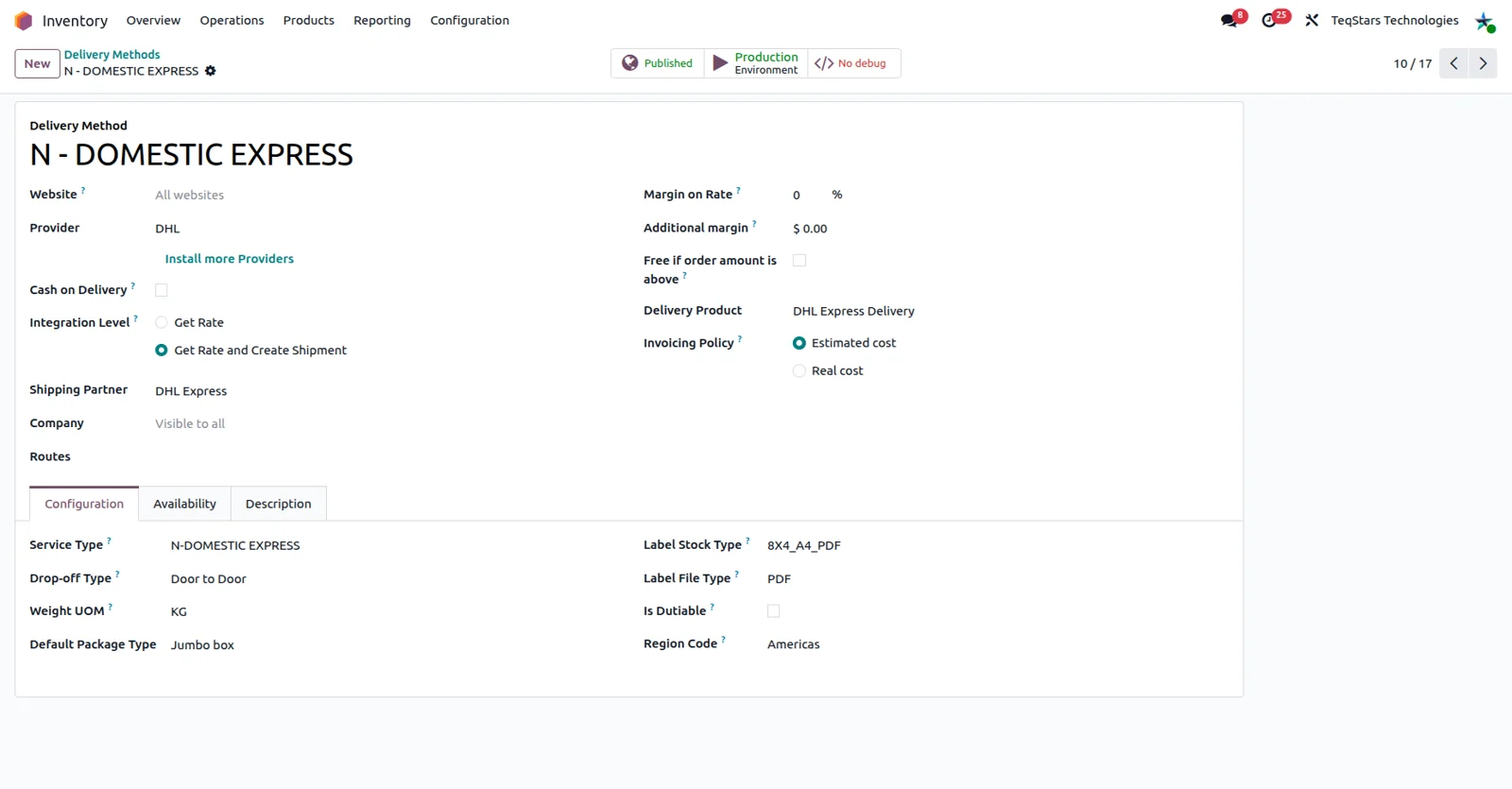
Separate domestic and international methods
Set up one delivery method for shipments inside your country and another for cross-border ones, so whoever picks a shipping option sees local and global services as different choices. Each method holds the DHL Express account settings it ships under, and you can connect several DHL Express accounts to your Odoo databases when you ship under more than one.
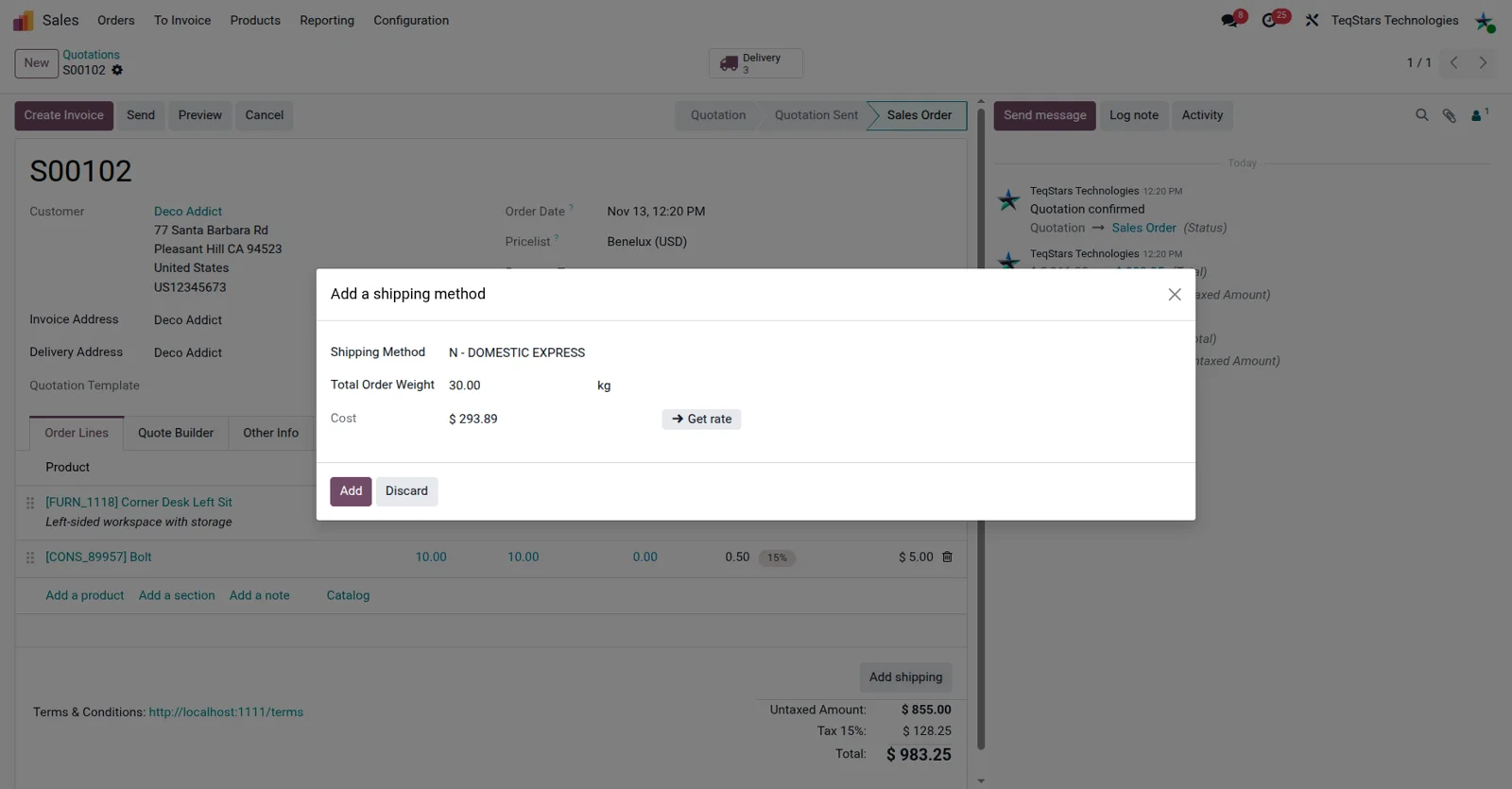
Choose DHL Express on the sales order
Pick the DHL Express delivery method while the sales order is still being written, so the warehouse knows how the goods go out before anyone starts picking. The choice carries through to the delivery order, and you can also set or change it there. Your sales team works with the shipping option on the same screen as the order lines.
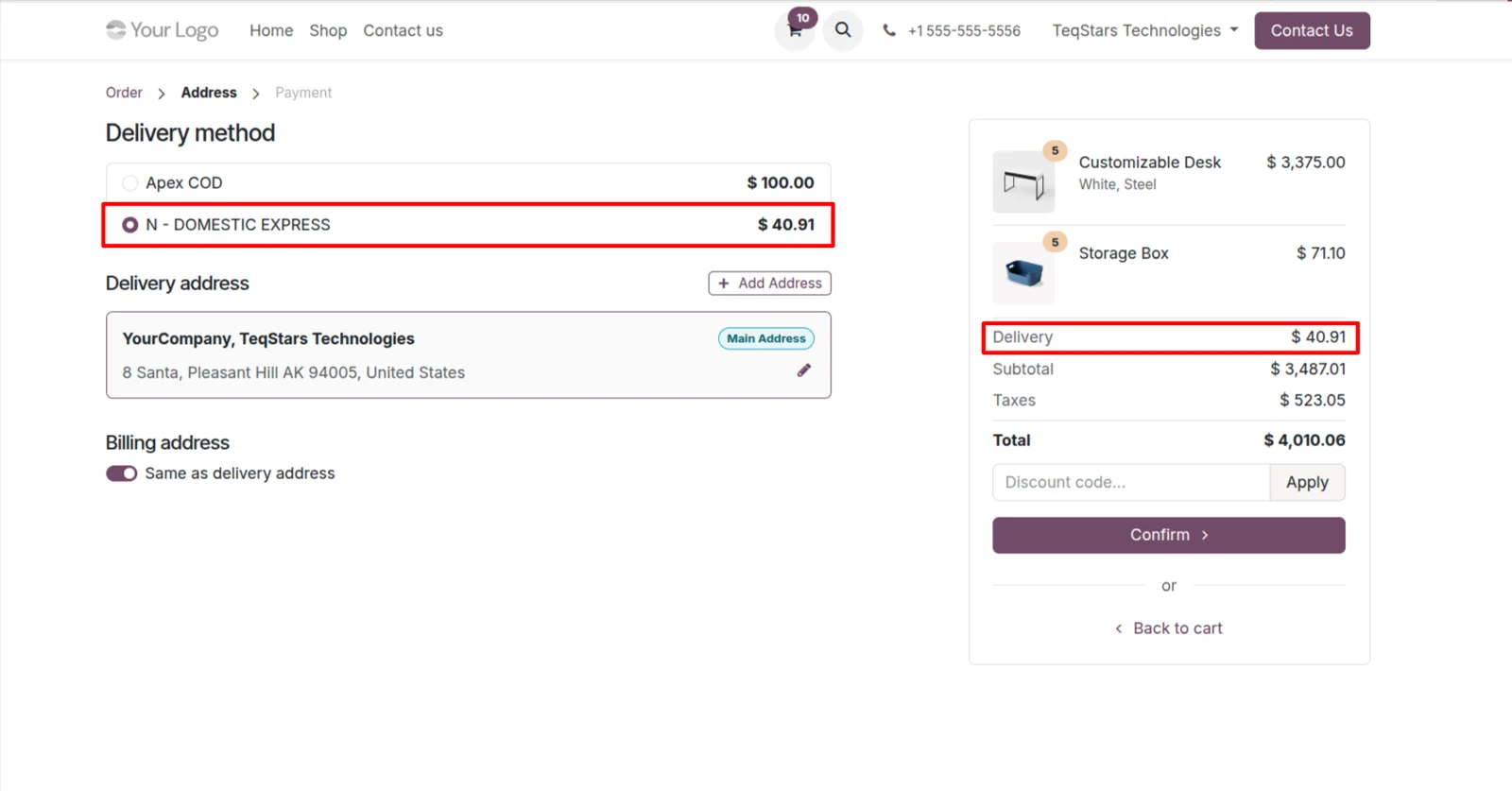
Give website shoppers DHL Express options
Show your DHL Express delivery methods during checkout on your Odoo website, so customers choose a shipping option themselves instead of writing to your team about it. Each published method appears as a choice on the web order, and the one the shopper selects follows the order into the warehouse for fulfillment.
Send orders that ship in several boxes
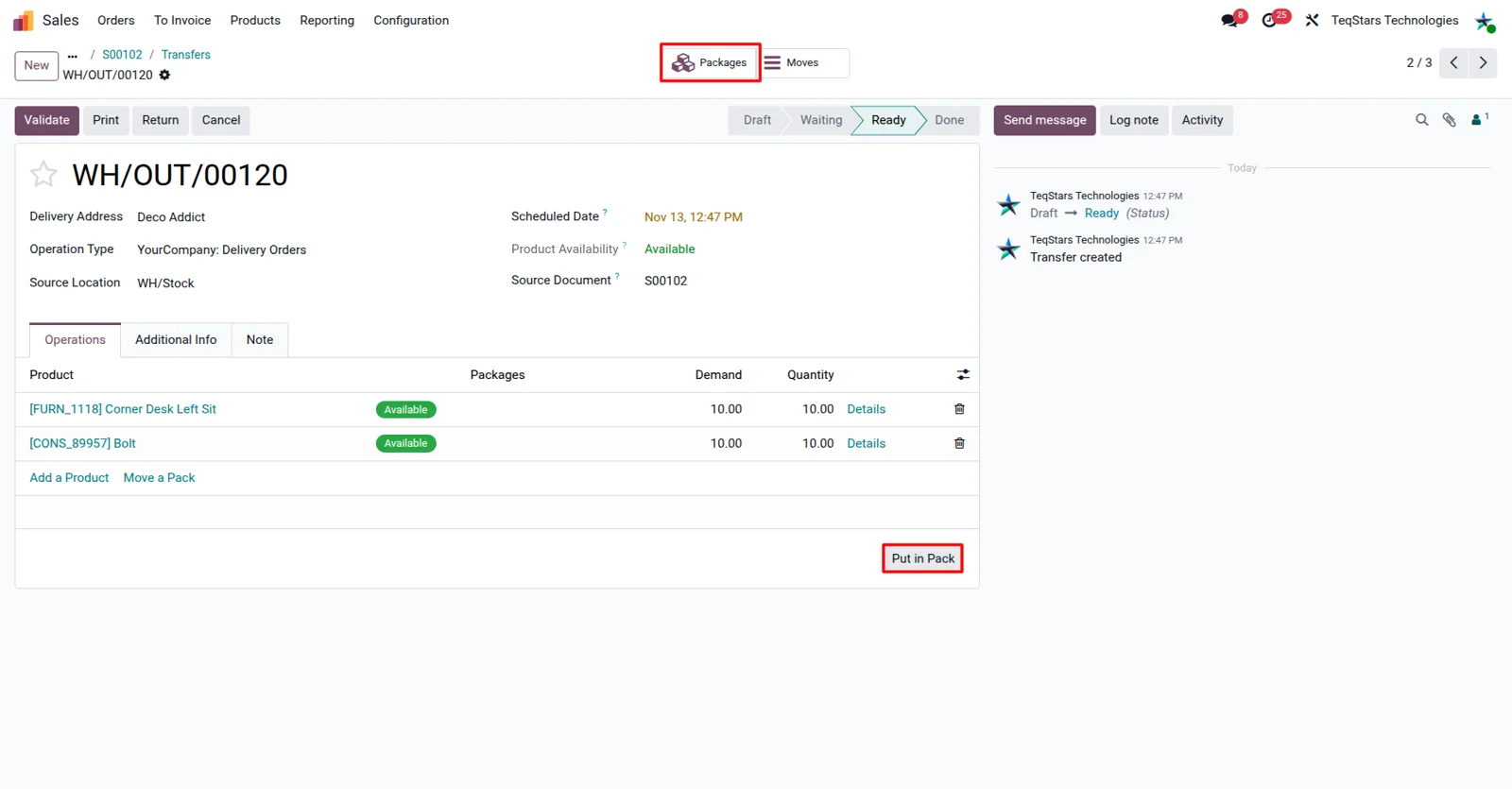
Tell DHL Express about every box when one order goes out in more than one package. Use Odoo's Put in Pack operation on the delivery order to split the quantities into packages, then set each package up before you validate. The packages you build are what the shipment request describes, so the booking covers the whole order.
Labels generated on delivery validation
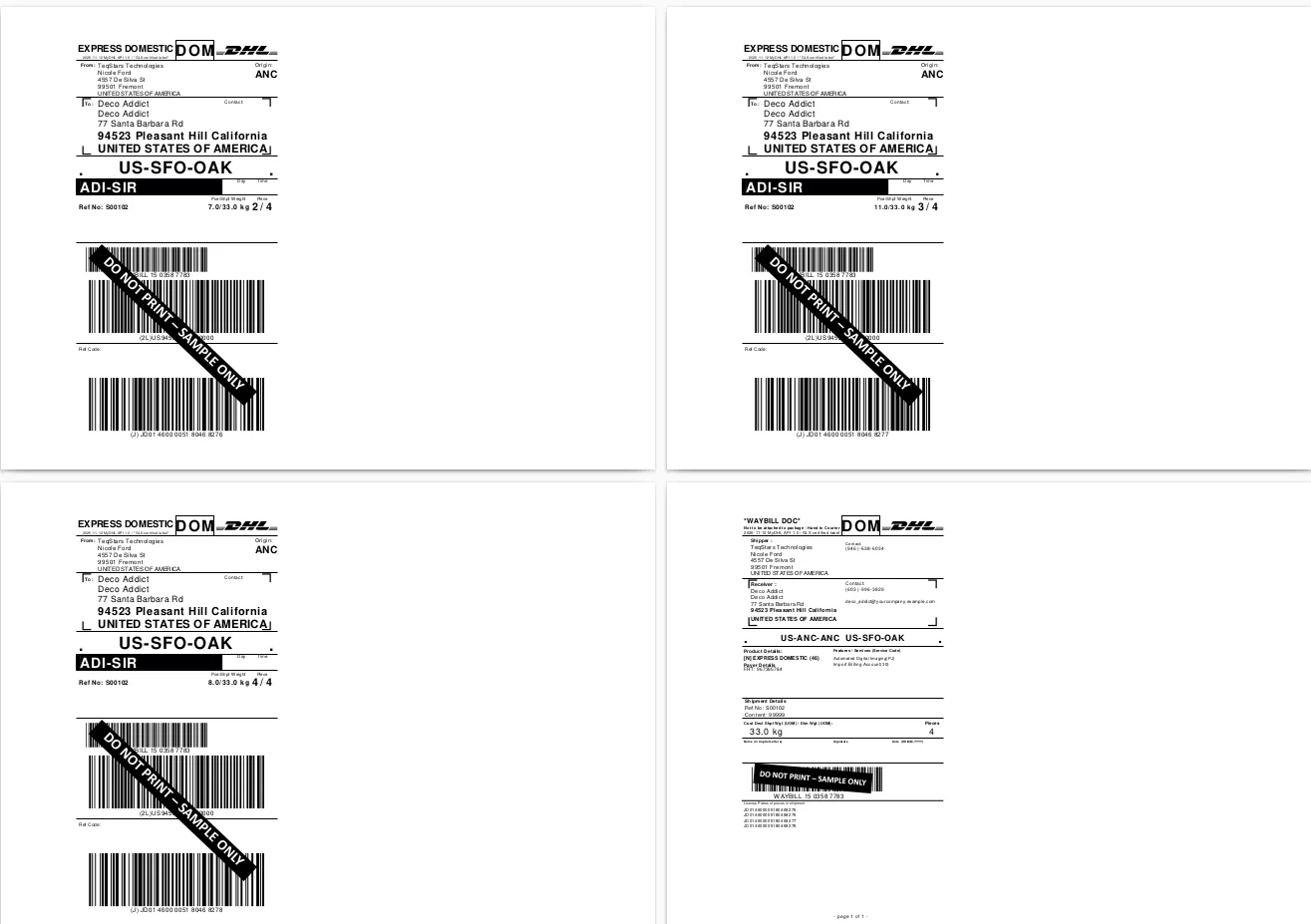
Validating the delivery order submits the shipment to DHL Express and returns the shipping label, so nobody keys an address into a carrier site a second time. The label arrives ready to print and stick on the box. Because the submission rides along with the validation your team already does, labeling becomes part of ordinary order fulfillment.
Track a shipment from its delivery order
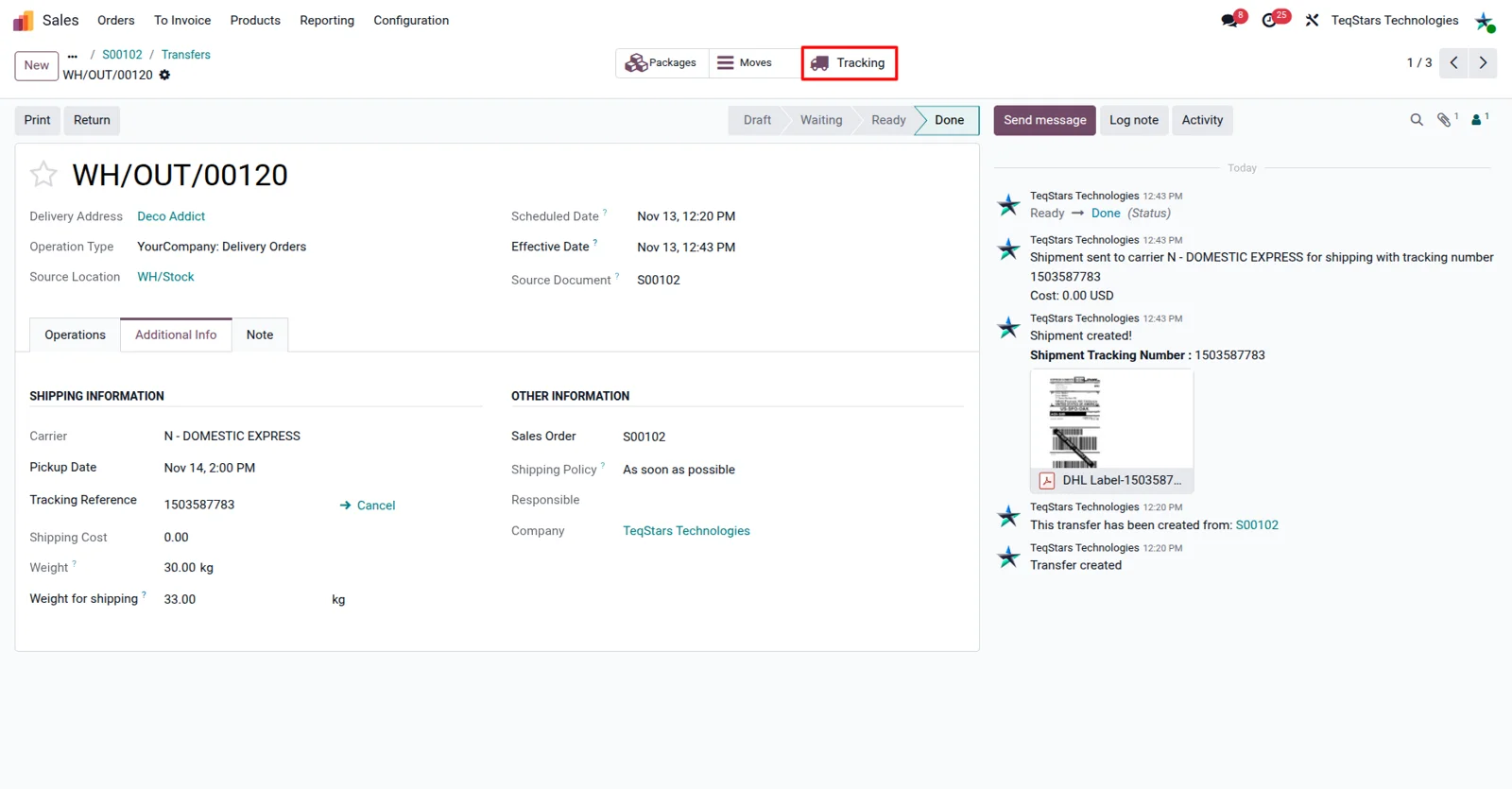
Check where a DHL Express shipment has reached without digging through the carrier website. The tracking reference comes back to Odoo with the label once the shipment is submitted, and tracking shows the current status and location of that order. Your team answers customer questions from the delivery record that created the shipment.
Supported Odoo versions
| Odoo version | Editions | Hosting | Price | Latest release | |
|---|---|---|---|---|---|
| 20.0 | Community & Enterprise | Odoo.sh · On-premise | €108.99 | No release notes | Buy |
| 19.0 | Community & Enterprise | Odoo.sh · On-premise | €108.99 | No release notes | Buy |
| 18.0 | Community & Enterprise | Odoo.sh · On-premise | €108.99 | No release notes | Buy |
| 17.0 | Community & Enterprise | Odoo.sh · On-premise | €108.99 | No release notes | Buy |
Support for DHL Express Connector
The developers who build the app answer your tickets.
- Free app support from purchase
- 60 days
- First response in working hours, typical
- 4–6 hours
- Support hours, 10:00–18:00 IST
- Mon–Fri
How to connect DHL Express to Odoo
-
Step 1
Add your DHL Express account
Install the dhl_express app, then enter the account credentials DHL Express issued to you. More than one account can live in the same Odoo database, which helps when you ship under different DHL Express accounts.
-
Step 2
Build your delivery methods
Create one method for shipments staying in your country and a second for shipments crossing a border. Keeping them apart lets your team and your customers tell local services from global ones at a glance.
-
Step 3
Offer the methods on orders
Publish the methods you want shoppers to see at website checkout, and let your sales team select them on sales orders. Whatever gets chosen stays with the order through to its delivery.
-
Step 4
Pack, validate and print
On the delivery order, run Put in Pack first if the goods leave in several boxes. Validating the delivery submits the shipment to DHL Express, which returns the label and tracking reference for that order.
Questions before you buy
Not answered here? Talk to the team.