Get paid the way Portuguese shoppers actually want to pay
This euPago Odoo integration puts MB WAY, cards, Google Pay and Apple Pay behind one checkout option, priced in euro. Confirmed payments mark the matching invoice or sale order paid. Refunds and status checks happen on the Odoo payment record.
- Odoo 17.0 – 20.0
- Community & Enterprise
- Odoo.sh · On-premise
-
Not for
Odoo Online
Top seller on the Odoo Apps Store
- sales on the Odoo Apps Store
- 3,000+
- apps published
- 100+
- countries running them
- 100+
Portuguese online payments before and after this euPago gateway
Without the connector by hand
-
Shoppers who want MB WAY give up on a card-only checkout.
-
Someone checks euPago, then marks the invoice paid by hand.
-
Every refund means signing in to the euPago backoffice.
-
An order sits unpaid when the buyer closes the browser mid-payment.
-
You search the euPago backoffice when a payment looks wrong.
With the connector automatic
-
One euPago option covers cards, MB WAY, Google Pay and Apple Pay.
-
A confirmed payment marks the matching invoice or order paid.
-
You click Refund on the Odoo payment, for all or part.
-
A background check settles payments the buyer never came back from.
-
You click "Refresh from euPago" to pull the current status.
Payments, refunds and status checks between Odoo and euPago
Every object the connector handles, which way it travels and what triggers it.
| Data | Direction | What happens & when |
|---|---|---|
| Payment request |

 Odoo to euPago
|
Customer picks euPago at checkout and chooses a method. |
| MB WAY phone number |
Odoo to euPago
|
Customer confirms the number, then approves in the MB WAY app. |
| Payment confirmation |
euPago to Odoo
|
euPago verifies the payment and notifies Odoo. |
| Refund, full or partial |
Odoo to euPago
|
You click Refund on the payment in Odoo. |
| Latest payment status |
euPago to Odoo
|
You click "Refresh from euPago" on the transaction. |
| Payments with no customer return |
euPago to Odoo
|
A background check runs on a schedule you set. |
Odoo euPago Payment Gateway features
One checkout option, four ways to pay
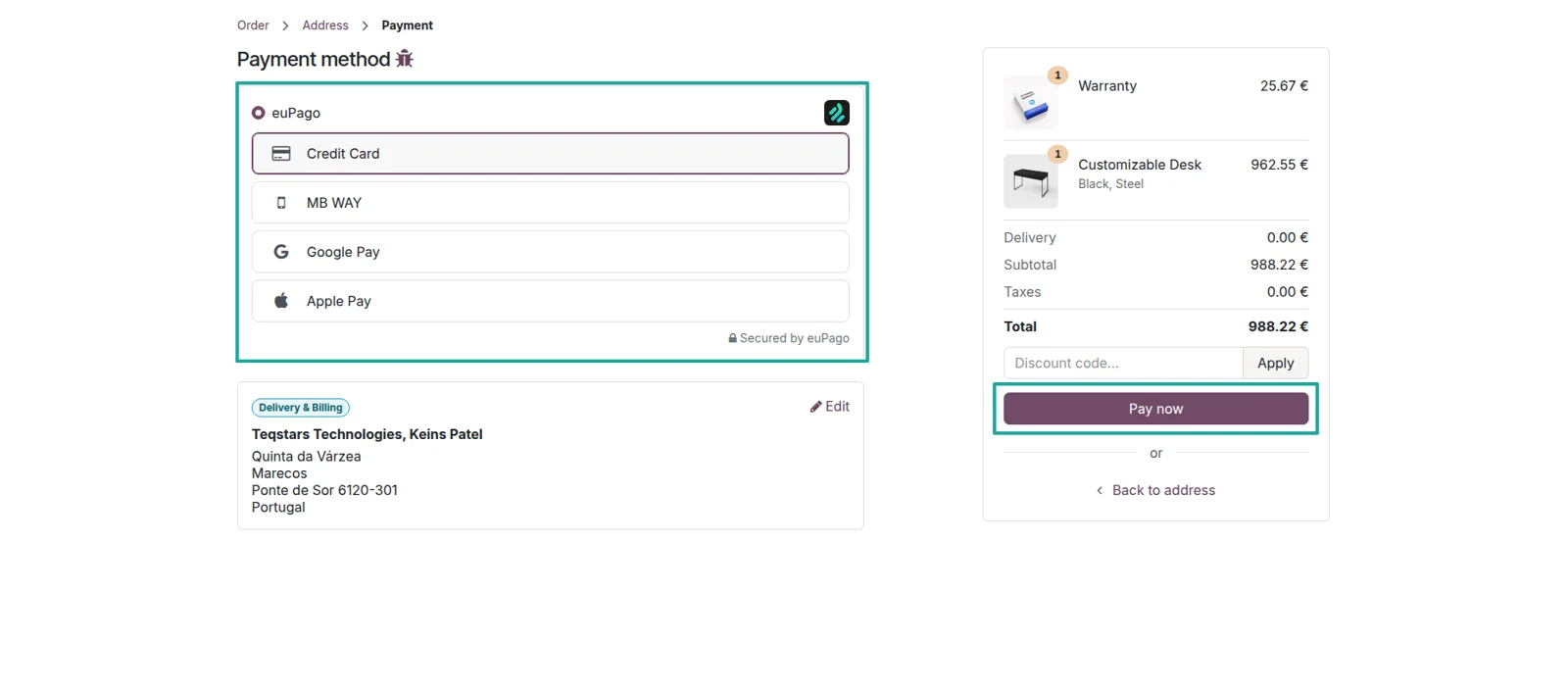
Your Portuguese buyers see a single euPago line at checkout instead of four competing buttons. Inside it they pick MB WAY, card, Google Pay or Apple Pay. The same picker appears on your storefront, in the customer portal and on invoice payment pages, so a web order and an emailed invoice offer the same choices.
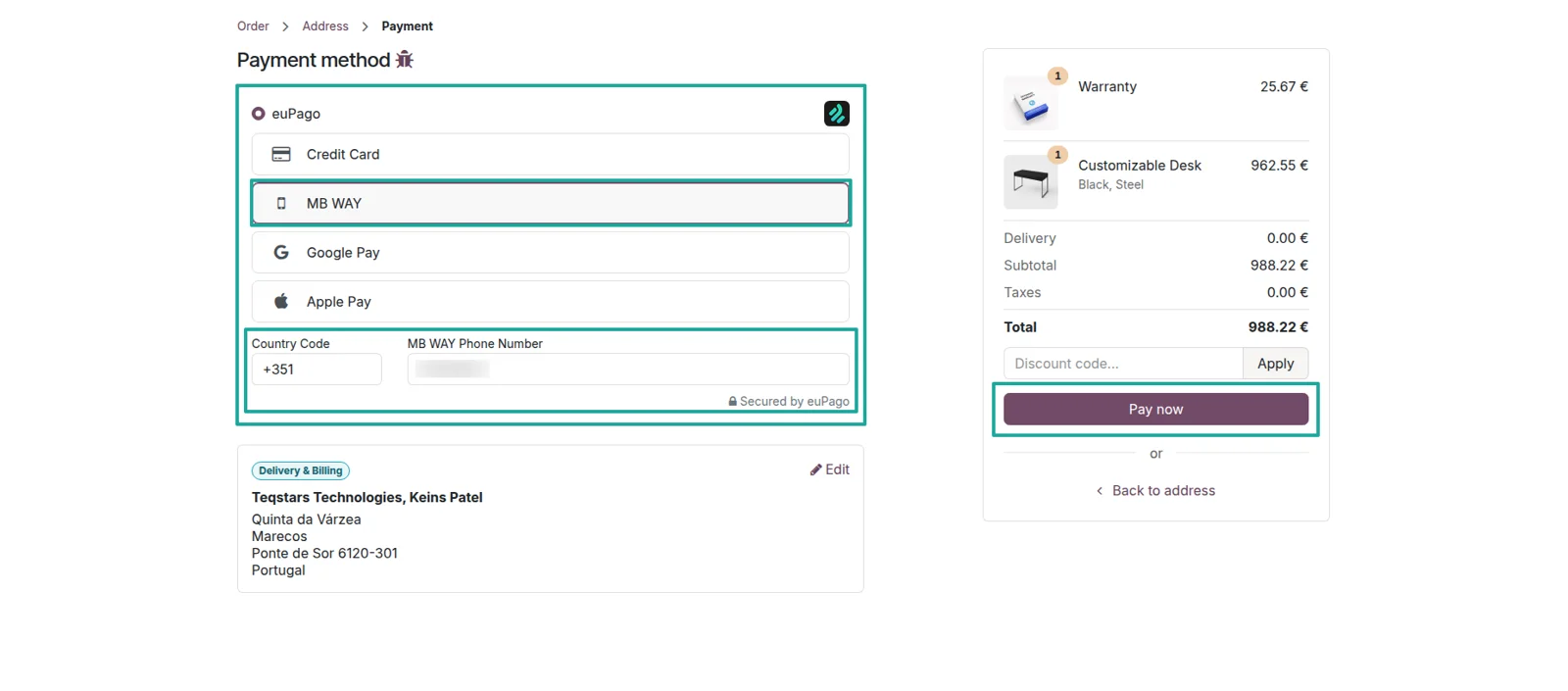
MB WAY approved with a tap
MB WAY buyers finish without typing a card number. The customer confirms their phone number, which Odoo prefills from the contact record, and euPago sends the request to the MB WAY app for approval. There is no redirect, so the shopper stays on your site while the payment is accepted on their phone.
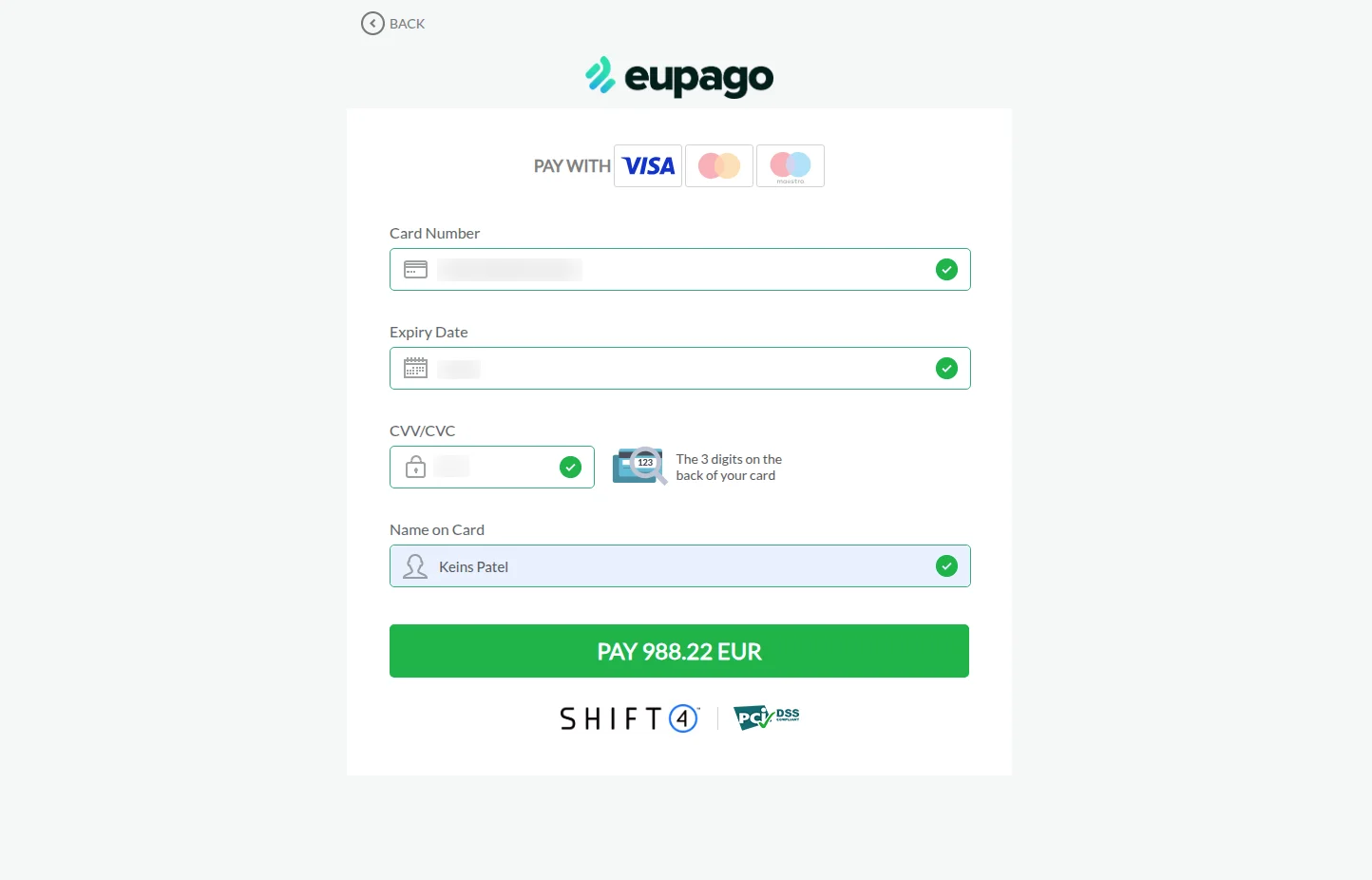
Cards and wallets on euPago's page
Card, Google Pay and Apple Pay payments open the secure page hosted by euPago. Card authentication is handled there, then the buyer is returned to your order or invoice page. Card details are entered on euPago's side and never reach your Odoo server, so the compliance burden stays with the payment provider.
Transactions marked Done without you
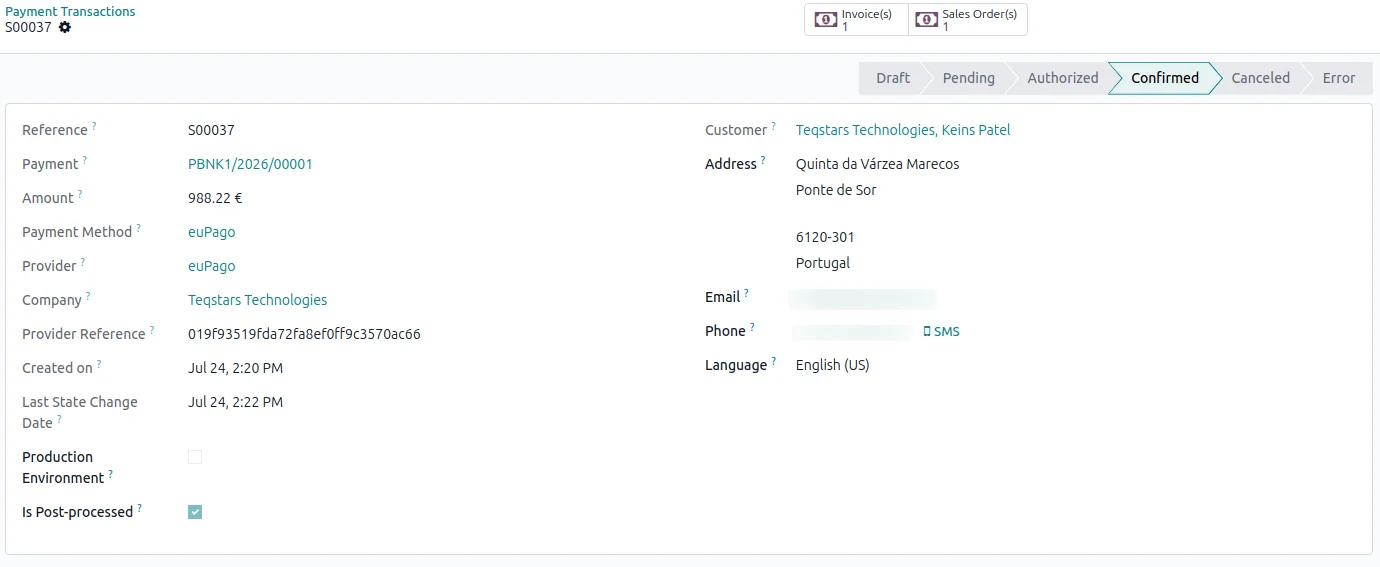
Nobody has to open the euPago backoffice to find out whether money arrived. euPago sends Odoo a verified notification once a payment clears, and the matching transaction switches to Done. Your sales team sees a confirmed, paid order the moment the buyer finishes, whether the payment came from the shop or an invoice link.
Invoices reconciled with no data entry
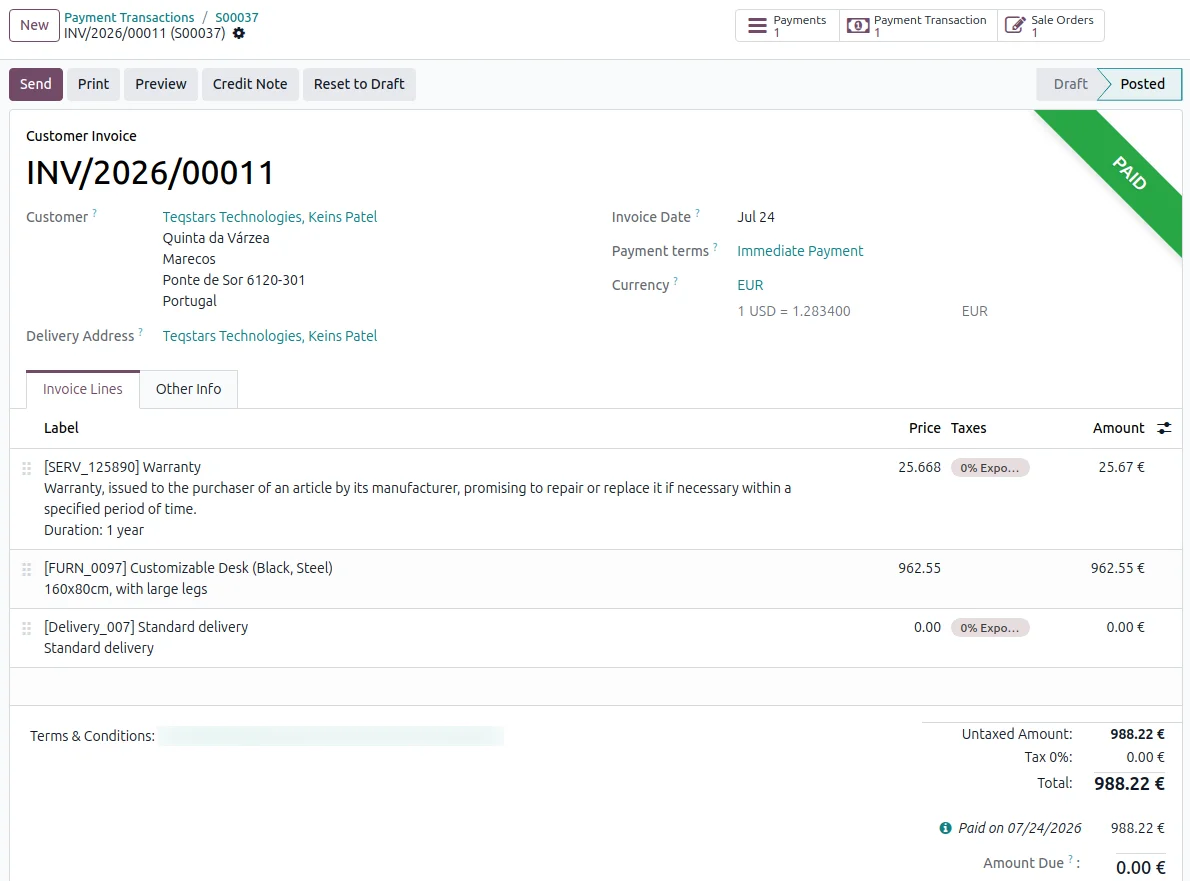
A cleared payment is matched to its invoice or sale order and the document is marked paid. Finance does no retyping for shop and portal payments. For collections work you send an invoice with a euPago payment link, the client pays, and the reconciliation is already recorded when you next open the record.
Refund a buyer in one click
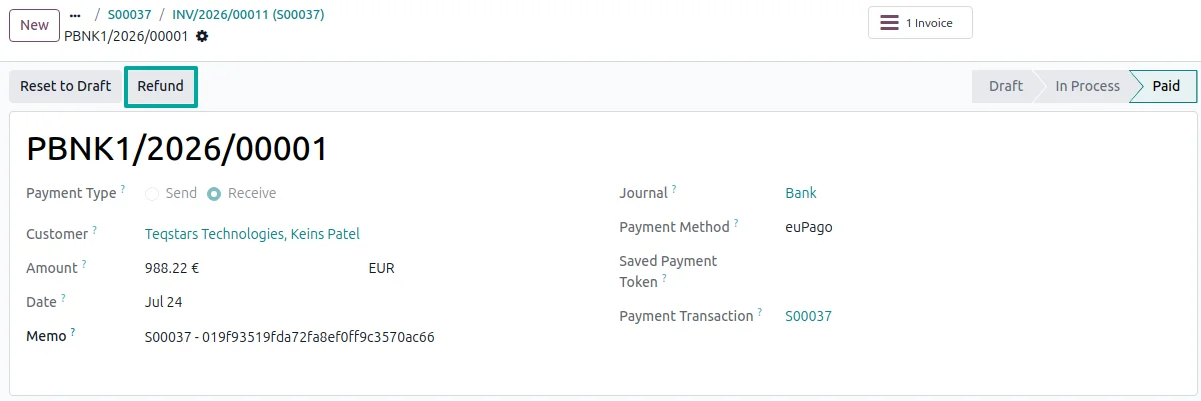
Refunds start on the Odoo payment record, not in a second system. Open the payment, press Refund, and choose whether to send back everything or only a share of it. euPago credits the buyer, and the refund is recorded against the original payment so your accounts show it without extra entries.
Pull a late status on demand
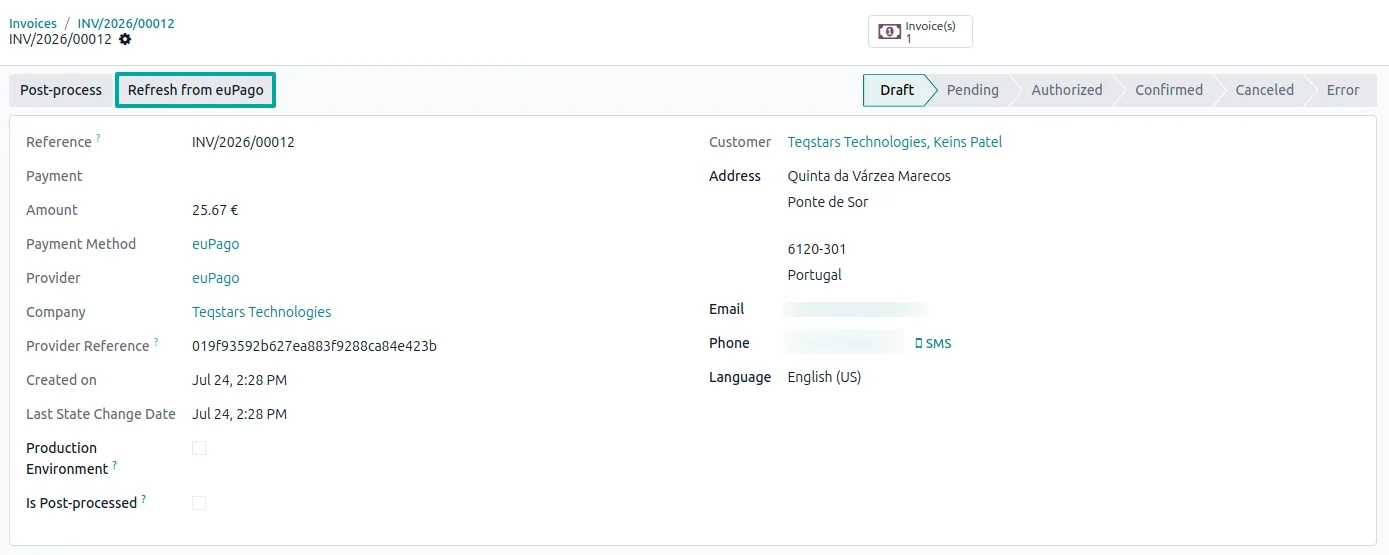
A slow confirmation does not leave an order in limbo. Each transaction carries a "Refresh from euPago" button that fetches the current status straight away. A background check also runs on a schedule you set and closes out payments where the shopper never came back to your site. Neither needs a developer.
Supported Odoo versions
| Odoo version | Editions | Hosting | Price | Latest release | |
|---|---|---|---|---|---|
| 20.0 | Community & Enterprise | Odoo.sh · On-premise | €99 | No release notes | Buy |
| 19.0 | Community & Enterprise | Odoo.sh · On-premise | €99 | No release notes | Buy |
| 18.0 | Community & Enterprise | Odoo.sh · On-premise | €99 | No release notes | Buy |
| 17.0 | Community & Enterprise | Odoo.sh · On-premise | €99 | No release notes | Buy |
Support for Odoo euPago Payment Gateway
The developers who build the app answer your tickets.
- Free app support from purchase
- 60 days
- First response in working hours, typical
- 4–6 hours
- Support hours, 10:00–18:00 IST
- Mon–Fri
How to connect euPago to Odoo
-
Step 1
Enter your euPago keys
Open the euPago provider record and paste the API Key so Odoo can request payments. Add the Client ID and Secret too, since refunds and status checks rely on them. Choose Sandbox or Production.
-
Step 2
Choose methods and publish
Switch on only the methods you want shoppers to see, then set the provider to Published. euPago then shows as a payment option in your shop, in the customer portal and on invoice payment pages.
-
Step 3
Collect and reconcile
Customers pay with their preferred method, and cleared payments mark the matching invoice or order paid. The background check and the refresh button on each transaction cover any confirmation that arrives late.
Questions before you buy
Not answered here? Talk to the team.