Compare carrier rates, generate labels and track parcels in Odoo
This ShipEngine Odoo integration sends your order details to ShipEngine and returns rates, labels and tracking numbers. Your team picks a carrier on the sales order, then validates the delivery order to get the label. International shipments get the customs invoice too.
- Odoo 17.0 – 20.0
- Community & Enterprise
- Odoo.sh · On-premise
-
Not for
Odoo Online
Top seller on the Odoo Apps Store
- sales on the Odoo Apps Store
- 3,000+
- apps published
- 100+
- countries running them
- 100+
Shipping work before and after the ShipEngine Connector
Without the connector by hand
-
Retype addresses and weights into each carrier's own website.
-
Open several carrier portals to compare what a shipment will cost.
-
Download label files from a carrier site and attach them by hand.
-
Fill in a customs form separately for every overseas parcel.
-
Copy tracking numbers into Odoo so support can answer customers.
-
Log in to the carrier account to void a shipment you no longer need.
With the connector automatic
-
Odoo sends the order and package details to ShipEngine when you request rates.
-
Services and rates from several carriers are listed on the order for one click.
-
Validating the delivery order generates the shipping label in ShipEngine.
-
The commercial invoice is generated with the label for international deliveries.
-
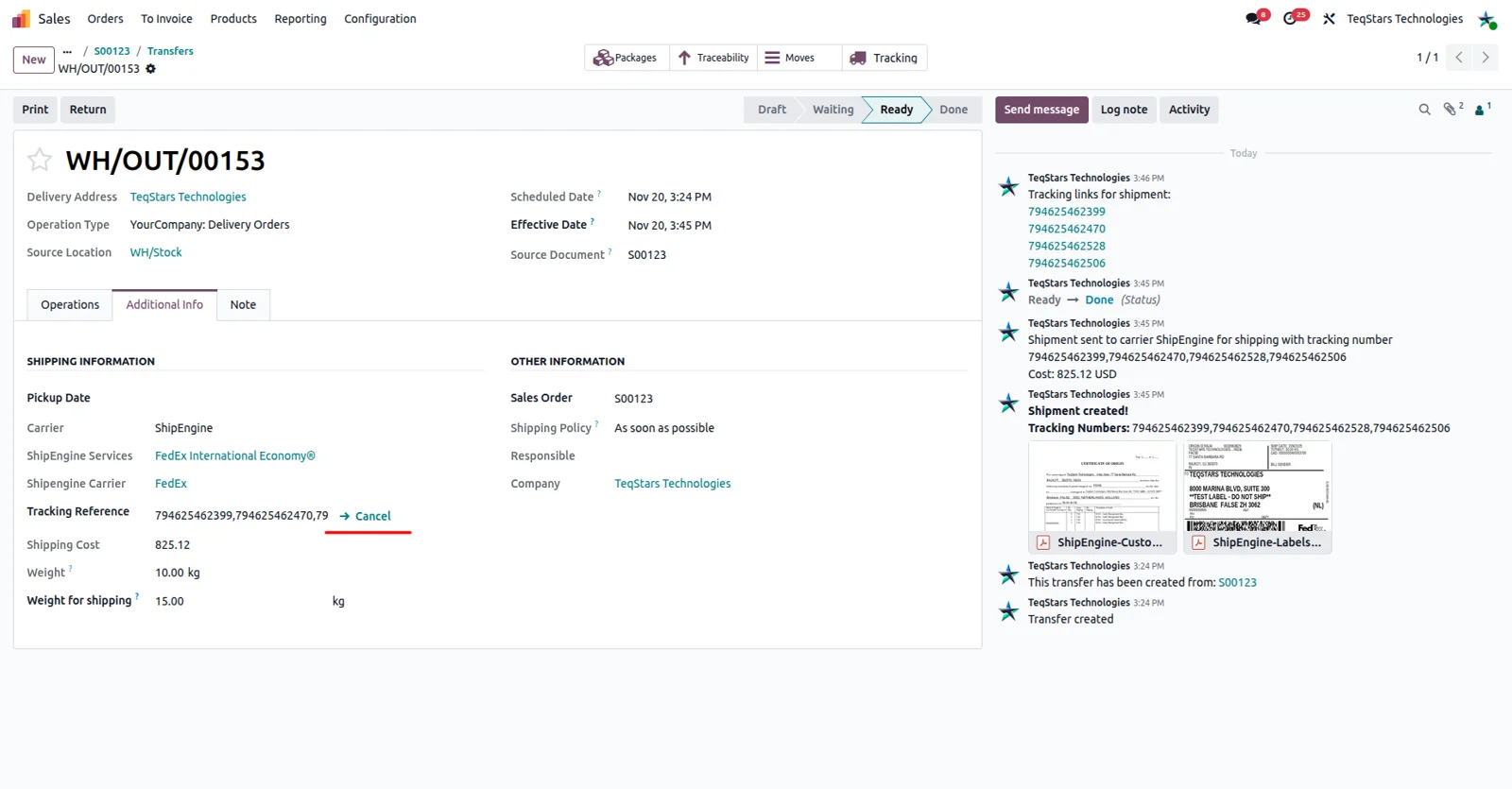
Tracking details come back from ShipEngine onto the delivery order.
-
One click on the delivery order cancels the shipment in ShipEngine.
Rates, labels and tracking between Odoo and ShipEngine
Every object the connector handles, which way it travels and what triggers it.
| Data | Direction | What happens & when |
|---|---|---|
| Order and address details |

 Odoo to ShipEngine
|
When you request rates or validate the delivery order |
| Package contents |
Odoo to ShipEngine
|
Built with Put in Pack, sent with the shipment request |
| Shipping services and rates |
ShipEngine to Odoo
|
When you ask for rates on a sales order or delivery order |
| Shipping label |
ShipEngine to Odoo
|
Generated as soon as the delivery order is validated |
| Commercial invoice |
ShipEngine to Odoo
|
Generated on validation for international shipments |
| Tracking number and status |
ShipEngine to Odoo
|
Shown on the delivery order for single and multiple parcels |
| Shipment cancellation |
Odoo to ShipEngine
|
When you click cancel on the delivery order |
ShipEngine Odoo Shipping Connector features
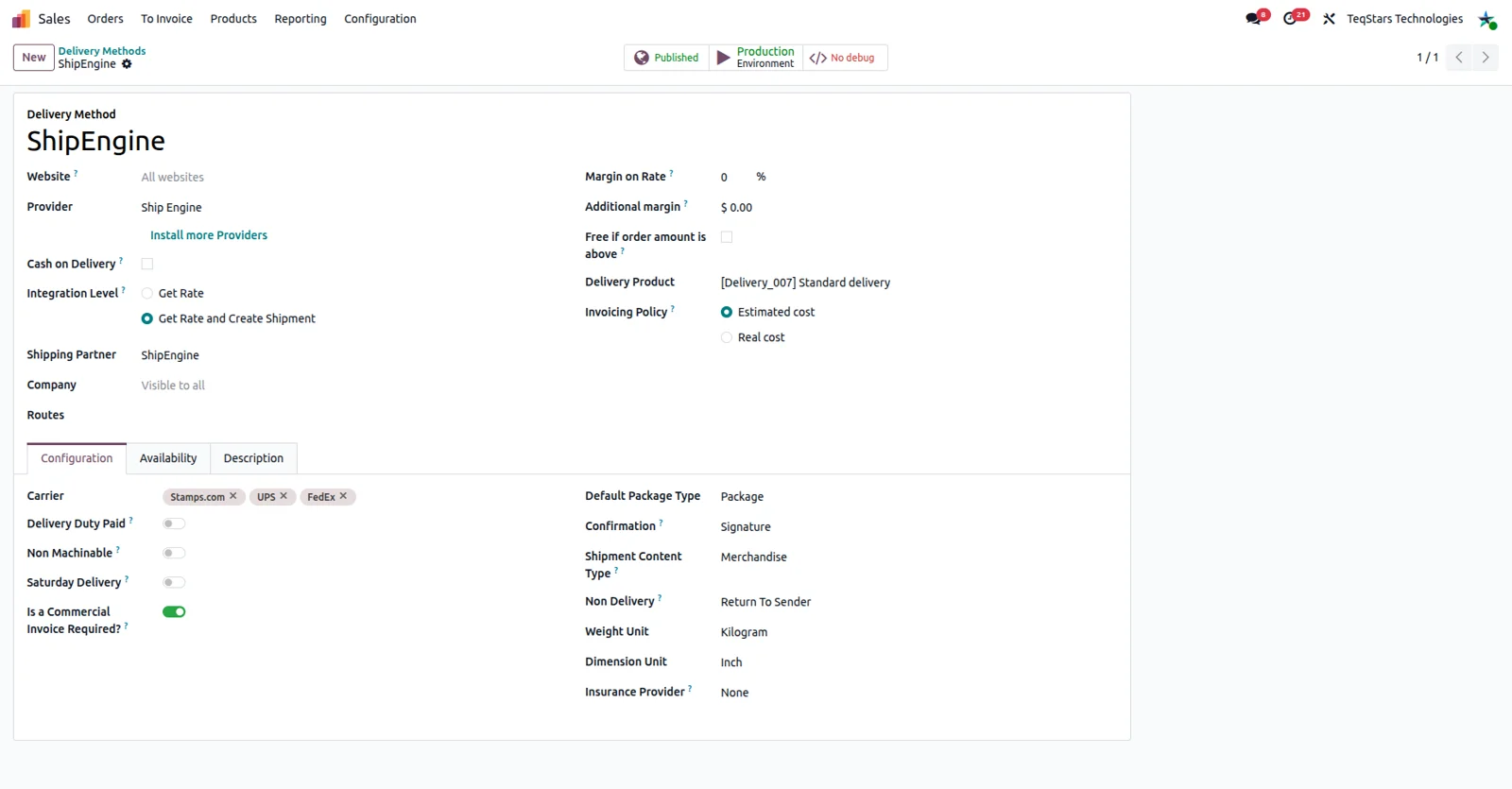
Set up domestic and international methods
You keep local and overseas shipping apart by configuring separate delivery methods in Odoo. Each one holds its own ShipEngine settings, so the options your team sees on an order match where the goods are going. That split also decides which shipments need customs paperwork later, which saves a lot of guessing at the packing bench.
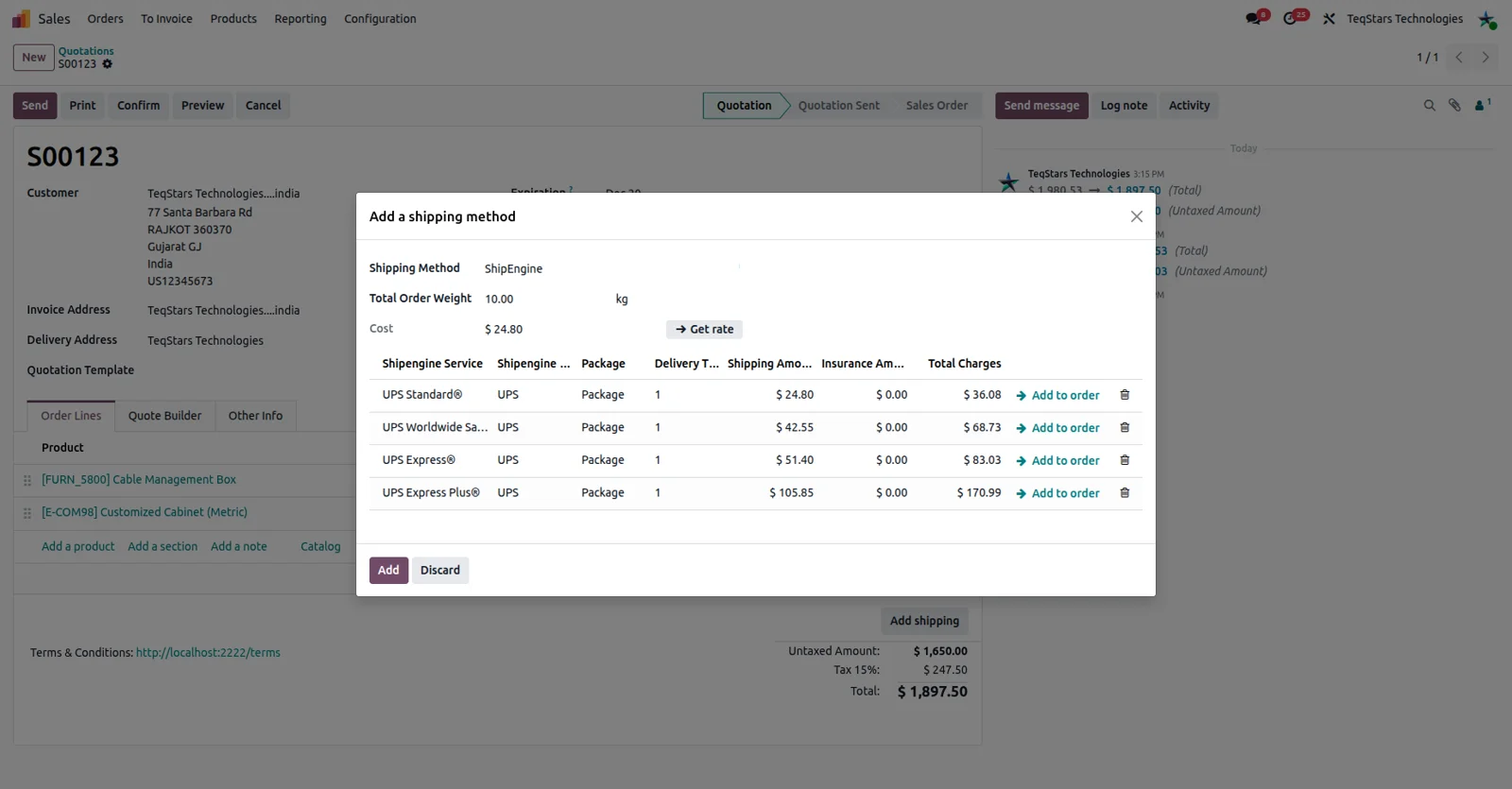
Pick a carrier rate on the sales order
Your sales team sees the available shipping services and their rates on the quotation, then picks one with a single click. Odoo sends the order details to ShipEngine when you ask for rates and lists what comes back, so you can weigh cost against speed per order. The chosen service and price go onto the order.
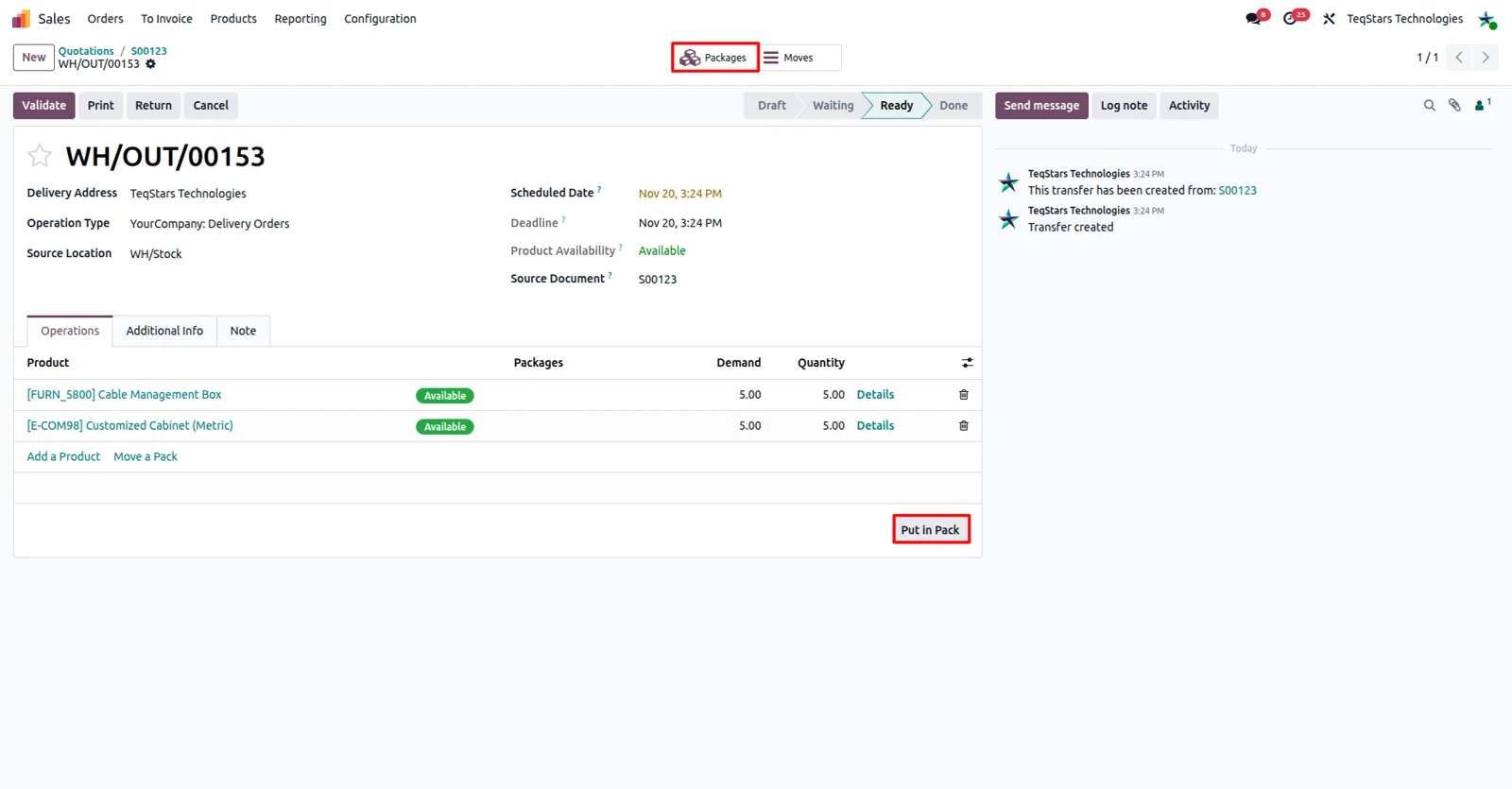
Split a delivery into several packages
When an order needs more than one box, you use Odoo's Put in Pack operation to build each package before shipping. Those packages are what Odoo sends to ShipEngine, so the rates you see and the labels you get match the parcels your warehouse actually packed. Multi-box shipments stop being a manual calculation.
Check rates again at picking time
The warehouse can request ShipEngine rates straight from the delivery order, not only from the sales order. That matters when the packed weight or the number of boxes differs from what sales expected days earlier. One click lists the services available for that delivery, and you select the one you want to ship with.
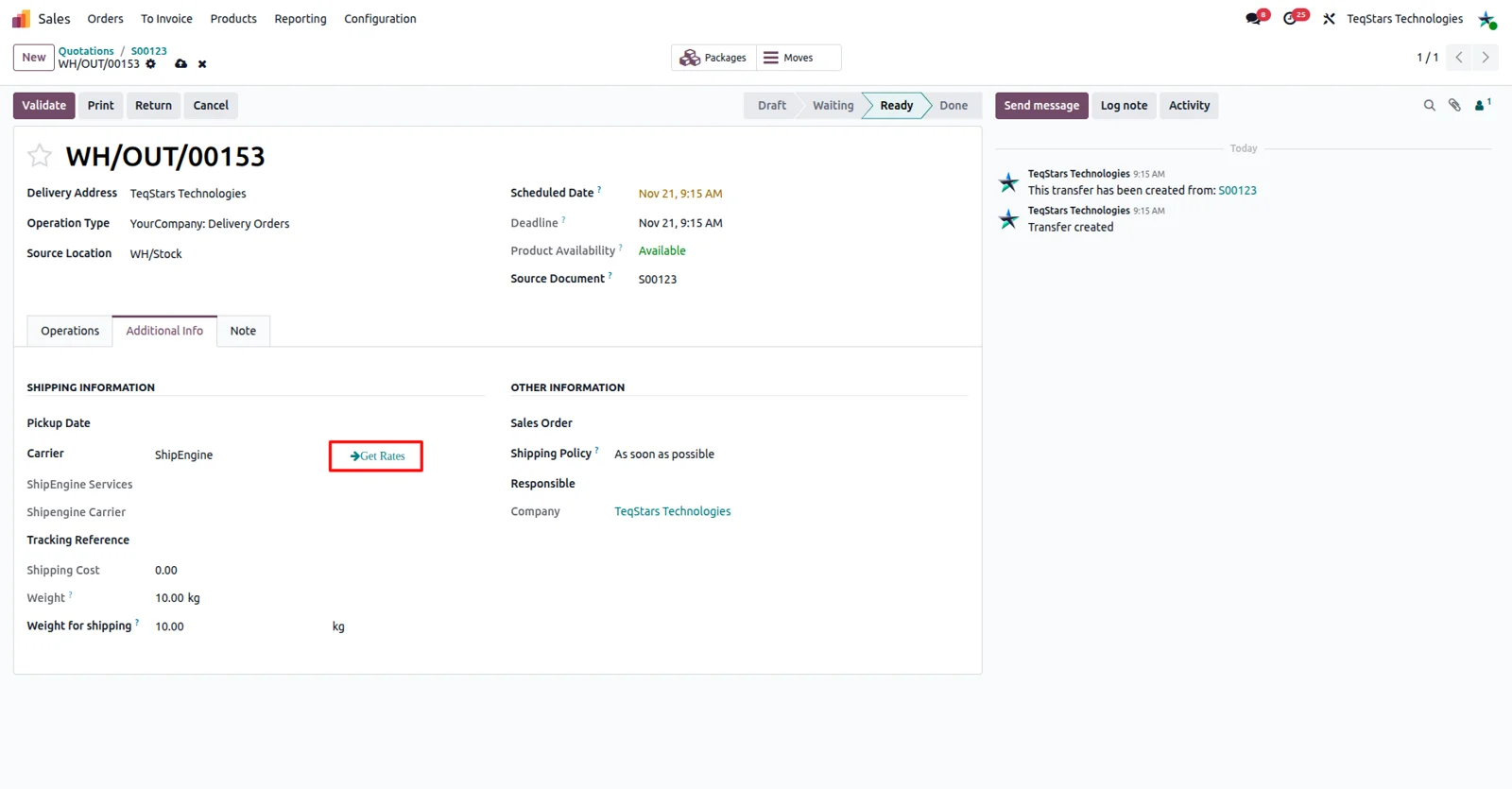
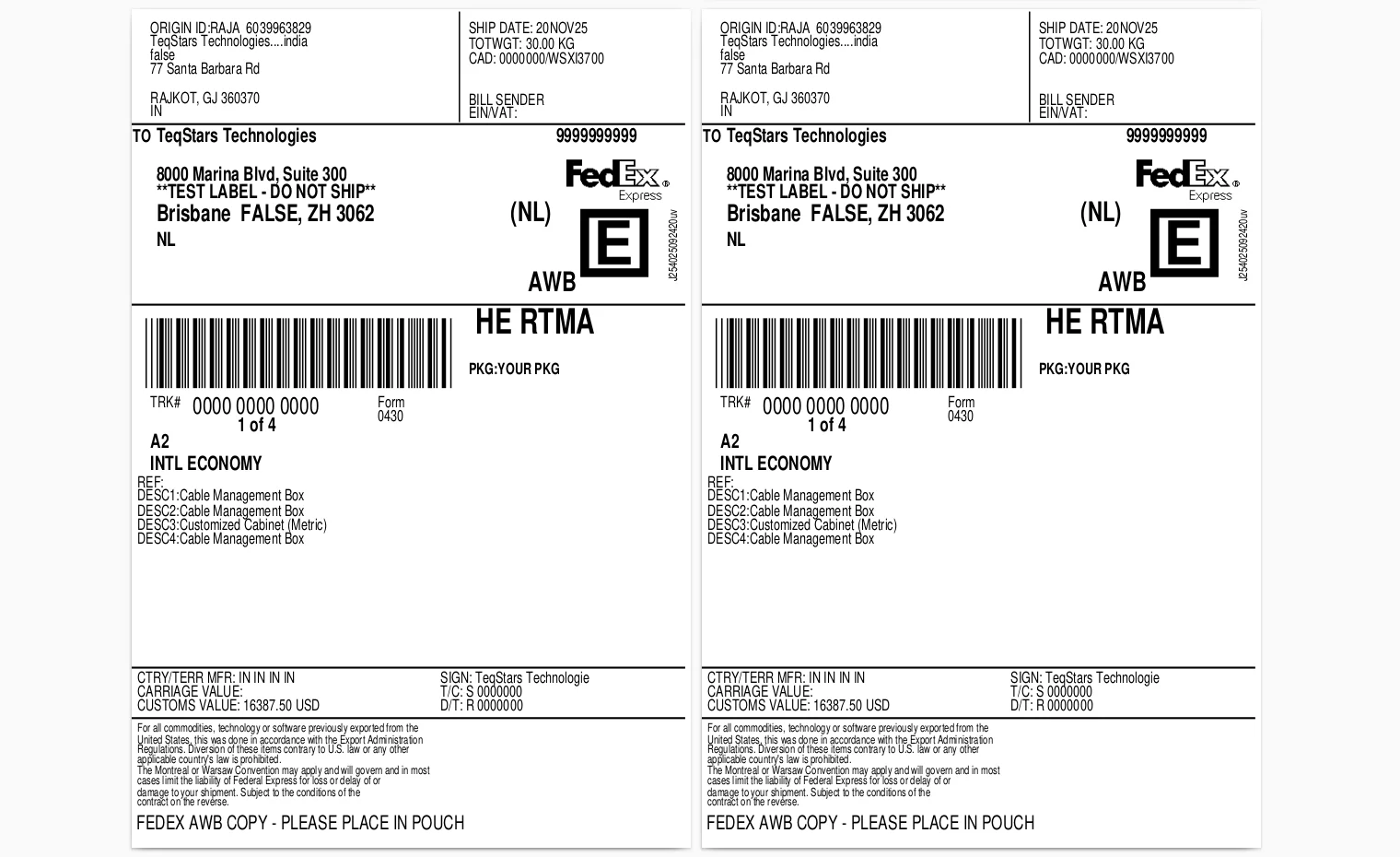
Labels generated when you validate
Validating the delivery order generates the shipping label in ShipEngine, so nobody downloads files from a carrier site or keys the address in twice. The label is ready to print and attach to the box, which shortens the gap between picking and carrier pickup. Preparation time per shipment drops for the whole team.
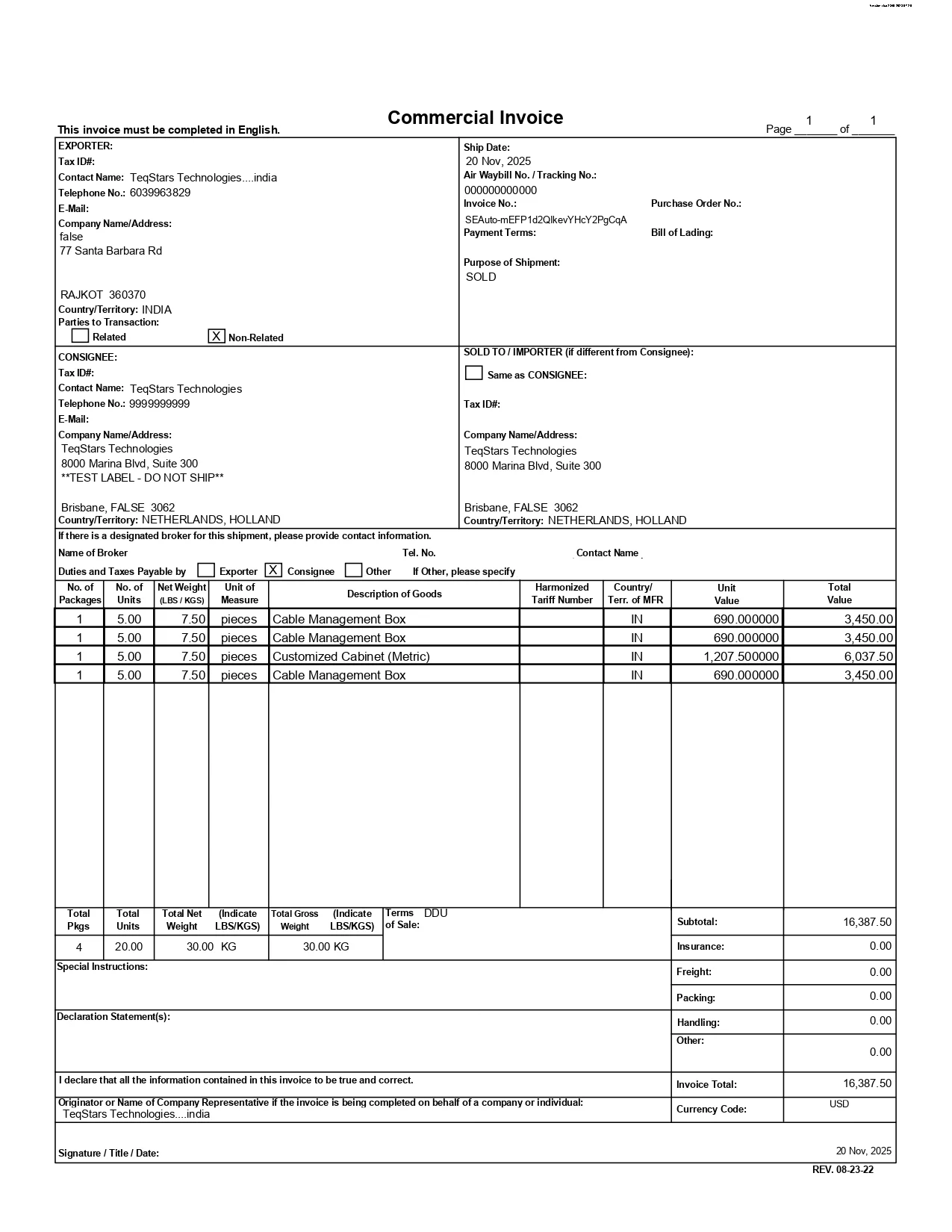
Customs invoice for overseas parcels
International deliveries also produce the customs form, or commercial invoice, when the delivery order is validated. The document is generated alongside the label, so the paperwork a carrier asks for is ready at the same moment as the parcel. Your team stops filling in separate forms for every shipment that crosses a border.
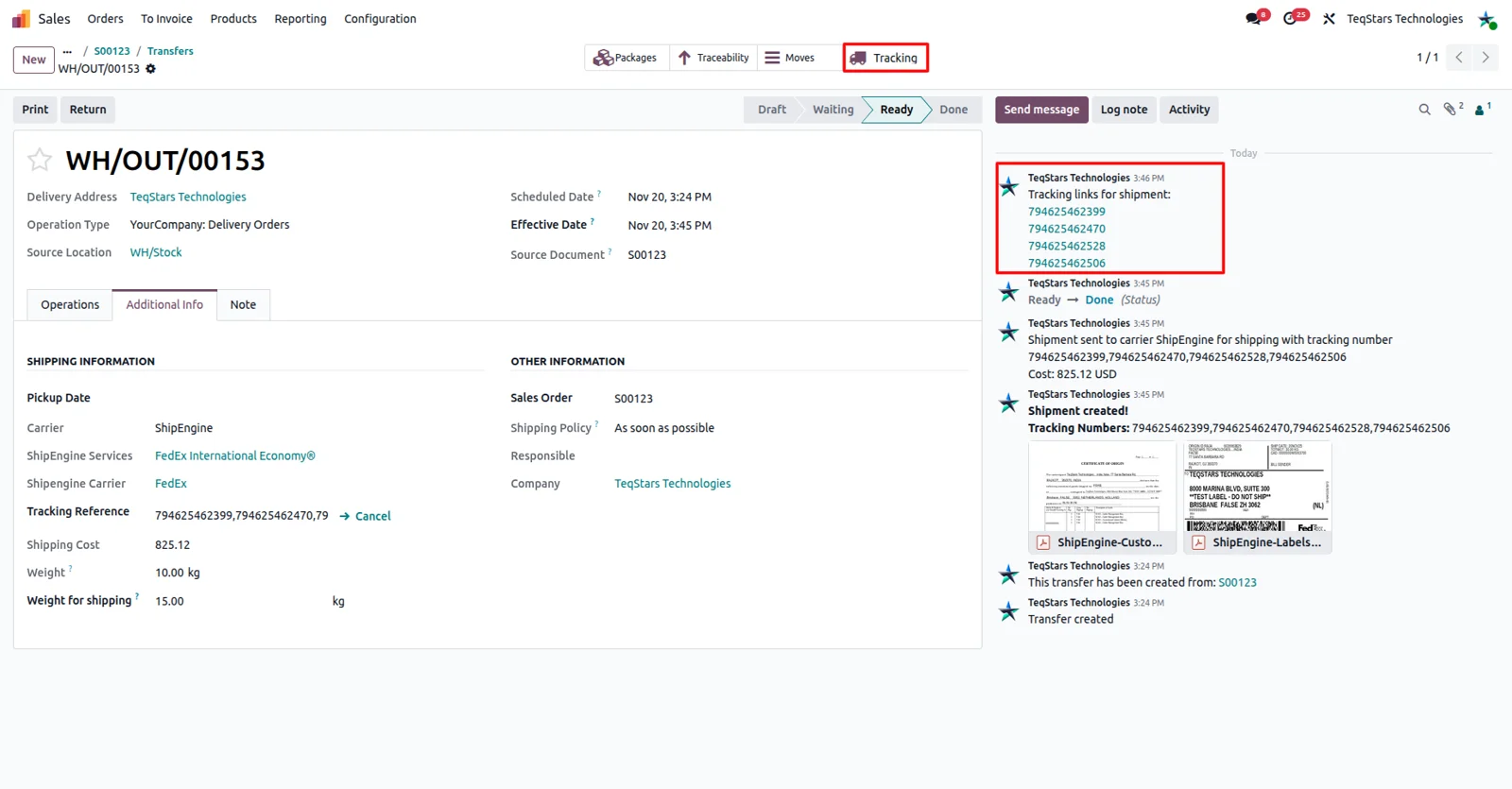
Follow a shipment after it leaves
Tracking sits with the delivery order, so anyone answering a customer question can see the current status and location of the shipment. ShipEngine returns the tracking information to Odoo, which means your support and warehouse staff look at the same record instead of pasting numbers into carrier websites one by one.
Cancel a shipment in one click
If an order changes after the label is made, you cancel the shipment in ShipEngine from the Odoo delivery order with a single click. There is no second login and no carrier portal to hunt through, so a canceled sale or a repacked pallet is handled by the person who noticed it.
Supported Odoo versions
| Odoo version | Editions | Hosting | Price | Latest release | |
|---|---|---|---|---|---|
| 20.0 | Community & Enterprise | Odoo.sh · On-premise | €108.99 | No release notes | Buy |
| 19.0 | Community & Enterprise | Odoo.sh · On-premise | €108.99 | 19.0.1.0.0 | Buy |
| 18.0 | Community & Enterprise | Odoo.sh · On-premise | €108.99 | No release notes | Buy |
| 17.0 | Community & Enterprise | Odoo.sh · On-premise | €108.99 | No release notes | Buy |
Support for ShipEngine Connector
The developers who build the app answer your tickets.
- Free app support from purchase
- 60 days
- First response in working hours, typical
- 4–6 hours
- Support hours, 10:00–18:00 IST
- Mon–Fri
How to connect ShipEngine to Odoo
-
Step 1
Install the connector
Add the app to your Odoo 17.0, 18.0, 19.0 or 20.0 database. It runs on Odoo Enterprise on Odoo.sh or on-premise, and on Odoo Community on your own server.
-
Step 2
Add your ShipEngine account
Enter the credentials of your ShipEngine account in the app's configuration. You can set up more than one ShipEngine account on your Odoo databases when shipping runs through separate accounts.
-
Step 3
Create your delivery methods
Configure one delivery method for domestic shipments and one for international shipments, so the right options and the customs paperwork rules apply to each order your team ships.
-
Step 4
Rate, pack and ship
On the sales order, request rates and choose a service. Use Put in Pack for several boxes, then validate the delivery order to get the label and any commercial invoice.
Questions before you buy
Not answered here? Talk to the team.