Quote live carrier rates, print labels and pull tracking back into Odoo
This ShipStation Odoo integration pushes each validated delivery to ShipStation as a complete order, then brings tracking, billed cost and shipped status back. Your team quotes live rates from every carrier your ShipStation account has enabled.
- Odoo 17.0 – 20.0
- Community & Enterprise
- Odoo.sh · On-premise
-
Not for
Odoo Online
Top seller on the Odoo Apps Store
- sales on the Odoo Apps Store
- 3,000+
- apps published
- 100+
- countries running them
- 100+
Shipping work before and after the ShipStation connector
Without the connector by hand
-
Retype order lines and addresses into the ShipStation dashboard
-
Quote a shipping price from a guess, learn the real cost later
-
Copy tracking numbers from ShipStation onto each Odoo delivery
-
Check ShipStation to see which parcels already went out
-
Open the carrier site in a second tab to fund a prepaid account
-
Keep a customs spreadsheet for parcels leaving the country
With the connector automatic
-
Validating the picking sends items, addresses, warehouse and store
-
"Get Rates" returns live prices, and the billed cost is written back after the label
-
The shipment sync fills Carrier Tracking Reference on the delivery
-
A daily sync you switch on validates shipped deliveries and cancels canceled ones
-
"Refresh" reads the balance and the Add Funds wizard tops it up
-
Customs items are built from the delivery lines on export
Orders, rates, labels and tracking between Odoo and ShipStation
Every object the connector handles, which way it travels and what triggers it.
| Data | Direction | What happens & when |
|---|---|---|
| Stores |

 ShipStation to Odoo
|
Automatic on first account confirmation, or the Import Stores operation |
| Store contact details |
Odoo to ShipStation
|
Clicking "Update In Shipstation" on the store form |
| Carriers with balance |
ShipStation to Odoo
|
Import Carriers operation, or "Refresh" on a single carrier |
| Carrier services |
ShipStation to Odoo
|
Import Carrier Services, run after the carriers exist in Odoo |
| Package templates |
ShipStation to Odoo
|
Pulled with each new carrier, or "Get Packages" on a carrier |
| Warehouses with origin and return addresses |
ShipStation to Odoo
|
Import Warehouse operation from the account card |
| Products with weight and dimensions |
ShipStation to Odoo
|
Import Product operation, walked page by page |
| Orders awaiting shipment |
ShipStation to Odoo
|
Daily import schedule you switch on, or a manual import |
| Delivery orders |
Odoo to ShipStation
|
Validating a picking with Export Order on, or the export wizard |
| Shipment status, tracking and cost |
ShipStation to Odoo
|
Daily shipment sync you switch on, or a manual sync |
| Live shipping rates |
ShipStation to Odoo
|
Picking a ShipStation delivery method, or "Get Rates" on the delivery |
| Shipping label PDF |
ShipStation to Odoo
|
Generating the label for the delivery order |
| Label void |
Odoo to ShipStation
|
Canceling the shipment from the delivery order |
| Carrier balance top-up |
Odoo to ShipStation
|
Running the Add Funds wizard on the carrier form |
ShipStation Connector features
Send the whole delivery, not just a label
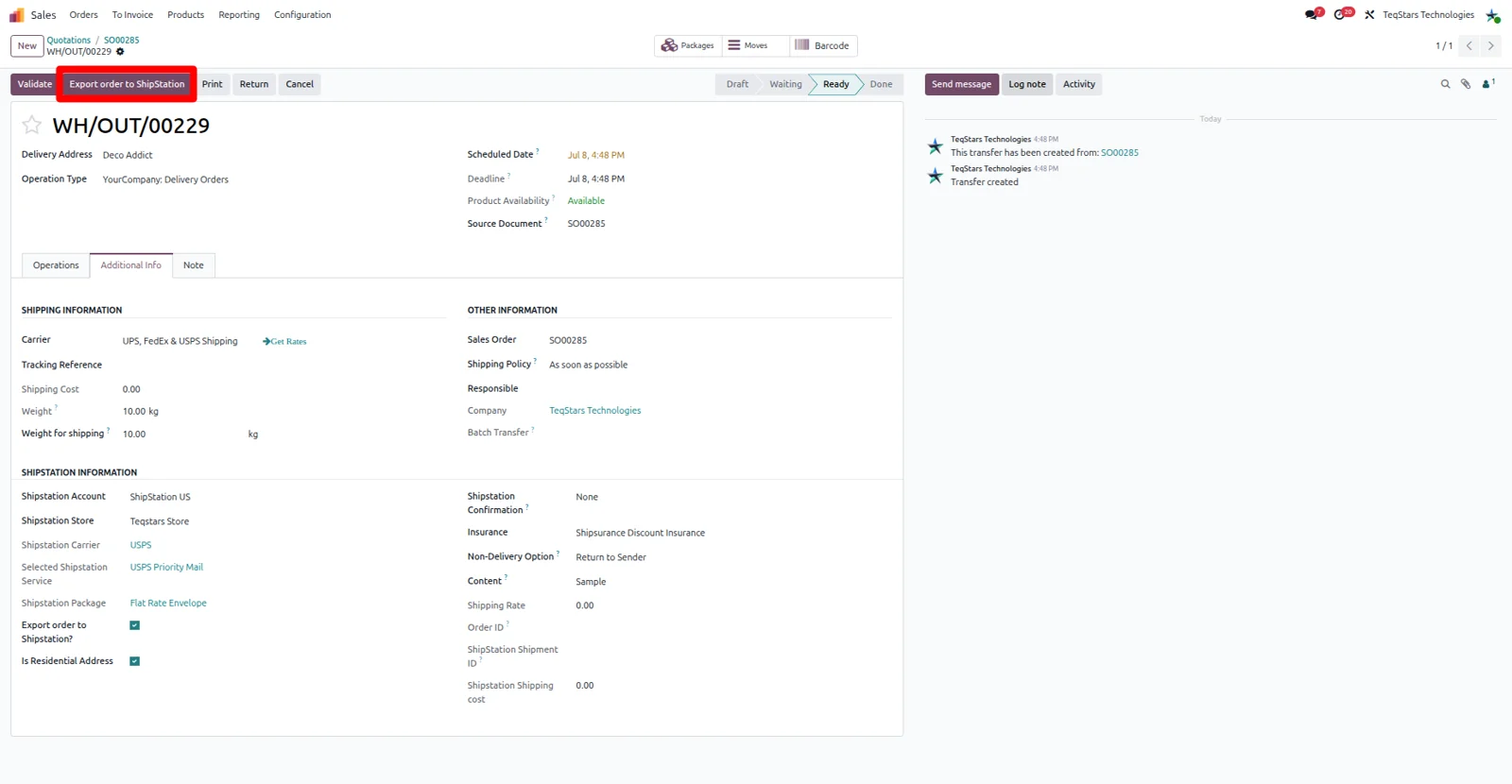
Validate the outgoing delivery and a complete order reaches ShipStation. The connector sends line items and quantities, billing and shipping addresses, the warehouse and the store, plus insurance and the international fields. Your Odoo sale order reference goes along in a ShipStation custom field, so warehouse staff read the same order they read in Odoo. Click "Export order to ShipStation" on the picking to push one delivery yourself.
Live carrier rates on the sale order
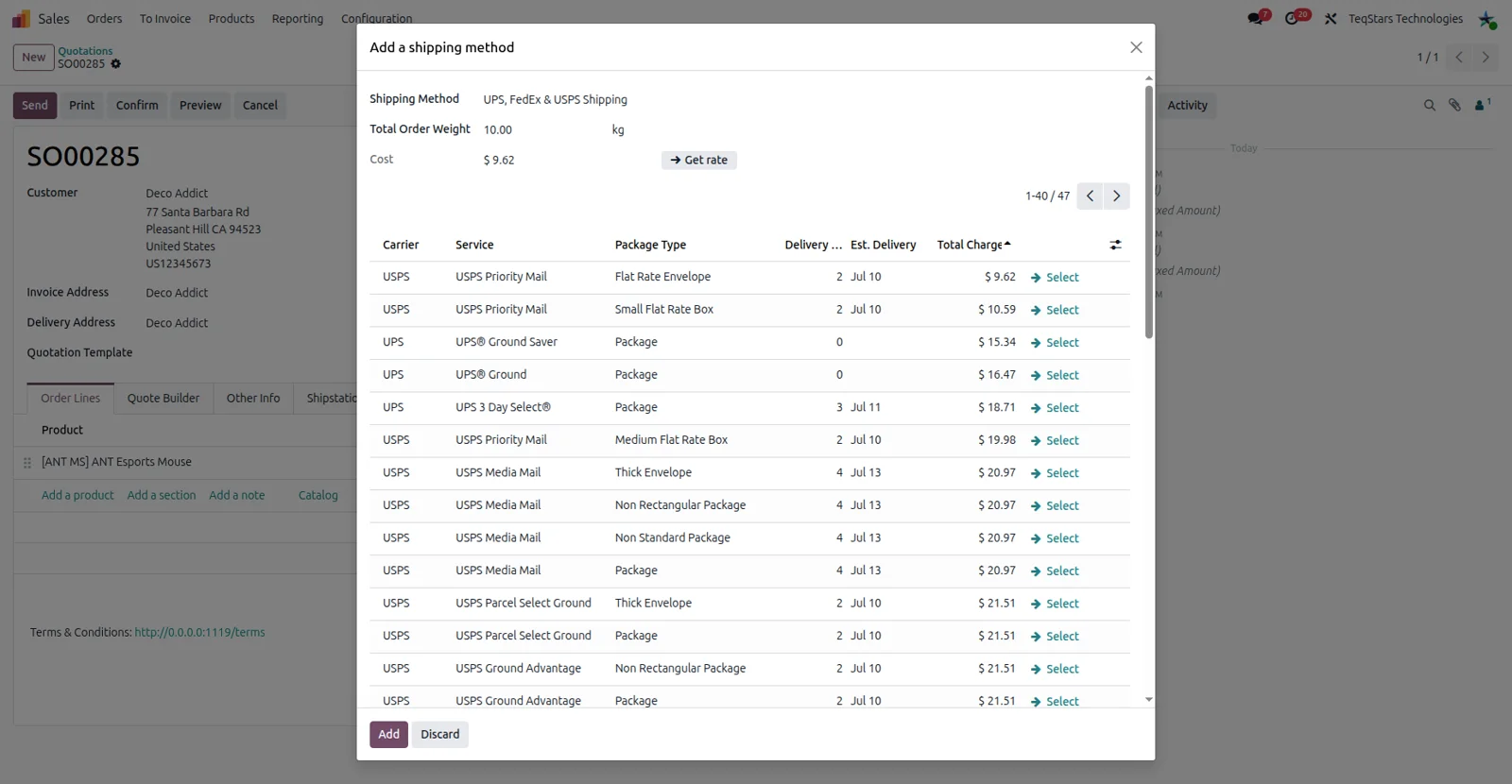
Salespeople pick a ShipStation delivery method on the quotation and see real carrier prices before confirming. On a v2 account the connector asks ShipStation for rates across all carriers, services and packages named on that delivery method, then preselects the cheapest. A v1 account quotes the services of the one selected carrier. Online shoppers get the same rate list at website checkout.
Label PDF and billed cost on the picking
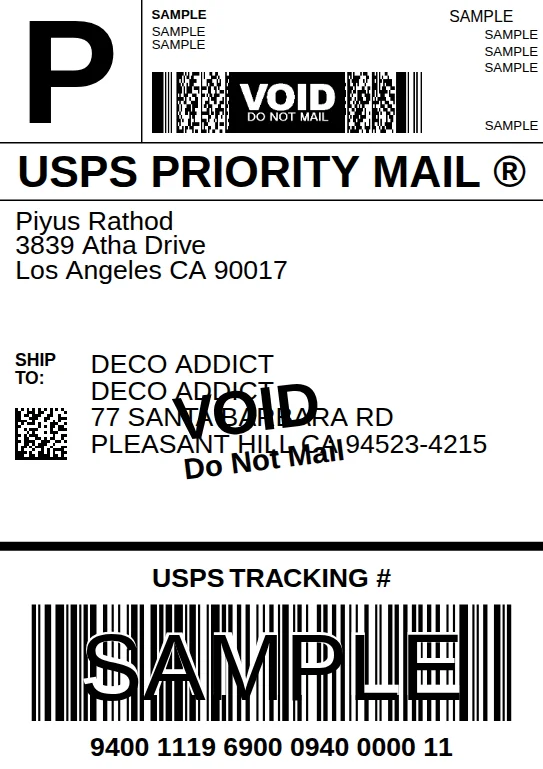
Generate the label for a delivery order and the PDF is attached to its chatter together with the tracking number. The exact amount ShipStation billed is written back on the picking, so what you quoted can be compared with what was charged. You can void a printed label from the same delivery order, and voided shipments are left out when tracking and cost are worked out.
Tracking link and shipped status in Odoo
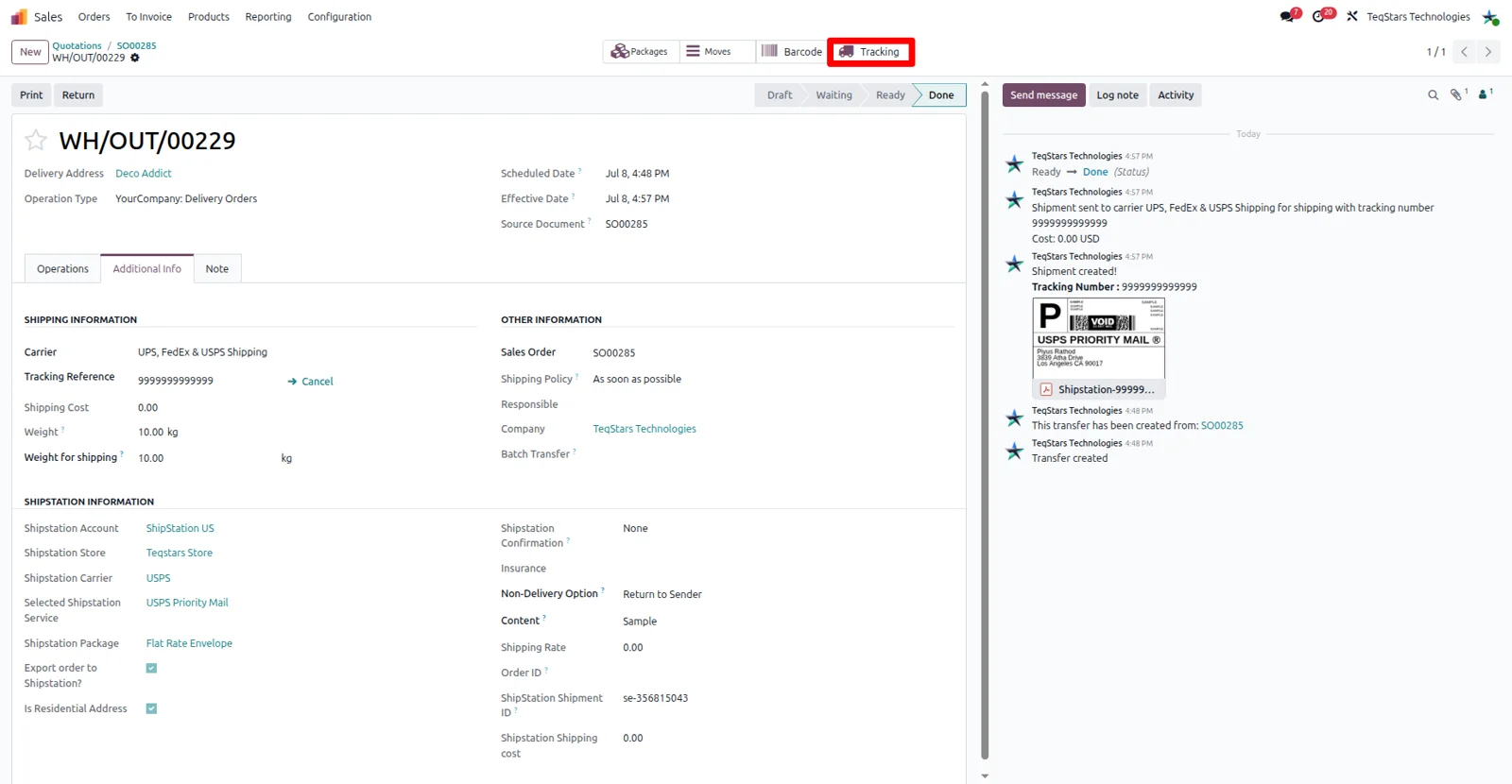
A "Tracking" button in the delivery order header opens the carrier's live tracking page on v2 accounts. The shipment sync behind it reads the order status from ShipStation, joins the tracking numbers of every shipment that was not voided into Carrier Tracking Reference, and validates the delivery once the parcel is reported as shipped. A canceled ShipStation order cancels the Odoo delivery on the next run.
Top up prepaid carriers from the carrier form
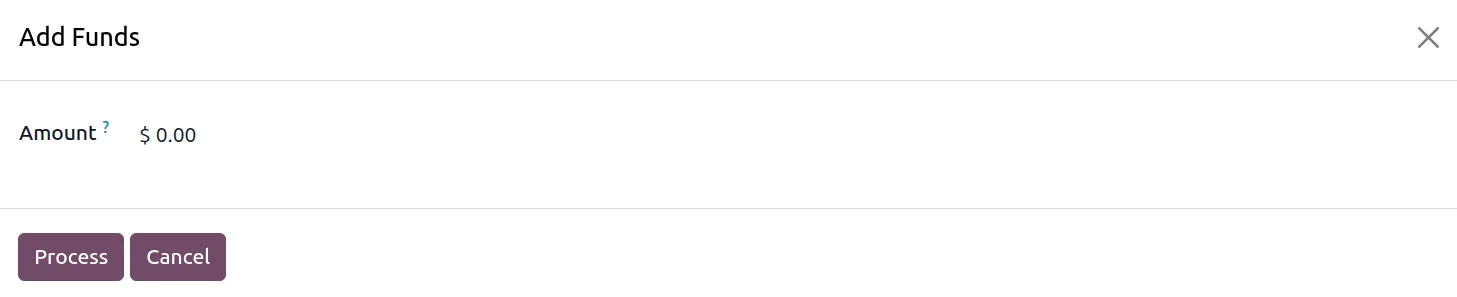
Carriers such as Stamps.com and Endicia will not print a label while the balance sits at zero. Open the carrier in Odoo, click "Refresh" to read the current balance from ShipStation, then run the Add Funds wizard to add between 10 and 10,000 dollars. Each carrier your ShipStation account has enabled arrives with its code, account number, balance and funded-account flag.
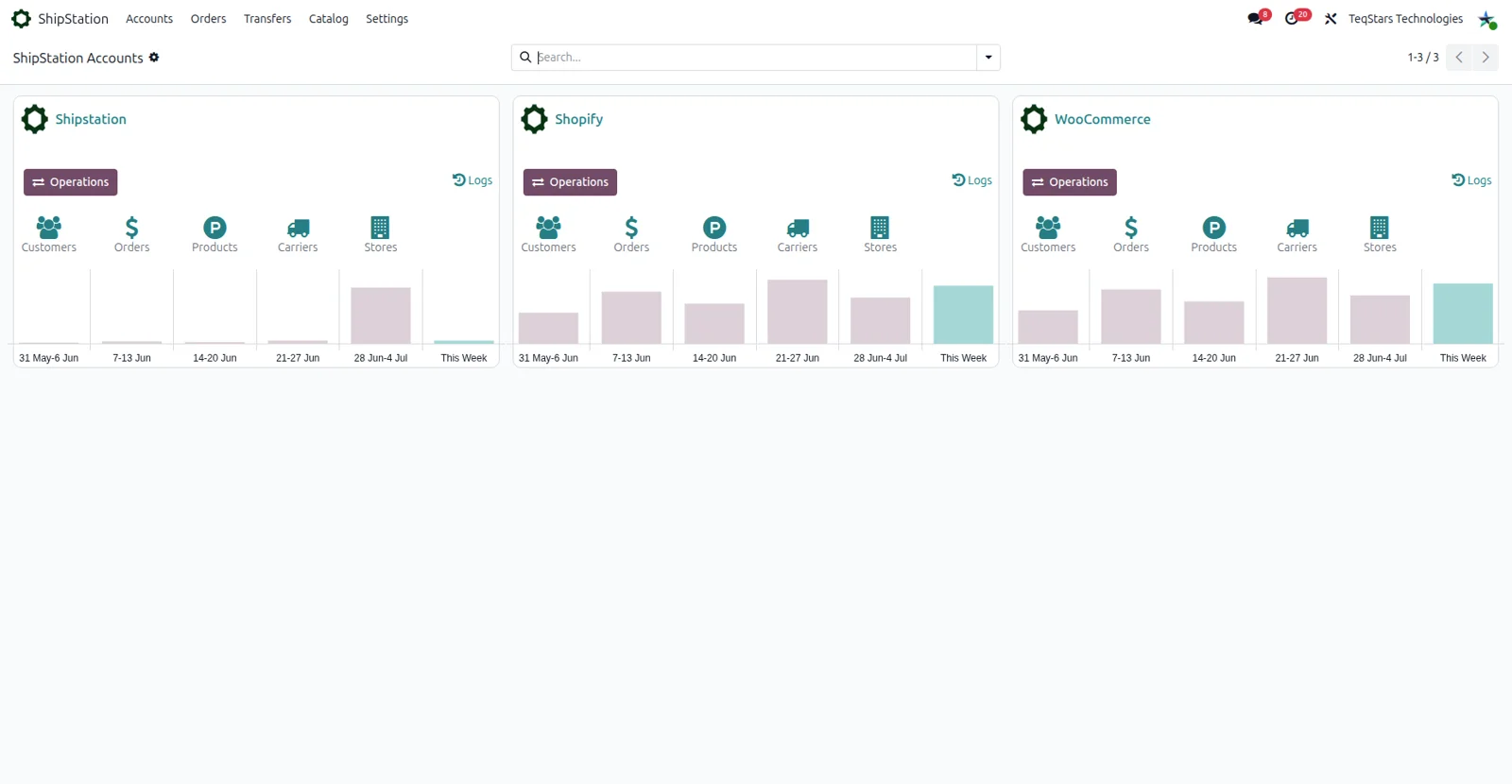
One card per ShipStation account
Every ShipStation account you connect gets its own card on the dashboard with a six-week sales bar graph. From the card your team opens the Operations wizard, the account settings and the log of calls sent to ShipStation. Carriers, services, packages, warehouses and the rest stay tied to their own account, and one set of credentials cannot be added to the database twice.
What buyers say on the Odoo Apps Store
5 out of 5, from7 reviews
Odoo ShipStation Connector is rated 5 out of 5 from 7 reviews on the Odoo Apps Store, the latest in .
Read the reviews on the Odoo Apps StoreSupported Odoo versions
| Odoo version | Editions | Hosting | Price | Latest release | |
|---|---|---|---|---|---|
| 20.0 | Community & Enterprise | Odoo.sh · On-premise | €99 | 20.0.1.0.1 | Buy Docs |
| 19.0 | Community & Enterprise | Odoo.sh · On-premise | €99 | 19.0.2.0.1 | Buy Docs |
| 18.0 | Community & Enterprise | Odoo.sh · On-premise | €99 | No release notes | Buy |
| 17.0 | Community & Enterprise | Odoo.sh · On-premise | €99 | No release notes | Buy |
Support for Odoo ShipStation Connector
The developers who build the app answer your tickets.
- Free app support from purchase
- 60 days
- First response in working hours, typical
- 4–6 hours
- Support hours, 10:00–18:00 IST
- Mon–Fri
How to connect ShipStation to Odoo
-
Step 1
Copy your ShipStation keys
In ShipStation open Account Settings, then Account, then API Settings. Take the API Key and API Secret for v1, or the v2 key. A v2 account also needs the v1 pair, because store sync uses v1.
-
Step 2
Install the connector
From the Apps menu install ShipStation Integration by TeqStars. The stock_delivery dependency it needs is installed along with it, so there is nothing else to pick.
-
Step 3
Create and confirm the account
Go to ShipStation, Settings, Accounts and click New. Choose the API version, paste the matching credentials, set a default warehouse and shipping product, then click "Confirm".
-
Step 4
Let master data import
Confirming the account imports stores, carriers, services, packages, warehouses and products straight away. The version and credentials then lock, so click "Reset" to return to draft if you need to change them.
-
Step 5
Map warehouses and packages
Under ShipStation, Settings, link each imported warehouse to an Odoo stock warehouse and check its origin and return address. Give every "Your Packaging" template a real Odoo package type with accurate dimensions.
-
Step 6
Build a delivery method
In Inventory, Configuration, Shipping Methods create a method with provider ShipStation. Pick the store, carrier, service and package, set confirmation, insurance and customs options, and turn on Export Order to push validated deliveries.
Questions before you buy
Not answered here? Talk to the team.
Talk to the team that built it
Contact us
EasyShip Connector
Compare rates, print labels and track every parcel through Easyship
From €159.99 12 sold
ShippyPro Connector
Compare carrier rates, print labels and track every parcel from Odoo deliveries
From €108.99 6 sold
Starshipit Connector
Quote carrier rates, print labels and track every Starshipit shipment in Odoo
From €109.98