Every TikTok Shop order, parcel, return and payout handled in Odoo
This TikTok Shop Odoo integration imports your orders with their buyers, fees and taxes, then reports each parcel the way your market ships it. Seller-fulfilled and Fulfilled by TikTok orders run side by side. Statements and payouts raise the bank statements you reconcile.
- Odoo 17.0 – 20.0
- Community & Enterprise
- Odoo.sh · On-premise
-
Not for
Odoo Online
Top seller on the Odoo Apps Store
- sales on the Odoo Apps Store
- 3,000+
- apps published
- 100+
- countries running them
- 100+
TikTok Shop order and finance admin before and after the connector
Without the connector by hand
-
Retype each TikTok Shop order into Odoo as a sales order.
-
Paste tracking numbers into Seller Center after every shipment.
-
Edit stock figures in Seller Center as sales come in.
-
Watch Seller Center for buyer cancellation requests before the clock runs out.
-
Rebuild commission, fee and shipping figures in a spreadsheet.
-
Guess which bank transfer settles which TikTok Shop sales.
With the connector automatic
-
An import you run, or a schedule you switch on, creates orders with their lines and fees.
-
Validate the delivery, press Update in Marketplace, and the package is reported.
-
Exports stock on the schedule you set, or as quantities change.
-
Requests are imported, and you press Approve Cancellation or Reject Cancellation.
-
Statement imports bring the amounts in, each type on its mapped account.
-
Each payout raises a bank statement you reconcile against your invoices.
Orders, listings, stock and payouts between TikTok Shop and Odoo
Every object the connector handles, which way it travels and what triggers it.
| Data | Direction | What happens & when |
|---|---|---|
| Orders |

 TikTok Shop to Odoo
|
Manual import by date range, a schedule you set, or a live status update. |
| Shipment tracking and packages |
Odoo to TikTok Shop
|
Validating the delivery and pressing Update in Marketplace, or a scheduled export runs. |
| Buyer cancellation requests |
TikTok Shop to Odoo
|
An import you run, or schedule you set once that job is active. |
| Order cancellations |
Odoo to TikTok Shop
|
You press Approve, Reject or Cancel In TikTok Shop on the order. |
| Returns |
Both ways
|
Imported by a run or schedule; answers and new returns sent when you press them. |
| Listings and variants |
Both ways
|
Import or export from the Operations button |
| Prices |
Odoo to TikTok Shop
|
Export on a schedule or as prices change; imported prices fill a pricelist.
|
| Stock quantities |
Odoo to TikTok Shop
|
Export on your schedule or when Odoo stock changes. |
| Fulfilled by TikTok stock |
TikTok Shop to Odoo
|
Manual import or a schedule you set; written as an inventory adjustment. |
| Categories, brands and listing rules |
TikTok Shop to Odoo
|
The first confirmation of the shop, or an import you run later. |
| Statements and payouts |
TikTok Shop to Odoo
|
An import you run, or a schedule job once you switch it on. |
| NF-e invoices |
Odoo to TikTok Shop
|
Upload Invoice on the delivery, or an hourly job on a Brazilian shop. |
| Warehouses |
TikTok Shop to Odoo
|
Imported for you when you confirm the shop setup. |
TikTok Shop Connector features
Orders with fees, taxes and ship-by dates
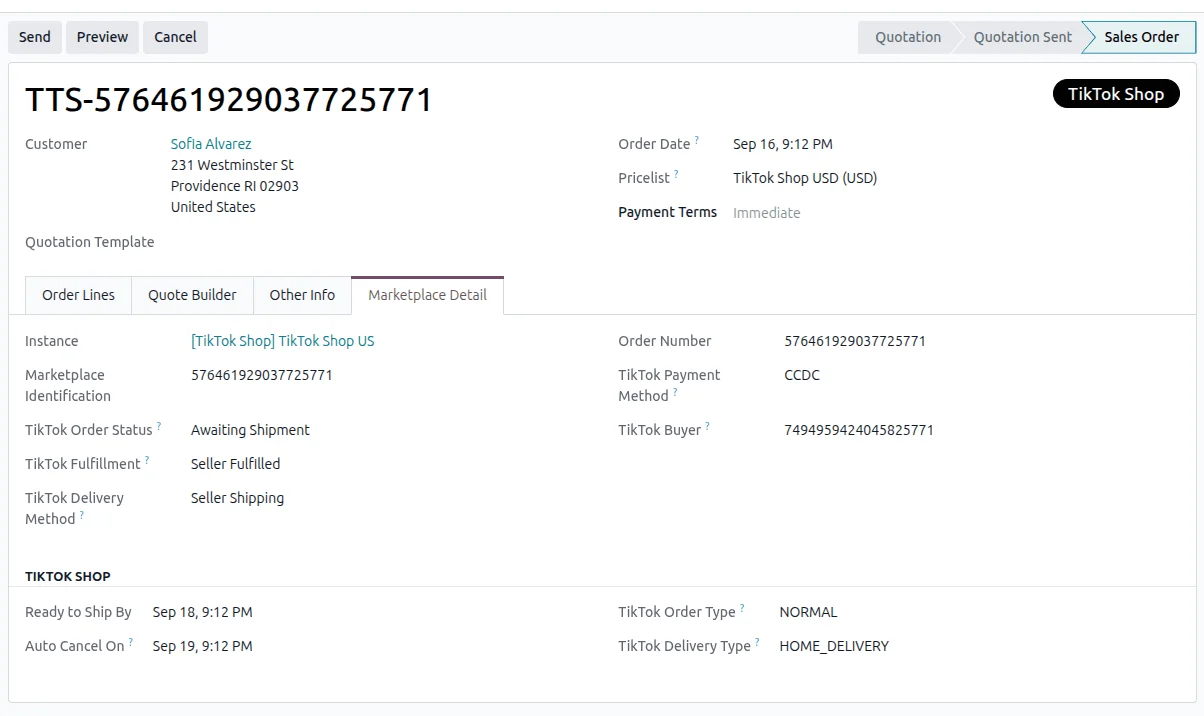
Each TikTok Shop order becomes a sales order in Odoo with its customer, address and product lines. The shipping charge is billed on the Delivery Product, and extras such as a retail delivery fee on the Fee Product. The order also records its TikTok status, who fulfills it, the delivery method, when the parcel is expected and when TikTok Shop would cancel it.
Every parcel shipped your market's way
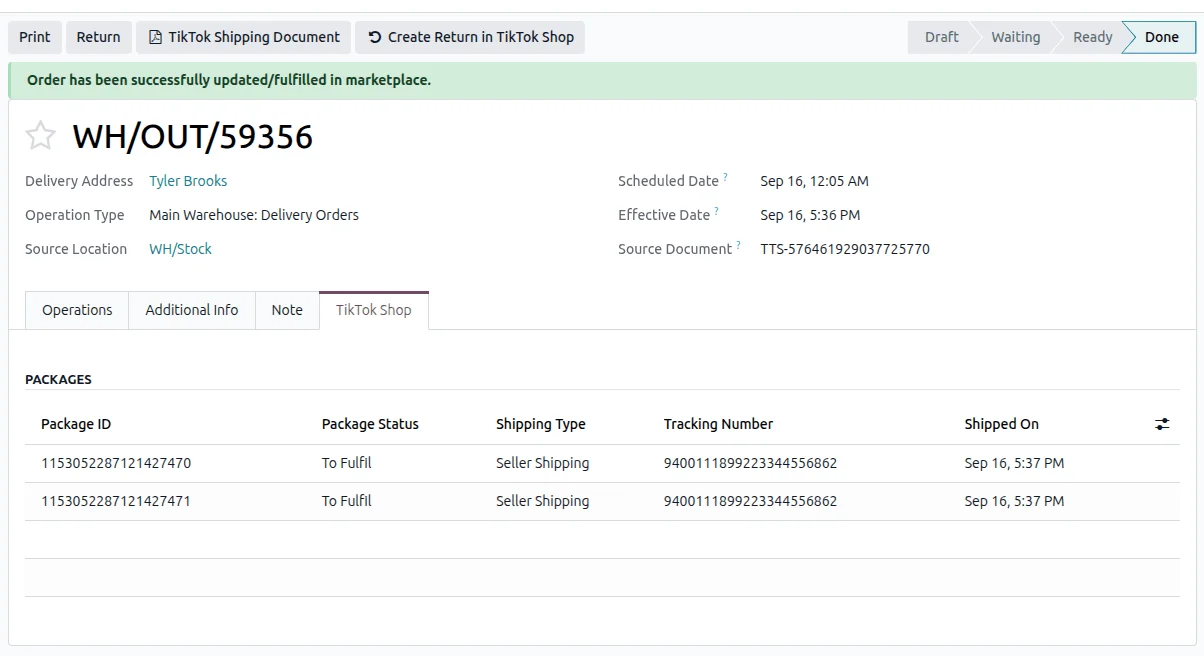
TikTok Shop works in packages, and the Odoo delivery lists them with their package ID, status, shipping type, tracking number and shipped date. Validate the delivery and press Update in Marketplace. In the United States and Japan the label is bought from TikTok Shop and downloaded on the delivery. Elsewhere TikTok Shop books the carrier, and a parcel on your own carrier is reported under its provider code.
Seller-fulfilled and FBT in one shop
Orders you ship and orders Fulfilled by TikTok sit on the same shop, each running its own order workflow. Fulfillment Type is offered only once TikTok Shop reports your shop as registered for FBT. Stock held by TikTok Shop is imported into its own warehouse and stays out of the quantity you can promise buyers. Orders TikTok Shop ships are never reported back from Odoo.

Cancel an order with TikTok Shop's reasons
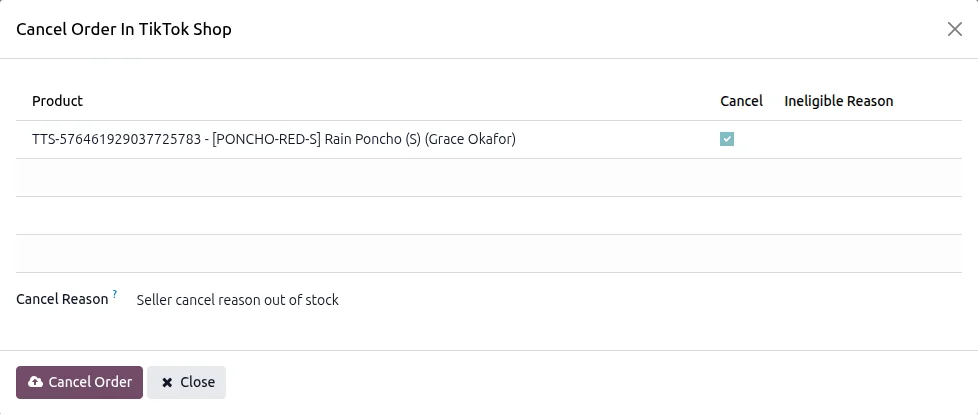
Cancel the order in Odoo first, then press Cancel In TikTok Shop to report it. The popup lists the order's units with the reasons TikTok Shop offers for them, read as it opens, and greys out any unit TikTok Shop refuses, with its reason. Cancelling only part of an order works in markets that permit it; elsewhere every unit goes together. TikTok Shop refunds the buyer, and that cannot be undone.
Answer returns and raise the credit note
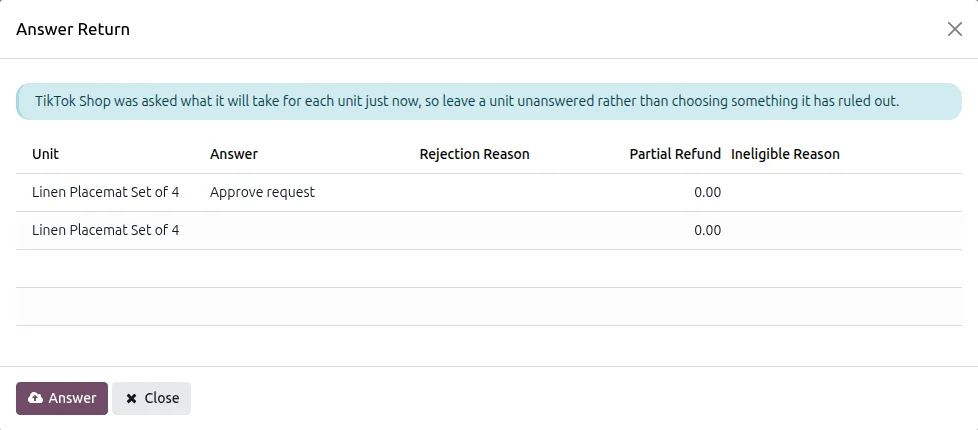
Returns are imported with their type, status, units and refund amount, each tied to the order it came from. You answer one with the options TikTok Shop allows for it, and you can also create a return yourself. From the return you raise the transfer that receives the goods back into stock, and the credit note follows once TikTok Shop reports the refund.
Statements broken down amount by amount
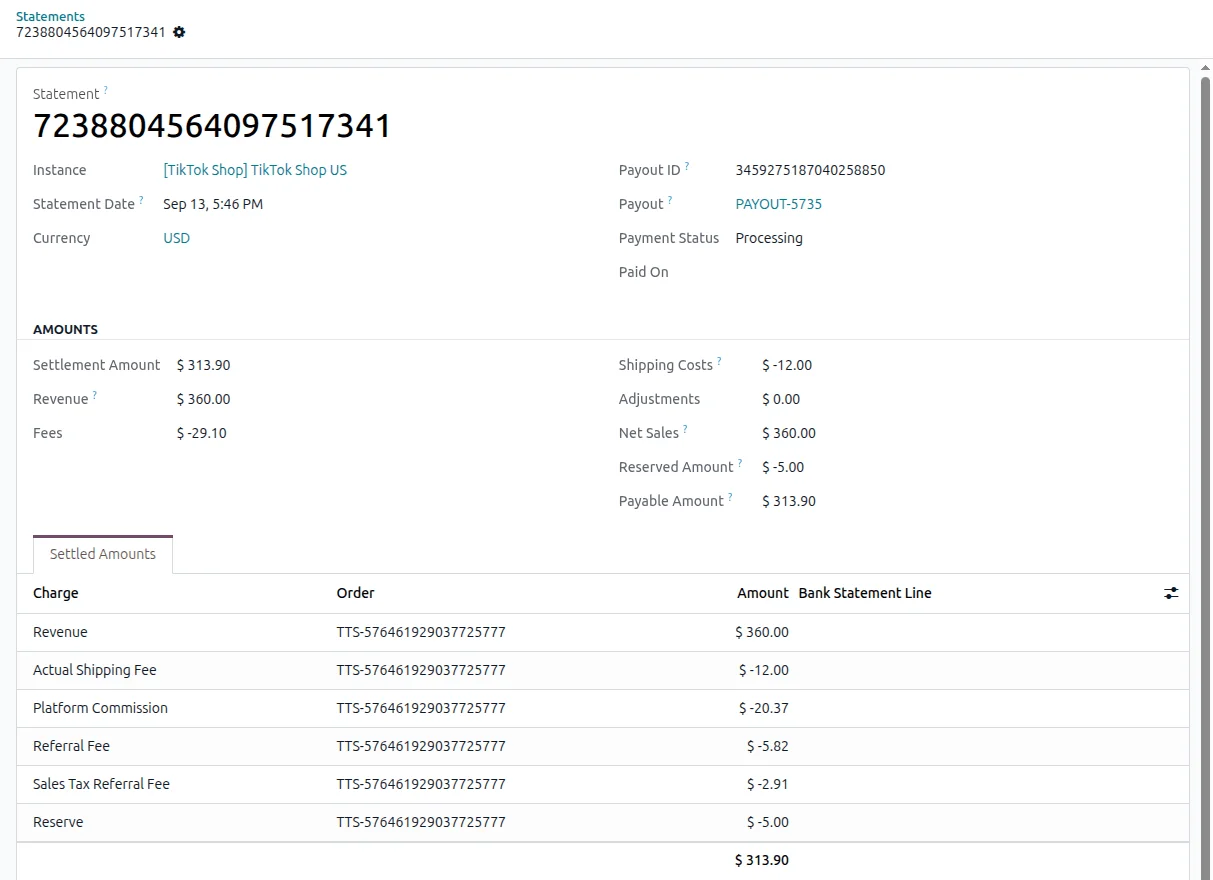
A statement sets out what the shop settled: the sales behind it, the commission and fees TikTok Shop kept, shipping and tax, and the figure payable to you. Its Settled Amounts tab splits that total amount by amount, each one tied to its order. Statements come in whatever their payment status, from an import you run or a daily job you switch on.
Payouts matched to your bank
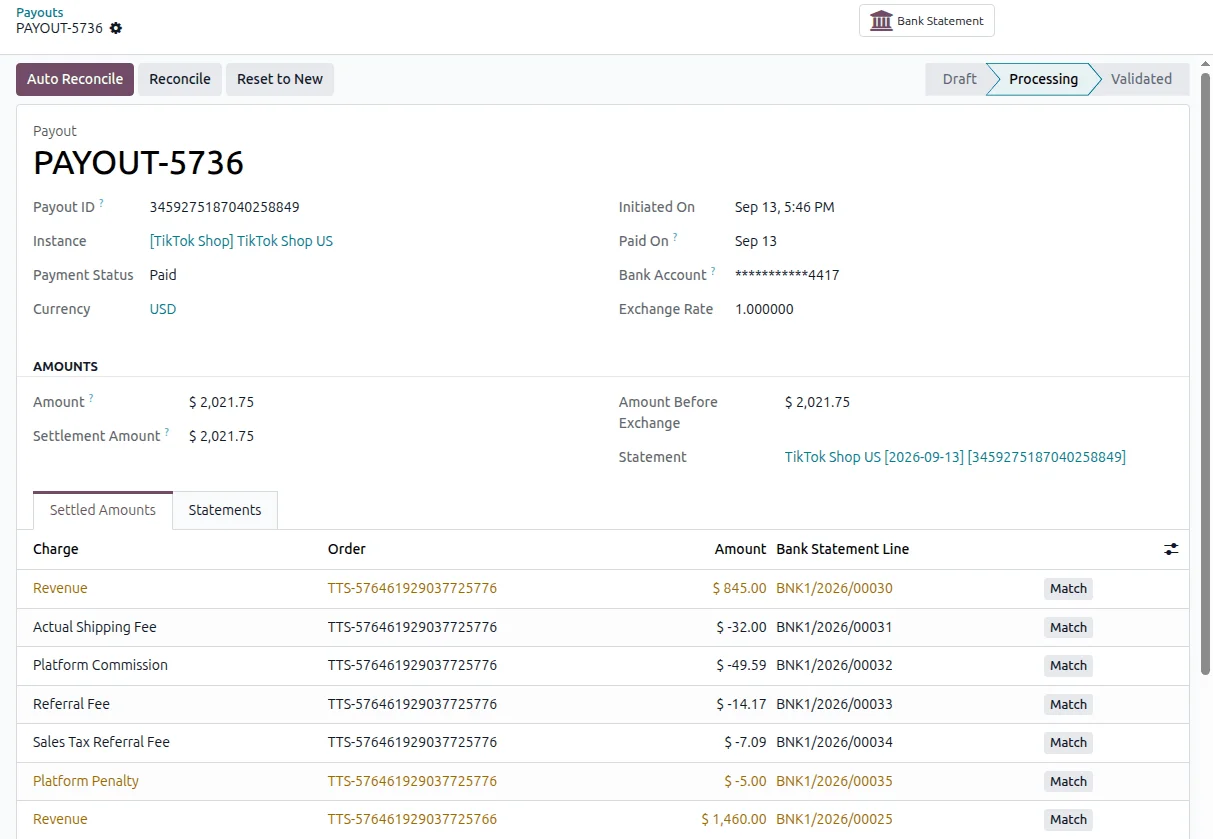
A payout is one transfer TikTok Shop makes to your bank, with its amount, currency, exchange rate, the statements it settles and the amounts behind them. Its bank statement is raised once every statement it carries is paid, or when you press Post. Auto Reconcile then matches the lines to your invoices and posts the rest to the account you mapped per transaction type, using Odoo Enterprise Accounting.
Category attributes, brands and listing rules
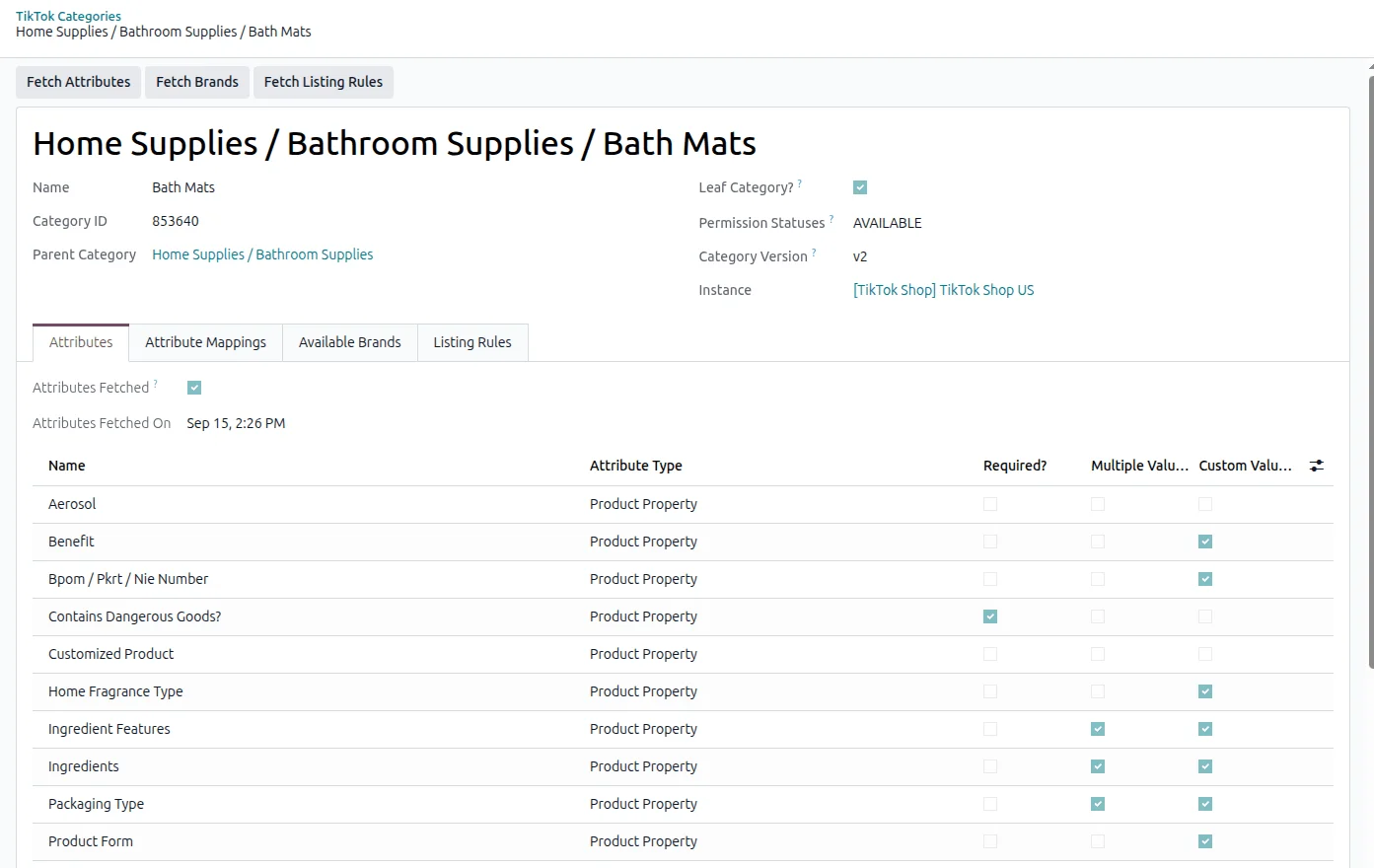
A listing must carry what its category accepts, so you read that per leaf category. Buttons on the category fetch its attributes with their allowed values, the brands your shop may use, and the rules: size chart, package dimensions, cash on delivery, and whether a manufacturer or responsible person must be named. Fetch dates and filters show which categories are ready to list in.
Stock sent from the warehouses you ship from
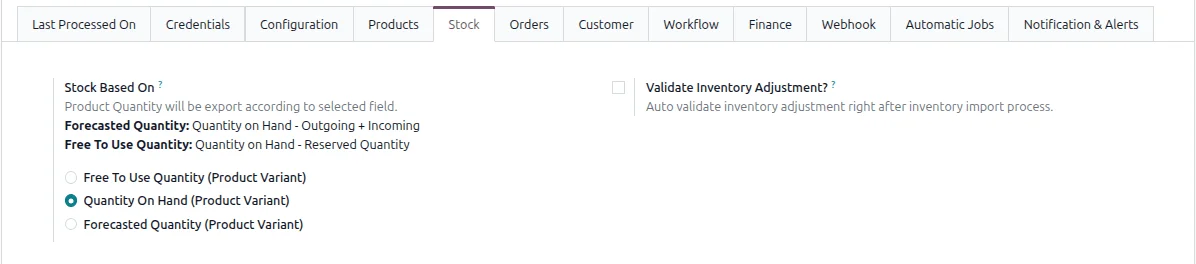
Odoo sends quantities for the warehouses you ship from, counted in the stock location mapped to each TikTok warehouse. You choose the basis: Free To Use, Quantity On Hand or Forecasted. Only products whose stock moved since the last run are included. A TikTok warehouse with no stock location is left at whatever quantity TikTok Shop already holds for it, and the log names it.
Supported Odoo versions
| Odoo version | Editions | Hosting | Price | Latest release | |
|---|---|---|---|---|---|
| 20.0 | Community & Enterprise | Odoo.sh · On-premise | €369 | 20.0.1.0.0 | Buy Docs |
| 19.0 | Community & Enterprise | Odoo.sh · On-premise | €369 | 19.0.1.0.0 | Buy Docs |
| 18.0 | Community & Enterprise | Odoo.sh · On-premise | €369 | No release notes | Buy |
| 17.0 | Community & Enterprise | Odoo.sh · On-premise | €369 | No release notes | Buy |
Support for TikTok Shop Connector
The developers who build the app answer your tickets.
- Free app support from purchase
- 60 days
- First response in working hours, typical
- 4–6 hours
- Support hours, 10:00–18:00 IST
- Mon–Fri
How to connect TikTok Shop to Odoo
-
Step 1
Copy your app credentials
Open your app in the TikTok Shop Partner Center and copy its App Key, App Secret and Service ID. Those three let Odoo reach the shop you are about to authorize.
-
Step 2
Create the shop record
Under Marketplaces, then Configuration, then Instance, add a record and pick TikTok Shop. Paste the three credentials and choose the Authorization Portal, United States for a US shop and Rest of World otherwise, then save. That choice is fixed afterwards.
-
Step 3
Authorize your shop
Put the OAuth Callback URL from the saved record into your app's Redirect URL, character for character, then click Connect TikTok Shop Account and approve it. Odoo fills in the shop's name, id and market.
-
Step 4
Set finance, then Confirm
On the Finance tab, name the Statement Journal and an account for each transaction type, then press Confirm. Both lock at that point, and confirming imports your warehouses, categories and brands.
-
Step 5
Map warehouses and order rules
Point each imported TikTok warehouse at an Odoo warehouse and stock location so quantities are counted where the goods sit. Then set the Tax System, your order workflow, and which TikTok Order Status values you want imported.
-
Step 6
Switch on the jobs you want
Open the Automatic Jobs tab, which only Odoo administrators see, and activate each job you need with its interval. They start out inactive, so nothing is imported or sent until you turn one on.
Questions before you buy
Not answered here? Talk to the team.