Your Bol.com orders, stock and returns handled in Odoo
This Bol.com Odoo integration imports FBR and FBB orders as sale orders, sends your stock and prices to the marketplace, and brings customer returns in for your team. Invoice requests from business buyers are answered with the Odoo PDF.
- Odoo 17.0 – 20.0
- Community & Enterprise
- Odoo.sh · On-premise
-
Not for
Odoo Online
Top seller on the Odoo Apps Store
- sales on the Odoo Apps Store
- 3,000+
- apps published
- 100+
- countries running them
- 100+
Bol.com selling work before and after the connector
Without the connector by hand
-
Retype every Bol.com order into Odoo, line by line.
-
Enter tracking numbers in the Bol.com seller portal after each shipment.
-
Correct Bol.com stock by hand whenever Odoo quantities change.
-
Copy new prices into each Bol.com offer one at a time.
-
Watch the seller portal for returns and tell the warehouse.
-
Download invoice PDFs and upload them for buyers who ask.
-
Look up company name and VAT for business orders.
With the connector automatic
-
A scheduled import you switch on creates FBR and FBB orders in Odoo.
-
You validate the delivery, then the tracking push sends carrier and reference.
-
The stock export sends free to use, on hand or forecasted quantities.
-
The price export sends pricelist prices and skips zero-price products.
-
The return import lists returns with reason, quantity and customer comment.
-
The Odoo PDF is uploaded once the invoice is posted and the delay passes.
-
Business orders are saved with company name and VAT on the customer.
Offers, orders, stock, returns and invoices between Bol.com and Odoo
Every object the connector handles, which way it travels and what triggers it.
| Data | Direction | What happens & when |
|---|---|---|
| Offers and listings |

 Both ways
|
You run the offer sync, or export and update listings from the listing view. |
| FBR and FBB orders |
Bol.com to Odoo
|
Scheduled order import you switch on, or the Operations button. |
| Orders shipped in the last 90 days |
Bol.com to Odoo
|
You pick Import Shipped Order in the Operations wizard. |
| Shipment and tracking data |
Bol.com to Odoo
|
Scheduled shipment imports for open FBR and FBB orders, or a manual run. |
| Fulfillment status and tracking |
Odoo to Bol.com
|
You validate the FBR delivery, then press Update in Marketplace or wait for the push. |
| Offer prices |
Both ways
|
Scheduled price export; import happens when you run the offer sync with Update Price. |
| FBR stock quantities |
Odoo to Bol.com
|
Scheduled stock export you switch on, or a manual export. |
| FBB warehouse stock |
Bol.com to Odoo
|
Scheduled FBB stock import creates an inventory adjustment in Odoo. |
| Customer returns |
Bol.com to Odoo
|
Scheduled return import, filtered by unhandled or handled status. |
| Return decisions |
Odoo to Bol.com
|
You click Handle Return and choose a handling action. |
| Order cancellations |
Odoo to Bol.com
|
You cancel in Odoo, then click Cancel In Bol.com with a reason. |
| Invoice requests |
Bol.com to Odoo
|
Scheduled request import, or the Operations wizard on demand. |
| Invoice PDF |
Odoo to Bol.com
|
Invoice posted, order fully invoiced and your export delay elapsed. |
Bol.com Integration features
Bol.com orders become Odoo sale orders
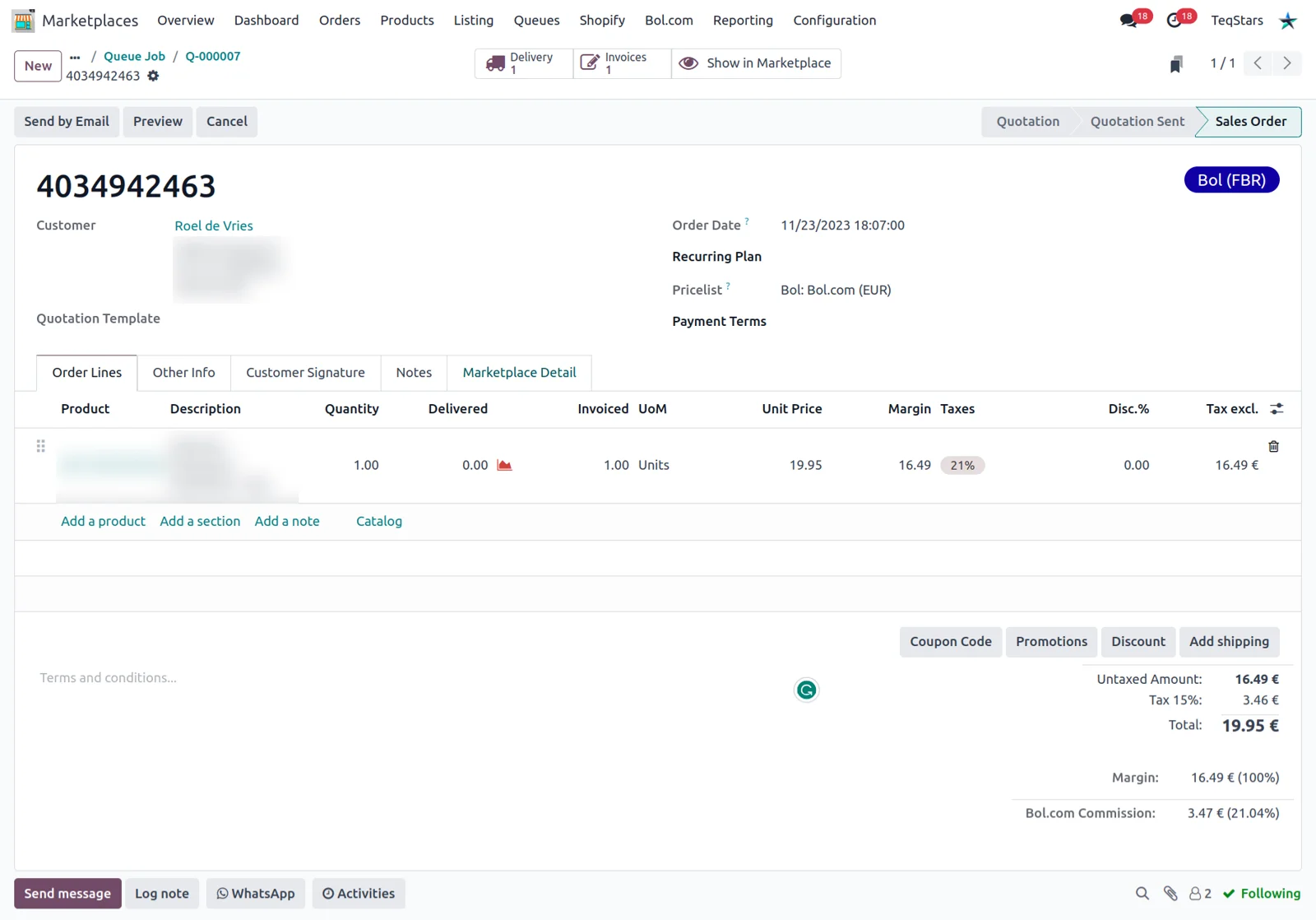
Orders from Bol.com appear in Odoo with their items, quantities and prices. Each line carries the Bol.com commission, and the order shows the total fee together with its percentage of the order amount. The shipping fee the buyer paid gets its own line, using the delivery product you choose. Business orders keep the company name and VAT number for your tax reporting.
Send shipment status and tracking to Bol.com
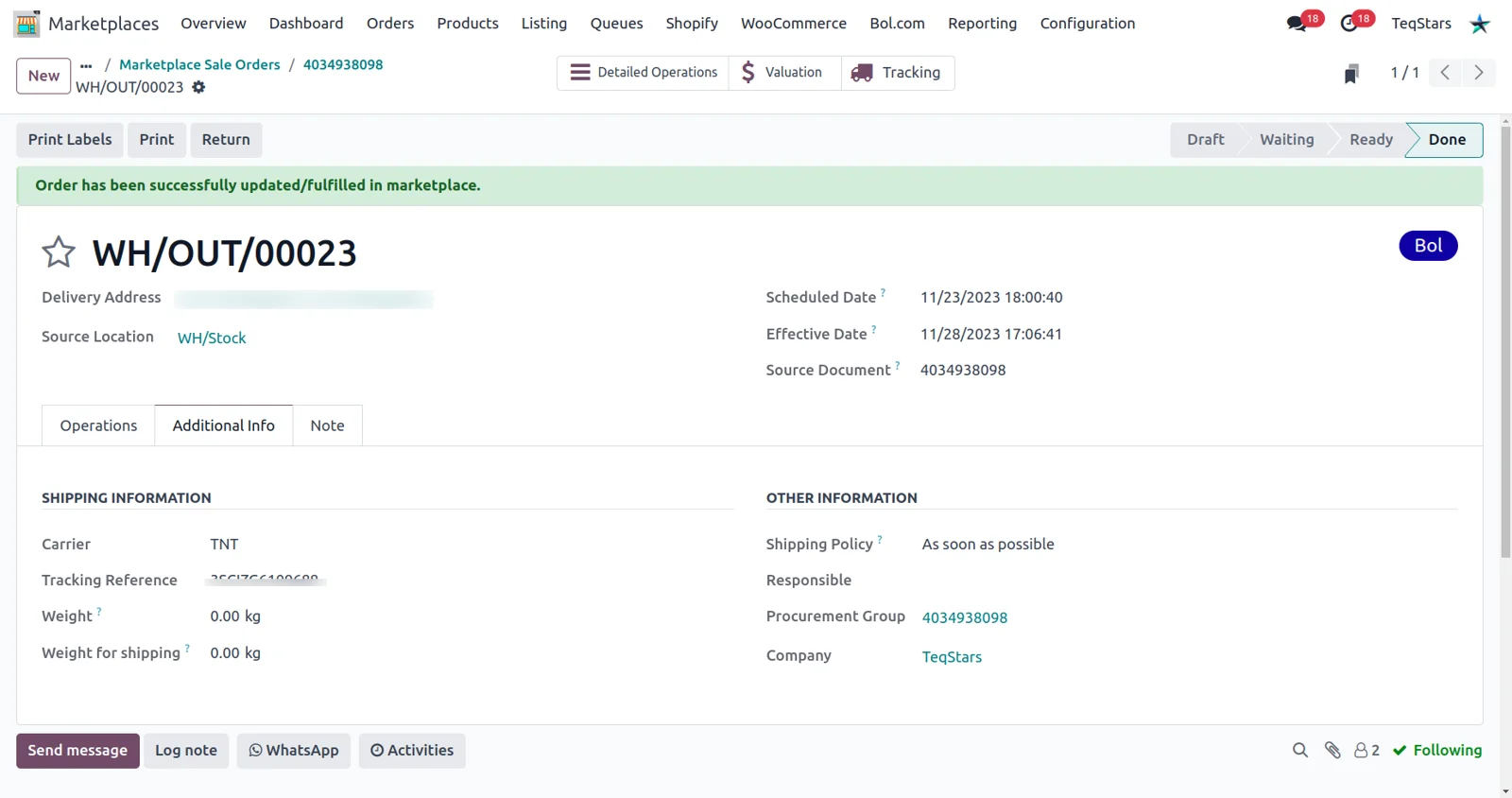
After you validate an FBR delivery in Odoo, Bol.com is told the order has shipped so the buyer sees the tracking. Set the carrier and tracking reference on the transfer, then press Update in Marketplace for a single order, or let the scheduled push cover every validated delivery. Link each Odoo carrier to a Bol.com transporter code first, under Marketplaces, Bol.com, Transporters.
Publish Odoo products as Bol.com offers
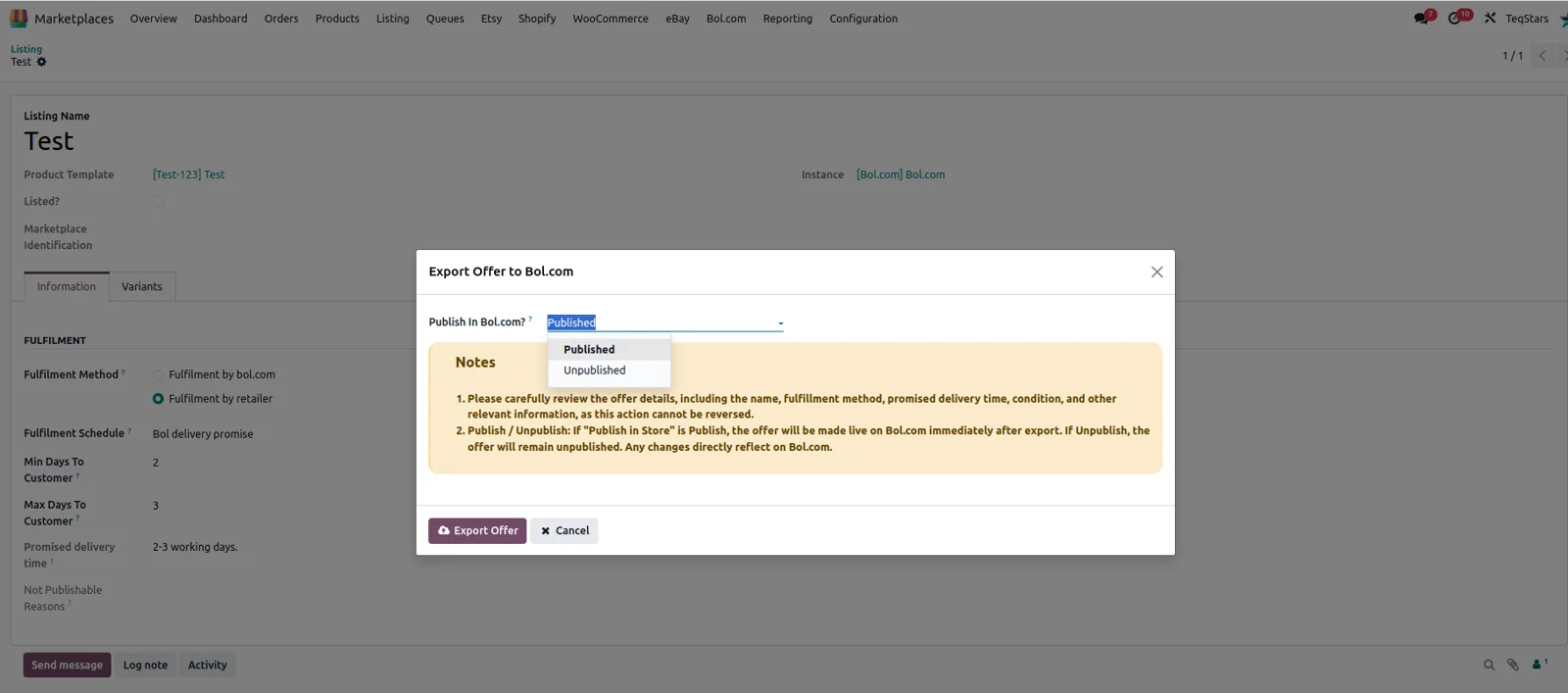
Put your Odoo catalog on Bol.com as new offers, with price, condition, fulfillment method and promised delivery time. Select products, add them to listings, then adjust the title and description before exporting. Each variant needs a valid 13-digit EAN barcode, and only single-variant listings can be exported, so split multi-variant products beforehand. Rejected exports are written to the logs with the reason.
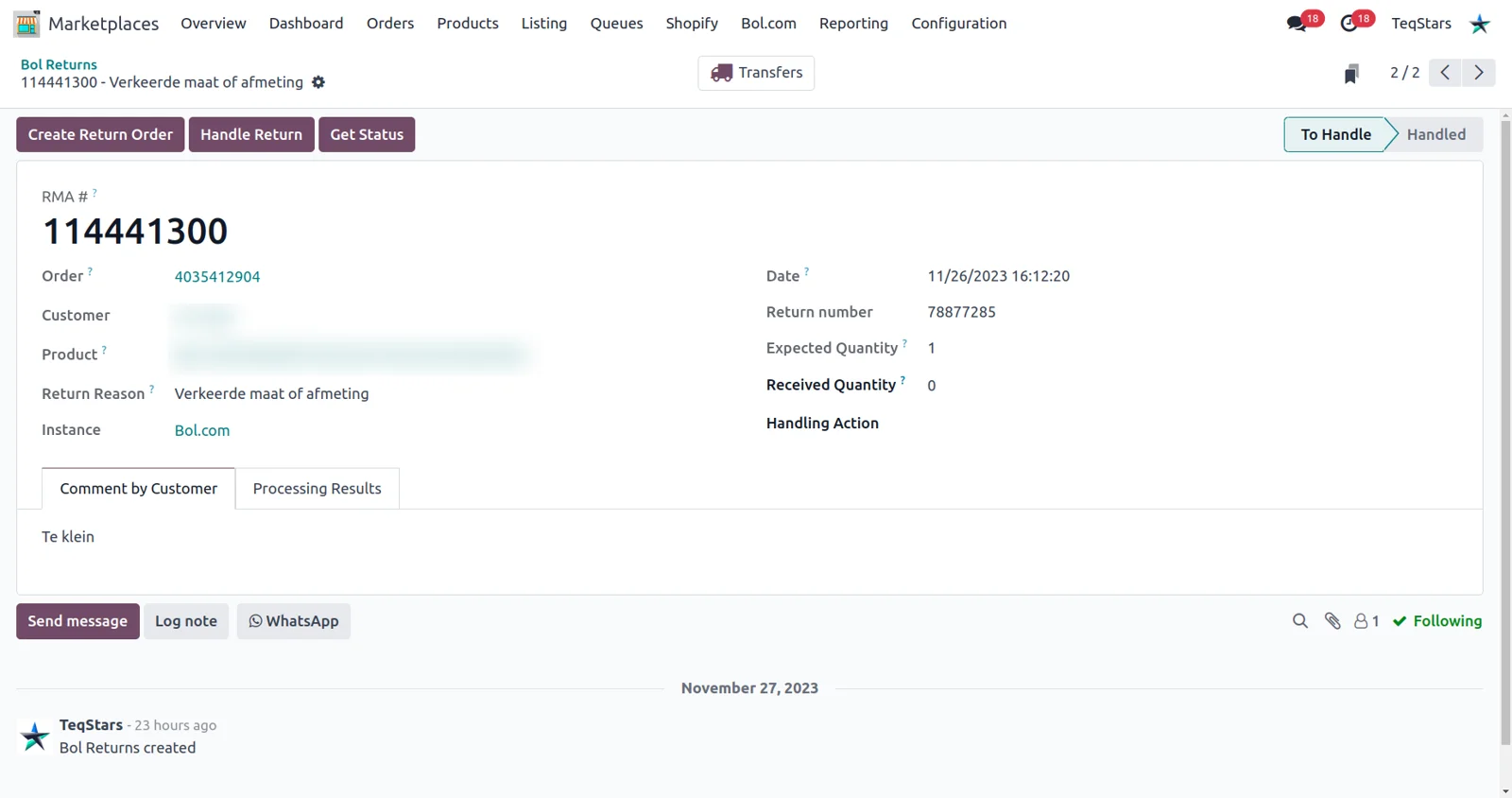
Process Bol.com returns in Odoo
Returns raised by buyers show up in Odoo with the return reason, the related order, the expected quantity and the customer's comment. One click creates an incoming receipt so your warehouse can take the goods back and find the transfer later. Handle Return sends your decision to Bol.com, such as accepting the item, arranging an exchange or rejecting it. Get Status refreshes a single return.
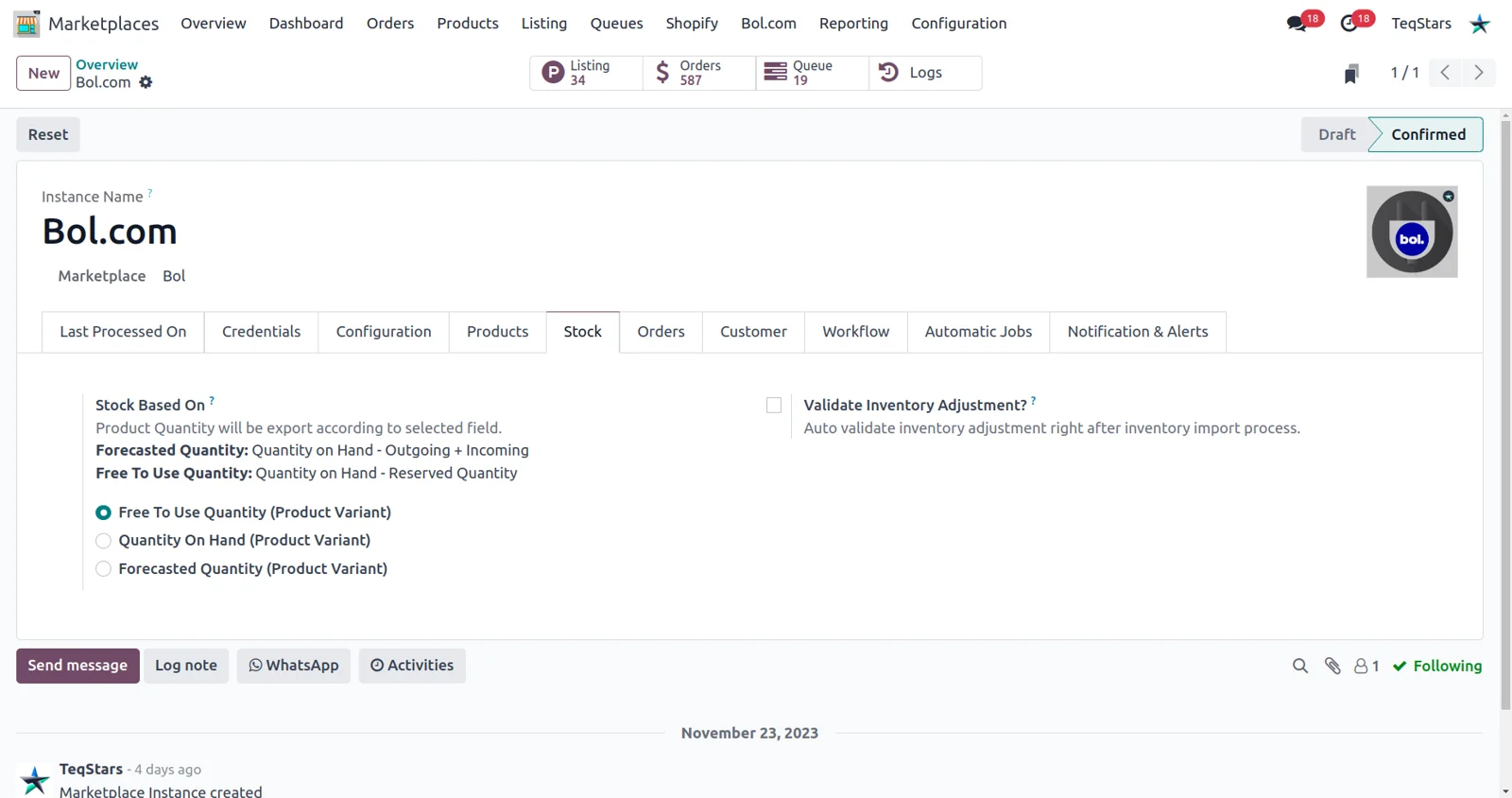
Keep FBR and FBB stock right
Availability on Bol.com follows the fulfillment model you sell with. For FBR, Odoo sends quantities from the warehouse you name, using free to use, on hand or forecasted, whichever you set. Bol.com caps the quantity it accepts at 999 per offer. For FBB, the connector brings the stock Bol.com holds into your FBB warehouse as an inventory adjustment, validated for you when that option is on.
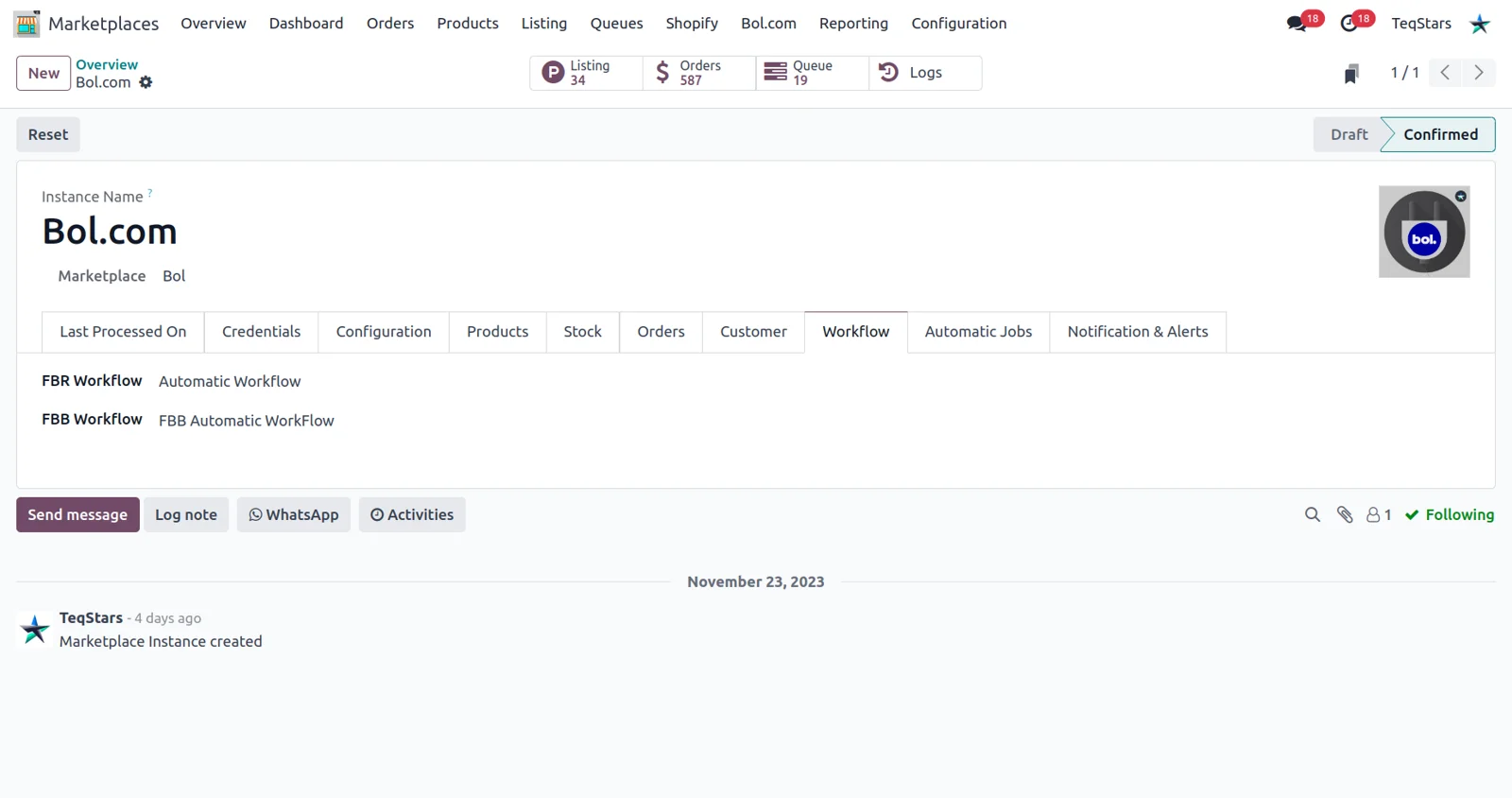
Set what happens to each imported order
Decide up front how far Odoo should take an order once it arrives. FBR and FBB each get their own workflow, so you can confirm the order, create the invoice, validate it and register the payment on one flow while the other follows different rules. The matching workflow is applied while imported orders are created, which keeps sales and accounting steps consistent across both fulfillment types.
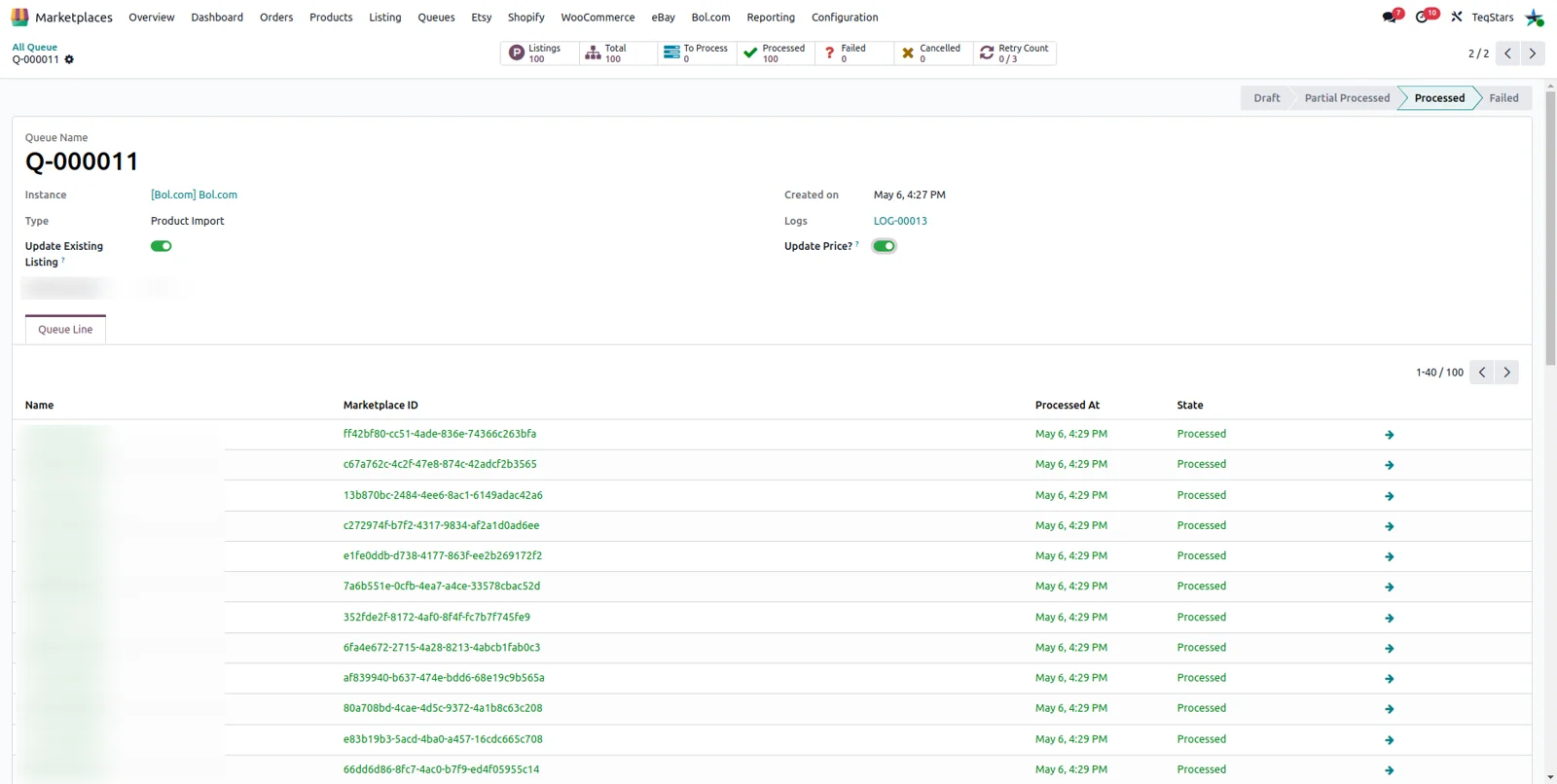
Import your existing Bol.com offers
Bring the offers already live on Bol.com into Odoo as listings and listing items. The connector collects them first and a background job creates the records, so a large catalog does not tie up the server. Offers are matched to Odoo products on barcode, SKU or either, with barcode the recommended choice. Unmatched offers create a product when you allow it, or are skipped and logged.
What buyers say on the Odoo Apps Store
5 out of 5, from10 reviews
Bol.com Connector is rated 5 out of 5 from 10 reviews on the Odoo Apps Store, the latest in .
Read the reviews on the Odoo Apps StoreAs usual we keep using the module of teqstars on our projects. Recommended.
Best Bol.com connector in Odoo
In my opinion Teqstar has the bestBol.comconnector for odoo. Easy to use and lots of settings to ensure a smooth connection. The support they provide is excellent. Keep up the good work!
Erg behulpzaam bij installeren en uitleggen hoe de app werkt, zeker een aanrader
De Bol. connector werkt naadloos. TeqStars assisteerde ons bij de implementatie en was ongelooflijk responsief en behulpzaam. Elke e-mail werd binnen een uur beantwoord. Ik zou niet aarzelen om opnieuw met TeqStars samen te werken. Sterk aanbevolen.
From Monthly Fees to Major Savings: Teqstar Delivers!
I am thoroughly impressed with the bol.com and Odoo integration developed by Teqstar. Not only does it function seamlessly, but it has also proven to be a significant cost-saver for our business. Prior to using Teqstar's solution, we were tied to a monthly subscription that was considerably more expensive. This integration has not only enhanced our operational efficiency but has also provided substantial financial benefits. Kudos to the Teqstar team for creating such a reliable and cost-effective solution!
It's clear they are committed to ensuring customer success.
This module is fantastic! It integrates our Odoo environment seamlessly with the BOL.com marketplace. The app is very stable and performs exactly as expected. The support team is excellent — fast, professional, and always responsive via email and even video calls when needed. It's clear they are committed to ensuring customer success. Highly recommended for anyone looking for a solid BOL.com integration with Odoo!
Great connector
Very goodbol.comconnector. The support from Teqstars is also great.bol.commade a change to their retailer API. We informed Teqstars and the issue was resolved within the hour.
Supported Odoo versions
| Odoo version | Editions | Hosting | Price | Latest release | |
|---|---|---|---|---|---|
| 20.0 | Community & Enterprise | Odoo.sh · On-premise | €499.99 | 20.0.1.0.0 | Buy Docs |
| 19.0 | Community & Enterprise | Odoo.sh · On-premise | €499.99 | 19.0.1.1.4 | Buy Docs |
| 18.0 | Community & Enterprise | Odoo.sh · On-premise | €499.99 | No release notes | Buy |
| 17.0 | Community & Enterprise | Odoo.sh · On-premise | €499.99 | No release notes | Buy |
Support for Bol.com Connector
The developers who build the app answer your tickets.
- Free app support from purchase
- 60 days
- First response in working hours, typical
- 4–6 hours
- Support hours, 10:00–18:00 IST
- Mon–Fri
How to connect Bol.com to Odoo
-
Step 1
Install the connector
Search the Odoo Apps list for the TeqStars Bol.com connector and install it. The shared Base Marketplace module it builds on, covering listings, background jobs and analytics, installs with it at no extra cost.
-
Step 2
Enter your seller credentials
Open the Credentials tab on your Bol.com account record in Odoo and paste the Client ID and Client Secret from your Bol.com seller account. Click Test Connection to confirm Odoo can reach Bol.com.
-
Step 3
Choose FBR, FBB or both
Set Use Operation For to match how you ship. FBR uses your normal warehouse for orders and stock exports. FBB needs a separate FBB warehouse for the orders and stock that come from Bol.com.
-
Step 4
Set matching and workflows
Pick how offers match Odoo products, barcode being the recommended option, and decide whether missing products are created. Then set the FBR and FBB workflows that confirm orders, invoice them and register payment.
-
Step 5
Import offers and orders
Run the offer sync, then import your orders and shipments from the Operations button. Review the results, then switch on the jobs you want for stock, prices, fulfillment status, returns and invoices.
Questions before you buy
Not answered here? Talk to the team.