Your Mirakl orders, listings and stock handled in one Odoo database
Connect your Mirakl Seller Portal to Odoo and import orders, listings and marketplace reference data. Odoo sends your stock levels back, so your offers show what you can actually ship. Tracking reaches Mirakl when you validate the delivery.
- Odoo 17.0 – 19.0
- Community & Enterprise
- Odoo.sh · On-premise
-
Not for
Odoo Online
Top seller on the Odoo Apps Store
- sales on the Odoo Apps Store
- 3,000+
- apps published
- 100+
- countries running them
- 100+
Mirakl selling work before and after the connector
Without the connector by hand
-
Retype every Mirakl order into Odoo by hand.
-
Copy buyer billing and shipping addresses into contact forms.
-
Upload a stock file to the Seller Portal after each change.
-
Paste carrier and tracking numbers into Mirakl, order by order.
-
Check the portal for cancellations before the warehouse ships.
With the connector automatic
-
A schedule you set imports Mirakl orders as sales orders.
-
Creates billing and shipping contacts for each imported order.
-
Exports stock on your schedule, or when you click Export Inventory.
-
Sends carrier and tracking once you validate the delivery.
-
Cancels the Odoo order and delivery, and logs Mirakl's reason.
Orders, listings, stock and tracking between Mirakl and Odoo
Every object the connector handles, which way it travels and what triggers it.
| Data | Direction | What happens & when |
|---|---|---|
| Master data records |

 Mirakl to Odoo
|
You run Import Master Data from the Operations popup. |
| Product listings and offers |
Mirakl to Odoo
|
You run Import Listings/Offers, for all offers or chosen SKUs. |
| Listing prices |
Mirakl to Odoo
|
Listing import with Update Price on; prices go to the marketplace pricelist. |
| Orders |
Mirakl to Odoo
|
Runs on a schedule you set, or you import by date or order ID. |
| Order cancellations |
Mirakl to Odoo
|
Next order sync after the marketplace cancels the order. |
| Stock levels |
Odoo to Mirakl
|
On a schedule you set, or you click Export Inventory. |
| Tracking and shipped status |
Odoo to Mirakl
|
Delivery validated, then the schedule or the Update in Marketplace button. |
Mirakl Connector features
Mirakl orders become Odoo sales orders
Each imported Mirakl order arrives as an Odoo sales order with the product name, quantity and unit price on every line. A separate shipping line is added when Mirakl charges one, and the delivery method is matched on the Mirakl carrier name. Billing and shipping contacts are created separately. Switch on Create Company Contact? and a parent company links both when the buyer gave one.
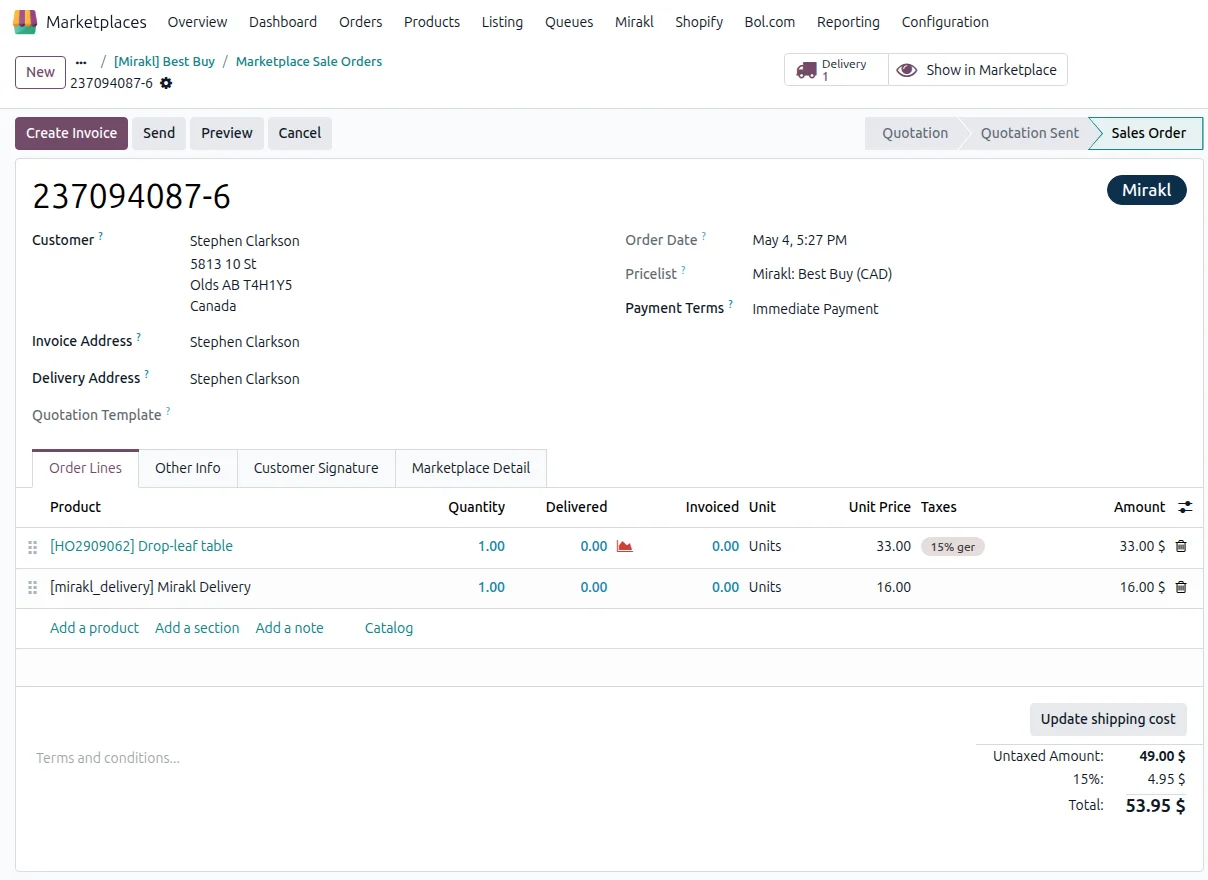
Import Mirakl listings and match by SKU
Your live Mirakl offers come into Odoo as Listing records, linked to Odoo products by SKU. Each listing keeps the product description, the references such as EAN or MPN, and the offer state. Logistic class, shipping zone and channel come across too. When the SKU is new to Odoo, the connector creates the product if Create Product If Not Found is enabled. Import everything, or a few SKUs.
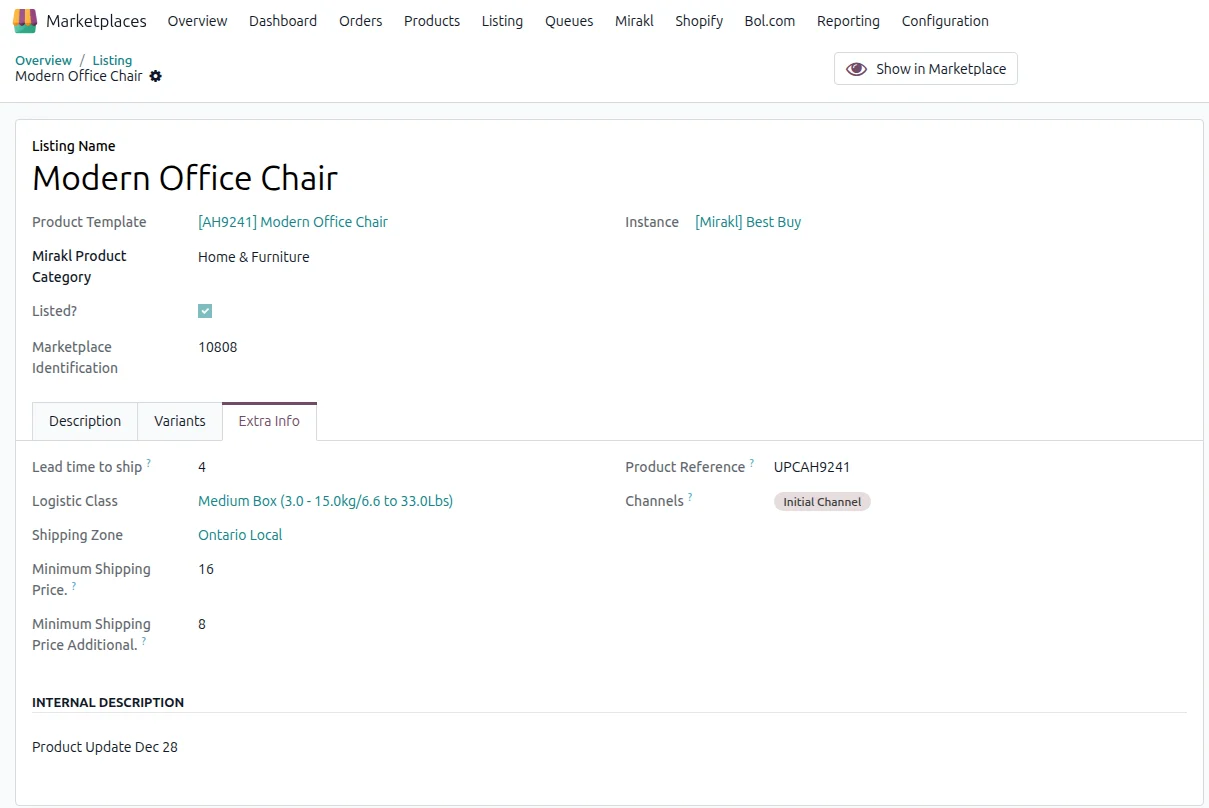
Pull Mirakl reference data into Odoo
One Import Master Data run brings Mirakl's own reference records into Odoo: channels, product categories and shipping zones, plus logistic classes, carriers and offer states. Orders and listings depend on this groundwork, because the connector uses it to resolve carriers and classify offers. Run it when you first set up the shop, and again whenever you add a zone or carrier in the Seller Portal.
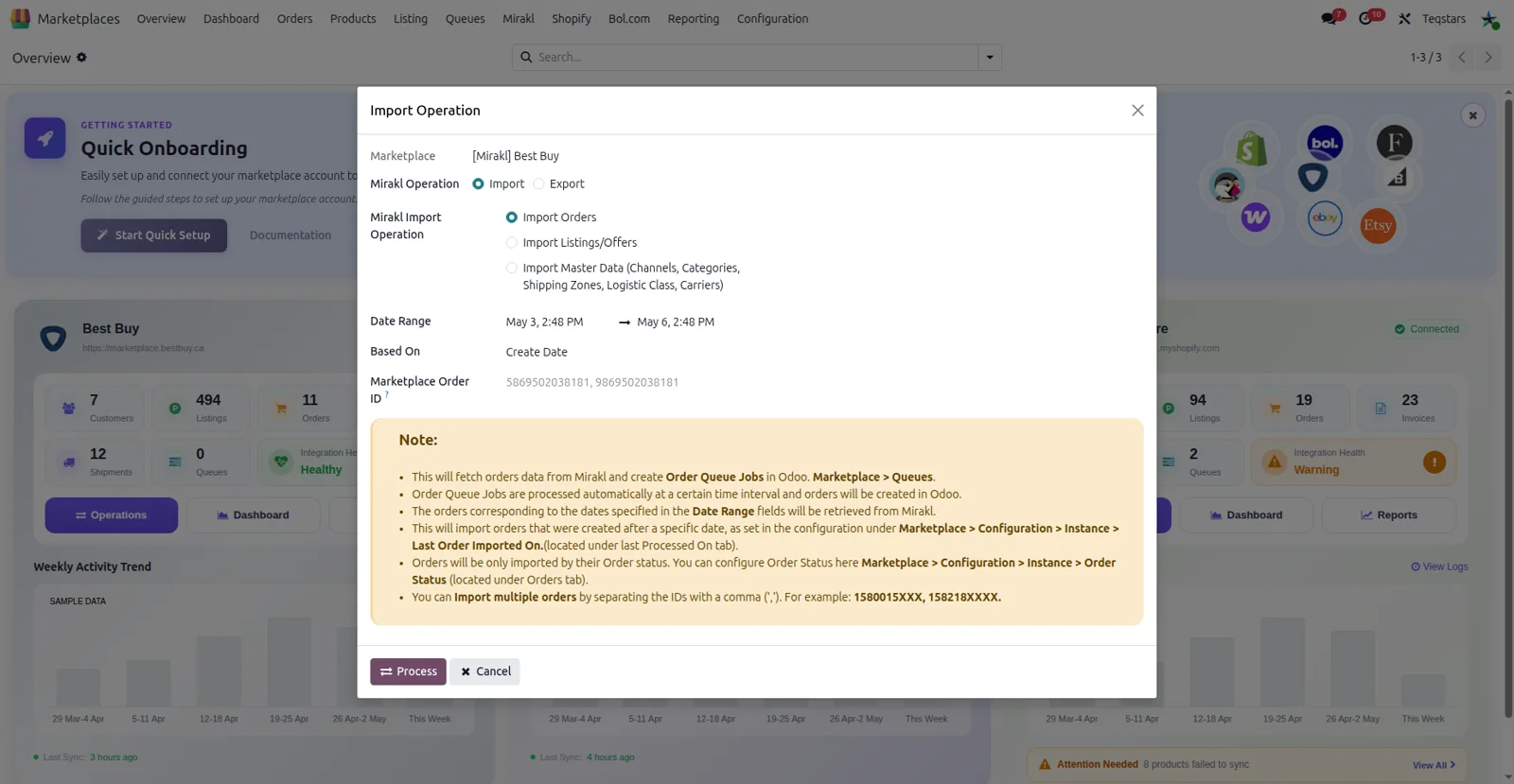
Send Odoo stock to your offers
Your Mirakl offers show what the warehouse can actually ship. The connector works out each quantity from the warehouse you choose and the Stock Based On setting, which can be quantity on hand, free to use or forecasted. Only storable products are included. The figures go up to Mirakl in bulk files, on the schedule you set or when you run Export Inventory yourself.
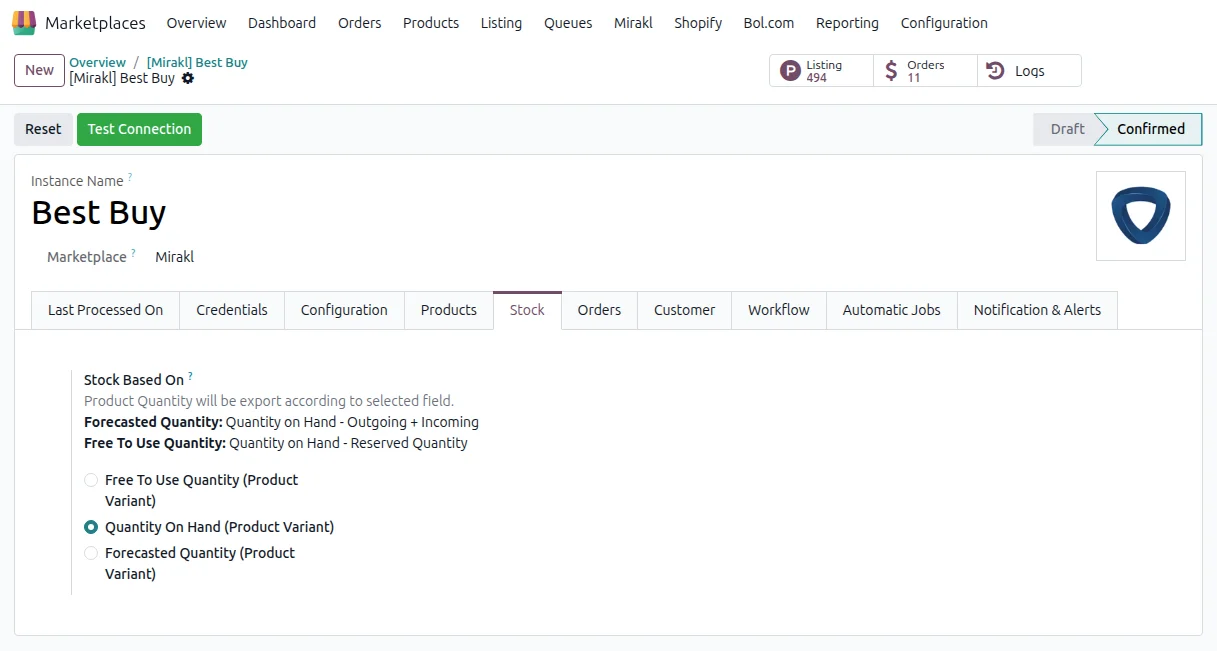
Push tracking and mark orders shipped
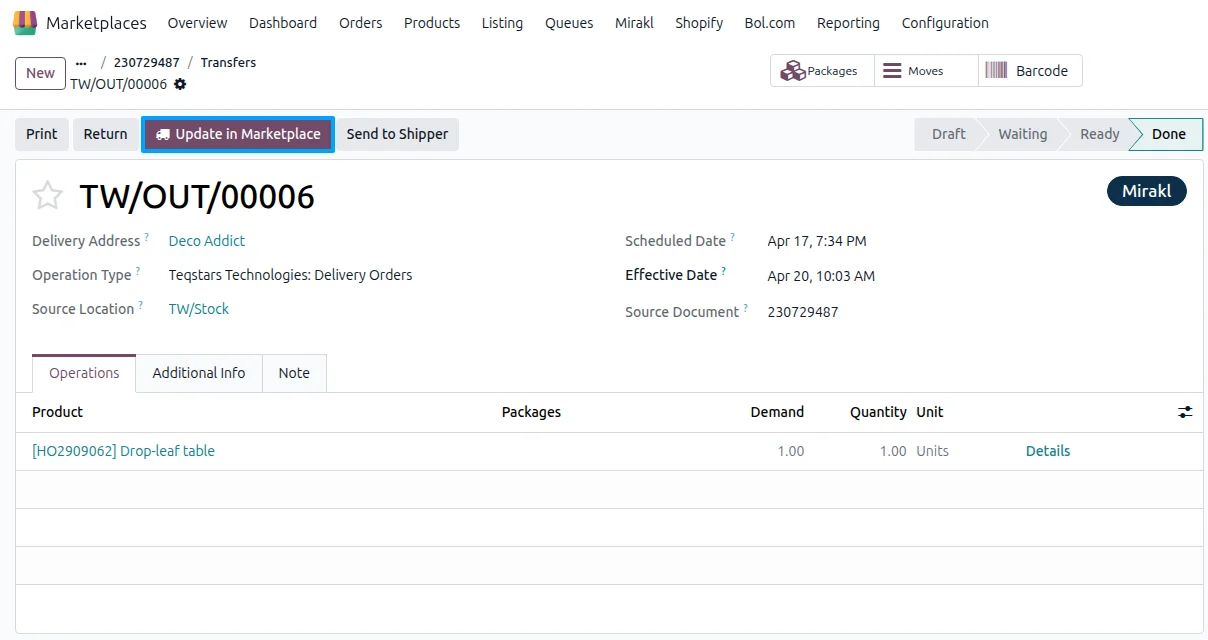
Validate the delivery in Odoo and the connector sends the carrier and tracking number to Mirakl, then marks the order SHIPPED. Press Update in Marketplace on the picking to push one shipment straight away, or leave it to the schedule. Only deliveries in the Done state qualify. Orders already canceled, shipped, received or closed on Mirakl are skipped, so nothing is sent twice.
Confirm, invoice and pay automatically
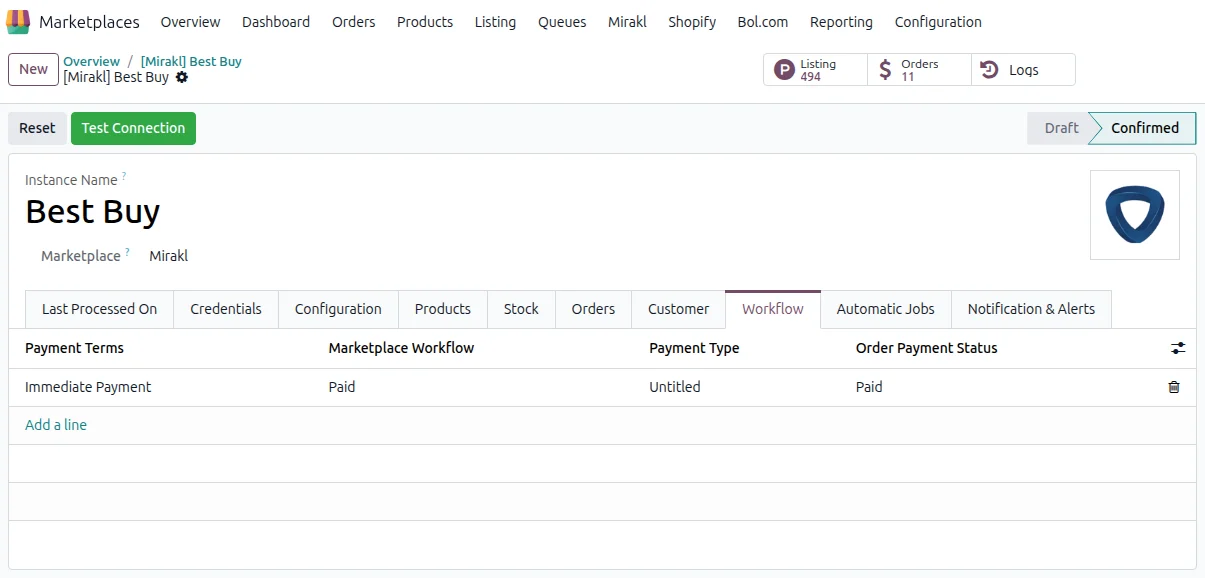
Decide how far each imported order should travel on its own. The connector matches the order's payment type and financial status, paid, unpaid or any, to a workflow record you set up once. That workflow confirms the sales order, creates the invoice, registers the payment and assigns the customer payment term. If nothing matches, the import stops for that order and says why.
See and retry failed import lines
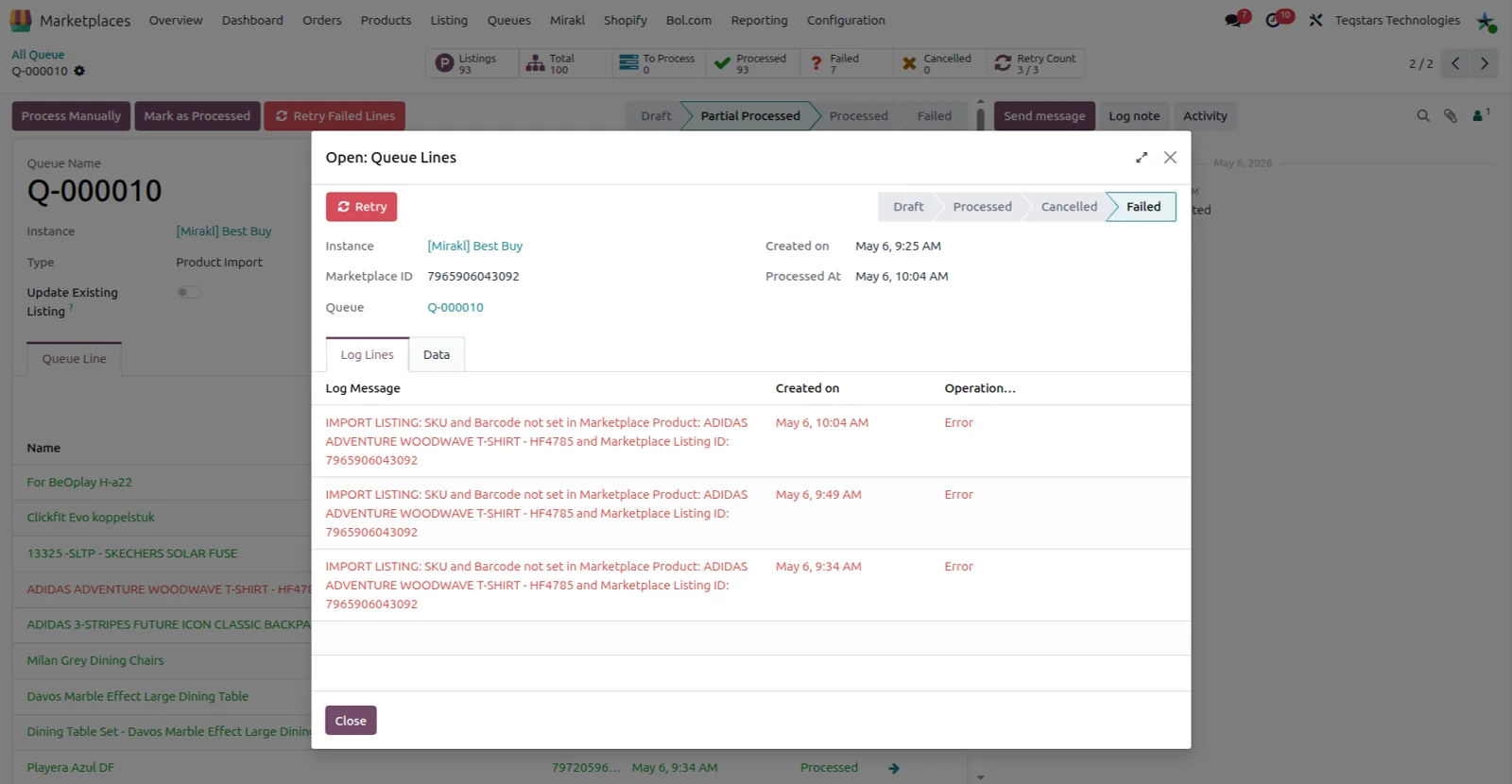
Bulk imports run in the background, so Odoo stays responsive during a big sync. If one order or listing fails, the rest keep processing and the failed line shows the exact error message. Fix the cause, then retry that single line. Every import and export result is recorded under Marketplaces, Queues, Logs, which is also where you look when a tracking push fails.
Supported Odoo versions
| Odoo version | Editions | Hosting | Price | Latest release | |
|---|---|---|---|---|---|
| 19.0 | Community & Enterprise | Odoo.sh · On-premise | €920 | 19.0.1.0.7 | Buy Docs |
| 18.0 | Community & Enterprise | Odoo.sh · On-premise | €920 | No release notes | Buy |
| 17.0 | Community & Enterprise | Odoo.sh · On-premise | €920 | No release notes | Buy |
Support for Mirakl Connector
The developers who build the app answer your tickets.
- Free app support from purchase
- 60 days
- First response in working hours, typical
- 4–6 hours
- Support hours, 10:00–18:00 IST
- Mon–Fri
How to connect Mirakl to Odoo
-
Step 1
Collect your credentials
In the Mirakl Seller Center, open My Account, then Settings, then API Key. Note the API Key, the Marketplace URL and the Shop ID. You paste all three into Odoo next.
-
Step 2
Install and add your shop
Install Mirakl Connector by TeqStars from the Apps menu. Open Marketplace, then Instances, create a record and paste the credentials. Set the company, warehouse, payment term and order status filter, then click Test Connection.
-
Step 3
Import master data and map carriers
Run Operations, then Import Master Data to bring in channels, categories, shipping zones, logistic classes and carriers. In Inventory, link each Odoo delivery carrier to its Mirakl code so tracking pushes work later.
-
Step 4
Set the order workflow
Map each Mirakl payment type to an Odoo workflow. Choose which steps run for those orders: confirm the sales order, validate the picking, create the invoice and register the payment.
-
Step 5
Import listings and a first order
Run Import Listings/Offers for the whole catalog or a single SKU, updating existing listings and prices if you want. Then import orders by date range or by a specific Mirakl order number.
Questions before you buy
Not answered here? Talk to the team.