Send Brevo campaigns with your Odoo contacts, products and orders in sync
Brevo, formerly Sendinblue, does the sending while Odoo keeps the contact data. This Brevo Odoo integration syncs lists, templates and campaigns both ways, and sends your products and sales orders across so Brevo can report on real revenue.
- Odoo 17.0 – 20.0
- Community & Enterprise
- Odoo.sh · On-premise
-
Not for
Odoo Online
Official Brevo Partner Since Oct 2025
Top seller on the Odoo Apps Store
- sales on the Odoo Apps Store
- 3,000+
- apps published
- 100+
- countries running them
- 100+
Email marketing work before and after the Brevo Connector
Without the connector by hand
-
Copy new Odoo customers into Brevo lists one address at a time.
-
Retype unsubscribes and blocked addresses from Brevo into Odoo.
-
Open Brevo to see how yesterday's campaign performed.
-
Rebuild the same email design twice, once in each tool.
-
Keep a spreadsheet of order revenue to segment your audience.
-
Guess which address broke a failed bulk export.
With the connector automatic
-
Turn on auto export with a filter, and the hourly job sends matching contacts.
-
Brevo blacklists become an Odoo blacklist entry or an opt-out on the subscription line.
-
Opens, clicks, bounces and tracked links show on the Odoo mailing.
-
Import a Brevo template once, then pick it on any Odoo mailing.
-
Click Export/Update To Brevo on an order, or let the daily job send confirmed ones.
-
Brevo Logs name the record and the reason, and the batch carries on.
Contacts, campaigns and ecommerce data between Odoo and Brevo
Every object the connector handles, which way it travels and what triggers it.
| Data | Direction | What happens & when |
|---|---|---|
| Contacts and members |

 Both ways
|
Fetch Members on a list, the list sync schedule, or Export/Update To Brevo. |
| Mailing lists and audiences |
Both ways
|
Import from Brevo Operations, or click Export In Brevo on an Odoo list. |
| Folders |
Both ways
|
Imported with the Email Marketing operation, or picked when you export a list. |
| Contact attributes |
Brevo to Odoo
|
Fetch Merge Fields on the account, or step three of Quick Setup. |
| Email templates |
Both ways
|
Import through Brevo Operations, or click Export in Brevo on a template. |
| Senders |
Both ways
|
Import through Brevo Operations, or use Export and Update(Brevo) on a sender. |
| Campaigns |
Both ways
|
Import by date range, or click Send or Schedule on an Odoo mailing. |
| Campaign statistics |
Brevo to Odoo
|
Live Sync events, the scheduled import, or Fetch Report from Brevo. |
| Unsubscribes and blacklists |
Both ways
|
Contact sync, and Live Sync unsubscribe events on sent campaigns. |
| Product categories |
Both ways
|
Product and Sales operation, or Export/Update To Brevo on a category. |
| Products and variants |
Both ways
|
Product and Sales operation, with each variant matched by SKU. |
| Sales orders |
Odoo to Brevo
|
Export/Update To Brevo on the order, or the daily export of confirmed orders. |
Brevo Connector (formerly Sendinblue) features
Brevo lists become Odoo mailing lists
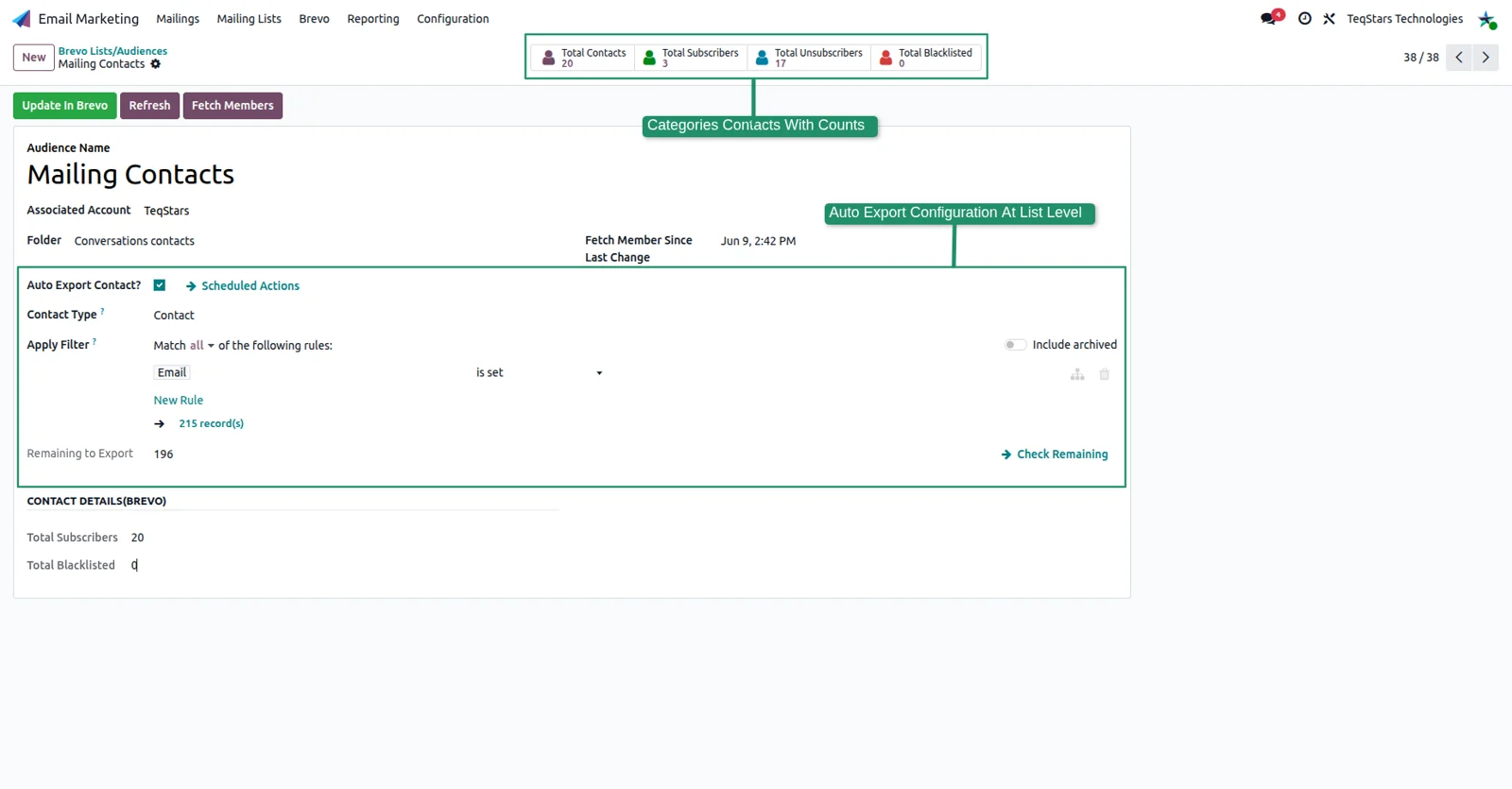
Each Brevo list arrives in Odoo as a native mailing list, showing its folder and its totals for contacts, subscribers, unsubscribers and blacklisted addresses. Run the import from Brevo Operations with the Email Marketing operation type. Fetch Members pulls that list's contacts in background batches of 500, and Export In Brevo creates a list you built in Odoo on the Brevo side.
Decide how contacts are created
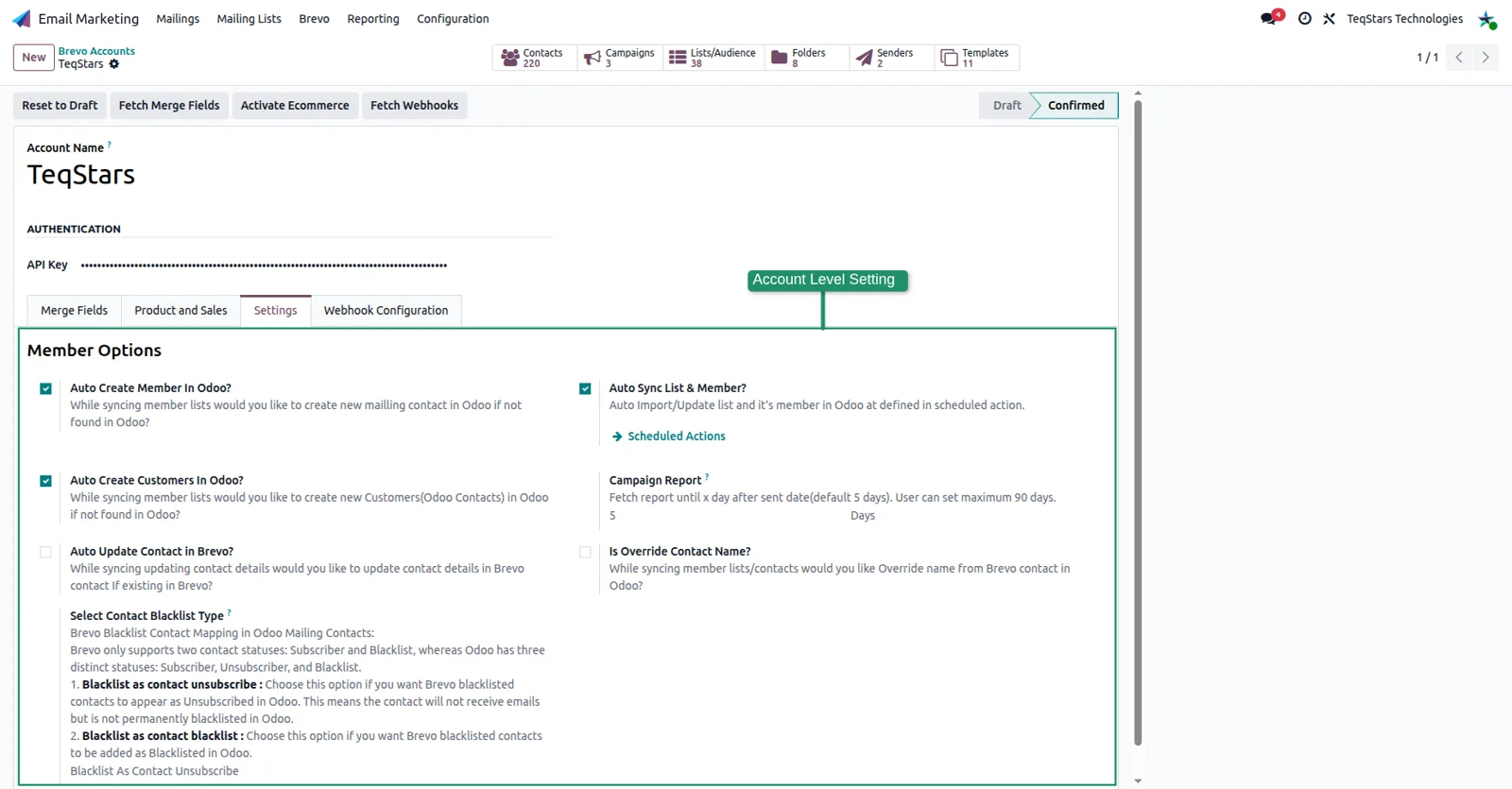
The account's Settings tab controls what a sync does to your database. Auto Create Member makes a mailing contact for every new Brevo contact, and Auto Create Customers adds a customer record too when you want them in CRM and sales. Auto Update Contact in Brevo sends name, email and mapped field changes back. The blacklist setting chooses between an Odoo blacklist entry and an opt-out line.
Map Brevo attributes to Odoo fields
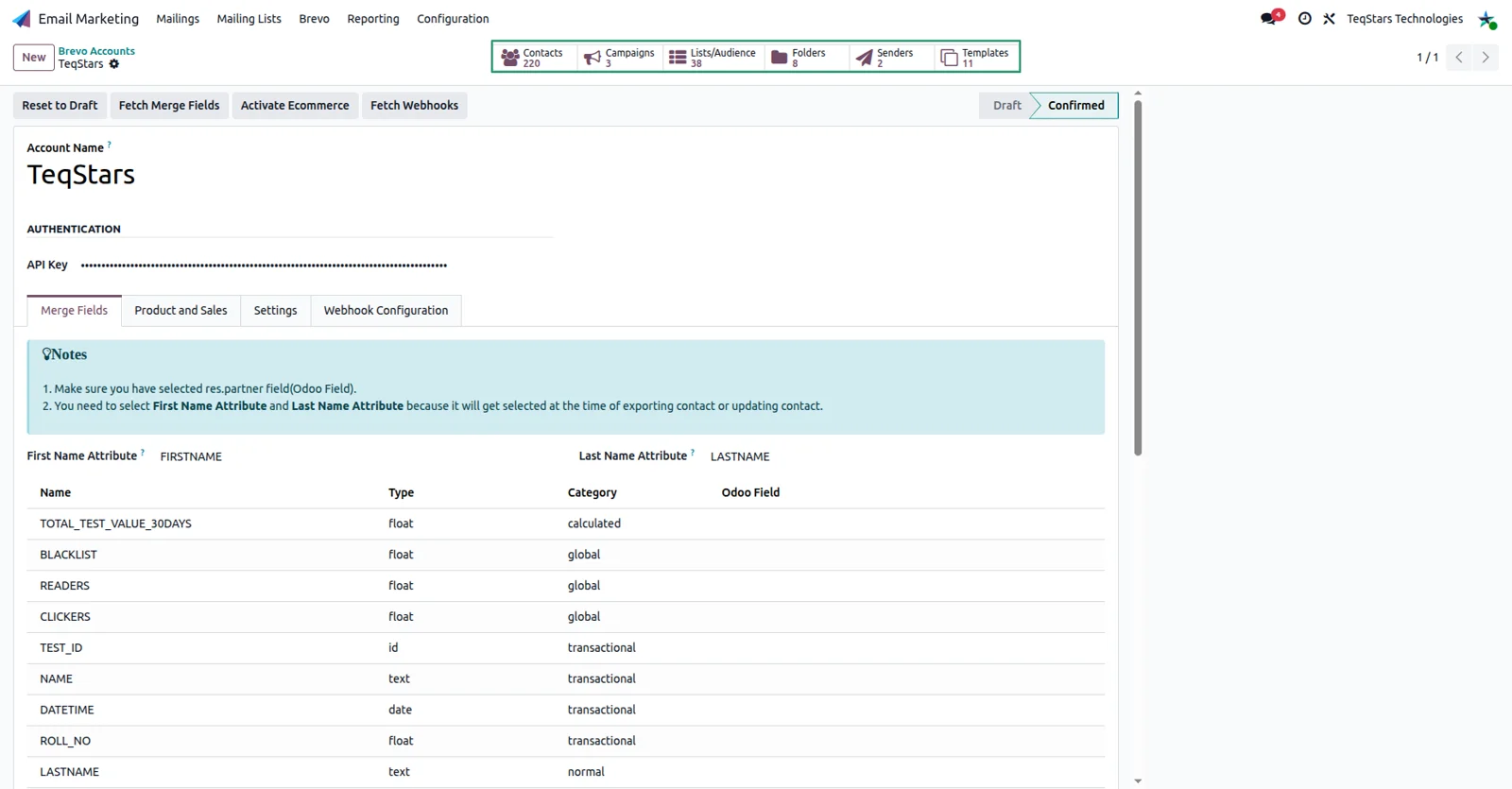
The Merge Fields tab lists every Brevo contact attribute with its type and category, so you can point each one at the Odoo field that holds the same value. First Name Attribute and Last Name Attribute are required, and both are applied whenever a contact is exported or updated. Click Fetch Merge Fields to refresh the list after adding attributes in Brevo. Address attributes need no mapping.
Build and send campaigns in Odoo
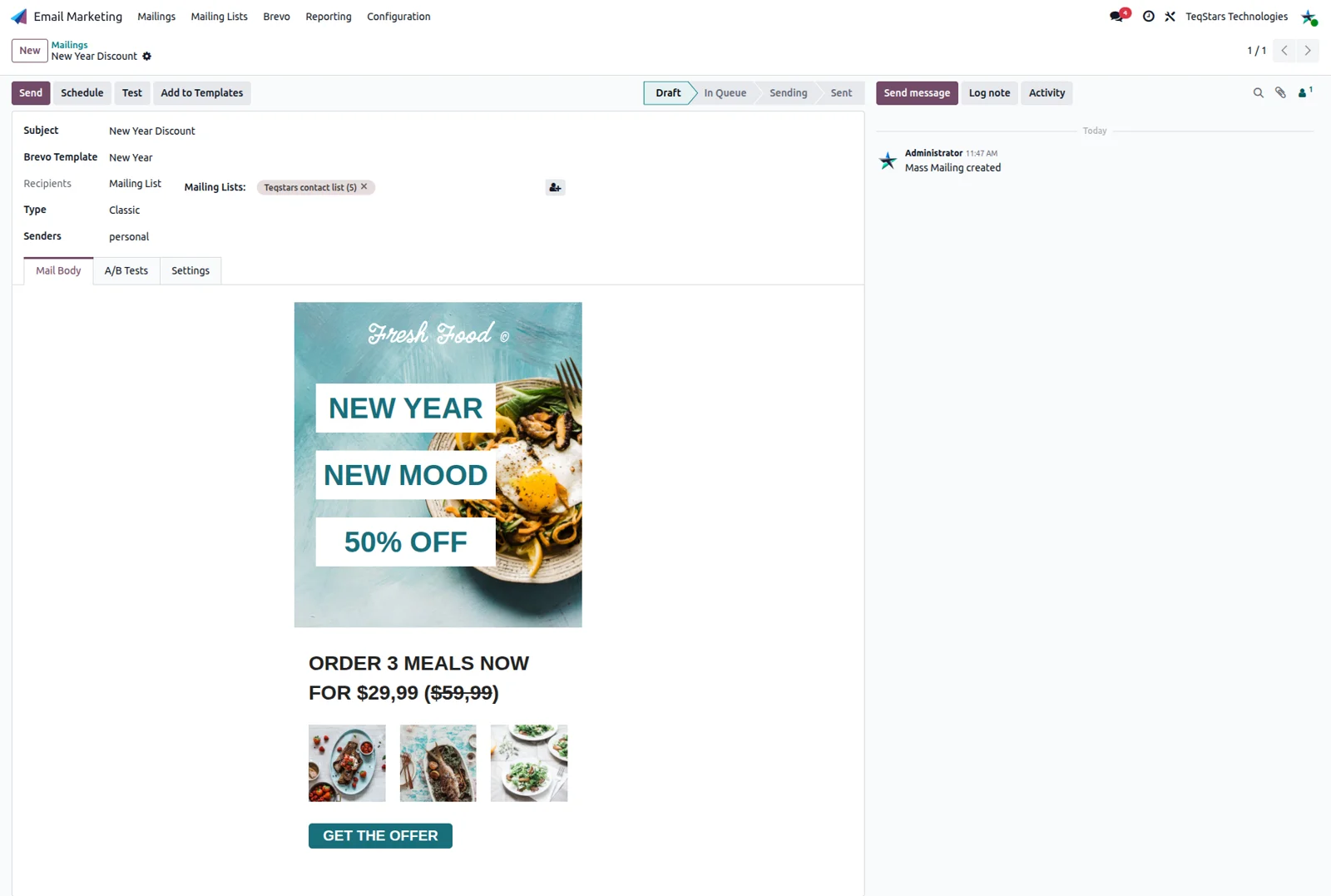
Create a mailing in Email Marketing, set the subject, then choose a Brevo Template, a Brevo list as recipients and a verified sender. Picking the template routes the mailing through Brevo and loads its design. Send delivers it right away, Schedule hands Brevo a date and time to send at, and Test mails a copy to the addresses you enter so you can check the layout.
Read campaign results on the mailing
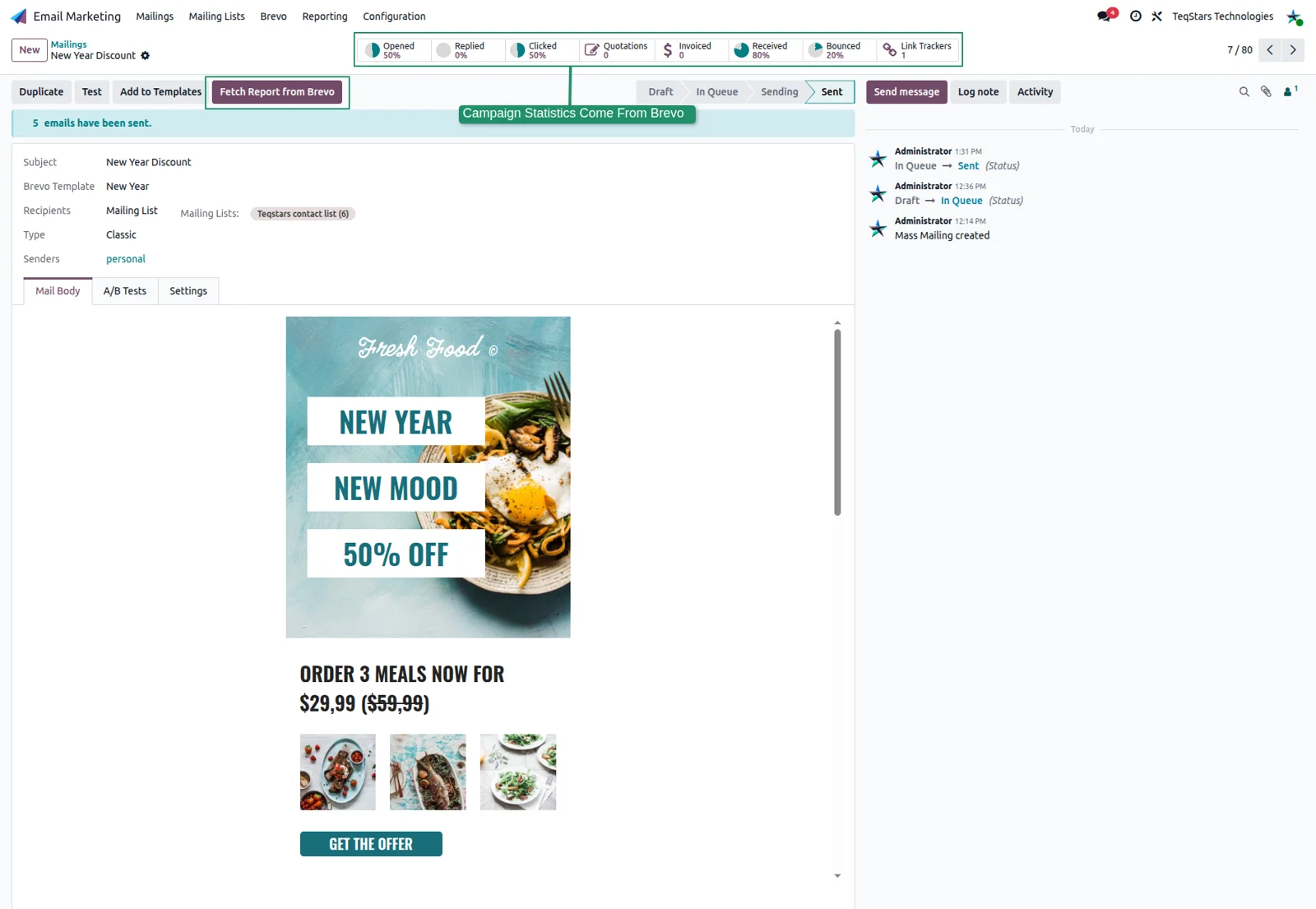
Opens, clicks, bounces, received counts and each tracked link show at the top of the Odoo mailing, so your team reviews performance where the campaign was built. The account's Campaign Report setting decides how long Odoo keeps pulling those figures after a send: five days by default, and up to 90 days for longer runs. Fetch Report from Brevo refreshes the numbers whenever you ask.
Turn on Live Sync for instant stats
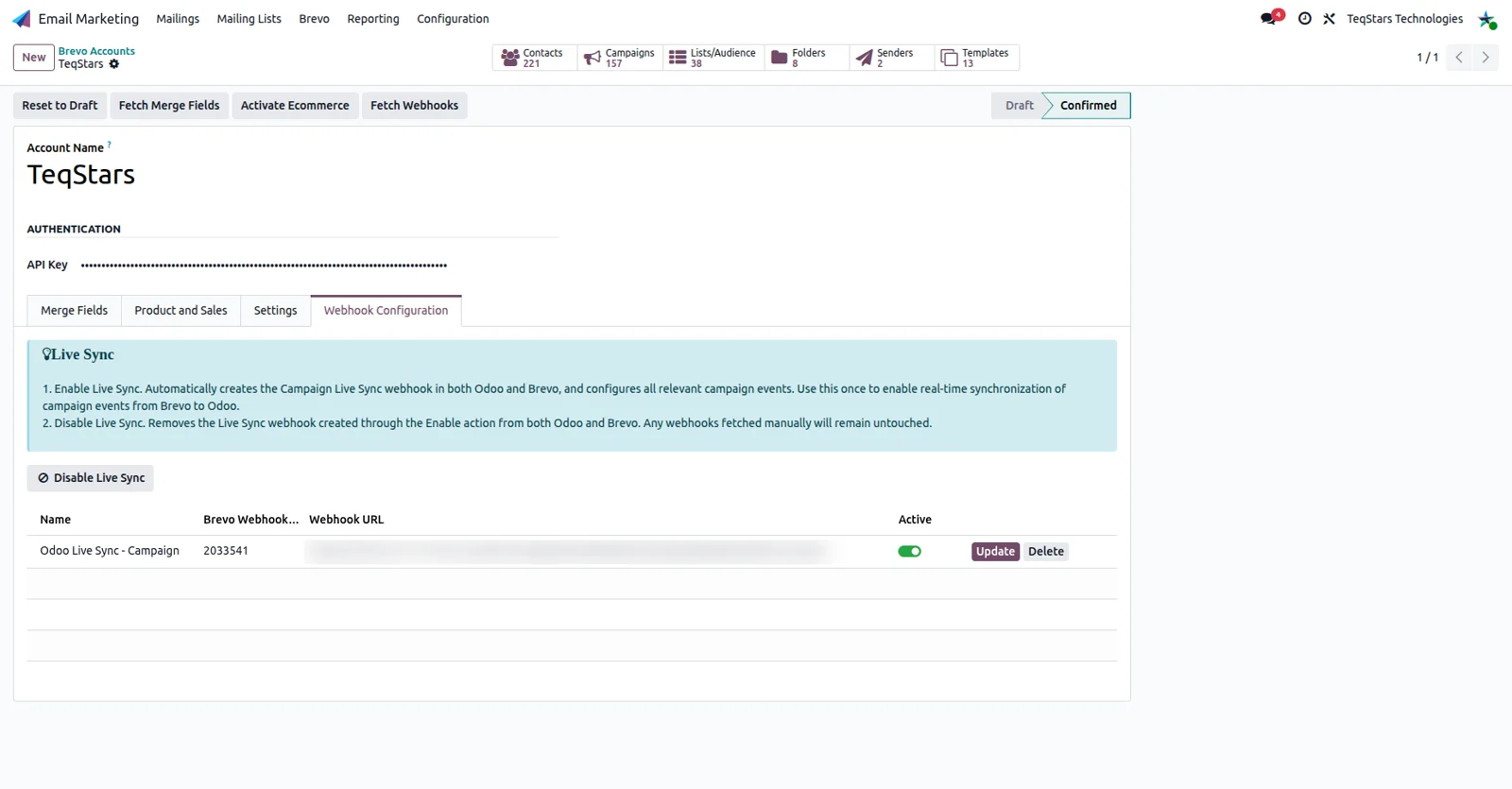
Live Sync updates campaign figures and contact states the moment something happens in Brevo, instead of waiting for the next scheduled run. One click on the Webhook Configuration tab sets up the campaign-event link in both systems. Deliveries, opens, clicks, hard and soft bounces and unsubscribes update the matching mailing traces and contacts. Your Odoo site has to be reachable over HTTPS for Brevo to send the events.
Send sales orders to Brevo
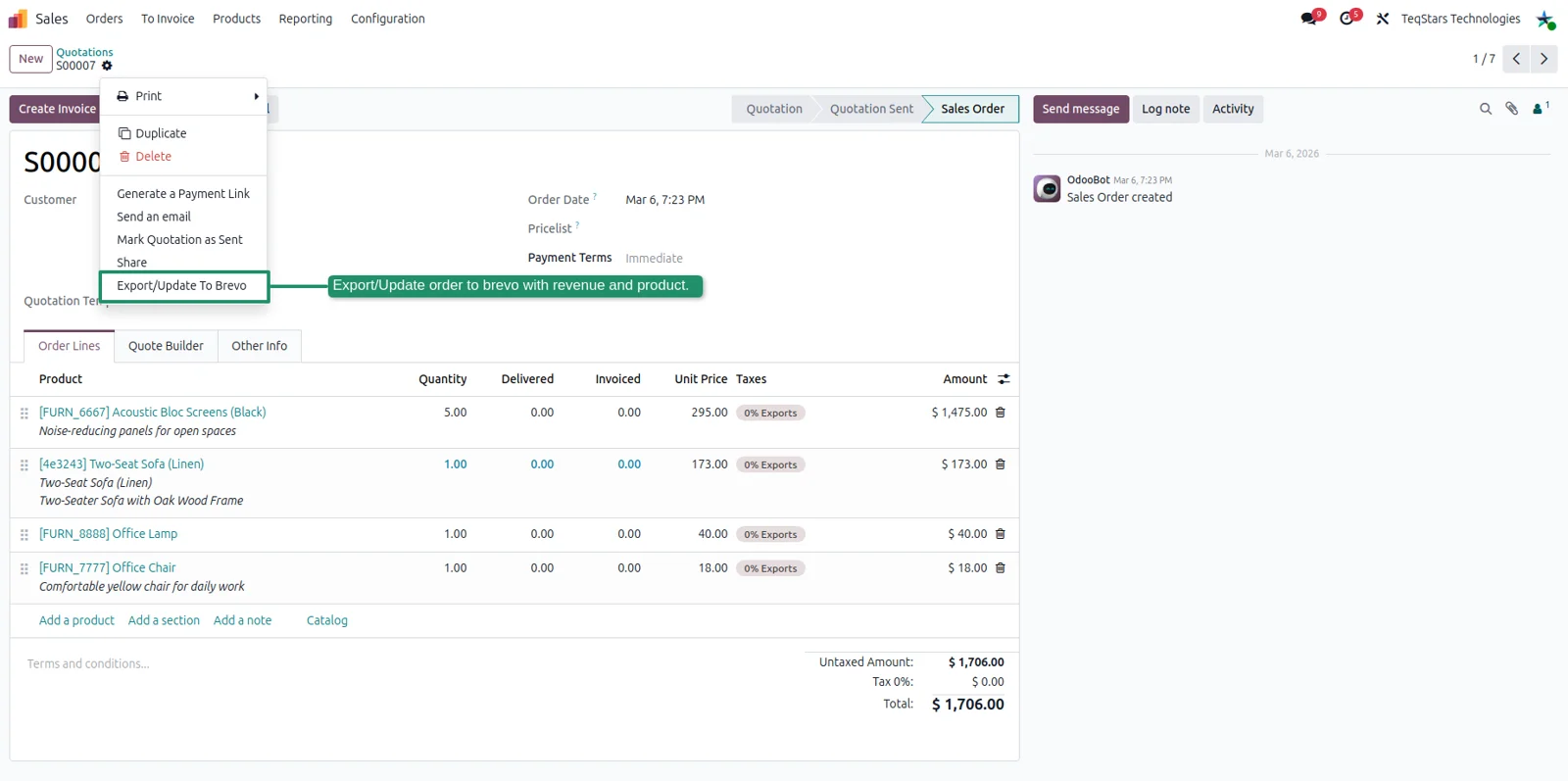
Open a sales order, use the cog menu and choose Export/Update To Brevo. The order goes across with its amount and product lines, attached to the customer's Brevo contact, so Brevo can segment by spend and trigger purchase-based automations. Order states are mapped: a quotation shows as Quote, a confirmed order as Confirmed, an invoiced one as Completed. A daily job exports confirmed orders on its own.
Run any import or export from one wizard
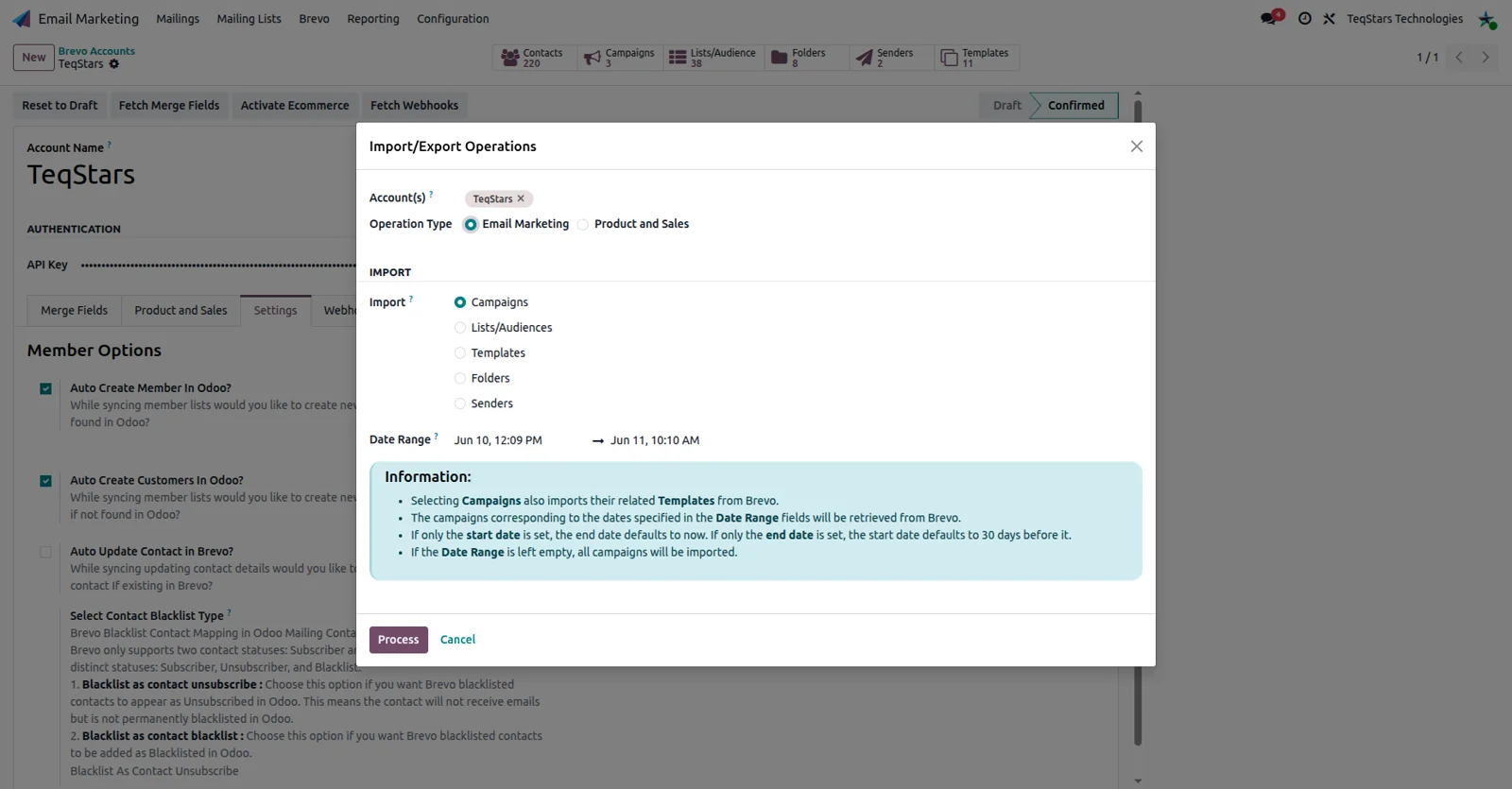
Brevo Operations is the single place to move data on demand. Pick the accounts, choose Email Marketing for campaigns, lists, templates, folders and senders, or Product and Sales for categories and products, then click Process. A date range limits which campaigns come in, and leaving it empty brings all of them. Typing Brevo product IDs re-syncs just those items instead of the whole catalog.
What buyers say on the Odoo Apps Store
5 out of 5, from11 reviews
Brevo Connector (formerly Sendinblue) is rated 5 out of 5 from 11 reviews on the Odoo Apps Store, the latest in .
Read the reviews on the Odoo Apps Storeparfait
Merci à l'équipe Tesqstar pour son super accompagnement dans l'intégration d'odoo & brevo ! Gops a été super. Merci Estelle
Excellent collaboration with Teqstar on our Odoo project
We’ve been working with Teqstar to configure and deploy Odoo, and the experience has been outstanding from day one.
Their team is highly professional, responsive, and truly attentive to our operational needs. They don’t just implement an ERP system — they take the time to fully understand our business and processes to deliver a solution that actually fits the way we work.
Communication is clear, projects move fast, and their functional and technical expertise really shows. They always bring pragmatic, business-oriented solutions.
A reliable partner we highly recommend without hesitation.
Supported Odoo versions
| Odoo version | Editions | Hosting | Price | Latest release | |
|---|---|---|---|---|---|
| 20.0 | Community & Enterprise | Odoo.sh · On-premise | €299 | 20.0.1.0.1 | Buy Docs |
| 19.0 | Community & Enterprise | Odoo.sh · On-premise | €299 | 19.0.1.0.15 | Buy Docs |
| 18.0 | Community & Enterprise | Odoo.sh · On-premise | €299 | No release notes | Buy |
| 17.0 | Community & Enterprise | Odoo.sh · On-premise | €299 | No release notes | Buy |
Support for Brevo Connector (formerly Sendinblue)
The developers who build the app answer your tickets.
- Free app support from purchase
- 60 days
- First response in working hours, typical
- 4–6 hours
- Support hours, 10:00–18:00 IST
- Mon–Fri
How to connect Brevo to Odoo
-
Step 1
Create the key in Brevo
Sign in at brevo.com, open SMTP & API, then API Keys & MCP. Click Generate API key, label it something you will recognize and copy it. Brevo displays the full key only once, so store it safely.
-
Step 2
Add the account in Odoo
In the Email Marketing app, go to Brevo, then Accounts, and click New. Give the account a name and paste the key into the API Key field. Confirm checks it against Brevo and moves the account to Confirmed.
-
Step 3
Run the Quick Setup wizard
Click Quick Setup for five guided steps. Test the connection, choose mailing contacts only or contacts plus customers, map your fields, then link each Brevo list to an Odoo list, and click Finish.
-
Step 4
Switch on real time and ecommerce
On the confirmed account, open Webhook Configuration and click Enable Live Sync for instant campaign events, which needs a public HTTPS address. Click Activate Ecommerce once if you also want to send products and orders.
Questions before you buy
Not answered here? Talk to the team.