How a German Spice and Tea Business Runs Shopify Orders, iPad Picking and DHL Shipping in Odoo
Web shop and Amazon orders reach an iPad picking screen built for speed, and DHL labels print in picking order.
Your Shopify orders, stock and payouts handled in Odoo
This Shopify Odoo integration imports orders, customers and payout reports, then sends stock, prices and tracking back to your store. Returns, refunds and cancellations start in Odoo. Connect as many Shopify stores as you sell through.
Top seller on the Odoo Apps Store
Every object the connector handles, which way it travels and what triggers it.
| Data | Direction | What happens & when |
|---|---|---|
| Products and variants |

 Both ways
|
Import or export from the Operations button, or sync a single listing. |
| Product prices |
Both ways
|
Export on a schedule or as prices change; imported prices fill a pricelist. |
| Inventory quantities |
Both ways
|
Export on your schedule or when Odoo stock changes; import on demand. |
| Collections |
Both ways
|
Import all store collections, or export one once it has sources and products. |
| Catalogs and B2B price lists |
Both ways
|
Import market catalogs, then send quantity rules and volume pricing back. |
| Customers |
Shopify to Odoo
|
Import Customers operation or a schedule; only customers changed since the last run. |
| Orders |
Shopify to Odoo
|
Manual import by date range, a schedule you set, or a store update. |
| Order and customer metafields |
Shopify to Odoo
|
Read during order and customer imports when the mapping shows Ready. |
| Fulfillment status and tracking |
Odoo to Shopify
|
You validate the delivery and press Update in Marketplace, or a scheduled export runs. |
| Order payment status |
Odoo to Shopify
|
Order fully paid in Odoo while Mark Order as Paid is enabled. |
| Refunds |
Odoo to Shopify
|
You click Refund in Shopify on a posted credit note. |
| Order cancellation |
Odoo to Shopify
|
You cancel in Odoo, then confirm the Cancel In Shopify wizard. |
| Returns |
Both ways
|
Import by date, schedule or store update; create one from a done delivery. |
| Payout reports |
Shopify to Odoo
|
Import a date range, or a daily job you switch on. |
| Store locations |
Shopify to Odoo
|
Run the location import, then map each one to an Odoo warehouse. |
Every imported order arrives with its product lines, shipping cost, discount line and taxes, so your team works the order in Odoo. Run Import Orders for a date range, or for single order IDs, and set a schedule to pick up new ones. Orders come in by fulfillment status. When Shopify already fulfilled an order, Odoo records the stock move instead of creating a delivery.
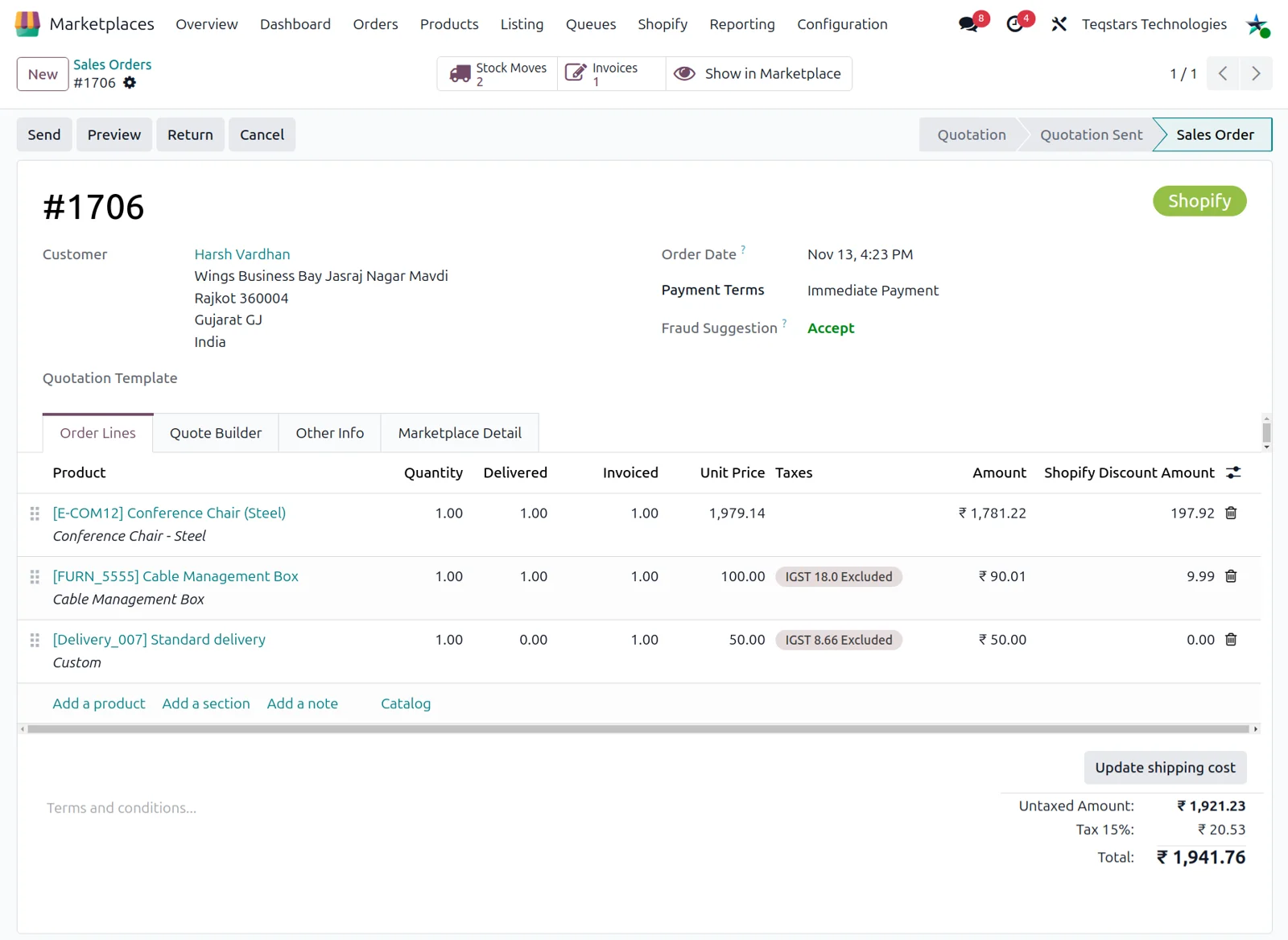
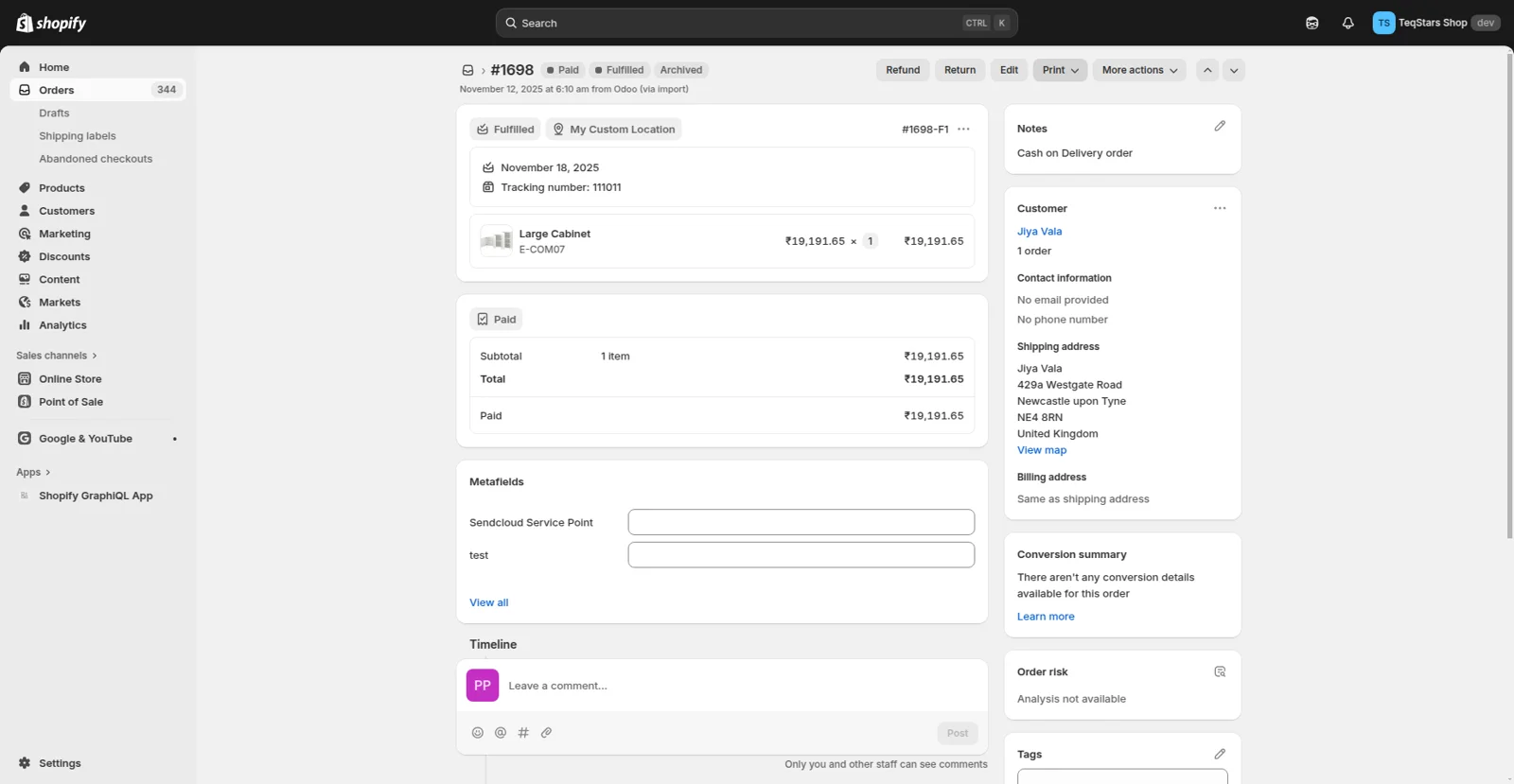
Your buyer sees the order fulfilled with a tracking number as soon as you finish shipping in Odoo. Add the tracking details, validate the delivery, then press Update in Marketplace. Store pickup orders get their own buttons, so one click sets Ready for Pickup and later Mark as Picked up in both systems. A scheduled export can cover many orders at once.
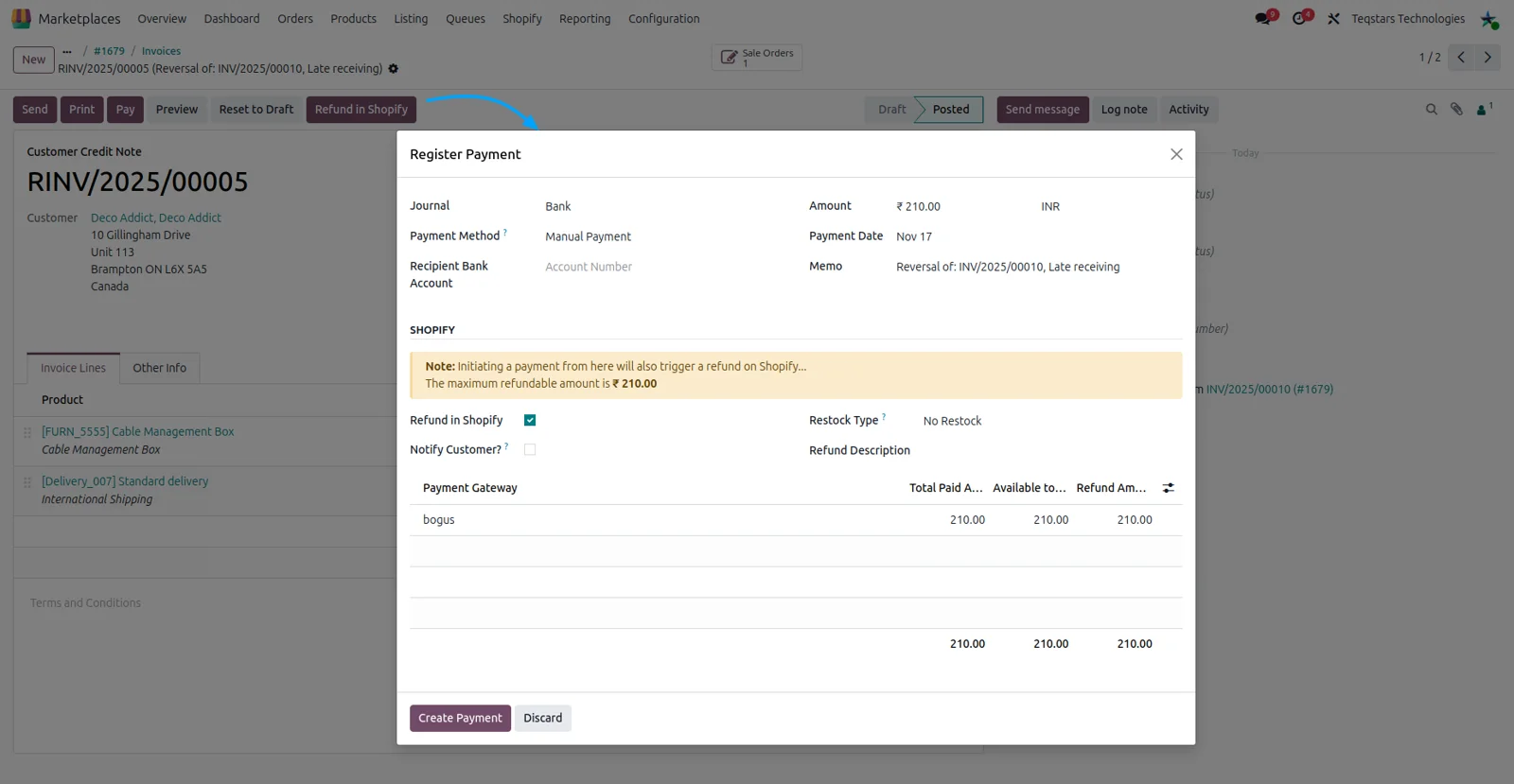
Refunds recorded in Odoo reach the store with the same figures. Post a credit note against the Shopify order and click Refund in Shopify. If an amount is still outstanding, Odoo opens Register Payment, where you tick Refund in Shopify, choose whether to notify the customer and split the amount across payments. Odoo warns you when the Shopify total and the registered amount differ.
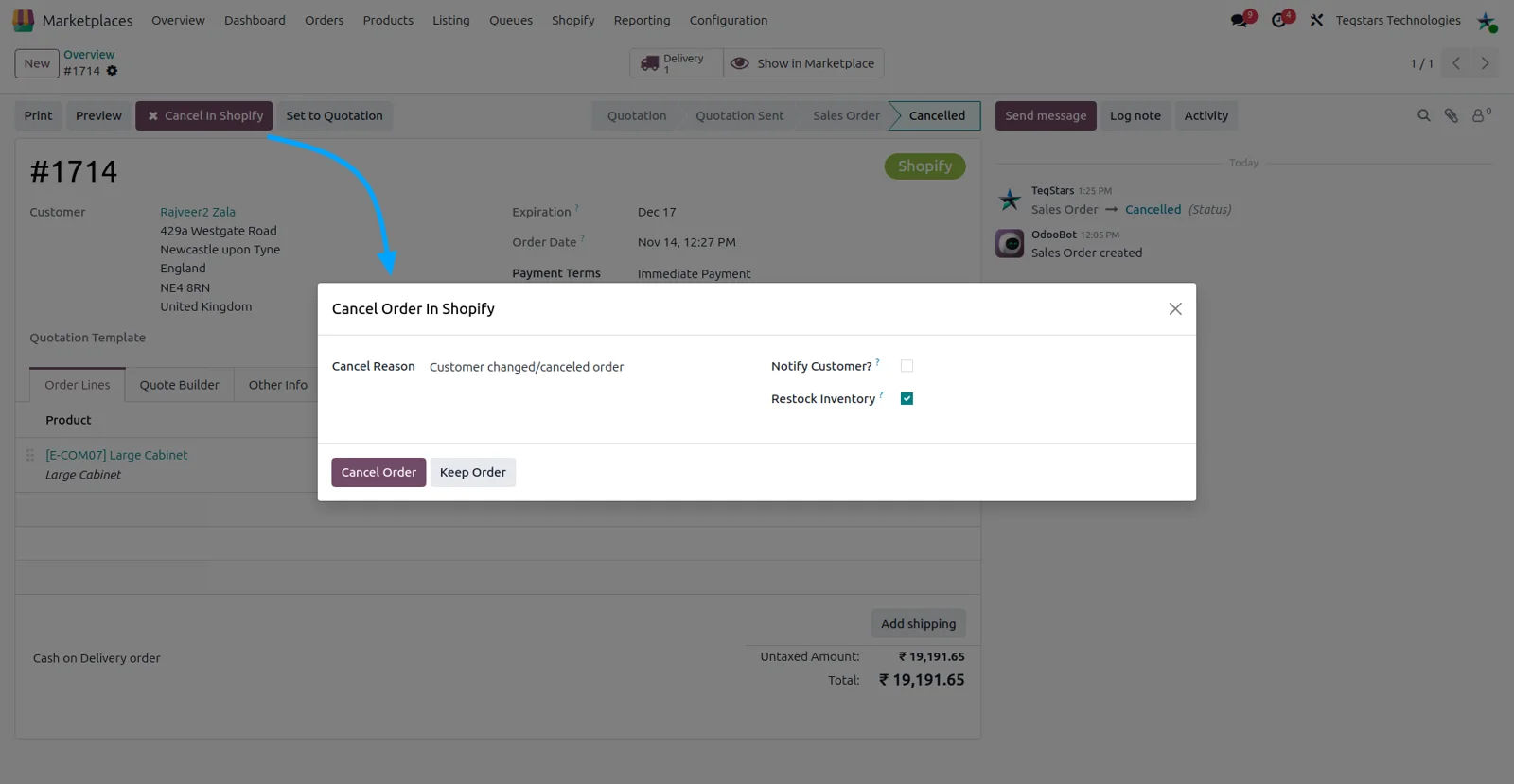
Cancel the sale order in Odoo first, then open it and click Cancel In Shopify. The wizard asks for a reason, such as item unavailable, payment declined or fraudulent order, and lets you email the customer. Restock inventory and refund payments appear only when the order's payment and fulfillment status allow them. Keep Order closes the wizard and sends nothing.
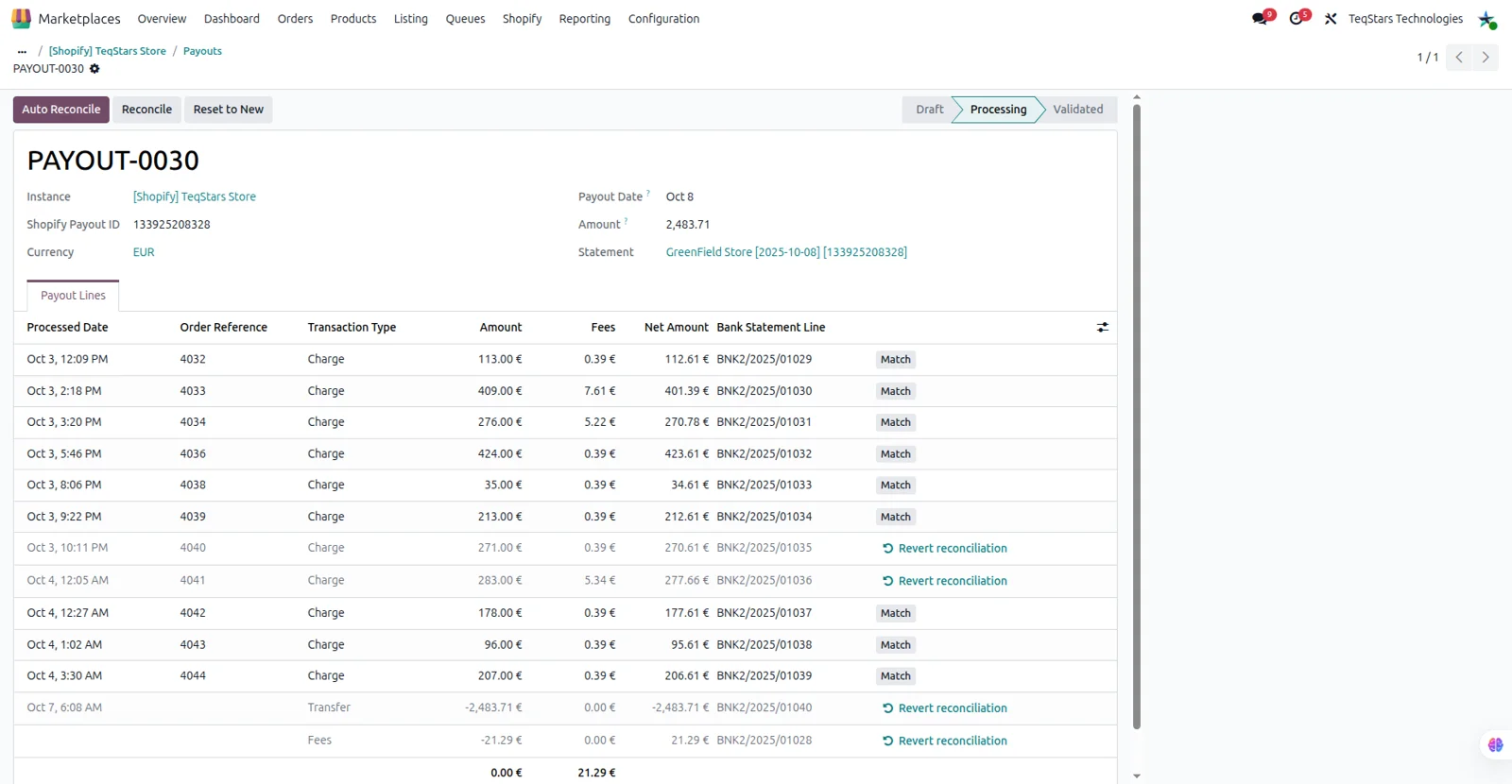
Payouts come into Odoo as records with one line per charge, refund or fee, ready to match against your bank. Import a date range, or switch on a daily job for new payouts. Posting a payout creates or updates a bank statement in the journal you picked. Auto Reconcile matches charge and refund lines to invoices, and other transaction types to the accounts you mapped.
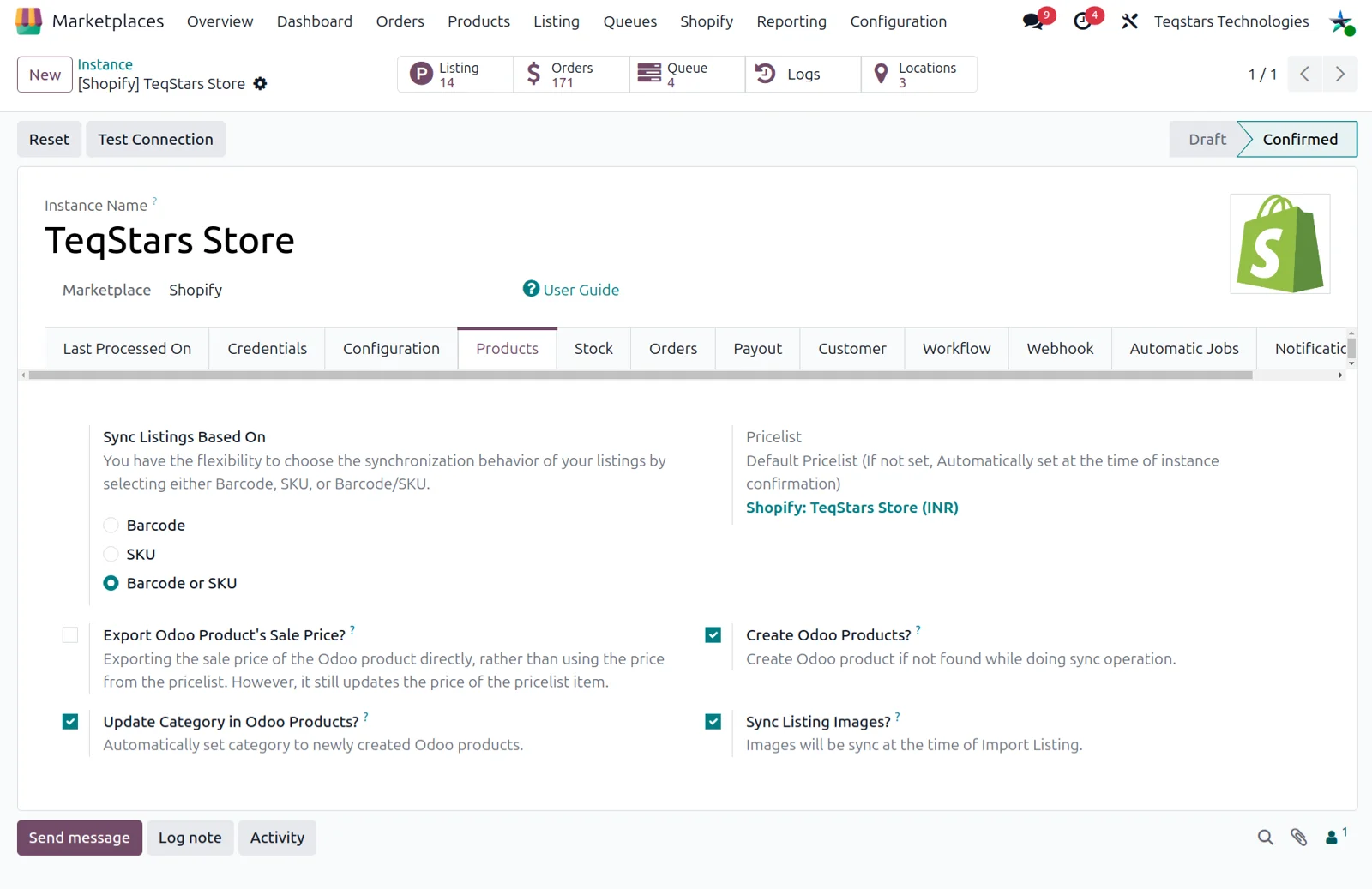
Choose how Odoo recognizes a Shopify product: by SKU, by barcode, or by both, where SKU is checked first and barcode is the fallback. You set this per store connection, so imports update the product you already have rather than adding a second one. That also lets you move across from another connector and keep your existing catalog.
5 out of 5, from94 reviews
Odoo Shopify Connector is rated 5 out of 5 from 94 reviews on the Odoo Apps Store, the latest in .
Read the reviews on the Odoo Apps StoreExcellent product, and excellent service
The guys really know their stuff, I had some unique requirements as my odoo and setup was anything but standard, but the team went above and beyond to ensure we got the job done! I have no complains with the product as such, but the driving factor for me is the support and service by the team. Highly recommend!
Everything works perfectly! and the support is spotless!
Highly recommended team
We had a great experience with Teqstar's shopify connector. The solution has been very helpful for our integration needs, and the implementation process was much smoother thanks to the excellent support we received.
A special thanks to Tejas, who was extremely supportive throughout the process. He patiently addressed all of our questions, clarified every confusion, and helped us resolve our concerns promptly. His knowledge, responsiveness, and willingness to assist made a significant difference in ensuring a successful implementation.
Overall, we are very satisfied with both the product and the level of customer support provided. We highly recommend the Shopify Connector and appreciate the team's commitment to helping their customers succeed.
So far, so good!
We are busy testing the connector to use as our Shopify integration and are happy with it so far! Support is proactive and responsive.
Web shop and Amazon orders reach an iPad picking screen built for speed, and DHL labels print in picking order.


The full Shopify catalog lives in Odoo with its images, and new orders bring any missing product with them.
Funeral homes order, get the family's e-signature and pay in one portal, and every detail reaches production.

| Odoo version | Editions | Hosting | Price | Latest release | |
|---|---|---|---|---|---|
| 20.0 | Community & Enterprise | Odoo.sh · On-premise | €399.99 | 20.0.1.0.2 | Buy Docs |
| 19.0 | Community & Enterprise | Odoo.sh · On-premise | €399.99 | 19.0.1.3.0 | Buy Docs |
| 18.0 | Community & Enterprise | Odoo.sh · On-premise | €399.99 | No release notes | Buy |
| 17.0 | Community & Enterprise | Odoo.sh · On-premise | €399.99 | No release notes | Buy |
The developers who build the app answer your tickets.
 08:14
Shopify instance configuration
08:14
Shopify instance configuration
 13:42
Import, Export & Update Products
13:42
Import, Export & Update Products
 09:56
Import Shopify Orders into Odoo
09:56
Import Shopify Orders into Odoo
 07:49
Inventory Sync Odoo ↔ Shopify
07:49
Inventory Sync Odoo ↔ Shopify
 05:24
Manage Returns Between Shopify and Odoo
05:24
Manage Returns Between Shopify and Odoo
 03:36
Sync Shopify Metafields with Odoo
03:36
Sync Shopify Metafields with Odoo
 06:20
Import & Export Shopify Markets and Catalogs
06:20
Import & Export Shopify Markets and Catalogs
 04:56
Export Tracking Info + Pickup Order Flow
04:56
Export Tracking Info + Pickup Order Flow
Search for the TeqStars Shopify app in Odoo Apps and install it. The shared Base Marketplace module it depends on installs with it and covers listings, instance management and analytics. It is not a separate purchase.
Paste your Shop URL and the API access token from your Shopify custom app, then press Test Connection to confirm Odoo can reach the store.
Pick SKU, barcode or both as the way Odoo identifies Shopify products. This decides whether an import updates an existing product or creates a new one.
Point each payment gateway at an Odoo journal and set the workflow per gateway and financial status. That workflow decides whether imported orders are confirmed, invoiced and paid.
Enable the store event updates, called webhooks, so new orders, product changes and returns reach Odoo right away. They need a secure HTTPS address, which Odoo.sh sets up for you.
Import products, then customers, then orders from the Operations button. Import listings before collections. Watch the queue manager while the records are processed.
Not answered here? Talk to the team.

Sell on BigCommerce, fulfill and invoice every order in Odoo
From €169
PrestaShop orders, stock and catalog handled in your Odoo backend
From €220 2 sold
Sell on WooCommerce, then fulfill, invoice and restock in Odoo
From €349.99 41 sold